How we make this list: we compare pricing pages, product documentation and public user reviews. Ratings come from G2, Capterra or Trustpilot, with the date we checked them.
Key takeaways
- Autotracer and Convertio offer the most straightforward free conversions, with no registration needed for basic use.
- Vectorizer.AI produces the highest quality traces but charges for downloads, so its free tier covers preview only.
- Inkscape is the only fully free desktop option, with tracing built into a complete vector editor.
- The best converter depends on the source image: flat logos trace cleanly anywhere, while photos and gradients need careful settings or manual cleanup.
Quick comparison
Is your product missing or out of date?
We review this list regularly. Vendors can request a listing, send updated pricing or ask about featured placement.
Starting priceSee website
Free planFree preview only
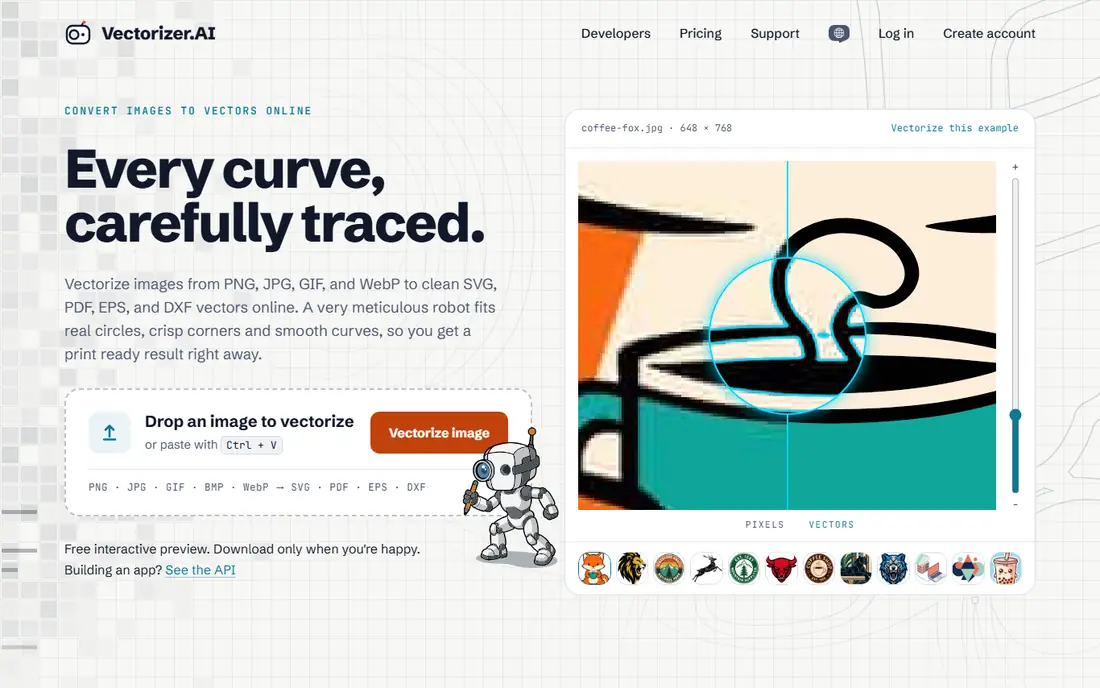
Vectorizer.AI takes a different approach from ordinary tracers. Instead of outlining blocks of pixels, it rebuilds the shapes the image was drawn with, fitting whole circles, ellipses, rounded rectangles, and stars alongside lines, arcs, and Bezier curves, so outlines stay true and easy to edit. Neighboring shapes share boundaries exactly, so colors meet without slivers or overlaps.
The honest catch is pricing: uploading and previewing are free for as many images as you like, but downloading the result needs a subscription. Vectorizer.AI suits users who need the cleanest possible trace for logos, print, vinyl cutting, or engraving, and who will pay for the download after verifying the free preview.
What we like- AI fits real geometry, circles, and clean corners instead of jagged pixel outlines
- Free interactive preview with zoom and palette control
- Outputs SVG, PDF, EPS, and DXF
- Background removal and region editing
Watch out for- Downloads require a subscription, except example images
- Maximum 3 megapixels and 30 megabytes per image
Starting priceFree
Free planYes
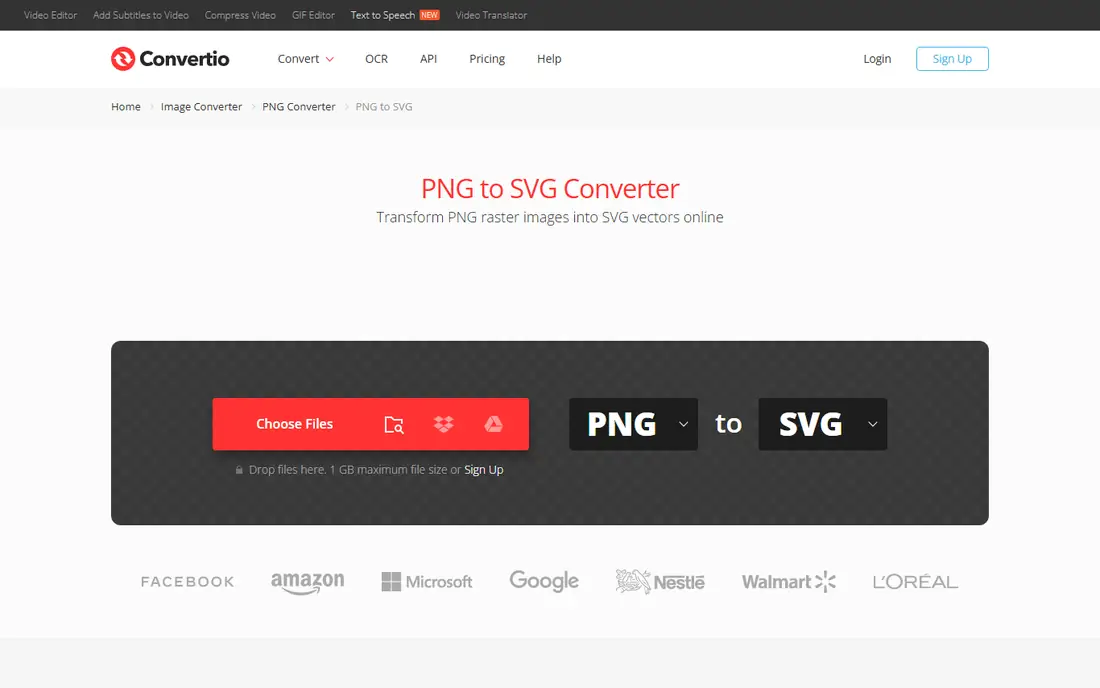
Convertio is the simplest path from PNG to SVG in a browser. Drop a file up to 1 gigabyte, or pull it from Google Drive, Dropbox, or a URL, and download the SVG right after conversion. The page confirms basic conversions are completely free, with premium plans for larger batches and priority processing, and it notes transparency carries over into the SVG output.
Tracing works best on graphics with distinct edges, like logos, icons, and illustrations, while photographs produce complex SVGs with large file sizes. Convertio suits quick, one-off conversions where convenience beats trace quality.
What we like- Basic conversions completely free
- 1 gigabyte maximum file size
- Files from computer, Google Drive, Dropbox, or URL
- Uploads removed immediately and results auto-deleted within 24 hours
Watch out for- Tracing quality is standard, not AI-refined
- Larger batches and priority processing need premium plans
Starting priceFree
Free planYes
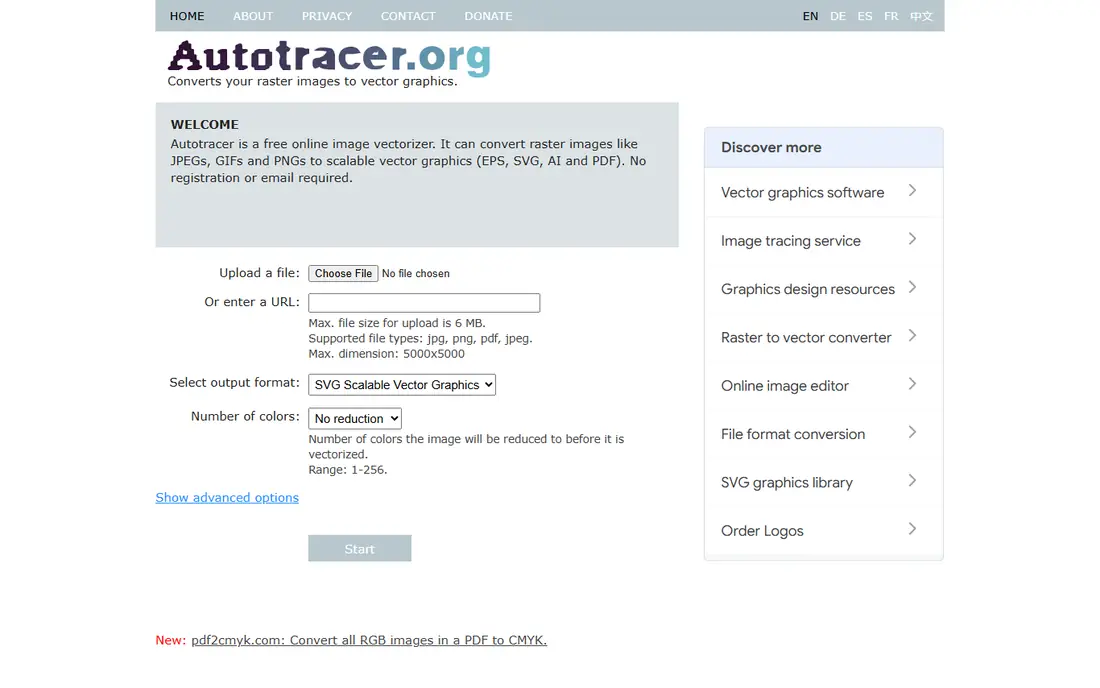
Autotracer is the no-friction option. It is a free online image vectorizer with no registration or email required, converting raster images to EPS, SVG, AI, and PDF. Controls cover the number of colors from 1 to 256, smoothing, despeckle for cleaner results, and ignoring white backgrounds so they do not convert to vector shapes.
Limits are modest: 6 megabyte uploads and 5000 by 5000 pixel dimensions. Autotracer suits users who want a fast, free, no-account conversion for logos and simple graphics, and who will clean up the result in an editor if needed.
What we like- Completely free with no registration or email required
- Converts JPEG, GIF, and PNG to EPS, SVG, AI, and PDF
- Color count control from 1 to 256
- Smoothing, despeckle, and white-background options
Watch out for- Simple interface with limited refinement
- Maximum 6 megabyte files and 5000 by 5000 dimensions
Starting priceFree
Free planYes
Online-Convert offers a plain PNG to SVG converter: choose the file, optionally change quality or size, start the conversion, and download the SVG. Extra options include grayscale, monochrome, negate colors, retro, and sepia treatments, and the wider platform converts between hundreds of formats.
The page shows no tracing quality claims, so results should be checked against the original before use. Online-Convert suits users who already use the platform for other conversions and want PNG to SVG in the same place.
What we like- Straightforward four-step conversion with optional quality and size changes
- Grayscale, monochrome, negate, retro, and sepia options
- Part of a converter supporting hundreds of formats
Watch out for- Conversion quality details not shown on the page
- Advanced tracing controls limited compared with dedicated vectorizers
Starting priceSee website
Free planFree trial
Vector Magic calls itself the best auto-tracer in the world, and its method backs the claim: it slices each edge pixel at precisely the right spot for sub-pixel precision, selects the right number of nodes, and always traces rather than embedding the bitmap. Users review the result, tweak settings, and edit shapes in the same tool before downloading SVG, EPS, or PDF, with AI and DXF available in the desktop edition.
The online size limit is 1 megapixel, with pre-crop to focus on the area that matters. Vector Magic suits designers who need professional traces regularly and want editing built into the conversion step.
What we like- Sub-pixel precision tracing with the right number of nodes
- Review and edit the result in the same tool
- Outputs SVG, EPS, and PDF online, plus AI and DXF in the desktop edition
- Transparency preserved
Watch out for- Homepage shows no pricing
- Maximum 1 megapixel images online
- Desktop edition needed for AI and DXF output
#6Inkscape
Best for: Free desktop tracing4.4/5 on
G2 (417 reviews, checked Oct 2026)
Visit inkscape.org
Starting priceFree
Free planYes
Inkscape is the only fully free option that is also a complete vector editor. It is a powerful, free design tool for illustrators, designers, and web designers, with flexible drawing tools, broad file format compatibility, a strong text tool, and Bezier and spiro curves. Its Trace Bitmap feature converts imported PNGs to vectors, and the result can be edited, cleaned, and exported as SVG without any subscription or watermark.
The trade-off is effort: Inkscape requires a desktop install and some learning, and trace quality depends on settings and manual cleanup. Inkscape suits users who convert regularly and want a free, permanent tool rather than a per-file web service.
What we like- Completely free professional vector editor
- Flexible drawing tools, Bezier and spiro curves, and broad format compatibility
- Tracing plus full editing in one app
- Large community and learning resources
Watch out for- Desktop install required, not a browser converter
- Tracing quality depends on user settings and cleanup skill
Starting priceSee website
Free planSee website
SvgTrace targets shops making real products: window vinyl, wall decals, T-shirts, vehicle graphics, signs, and large print. The editor offers an interactive preview with fine control over curves and anchor points, path editing, recoloring of layers, resizing, and background removal, with exports in SVG, PDF, EPS, and DXF for vinyl cutters, laser cutters, CNC routers, and printers.
A human trace order service starts at 10 dollars with three revisions included. The homepage shows no free tier details, so costs need a live check. SvgTrace suits print and sign shops that need production-ready vectors, not just a quick conversion.
What we like- Production-ready vectors for print, signs, vinyl, and 3D printing
- Interactive preview with curve and anchor control
- Path editing, recoloring, and background removal
- Trace orders from 10 dollars with three revisions
Watch out for- Homepage shows no free tier details
- Shop-focused positioning may exceed casual needs
How we chose
We opened each vendor homepage and compared free availability, output formats, trace quality claims, and size limits. Vectorizer.AI charges for downloads despite free previews, and SvgTrace shows no free tier, so those entries record the honest limit rather than a free claim. One candidate, pngtosvg.com, failed to load during research and was excluded rather than listed on guesswork. We favored tools with confirmed free paths and real tracing over services that merely embed a bitmap inside an SVG wrapper.
What makes a good trace: source image matters most
No converter rescues a bad source image. Flat logos with sharp edges and few colors trace cleanly in any tool here, while photographs, gradients, and noisy scans produce complex SVGs with thousands of paths and large file sizes. For best results, start with the highest resolution original available, clean up noise first, and reduce colors before tracing when the design allows it.
After conversion, always open the SVG in an editor and inspect it at high zoom. Check for jagged edges, missing details, stray shapes, and bloated node counts. A good trace has smooth curves and a manageable number of anchor points. A bad trace looks fine at thumbnail size and falls apart at print size, which is exactly when it matters.
Color count is the single most effective quality lever. Reducing a logo to its true palette before tracing, often fewer than eight colors, produces cleaner shapes and far smaller files than tracing every shade of anti-aliasing. Autotracer exposes this control directly with a 1 to 256 color range, and Vectorizer.AI offers palette adjustment in its preview. When a trace comes out muddy, the color count is usually too high, not the algorithm too weak.
File size deserves attention for web use. A traced photo can easily exceed the original PNG in size while looking worse, which defeats the purpose of vectorization. For web icons and logos, aim for SVGs in the tens of kilobytes, simplify paths in an editor, and remove hidden layers. For print, vinyl, and engraving, prioritize clean geometry over file size, since machines follow paths, not pixels, and a clean path cuts cleanly every time.
When choosing between these tools, start with the free path and escalate only when quality demands it. Try Autotracer or Convertio first for simple logos, check the preview in Vectorizer.AI when quality matters most, and move to Inkscape when repeated conversions justify learning a desktop editor. Paying for a trace makes sense for production work where a bad cut wastes material, but rarely for a one-off web icon or test.
Frequently asked questions
What is the best free PNG to SVG converter?
Autotracer and Convertio offer the most straightforward free conversions. Inkscape is the best fully free desktop option with editing included, while Vectorizer.AI gives the best preview quality but charges for downloads.
Is Vectorizer.AI really free?
Previewing is free for unlimited images, but downloads require a subscription, except for example images. Check the preview carefully before paying.
Can I convert a photo to SVG?
Yes, but photos produce complex SVGs with many colors and paths. Tracing works best on logos, icons, and illustrations with distinct edges.
Does SVG preserve PNG transparency?
Yes, when the converter supports it. Convertio and Vector Magic both confirm transparency carries into SVG and PDF output.
What is the difference between tracing and embedding?
Tracing redraws the image as geometric shapes that scale without loss. Embedding just places the original pixels inside an SVG file, which does not scale cleanly and gains nothing.
Which tool is best for vinyl cutting and laser engraving?
Vectorizer.AI and SvgTrace both offer cutting presets and DXF output for machine software, while Vector Magic's desktop edition adds DXF. Test the output in the cutting software before a full run.
Sources we checked (7)
- https://vectorizer.ai/
- https://convertio.co/png-svg/
- https://www.autotracer.org/
- https://image.online-convert.com/convert/png-to-svg
- https://vectormagic.com/
- https://inkscape.org/
- https://svgtrace.com/
Is your product missing or out of date?
We review this list regularly. Vendors can request a listing, send updated pricing or ask about featured placement.

Shihab Mia · Founder, Rankite
Shihab has 5+ years in B2B and SaaS SEO. He writes Rankite's software buying guides from pricing pages, documentation and public user reviews. More about Shihab.
 Vectorizer.AI
 Convertio
 Autotracer
 Online-Convert
 Vector Magic
 SvgTrace