How we make this list: we compare pricing pages, product documentation and public user reviews. Ratings come from G2, Capterra or Trustpilot, with the date we checked them.
Key takeaways
- PNG is the right format when you need transparency, crisp edges or lossless quality, and every tool here exports it cleanly.
- GIMP, Inkscape and Krita give you full desktop power for free, with no account and no subscription.
- Photopea and Pixlr run entirely in the browser, so they suit quick edits on any machine.
- Canva and Figma are the strongest picks when PNG creation is part of a team design workflow rather than a one off export.
- remove.bg is the fastest route to a transparent PNG from a photo, cutting out manual masking work.
Quick comparison
| Tool | Best for | Starting price | Free plan |
|---|
 Canva Canva | Templates and team design | $15 per user/month (billed annually) | Yes |
 GIMP GIMP | Free desktop image editing | Free | Yes |
 Photopea Photopea | Browser based Photoshop style editing | See website | Yes |
 Pixlr Pixlr | Quick browser edits and AI tools | $1.99 per month | Yes |
 Figma Figma | Interface and product design | See website | Yes |
 Inkscape Inkscape | Vector logos and icons | Free | Yes |
 Krita Krita | Digital painting and illustration | Free | Yes |
 remove.bg remove.bg | Transparent PNGs from photos | See website | Yes |
Is your product missing or out of date?
We review this list regularly. Vendors can request a listing, send updated pricing or ask about featured placement.
The best PNG creator software
#1Canva
Best for: Templates and team design4.7/5 on
G2 (7,678 reviews, checked Oct 2026)
Visit canva.com
Starting price$15 per user/month (billed annually)
Free planYes
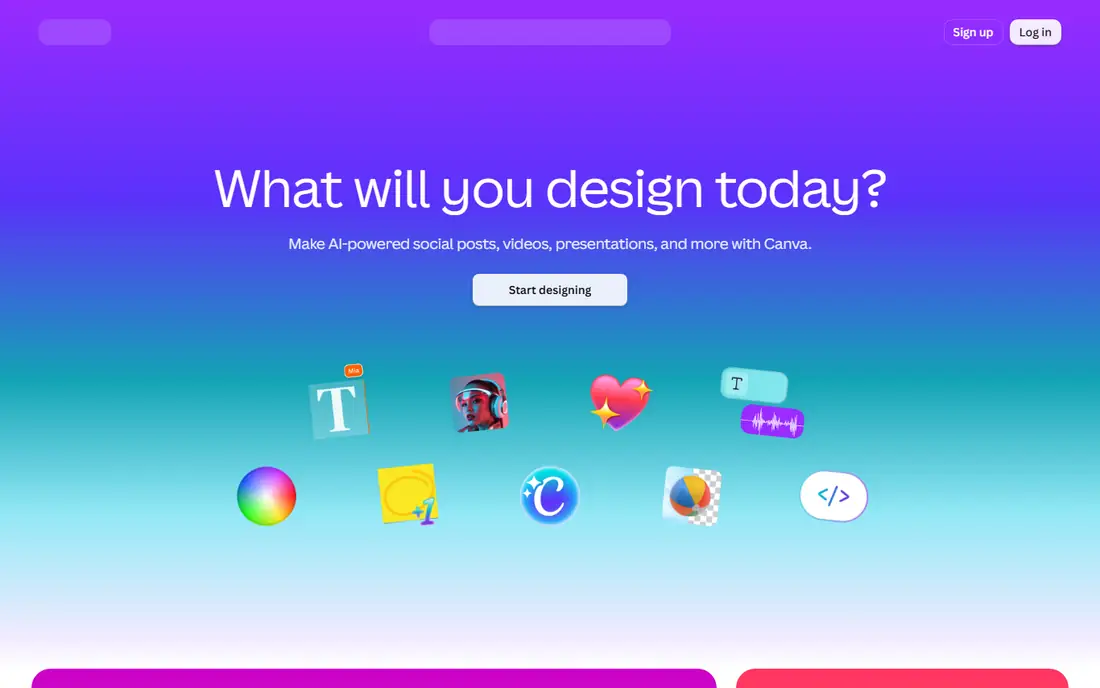
Canva is the easiest way for a non designer to produce a clean PNG. Pick a template, change the text and colors, then export. The drag and drop editor, stock photos and font library mean a social graphic, logo draft or presentation slide can go from blank page to finished PNG in minutes, and brand kits keep colors and fonts consistent across a team.
The catch for PNG work is export control. Transparent backgrounds, which are the main reason most people choose PNG, require a paid plan, and the editor is not built for precise vector drawing or print color management. If your PNGs are marketing graphics, social posts and simple logos, Canva is the fastest tool here. If you need exact vector paths or print ready files, pair it with a dedicated vector editor.
What we like- Huge template library for logos, social graphics and presentations
- Transparent PNG export on paid plans
- Simple collaboration and brand kits
Watch out for- Transparent background export is not on the free plan
- Fine vector control is limited compared with Inkscape or Figma
#2GIMP
Best for: Free desktop image editing4.3/5 on
G2 (1,484 reviews, checked Oct 2026)
Visit gimp.org
Starting priceFree
Free planYes
GIMP, the GNU Image Manipulation Program, is the free desktop editor that has served designers for decades, and it remains the most capable no cost option for PNG creation. Layers, masks, selections, brushes and color tools cover logo cleanup, icon design, photo cutouts and web graphics, and PNG export supports transparency, bit depth and compression options that casual editors hide. It runs on Linux, macOS and Windows, and community plugins extend it further.
The learning curve is real. Menus are dense, the default layout is less polished than paid rivals, and there is no template library or cloud sharing built in. For a buyer who wants professional control without a subscription, and who is willing to spend an afternoon learning the interface, GIMP is hard to beat on value.
What we like- Full layer, mask and selection tools at no cost
- Strong PNG export with transparency and color control
- Large plugin and script library
Watch out for- Interface feels dated and takes time to learn
- No built in cloud collaboration or template library
#3Photopea
Best for: Browser based Photoshop style editing4.6/5 on
G2 (21 reviews, checked Oct 2026)
Visit photopea.com
Starting priceSee website
Free planYes
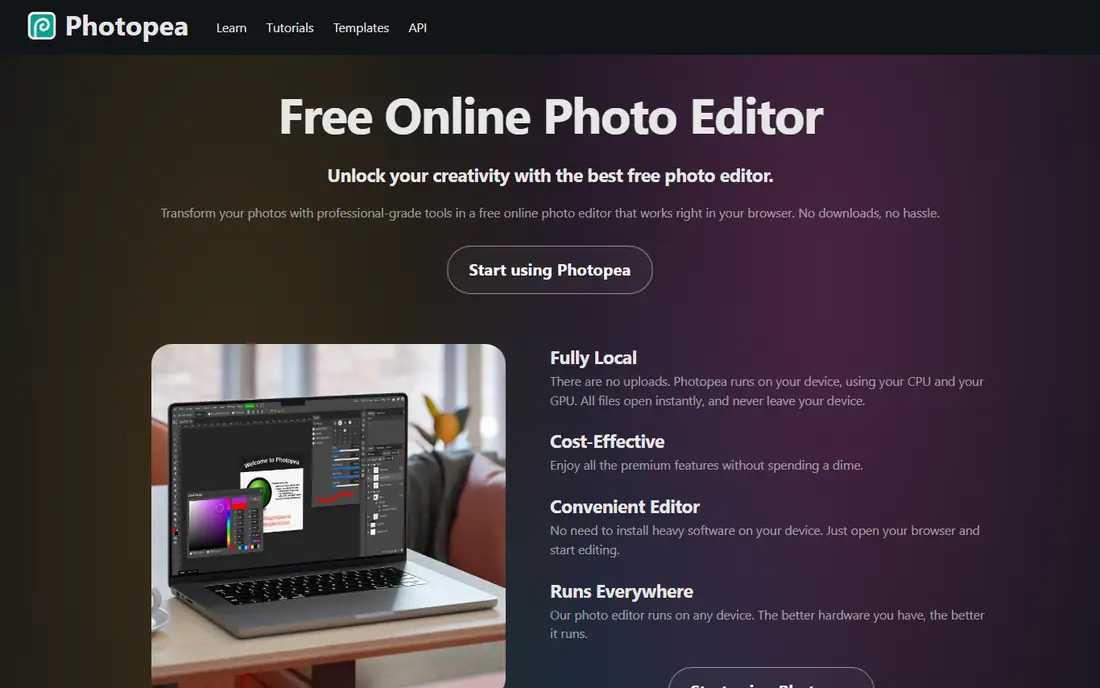
Photopea is the closest thing to Photoshop you can open in a browser tab. It handles layers, masks, adjustment layers, smart objects and a wide format list including PSD, PNG, JPG, SVG and PDF, and it processes files locally so images never leave your device. For PNG work, that means precise cutouts, transparent backgrounds, icon sets and web graphics without installing anything or creating an account.
The free tier is supported by ads, and very large files can strain a modest laptop since processing happens locally. A paid premium plan removes ads and adds more storage. For anyone who moves between machines, works on a Chromebook, or needs Photoshop style editing without a subscription, Photopea is the strongest browser option in this list.
What we like- Opens PSD, XCF, AI and many other formats in the browser
- Layers, masks and smart objects with no install
- Files stay on your device, not uploaded
Watch out for- Free version shows ads
- Advanced features and performance depend on your machine
#4Pixlr
Best for: Quick browser edits and AI tools4.4/5 on
G2 (751 reviews, checked Oct 2026)
Visit pixlr.com
Starting price$1.99 per month
Free planYes
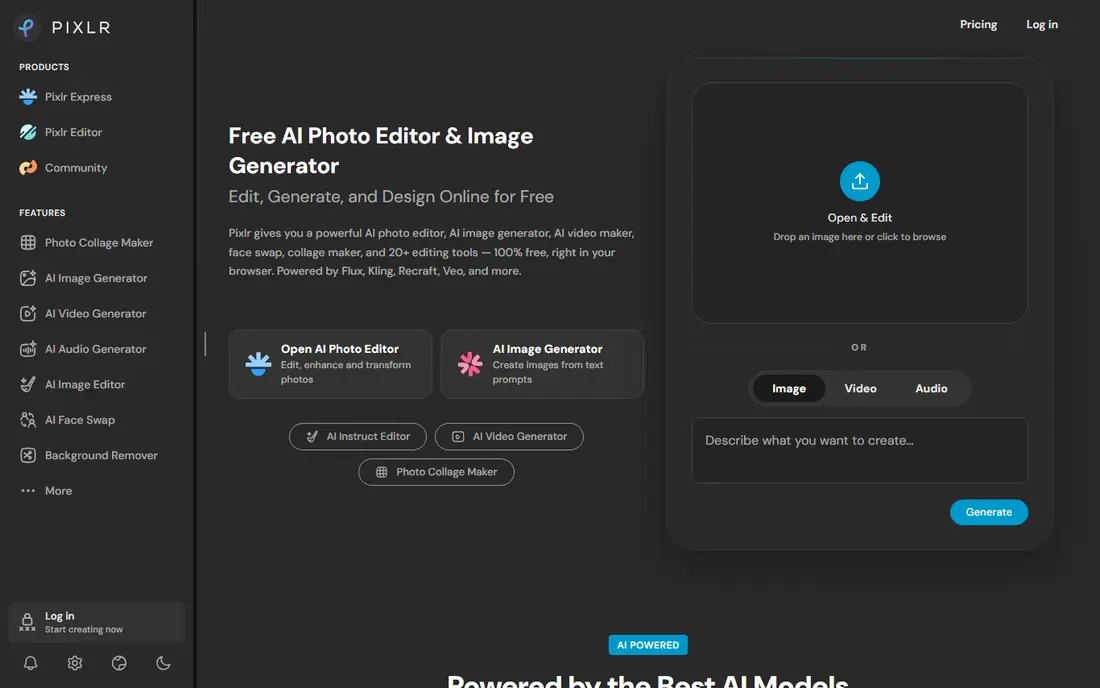
Pixlr has grown from a simple online editor into a suite covering photo editing, AI image generation, face swap, collage and video, all in the browser. For PNG creation, the useful parts are one click background removal for transparent PNGs, AI generation for stickers and graphics with transparent backgrounds, and quick resize and export tools. The free version covers many basic edits without an account, and paid plans start at $1.99 per month with ad free editing and more credits.
The breadth is also the weakness. The interface carries many AI tools a PNG maker may never use, and AI generation consumes credits, so heavy use pushes cost up. For quick social graphics, product cutouts and AI assisted PNGs, Pixlr is faster than a desktop editor. For precise illustration, a dedicated tool still wins.
What we like- Fast browser editing with AI background removal and generation
- Plans start at $1.99 per month
- Works on web, iOS and Android
Watch out for- AI features use credits on paid plans
- Interface is busier than a focused editor
#5Figma
Best for: Interface and product design4.7/5 on
G2 (1,593 reviews, checked Oct 2026)
Visit figma.com
Starting priceSee website
Free planYes
Figma is where product teams design interfaces, and it doubles as a strong PNG creator for icons, logos and UI assets. Vector shapes, components and auto layout keep designs consistent, multiple people can edit the same file at once, and PNG export runs at 1x, 2x or custom scales, which covers app icons, web assets and presentation graphics from one source file. The free Starter plan covers personal projects and small teams.
Figma is not a photo editor, and it is not built for print color management, so photo cutouts and CMYK work belong elsewhere. If your PNGs are interface assets, icons or brand marks made with a team, Figma gives you version control and collaboration that desktop editors cannot match. Export is simple, but plan the frame sizes before you start, since scaling a raster export later loses sharpness.
What we like- Real time collaboration on the same canvas
- Vector tools built for icons, UI and logos
- PNG export at multiple scales from any frame
Watch out for- Best for screen design, not photo editing or print
- Advanced features and team plans are paid
#6Inkscape
Best for: Vector logos and icons4.4/5 on
G2 (417 reviews, checked Oct 2026)
Visit inkscape.org
Starting priceFree
Free planYes
Inkscape is the free vector editor behind countless logos, icons and illustrations, and it is the best choice when a PNG must stay sharp at any size. Draw with Bezier curves, text tools and shapes, then export a PNG at exactly the pixel size you need, from a 16 pixel favicon to a large banner, without the jagged edges that come from scaling a raster image. Broad format support, including SVG as the native format, keeps the source editable for years.
Photo editing is outside its scope, and the interface shows its age compared with Figma. Large, complex files can slow down. For logo and icon work where the PNG is the deliverable but the vector source matters more, Inkscape is the free standard, and it pairs well with GIMP for any raster finishing.
What we like- True vector drawing with Bezier and spiro curves
- Clean PNG export at any resolution
- Free and open source with no account
Watch out for- Not a photo editor
- Interface and performance lag newer rivals on very large files
#7Krita
Best for: Digital painting and illustration4.4/5 on
G2 (65 reviews, checked Oct 2026)
Visit krita.org
Starting priceFree
Free planYes
Krita is a painting program first, and that focus makes it the best free choice for illustrated PNGs: character art, concept art, comics, textures and hand drawn graphics. The brush engine, stabilizers, drawing assistants and layer tools suit artists who draw with a tablet, and PNG export preserves transparency for game sprites, stickers and web art. It is free, open source and actively developed, with recent releases adding features for animation and Android.
Layout, photo retouching and vector logo work are better served by Inkscape, GIMP or Figma. Krita also rewards a drawing tablet; mouse only work is possible but slower. For illustrators who need transparent PNG output without paying for a subscription, Krita is the most artist focused tool here.
What we like- Professional brush engine for painting and illustration
- Layers, drawing assistants and stabilizers
- Free and open source, made by artists
Watch out for- Not built for page layout or vector logo work
- Learning curve for illustration tools
#8remove.bg
Best for: Transparent PNGs from photos4.4/5 on
G2 (31 reviews, checked Oct 2026)
Visit remove.bg
Starting priceSee website
Free planYes
remove.bg does one job and does it fast: it removes the background from a photo and returns a transparent PNG. Upload a product shot, headshot, car listing photo or pet picture, and the result is ready for a listing, logo mockup or presentation in seconds, with a brush tool to fix edges. That speed matters for ecommerce sellers, marketers and anyone producing many cutouts, where manual masking in GIMP or Photopea would take far longer per image.
It is not a design editor, so text, layout and retouching still need another tool, and free downloads are limited in resolution while paid credits cover high resolution and bulk API use. Used as the cutout step in a workflow, with Canva, GIMP or Figma handling the rest, remove.bg saves more time than any other single tool in this list.
What we like- Automatic background removal in seconds
- Built for transparent PNG output for logos, products and headshots
- API and integrations for bulk work
Watch out for- Single purpose tool, not a general editor
- High resolution downloads and bulk use are paid
How we chose
We compared vendor product pages, documentation and public reviews, and we opened each homepage to confirm the product exists and matches its name. We favored tools that create or export PNG files with transparency, covering free desktop editors, browser editors, vector and painting tools, and a specialist background remover, over generic stock photo sites. One planned tool, PNG Maker, was replaced because its homepage could not be fetched for verification, and Kapwing was checked but dropped because it is primarily a video platform. Prices are taken from vendor pages where confirmed, and marked See website where they could not be verified.
Match the tool to the kind of PNG you make most. If you create logos and icons, start with a vector tool like Inkscape or Figma so the source stays editable and exports stay sharp at any size. If you paint or illustrate, Krita gives you the brush control a vector tool cannot. If you edit photos or cut out subjects, GIMP, Photopea or Pixlr cover masking and retouching, with remove.bg as the fastest cutout step for photos.
Check export settings before you commit
PNG quality depends on export choices, not just the editor. Confirm transparent background export is available on your plan, since Canva gates it behind paid plans, and check whether the tool exports at custom pixel sizes, supports 8 bit and 24 bit color, and preserves alpha channels. For web use, compare file sizes at different compression settings, since a PNG with many colors can grow large. For app icons and favicons, confirm the tool exports the exact sizes you need, or use a vector source and export each size separately.
Think about workflow, not just features
A tool that fits your existing workflow saves more time than a more powerful tool you avoid opening. Browser tools suit shared machines and quick jobs. Desktop tools suit heavy files and offline work. Team tools suit shared brand assets and review. If you produce PNGs daily, test the export flow end to end, from source file to final PNG, before committing a team to a new tool.
Frequently asked questions
What is a PNG file?
PNG (Portable Network Graphics) is a raster image format that supports transparency and lossless compression. Unlike JPG, it does not lose quality when saved repeatedly, and unlike GIF it supports millions of colors plus a full alpha channel for smooth transparent edges. That makes it the standard choice for logos, icons, screenshots and graphics that sit over other content.
When should I use PNG instead of JPG?
Use PNG for logos, icons, text graphics, screenshots and any image that needs a transparent background or crisp edges. Use JPG for photographs without transparency where smaller file size matters more than perfect edges, since JPG compression keeps photo files much smaller. For photos with transparency, PNG is the practical choice despite larger files.
Which free tool is best for creating PNGs?
GIMP is the best free all rounder for raster PNGs, Inkscape is the best free vector option for logos and icons, and Krita is the best free painting tool. Photopea and Pixlr are the best free browser options when you cannot install software. The right pick depends on whether you draw, paint, edit photos or design interfaces.
How do I make a PNG with a transparent background?
In an editor, remove or hide the background layer, or use a mask or selection to isolate the subject, then export as PNG with transparency enabled. Tools like remove.bg automate the cutout for photos. Always check the exported file over a colored background before publishing, since a checkerboard preview in the editor can hide a white background that was not actually removed.
Can I convert a JPG to a transparent PNG?
Converting a JPG to PNG does not add transparency by itself, since the JPG has no alpha channel and its background is baked in as pixels. You need to remove the background first, using a selection, mask or a tool like remove.bg, then export as PNG. The result will only look clean if the original photo has a clear subject and a reasonably simple background.
What size should my PNG be?
Match the size to the use: favicons at 16 to 48 pixels, social avatars at 400 to 800 pixels, website graphics at the displayed size times two for sharp screens, and print graphics at 300 dots per inch at the printed size. Starting from a vector source lets you export each size cleanly. Starting from a small raster PNG and enlarging it will look soft.
Sources we checked (8)
- https://www.canva.com/pricing
- https://www.gimp.org/pricing
- https://www.photopea.com/pricing
- https://www.pixlr.com/pricing
- https://www.figma.com/pricing
- https://www.inkscape.org/pricing
- https://www.krita.org/pricing
- https://www.remove.bg/pricing
Is your product missing or out of date?
We review this list regularly. Vendors can request a listing, send updated pricing or ask about featured placement.

Shihab Mia · Founder, Rankite
Shihab has 5+ years in B2B and SaaS SEO. He writes Rankite's software buying guides from pricing pages, documentation and public user reviews. More about Shihab.