How we make this list: we compare pricing pages, product documentation and public user reviews. Rankite is independent; if a vendor ever pays for a featured spot, that listing is clearly labeled Partner.
Key takeaways
- HWiNFO is the most comprehensive free monitor, with deep sensor coverage and logging.
- HWMonitor is the simplest pick for quick temperature checks.
- Core Temp lives in the system tray and shows per-core CPU temperatures at a glance.
- MSI Afterburner adds GPU overclocking and an in-game overlay to its monitoring.
- AIDA64 and Argus Monitor are the paid options, for diagnostics/benchmarks and fan control respectively.
Quick comparison
| Tool | Best for | Starting price | Free plan |
|---|
 HWiNFO HWiNFO | Comprehensive sensor monitoring | Free | Yes |
 HWMonitor HWMonitor | Quick, simple temperature checks | Free | Yes |
 Core Temp Core Temp | Always-on per-core CPU temps | Free | Yes |
 Open Hardware Monitor Open Hardware Monitor | Open-source portable monitoring | Free | Yes |
 MSI Afterburner MSI Afterburner | GPU monitoring plus overclocking | Free | Yes |
 AIDA64 AIDA64 | Diagnostics, benchmarks, and monitoring | See website | No |
 Argus Monitor Argus Monitor | Fan control tied to temperatures | 14.95 EUR | No |
 Speccy Speccy | Clean full-system spec summaries | Free | Yes |
Is your product missing or out of date?
We review this list regularly. Vendors can request a listing, send updated pricing or ask about featured placement.
The best PC hardware monitoring software
Starting priceFree
Free planYes
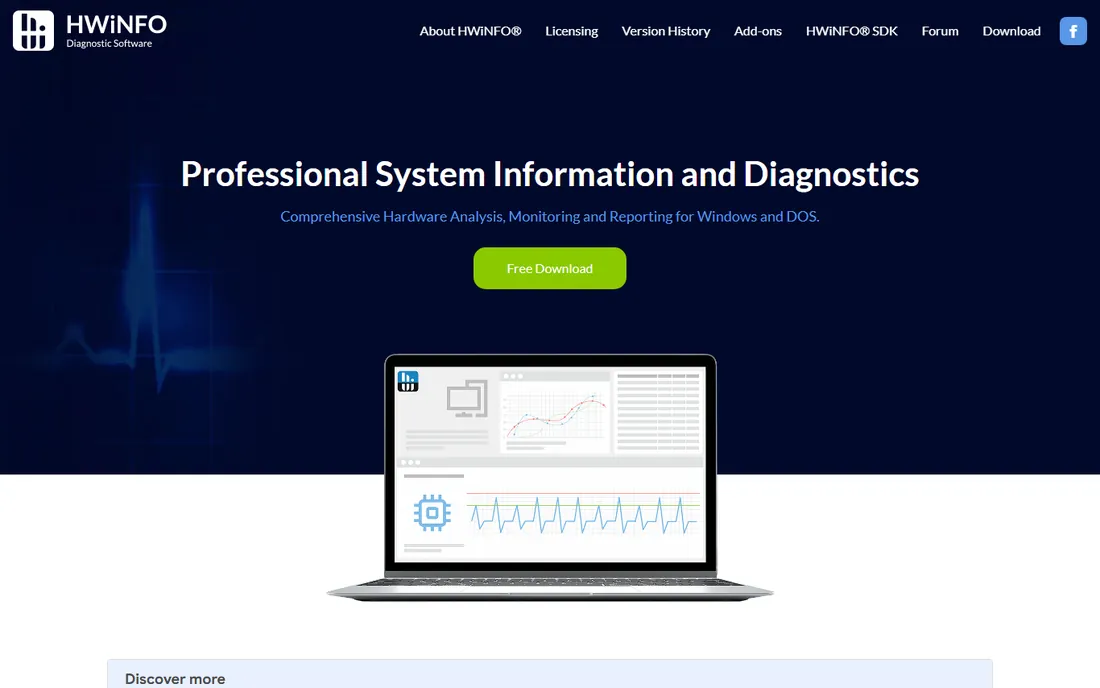
HWiNFO is the gold standard of free hardware monitoring. It reports in-depth hardware information from a quick overview down to every sensor: temperatures, voltages, fan speeds, clocks, power draw, SSD wear, memory timings. Real-time monitoring runs with low overhead, and you can log sensors, set custom alerts, and generate reports.
It is free for personal use, collects no personal data, and updates constantly for new hardware. The trade-off is density: beginners may find the sensor list intimidating. For diagnosing overheating, throttling, or instability, it is the first tool to install.
What we like- Tracks nearly every sensor your hardware exposes
- Logging, alerts, and reports
- No data collection, portable edition available
Watch out for- Dense interface overwhelms beginners
- Windows only
Starting priceFree
Free planYes
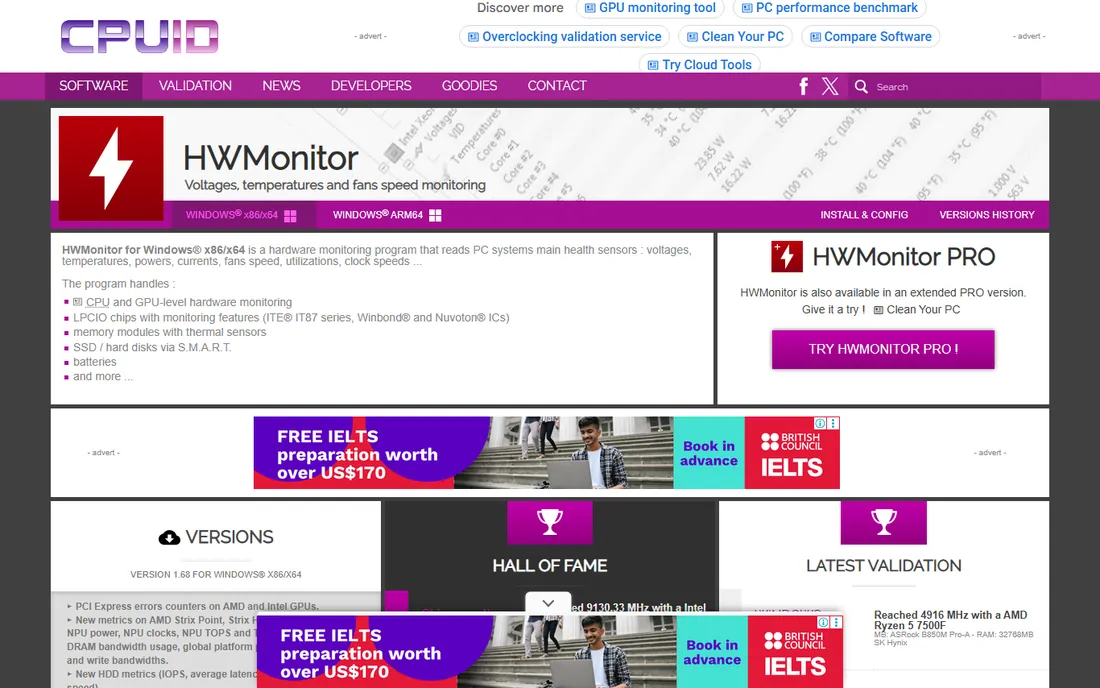
HWMonitor from CPUID is the simplest serious monitor. Open it and you see every component in a tree, with minimum, current, and maximum values for temperatures, voltages, fan speeds, and power. It covers CPUs, GPUs, motherboard chips, drives via SMART, and even batteries, and recent versions added CSV logging and PSU monitoring.
It is freeware for non-commercial use and runs portably from a USB drive, which makes it the go-to for quick diagnostics on someone else's machine. It will not alert you or control fans, but for "is my PC running hot" it answers in seconds.
What we like- Clean tree view of every sensor
- Min/current/max columns
- Portable version, no install needed
Watch out for- No alerts or fan control
- Commercial use requires a license
Starting priceFree
Free planYes
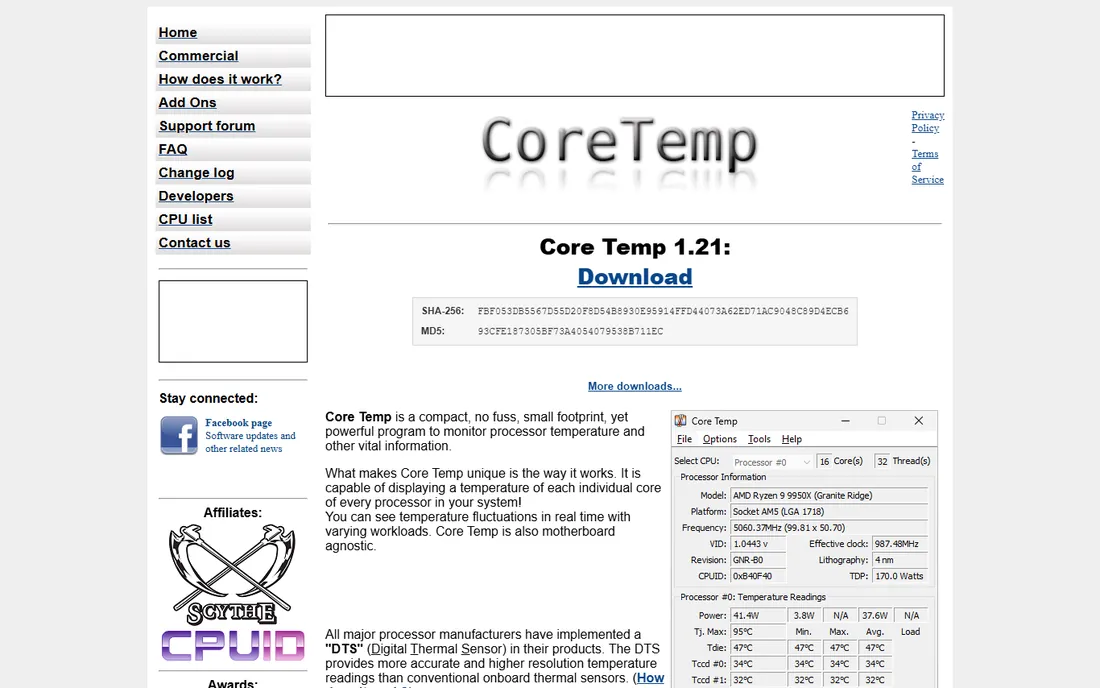
Core Temp does one thing well: it shows each CPU core's temperature, read from the chip's own digital thermal sensor, and keeps it visible in the system tray all day with minimal footprint. Overheat protection can notify or shut down at thresholds you set, and plugins extend it to graphs, gadgets, and remote monitoring from a phone.
It is free, motherboard-agnostic, and actively maintained, with version 1.21 released in October 2026. For glance-and-forget CPU monitoring while you work or game, nothing is lighter. Pair it with a full-system tool like HWiNFO for deeper investigation when something looks wrong, and you have a complete monitoring setup without spending anything.
What we like- Per-core temperature in the system tray with tiny overhead
- Overheat protection notifications
- Plugins and mobile app
Watch out for- CPU-focused, not full-system monitoring
- Installer bundles optional extras to decline
Starting priceFree
Free planYes
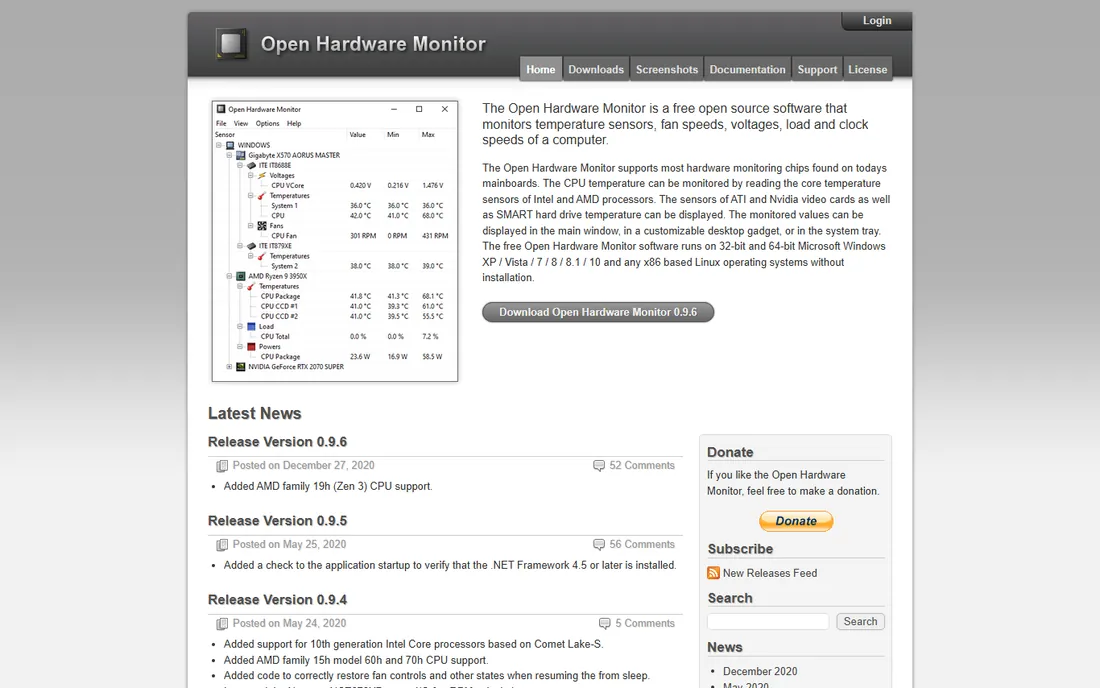
Open Hardware Monitor is the open-source classic: temperature sensors, fan speeds, voltages, load, and clock speeds for CPUs, GPUs, and drives, displayed in the main window, a desktop gadget, or the system tray. It runs without installation on Windows and x86 Linux.
The honest catch is age: the last release, 0.9.6, dates to December 2020, so support for the newest platforms is limited. For older or mid-range systems it still works beautifully, and the code remains a foundation other projects build on. Just verify it reads your hardware before relying on it.
What we like- Free and open source
- Portable, no installation
- Gadget and system tray display options
Watch out for- Last release was in 2020, so newest hardware may not be supported
#5
MSI Afterburner
Best for: GPU monitoring plus overclocking
Visit msi.com
Starting priceFree
Free planYes
MSI Afterburner is the most-used graphics card utility for a reason. It is completely free, works with GPUs from all brands, and combines real-time hardware monitoring with overclocking: core voltage, clock offsets, fan speed curves, and an OC Scanner that finds stable settings automatically.
For monitoring, the killer feature is the on-screen display: temperatures, clocks, and frame rates overlaid in the corner while you game. If your monitoring need is really "is my GPU okay under load," Afterburner answers while you play.
What we like- Works with graphics cards from any brand
- In-game on-screen display of temps and FPS
- OC Scanner and custom fan curves
Watch out for- GPU-centric, not a full system monitor
- Interface looks dated
Starting priceSee website
Free planNo
AIDA64 from FinalWire is the professional's toolkit: system information, diagnostics, and benchmarking in one package, with sensor monitoring built in. It reads temperatures and voltages across the whole system, stress-tests CPU, GPU, and memory for stability over long runs, and can show sensor values on external LCD displays or your phone.
It is paid software aimed at enthusiasts, technicians, and IT teams, and it shows in the depth of the reports. If you need monitoring plus proof of stability, for an overclocked build or a client machine, AIDA64 earns its price. The remote monitoring to a phone or LCD panel is a genuinely useful touch for test benches and always-on systems.
What we like- Deep system information plus stability testing and benchmarks
- Sensor monitoring with LCD and phone displays
- Trusted by IT pros
Watch out for- Paid software
- More than a casual user needs
Starting price14.95 EUR
Free planNo
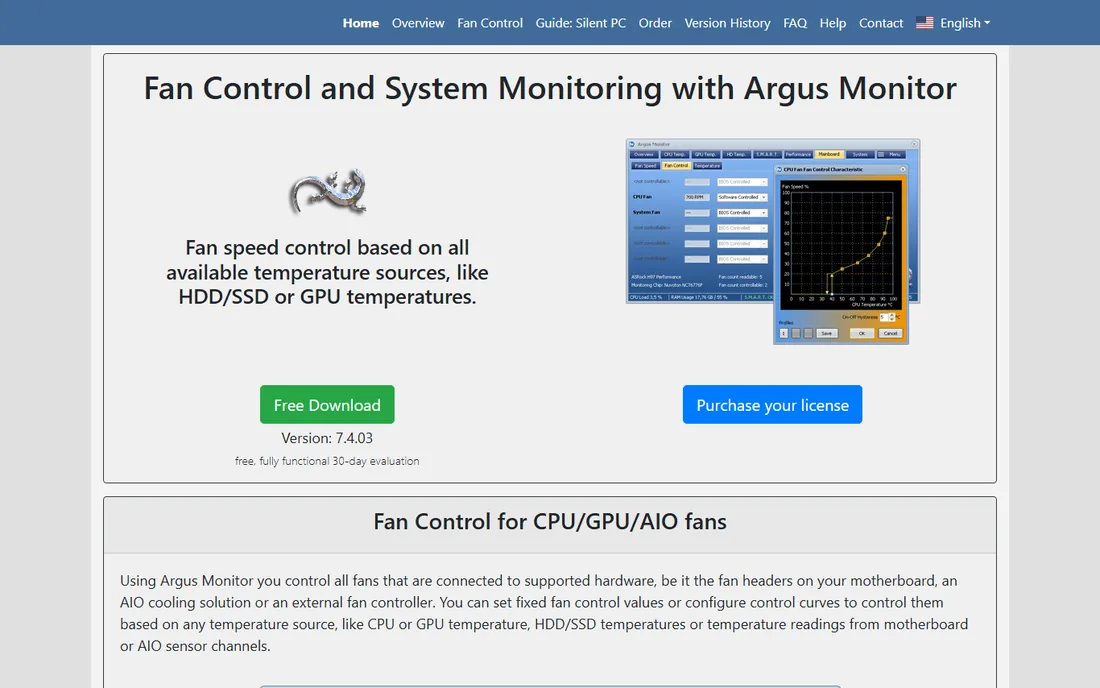
Argus Monitor is for people whose monitoring leads to action: controlling fans. It takes temperature readings from CPU, GPU, drives, motherboard, and AIO sensors and drives every connected fan with curves, profiles, hysteresis, and temperature averaging to keep speeds steady and quiet.
It also monitors drive health via SMART. At 14.95 EUR it is inexpensive for what it does, but buy it for fan control; if you only want to watch temperatures, the free tools above cover you.
What we like- Full fan control with curves based on any temperature source
- HDD/SSD SMART monitoring
- Steady-fan features like hysteresis
Watch out for- Paid license
- Monitoring alone is thinner than HWiNFO
Starting priceFree
Free planYes
Speccy from the makers of CCleaner answers "what is in this PC" better than anything else: a clean summary page plus deep dives into CPU, motherboard, RAM, graphics, storage, and peripherals. It also shows real-time temperatures of critical components, and you can save snapshots as XML or text for sharing with support.
It is free and ideal for upgrade planning or documenting a system. As a live monitoring tool it is lighter than the others here, but for a quick spec sheet with temps attached, it is unmatched. Keep it installed alongside a real-time monitor and you will reach for it more often than you expect.
What we like- Beautiful one-page summary of the whole PC
- Real-time temps of critical components
- Snapshot export for tech support
Watch out for- Monitoring is basic compared with HWiNFO
- Development pace is slow
How we chose
We reviewed vendor product pages, documentation, and public reviews on tech publications like PCWorld, plus enthusiast communities on Reddit and hardware forums. We selected tools focused on real-time hardware monitoring, temperature, voltage, fan, and health sensors, and every tool had to be currently available with a working website. We did not claim hands-on testing.
Buying advice for PC hardware monitoring software
Start with the free tools; almost everyone stops there. Install HWiNFO for deep diagnostics and HWMonitor or Core Temp for daily visibility. That combination covers every common scenario: troubleshooting, gaming, and always-on peace of mind.
Pay only for a specific job. AIDA64 earns its license when you need stability testing and professional reports. Argus Monitor earns its 14.95 EUR when you want real fan control based on temperature curves. If neither describes you, the free tier of this category is the whole category.
One practical note: run only one low-level monitoring tool at a time when diagnosing. Multiple tools polling the same sensors can conflict and produce odd readings. Pick your primary, close the rest, and trust the numbers.
Also mind where you download from. Monitoring tools need low-level hardware access, which makes them a favorite disguise for malware on fake download sites. MSI even warns that legitimate Afterburner exists only on msi.com and Guru3D. Get every tool here from its official site, and be suspicious of any "pro" or "cracked" version offered elsewhere.
Free versus paid monitoring: when paying makes sense
Free tools here are genuinely excellent: HWiNFO, HWMonitor, Core Temp, and Afterburner cost nothing and cover temperatures, voltages, fans, and GPU tuning. Paid software adds adjacent capabilities rather than better monitoring. AIDA64 adds benchmarking and stress testing; Argus Monitor adds fan control. Both offer trial periods or modest one-time pricing, so the risk of trying them is low if you suspect you need the extra capability. So the buying question is never "which monitor is better" but "do I need stress tests or fan curves." If the answer is no, keep your money.
Frequently asked questions
What is PC hardware monitoring software?
It reads the sensors built into your PC: CPU and GPU temperatures, fan speeds, voltages, power draw, and drive health. It helps you spot overheating, failing fans, and instability before they cause crashes or damage.
What is a safe CPU temperature?
It depends on the chip, but generally under 80C under load is comfortable for most desktop CPUs, with brief spikes higher being normal during boosting. Laptops run hotter by design. Check your specific processor's maximum temperature, and investigate if temps stay high at idle.
Which free tool is best for checking CPU temperature?
Core Temp for always-on per-core readings in the tray, HWMonitor for a quick full-system check, and HWiNFO when you need every sensor and logging. All three are free.
Can monitoring software control my fans?
Some can. Argus Monitor is built for fan control with temperature-based curves. MSI Afterburner controls GPU fans. HWiNFO and HWMonitor are monitoring-only.
Why do two tools show different temperatures?
They may read different sensors, poll at different intervals, or apply different offsets. Use one trusted tool as your reference, and make sure only one monitoring app is polling sensors when comparing.
Sources we checked (8)
- https://www.hwinfo.com/
- https://www.cpuid.com/softwares/hwmonitor.html
- https://www.alcpu.com/CoreTemp/
- https://openhardwaremonitor.org/
- https://www.msi.com/Landing/afterburner
- https://www.aida64.com/
- https://www.argusmonitor.com/
- https://www.ccleaner.com/speccy
Is your product missing or out of date?
We review this list regularly. Vendors can request a listing, send updated pricing or ask about featured placement.

Shihab Mia · Founder, Rankite
Shihab has spent more than a decade helping SaaS and e-commerce brands grow through search. He writes Rankite's software buying guides from pricing pages, documentation and public user reviews. More about Shihab.