How we make this list: we compare pricing pages, product documentation and public user reviews. Rankite is independent; if a vendor ever pays for a featured spot, that listing is clearly labeled Partner.
Key takeaways
- Cinebench is the standard free CPU benchmark, now testing GPU too in the 2026 edition.
- 3DMark's free Steam demo covers the essential GPU tests; the $30 premium adds stress testing most people skip.
- CrystalDiskMark is the free open-source standard for SSD speed testing.
- Geekbench, Novabench, and UNIGINE Superposition round out free CPU, GPU, and whole-system testing.
- PassMark PerformanceTest offers a free trial with the web's largest comparison database.
Quick comparison
Is your product missing or out of date?
We review this list regularly. Vendors can request a listing, send updated pricing or ask about featured placement.
The best free benchmark software
Starting priceFree
Free planYes

Cinebench from Maxon is the CPU benchmark everyone else is measured against. It renders a complex 3D scene using Cinema 4D's Redshift engine, which exercises the processor the way real creative work does. The 2026 edition added GPU testing with the same scene file, so one download now covers both. It runs on Intel, AMD, Apple Silicon, and Arm64 Windows, and it costs nothing.
The score is directly comparable across machines, which is what makes it useful: run it before and after an upgrade, a repaste, or a BIOS change, and you know exactly what changed. The 10-minute thermal throttling test catches cooling problems that the quick test misses.
Cinebench measures rendering throughput, not gaming frame rates, so pair it with a GPU benchmark for the full picture. For CPU evaluation, though, nothing free is more trusted.
What we like- Industry-standard real-world rendering test
- Tests single-core and multi-core
- Free on Windows and macOS including Apple Silicon
Watch out for- Focused on rendering, not gaming
- Short test does not catch long-session thermal issues
Starting priceFree
Free planYes (demo)
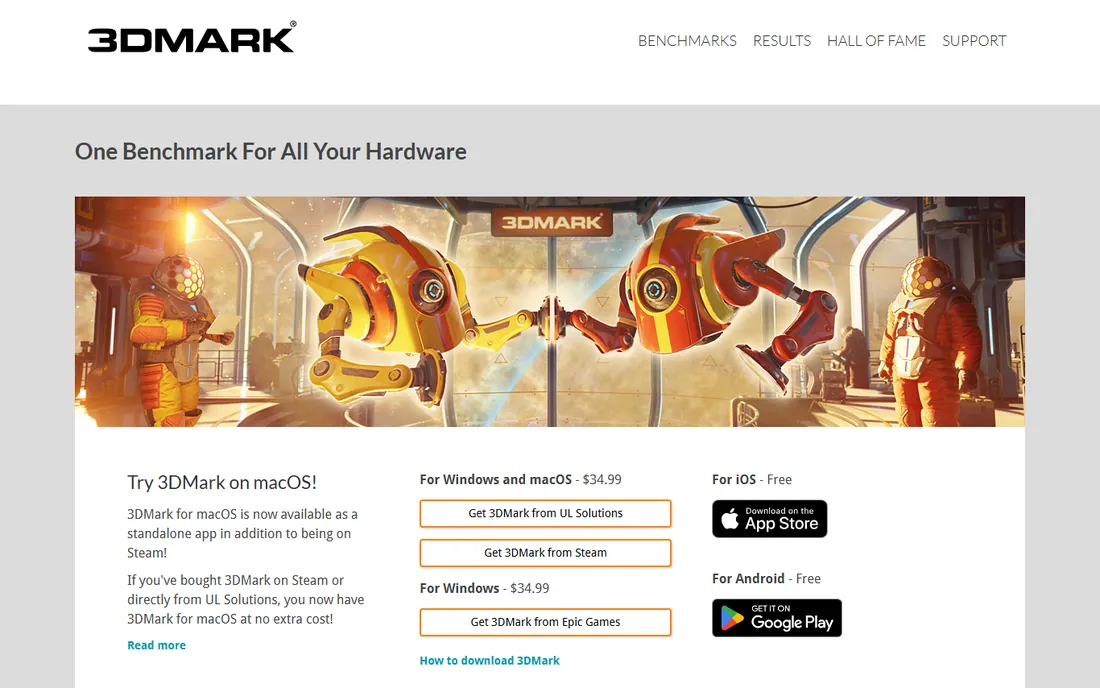
3DMark has been the GPU benchmark for over two decades, and the free demo on Steam covers what most people need. Tests like Time Spy and Solar Bay push the graphics card with ray tracing and modern effects, producing a score you can compare against identical hardware online. That comparison is the real value: it tells you whether your card performs as it should or something is wrong.
The $30 premium version adds extended stress tests and more benchmarks, which matter for overclockers validating stability but not for casual testing. The demo's core tests are the same ones reviewers use.
Download it from Steam to avoid the sketchy mirror sites that bundle junk with benchmark installers. For answering "is my GPU healthy," the free demo is complete.
What we like- The standard GPU benchmark with tests like Time Spy
- Free demo on Steam
- Online score comparison
Watch out for- Full version costs around $30
- Extended stress tests are paywalled
Starting priceFree
Free planYes
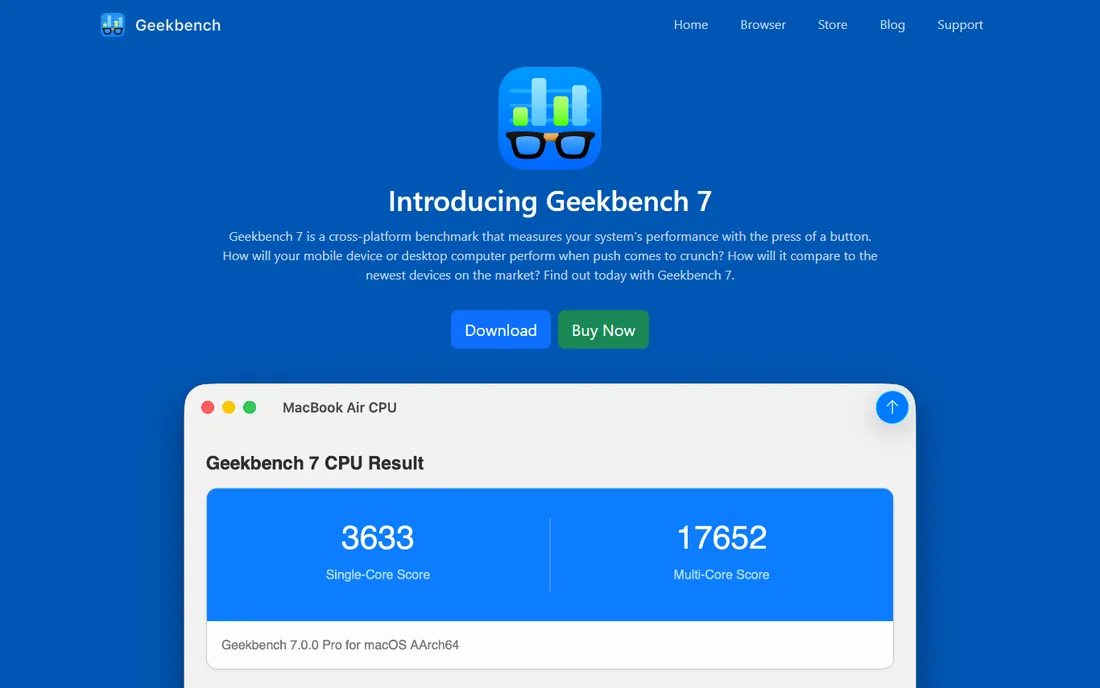
Geekbench's strength is comparability across everything. The same benchmark runs on a Windows desktop, a MacBook, and an Android phone, with results uploaded to a searchable browser database. When you want to know how your machine stacks up against the world's hardware, including hardware you will never own, Geekbench is the fastest answer.
The CPU tests cover single-core and multi-core performance with real-world-inspired workloads, and the GPU compute tests support OpenCL, Vulkan, and Metal. Results load in a browser tab with shareable links, which is handy for forums and troubleshooting.
The workloads are synthetic, so treat scores as relative rather than absolute predictions of app performance. For quick cross-device comparisons, nothing is faster or easier.
What we like- Runs on Windows, macOS, Linux, Android, and iOS
- Huge online result database
- Quick tests
Watch out for- Synthetic workloads differ from real apps
- Free version has some limits
Starting priceFree
Free planYes
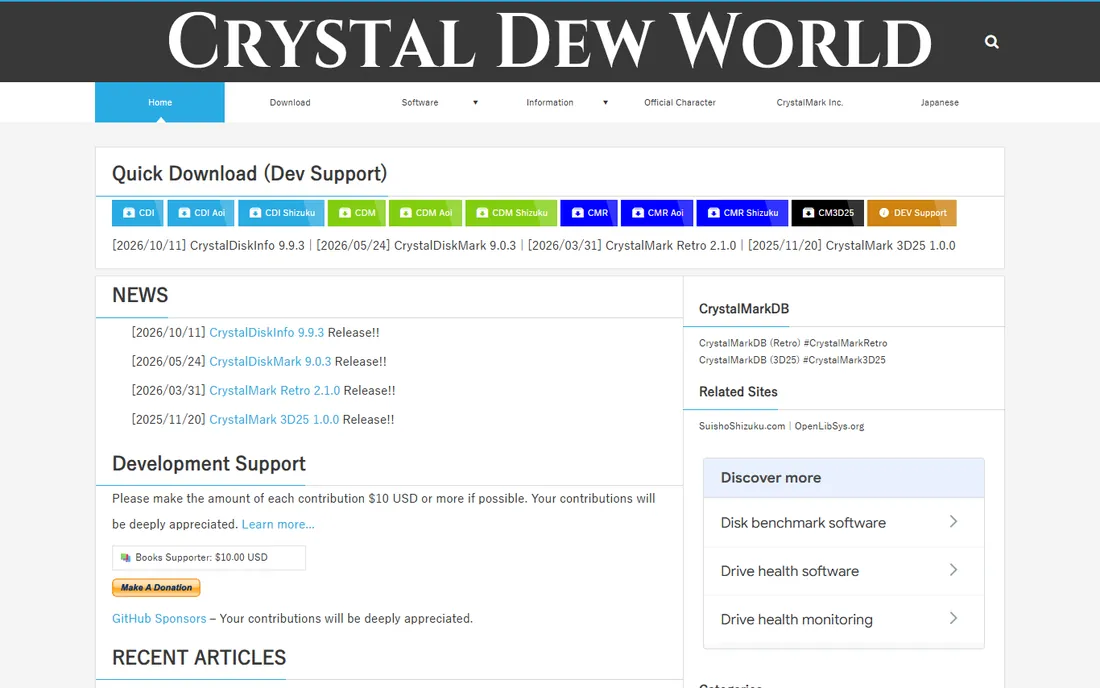
CrystalDiskMark is the disk benchmark: one click measures sequential and random read/write speeds, the numbers that determine whether your SSD performs as advertised. It is free, open source, and used by every storage reviewer, so your results are directly comparable to published reviews.
The key numbers are sequential speeds for large file transfers and random 4K speeds for everyday responsiveness. A drive can advertise huge sequential numbers while feeling slow in daily use if its random performance is weak; CrystalDiskMark shows both.
For best results, close background apps, keep 10 percent of the drive free, and plug in your laptop. Download from the official crystalmark.info or a trusted source like TechSpot, since fake versions circulate.
What we like- Free and open source
- The standard for sequential and random speed tests
- Simple one-click operation
Watch out for- Windows only
- Measures raw speed, not real-world responsiveness

#5
UNIGINE Superposition
Best for: pushing GPUs to their thermal limits
Visit unigine.com
Starting priceFree
Free planYes
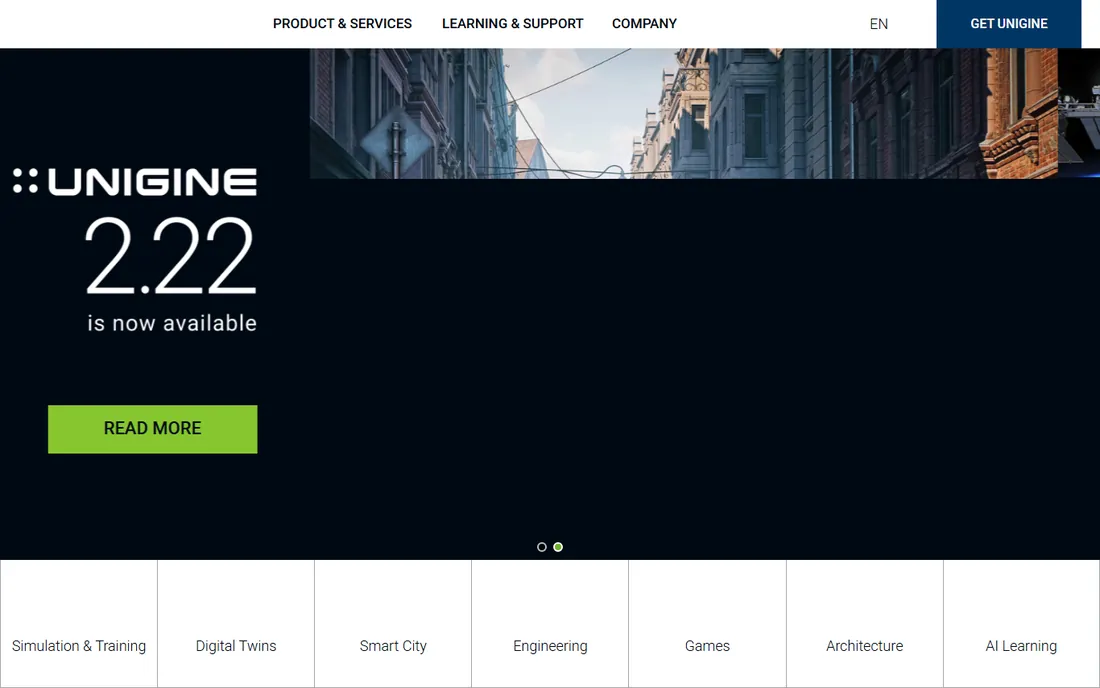
UNIGINE Superposition has been the GPU stress test of choice for years. Built on the UNIGINE 2 engine, it renders demanding scenes with complex lighting that push graphics cards to full load, while monitoring clock speeds and temperatures so you can see how cooling holds up. Adjustable detail levels let you scale the test to your hardware.
Overclockers use it to validate stability: if the card survives Superposition at maximum settings, it will survive anything. The visual quality also makes it more pleasant to watch than most benchmarks, which matters during long stress runs.
It has not been updated significantly in a while, but GPU testing fundamentals have not changed either. For thermal and stability validation, it remains a top free pick.
What we like- Beautiful demanding benchmark
- Adjustable detail levels
- Monitors clocks and temperatures during the run
Watch out for- Has not received a major update in a while
- Focused on GPU only
Starting priceFree
Free planYes
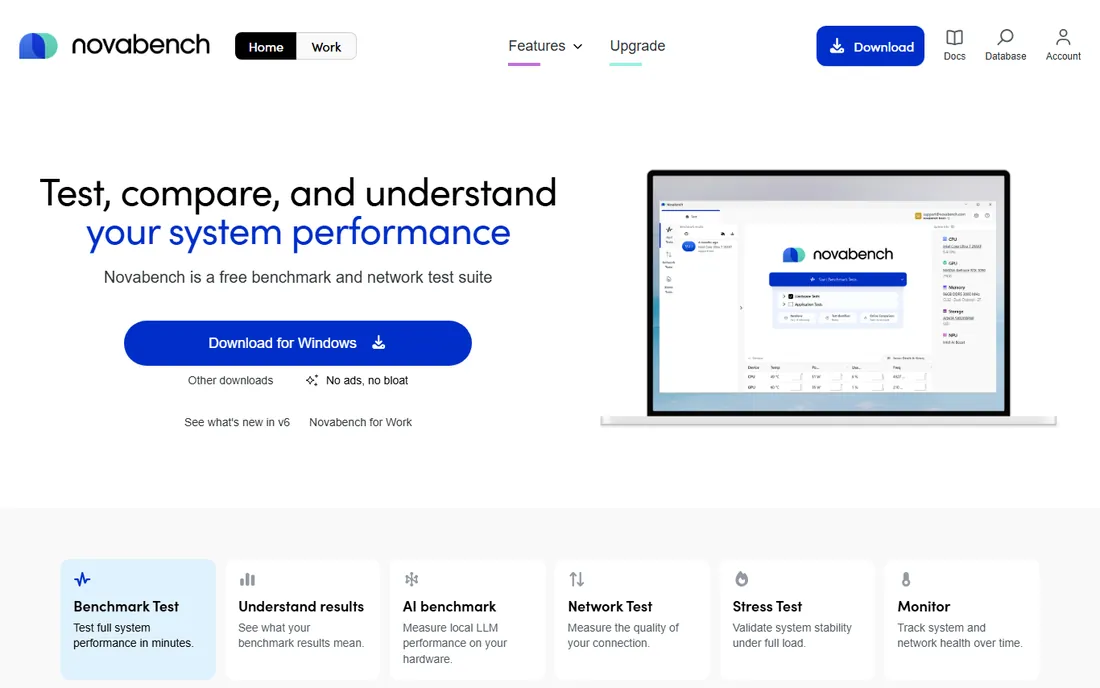
Novabench is the all-in-one: CPU, GPU, RAM, and disk tests in a single run that takes minutes. It is completely free with no paid version upselling features, which is rare. Results upload to an online database for comparison, helping spot the component holding your system back.
The value is speed and simplicity. Instead of installing four separate tools, one download gives you a system-wide score and per-component breakdowns. For troubleshooting "why is my PC slow," that overview points you at the right component before you dig deeper with specialized tools.
Dedicated tools go deeper on each component, so use Novabench for the overview and Cinebench or 3DMark for the details. As a first diagnostic step, it is the fastest free option.
What we like- Tests CPU, GPU, RAM, and disk in minutes
- Online comparison database
- Genuinely free with no paid tier pushing
Watch out for- Less deep than dedicated single-component tools
- Smaller comparison database than Geekbench
Starting priceFree
Free planYes
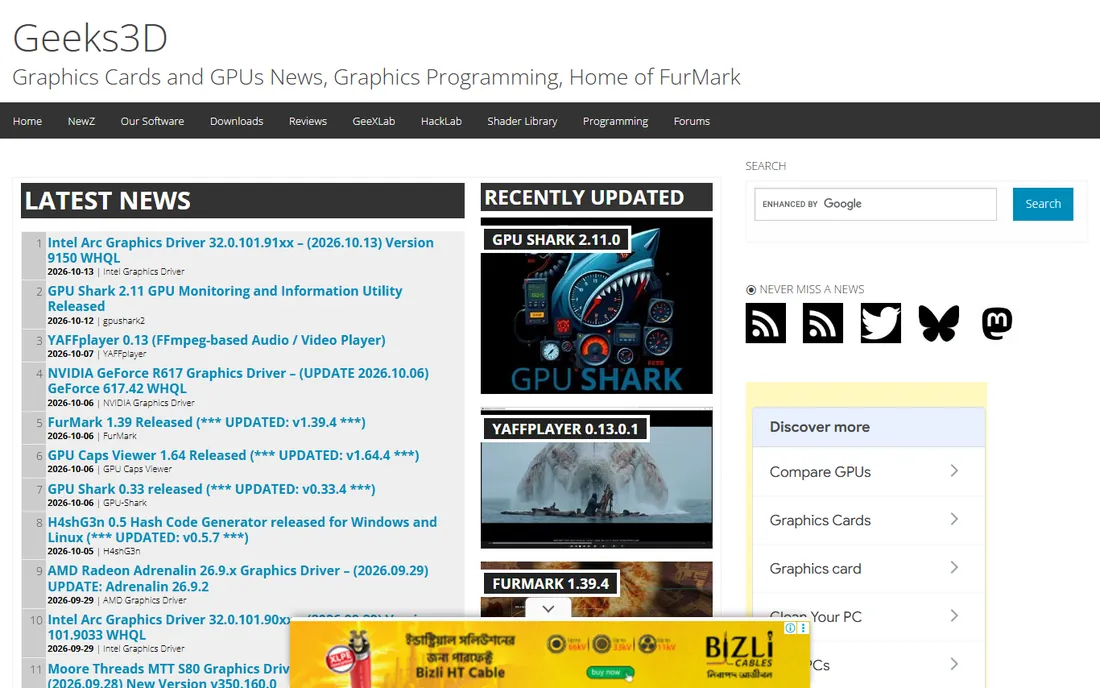
FurMark is not a performance benchmark; it is a thermal torture test. The furry donut it renders pushes GPUs harder than any game, generating maximum heat in minutes. If your cooling is inadequate, FurMark finds out fast, which is exactly the point.
Use it after repasting a GPU, installing a new cooler, or buying a used card. Watch the temperature curve: a healthy card plateaus at a safe temperature with fans responding; a problem card climbs until thermal throttling or shutdown. That ten-minute test saves you from discovering cooling failures during a gaming session.
The load is deliberately unrealistic, so do not judge performance by it and do not run it longer than needed. For the specific job of thermal validation, nothing free does it faster.
What we like- Maximum thermal load in minutes
- Free and tiny
- The definitive overheating detector
Watch out for- Unrealistic load can alarm new users
- Not a performance benchmark

#8
PassMark PerformanceTest
Best for: comparing components against the largest database
Visit passmark.com
Starting priceSee website
Free planFree trial
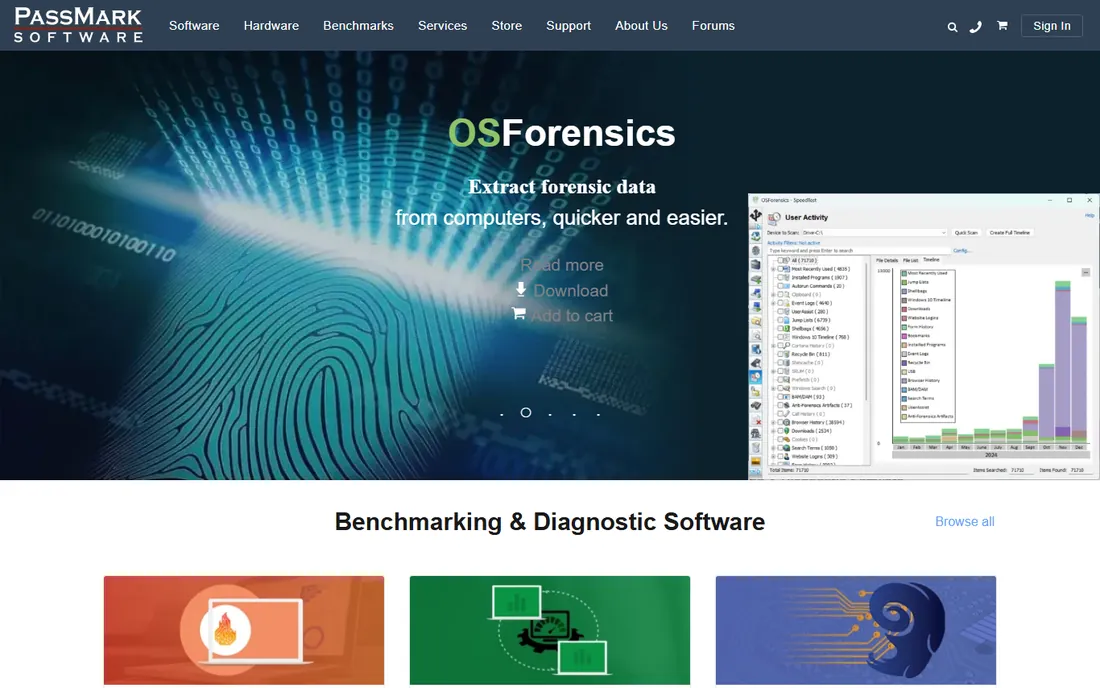
PassMark PerformanceTest is the professional's suite: CPU, 2D and 3D graphics, memory, and disk tests in one package, with results comparable against the enormous PassMark database of millions of submissions. When you need the definitive answer on how a component ranks, this database is the reference.
The free trial covers evaluation, and the test depth exceeds the free tools: more test variations, more detailed reporting, and baseline comparisons built in. IT professionals use it for purchase validation and fleet testing.
For casual home use, the free tools above cover the same ground without the trial clock. But when a number needs to be authoritative, for a purchase decision or a warranty claim, PassMark's database carries weight that free tools cannot match.
What we like- Tests every subsystem in one suite
- The web's largest benchmark result database
- Trusted by professionals
Watch out for- Full version is paid
- Free trial is time-limited
How we chose
We selected free benchmarking tools that cover every major component: CPU, GPU, storage, memory, and whole-system performance. We verified each tool's free availability from vendor sites and current 2026 roundups, checked that download sources are legitimate, and read enthusiast and reviewer feedback on Reddit and tech publications. We did not run hardware tests ourselves; performance claims reflect the consensus of the benchmarking community.
Run benchmarks right or the numbers lie
Benchmarks are sensitive to conditions, and sloppy testing produces meaningless numbers. Before running anything: close background applications, disable Windows updates and antivirus scans temporarily, plug in laptops, and let the system idle for a few minutes to reach baseline temperatures. For SSD tests, keep at least 10 percent free space.
Run each test three times and take the median, not the best. A single great run can be a fluke; a consistent median is a measurement. Keep ambient temperature in mind for thermal tests, a GPU that throttles in a 35-degree room may be fine in a 20-degree one. And always compare against the same hardware running the same test version: a Cinebench 2026 score means nothing next to a Cinebench R23 score.
How to read benchmark scores without fooling yourself
A benchmark score is a comparison, not a grade. Its value comes from context: the same test on the same hardware, before and after a change. Upgrading your cooler? Run Cinebench before and after. Suspecting a used GPU is underperforming? Compare its 3DMark score to the online average for that model.
Beware the common traps. Synthetic scores do not predict game frame rates directly; a 10 percent higher Geekbench score rarely means 10 percent faster apps. Manufacturer-tuned "benchmark modes" can inflate scores beyond real-world behavior. And chasing the highest number with aggressive overclocks trades stability for bragging rights. Use benchmarks to verify health, validate upgrades, and diagnose problems. The moment the score becomes the goal instead of the measurement, it has stopped being useful.
Frequently asked questions
What is benchmark software?
Benchmark software runs standardized tests on PC components and produces scores measuring performance. CPU benchmarks test processing speed, GPU benchmarks test graphics performance, disk benchmarks test storage speeds, and system suites test everything together. The scores let you compare hardware, verify upgrades, and diagnose problems.
Are free benchmark tools accurate?
Yes, for comparative purposes. Cinebench, 3DMark, CrystalDiskMark, and the others here are the same tools professional reviewers use. They are accurate at ranking hardware relative to each other and at showing before-and-after changes. They are less useful as absolute predictions of how fast a specific application will feel.
What is the best free CPU benchmark?
Cinebench is the standard: free, trusted, and based on real rendering workloads. Geekbench is the best alternative for cross-platform comparisons, running on Windows, Mac, Linux, and mobile. Use Cinebench for the definitive CPU number and Geekbench when comparing across device types.
What is the best free GPU benchmark?
3DMark's free Steam demo is the standard for gaming performance measurement. UNIGINE Superposition is the best free stress test for stability and thermals. FurMark generates the most heat the fastest for cooling validation. Use 3DMark for performance scores and Superposition or FurMark for stability testing.
How do I benchmark my SSD speed?
Download CrystalDiskMark, close background apps, and run the standard test. Compare the sequential read/write numbers to your drive's advertised specs and the 4K random numbers to reviews of the same model. If speeds are far below spec, check that the drive is connected to the right slot and has free space.
Can benchmarking damage my PC?
Normal benchmarking is safe. Stress tests like FurMark generate maximum heat by design, so monitor temperatures and stop if the system overheats, which indicates a cooling problem worth fixing anyway. Do not run thermal stress tests on hardware with known cooling issues or heavy dust buildup until it is cleaned.
Sources we checked (5)
- https://www.engadget.com/2277106/simple-benchmark-test-pc-performance/
- https://www.pcworld.com/article/394927/best-benchmarking-software-for-pc.html
- https://www.maxon.net/en/cinebench
- https://www.gizchina.com/guide/free-benchmark-programs-to-benchmark-your-windows-pc
- https://www.techworm.net/2024/04/best-free-gpu-benchmark-software-pc.html
Is your product missing or out of date?
We review this list regularly. Vendors can request a listing, send updated pricing or ask about featured placement.

Shihab Mia · Founder, Rankite
Shihab has spent more than a decade helping SaaS and e-commerce brands grow through search. He writes Rankite's software buying guides from pricing pages, documentation and public user reviews. More about Shihab.
 Cinebench
 3DMark
 Geekbench
 CrystalDiskMark
 Novabench
 FurMark