How we make this list: we compare pricing pages, product documentation and public user reviews. Rankite is independent; if a vendor ever pays for a featured spot, that listing is clearly labeled Partner.
Key takeaways
- MSI Afterburner is the most widely used free GPU overclocking tool in the world, works on graphics cards from any brand, and stays the safest first download for most readers.
- CPU overclocking has only two first-party answers: Intel Extreme Tuning Utility for unlocked Intel chips and AMD Ryzen Master for Ryzen processors. Everything else is third-party.
- Laptop owners should skip GPU tools and look at ThrottleStop instead, because the real gains on notebooks come from undervolting and disabling thermal throttling.
- Every tool on this list is free. The cost of overclocking is never the software: it is heat, power draw and the voided warranty if something goes wrong.
Quick comparison
| Tool | Best for | Starting price | Free plan |
|---|
 MSI Afterburner MSI Afterburner | Overclocking any brand of GPU | Free | Yes (fully free, no paid tier) |
 Intel Extreme Tuning Utility Intel Extreme Tuning Utility | Overclocking unlocked Intel processors | Free | Yes (fully free, no paid tier) |
 AMD Ryzen Master AMD Ryzen Master | Overclocking AMD Ryzen desktop CPUs | Free | Yes (fully free, no paid tier) |
 ASUS GPU Tweak III ASUS GPU Tweak III | Detailed GPU tuning with a modern interface | Free | Yes (fully free, no paid tier) |
 ThrottleStop ThrottleStop | Fixing laptop CPU throttling and undervolting | Free (donationware) | Yes (fully free) |
 Sapphire TriXX Sapphire TriXX | Owners of Sapphire AMD graphics cards | Free | Yes (fully free) |
 ZOTAC FireStorm ZOTAC FireStorm | Owners of ZOTAC graphics cards | Free | Yes (fully free) |
 Palit ThunderMaster Palit ThunderMaster | Budget Nvidia cards, especially Palit models | Free | Yes (fully free) |
 EVGA Precision X1 EVGA Precision X1 | Nvidia GPUs, particularly older EVGA models | Free | Yes (fully free) |
Is your product missing or out of date?
We review this list regularly. Vendors can request a listing, send updated pricing or ask about featured placement.
The best cpu overclocking software
You bought a processor or graphics card that can run faster than the factory settings allow, and the manufacturer left the door unlocked on purpose. Overclocking is the act of walking through that door: raising clock speeds and adjusting voltage to pull extra performance out of hardware you already own. The software is always free, which makes this the rare upgrade that costs nothing to try. It is not free of risk, though. More voltage means more heat, more power draw, and in the worst case an unstable system or a dead component.
These nine tools are the ones actually maintained and used in 2026. The list splits into CPU tools, which tune your processor, and GPU tools, which tune your graphics card. Download only from the vendor links below. Fake download pages for overclocking tools are one of the oldest malware tricks on the internet, and MSI itself warns that its software should only come from msi.com or Guru3D.
#1
MSI Afterburner
Best for: Overclocking any brand of GPU
Visit msi.com
Starting priceFree
Free planYes (fully free, no paid tier)
MSI Afterburner is the first tool almost everyone should install. It is free, it works with graphics cards from Nvidia and AMD regardless of brand, and it gives you the full control panel: core clock, memory clock, voltage, power limit and custom fan curves. The current release line is 4.6.6 Final with 4.6.7 in beta. The on-screen overlay shows temperatures, usage and frame rates while you test, which is exactly the feedback you need when raising clocks.
The honest catch is that Afterburner only touches the GPU. Your processor needs a separate tool from this list. And because Afterburner is the most popular download in this category, it is also the most impersonated. Get it from the MSI page linked above or from Guru3D, which MSI itself names as the only other official source.
What we like- Works on graphics cards from every brand, not just MSI
- Full control of core clock, memory clock, voltage, power limit and fan curves
- Built-in benchmarking and on-screen overlay for monitoring temperatures
Watch out for- GPU-only, so it does nothing for your CPU
- Some older versions floating around download sites are fake and bundled with malware
#2
Intel Extreme Tuning Utility
Best for: Overclocking unlocked Intel processors
Visit intel.com
Starting priceFree
Free planYes (fully free, no paid tier)
Intel XTU is the official tuning tool from Intel, and on an unlocked Intel chip it is the obvious starting point. You get per-core frequency control, voltage adjustment, memory tuning and built-in stress tests with benchmark scores, so you can measure whether a change actually helped before committing to it. Because it comes from Intel, new processor features show up here before anywhere else.
The limitation is compatibility. If your Intel CPU is not an unlocked model, XTU will show you mostly greyed-out sliders. And on recent generations Intel has restricted voltage control in response to instability issues, which makes undervolting much harder than it used to be. Check Intel's compatibility list for your exact processor before installing.
What we like- Made by Intel, so it supports the newest chip features first
- Per-core overclocking and undervolting on supported processors
- Built-in stress testing and benchmark scoring for stability checks
Watch out for- Only works with unlocked Intel CPUs, mostly K and KF series
- Recent Intel generations have locked or restricted voltage control, limiting what undervolting can do
#3
AMD Ryzen Master
Best for: Overclocking AMD Ryzen desktop CPUs
Visit amd.com
Starting priceFree
Free planYes (fully free, no paid tier)
Ryzen Master is AMD's answer to Intel XTU, and it is the tool to reach for on any Ryzen desktop chip. The standout feature is per-CCX tuning, which lets you push your best cores harder while leaving weaker ones alone. Precision Boost Overdrive gives you a sanctioned, semi-automatic way to exceed stock speeds, and Eco Mode does the reverse for quieter, cooler operation.
The catch is scope: laptop Ryzen chips and some workstation parts are not supported, so mobile users need a different approach. Profiles are also software-side, meaning a bad setting disappears after a reboot, which is a safety net and a mild annoyance at the same time. For Ryzen owners who want more without touching the BIOS, this is the tool.
What we like- Official AMD software with per-CCX tuning and Eco Mode for efficiency
- Precision Boost Overdrive controls for safe automatic overclocking
- Real-time monitoring of temperatures, voltages and speeds
Watch out for- Desktop Ryzen only, with no support for laptop processors or Threadripper in some versions
- Changes apply in Windows and reset on reboot unless you save a profile
#4
ASUS GPU Tweak III
Best for: Detailed GPU tuning with a modern interface
Visit asus.com
Starting priceFree
Free planYes (fully free, no paid tier)
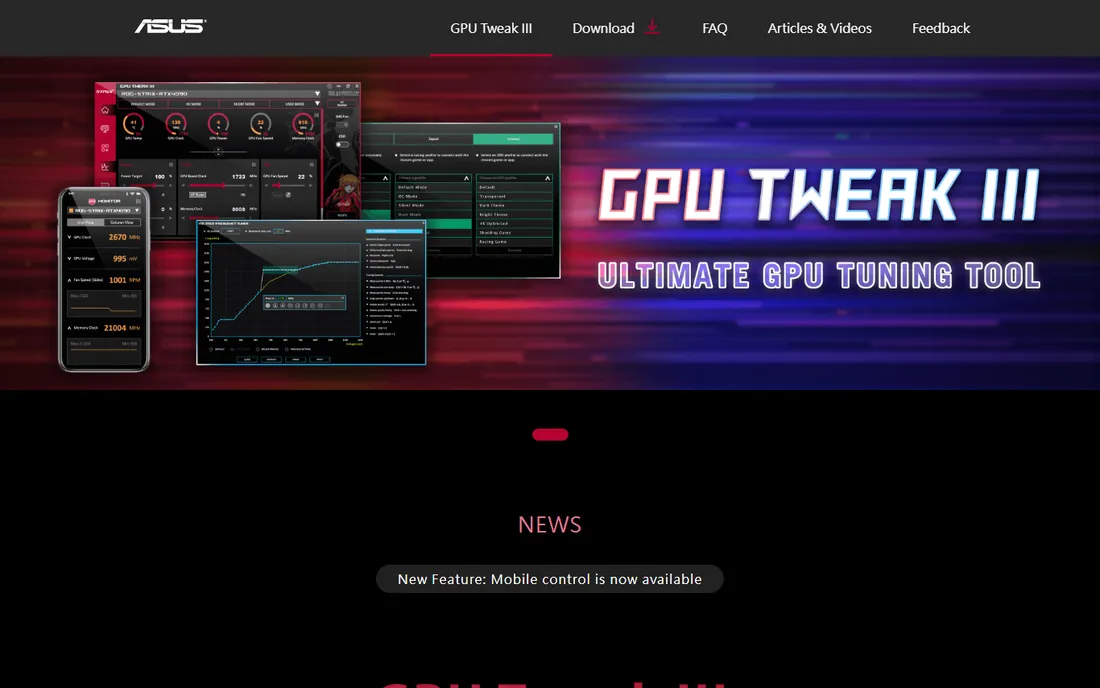
GPU Tweak III is ASUS's third-generation tuning utility, and it has quietly become one of the best-looking options in this category. The OC Scanner runs an automated test and applies a stable overclock for you, which is a genuine help if manual tuning feels intimidating. Full manual controls are all there: voltage, power target, temperature target, memory clocks and per-fan curves.
It works on graphics cards from other brands, though ASUS cards get the deepest integration. The interface carries more panels and widgets than Afterburner, which some users love and others find noisy. Either way, it is free, maintained, and a legitimate alternative to Afterburner for GPU tuning.
What we like- Clean modern interface with OC Scanner one-click automatic overclocking
- Detailed voltage and fan control with profile switching
- Works on non-ASUS graphics cards too
Watch out for- Extra features like the mobile companion app add little for most users
- Interface can feel busy if you only want a simple clock slider
Starting priceFree (donationware)
Free planYes (fully free)
ThrottleStop exists because laptops lie to you. When a notebook CPU gets hot, the firmware cuts clock speeds to protect itself, and ThrottleStop lets you push back: disabling throttling, undervolting the CPU, and setting custom speed profiles. On older Intel laptops the difference is dramatic, with cooler temperatures and sustained performance that the stock firmware would never allow.
The hard truth is that Intel locked voltage control on newer mobile chips, so undervolting mostly works on 11th-gen and older hardware. It is also an enthusiast tool with a dense interface and real consequences if you disable the wrong limit. Desktop users should look elsewhere. For owners of older gaming laptops, though, nothing else on this list does the job.
What we like- The only tool that reliably disables power and thermal throttling on Intel laptops
- Undervolting can lower temperatures by 10 degrees or more on supported chips
- Tiny download with no installer
Watch out for- Intel-only and effectively dead for undervolting on 12th-gen and newer chips with locked voltage
- Requires care, because disabling safety limits on a thin laptop invites overheating
Starting priceFree
Free planYes (fully free)
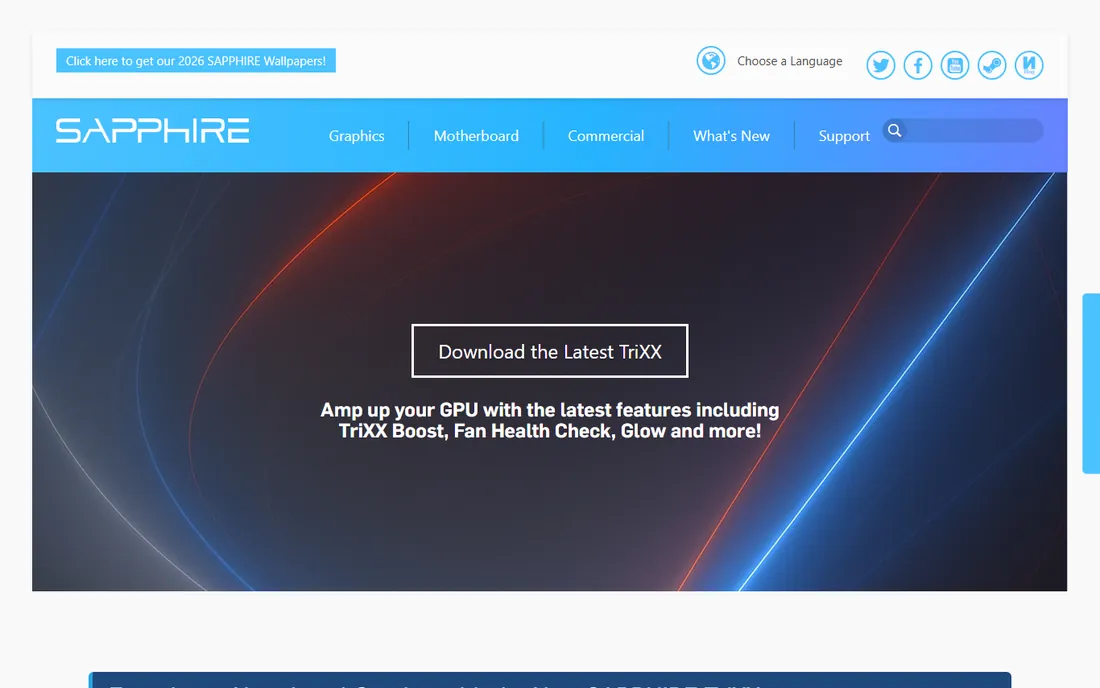
TriXX is Sapphire's in-house tuning tool for its AMD graphics cards, and it is worth installing if you own one. Beyond the standard clock and fan controls, TriXX Boost is the interesting feature: it renders games slightly below your monitor's native resolution and applies sharpening, which reads as higher frame rates for a small visual tradeoff. Nitro Glow controls the RGB lighting on supported Sapphire models.
If your card is not a Sapphire, Afterburner covers the same ground with a bigger feature set. But matched with the right hardware, TriXX is free, current at version 11.2.0, and tuned for exactly the card sitting in your case.
What we like- Free with the current 11.2.0 release
- TriXX Boost can raise frame rates by rendering below native resolution with sharpening
- Nitro Glow lighting control for Sapphire cards with RGB
Watch out for- Built for Sapphire cards, with limited value for other brands
- Fewer monitoring and overlay options than Afterburner
Starting priceFree
Free planYes (fully free)
FireStorm is ZOTAC's tuning utility, and the pitch is simplicity: clock controls, fan curves, one-click overclock presets and SPECTRA lighting control for ZOTAC cards with RGB. It does the job for ZOTAC owners who want the vendor's own software.
The honest caveat is maintenance. The latest widely listed release is a Turing-era build, which suggests ZOTAC has not kept it current the way MSI or ASUS have. It remains free and functional, but if you want the freshest features and the most active development, a brand-agnostic tool like Afterburner will serve a ZOTAC card just as well.
What we like- Free and purpose-built for ZOTAC hardware
- SPECTRA lighting control for ZOTAC RGB models
- Simple one-click OC presets for beginners
Watch out for- Development pace is slow, with the latest release being a Turing-era build
- Narrowest feature set of the brand tools here
#8
Palit ThunderMaster
Best for: Budget Nvidia cards, especially Palit models
Visit palit.com
Starting priceFree
Free planYes (fully free)
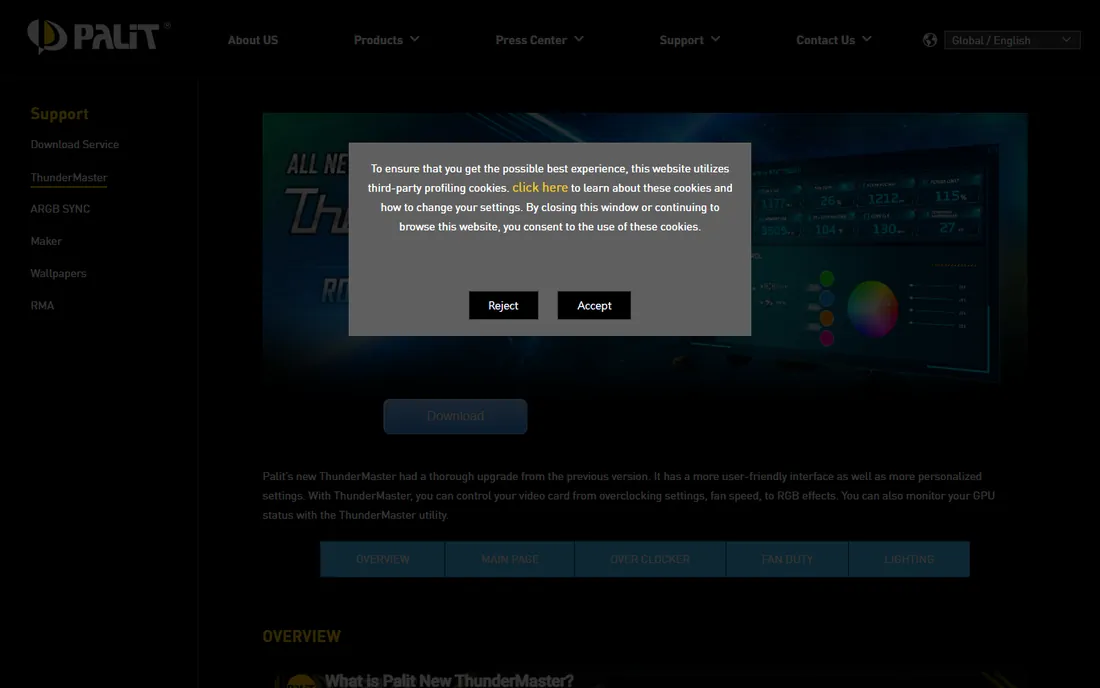
ThunderMaster is Palit's tuning tool, aimed squarely at the budget end of the market where Palit cards sell best. It is free, it is light, and it covers the essentials: clock offsets, memory offsets, voltage, fan curves and a one-click automatic overclock. It works on Nvidia cards from other brands too.
There is no pretending this is the most polished option here. The interface looks dated and the community around it is small, which matters when you need help with a weird stability issue. But for a straightforward overclock on a value-priced Nvidia card, it works, and it costs nothing.
What we like- Free and lightweight with a straightforward interface
- One-click overclock and custom fan curves
- Works on non-Palit Nvidia cards as well
Watch out for- Dated interface that has not seen a major redesign in years
- Smallest community, so troubleshooting help is harder to find
#9
EVGA Precision X1
Best for: Nvidia GPUs, particularly older EVGA models
Visit evga.com
Starting priceFree
Free planYes (fully free)
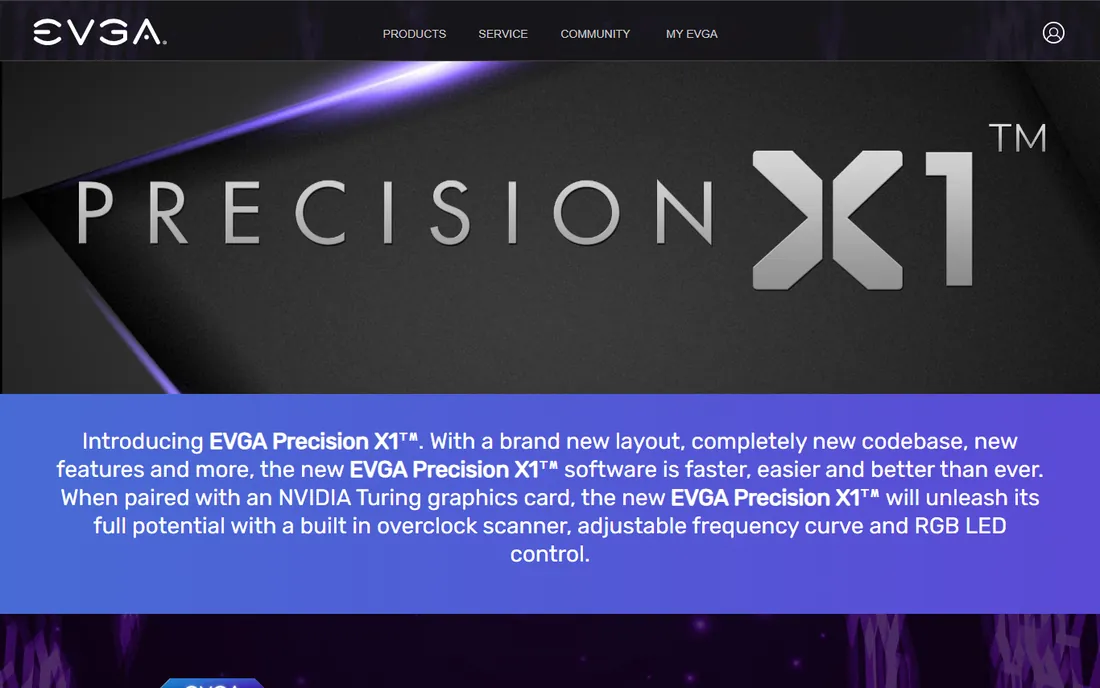
Precision X1 was once the go-to tuner for EVGA graphics cards, and it is still a capable free tool. The voltage-frequency curve editor gives fine control for experienced tuners, and EVGA cards with RGB get per-key lighting control. The on-screen display and benchmark tools round out a solid package.
The problem is the vendor, not the software. EVGA stopped making graphics cards, so Precision X1 is effectively frozen in time: the page still lists RTX and GTX 10/16 series support with old Windows version requirements. If you own an EVGA card it remains the natural pick. Everyone else should choose a tool with a future.
What we like- Free with per-key RGB control on supported EVGA cards
- Voltage-frequency curve tuner for fine-grained overclocking
- On-screen display and screenshot tools built in
Watch out for- EVGA exited the graphics card business, so the software's future is uncertain
- The page targets RTX and GTX 10/16 series cards with dated Windows 10/8 requirements
How we chose
We started with the searches buyers actually run: best cpu overclocking software, GPU overclocking software, CPU undervolting tool and laptop throttling fix. For each candidate we opened the vendor's own page to confirm the product is still maintained, checked that the download comes from an official source, and cross-checked real-world reports on Reddit, G2-style review sites and hardware forums. Tools that were discontinued, acquired into dead products, or only available from sketchy mirrors did not make the list. Prices are simple here: everything listed is free, verified on the vendor's own pages.
Before you raise a single clock
Overclocking rewards patience and punishes shortcuts, so treat the first hour as a safety drill. Start by recording your baseline: run a benchmark and note your temperatures, clock speeds and scores with everything at stock settings. Then change one thing at a time, a small clock increase or a small voltage decrease, and stress test for at least 15 minutes after each change. If the system crashes or the benchmark throws errors, back off to the last stable setting.
Temperature is the number that matters most. Desktop CPUs and GPUs are generally safe under sustained loads up to the low 80s Celsius; beyond that you are shortening the life of the hardware. Watch the monitoring readouts every tool on this list provides. And know the warranty situation before you start: most manufacturers consider overclocking a warranty-voiding act, even when they ship the software that enables it. Free performance is real, but it is never risk-free.
CPU vs GPU: which one should you actually overclock
Most buyers ask which tool to download before asking which component is holding them back, and that order is backwards. If your games stutter, your graphics card is almost always the bottleneck, so a GPU tool like Afterburner or GPU Tweak III gives the biggest return. If rendering, compiling or simulation work feels slow, the CPU is the target and Intel XTU or Ryzen Master is the download.
Laptops are the special case. Notebook GPUs have little thermal headroom, so GPU overclocking on a laptop buys almost nothing. The real laptop gains come from the CPU side: undervolting and disabling throttling with ThrottleStop, which can hold higher sustained speeds at lower temperatures. Match the tool to the bottleneck and you get results. Match it to the wrong component and you get heat for nothing.
Frequently asked questions
Is overclocking safe for beginners?
It is safe if you go slowly. Small clock increases with stress testing between changes rarely damage anything, because modern chips protect themselves by throttling or shutting down. The danger comes from large voltage jumps and disabling safety limits. Use the monitoring tools, change one setting at a time, and stay within sane temperature ranges.
Will overclocking void my warranty?
Usually, yes. Most CPU and GPU manufacturers exclude overclocked operation from warranty coverage, even when they provide the overclocking software. Some vendors are lenient about mild overclocks and some are not. If your hardware is still under warranty and you cannot afford to replace it, weigh that risk before you start.
Do I need better cooling to overclock?
For meaningful overclocks, yes. The stock cooler that came with your CPU or the stock fan curve on your GPU was designed for stock speeds. An aftermarket air cooler or an all-in-one liquid cooler gives you the thermal headroom that makes overclocking worthwhile. Without it you will hit temperature limits before you hit performance limits.
What is undervolting and why would I do it?
Undervolting reduces the voltage your chip receives while keeping clock speeds the same. Less voltage means less heat and less power draw, which lets the chip sustain higher speeds for longer. It is the safest form of tuning on this list and the most effective trick for laptops, where ThrottleStop made it famous.
Why do some tools only work with certain brands?
GPU vendors build tuning tools optimized for their own cards' power delivery, fan headers and RGB lighting. Brand-agnostic tools like MSI Afterburner work across brands because the underlying clock and voltage controls are standardized. Use the vendor tool for lighting and card-specific features, and Afterburner for everything else.
Can I overclock a laptop?
You can, but the gains are small and the risks are higher. Laptops have minimal cooling headroom, so GPU overclocking buys little. CPU undervolting and throttling control with ThrottleStop is the exception: it can genuinely improve sustained performance on older Intel laptops. On recent chips with locked voltage control, even that option is limited.
Sources we checked (9)
- https://www.msi.com/Landing/afterburner/graphics-cards
- https://www.intel.com/content/www/us/en/download/17881/intel-extreme-tuning-utility-intel-xtu.html
- https://www.amd.com/en/products/software/ryzen-master.html
- https://www.asus.com/campaign/GPU-Tweak-III/index.php
- https://www.techpowerup.com/download/techpowerup-throttlestop/
- https://www.sapphiretech.com/en/software
- https://www.zotac.com/us/files/download/by_product?p_nid=800645&driver_type=235&os=981
- http://www.palit.com/thundermaster/index.php?lang=en
- https://www.evga.com/precisionx1/
Is your product missing or out of date?
We review this list regularly. Vendors can request a listing, send updated pricing or ask about featured placement.

Shihab Mia · Founder, Rankite
Shihab has spent more than a decade helping SaaS and e-commerce brands grow through search. He writes Rankite's software buying guides from pricing pages, documentation and public user reviews. More about Shihab.