How we make this list: we compare pricing pages, product documentation and public user reviews. Rankite is independent; if a vendor ever pays for a featured spot, that listing is clearly labeled Partner.
Key takeaways
- Acronis Cyber Protect Home Office clones live while you work and adds cloud backup and security.
- Macrium Reflect is the imaging specialist, with precise partition control and fast delta restores.
- EaseUS Disk Copy and AOMEI Backupper focus on simple, affordable cloning and migration.
- Clonezilla is free and powerful, but demands technical confidence.
- Laplink PCmover moves programs and settings between PCs, not just disk images.
Quick comparison
Is your product missing or out of date?
We review this list regularly. Vendors can request a listing, send updated pricing or ask about featured placement.
The best OS migration software

#1
Acronis Cyber Protect Home Office
Best for: Clone plus backup and security
Visit acronis.com
Starting priceSee website
Free planNo
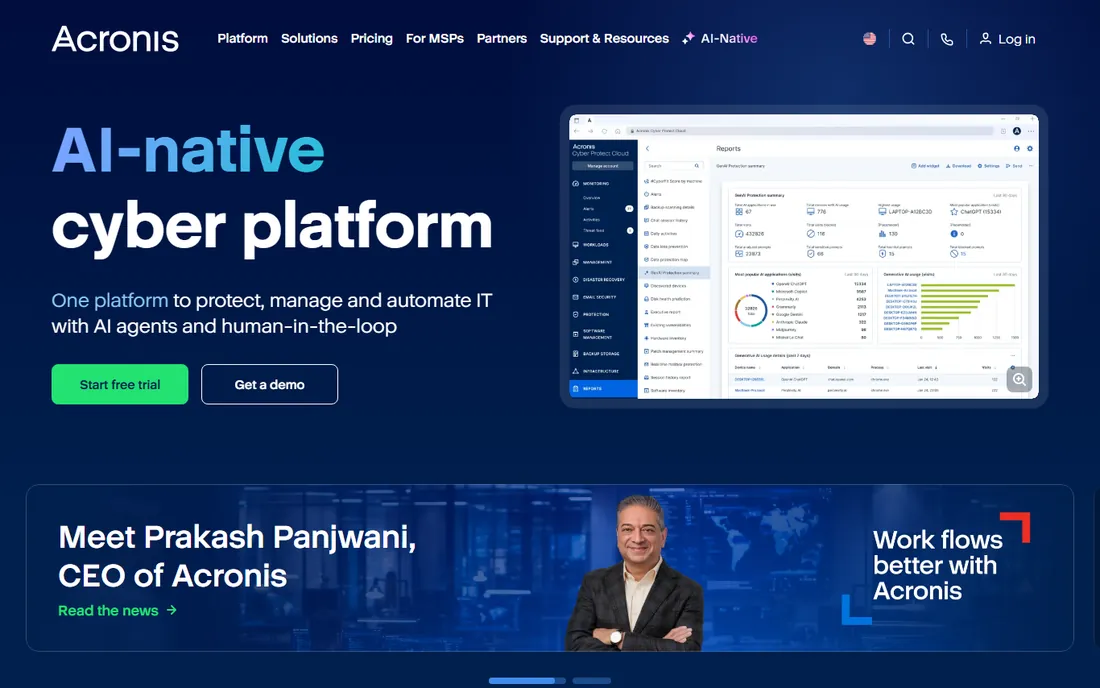
Acronis Cyber Protect Home Office, formerly True Image, is the full package: disk cloning, system imaging, cloud backup, and cyber protection in one subscription. Its Active Disk Cloning creates an exact replica of a Windows or Mac system while the OS is in use, so you do not have to reboot into a separate environment to migrate.
It is the right choice when migration is one job among many: ongoing backups, ransomware protection, and cloud restore all live in the same console. Small businesses that standardize on it get a single vendor for endpoint protection and disaster recovery, which simplifies both budgeting and support calls. If all you need is a one-time clone to a new SSD, the subscription cost and background services may be more than you want.
What we like- Active Disk Cloning copies the system while you work
- Cloud backup and anti-malware included
- Long track record
Watch out for- Subscription pricing
- Heavier than dedicated cloning tools
Starting priceSee website
Free planNo
Macrium Reflect is the imager's imager. For over twenty years it has focused on one thing: dependable system imaging and recovery. Disk cloning and OS migration come with granular control over partitions, schedules, and backup plans, and Rapid Delta Restore rebuilds systems by restoring only changed blocks.
IT teams running critical systems swear by its reliability, and the same engine serves home users moving to a new drive. The audience is technical, and the price is per license, but for migration you can trust without babysitting, Reflect is the benchmark. Its rescue media builder creates a bootable environment for those rare cases where Windows will not start at all, which is exactly when you need your tools to work.
What we like- Precise partition-level control
- Rapid Delta Restore cuts recovery time
- Trusted by IT teams worldwide
Watch out for- No free tier for the current line
- Interface is technical
Starting priceSee website
Free planNo
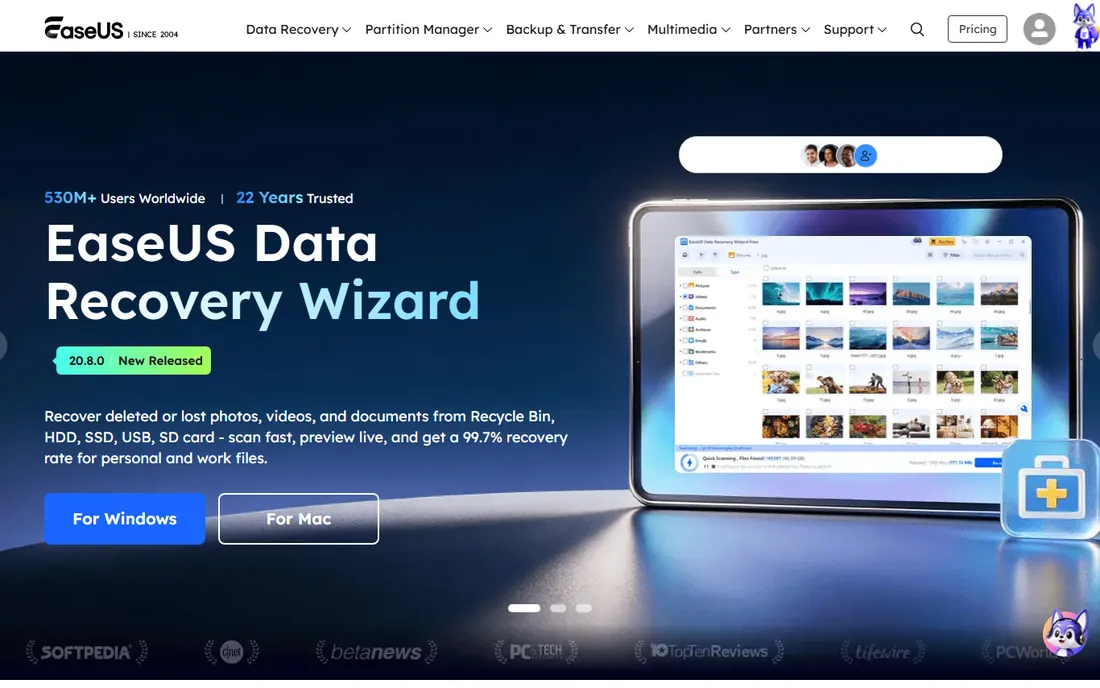
EaseUS Disk Copy does one job and does it well: cloning. Disk Mode copies an entire drive, System Mode migrates only Windows and its partitions to a new disk, and Partition Mode clones individual volumes. Sector-by-sector cloning handles problem drives, and automatic 4K alignment keeps SSDs performing.
When your only goal is moving Windows to a bigger SSD, a dedicated tool beats a bloated suite. The workflow is refreshingly direct: pick the source, pick the target, let it run, and swap the drives. Disk Copy is the simplest path to a bootable new drive, with a price that reflects its narrow focus.
What we like- Dedicated cloning with disk, system, and partition modes
- 4K alignment for SSDs
- Minimal learning curve
Watch out for- Cloning only, no backup suite
- Paid for full features
Starting priceSee website
Free planNo
AOMEI Backupper bundles system clone, disk clone, and partition clone with a complete backup toolkit: scheduled backups, file sync, and bootable rescue media. It sits in the sweet spot between dedicated cloners and full suites, at a price that undercuts the big names.
The range of editions can be confusing, and the interface packs a lot in. Take a few minutes to compare editions before buying so you land on the one that includes system clone rather than assuming every tier has it. But for buyers who want cloning plus real backup functionality without the Acronis price, AOMEI is the value play.
What we like- System clone plus full backup features
- Competitive pricing
- Regular updates
Watch out for- Interface is busy
- Advanced features spread across editions
Starting priceFree
Free planYes
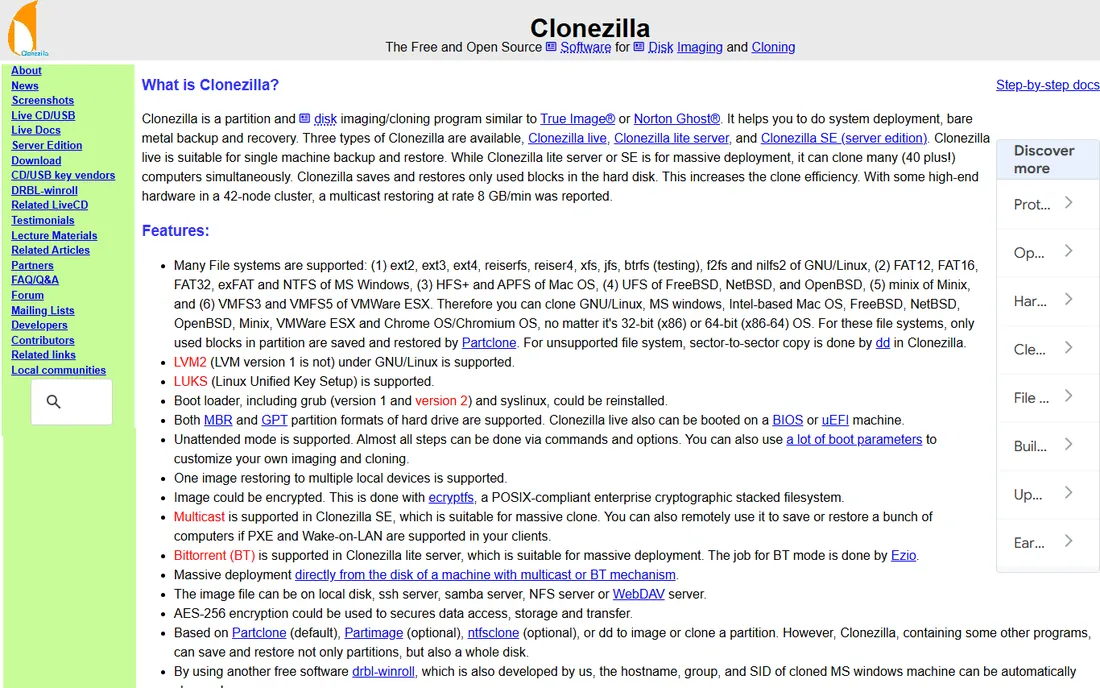
Clonezilla is the free standard for disk imaging and cloning. It copies only used blocks for efficiency, supports every major file system, and the server edition can clone dozens of machines at once over the network. IT departments use it for lab and fleet deployment.
The trade-off is usability: it boots from USB and runs through a text-based wizard. There is no online cloning; the source partition must be unmounted. For technically confident users, it is the most capable free migration tool in existence. It also runs anywhere: the bootable environment works on aging hardware that modern Windows installers have already abandoned.
What we like- Completely free
- Clones almost any file system
- Multicast for mass deployment
Watch out for- Text-based interface
- Destination must be as large as the source
Starting priceSee website
Free planNo
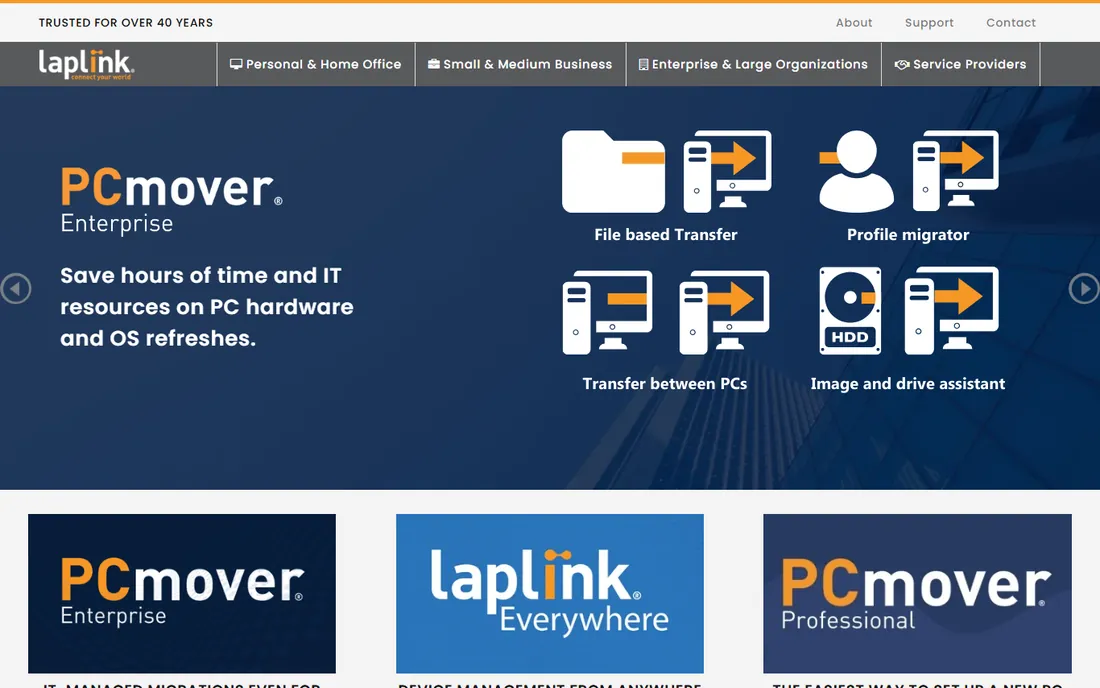
PCmover solves a different problem: moving everything from an old PC to a new one, including installed programs and user profiles, without reinstalling. Laplink, with over 40 years in migration, automates what would otherwise be days of setup on a new machine.
It does not clone disks; it transfers the environment. When you buy a new computer rather than a new drive, PCmover is the tool that makes the new PC feel like the old one in an afternoon.
What we like- Moves programs, profiles, and settings, not just files
- Microsoft partner
- Free transfer assistance
Watch out for- Not a disk cloner
- Priced per migration
Starting priceSee website
Free planNo
Paragon Hard Disk Manager combines OS migration with partition management, backup, and disk wiping in one package. The Migrate OS feature moves Windows to a new large-capacity device with minimal fuss, while the partitioning tools handle the drive layout around it.
It is a strong pick for IT technicians who want one portable tool for imaging, partitioning, and migration across many machines. Home users who only need a one-time clone will find simpler options, though technicians servicing many endpoints will appreciate the portable bootable media.
What we like- OS migration plus full partition management
- Business and technician editions
- Supports Windows Server
Watch out for- Dated interface
- Overkill if you only need cloning
Starting priceFree
Free planYes
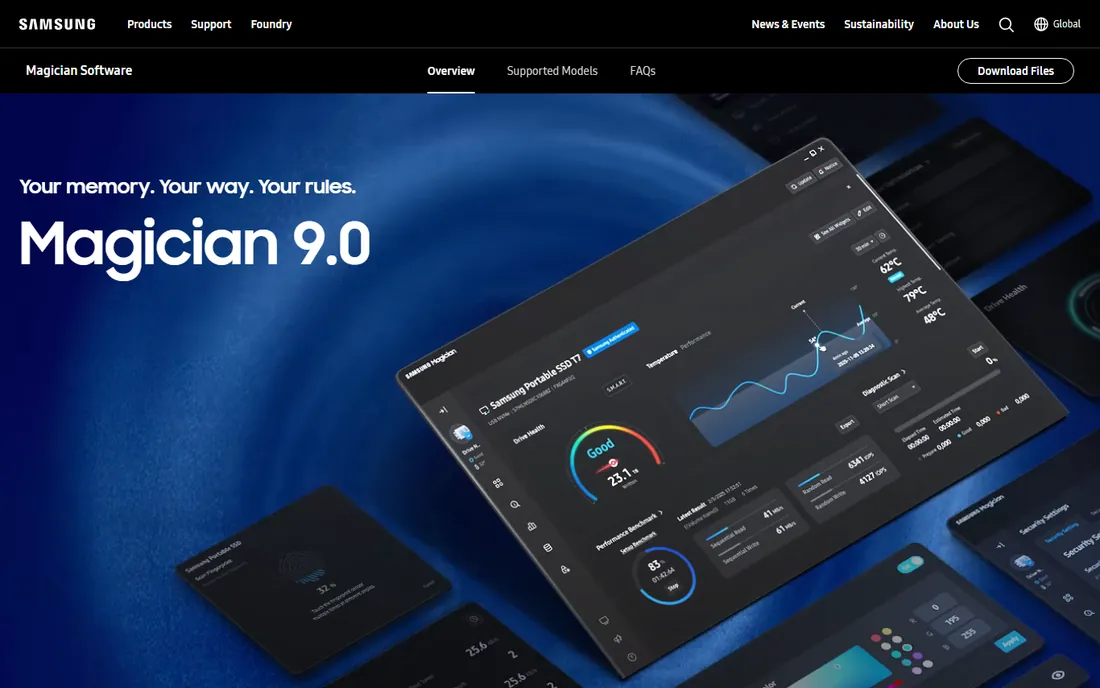
If your new drive is a Samsung SSD, start here: Samsung Magician includes a free Data Migration feature that moves your OS, applications, and data to the new drive with a simple wizard. It is free, it is official, and it also manages firmware, health monitoring, and performance optimization for the drive.
The limitation is the target: it is built for Samsung SSDs. For that common upgrade path, though, nothing beats a free first-party tool. Download it from Samsung's official tools page and run the Data Migration wizard with both drives connected.
What we like- Free Data Migration feature
- Simple wizard
- Drive health and firmware tools included
Watch out for- Target drive must be a Samsung SSD
- Windows-focused
How we chose
We reviewed vendor product pages, feature documentation, and practitioner discussion across tech publications and forums, comparing cloning speed, OS support, pricing models, and reliability reputation. We required every tool to be currently available with a working website. We did not claim hands-on testing.
A practical guide to choosing migration software
Match the tool to the job. New SSD, same PC: use a cloner like EaseUS Disk Copy, Macrium Reflect, or the free Samsung Magician if your drive qualifies. New PC entirely: use Laplink PCmover to move programs and settings. Ongoing protection plus migration: Acronis or AOMEI.
Check the details before you clone. The destination drive must have room for the source data, and most tools require equal or larger capacity. Back up anything irreplaceable first; cloning is reliable but not risk-free. After cloning, set the new drive as the boot device in your BIOS or UEFI settings.
Mind the licensing model. One-time cloners like EaseUS are cheap for a single job. Subscription suites like Acronis make sense only if you will use the backup and security features year-round. Free tools like Clonezilla cost nothing but your time and attention. Vendor utilities like Samsung Magician cost nothing at all when your hardware qualifies, so check those first.
Cloning versus imaging: what is the difference
Cloning copies a drive directly to another drive, ready to boot immediately. Imaging saves the drive to a file you restore later, which is better for backups and archiving. Most tools here do both, but dedicated cloners like EaseUS Disk Copy and Samsung Magician optimize for the clone-to-new-drive scenario, while Macrium and Acronis treat imaging as the primary workflow with cloning as a feature. Knowing which workflow you actually need keeps you from buying the wrong category of tool. For a drive upgrade, cloning is the shorter path.
Frequently asked questions
What is the best software to migrate my OS to a new SSD?
For simplicity, EaseUS Disk Copy or Samsung Magician if your SSD is Samsung. For reliability and control, Macrium Reflect. For a free technical option, Clonezilla.
Can I migrate Windows without reinstalling everything?
Yes. Disk cloning copies the entire OS, programs, and settings to the new drive, which boots as if nothing changed. PCmover goes further by moving programs and profiles between different PCs.
Is Clonezilla really free?
Yes. Clonezilla is open-source and free for any use. The cost is usability: it runs from a bootable USB with a text interface and requires the destination partition to be as large as the source.
Will cloning work if the new drive is smaller?
Only if the used data fits and the tool supports shrinking partitions. Most cloners require the destination to hold all the source data; check the tool's documentation for your specific drives.
Do I need to pay for migration software?
Not necessarily. Samsung Magician is free for Samsung SSDs, and Clonezilla is free for everything. Paid tools buy convenience, support, and extra features like backup and scheduling.
Sources we checked (8)
- https://acronis.com/
- https://macrium.com/
- https://www.easeus.com
- https://aomeitech.com/
- https://clonezilla.org/
- https://www.laplink.com/
- https://paragon-software.com/
- https://semiconductor.samsung.com/consumer-storage/magician/
Is your product missing or out of date?
We review this list regularly. Vendors can request a listing, send updated pricing or ask about featured placement.

Shihab Mia · Founder, Rankite
Shihab has spent more than a decade helping SaaS and e-commerce brands grow through search. He writes Rankite's software buying guides from pricing pages, documentation and public user reviews. More about Shihab.
 Macrium Reflect
 EaseUS Disk Copy
 AOMEI Backupper
 Clonezilla
 Laplink PCmover
 Paragon Hard Disk Manager
 Samsung Magician