How we make this list: we compare pricing pages, product documentation and public user reviews. Rankite is independent; if a vendor ever pays for a featured spot, that listing is clearly labeled Partner.
Key takeaways
- OBS Studio runs a huge share of serious beginner setups and costs nothing, which makes it the default starting point.
- Ecamm Live is the fastest route to a professional look for teams that are all on Macs.
- vMix and Wirecast are the picks when a broadcast cannot fail, such as paid events or large congregations.
- StreamYard, Restream and Lightstream move the heavy work to the cloud, so an average laptop is enough.
- Streamlabs Desktop and XSplit sit between OBS and the premium tools, trading some flexibility for easier setup.
Quick comparison
| Tool | Best for | Starting price | Free plan |
|---|
 OBS Studio OBS Studio | free full-featured broadcasting | Free | Yes |
 Streamlabs Desktop Streamlabs Desktop | beginner-friendly streaming with built-in alerts | Free (Ultra plan $27 per month adds premium themes, apps and multistreaming) | Yes |
 vMix vMix | professional multi-camera production | $60 one-time (Basic HD edition) | Free trial (60 days) |
 Wirecast Wirecast | established pro streaming workflows | See website (vendor lists pricing on its own store; third-party figures vary) | Free trial (unlimited-time trial with watermarked output) |
 Ecamm Live Ecamm Live | Mac-based teams and interview shows | $16 per month (billed annually; $20 month-to-month) | Free trial (14 days) |
 XSplit Broadcaster XSplit Broadcaster | polished streaming between free and pro | $5 per month (billed annually at $59.99 per year; $14.99 month-to-month; lifetime option available) | Yes |
 StreamYard StreamYard | browser-based shows with remote guests | See website (plans restructured in 2026; check the current pricing page) | Yes |
 Restream Restream | multistreaming to many platforms at once | $16 per month (billed annually; $19 month-to-month) | Yes |
 Lightstream Lightstream | cloud studio for browser-based scenes | $9 per month (billed annually; $12 month-to-month) | Yes |
 Be.Live Be.Live | talk shows and interview formats | See website (third-party figures conflict; check the vendor pricing page) | Free trial (14 days) |
Is your product missing or out of date?
We review this list regularly. Vendors can request a listing, send updated pricing or ask about featured placement.
The best live broadcast software
Starting priceFree
Free planYes
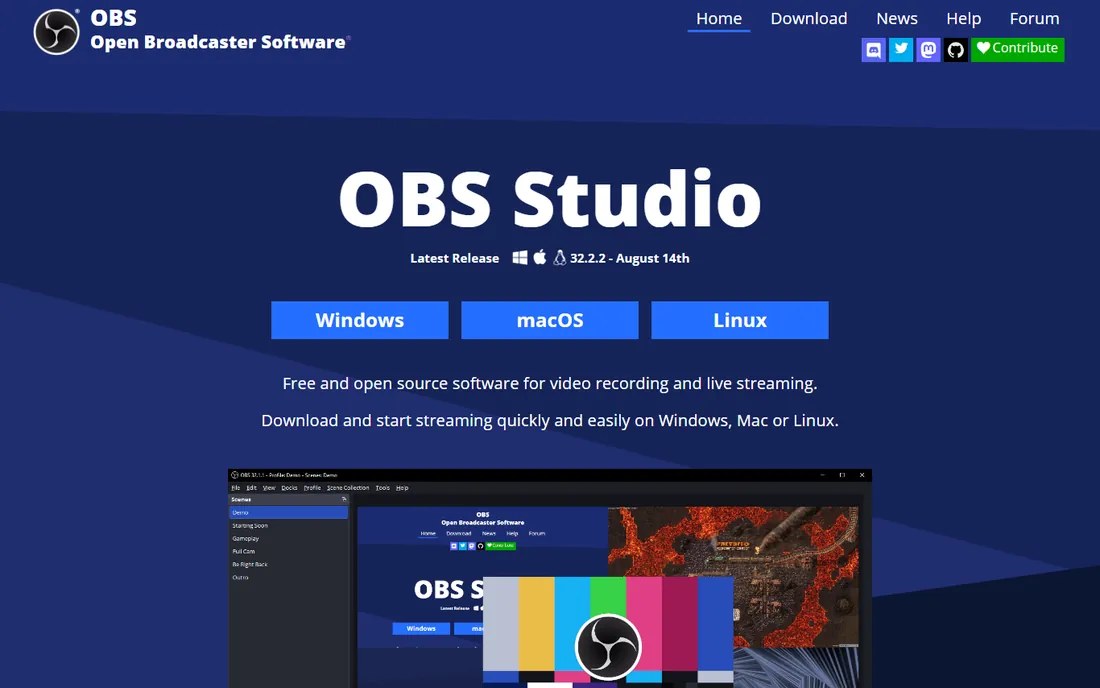
OBS Studio is the reason a volunteer with a laptop can broadcast a service that looks like a television production. Scenes, sources, transitions, audio mixing, recording and streaming to any platform are all included, free, with no watermark. Churches and creators have built entire broadcast ministries on it without spending a dollar on software.
The price of free is a learning curve. The interface exposes everything at once, and terms like "scenes" and "sources" confuse people who just want to go live. There is no support number to call; help comes from documentation and community forums. Plan a practice week before any real broadcast. For teams with one technically inclined person who can set it up and train the rest, nothing else touches the value.
What we like- Completely free with no watermark or time limit
- Huge community and plugin library
- Runs on Windows, Mac and Linux
Watch out for- Interface intimidates first-time users
- No official support line
#2
Streamlabs Desktop
Best for: beginner-friendly streaming with built-in alerts
Visit streamlabs.com
Starting priceFree (Ultra plan $27 per month adds premium themes, apps and multistreaming)
Free planYes
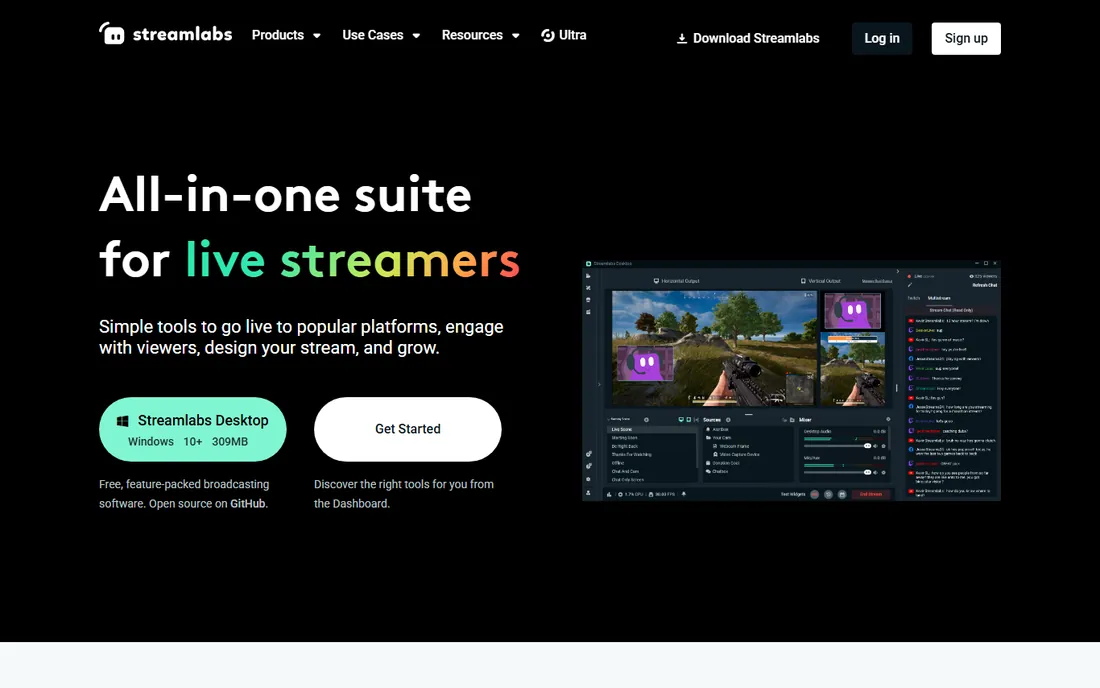
Streamlabs takes the OBS engine and wraps it in an interface that does not frighten newcomers. Setup wizards configure the stream automatically, and alerts, chat boxes, donation tickers and overlays install with a click instead of a plugin hunt. For a creator or small business going live for the first time, that hand-holding is worth real money in saved frustration.
The trade is performance. Streamlabs uses more CPU and memory than plain OBS on the same machine, which matters on the mid-range laptops many small teams own. The free version is genuinely useful, but the constant presence of Ultra upsells wears thin. If your computer is modest and your needs are basic, start with OBS. If ease of setup matters more than squeezing out performance, Streamlabs earns its place.
What we like- Guided setup and built-in widgets
- Free tier covers most creator needs
- Large theme and overlay library
Watch out for- Heavier on system resources than OBS
- Some features push toward the paid Ultra plan
Starting price$60 one-time (Basic HD edition)
Free planFree trial (60 days)
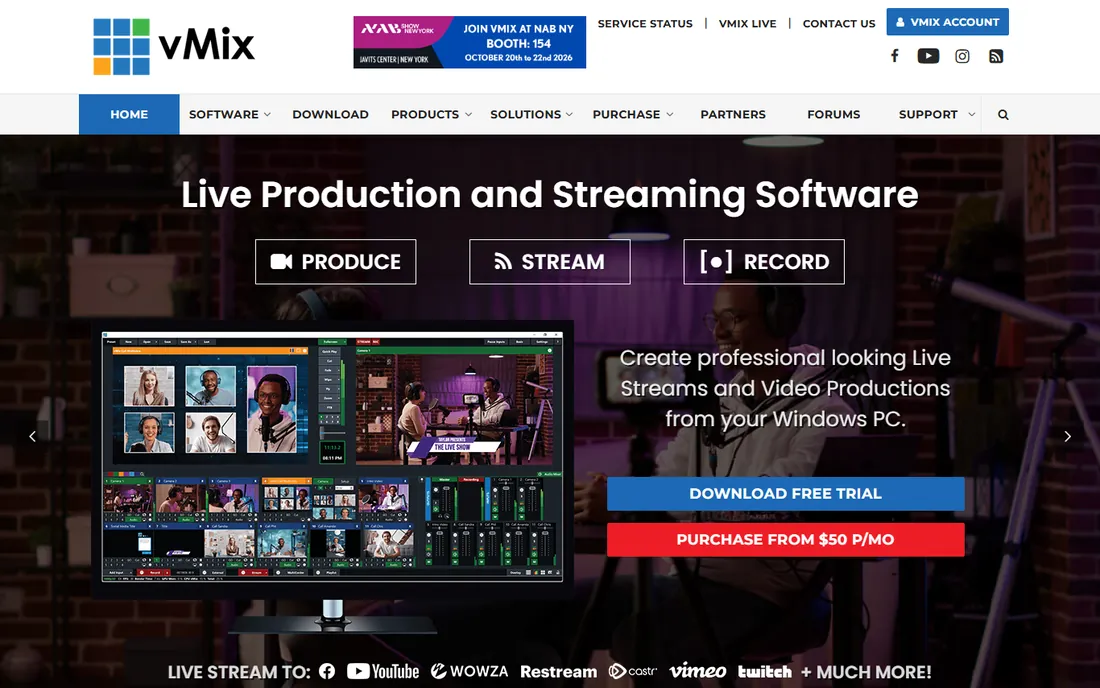
vMix is what churches and small venues upgrade to when volunteers keep breaking the free tools. It handles multiple cameras, NDI inputs, instant replay, scoreboards and virtual sets with the reliability of hardware switchers costing many times more. The Basic HD edition starts at $60 as a one-time purchase, which is remarkable for software this capable.
Two limits shape the decision. It runs on Windows only, so Mac-based teams need to look elsewhere. And the edition ladder climbs steeply: 4K, more inputs and advanced features require higher editions at higher prices. The 60-day free trial is the longest in this category and the right way to evaluate it. Run your actual show format through the trial for a month before spending anything.
What we like- Broadcast-grade switching and instant replay
- 60-day trial is unusually generous
- One-time pricing per edition
Watch out for- Windows only
- Higher editions cost much more than Basic
Starting priceSee website (vendor lists pricing on its own store; third-party figures vary)
Free planFree trial (unlimited-time trial with watermarked output)
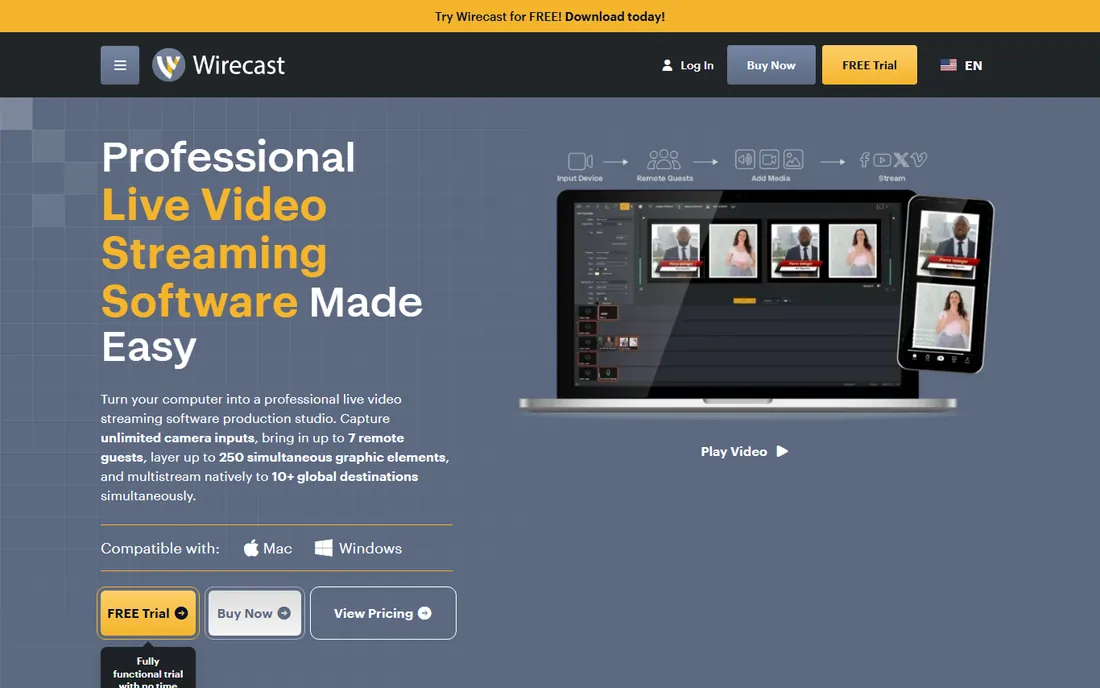
Wirecast has been in the broadcast world long enough that most capture hardware lists it on the compatibility page. It handles multi-camera switching, ISO recording, scoreboards and live guests, and it runs on both Windows and Mac, which vMix cannot claim. Organizations that standardized on it years ago tend to stay because retraining a volunteer team is expensive.
The buying experience is the weak point. Pricing is not clearly published on the marketing pages, so you will need to visit the vendor's store or talk to sales to get a number. The interface has improved over the years but still feels like an earlier era next to browser-based competitors. Consider Wirecast when you need proven compatibility with specific hardware or an established workflow your team already knows.
What we like- Long track record in professional streaming
- Broad capture hardware support
- Works on Windows and Mac
Watch out for- Pricing is not transparent on the marketing site
- Interface feels dated next to newer rivals
Starting price$16 per month (billed annually; $20 month-to-month)
Free planFree trial (14 days)
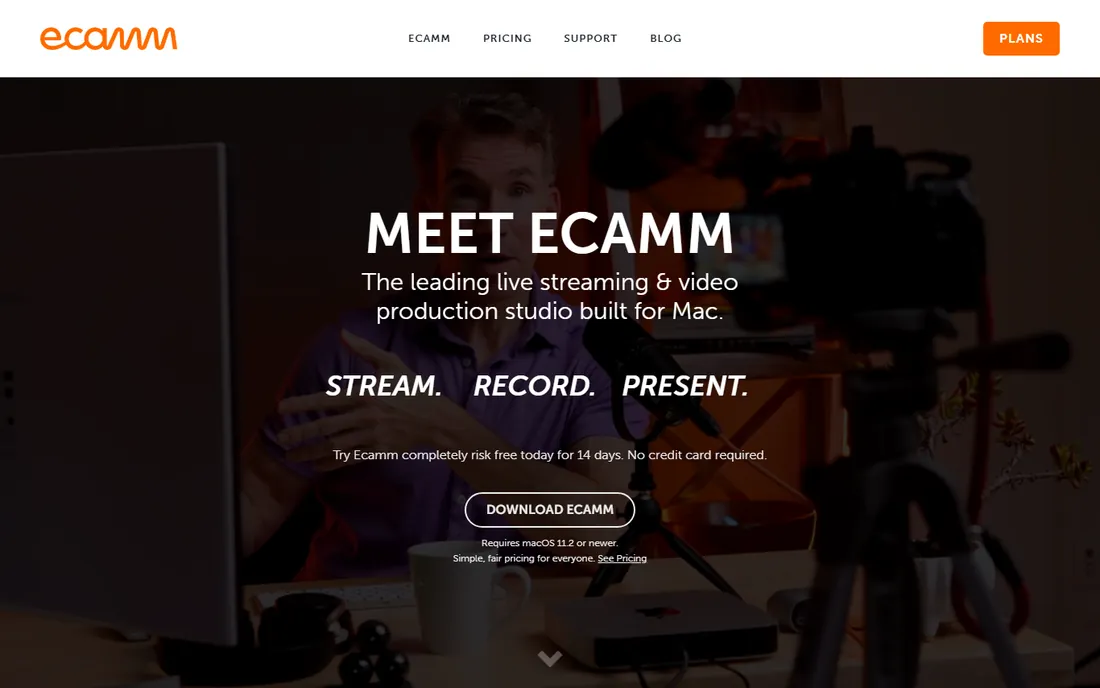
If the whole office runs on Macs, Ecamm Live removes half the setup work. Camera switching, screen sharing, lower thirds, interview layouts and streaming to the major platforms all work with minimal configuration. It is the tool behind a large number of polished-looking webinars and podcast videos, and the reason is simple: it makes an average Mac look like a studio.
The boundary is absolute. There is no Windows version and no plan for one. At $16 per month billed annually, a church or nonprofit running it year-round pays close to $200 annually for one seat. The 14-day trial is enough to run two full shows through it. For Mac-based businesses doing webinars, interviews or live selling, it is the least painful path to a professional result.
What we like- The easiest pro-looking setup on a Mac
- Excellent interview and screen-sharing modes
- Reliable performance on Apple hardware
Watch out for- Mac only
- Subscription adds up for volunteer teams
#6
XSplit Broadcaster
Best for: polished streaming between free and pro
Visit xsplit.com
Starting price$5 per month (billed annually at $59.99 per year; $14.99 month-to-month; lifetime option available)
Free planYes
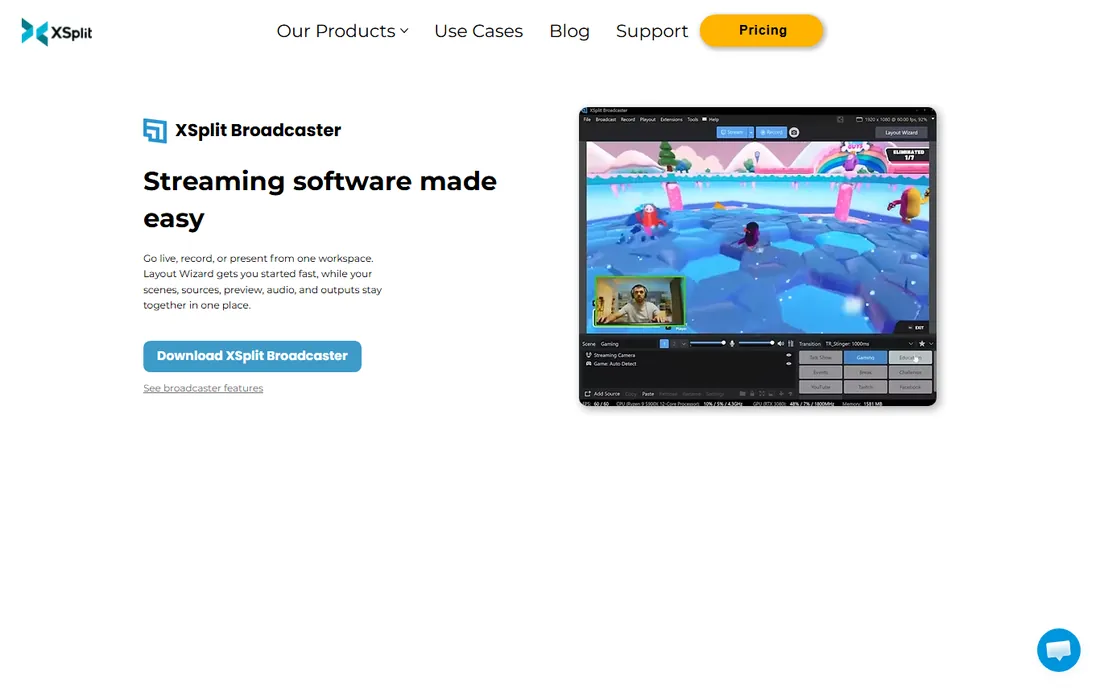
XSplit occupies the middle ground between OBS's free flexibility and the polish of premium suites. Scene management, source transitions, audio controls and streaming to major platforms are all here in an interface that a new operator can learn in an afternoon. The free tier covers basic broadcasting, and paid plans start at $5 per month billed annually, with a lifetime license for buyers who hate subscriptions.
Windows users get the full experience. Mac support exists but lags, so Mac-first teams should favor Ecamm Live. Some advanced production features sit behind higher tiers, so check the plan comparison against your actual show format. XSplit fits small businesses and creators who outgrew the free tools' rough edges but do not need vMix-level production.
What we like- Clean interface with pro features
- Free tier available
- Flexible monthly, annual or lifetime pricing
Watch out for- Windows-focused with limited Mac support
- Some advanced features need higher tiers
Starting priceSee website (plans restructured in 2026; check the current pricing page)
Free planYes
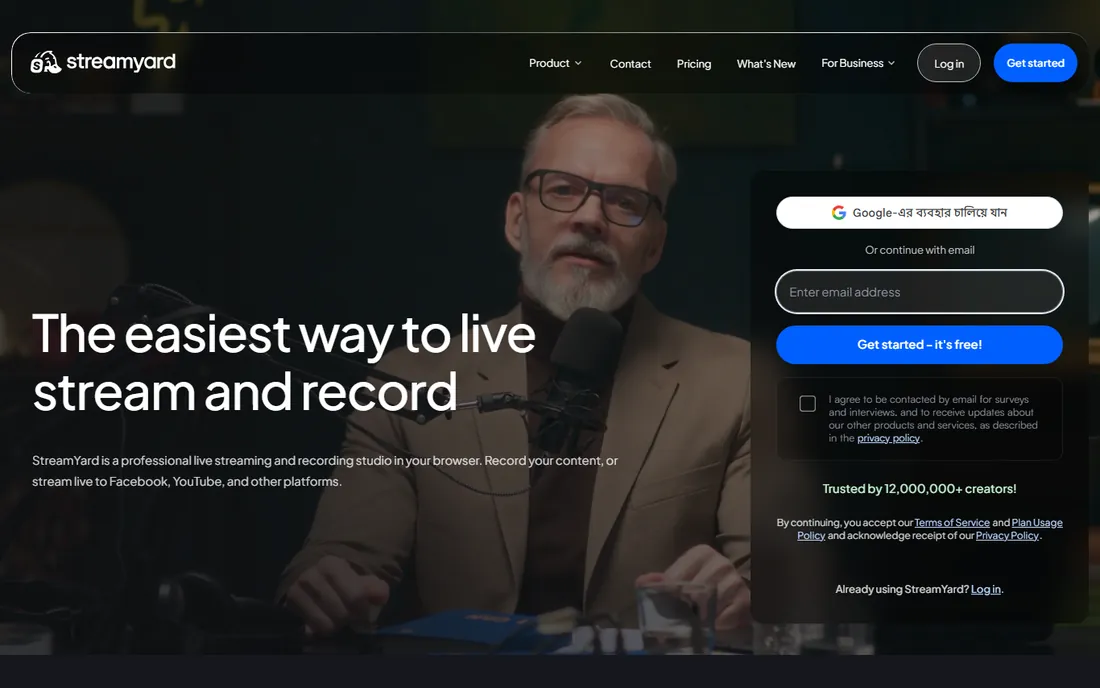
StreamYard flips the model: the show runs in the cloud, and your computer barely matters. Hosts and guests join from a browser link, no downloads, which removes the single biggest failure point in remote interview shows. It handles layouts, banners, screen shares and multistreaming, and it records isolated tracks for later editing. A Chromebook can run a professional-looking talk show on it.
The pricing situation requires care. StreamYard restructured its plans in 2026 and third-party sites show conflicting figures, so treat any number you see elsewhere as stale and check the vendor's pricing page directly. The free plan exists but limits show length and branding. Scene design is simpler than desktop tools, so complex multi-camera productions belong elsewhere. For interview and panel formats, it remains the lowest-friction option.
What we like- Guests join from a browser with no install
- Runs on weak computers
- Records separate audio and video tracks
Watch out for- Pricing changed in 2026, verify current plans
- Limited scene complexity versus desktop software
Starting price$16 per month (billed annually; $19 month-to-month)
Free planYes
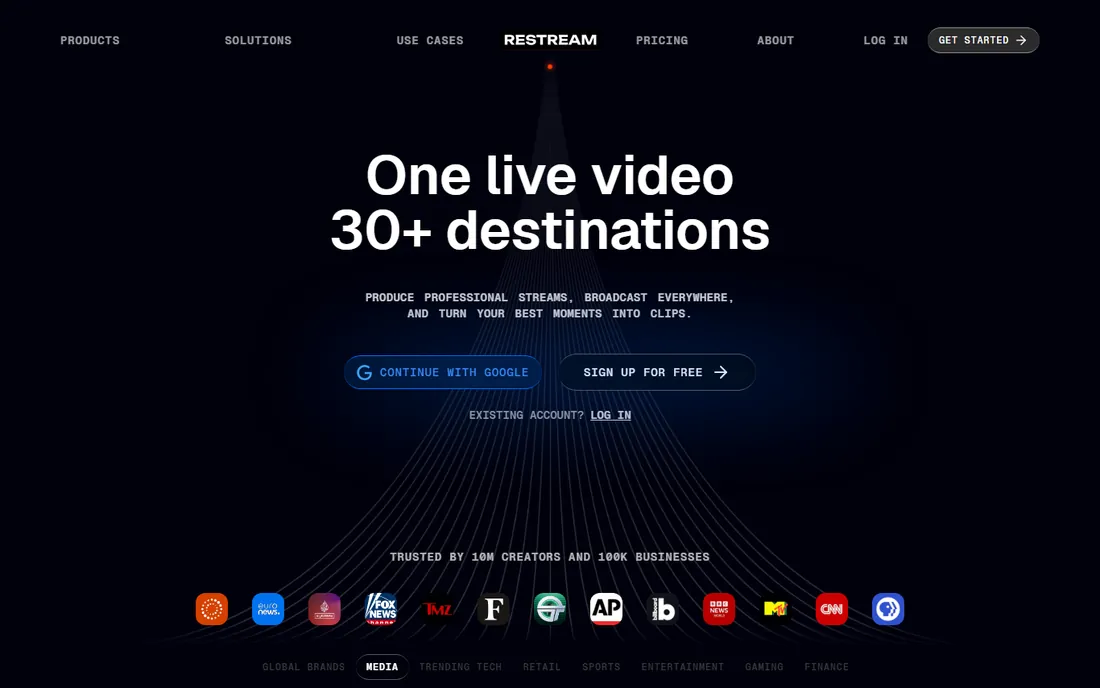
Restream's core promise is simple: broadcast once, appear everywhere. One stream goes out to YouTube, Facebook, Twitch, LinkedIn and dozens of other platforms at the same time, with a browser-based studio for hosts and guests. For businesses and churches that need to reach audiences scattered across platforms, it replaces a tangle of restreaming workarounds.
The free plan works but watermarks your stream with Restream branding, which looks unprofessional for business use. Paid plans start at $16 per month billed annually and remove the branding while adding features like full HD and more destinations. Managing chat from five platforms at once takes practice; assign one person to chat duty during the show. If your audience lives on more than one platform, the math usually favors Restream over running separate broadcasts.
What we like- Streams to 30+ platforms simultaneously
- Browser studio included
- Useful analytics across platforms
Watch out for- Free plan adds Restream branding
- Chat management across platforms takes practice
Starting price$9 per month (billed annually; $12 month-to-month)
Free planYes
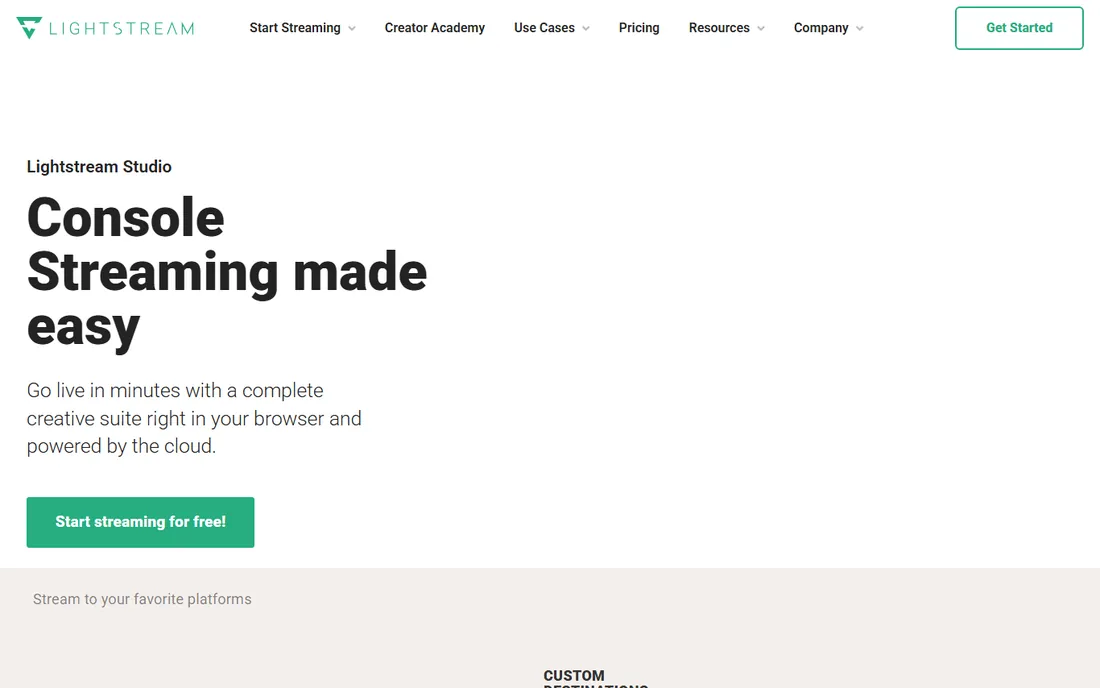
Lightstream is the browser-based studio for teams that want scenes and overlays without installing anything heavy. You build scenes, invite remote guests, add graphics, and stream to the major platforms, all from a browser. Because rendering happens in the cloud, a modest laptop or even a tablet can produce a clean show. At $9 per month billed annually, it is one of the cheapest paid options here.
Cloud production has one non-negotiable requirement: your internet connection must be solid, because every frame travels to Lightstream's servers and back out. A flaky venue connection will hurt more here than with desktop software. The feature set is also narrower than vMix or Wirecast. For talk shows, webinars and simple multi-guest formats on a budget, it is a practical pick.
What we like- No powerful computer required
- Clean browser-based scene builder
- Low starting price
Watch out for- Depends on a stable internet connection
- Fewer advanced production features
Starting priceSee website (third-party figures conflict; check the vendor pricing page)
Free planFree trial (14 days)
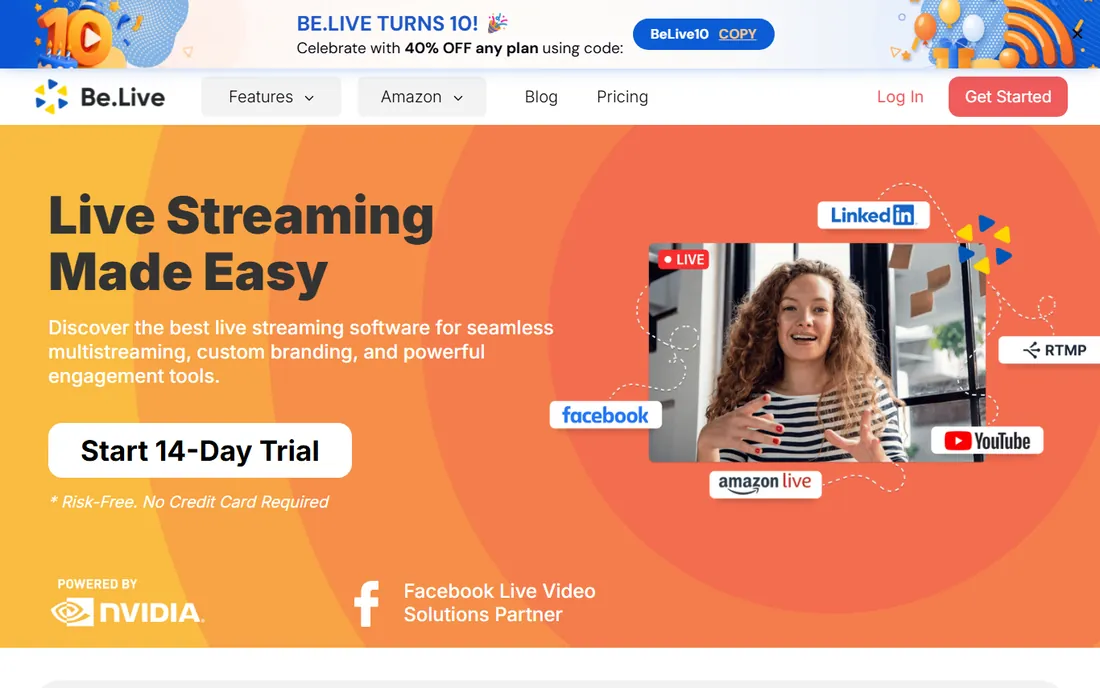
Be.Live targets talk-format shows: interviews, panels, and broadcasts with guests calling in. The workflow is built around getting a guest on screen fast, with layouts, comments on screen and basic branding handled in the browser. Teams that run a weekly interview show will find it more direct than adapting a general tool.
It is not a general production switcher, so multi-camera events and complex scenes belong elsewhere. Pricing is the practical problem: review sites show conflicting numbers, which means the vendor has changed plans without the directories catching up. Go to the pricing page and confirm the current figure before budgeting. The 14-day trial is the reliable way to evaluate it.
What we like- Purpose-built for interview and talk formats
- Simple guest invitation flow
- Works in the browser
Watch out for- Narrow focus, not a general production tool
- Pricing information is inconsistent across review sites
Picking software for the kind of show you run
Start from the format, not the feature list. A single speaker talking to a camera needs almost nothing: StreamYard or Ecamm Live will have you live in an hour. An interview show with remote guests adds the guest problem, which is where browser-based tools earn their price, because every guest who cannot install software is a show that starts late. A multi-camera event with live switching needs desktop software like OBS, vMix or Wirecast, and an operator who has rehearsed.
Then consider the operator. Volunteer teams do best with the simplest tool that covers the format. A complex program in untrained hands fails more often than a simple program with fewer features. If one technically skilled person sets up OBS and builds simple scenes, volunteers can run the show with two buttons. If nobody on the team wants to learn software, pay for the tool that does the work for you.
How we chose
We verified each vendor's homepage and pricing page in October 2026 and recorded where prices were unclear or conflicting. We compared the features that decide real broadcasts: multi-camera support, guest handling, multistreaming, recording options, platform compatibility and system requirements. We cross-checked public reviews on G2, Capterra and Reddit for recurring reports of crashes, dropped frames and support responsiveness. Tools scored higher when their pricing was transparent, their free tier or trial was long enough to rehearse a real show, and their learning curve matched the teams they claim to serve.
The gear and internet that keep a stream from dropping
Software gets the blame for most failed streams, but the connection usually deserves it. A stable 10 Mbps upload handles a clean 1080p stream on any tool here; anything less and you should drop to 720p rather than fight buffering. Wired ethernet beats Wi-Fi every time, and it costs almost nothing to run a cable to the streaming computer.
On hardware, a computer from the last four years with a dedicated GPU or a recent Apple chip handles OBS or vMix comfortably. Browser-based tools shift the load to the cloud, which is why they work on modest machines. Audio matters more than most teams expect: a $60 USB microphone improves a broadcast more than any software upgrade. Buy the microphone before you upgrade the software.
Frequently asked questions
What is the best free live broadcast software?
OBS Studio. It is completely free with no watermark or time limit, and it handles multi-camera switching, overlays, recording and streaming to any platform. The trade is a steeper learning curve and no official support line. For teams with one technically inclined person to set it up, it beats every paid tool on value.
Do I need a powerful computer to live stream?
Not necessarily. Desktop software like OBS and vMix benefits from a recent processor and decent graphics, but browser-based tools like StreamYard, Restream and Lightstream do the heavy rendering in the cloud. With a cloud tool, a modest laptop and a stable internet connection are enough for a professional-looking show.
Which software is best for churches?
It depends on the team. Volunteer-run churches do well with OBS Studio (free) or StreamYard (simple, browser-based) for straightforward services. Churches with multi-camera setups and a dedicated operator should look at vMix, whose $60 starting price and 60-day trial make it a low-risk upgrade when reliability matters.
Can I stream to YouTube and Facebook at the same time?
Yes, with multistreaming. Restream is built for exactly this: one broadcast goes to 30+ platforms simultaneously. StreamYard and Lightstream also support multiple destinations on paid plans. OBS can do it with plugins, but the setup is fiddly compared to tools that include it.
What internet speed do I need for live streaming?
A stable 10 Mbps upload supports a clean 1080p stream on any software in this guide. Stability matters more than peak speed, so use a wired ethernet connection rather than Wi-Fi when possible. If your upload is slower, stream at 720p; a stable lower-resolution stream always beats a stuttering HD one.
Sources we checked (12)
- https://obsproject.com
- https://streamlabs.com
- https://www.vmix.com
- https://www.wirecast.io
- https://www.ecamm.com
- https://www.xsplit.com
- https://streamyard.com
- https://restream.io
- https://golightstream.com
- https://belive.tv
- https://www.g2.com
- https://www.capterra.com
Is your product missing or out of date?
We review this list regularly. Vendors can request a listing, send updated pricing or ask about featured placement.

Shihab Mia · Founder, Rankite
Shihab has spent more than a decade helping SaaS and e-commerce brands grow through search. He writes Rankite's software buying guides from pricing pages, documentation and public user reviews. More about Shihab.