How we make this list: we compare pricing pages, product documentation and public user reviews. Ratings come from G2, Capterra or Trustpilot, with the date we checked them.
Key takeaways
- Tenor and Ezgif cover most quick jobs for free, while Canva and Kapwing suit people who also make social posts and short videos.
- Phone-first editors work best when the source is a Live Photo, a burst, or a short clip already on the phone.
- Desktop tools such as ScreenToGif give finer frame control, which matters for tutorials, bug reports, and documentation.
- Check export limits before you start, because free plans often cap length, resolution, or watermark-free exports.
- A GIF that looks good at 480 pixels wide is usually enough for chat and social posts, and it keeps file size under control.
Quick comparison
| Tool | Best for | Starting price | Free plan |
|---|
 Tenor Tenor | Fast sharing and discovery | Free | Yes |
 Ezgif Ezgif | Precise browser editing | Free | Yes |
 Canva Canva | Social GIFs with text and branding | Free | Yes |
 Kapwing Kapwing | Browser editing with captions | Free | Yes |
 ScreenToGif ScreenToGif | Screen recordings to GIF | Free | Yes |
 MakeAGif MakeAGif | Quick web GIFs from clips | Free | Yes |
 Imgflip Imgflip | Quick meme GIFs from video | Free | Yes |
 Adobe Express Adobe Express | Polished branded GIFs | Free | Yes |
Is your product missing or out of date?
We review this list regularly. Vendors can request a listing, send updated pricing or ask about featured placement.
The best GIF editor app
Starting priceFree
Free planYes
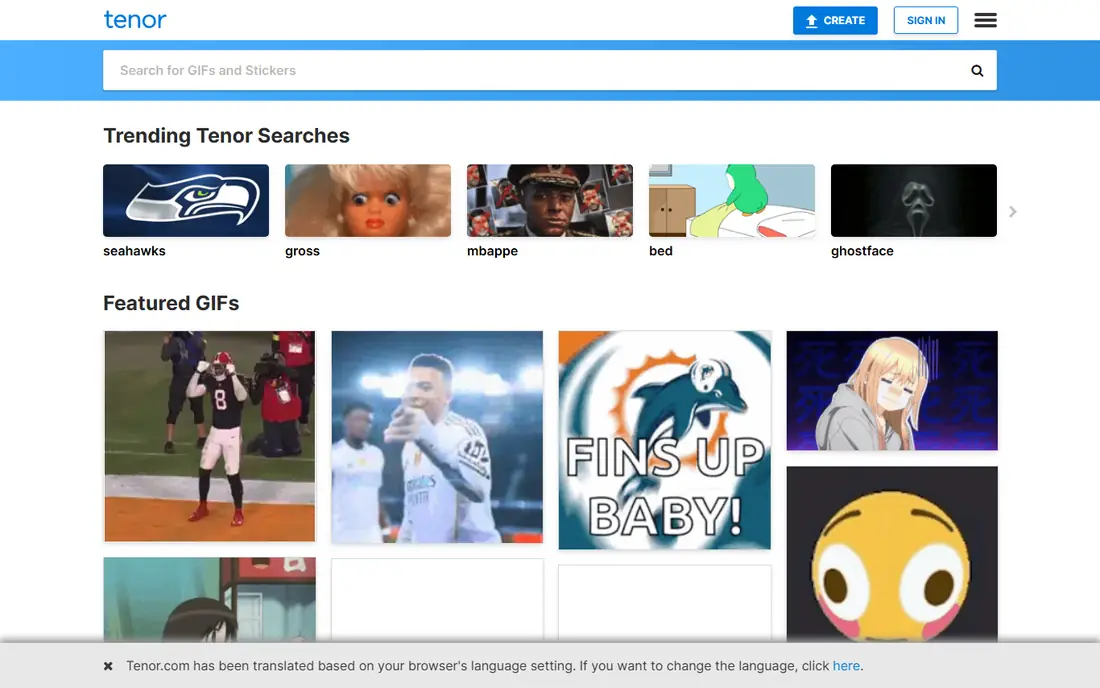
Tenor is the shortest path from a clip to a GIF that other people can find and reuse. Search the library when finding a GIF beats making one, or turn a short clip into a shareable animation for chat and social replies. For reaction GIFs and team chat, that speed matters more than deep editing controls.
The trade-off is control. You cannot fine-tune individual frames, set exact frame delays across a long sequence, or optimize file size with the same precision as a dedicated editor. Tenor also fits public or semi-public sharing better than private work files. Use it first for speed, then move to Ezgif or a desktop editor when a GIF needs careful timing or a small file size.
What we like- Very fast path from a clip to a shareable GIF
- Large built-in library
- Easy keyboard and chat sharing
Watch out for- Limited frame-level control
- Creations are tied to a sharing platform
Starting priceFree
Free planYes
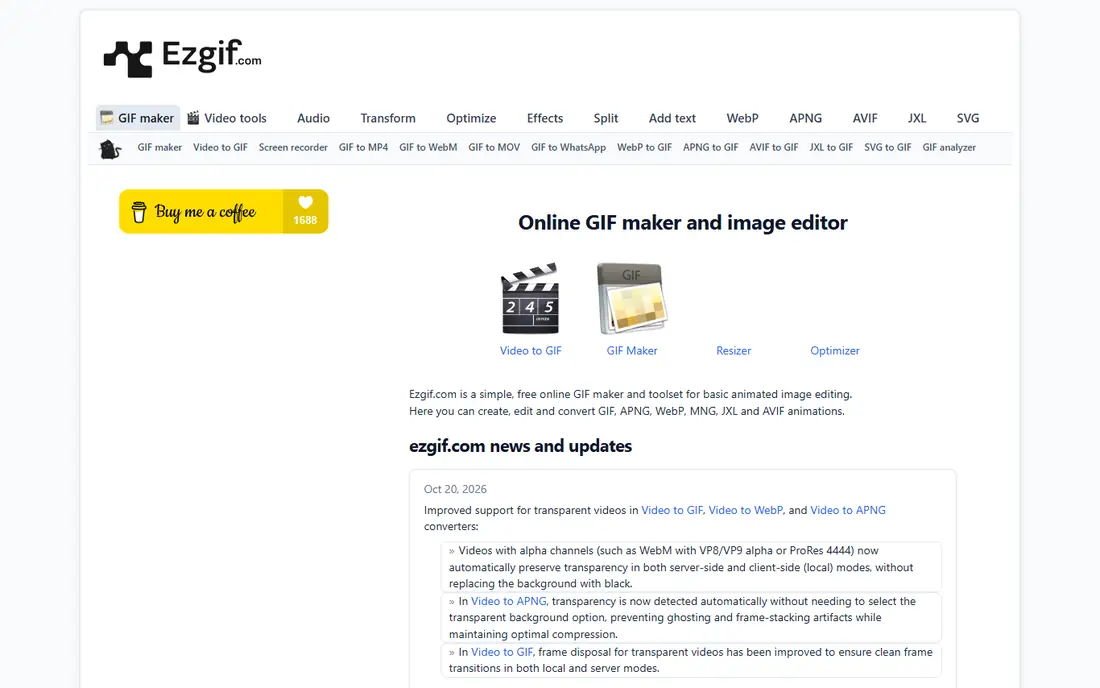
Ezgif is a workhorse for people who want control without installing software. It can convert video to GIF, split a GIF into frames, crop and resize, change speed, add text, and compress the result to a target size. That combination makes it useful for web teams, support staff, and anyone who posts GIFs in docs or help articles. Some tools also offer local processing in the browser, which helps when a file should stay on your device.
The interface is functional rather than pretty, and the number of separate tools can confuse a first visit. Start with video to GIF, then use the optimizer if the file is too large for a chat app or a page. Ezgif will not make a GIF look like a design project on its own, but it will make a GIF the right size, length, and speed.
What we like- Frame editing, cropping, resizing, and optimization in a browser
- No install needed
- Supports several animation formats
Watch out for- Plain interface that takes a little learning
- Large uploads can be slow on weak connections
#3Canva
Best for: Social GIFs with text and branding4.7/5 on
G2 (7,678 reviews, checked Oct 2026)
Visit canva.com
Starting priceFree
Free planYes
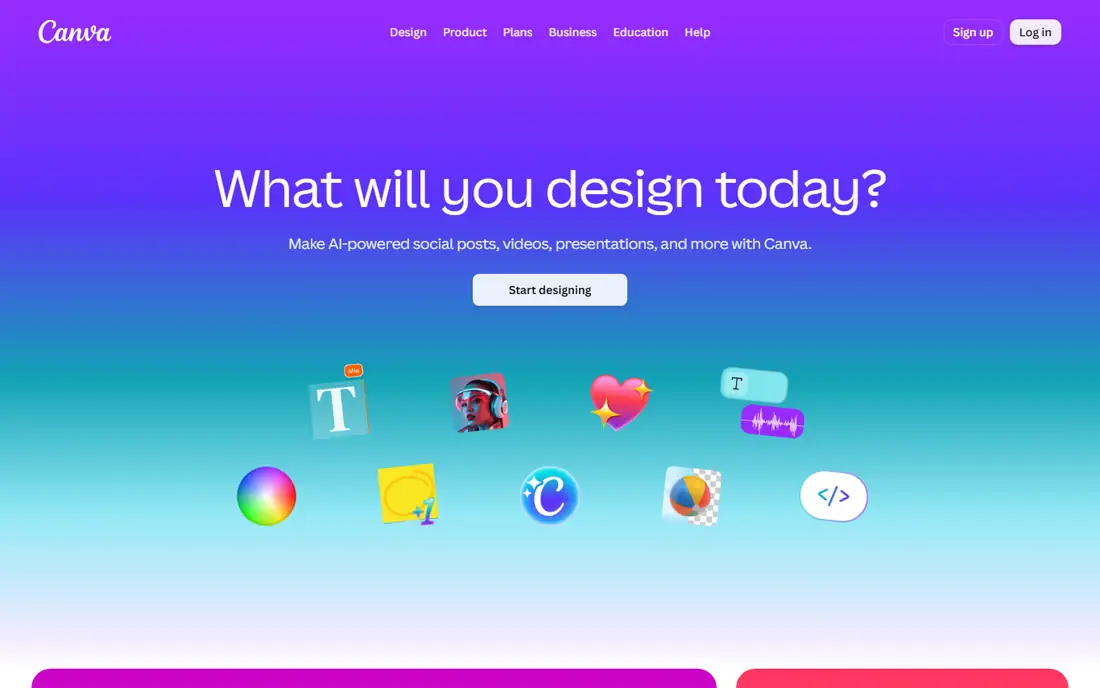
Canva suits creators who want a GIF to match a post, a story, or a brand kit. Start from a template, drop in photos or short clips, add animated text and shapes, and export as a GIF. That flow is much faster than building each frame by hand, and it keeps colours and fonts consistent across a campaign. Teams can also reuse a design for still images and video.
Canva is not the right pick for frame-perfect editing or for squeezing a GIF to the smallest possible size. Animations are template-driven, so a very specific motion or timing may need another tool. Still, for marketing GIFs, announcements, and event posts, Canva gives a polished result with the least friction.
What we like- Templates, fonts, and brand colours in one place
- Easy animation and export
- Works on phone and desktop
Watch out for- Less frame-by-frame control than a dedicated GIF editor
- Some assets need a paid plan
#4Kapwing
Best for: Browser editing with captions3.9/5 on
G2 (40 reviews, checked Oct 2026)
Visit kapwing.com
Starting priceFree
Free planYes
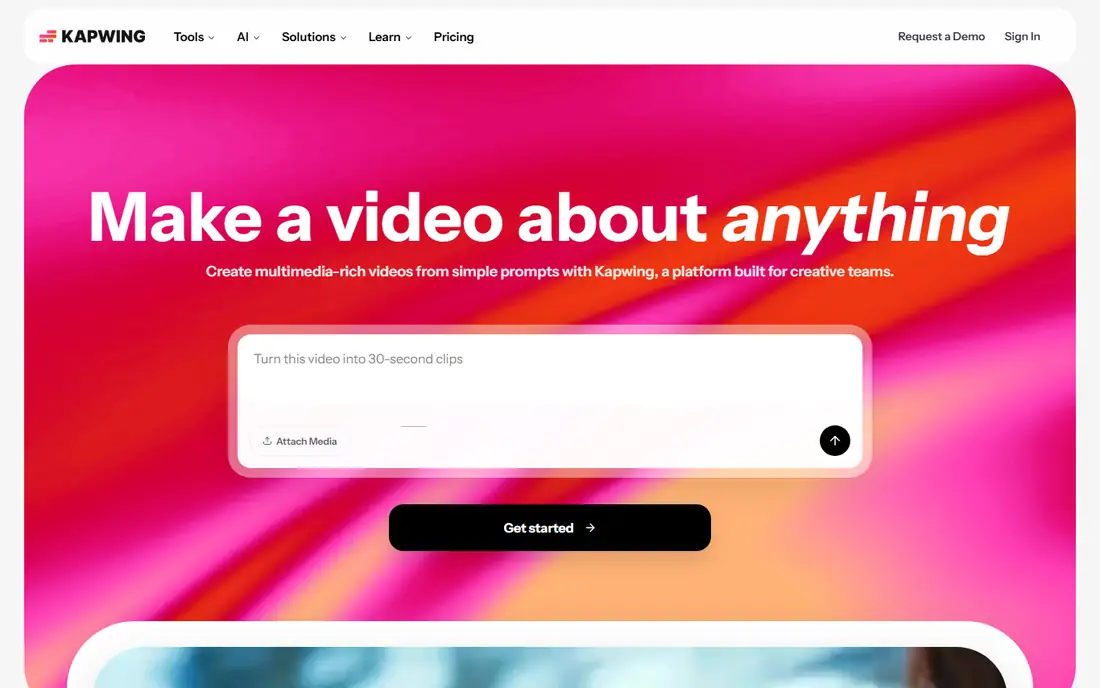
Kapwing works well when a GIF starts life as a video that also needs captions or a clean trim. The timeline view makes it easy to cut the exact seconds, add text, and check the loop before export. Creators who turn podcasts, webinars, or tutorials into short clips can reuse the same project for a GIF and a short video.
The catch is export terms on free accounts, which can change, so check the export screen before a deadline. Kapwing also runs in a browser, so long or high-resolution source files can feel slow on older machines. For short social clips, though, it is a strong middle ground between a simple converter and a full video editor.
What we like- Timeline editing in a browser
- Captions, text, and trimming in one project
- Good for repurposing video clips
Watch out for- Free exports may carry a watermark depending on the plan
- Heavier projects need a stable connection
Starting priceFree
Free planYes
ScreenToGif is the best fit for how-to GIFs, bug reports, and product walkthroughs. Record a region of the screen, edit frames, remove mistakes, add text or highlights, and export a GIF that shows exactly what to click. Support teams and technical writers get a lot of value from that loop, because a short GIF often answers a question faster than a paragraph.
The main limit is platform: it is a Windows app, so Mac and phone users need another pick. The editor also rewards patience, since frame editing takes longer than a one-tap converter. If your GIFs explain software, that extra control is worth it. If your GIFs are mostly for fun, a phone app will feel quicker.
What we like- Records screen, webcam, or a sketchboard
- Full frame editor
- Free and open source
Watch out for- Windows only
- Interface looks dated compared with modern apps
Starting priceFree
Free planYes
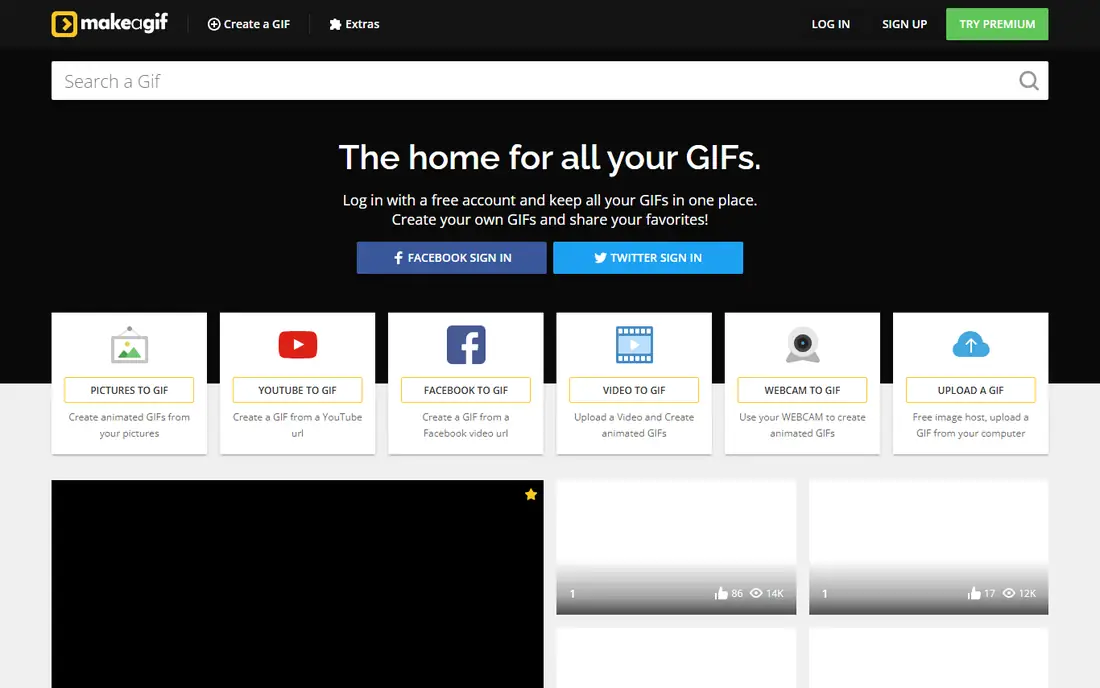
MakeAGif covers the common case: you have a clip or a set of pictures and you want a GIF in a few minutes. Upload the source, set the start point and length, add a caption if needed, and download or share the result. It is a good fallback when you are on a shared computer or a device without your usual apps installed.
Precision is the limit. You will not get the frame-by-frame control of Ezgif or ScreenToGif, and free exports may carry limits that matter for brand work. Use MakeAGif for quick, informal GIFs, and switch to a frame editor when timing, size, or a clean export matters more than speed.
What we like- Simple web workflow from video, images, or a webcam
- Quick sharing options
- No install
Watch out for- Free tier limits and watermarks can apply
- Less precise than a frame editor
Starting priceFree
Free planYes
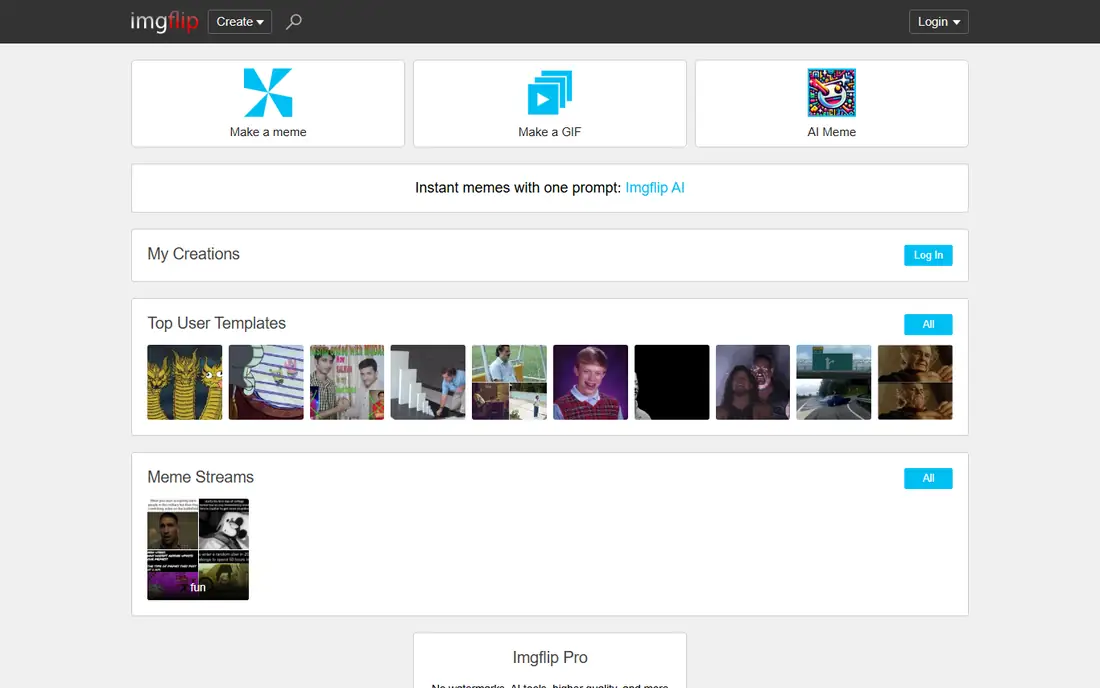
Imgflip is best when the goal is a funny, shareable GIF rather than a polished brand asset. Pick a template or upload a video, add top and bottom text, set the timing, and share the result. That simplicity makes it popular for memes, reactions, and internal jokes. It also works in a browser, so it runs on almost any device.
Free use comes with limits, including watermarks on some exports, so it is not ideal for client work. Frame control is also basic compared with Ezgif or ScreenToGif. Treat Imgflip as a fast idea tool: make the joke, check the timing, share it, and move on.
What we like- Fast meme and GIF creation from video or images
- Familiar templates
- No install
Watch out for- Watermark and size limits on free use
- Not built for precise frame work
#8Adobe Express
Best for: Polished branded GIFs4.5/5 on
G2 (855 reviews, checked Oct 2026)
Visit adobe.com
Starting priceFree
Free planYes
Adobe Express fits small teams and solo creators who want GIFs that look consistent with other marketing. Templates cover announcements, sales, events, and social posts, and brand colours and logos can be reused across designs. Animation controls are simple enough for a non-designer, yet the output looks more finished than a basic converter.
It is not a frame editor, and people who need exact timing or heavy optimization should pair it with Ezgif. Paid features also matter if a project relies on premium templates or stock. For branded social GIFs made in minutes, Adobe Express is a dependable, low-friction option.
What we like- Strong templates, fonts, and brand tools
- Clean exports for social
- Ties into Adobe stock and design assets
Watch out for- Some premium templates and features need a paid plan
- Less frame control than a specialist editor
How we chose
We compared tools that are available now for making and editing GIFs on phones, in browsers, and on desktops. We checked vendor homepages and pricing pages, public documentation, and public reviews on app stores, G2, Capterra, and Reddit where available. We favoured tools with a clear free path, a real export option, and a distinct use case, rather than listing near-identical converters. Prices change, so where a vendor does not publish a simple starting price, we list the free starting point and direct readers to check the vendor site.
What to check before you pick a GIF editor
Start with the source material. Phone clips favour a phone editor, screen recordings favour ScreenToGif, and existing video files favour a browser editor such as Ezgif or Kapwing. Next, check the destination. Chat apps and social platforms have file size and length limits, so an optimizer matters more than extra filters.
File size and length
Keep GIFs short. A loop of two to six seconds usually reads well and stays small. Resize to the width where the GIF will be shown, cut dead frames at the start and end, and reduce colours only if the image still looks clean. A smaller file loads faster and is less likely to be rejected by a platform.
Watermarks and exports
Read the export screen before you build a project around a free tool. Some free plans add a watermark, cap resolution, or limit monthly exports. For client or brand work, a paid plan or a fully free tool such as Ezgif or ScreenToGif avoids surprises.
Text and branding
If text must stay readable, use a large font, strong contrast, and a short phrase. Avoid cramming a paragraph into a looping GIF. For brand work, save colours, fonts, and logo placement in Canva or Adobe Express so later GIFs match without rebuilding the design each time.
Frequently asked questions
What is the best gif editor app for beginners?
Tenor is the easiest start for quick GIFs, because you can search, share, and create short animations fast. Canva is a better beginner pick when you want text, templates, and a consistent look. Choose Tenor for speed and Canva for design.
Can I make a GIF for free without a watermark?
Yes, in many cases. Ezgif and ScreenToGif offer free creation without a watermark on their core tools. Some other free plans add a watermark, so check the export preview before you publish.
How do I keep a GIF file size small?
Trim the clip to a few seconds, resize it to the display width, and use an optimizer to reduce colours or frames. Removing still frames at the start and end also helps. Test the file in the app where it will be posted, since limits vary.
What is the best GIF editor for tutorials?
ScreenToGif is a strong pick on Windows because it records the screen and lets you edit frames. For browser-based tutorials, Kapwing or Ezgif can trim and caption a recorded clip before export. Pick the tool that matches your computer and your need for frame edits.
Do GIF editors work on both phone and desktop?
Some do, and some do not. Canva, Kapwing, and Adobe Express work across phone and desktop through apps or browsers. ScreenToGif is Windows only, and some phone editors have no desktop version. Check platform support before you commit to a workflow.
Sources we checked (8)
- https://tenor.com
- https://ezgif.com
- https://www.canva.com
- https://www.kapwing.com
- https://www.screentogif.com
- https://makeagif.com
- https://imgflip.com
- https://www.adobe.com/express
Is your product missing or out of date?
We review this list regularly. Vendors can request a listing, send updated pricing or ask about featured placement.

Shihab Mia · Founder, Rankite
Shihab has 5+ years in B2B and SaaS SEO. He writes Rankite's software buying guides from pricing pages, documentation and public user reviews. More about Shihab.