How we make this list: we compare pricing pages, product documentation and public user reviews. Ratings come from G2, Capterra or Trustpilot, with the date we checked them.
Key takeaways
- GIPHY and Tenor remain the best libraries for finding a GIF fast, because they power search inside most keyboards and chat apps.
- Makers and searchers need different apps: EZGIF and ImgPlay build GIFs from your own media, while GIPHY and Tenor find ready-made reactions.
- Every app on this list offers a free tier that covers everyday GIF sharing, though some makers charge to remove watermarks or open up high resolution exports.
- File size and looping matter more than filters: a GIF that is too large will fail to send in some chats, so check export size before sharing.
Quick comparison
| Tool | Best for | Starting price | Free plan |
|---|
 GIPHY GIPHY | Biggest searchable GIF library | Free | Yes |
 Tenor Tenor | GIF keyboard and smart suggestions | Free | Yes |
 EZGIF EZGIF | Free web-based GIF editing | Free | Yes |
 ImgPlay ImgPlay | Making GIFs on iPhone | Free | Yes |
 Canva Canva | GIFs with design and text | Free | Yes |
 Kapwing Kapwing | GIFs from video clips online | Free | Yes |
 Adobe Express Adobe Express | Polished branded GIFs | Free | Yes |
 Make a GIF Make a GIF | Fast GIFs from video links | Free | Yes |
Is your product missing or out of date?
We review this list regularly. Vendors can request a listing, send updated pricing or ask about featured placement.
The best gif app
Starting priceFree
Free planYes
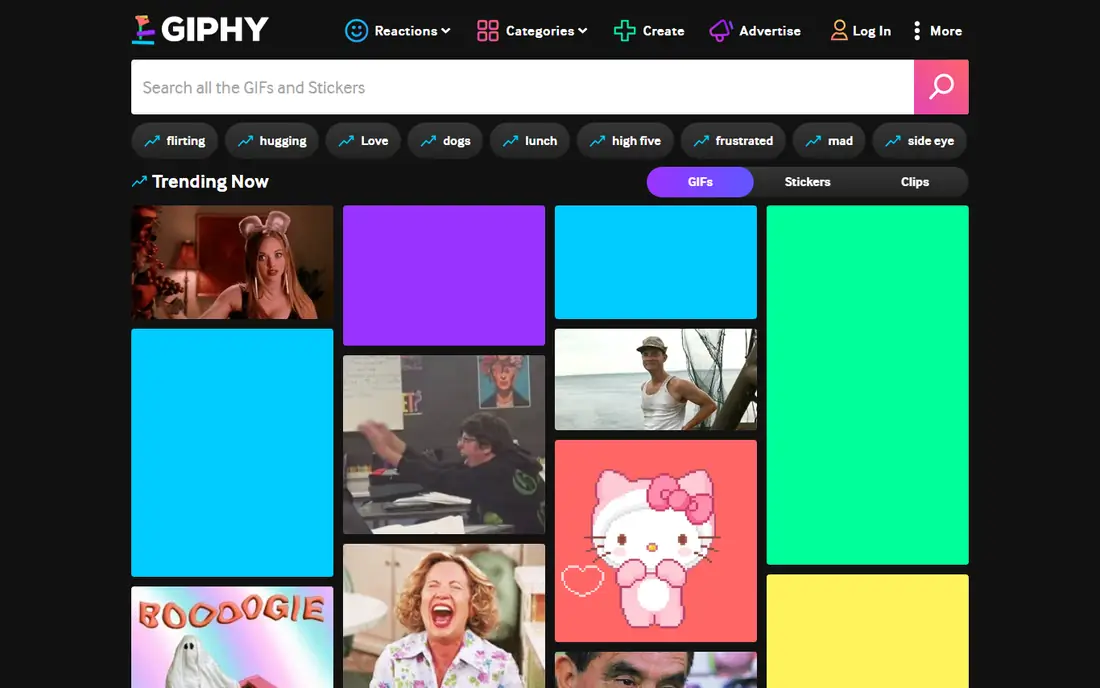
GIPHY is the default answer for a reason: it holds the largest and most current GIF collection online, and its search understands slang, show names and moods better than most rivals. You can search from the app, from its keyboard, or from inside iMessage, Instagram and Messenger, where GIPHY powers much of the GIF search already. That reach means a GIF you find here will send cleanly in most chats without format trouble.
The app also makes its own GIFs. Upload a video or a Live Photo, trim it, add captions or stickers, and export a loop in seconds. The maker is simpler than a dedicated editor, but it covers the common job of turning a moment into a reaction. The downsides are modest: browsing needs a stable connection for quick loading, some ads appear, and uploads are public by default, so keep private clips in a maker app instead.
What we like- Largest and most current GIF collection
- Built-in maker for video and Live Photos
- Works inside iMessage, Instagram and Messenger
Watch out for- Needs an internet connection for fast search
- Some ads appear while browsing
- Uploads are public by default
Starting priceFree
Free planYes
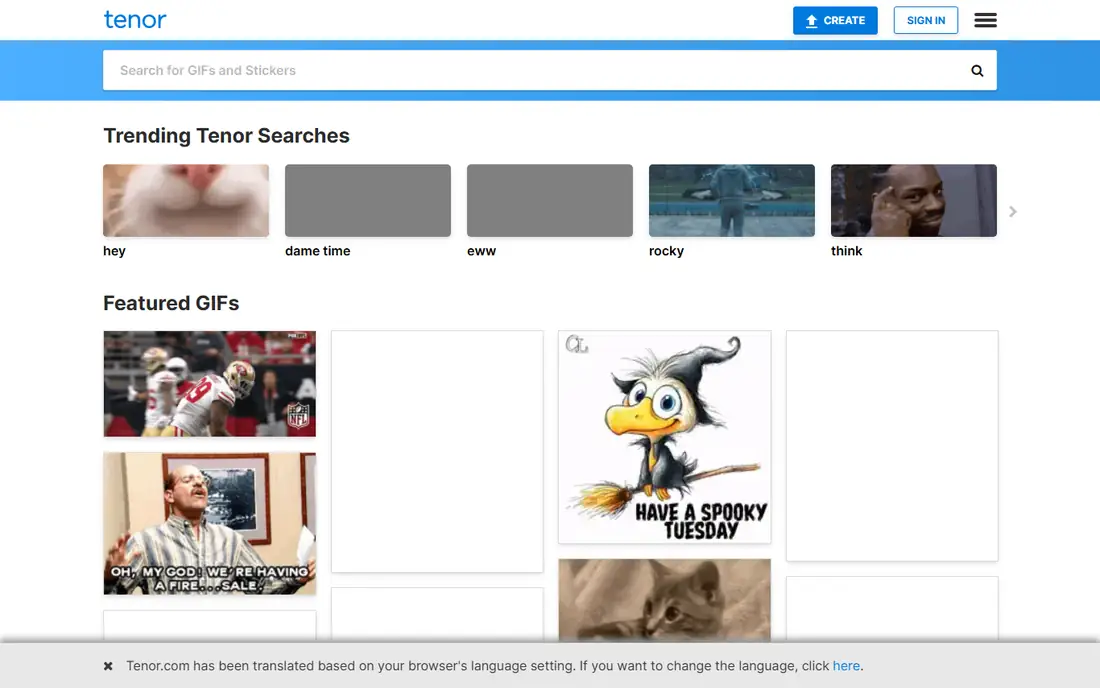
Tenor, owned by Google, is the engine behind GIF search in many places you already type. Its keyboard suggests GIFs based on the words you type, which saves the step of opening a separate app and searching by hand. The library updates constantly with viral moments, movie clips and emoji reactions, and it reports more than 300 million monthly users across its products. If you send GIFs every day, Tenor probably already supplies them.
The standalone app adds saving and organizing: keep favorite GIFs in a pack for quick reuse, caption a GIF before sending, and upload your own clips with trimming and cropping. Search results sometimes repeat, and the interface packs a lot onto one screen, but the core job is fast. For Android users especially, Tenor inside Gboard is the lowest friction way to send a GIF without leaving a conversation.
What we like- Smart suggestions based on typed words
- Huge real-time updated library
- Powers GIF search in Gboard, WhatsApp and more
Watch out for- Interface can feel crowded for new users
- Occasional duplicate results
- Needs internet for search
Starting priceFree
Free planYes
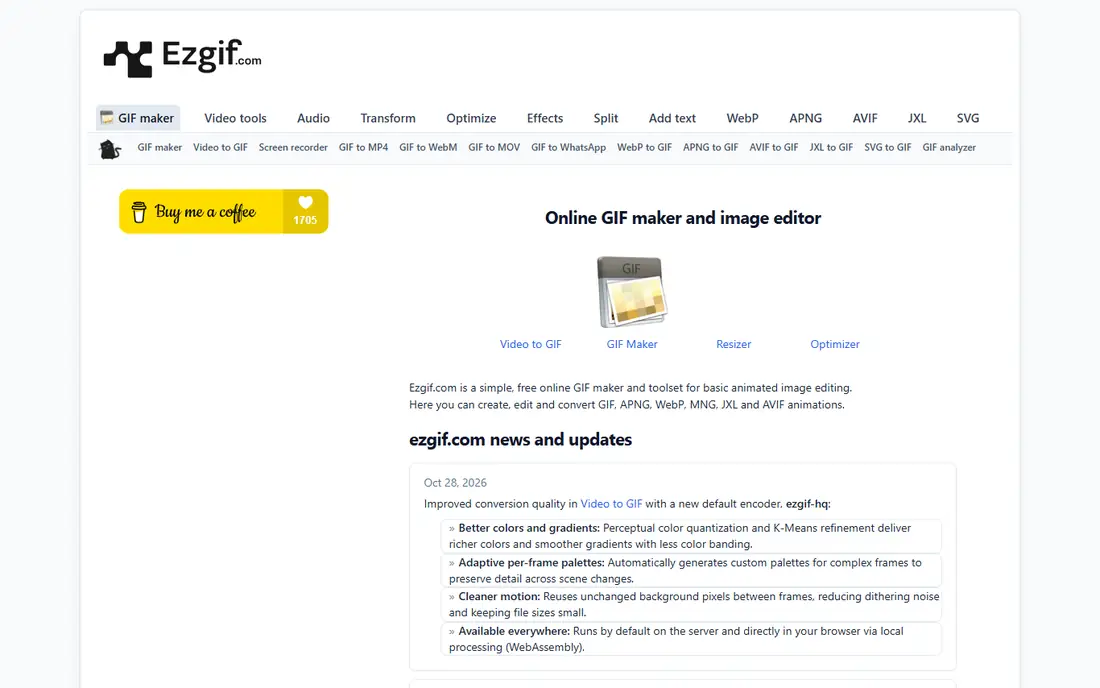
EZGIF is the workhorse for anyone who makes GIFs on a computer and wants full control without installing software. Upload a video, trim it to the right seconds, resize it for a chat or a forum, crop the frame, adjust speed, and optimize the file size so it actually sends. The optimizer matters: GIF files balloon fast, and EZGIF shows the size before and after, so you can trade a little quality for a file that loads quickly.
The site looks plain next to app rivals, and there is no mobile app, so phone-only users will prefer ImgPlay or Canva. But for desktop work, the toolset is deep and completely free, with no watermark on exports. Use EZGIF when a GIF needs trimming, resizing or shrinking before it goes anywhere, and keep it bookmarked as a utility rather than a daily social app.
What we like- No install and no account needed
- Video to GIF, resize, crop, optimize and effects in one place
- Good file size control
Watch out for- Web only, no mobile app
- Interface looks dated
- Large uploads can be slow on weak connections
Starting priceFree
Free planYes
ImgPlay is the easiest way to turn iPhone media into a clean loop. Convert a video clip, a Live Photo or a burst sequence into a GIF, trim to the fun part, set playback speed from very slow to fast, and choose forward, reverse or back-and-forth playback for a boomerang feel. Frame-level editing lets you reorder or drop single frames, and canvas ratios match Instagram, TikTok and story formats.
The free tier covers most casual making, but exports carry a watermark unless you pay for Pro, and maximum frame counts depend on your device. Android users need a different maker, since ImgPlay is Apple only. For iPhone owners who make GIFs from their own camera roll rather than searching a library, ImgPlay is the most direct tool on this list.
What we like- Video, Live Photos, burst shots and photos to GIF in seconds
- Frame-level editing and speed control
- Boomerang and reverse playback
Watch out for- IPhone and iPad only
- Watermark removal needs the paid Pro version
- Frame limits depend on device
#5Canva
Best for: GIFs with design and text4.7/5 on
G2 (7,678 reviews, checked Oct 2026)
Visit canva.com
Starting priceFree
Free planYes
Canva suits GIFs that need to look designed rather than raw. Start from a social post template, add animated text, stickers and brand colors, set the animation style, and export as a GIF for a chat, a story or a presentation. Small businesses and creators use it for announcement GIFs, sale banners and reaction posts that match their other content, which a plain clip maker cannot do as cleanly.
The trade off is control. Frame-level timing and video trimming are weaker here than in EZGIF or ImgPlay, and the strongest animation and brand features sit behind Canva Pro. The free tier still covers most personal use, with thousands of templates and free animated elements. Pick Canva when the GIF is a piece of content, not just a reaction, and when matching text and colors matter.
What we like- Huge template library for social posts
- Text, stickers and brand colors
- Easy export as GIF or MP4
Watch out for- Full GIF control is weaker than a dedicated editor
- Best features need a Pro subscription
- Large designs can export slowly
#6Kapwing
Best for: GIFs from video clips online3.9/5 on
G2 (40 reviews, checked Oct 2026)
Visit kapwing.com
Starting priceFree
Free planYes
Kapwing is a browser based video editor that handles GIFs as one export among many. Upload a clip, trim it, add captions or subtitles, adjust speed, and export a GIF without installing anything. Because it runs in the browser, it works the same on a Chromebook, a Mac or a Windows PC, and shared workspaces let a small team pass a project back and forth.
The free tier is usable but watermarked, and longer source videos push you toward a paid plan. For short reaction GIFs, the free tier is enough, and the caption tools are a genuine edge over simpler makers. Use Kapwing when the GIF starts as a longer video that needs trimming and text before it becomes a loop.
What we like- Browser based editor with trimming and captions
- Works on any device
- Good for teams sharing a workspace
Watch out for- Free exports carry a watermark
- Longer videos need a paid plan
- Needs a stable connection
#7Adobe Express
Best for: Polished branded GIFs4.5/5 on
G2 (855 reviews, checked Oct 2026)
Visit adobe.com
Starting priceFree
Free planYes
Adobe Express is the polished end of GIF making. Templates, fonts and animation effects come from Adobe's design library, and brand kits keep colors and logos consistent across posts. Export quality is strong, and the tool handles both short animated posts and GIF versions of social graphics. For a business that already uses Adobe tools, the shared assets make Express a natural fit.
The cost is complexity. Simple GIF jobs take more clicks here than in ImgPlay or EZGIF, and the best templates and features need a Premium subscription. An account is required even for free use. Choose Adobe Express when the GIF represents a brand and needs to look professional, not when you just want a quick reaction from a video clip.
What we like- Professional templates and fonts
- Animation effects and brand kits
- Strong export quality
Watch out for- Best features need a Premium subscription
- Learning curve is steeper than simple makers
- Account required
Starting priceFree
Free planYes
Make a GIF wins on speed for one specific job: turning an online video into a GIF without downloading anything. Paste a YouTube or video link, pick the start time and length, add a caption, and share the result. Webcam capture covers quick self-made reactions, and the sharing links work in chats and forums that accept GIF URLs.
The free tier limits clip length and quality, and the site carries ads that slow the workflow. Editing is basic next to EZGIF or Kapwing, with no frame-level control. Still, for the common case of clipping a few seconds from a public video into a reaction, Make a GIF is the fastest path from link to loop.
What we like- Paste a video link and get a GIF fast
- Webcam capture built in
- Simple sharing links
Watch out for- Free tier limits length and quality
- Site carries ads
- Fewer editing tools than dedicated editors
How we chose
We split the category into two jobs, finding and making, because no single app does both best. Library size, search quality, keyboard integration and update speed decided the finding picks, while export control, watermark rules and editing depth decided the makers. Pricing pages, app store listings and public feature guides supplied the facts, and we favored tools with large current user bases and active updates. No app here was tested hands-on for this guide; the picks rest on published features and documented behavior.
We also checked platform fit. iPhone owners get ImgPlay, Android users get Tenor inside Gboard, and desktop users get EZGIF and Kapwing, so every reader has at least two strong options on their device. Free tiers mattered throughout, since GIF sharing is a casual habit and most readers will never pay for it.
What to check before you pick
Decide first whether you mostly find GIFs or make them. Finders should install GIPHY or Tenor and check the keyboard integration on their phone, since that decides daily speed more than any feature list. Makers should test one export end to end: trim a clip, check the file size, and send it in the chat where it will actually be used. A GIF that looks fine in the editor but fails to send is a wasted effort.
Watch for watermarks and file size. Free makers often watermark exports or cap resolution, and some chats reject GIFs above a size limit. If you make GIFs for work, confirm the license too: clips from shows and movies are fine for personal reactions in most contexts, but brand accounts should use licensed or original content. For personal use, keep it simple: one finder, one maker, and a favorites pack for the GIFs you send most.
Frequently asked questions
What is the best free GIF app overall?
GIPHY is the best free starting point for finding GIFs, with the largest library and the widest keyboard and chat integration. Tenor is a close second and a better pick for Android users, since it powers GIF search inside Gboard. Both are free for everyday sharing.
How do I make a GIF from a video?
Trim the video to a few seconds in a maker like ImgPlay on iPhone or EZGIF on desktop, set the loop and speed, then export as a GIF. Keep clips short, since file size grows fast with length and resolution. EZGIF's optimizer can shrink a file that is too large to send.
Why does my GIF have a watermark?
Many free makers add a watermark to free exports and remove it only on a paid tier, as ImgPlay and Kapwing do. EZGIF exports without a watermark, and GIPHY's maker does not watermark personal creations. Check the export preview before sharing if a clean file matters.
Can I use GIFs on a brand account?
Use licensed content or your own creations for brand posts, since clips from shows and movies carry copyright limits. Canva and Adobe Express templates, plus original clips made in EZGIF or Kapwing, are safer choices for commercial use than trending reaction GIFs.
Do GIF keyboards work on both iPhone and Android?
Yes. GIPHY and Tenor both offer keyboards and in-app search on iOS and Android, and Tenor powers GIF search inside Gboard on Android and in several chat apps. Setup takes a few minutes in keyboard settings on either platform.
What file size should a GIF be?
Aim for under a few megabytes for chat apps, since large GIFs load slowly or fail to send. Short clips, modest resolution and fewer frames keep size down. EZGIF shows file size before and after optimization, which makes it easy to check before sharing.
Sources we checked (0)
Is your product missing or out of date?
We review this list regularly. Vendors can request a listing, send updated pricing or ask about featured placement.

Shihab Mia · Founder, Rankite
Shihab has 5+ years in B2B and SaaS SEO. He writes Rankite's software buying guides from pricing pages, documentation and public user reviews. More about Shihab.