How we make this list: we compare pricing pages, product documentation and public user reviews. Ratings come from G2, Capterra or Trustpilot, with the date we checked them.
Key takeaways
- OBS Studio gives beginners the most complete free toolset, with no watermark and no subscription, at the cost of a steeper setup.
- Streamlabs Desktop and StreamYard are the easiest first steps, because templates, alerts, and guest links are built in from the start.
- Restream is the clearest free route to multistreaming, with two destinations on its free plan and a low paid entry point.
- Free plans in this guide all carry a real limit, usually branding, resolution, destinations, or guest numbers, so check that limit before you commit to a show format.
- Beginners on Windows have the widest choice, while Mac users should weigh Ecamm Live against the cross-platform free options.
Quick comparison
| Tool | Best for | Starting price | Free plan |
|---|
 OBS Studio OBS Studio | Free, full-featured streaming on any desktop | $0 | Yes |
 Streamlabs Desktop Streamlabs Desktop | Guided setup with built-in alerts and themes | $27 per month | Yes |
 Restream Restream | Multistreaming to several platforms at once | $19 per month | Yes |
 StreamYard StreamYard | Browser-based shows with remote guests | $35.99 per month (billed annually) | Yes |
 XSplit Broadcaster XSplit Broadcaster | Polished Windows streaming and recording | $15 per month | Yes |
 Ecamm Live Ecamm Live | Mac-based live production and interviews | $20 per month | Free trial |
 vMix vMix | Windows multi-camera production | $60 one-time | Free trial |
Is your product missing or out of date?
We review this list regularly. Vendors can request a listing, send updated pricing or ask about featured placement.
The best free streaming software for beginners
#1OBS Studio
Best for: Free, full-featured streaming on any desktop4.6/5 on
G2 (138 reviews, checked Oct 2026)
Visit obsproject.com
Starting price$0
Free planYes
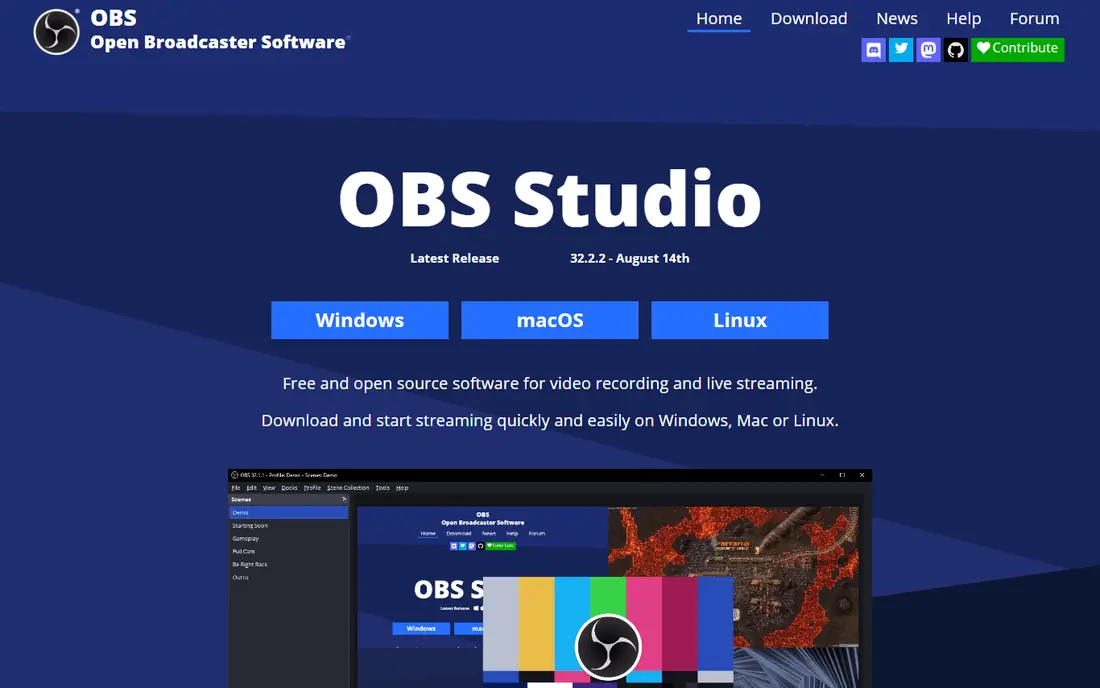
OBS Studio is the tool most other free streaming software is measured against, and for good reason. It records and streams in high quality, supports multiple scenes, sources, and audio filters, and costs nothing at any level. A beginner can start with one scene, one webcam, and one microphone, then add screens, images, browser sources, and transitions as confidence grows. The audio mixer, with per-source filters for noise suppression and gain, is unusually strong for a free program.
The honest catch is time. OBS Studio does not walk a new streamer through alerts, donation widgets, or branded overlays in the same way a guided app does. Those features come through browser sources, plugins, and third-party services, which means reading documentation and testing before a first live show. That work pays off, because nothing in the core program is locked behind a subscription, and the same project can grow from a simple webcam stream to a multi-source production. Beginners who want the lowest long-term cost and the most control should start here, even if the first setup evening feels slower.
What we like- Completely free with no watermark
- Large plugin library
- Runs on Windows, Mac, and Linux
Watch out for- Setup takes longer than guided tools
- Alerts and overlays need manual configuration
#2Streamlabs Desktop
Best for: Guided setup with built-in alerts and themes4.1/5 on
G2 (59 reviews, checked Oct 2026)
Visit streamlabs.com
Starting price$27 per month
Free planYes
Streamlabs Desktop is built on the OBS engine, but it wraps that engine in a friendlier front end. A new streamer picks a theme, connects Twitch, YouTube, or another platform, and gets alerts, chat, and donation widgets without hunting for plugins. That guided path is the main reason beginners finish setup in one sitting instead of spending a weekend on configuration. The free Starter tier covers core streaming, a set of free overlays, and no-fee tipping, which is enough for many first channels.
The trade is performance and paywalls. Streamlabs Desktop tends to use more memory and processor power than plain OBS Studio, which matters on an older laptop. Multistreaming, the full overlay library, and several pro tools sit behind Streamlabs Ultra, priced at $27 per month or $189 per year. Beginners should treat the free tier as a genuine trial of the workflow, not as the full product, and upgrade only when a second destination or a premium theme is actually needed for the show.
What we like- Fast onboarding with templates and widgets
- Built-in alerts, tipping, and chat tools
- Works on Windows and Mac
Watch out for- Heavier on system resources than OBS Studio
- Multistreaming and the full theme library need Ultra
#3Restream
Best for: Multistreaming to several platforms at once4.5/5 on
G2 (82 reviews, checked Oct 2026)
Visit restream.io
Starting price$19 per month
Free planYes
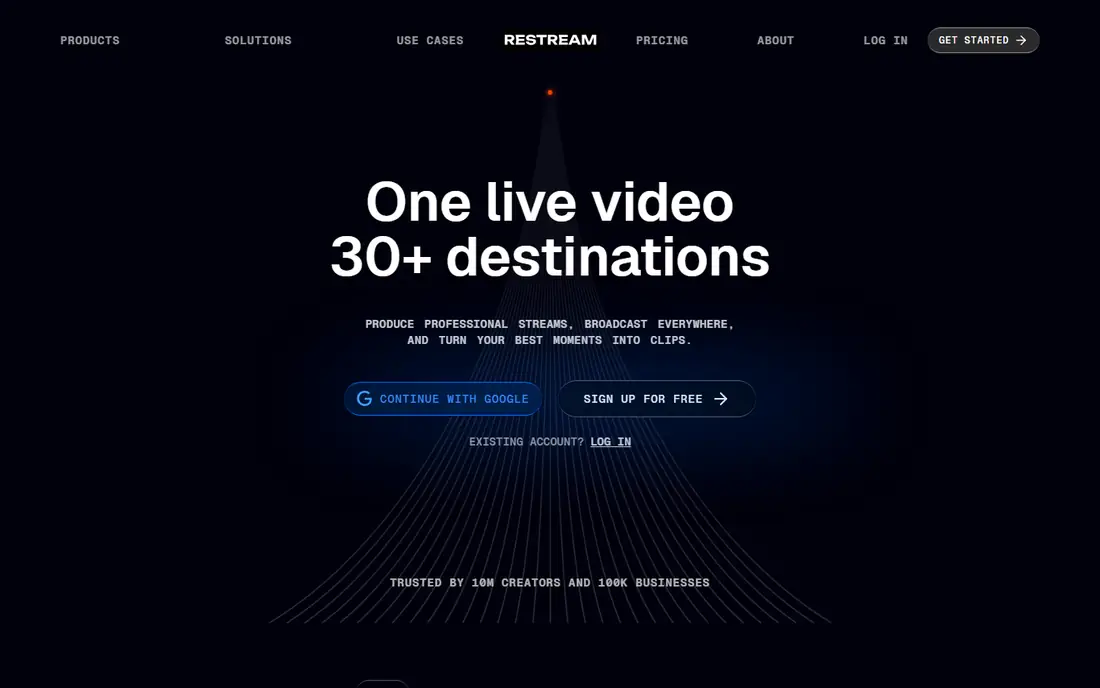
Restream solves a different beginner problem: reaching more than one platform without running several streams at once. A creator sends one feed to Restream, and Restream forwards it to YouTube, Twitch, Facebook, and other destinations, with unified chat pulling comments together. The free plan covers two channels at once, which is enough to test whether a second audience is worth the effort. Restream Studio, the browser studio, adds guests, overlays, and on-screen chat without installing software.
Resolution is the limit to watch. Studio streams are capped at 720p on the free and Standard plans, with 1080p arriving on Professional at $49 per month. Streams sent from an external encoder such as OBS keep their own quality, up to 4K where the destination supports it, so many creators pair OBS with Restream and skip Studio limits entirely. Standard, at $19 per month, adds a third channel, custom RTMP, and removes branding. For a talk show or a gaming stream that needs reach more than studio polish, Restream is a practical second tool alongside a desktop encoder.
What we like- Streams to many platforms from one feed
- Browser studio for guests
- Works with OBS and other encoders
Watch out for- Studio output is capped at 720p on free and Standard plans
- Branding appears on free Studio streams
#4StreamYard
Best for: Browser-based shows with remote guests4.8/5 on
G2 (299 reviews, checked Oct 2026)
Visit streamyard.com
Starting price$35.99 per month (billed annually)
Free planYes
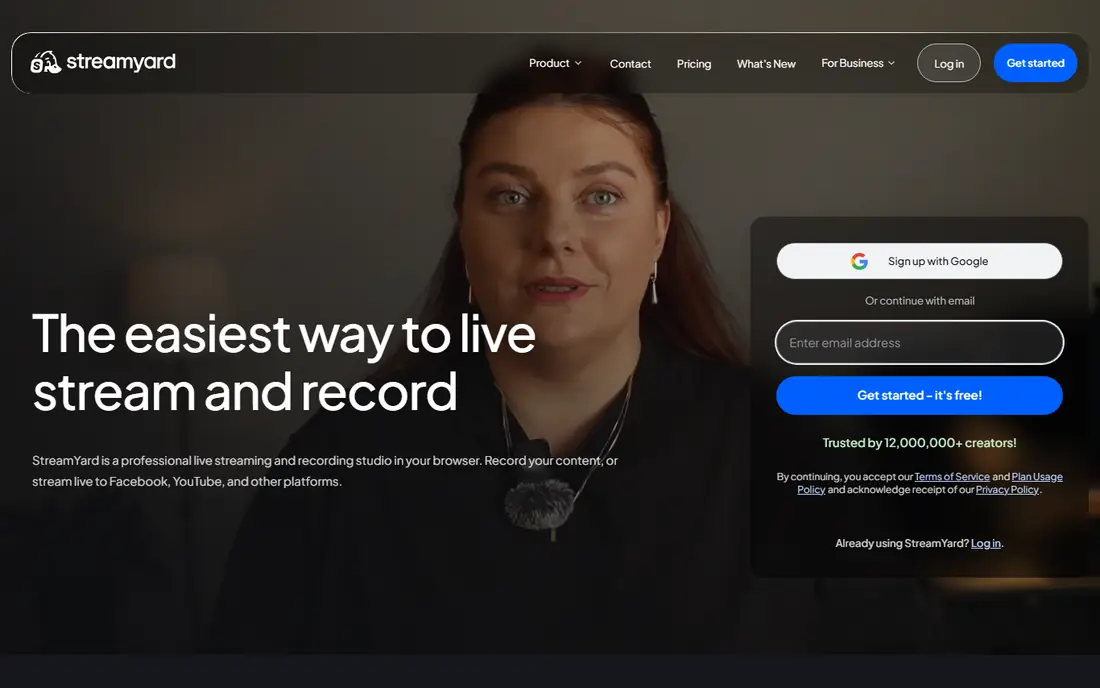
StreamYard is the easiest tool in this guide for a show built around conversation. The host opens a studio in the browser, sends guests a link, and controls layouts, screen sharing, and on-screen comments from one screen. Guests need no software and no account setup, which removes the most common failure point in remote interviews. Recordings are clean enough to repurpose as podcast audio or short clips, and the interface stays calm even with several people on screen.
Price is the main drawback. The free plan streams to one destination, shows StreamYard branding, and caps local recording time. Core, at $35.99 per month billed annually or $44.99 month to month, adds 1080p, multistreaming to three destinations, and removes branding. That is a step above Restream for pure multistreaming, so StreamYard makes most sense when guest handling and recording quality are the priority, not when the only goal is pushing one feed to many platforms. Beginners running interviews, panels, or live podcasts should try the free tier with one guest before paying.
What we like- Guests join from a browser link with no downloads
- Clean local recordings
- Simple layouts and branding
Watch out for- Free plan is limited to one destination with branding
- Paid entry is higher than Restream
#5XSplit Broadcaster
Best for: Polished Windows streaming and recording3.9/5 on
G2 (23 reviews, checked Oct 2026)
Visit xsplit.com
Starting price$15 per month
Free planYes
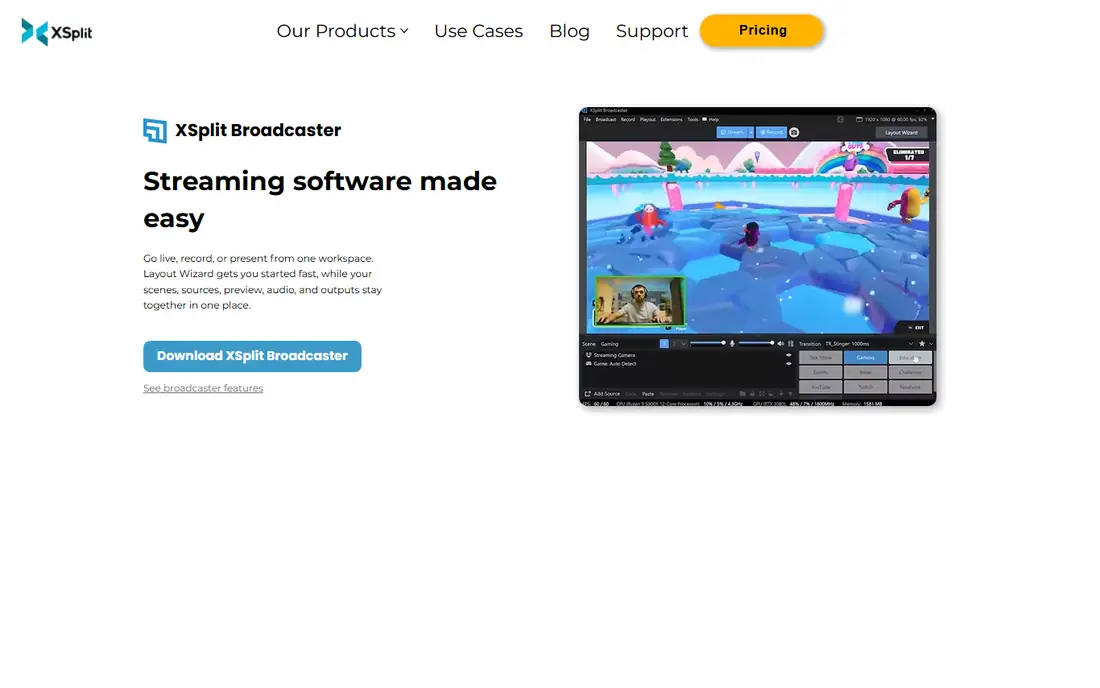
XSplit Broadcaster sits between OBS Studio and Streamlabs Desktop in feel: more guided than raw OBS, less template-driven than Streamlabs. A layout wizard helps a beginner build a first scene, and scenes, sources, preview, audio, and outputs stay together in one workspace. It handles gameplay, podcasts, tutorials, and live events well, with guest and clip features that suit a growing channel. Recording tools and a free media manager for trimming clips add value for creators who publish edited video as well as live shows.
The limits are platform and watermark. XSplit Broadcaster runs on Windows only, so Mac and Linux streamers need another tool. The free version watermarks output, which makes it hard to use for a public show without paying. Paid pricing is listed at $15 per month, with annual and lifetime options reported by third-party pricing pages. A Windows beginner who wants a polished interface and is willing to pay once the channel is serious will find XSplit a comfortable middle ground, while a beginner on a tight budget should start with OBS Studio instead.
What we like- Guided layout wizard and scene presets
- Strong recording and presentation tools
- Virtual camera support
Watch out for- Windows only
- Free output carries a watermark
- Plugin library is smaller than OBS Studio
#6Ecamm Live
Best for: Mac-based live production and interviews4.3/5 on
G2 (19 reviews, checked Oct 2026)
Visit ecamm.com
Starting price$20 per month
Free planFree trial
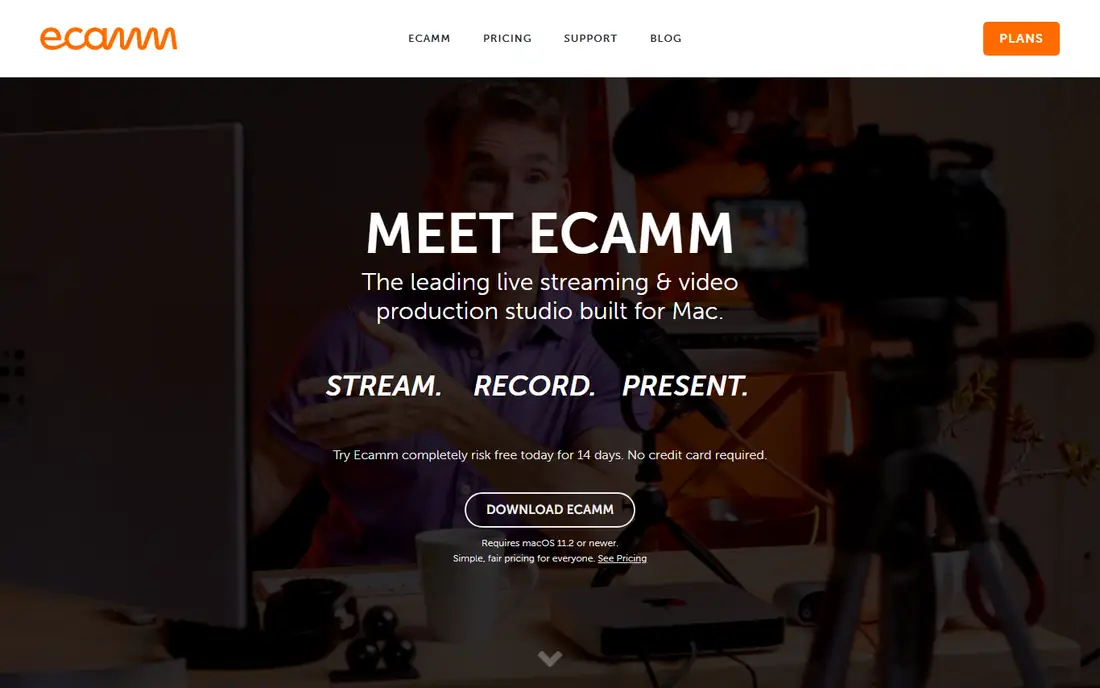
Ecamm Live is the Mac-first answer to a common beginner frustration: desktop streaming tools that feel ported rather than designed for the machine. It combines live switching, screen sharing, guest interviews, and recording in one Mac application, with saved scenes, titles, countdowns, and camera effects that keep a show looking consistent. Up to ten video guests can join, and remote guests connect from a browser, which keeps interview setup simple. Support for capture devices and DSLR cameras over USB also suits creators moving beyond a webcam.
There is no permanent free plan, only a 14-day trial, and pricing starts at $20 per month for Standard, with Pro at $40 per month in third-party pricing summaries. That puts Ecamm in a different budget class from OBS Studio and Streamlabs, and it only makes sense for a Mac user who will stream regularly. Beginners on a Mac who are unsure about committing should first test OBS Studio for free, then move to Ecamm if the interview workflow, camera switching, and support justify the monthly cost.
What we like- Built for Mac with camera switching and guest support
- Interview layouts are simple to run
- Strong camera effects
Watch out for- Mac only
- No permanent free plan
- Higher cost than free desktop encoders
#7vMix
Best for: Windows multi-camera production4.3/5 on
G2 (32 reviews, checked Oct 2026)
Visit vmix.com
Starting price$60 one-time
Free planFree trial
vMix is included here as a growth path, not as the simplest first download. It is a full live production tool for Windows, with camera switching, titles, overlays, instant replay for sports, NDI inputs, and ISO recording of individual camera sources. A beginner who starts with a single camera can learn the same program that later handles a multi-camera event, a church service, or a sports broadcast. One-time licenses start at $60 for Basic HD, with HD at $350, 4K at $700, and Pro at $1,200, plus a monthly Max option, according to third-party pricing summaries.
That power comes with complexity. The interface packs many controls into one screen, and a first-time streamer can feel lost compared with StreamYard or Streamlabs. vMix is also Windows only, and the lower tiers limit inputs and features, so a buyer should match the tier to the number of cameras and outputs actually needed. For a beginner who already knows the show will involve several cameras, replay, or a live event, vMix is worth learning early. For a solo webcam streamer, OBS Studio remains the better free start.
What we like- Multi-camera switching, instant replay, and NDI support
- One-time license options
- Strong recording formats
Watch out for- Windows only
- Interface is complex for a first stream
- Higher tiers climb quickly in price
How we chose
We compared tools on vendor pricing pages, documentation, and public reviews on G2, Capterra, and Reddit, with a focus on what a beginner actually faces in the first month: setup time, platform support, free plan limits, and the price of the first paid step. A tool made this list only if it is available today, streams to a major platform, and has a free plan or a free trial that lets a beginner test the core workflow. We did not claim hands-on testing, and we treated third-party pricing summaries as a guide where a vendor page was unclear, marking those figures as reported rather than confirmed.
What to check before your first live show
Start with the destination, not the software. A solo gaming stream needs low overhead and good scene switching, while an interview show needs guest links and clean recordings. Check the free limit that touches your format first: destinations for multistreaming, guests for interviews, resolution for a show that will be watched on a television, and branding for a show that represents a business. A free plan that caps your format at one destination is not a bargain if your audience lives on two platforms.
Hardware matters as much as software. A browser studio shifts work to the cloud and runs well on a modest laptop, while a desktop encoder with several sources needs a stronger processor and a stable upload connection. Test with a private or unlisted stream before going public, and record a short session to check audio levels, which cause more beginner complaints than video quality. Keep the first setup simple: one scene for talking, one for screen sharing, and one for a break screen. Add overlays, alerts, and extra scenes only after the basic show runs cleanly twice.
Export and ownership deserve a quick check too. Confirm that recordings can be downloaded in a usable format, that chat and viewer data can be reviewed after the show, and that cancelling a paid plan does not lock away past recordings. For a business stream, confirm branding controls and whether a guest needs an account. A tool that is easy to start but hard to leave can cost more in time than a slightly harder tool that keeps files in open formats.
Frequently asked questions
What is the best completely free streaming software for beginners?
OBS Studio is the strongest completely free option, because the full program costs nothing, has no watermark, and runs on Windows, Mac, and Linux. The setup takes longer than a guided tool, but a beginner who follows a short setup guide can be live in one evening. If guided setup matters more than full control, Streamlabs Desktop is the easier free start.
Can I multistream for free?
Yes, with limits. Restream offers two destinations on its free plan, while Streamlabs multistreaming needs Ultra and StreamYard free streaming is limited to one destination with branding. For a free multistream setup, pair OBS Studio with Restream free, and accept the 720p Studio cap or send from OBS to keep your own resolution.
Do I need a paid plan to remove branding?
In most cases, yes. StreamYard and XSplit free output carry branding or a watermark, and Restream free Studio streams carry branding. OBS Studio has no branding at any level because it is free and open source. Check the free limit for each tool before planning a branded business stream.
Is a browser studio better than a desktop encoder for beginners?
A browser studio is better for interviews and simple shows, because guests join from a link and there is nothing to install. A desktop encoder is better for gaming, complex scenes, and long-term control, because it handles more sources and plugins. Many creators use both: a browser studio for guests and a desktop encoder for the main show.
What computer do I need to start streaming?
A modern laptop with a stable internet upload connection is enough for a webcam show or a browser studio session. Desktop encoders with several sources, high resolution, or heavy plugins need more processor power and memory. Test with a private stream first, watch for dropped frames, and lower the output resolution before buying new hardware.
Should a Mac beginner choose Ecamm Live or OBS Studio?
Start with OBS Studio if budget is the main concern, because it is free and capable on a Mac. Choose Ecamm Live if interview production, camera switching, and Mac-native support justify a paid plan after the trial. Both can produce a clean show, so the choice comes down to workflow and monthly cost.
Sources we checked (7)
- https://obsproject.com
- https://streamlabs.com
- https://restream.io/pricing
- https://streamyard.com/pricing
- https://www.xsplit.com
- https://www.ecamm.com
- https://www.vmix.com
Is your product missing or out of date?
We review this list regularly. Vendors can request a listing, send updated pricing or ask about featured placement.

Shihab Mia · Founder, Rankite
Shihab has 5+ years in B2B and SaaS SEO. He writes Rankite's software buying guides from pricing pages, documentation and public user reviews. More about Shihab.