How we make this list: we compare pricing pages, product documentation and public user reviews. Rankite is independent; if a vendor ever pays for a featured spot, that listing is clearly labeled Partner.
Key takeaways
- OBS Studio is the only option here with no paid tier at all: free and open source, full features, no watermark, no account needed.
- If you want to go live without installing anything, StreamYard, Restream, Wave.video, OneStream Live and Streamlabs Talk Studio all run in the browser and include free plans.
- Multistreaming to several platforms at once is the feature most free plans restrict: Restream and StreamYard gate it behind paid plans, while Streamlabs Desktop includes it in its paid Ultra tier.
- XSplit Broadcaster is the only desktop encoder on this list with a one-time lifetime license ($119.99), an alternative to another monthly subscription.
Quick comparison
| Tool | Best for | Starting price | Free plan |
|---|
 OBS Studio OBS Studio | Streamers who want a free, open-source encoder with no paid tier | Free (open source) | Yes (the whole product is free) |
 Streamlabs Desktop Streamlabs Desktop | Creators who want overlays, alerts and widgets without hunting for plugins | Free | Yes (free tier; Ultra is the paid upgrade) |
 StreamYard StreamYard | Hosts running interview shows and webinars with remote guests | Free plan; paid from $35.99/month (billed annually; $44.99 month-to-month) | Yes (free plan with StreamYard branding) |
 Restream Restream | Streamers who want one broadcast on many platforms at once | Free plan; paid from $19/month (Standard) | Yes (free plan, streams to 2 channels) |
 XSplit Broadcaster XSplit Broadcaster | Streamers who want a guided setup and a buy-once option | Free plan; paid from $5/month (yearly billing) | Yes (Broadcaster Free, streams up to 720p without watermark) |
 Twitch Studio Twitch Studio | Beginners who stream only on Twitch and want the easiest start | Free | Yes (the whole product is free) |
 OneStream Live OneStream Live | Creators who stream pre-recorded videos as if they were live | Free plan; paid from $15/month (Basic) | Yes (free plan, $0 forever) |
 Wave.video Wave.video | Small teams that want streaming and video editing in one account | Free plan; paid from $16/month (Streamer) | Yes (free plan, $0/month) |
 vMix vMix | Windows users running multi-camera or event productions | Free (Basic edition); paid editions from $60 one-time | Yes (free Basic edition; 60-day trial of paid editions) |
 Streamlabs Talk Studio Streamlabs Talk Studio | Creators who want browser-based interviews inside the Streamlabs ecosystem | See website (Pro features via the Streamlabs Ultra plan) | Yes (limited free tier) |
Is your product missing or out of date?
We review this list regularly. Vendors can request a listing, send updated pricing or ask about featured placement.
The best free live streaming software
You want to go live this week and spend nothing to do it. The good news: every tool below lets you start streaming for free. The catch is that "free" means different things. Some tools are free forever with no paid version. Others give you a free plan and charge for the features you will want within a month, like streaming to more than one platform, removing branding, or recording in full HD. These ten cover the real options, with the free-plan limits spelled out for each.
#1
OBS Studio
Best for: Streamers who want a free, open-source encoder with no paid tier
Visit obsproject.com
Starting priceFree (open source)
Free planYes (the whole product is free)
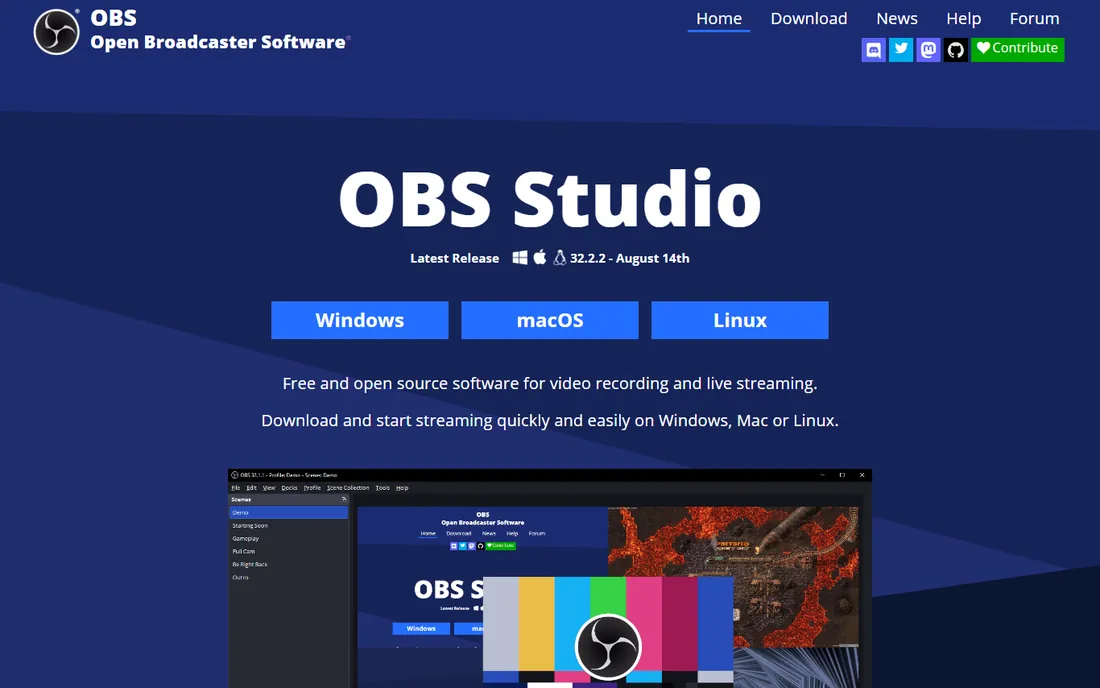
OBS Studio is the baseline every other free streaming tool gets measured against. It costs nothing, it is maintained in the open, and the download page states plainly that it is free and open source software for video recording and live streaming. Scenes, sources, transitions, filters, audio mixing and recording all work without an account, a trial clock or a locked feature. If your computer can run it, you can produce a professional-looking stream tonight.
The honest trade is effort for money. OBS does not hold your hand: you configure the bitrate, the encoder and the stream key yourself, and features like inviting a remote guest or adding animated alerts come from plugins and third-party services rather than a menu. Streamers who want those conveniences pre-installed usually land on Streamlabs Desktop or a browser tool. Streamers who want maximum control at zero cost stay here.
What we like- Completely free with no paid version, watermark or feature locks
- Huge plugin ecosystem and community support
- Runs on Windows, Mac and Linux with scene, source and audio mixing depth that paid tools match
Watch out for- The interface assumes you know what an encoder setting is, so beginners face a learning curve
- No built-in multistreaming, overlays store or guest-invite links, you assemble those yourself
#2
Streamlabs Desktop
Best for: Creators who want overlays, alerts and widgets without hunting for plugins
Visit streamlabs.com
Starting priceFree
Free planYes (free tier; Ultra is the paid upgrade)
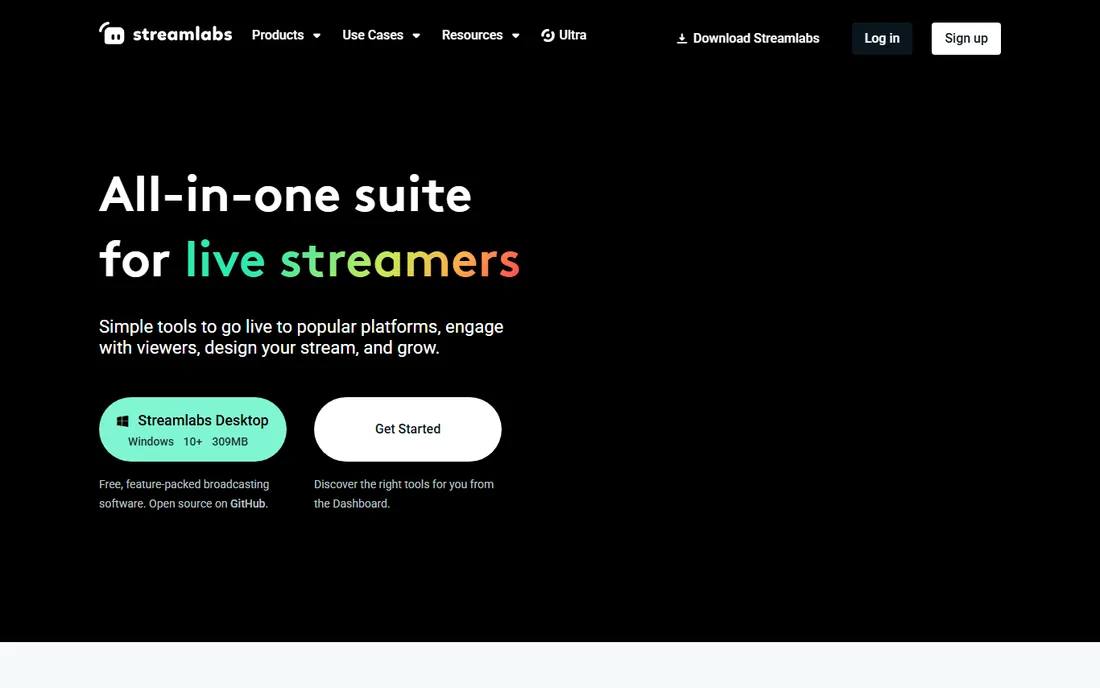
Streamlabs Desktop takes the OBS engine and wraps it in a creator-friendly package. The free tier is genuinely usable: you get access to free overlays and themes, alerts and widgets, tipping with no fees, and streaming to 2 destinations. For a new streamer, the difference between this and OBS is measured in minutes: install, pick a theme, connect your account, go live.
The business model is the Ultra subscription, which bundles premium features across Streamlabs Desktop, Mobile, Talk Studio and its editors. The free tier caps you at 2 destinations and 1 guest in Talk Studio, and some tools add watermarks unless you pay. If you outgrow those limits, compare Ultra against buying the pieces separately. If you do not, the free tier covers a real streaming setup.
What we like- Free download with themes, overlays, alerts and tipping built in
- Guided setup that gets a first stream running fast
- Free tier includes 2 streaming destinations and basic Cloudbot
Watch out for- The best conveniences (multistream to 3+ destinations, full app library, no-watermark clip tools) sit in the paid Ultra plan
- Heavier on system resources than plain OBS
#3
StreamYard
Best for: Hosts running interview shows and webinars with remote guests
Visit streamyard.com
Starting priceFree plan; paid from $35.99/month (billed annually; $44.99 month-to-month)
Free planYes (free plan with StreamYard branding)
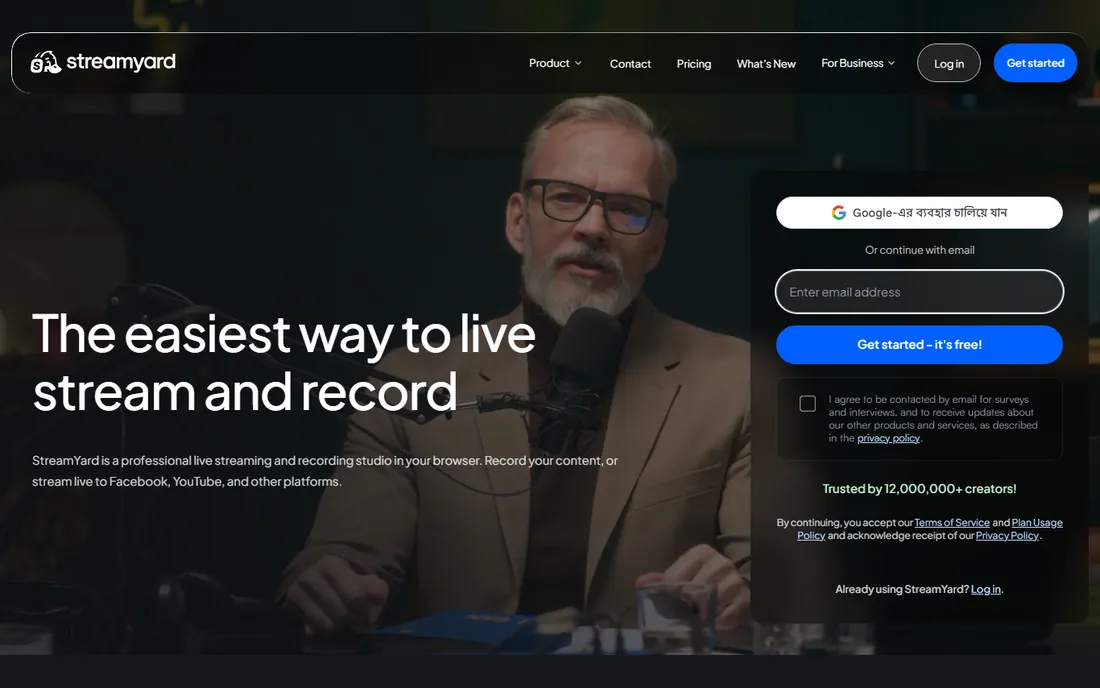
StreamYard solved one problem better than anyone: getting a non-technical guest onto your stream. You send a link, they open it in a browser, and they are on screen. The free plan lets you test that whole workflow, with on-screen viewer comments and basic layouts, before paying anything. Paid plans start with Core at $35.99 per month on annual billing ($44.99 month-to-month), and Advanced at $68.99 per month annual ($88.99 monthly) for professionals who need more.
The free plan is a trial in practice: StreamYard branding on your stream, limited hours and destinations. Anyone running a regular show will hit those walls in the first month. The value question is whether the guest workflow is worth the subscription versus free OBS plus a free guest tool. For interview-format creators, it usually is.
What we like- Runs entirely in the browser, so guests join from a link with nothing to install
- Free plan includes on-screen comments and basic branding
- Paid Core tier adds custom branding and multistreaming
Watch out for- The free plan carries StreamYard branding and limits stream length and destinations
- It is a browser studio, not a full encoder, so scene control is simpler than OBS or vMix
#4
Restream
Best for: Streamers who want one broadcast on many platforms at once
Visit restream.io
Starting priceFree plan; paid from $19/month (Standard)
Free planYes (free plan, streams to 2 channels)
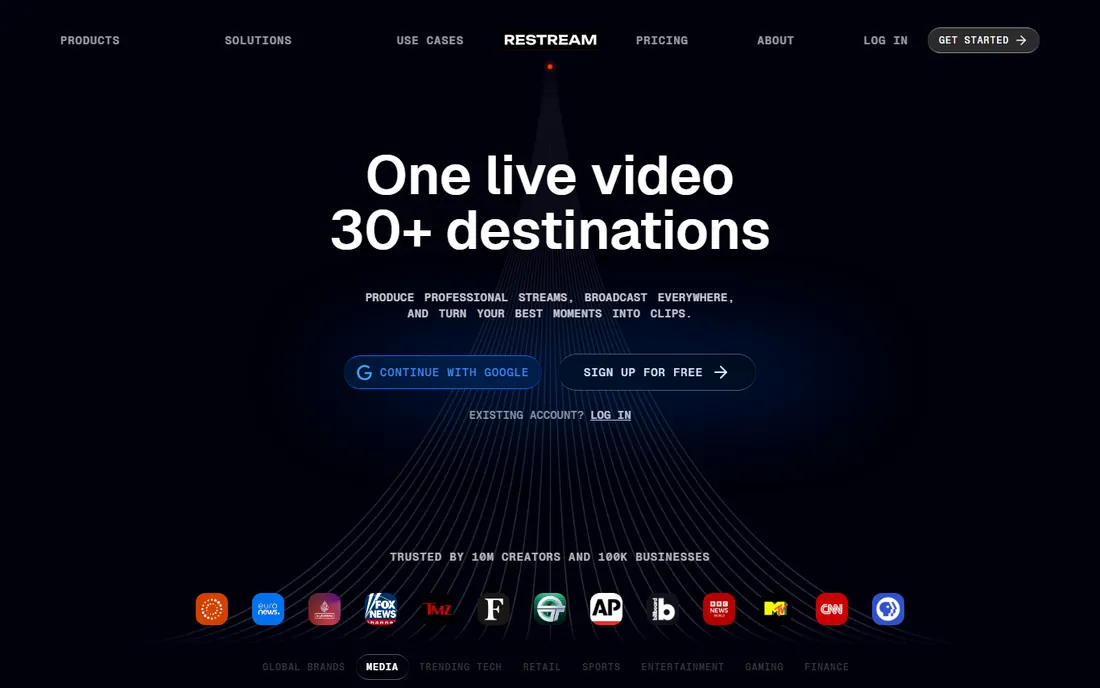
Restream exists for multistreaming: one stream out to Twitch, YouTube, Facebook and more at the same time. The free plan proves the concept with 2 channels at once, which is enough to test whether your audience splits across platforms. Paid plans are straightforward: Standard at $19 per month, Professional at $49 per month, Business at $239 per month, with team seats at $25 per seat per month and workspaces on higher tiers.
Watch the total. The base plans look reasonable, but clips and webinar add-ons cost extra per month, and Business-tier pricing puts it in professional territory. For a solo streamer on two platforms, the free plan plus OBS as the encoder is a common and sensible combination. Restream handles distribution; OBS handles production.
What we like- Free plan includes multistreaming to 2 channels with Restream branding
- Paid tiers scale to dozens of destinations with chat aggregation
- Add-ons for clips and webinars available
Watch out for- The free plan is limited to 2 channels and carries branding
- The features that make Restream special (many destinations, team seats at $25/seat/month) get expensive
#5
XSplit Broadcaster
Best for: Streamers who want a guided setup and a buy-once option
Visit xsplit.com
Starting priceFree plan; paid from $5/month (yearly billing)
Free planYes (Broadcaster Free, streams up to 720p without watermark)
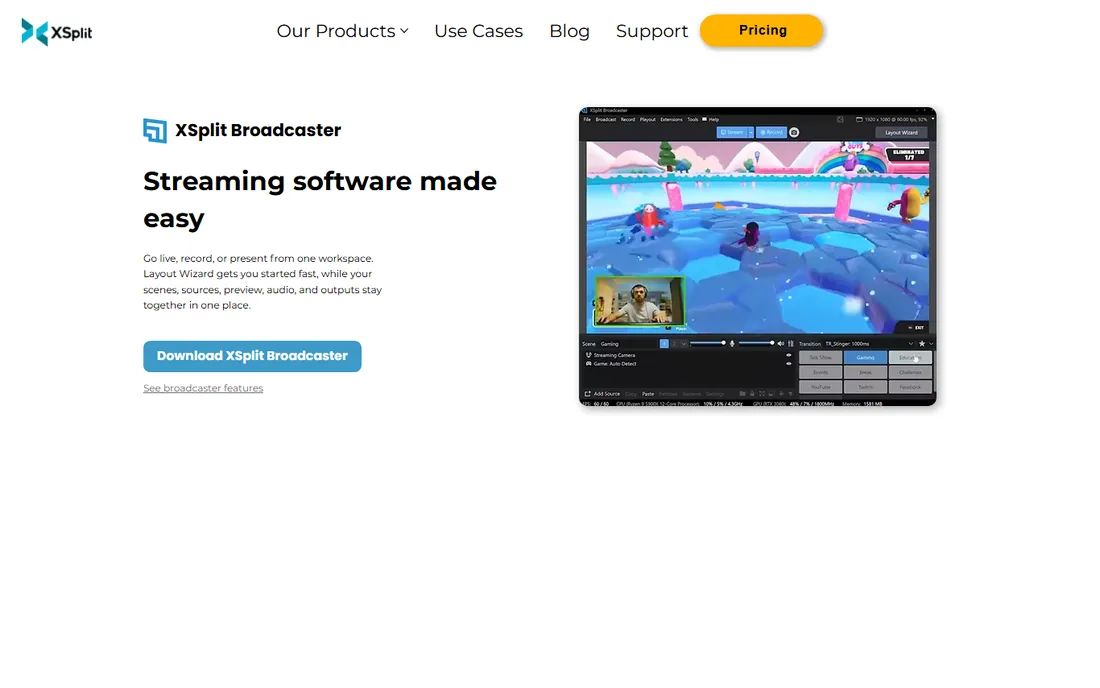
XSplit Broadcaster is the friendliest desktop encoder on this list. The free tier lets you start streaming at up to 720p without a watermark, which is enough for a first channel. When you are ready for 1080p, premium features or commercial use, the pricing is unusually flexible: $14.99 per month, $59.99 per year ($5 per month equivalent), or $119.99 once for a lifetime license with no recurring subscription.
That lifetime license is the standout. Every other paid tool here rents you the software monthly. If you know you will stream for years, $119.99 once is simple math. The trade is ecosystem: fewer plugins and fewer community tutorials than OBS, and the free tier's 720p cap pushes serious streamers to pay sooner.
What we like- Free tier streams up to 720p with no watermark
- Paid plans are cheap (Monthly $14.99, Yearly $59.99 which works out to $5/month, Lifetime $119.99 once)
- Simpler first-run experience than OBS
Watch out for- The free tier caps output at 720p and reserves premium features and commercial use for paid plans
- Smaller plugin and community ecosystem than OBS
#6
Twitch Studio
Best for: Beginners who stream only on Twitch and want the easiest start
Visit twitch.tv
Starting priceFree
Free planYes (the whole product is free)
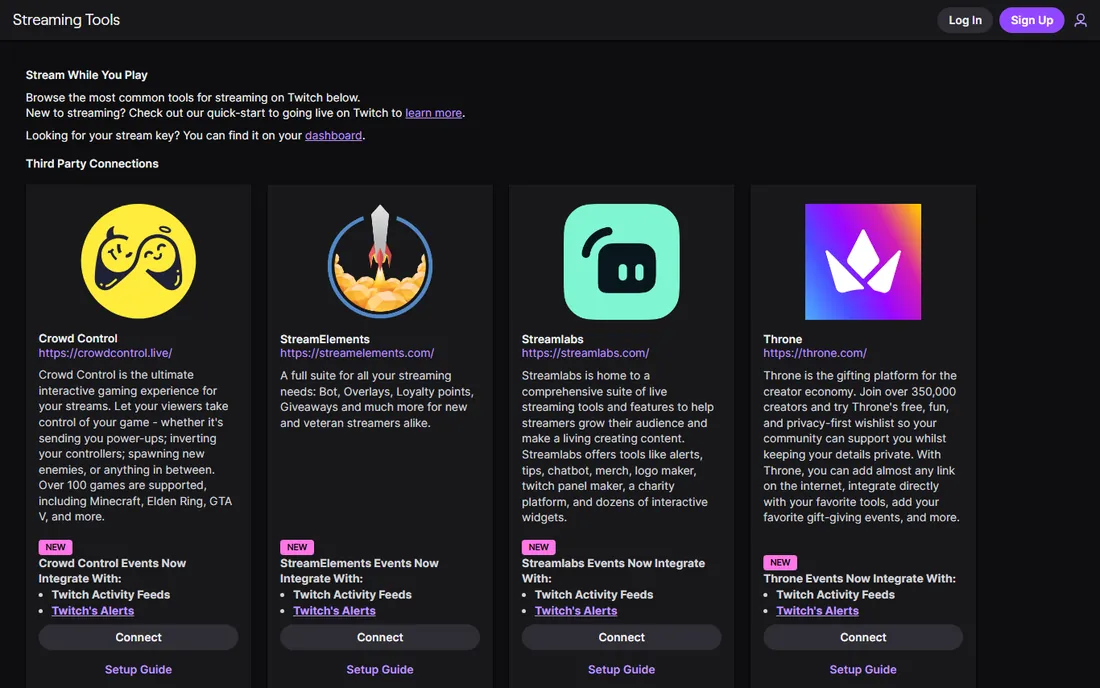
Twitch Studio is Twitch's own answer to "streaming is too complicated." You log in with your Twitch account and it configures the stream key, chat, alerts and basic layouts for you. There is no paid version, no feature gate, no upsell screen. For someone whose entire audience is on Twitch and who has never streamed before, this is the shortest path from zero to live.
The limitation is the platform lock. You cannot multistream, you cannot take this setup to YouTube, and the production toolkit is deliberately thin. Think of Twitch Studio as training wheels: excellent for the first three months, and most growing streamers graduate to OBS or Streamlabs Desktop once they want custom scenes and multi-platform reach.
What we like- Made by Twitch, so setup is nearly automatic: login, and your stream key and chat are handled
- Guided onboarding built for first-time streamers
- Completely free with no paid tier
Watch out for- Twitch only, with no multistreaming and no path to other platforms
- Fewer production features than OBS or Streamlabs
#7
OneStream Live
Best for: Creators who stream pre-recorded videos as if they were live
Visit onestream.live
Starting priceFree plan; paid from $15/month (Basic)
Free planYes (free plan, $0 forever)
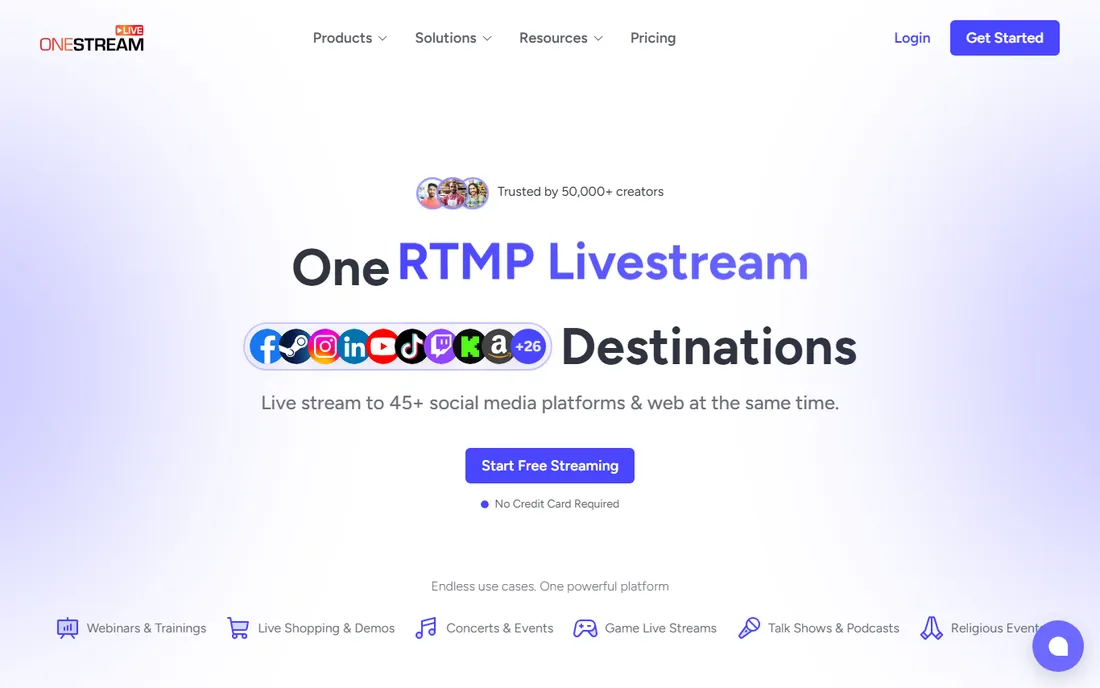
OneStream Live does something the encoders do not: it takes a finished video and streams it as a live broadcast on a schedule. The free plan at $0 forever lets you try that workflow, and the paid ladder is published clearly: Basic $15 per month ($144 per year), Standard $39 per month ($384 per year), Professional $49 per month ($468 per year), Enterprise $139 per month ($995 per year). Add-ons are itemized too: extra destinations $10 per month, 24-hour YouTube streams $30 per month, extra storage $10 per month.
This is a complement to OBS, not a replacement. Record and edit in your normal tools, then let OneStream handle the scheduling and distribution. Channels that repurpose content across time zones get the most from it. If you only do truly live shows, the other tools on this list fit better.
What we like- Free plan covers basic scheduled streaming of pre-recorded video
- Paid tiers are clearly priced (Basic $15/month, Standard $39/month, Professional $49/month, Enterprise $139/month)
- Extras like added destinations and storage are itemized
Watch out for- Built around pre-recorded and scheduled streaming rather than live production, so it pairs with an encoder instead of replacing one
- The free plan is limited in destinations and features
#8
Wave.video
Best for: Small teams that want streaming and video editing in one account
Visit wave.video
Starting priceFree plan; paid from $16/month (Streamer)
Free planYes (free plan, $0/month)
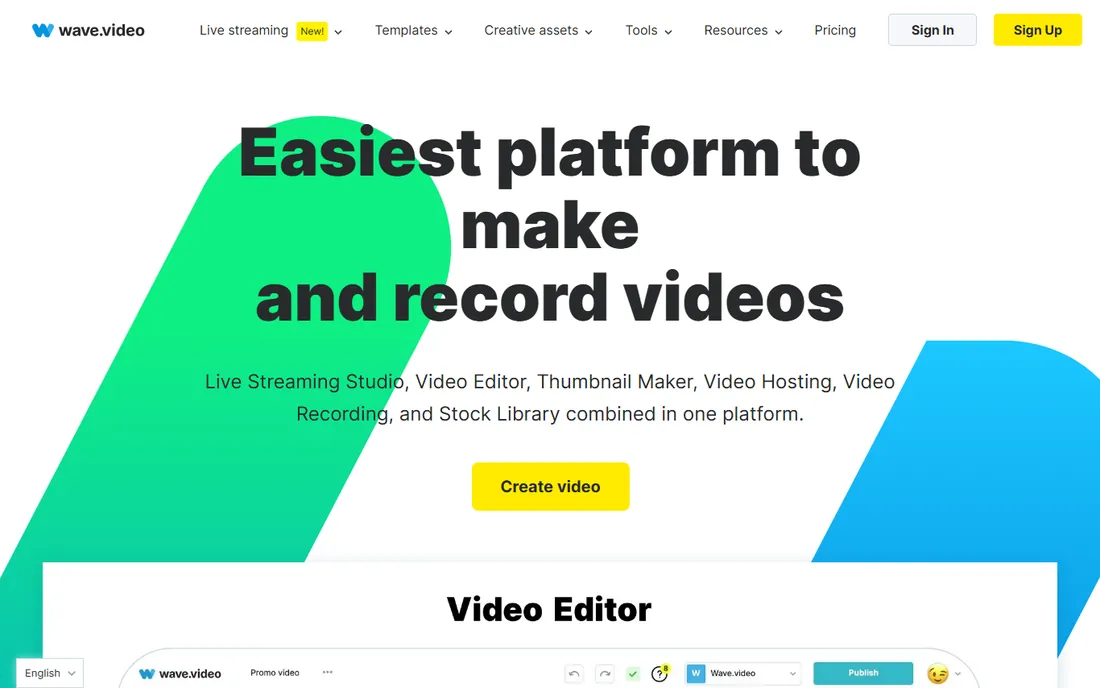
Wave.video bundles two jobs: going live and editing the recording afterward. The free plan at $0 per month covers both at a basic level, and paid plans stay affordable: Streamer $16 per month, Creator $24 per month, Business $48 per month. For a small marketing team that streams a weekly show and then cuts clips for social, having both in one login has real appeal.
It is not a replacement for OBS or Premiere. The streaming studio is browser-based and simpler than a desktop encoder, and the editor leans on templates. The buyer here is a team that values speed over control: get the show out, cut the highlights, post everywhere, all in one place.
What we like- One platform covers live streaming and a video editor with templates
- Free plan lets you test both sides
- Paid tiers are modestly priced (Streamer $16/month, Creator $24/month, Business $48/month)
Watch out for- The streaming side is simpler than a dedicated encoder, and the editor is template-driven rather than a full NLE
- Free plan limits will push regular users to paid tiers
#9
vMix
Best for: Windows users running multi-camera or event productions
Visit vmix.com
Starting priceFree (Basic edition); paid editions from $60 one-time
Free planYes (free Basic edition; 60-day trial of paid editions)
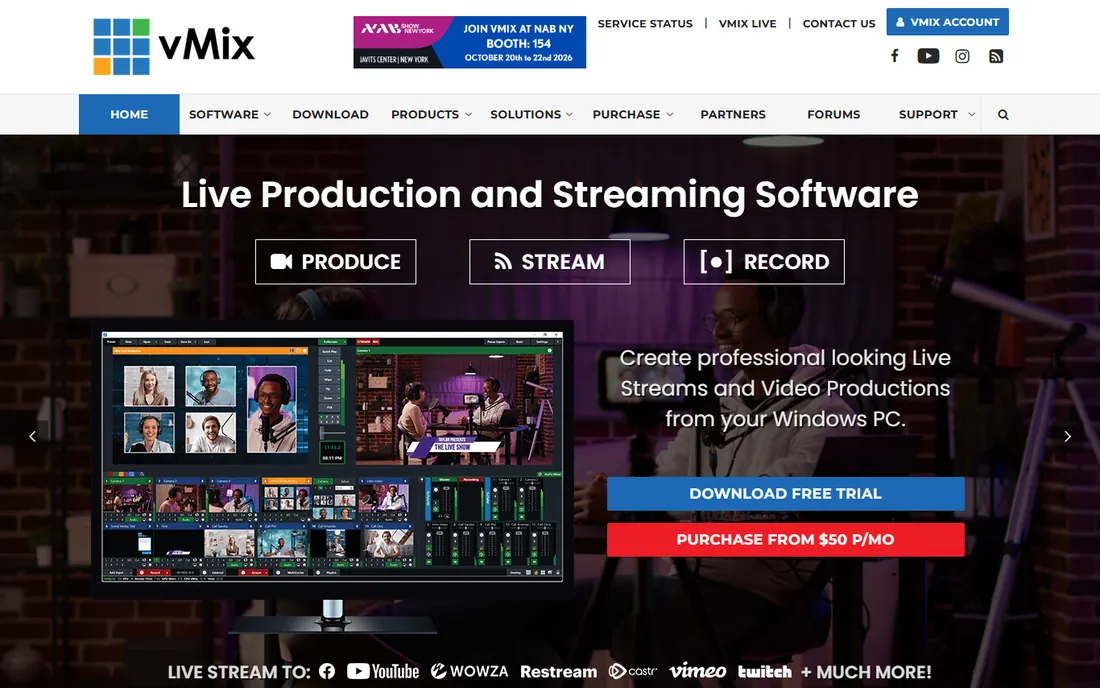
vMix is the professional's encoder: live video mixing, multiple cameras, instant replay, virtual sets, streaming and recording in one Windows application. The free Basic edition is genuinely functional for small productions, and every paid edition is a one-time license: Basic HD $60, HD $350, 4K $700, Pro $1,200, each with 12 months of free updates. No subscription, no monthly meter running.
The catch is commitment. vMix is Windows-only, it wants a strong GPU, and the learning curve is steep. This is the tool for churches, schools, sports clubs and event producers running multi-camera shows. A solo creator with a webcam will get more from OBS in less time. Prices above are corroborated across multiple pricing trackers; vMix's own site requires JavaScript to display its store, so confirm the current edition prices there before buying.
What we like- Free Basic edition handles real switching and streaming
- Paid editions are one-time licenses (Basic HD $60, HD $350, 4K $700, Pro $1,200), not subscriptions
- Professional features like instant replay and PTZ control on higher tiers
Watch out for- Windows only
- The interface and the hardware demands assume a serious setup, which is overkill for a webcam-and-mic stream
#10
Streamlabs Talk Studio
Best for: Creators who want browser-based interviews inside the Streamlabs ecosystem
Visit streamlabs.com
Starting priceSee website (Pro features via the Streamlabs Ultra plan)
Free planYes (limited free tier)
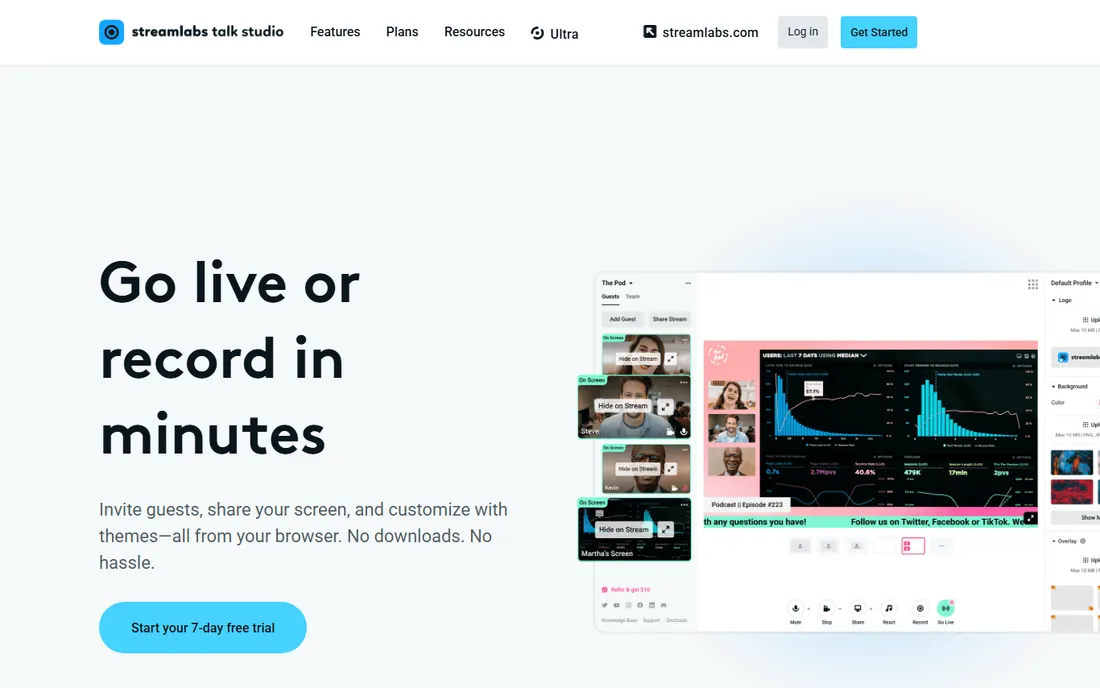
Streamlabs Talk Studio is the browser guest studio inside the Streamlabs family: invite guests with a link, share screens, add your branding, stream and record up to 1080p, all without installing software. It is the direct answer to StreamYard for creators already using Streamlabs Desktop, since alerts, overlays and tipping carry across.
The free tier is deliberately narrow: 2 destinations and 1 guest. Everything beyond that, including more guests and recording hours, sits in the Pro tier bundled with Streamlabs Ultra. Streamlabs does not publish the Ultra price on its pricing page, so check your account dashboard for the current figure. If you already pay for Ultra, Talk Studio Pro is included value. If you do not, compare it against StreamYard's published plans before committing.
What we like- Runs in the browser: invite guests, share screens and brand the stream with no downloads
- Free tier covers basic use
- Integrates with the rest of Streamlabs (alerts, tipping, overlays)
Watch out for- The free tier is limited (2 destinations, 1 guest)
- Full features require Streamlabs Ultra, whose price is not published on the pricing page
Start with where your audience is. Twitch-only beginners should start with Twitch Studio. Interview shows should start with StreamYard or Talk Studio. Everyone else should start with OBS Studio, because it costs nothing and teaches you the fundamentals that transfer to every other tool.
Then check the three limits that matter. First, destinations: how many platforms can you stream to at once on the free plan, and does the tool add its branding to your stream. Second, resolution and recording: free tiers commonly cap output at 720p or limit recording hours. Third, guests and scenes: browser studios make guests easy but limit production control, while desktop encoders give control but need more setup.
Finally, check your computer. Desktop encoders (OBS, Streamlabs Desktop, XSplit, vMix) do the work on your machine, so an older laptop will struggle with 1080p. Browser studios shift the load to the cloud, which is kinder to weak hardware but depends on a stable connection. Match the tool to the machine you actually own.
Where free plans hit their limits
Every free plan on this list is designed to convert you, and the conversion points are predictable. Multistreaming is the most common: Restream's free plan covers 2 channels, Streamlabs' free tier covers 2 destinations, and unlimited destinations cost money everywhere. Branding is next: StreamYard and Restream put their name on your free streams. Resolution follows: XSplit's free tier stops at 720p.
The paid step-ups cluster in two bands. Browser studios charge $15 to $50 per month (OneStream Basic $15, Wave.video Streamer $16, Restream Standard $19, StreamYard Core $35.99 annual). Desktop encoders charge once or cheaply: XSplit's $119.99 lifetime license and vMix's one-time editions are the outliers in a subscription world. Add up a year of the subscription you are considering and compare it against those one-time prices before you decide the monthly plan is cheap.
How we chose
We started with the search buyers use: free live streaming software, free streaming encoder, free multistreaming. For each candidate we opened the vendor's own site, read the pricing or plans page, and noted exactly what the free tier includes and where it stops. Where a price could not be read on the vendor's page we wrote "See website" rather than guessing. We checked feature claims against public reviews on G2 and Capterra and practitioner discussion on Reddit, and we favored tools with a genuinely usable free tier over trials dressed up as free plans.
Frequently asked questions
Is OBS Studio really free?
Yes. OBS Studio is free and open source software, and its download page says so directly. There is no paid version, no premium tier and no watermark. It is funded by sponsors and donations, which is why the full feature set costs nothing.
Can I stream to multiple platforms at once for free?
Partly. Restream's free plan covers 2 channels and Streamlabs' free tier covers 2 destinations. True unlimited multistreaming is a paid feature everywhere on this list. A common free setup is OBS as the encoder plus Restream's free plan for distribution.
Do I need a capture card or special hardware to start?
No. A computer with a webcam and microphone is enough for every tool on this list. Capture cards only matter when you want to bring in an external camera or a game console's HDMI output. Start with what you own and upgrade when the stream's quality, not the shopping list, demands it.
What internet speed do I need for streaming?
For 720p, a stable 5 Mbps upload is the practical minimum; for 1080p, aim for 10 Mbps or more of sustained upload. Stability matters more than the peak number: a connection that drops will drop your stream regardless of the software. Browser studios are slightly more forgiving than desktop encoders on weak connections.
What is the difference between Streamlabs Desktop and OBS Studio?
Streamlabs Desktop is built on OBS's open-source foundation with themes, alerts, widgets and tipping pre-installed and a guided setup. OBS Studio is the underlying free encoder with no account, no store and no paid tier. Streamlabs is easier on day one; OBS gives you more control and costs nothing forever.
Which free streaming software is best for a podcast with remote guests?
StreamYard or Streamlabs Talk Studio. Both run in the browser, so guests join from a link with nothing to install, and both record each participant for editing afterward. OBS and vMix are stronger encoders but have no built-in guest workflow.
Sources we checked (14)
- https://obsproject.com/
- https://streamlabs.com/pricing
- https://streamlabs.com/talk-studio
- https://streamyard.com/pricing
- https://restream.io/pricing
- https://www.xsplit.com/pricing
- https://www.twitch.tv/broadcast/studio
- https://onestream.live/pricing
- https://www.wave.video/pricing
- https://www.vmix.com/software/
- https://www.saasworthy.com/product/vmix/pricing
- https://en.wikipedia.org/wiki/VMix
- https://www.g2.com/categories/live-streaming
- https://www.capterra.com/live-streaming-software/
Is your product missing or out of date?
We review this list regularly. Vendors can request a listing, send updated pricing or ask about featured placement.

Shihab Mia · Founder, Rankite
Shihab has spent more than a decade helping SaaS and e-commerce brands grow through search. He writes Rankite's software buying guides from pricing pages, documentation and public user reviews. More about Shihab.