How we make this list: we compare pricing pages, product documentation and public user reviews. Rankite is independent; if a vendor ever pays for a featured spot, that listing is clearly labeled Partner.
Key takeaways
- FreeFileSync is the best all-round free folder sync tool for Windows, macOS, and Linux: visual comparison, two-way sync, batch jobs, and no meaningful limits.
- Syncthing is the pick when the folders live on different machines and you want them synced continuously without any cloud in the middle.
- SyncBackFree gives Windows users the most scheduling and filtering control of any free option, with paid upgrades if you outgrow it.
- rclone is the command-line answer for syncing folders to and from cloud storage, with support for dozens of providers.
- Allway Sync and GoodSync both offer free tiers, but read the limits: Allway Sync caps free personal use at 40,000 files per 30 days.
Quick comparison
| Tool | Best for | Starting price | Free plan |
|---|
 FreeFileSync FreeFileSync | Visual, no-surprises folder sync on any desktop OS | $0 | Yes |
 Syncthing Syncthing | Continuous sync across devices with no cloud | $0 | Yes |
 SyncBackFree SyncBackFree | Windows users who want scheduled, set-and-forget sync | $0 | Yes |
 Allway Sync Allway Sync | True bi-directional sync with deletion tracking | $0 | Yes (free for personal use, 40,000 files per 30 days) |
 GoodSync GoodSync | Syncing between local drives and cloud storage | $0 | Yes |
 Resilio Sync Resilio Sync | Syncing very large files between devices quickly | $0 | Yes |
 rclone rclone | Command-line sync with cloud storage providers | $0 | Yes |
 DirSync Pro DirSync Pro | A free sync tool that runs anywhere Java runs | $0 | Yes |
 Create Synchronicity Create Synchronicity | Simple scheduled sync without a learning curve | $0 | Yes |
 DSynchronize DSynchronize | Lightweight real-time folder sync on Windows | $0 | Yes |
Is your product missing or out of date?
We review this list regularly. Vendors can request a listing, send updated pricing or ask about featured placement.
Ten free ways to keep your folders identical
Starting price$0
Free planYes
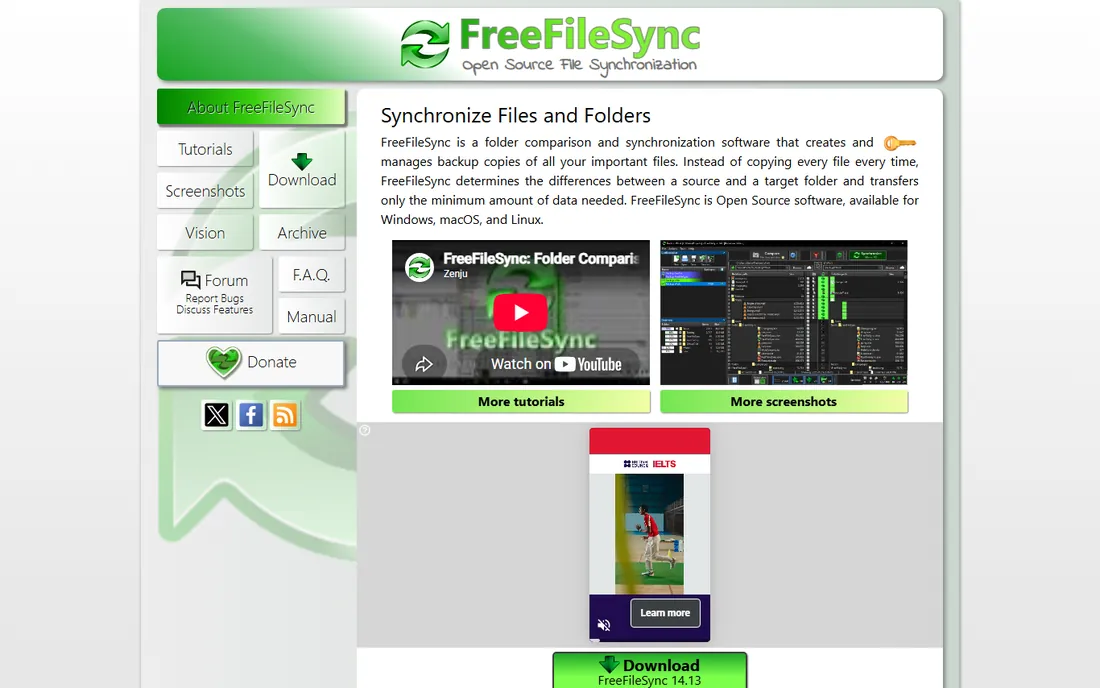
Picture this: two folders that should be identical, one on your laptop and one on the external drive, and you are not sure which side has the newest files. FreeFileSync shows you both sides, highlights every difference, and lets you decide what syncs before a single byte moves. That compare-first workflow is why it tops nearly every free sync roundup. It copies only changed files, detects moved and renamed files instead of re-copying them, and handles locked files on Windows through Volume Shadow Copy.
Beyond one-off syncs, FreeFileSync saves your folder pairs as batch jobs you can run on a schedule, and a real-time mode watches for changes and syncs them as they happen. Filters include and exclude files by pattern, macros handle dated backup folders, and long file paths work natively. The core program is open source under the GPL and completely free; an optional donation edition adds parallel copying for very large jobs. For mirroring folders to a NAS, an external drive, or a network share, this is the first tool to try.
What we like- Compares folders visually before copying anything
- Two-way, mirror, update, and custom sync modes
- Batch jobs and real-time sync included
Watch out for- Interface can intimidate first-time users
- Parallel file copying is reserved for the donation edition
Starting price$0
Free planYes
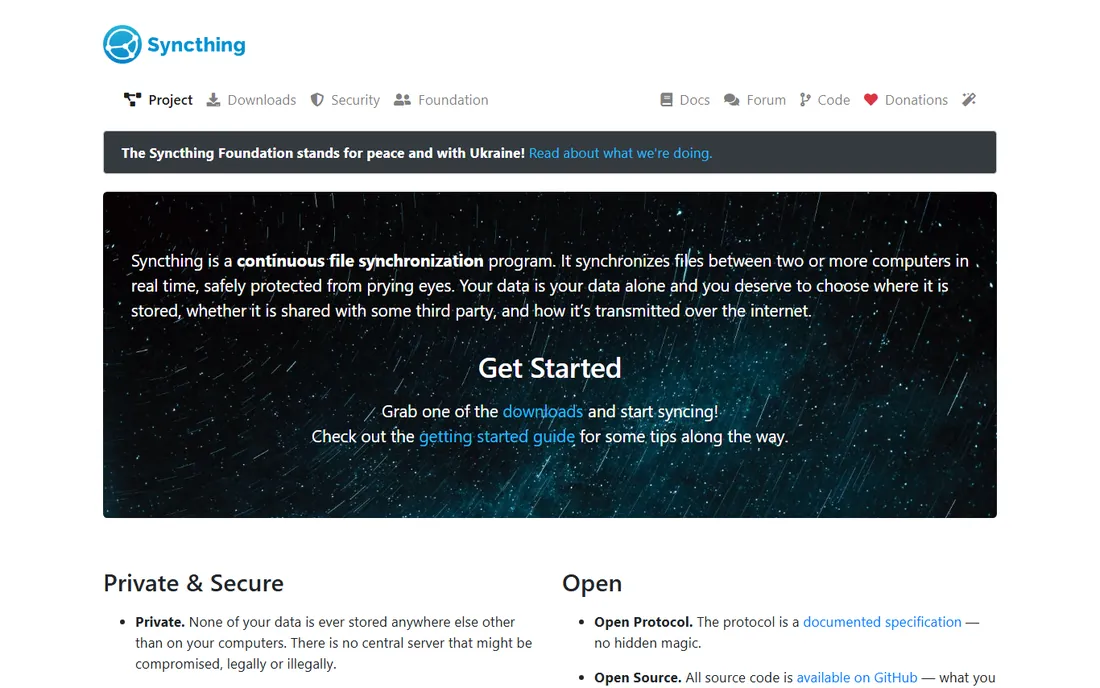
Syncthing solves a different problem from the rest of this list. Instead of syncing on demand, it watches your folders continuously and pushes changes to your other devices within seconds, over an encrypted peer-to-peer connection. There is no account, no cloud storage, and no subscription: your laptop syncs directly with your desktop, your NAS, or your phone. For people who want Dropbox-like behavior without Dropbox, it is the definitive free answer.
Setup means installing it on each device and pairing them with device IDs, which takes a few minutes and one careful read of the docs. After that it runs quietly in the background, handling conflicts by keeping both versions and syncing deletions only when configured to. Version history is available through file versioning settings. The trade-offs are real: there is no iOS app, and very large folder sets take time to scan on first run. But for private, continuous, server-free sync, nothing free beats it.
What we like- Peer-to-peer, so your files never sit on a third-party server
- Encrypted transfers
- Runs on Windows, macOS, Linux, and Android
Watch out for- No iOS client
- Initial setup of device pairing confuses some users
Starting price$0
Free planYes
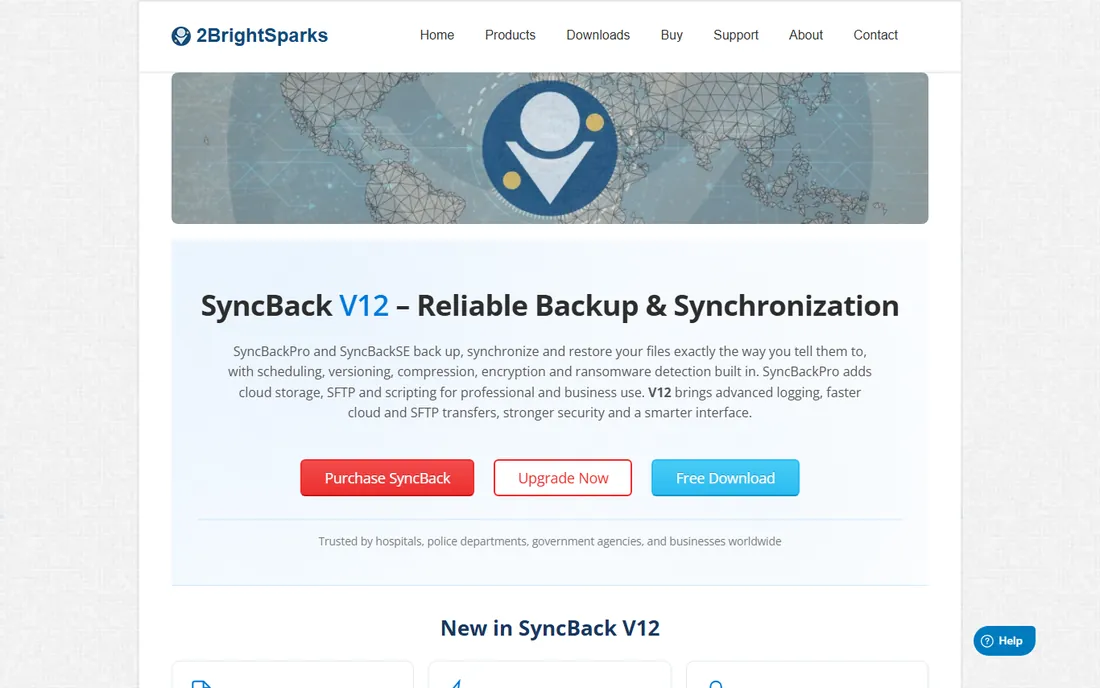
SyncBackFree has been around since 2003, and it shows in the best way: the scheduling, filtering, and logging are more mature than anything else free on Windows. You define profiles for backup, synchronization, or restore, set them to run on a schedule or when a USB drive connects, and get detailed logs of everything that happened. It copies files in both directions, detects renames, and handles open files. The free edition covers personal, educational, charity, government, and commercial use at no cost.
The interface exposes every option at once, which power users love and beginners find daunting. Start with the simple profile wizard and add filters later. If you outgrow the free edition, SyncBackSE and SyncBackPro add cloud support, FTP/SFTP, encryption, and scripting at paid prices, and your profiles carry over. For a Windows-only household or office that wants reliable scheduled folder sync without paying, SyncBackFree is the safe, boring, correct choice.
What we like- Powerful scheduler and filters
- Backup, sync, and restore profiles
- Free for personal and commercial use
Watch out for- Windows only
- The depth of options overwhelms casual users
Starting price$0
Free planYes (free for personal use, 40,000 files per 30 days)
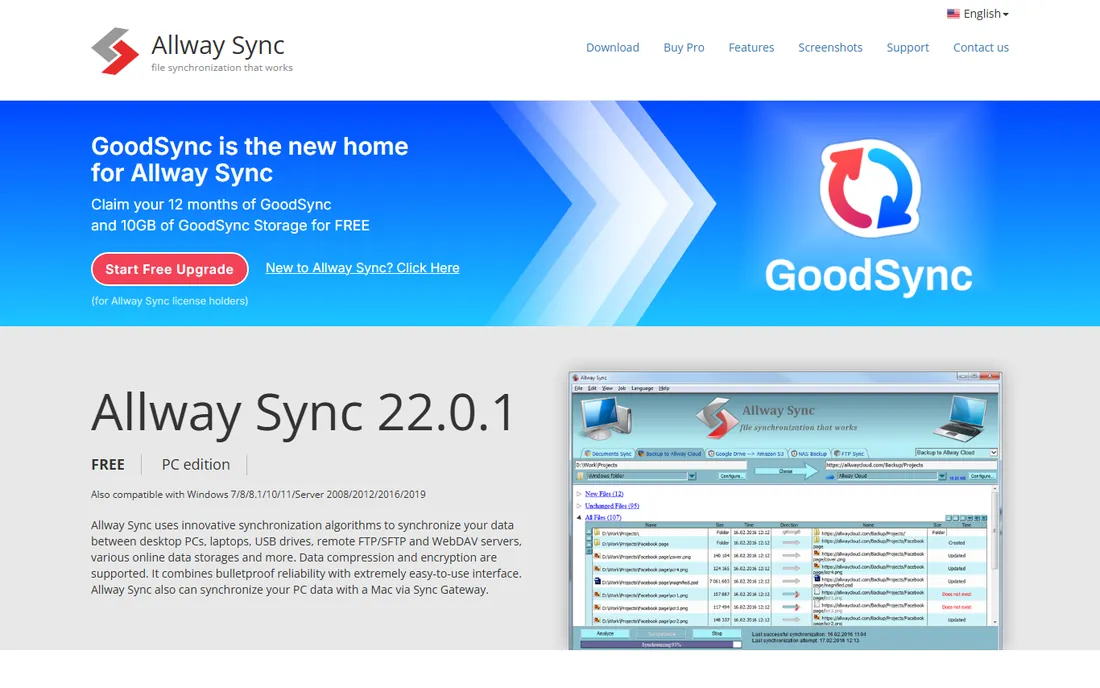
Allway Sync's party trick is remembering. Because it tracks the previous state of your folders in a local database, it knows the difference between "this file was deleted, delete it everywhere" and "this file is new, copy it everywhere," which is exactly where naive sync tools cause data loss. It performs true bi-directional and n-way synchronization, supports virtually any file system, and handles removable drives gracefully, making it a favorite for keeping a laptop, a desktop, and a USB drive in agreement.
The free version is free for personal use with one important limit: 40,000 files synced in a 30-day period, after which you are asked to buy the Pro version. For most personal photo and document collections that ceiling is fine; for media libraries it is not. Siber Systems acquired the product in 2023 and also sells GoodSync, so check which of the two fits you before paying. As a free tool for careful two-way sync, Allway Sync remains excellent.
What we like- Tracks file history in a database so deletions sync correctly
- Syncs more than two folders at once
- Supports removable drives well
Watch out for- Free version limited to 40,000 files per 30-day period
- Windows only
- Development pace has slowed since the 2023 acquisition
Starting price$0
Free planYes
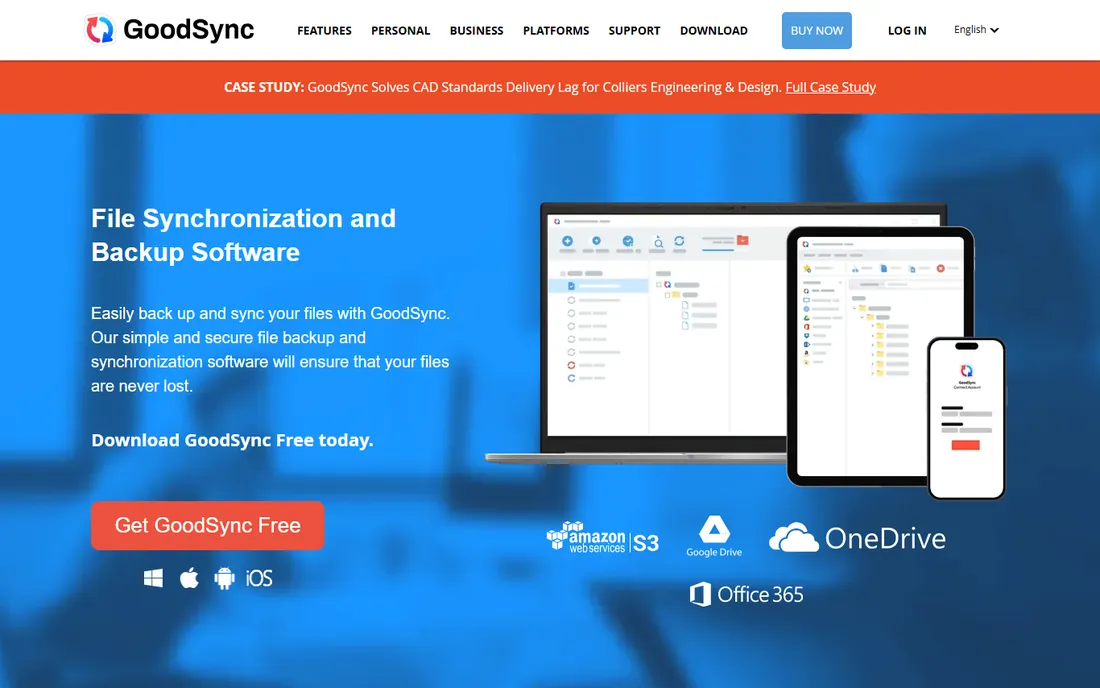
GoodSync, from the same company that now owns Allway Sync, positions itself as the bridge between local and cloud. One application syncs folders between your drives, your NAS, and cloud providers like Google Drive, OneDrive, and S3, with real-time monitoring or scheduled jobs. The interface is cleaner than most sync tools, and the job-based model makes it easy to manage many folder pairs.
The free version exists but is deliberately limited; the paid license is priced per device per year. That makes GoodSync a "try free, pay if it fits" proposition rather than a forever-free workhorse. It earns its place here because the free tier is enough to evaluate real workflows, and buyers who need cloud plus local sync in a single polished app often find the paid license worth it. If your needs are local-only, the fully free tools above give you more for nothing.
What we like- Connects local folders and major cloud providers in one interface
- Real-time and scheduled sync
- Solid conflict handling
Watch out for- Free version is limited
- Full features require the paid license per device
#6
Resilio Sync
Best for: Syncing very large files between devices quickly
Visit resilio.com
Starting price$0
Free planYes
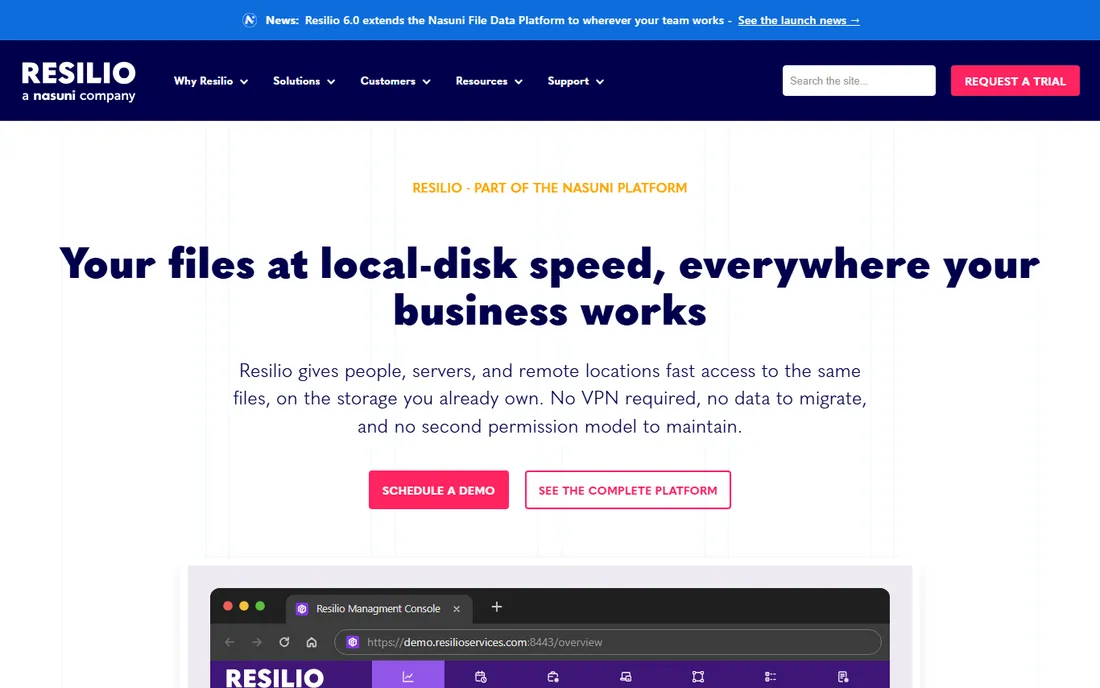
Resilio Sync uses the BitTorrent protocol under the hood, which sounds exotic until you sync a 50 GB video project in a fraction of the time a cloud upload would take. Because transfers go directly between your devices, speed is limited by your network rather than a server, and there are no storage caps to pay for. It runs on Windows, macOS, Linux, NAS devices, and mobile, with selective sync so you can choose which folders live on which device.
The free Home version covers personal use well. Paid tiers add centralized management and are aimed at teams. The fundamental limitation is architectural: with no cloud in the middle, syncing only happens when both devices are online, so it cannot replace cloud storage as an always-available middleman. For large files moving between your own machines, though, it is dramatically faster than the alternatives.
What we like- Peer-to-peer transfers are fast, even for multi-gigabyte files
- No storage limits since there is no cloud
- Selective sync
Watch out for- Free version lacks some advanced management features
- Both devices must be online to sync
#7
rclone
Best for: Command-line sync with cloud storage providers
Visit rclone.org
Starting price$0
Free planYes
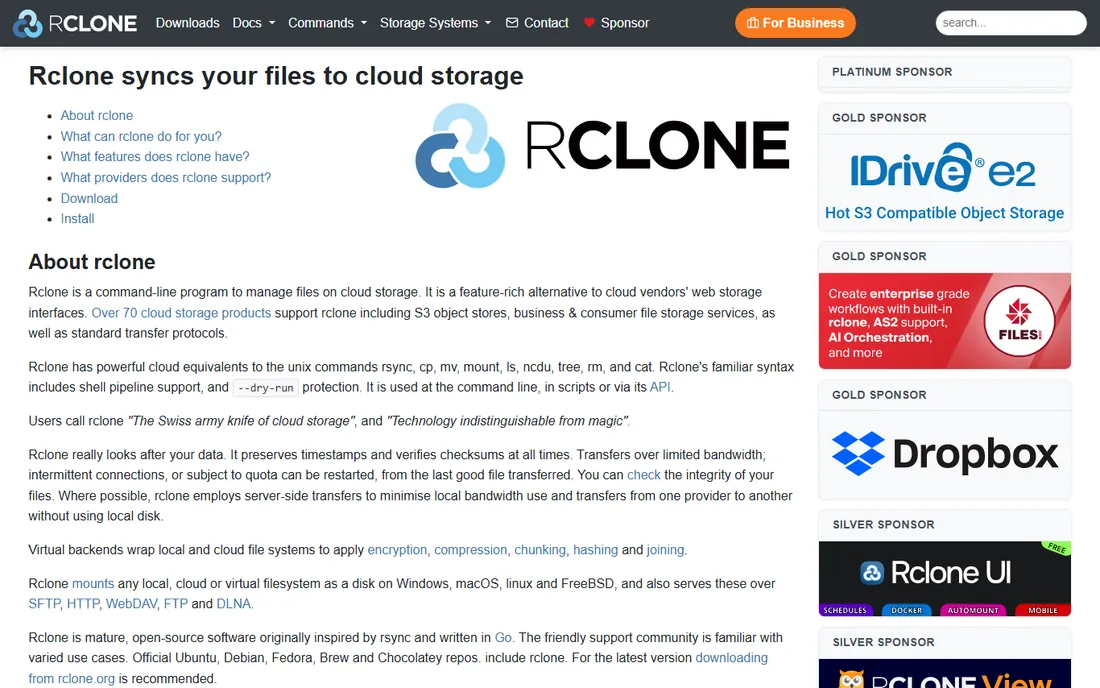
rclone is the Swiss army knife of cloud sync: one command-line tool that talks to Google Drive, S3, Dropbox, OneDrive, Backblaze, and dozens more with the same verbs. rclone sync mirrors a local folder to the cloud, rclone copy adds without deleting, and rclone bisync handles two-way sync. Because it is scriptable, it slots into cron jobs, backup scripts, and server workflows where GUI tools cannot go.
The obvious cost is the learning curve. There is no visual folder comparison, and first-time configuration happens in a terminal walkthrough. But rclone shipped major security fixes in 2026 and remains actively maintained, and for anyone comfortable with a command line it replaces a whole shelf of cloud sync utilities. Pair it with a GUI tool for daily use and let rclone handle the unattended cloud leg.
What we like- Supports dozens of cloud providers with one syntax
- Scriptable and automatable
- Free and open source
Watch out for- Command line only, which rules out non-technical users
- No graphical comparison view
Starting price$0
Free planYes
DirSync Pro is a donationware folder synchronizer written in Java, which means it runs on Windows, macOS, and Linux without platform-specific builds. It offers unidirectional and bidirectional sync, configurable conflict handling (newest wins, larger wins, keep both, or warn), filters, and scheduling. There are no locked features and no file limits; the authors simply accept donations.
The Java foundation is both the strength and the weakness: universal compatibility in exchange for a slightly sluggish, old-fashioned interface and a Java runtime requirement. Development continues at a steady volunteer pace rather than a commercial one. For users who want a free, cross-platform sync tool with honest bidirectional logic and no upsell, DirSync Pro is a solid, underappreciated option.
What we like- Cross-platform via Java
- Bidirectional sync with conflict options
- Donationware with no feature limits
Watch out for- Java dependency and dated interface
- Smaller community than the big names
Starting price$0
Free planYes
Create Synchronicity does one job with minimal fuss: you define folder pairs, choose one-way or two-way sync, set a schedule, and it runs. The interface is about as simple as sync software gets, and a preview mode shows what will happen before it happens. For a non-technical user who needs "copy my documents to the external drive every evening" and nothing more, the lack of features is a feature.
The caveat is maintenance. The project has been quiet for years, though the last releases remain stable on modern Windows. It is not the tool for complex workflows, network edge cases, or cross-platform needs. But it is free, tiny, and does exactly what it promises, which earns it a place for the simplest use cases on this list.
What we like- Extremely simple to set up
- Scheduling built in
- Preview before syncing
Watch out for- Windows only
- Development has been quiet for years
- Fewer features than FreeFileSync
Starting price$0
Free planYes
DSynchronize is a single small executable from independent developer Dimio that synchronizes two or more folders on disks, LAN, USB drives, and FTP servers. It supports real-time sync, scheduled sync by time and day, and file filters, all from a compact interface with no installer. It is freeware for personal and business use, and a portable version exists for USB sticks.
Expectations should match the size: this is a straightforward sync utility, not a backup platform. There is no versioning, no cloud integration, and no hand-holding. For keeping two local folders mirrored with minimal overhead, on machines where you cannot or will not install anything, DSynchronize is refreshingly direct.
What we like- Tiny standalone executable, no install needed
- Real-time sync option
- Timer and day scheduling
- Freeware for business use too
Watch out for- Windows only
- Minimal interface
- No cloud or network-advanced features
One-time mirror or continuous sync?
These tools split into two families, and picking the wrong family is the most common mistake. Mirror tools like FreeFileSync, SyncBackFree, and DirSync Pro run when you tell them to: you compare, you sync, you are done. They are ideal for backups to external drives and NAS devices, where you want control over exactly when data moves.
Continuous tools like Syncthing, Resilio Sync, and the real-time modes of GoodSync and DSynchronize watch folders and propagate changes automatically. They are ideal for keeping a laptop and desktop in agreement without thinking about it. The price of convenience is vigilance: automatic two-way sync can propagate deletions and ransomware-encrypted files just as faithfully as good changes, so pair continuous sync with versioning or a separate backup.
How we chose
We compared feature lists, documentation, and public reviews on sites like Ghacks, PCWorld, and Reddit, weighing sync modes, scheduling, platform support, free-tier limits, and fit for everyone from casual home users to IT admins. We did not run hands-on trials; this ranking reflects publicly documented capabilities as of October 2026.
Sync is not backup
Every tool on this list can destroy data as efficiently as it protects it. Two-way sync propagates deletions, mirror mode wipes destination files that no longer exist at the source, and a misconfigured filter can skip the folder you cared about most. Three rules keep you safe: start with a preview or comparison run, keep version history or a separate backup that sync never touches, and test your restore process before you need it. FreeFileSync's versioning, Syncthing's file versioning, and SyncBackFree's logs all exist for the day something goes wrong.
Watch the free-tier fine print
Free does not always mean unlimited. Allway Sync caps free personal use at 40,000 files per 30 days. GoodSync's free version is a trial of the experience rather than the full product. FreeFileSync's donation edition gates parallel copying. None of these are traps, but they matter when your photo library crosses the threshold. The fully unlimited free options here are Syncthing, rclone, DirSync Pro, Create Synchronicity, DSynchronize, and the core of FreeFileSync and SyncBackFree.
Frequently asked questions
What is the best free folder sync software for Windows?
FreeFileSync for visual, on-demand sync and SyncBackFree for scheduled, set-and-forget jobs. Both are completely free, actively maintained, and cover everything from external-drive mirrors to network shares.
Can I sync folders between two computers for free?
Yes. Syncthing syncs folders continuously between your devices with no cloud and no cost. Resilio Sync does the same with an emphasis on large files. Both require the devices to be online at the same time.
Is FreeFileSync really free?
Yes. The core program is open source under the GPL and free for all use. An optional donation edition adds parallel file copying and a few extras, but nothing essential is gated.
What is the difference between sync and backup?
Sync keeps two locations identical, which means deletions and corruption propagate. Backup keeps restorable copies of your data at points in time. Use sync for convenience and a real backup for safety; ideally both.
Can free sync software handle network drives and NAS?
Yes. FreeFileSync, SyncBackFree, Allway Sync, and DirSync Pro all sync with network shares and NAS devices. Syncthing and Resilio Sync can also target NAS boxes that run their software.
Does any free tool sync with Google Drive or OneDrive?
rclone syncs with dozens of cloud providers from the command line for free. FreeFileSync supports Google Drive, and GoodSync covers major clouds in its free tier. For heavy cloud workflows, rclone is the most capable free option.
Sources we checked (5)
- https://www.itechguides.com/best/file-sync-software/
- https://www.ghacks.net/2015/03/17/whats-the-best-free-file-synchronization-software-for-windows/
- https://www.thewindowsclub.com/file-folder-synchronization-freeware
- https://www.makeuseof.com/freefilesync-open-source-file-backup-app-is-so-good-i-can-tbelieve-its-free/
- https://www.2brightsparks.com/welcome/syncback-syncbackse-syncbackpro.html
Is your product missing or out of date?
We review this list regularly. Vendors can request a listing, send updated pricing or ask about featured placement.

Shihab Mia · Founder, Rankite
Shihab has spent more than a decade helping SaaS and e-commerce brands grow through search. He writes Rankite's software buying guides from pricing pages, documentation and public user reviews. More about Shihab.