How we make this list: we compare pricing pages, product documentation and public user reviews. Ratings come from G2, Capterra or Trustpilot, with the date we checked them.
Key takeaways
- Krita is the most powerful free drawing app, with professional brushes at no cost.
- MediBang Paint suits manga and comic beginners with free panels and tones.
- Sketchbook offers the cleanest sketching experience with no learning curve.
- ibisPaint X gives phone artists a huge brush library for free, with ads.
- Kleki needs no download at all, since it runs entirely in a browser.
Quick comparison
Is your product missing or out of date?
We review this list regularly. Vendors can request a listing, send updated pricing or ask about featured placement.
The best free drawing apps for beginners
#1Krita
Best for: Powerful desktop painting4.4/5 on
G2 (65 reviews, checked Oct 2026)
Visit krita.org
Starting priceFree
Free planYes
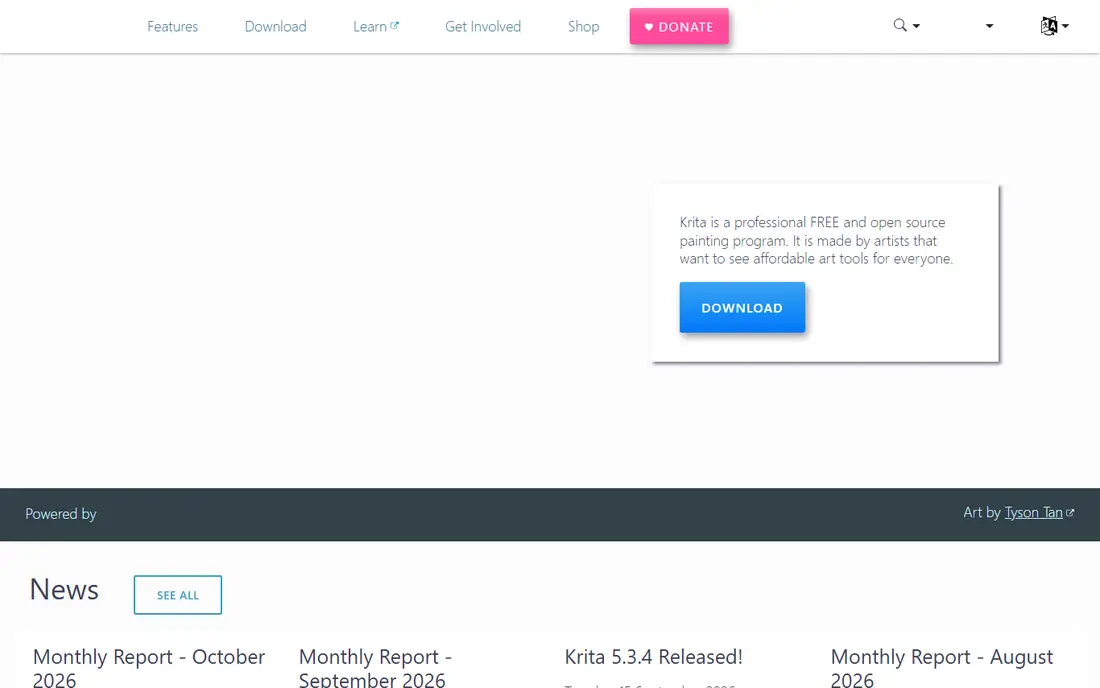
Krita is the most powerful free drawing app available, and it costs nothing on Windows, Mac, Linux, and Android. Nine brush engines cover painting, inking, texture, and effects, and animation tools let beginners try frame-by-frame work without buying another app. There are no locked features, no subscriptions, and no ads, which is rare for software this capable.
The trade-off is complexity. The interface packs many panels and options, and beginners should expect a few evenings of learning before it feels natural. Large canvases also need reasonable hardware. For a beginner who wants room to grow for years without paying, Krita is the strongest choice.
What we like- Professional brush engines
- Animation tools included
- No feature paywalls at all
Watch out for- Interface can overwhelm beginners
- Needs a decent computer for large canvases
- Mobile version is less mature
Starting priceFree
Free planYes
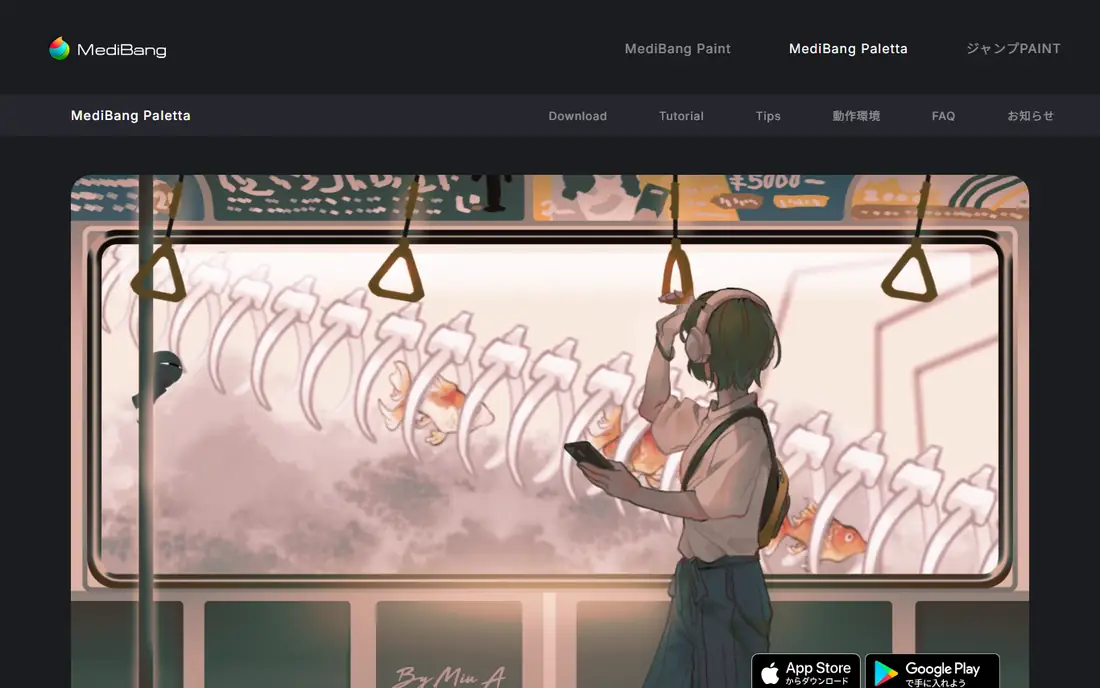
MediBang Paint is built for manga, webtoons, and anime-style art. Comic panel tools, screentones, speech bubbles, and cloud fonts come free, which covers most of what a comic beginner needs without buying asset packs. The same account works across desktop, tablet, and phone, so a sketch started on a phone can finish on a computer.
Cloud features require an account, and the interface is busy with comic-specific panels. Some premium materials cost extra, though the core app stays free. For a beginner who wants to make comics rather than single illustrations, MediBang Paint is the natural first app.
What we like- Free comic panels and screentones
- Cloud fonts and materials
- Works on desktop and mobile
Watch out for- Cloud features need an account
- Interface is busy
- Some assets are paid extras
#3Autodesk Sketchbook
Best for: Clean quick sketching4.4/5 on
G2 (177 reviews, checked Oct 2026)
Visit sketchbook.com
Starting priceFree
Free planYes
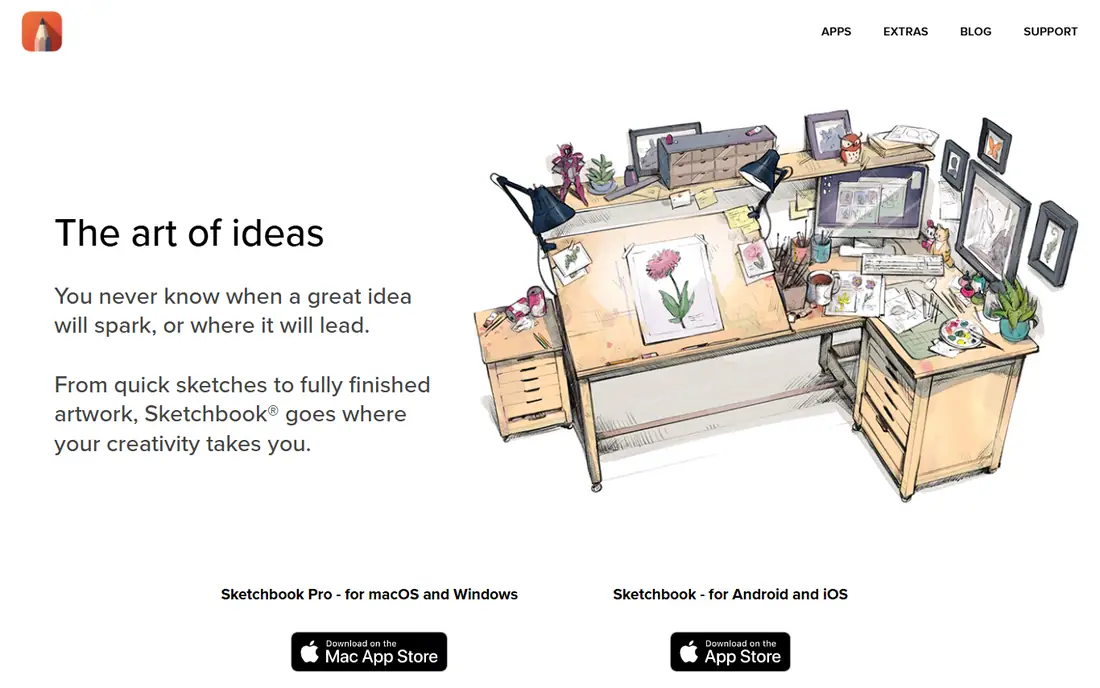
Sketchbook, originally from Autodesk, offers the cleanest sketching experience on this list. The interface stays out of the way, radial tool wheels keep brushes close at hand, and predictive stroke smooths shaky lines into clean curves. Beginners can open it and start drawing within a minute, which matters more than feature count in the first weeks.
The product line has split since the Autodesk days, and newer versions include paid upgrades, though core mobile tools remain free. Comic tools and animation are thinner than MediBang or Krita. For pure sketching practice, Sketchbook is the easiest app to love.
What we like- Distraction-free interface
- Predictive stroke for smooth lines
- Professional brush library
Watch out for- Newer versions add paid upgrades
- Fewer comic tools
- No animation features
Starting priceFree
Free planYes
ibisPaint X is the most popular free drawing app on phones, and the brush library explains why. More than 15,000 brushes, plus filters, blending modes, and manga tools, give phone artists a desktop-sized toolkit. Built-in recording turns drawings into shareable timelapse videos, and the community features let beginners learn by watching others draw.
Ads appear in the free version, and the phone interface is crowded on small screens. A paid tier removes ads and adds storage. For a beginner who draws mainly on a phone or tablet, ibisPaint X offers the most tools for free.
What we like- Huge brush library of 15,000-plus brushes
- Recording and sharing features
- Manga tools included
Watch out for- Ads on the free version
- Interface is crowded on phones
- Some features need a subscription

#5Adobe Fresco
Best for: Realistic watercolor and oil4.5/5 on
G2 (34 reviews, checked Oct 2026)
Visit adobe.com
Starting priceFree
Free planYes
Adobe Fresco stands out for realistic painting. Live Brushes simulate how watercolor bleeds and blends and how oil paint builds up, which feels closer to traditional media than most digital brushes. The touch-first interface suits iPad and Windows touch devices, and files open in Photoshop for further work.
The free core tools cover a lot, but some brushes and features need a paid plan, and an Adobe account is required. Desktop mouse users get less benefit than stylus users. For a beginner who loves traditional painting and owns a tablet, Fresco is the most natural-feeling free app.
What we like- Live Brushes mimic real watercolor and oil
- Clean touch interface
- Works with Photoshop files
Watch out for- Best on iPad and touch devices
- Some brushes need a paid plan
- Adobe account required
Starting priceFree
Free planYes
FireAlpaca is the lightweight pick for beginners with older computers. It runs smoothly on decade-old laptops, and its brush stabilizer turns shaky strokes into clean line art, which helps new artists gain confidence. The interface is simple enough to learn in one sitting, and the app covers layers, snap rulers, and basic comic tools.
Painting features are thinner than Krita, and there is no animation support. The brush library is smaller than ibisPaint. For a beginner who wants clean line art on modest hardware, FireAlpaca is the kindest starting point.
What we like- Very lightweight, runs on old computers
- Smooth brush stabilizer
- Simple interface
Watch out for- Fewer painting features than Krita
- No animation
- Smaller brush library
Starting priceFree
Free planYes
Concepts takes a different approach: an infinite canvas where sketches, diagrams, and notes grow without page limits. Vector strokes stay editable, so a rough idea can be reshaped, recolored, and scaled without redrawing. That freedom suits brainstorming, storyboarding, and concept sketching, where ideas matter more than finished polish.
The free tier covers core features, while brush libraries and advanced tools cost extra. Finished painting is weaker than Krita or Fresco. For a beginner who sketches ideas, plans projects, or storyboards, Concepts offers a flexible canvas no other free app matches.
What we like- Infinite canvas with boundless zoom
- Vector strokes stay editable
- Good for brainstorming
Watch out for- Free core features only
- Advanced libraries are paid
- Less suited to finished painting
Starting priceFree
Free planYes
Kleki runs entirely in a browser, which makes it the fastest way for a beginner to start drawing. Open the site on any device, pick a brush, and draw on a layered canvas with no download, install, or account. That zero-friction start is ideal for school computers, shared devices, and anyone who wants to try digital drawing before committing to an app.
Features are thinner than desktop apps, and an internet connection is required. There are no animation or comic panel tools. For a first taste of digital drawing, or for quick sketches anywhere, Kleki removes every barrier.
What we like- No download or account needed
- Layers and brushes in a browser
- Works on any device
Watch out for- Fewer features than desktop apps
- Needs internet
- No animation or comic tools
How we chose
We compared apps on cost, beginner-friendliness, brush quality, platform coverage, and limits, using vendor pages and published comparisons from 2026. We favored apps US beginners can use free today with a distinct strength. We did not claim hands-on testing, and where free tiers changed across versions we noted the limits rather than promising full features.
How to pick your first drawing app
Start with your device. Desktop beginners should try Krita first, since it costs nothing and grows with skill for years. Phone and tablet beginners should try ibisPaint X or MediBang Paint, depending on whether illustration or comics excite them more. Anyone on a shared or school computer should start with Kleki, since it needs no install at all.
Then match the app to the art you want to make. Manga and comics point to MediBang Paint or FireAlpaca. Realistic painting points to Fresco on a tablet. Quick sketching and idea capture point to Sketchbook or Concepts. Do not try to learn three apps at once. Pick one, draw daily for a month, and only switch if a specific limit blocks you.
Hardware matters less than habit, but a few basics help. A cheap pressure-sensitive stylus improves control on tablets, and even a basic drawing tablet changes desktop drawing completely compared with a mouse, since pressure and tilt shape each stroke. Flip your canvas horizontally every few minutes to spot proportion errors your eye misses, and save working files with layers intact before exporting a flat image. Export PNG for sharing with transparency, JPEG for smaller files, and keep the layered file for future edits. These small habits compound: after a month of daily sketching, line confidence and proportion improve visibly, even if no single drawing feels like a breakthrough at the time.
Also set expectations kindly. Early drawings will look rough, and that is normal for every beginner, including artists whose work you admire today. Follow one beginner tutorial series inside your chosen app rather than jumping between styles, and finish small pieces instead of abandoning large ones. Progress in drawing comes from completed pages, not from collecting apps. The free tools here remove the cost excuse, so the remaining work is simply drawing often, a little every day, even when a session feels unproductive.
Frequently asked questions
What is the best free drawing app overall?
Krita, for desktop users who want professional power at no cost. For phones, ibisPaint X offers the largest free brush library, and for pure sketching, Sketchbook is the simplest.
Do I need a drawing tablet to start?
No. Phones, tablets, and a mouse all work for beginners. A pressure-sensitive stylus or basic drawing tablet improves control later, but it is not required to learn.
Is Krita really completely free?
Yes. Krita is open source with no locked features, subscriptions, or ads. Donations support development, but nothing in the app requires payment.
Can I make comics with a free app?
Yes. MediBang Paint offers free panels, screentones, and speech bubbles, while FireAlpaca covers basic comic tools. Both suit beginners making manga or webtoons.
Which free app works in a browser?
Kleki runs entirely in a browser with no download or account. Aggie.io, a related web app, adds collaborative drawing for groups.
Should a beginner start with Procreate?
Procreate is excellent but costs about $13 as a one-time purchase and runs only on iPad. Beginners can learn the same skills free in Krita, MediBang, or ibisPaint first, and move to Procreate later if they want its specific brushes and iPad workflow. Starting free also confirms that drawing is a habit you enjoy before spending money on tools, which is the sensible order for any new hobby you are testing for the very first time ever as a beginner.
Sources we checked (8)
- https://krita.org
- https://medibangpaint.com
- https://www.sketchbook.com
- https://ibispaint.com
- https://www.adobe.com/products/fresco.html
- https://firealpaca.com
- https://concepts.app
- https://kleki.com
Is your product missing or out of date?
We review this list regularly. Vendors can request a listing, send updated pricing or ask about featured placement.

Shihab Mia · Founder, Rankite
Shihab has 5+ years in B2B and SaaS SEO. He writes Rankite's software buying guides from pricing pages, documentation and public user reviews. More about Shihab.
 MediBang Paint
 ibisPaint X
 FireAlpaca
 Concepts
 Kleki
Kleki