How we make this list: we compare pricing pages, product documentation and public user reviews. Rankite is independent; if a vendor ever pays for a featured spot, that listing is clearly labeled Partner.
Key takeaways
- Clonezilla is the most capable free cloner, but its text-based interface scares off beginners; Rescuezilla wraps similar power in a point-and-click GUI.
- AOMEI Backupper Standard is the friendliest free Windows option for straightforward HDD-to-SSD moves.
- Samsung Data Migration beats everything if you bought a Samsung SSD, and it is free with the drive.
- Macrium Reflect Free was discontinued in 2024; the current product is trial-only, so do not plan around the old free edition.
- Always clone to a drive you can afford to wipe, and verify the clone boots before you erase the original.
Quick comparison
| Tool | Best for | Starting price | Free plan |
|---|
 Clonezilla Clonezilla | Tech-savvy users, IT staff and mass deployment | Free (open source) | Yes |
 Rescuezilla Rescuezilla | Beginners who want a graphical free cloner | Free (open source) | Yes |
 AOMEI Backupper Standard AOMEI Backupper Standard | Windows users who want cloning inside a normal app | Free (Standard edition) | Yes |
 EaseUS Disk Copy EaseUS Disk Copy | One-click disk or partition copying | Free (limited free edition) | Yes |
 Samsung Data Migration Samsung Data Migration | Anyone migrating to a Samsung SSD | Free (included with Samsung SSDs) | Yes |
 DiskGenius Free DiskGenius Free | Users who also need partition management and recovery | Free (Free edition) | Yes |
 Hasleo Backup Suite Hasleo Backup Suite | Free Windows backup with cloning included | Free | Yes |
 Macrium Reflect Macrium Reflect | Users who remember the free edition and want the paid successor | See website (trial available) | Trial only (Free edition discontinued in 2024) |
Is your product missing or out of date?
We review this list regularly. Vendors can request a listing, send updated pricing or ask about featured placement.
The best free disk cloning software
You bought a bigger SSD, or the old drive is making noises it should not make, and now you need everything moved: the OS, the apps, the settings, the lot. Reinstalling Windows and every program from scratch takes a day you do not have. Disk cloning copies the whole drive bit for bit, and these eight free tools do it without charging you.
Starting priceFree (open source)
Free planYes
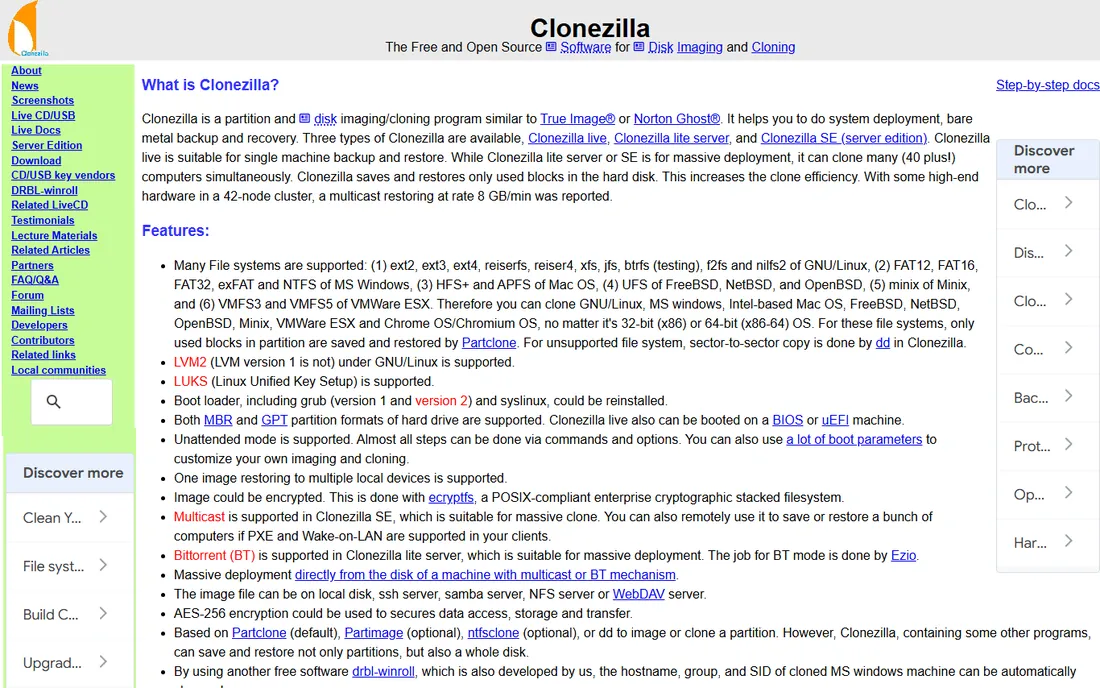
Clonezilla is the tool IT departments reach for when the budget is zero. It boots from a USB stick, copies only the used blocks of the disk, and handles NTFS, ext4, FAT32, APFS and most other file systems. Version 3.3.x added better handling of mixed sector sizes and improved BitLocker support, which matters on modern Windows 11 machines. For cloning one drive it is fast; for imaging a lab of PCs it is unmatched at this price.
The price is the interface. Text menus, cryptic option names and a workflow that assumes you know what a partition table is. It also cannot clone a live Windows system; you boot into Clonezilla first. Read each screen twice, triple-check source and destination, and you will be fine. Rush it and you can wipe the wrong disk.
What we like- Completely free with no feature paywalls
- Clones only used blocks for speed
- Server Edition can image dozens of machines at once over the network
Watch out for- Text-based menus look intimidating
- No cloning while Windows is running (boot from USB)
- Easy to pick the wrong drive if you rush
Starting priceFree (open source)
Free planYes
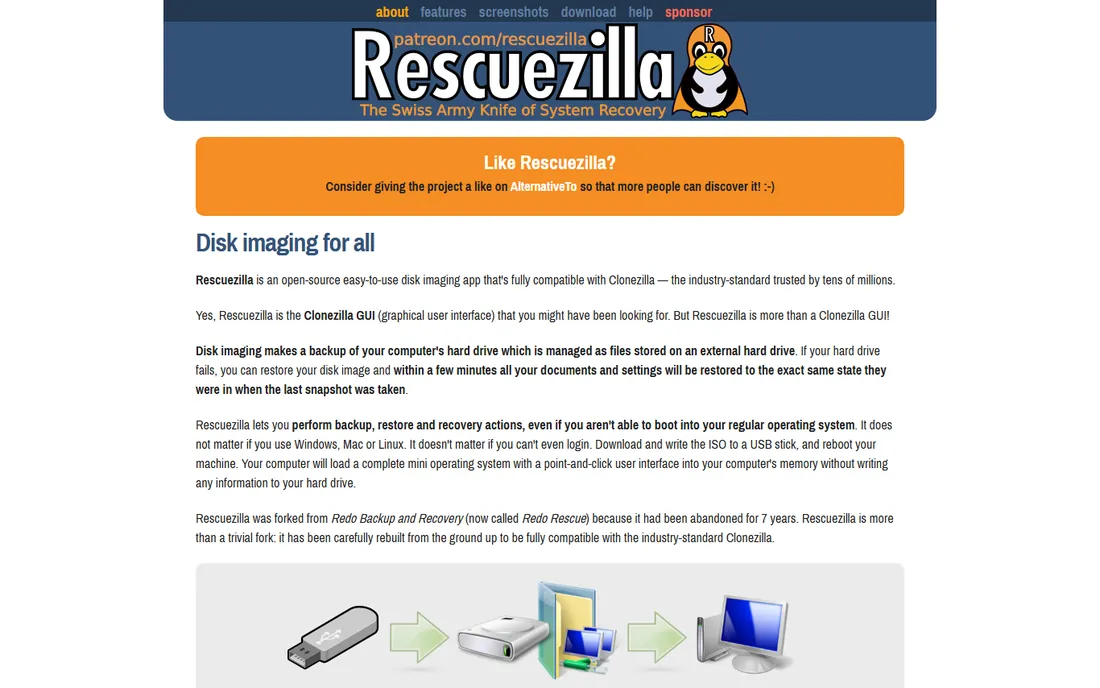
Rescuezilla is what you recommend to a friend who needs Clonezilla's power without its learning curve. It boots from USB into a familiar desktop-style interface where cloning is a wizard: pick source, pick destination, go. It can even restore images made by Clonezilla, which is handy in mixed environments. Partition editing, file recovery and NTFS tools ride along in the same boot disk.
It does not match Clonezilla's server deployment features, and the community is smaller, so obscure problems take longer to solve. But for the core job, cloning your laptop's drive to a new SSD, it is the easiest free tool here. If Clonezilla's menus made you close the tab, start here instead.
What we like- Full graphical interface, no command line
- Compatible with Clonezilla images
- Boots from USB and handles Windows and Linux
Watch out for- Fewer advanced deployment features than Clonezilla
- Smaller community for troubleshooting
- Release cadence is slower
#3
AOMEI Backupper Standard
Best for: Windows users who want cloning inside a normal app
Visit aomeitech.com
Starting priceFree (Standard edition)
Free planYes
AOMEI Backupper Standard is the mainstream free pick for Windows. Unlike the boot-disk tools, it installs like a normal program and walks you through cloning with plain-language wizards. The SSD alignment checkbox matters: it aligns partitions for SSDs during the clone, which helps performance and drive lifespan. System clone mode moves just the OS to a smaller SSD, which the boot tools handle less gracefully.
The free edition is genuinely usable, but AOMEI nudges toward Pro: some features are locked, and the interface advertises paid tiers. Uncheck the bundled offers during install. For a one-time HDD-to-SSD migration on a home PC, it is the lowest-friction free option.
What we like- Runs inside Windows with a clear wizard
- SSD alignment option improves SSD performance
- System, disk and partition clone modes
Watch out for- Free edition excludes some advanced features
- Installer bundles optional offers, watch the checkboxes
- Paid upsells appear in the interface
#4
EaseUS Disk Copy
Best for: One-click disk or partition copying
Visit easeus.com
Starting priceFree (limited free edition)
Free planYes
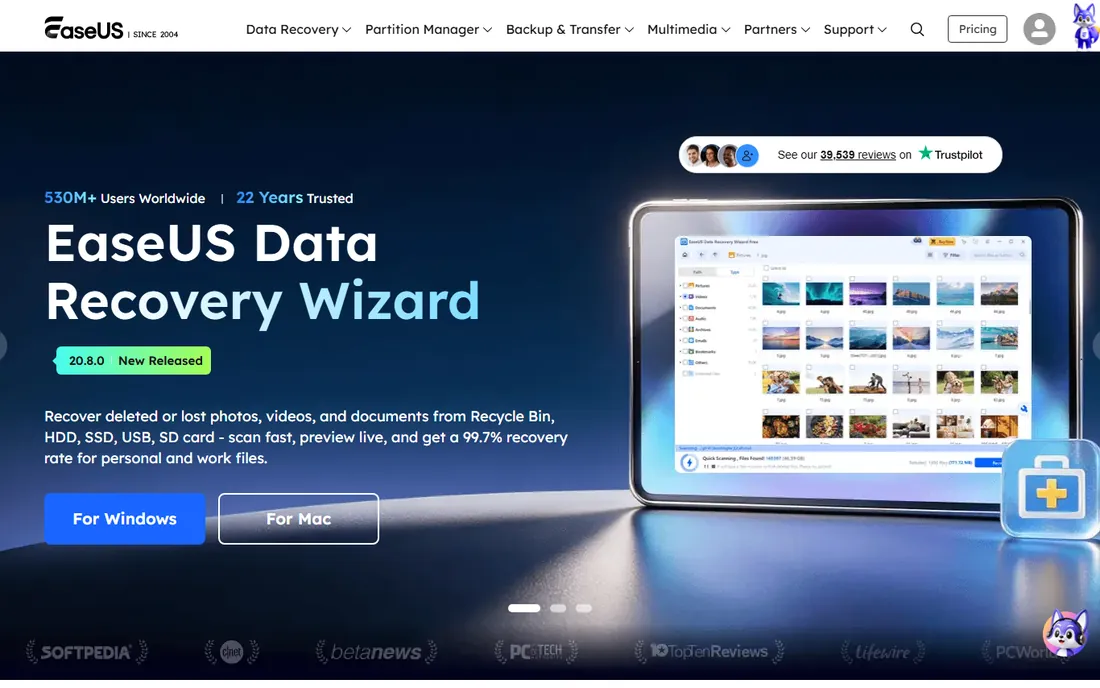
EaseUS Disk Copy does one thing: copy a disk or partition to another disk. The workflow is about three clicks, with a sector-by-sector option for drives with bad sectors where you want every readable bit. It builds bootable media for machines that will not start, and the interface needs no manual.
The free edition is deliberately limited to push you toward the paid version, and the upsell prompts are persistent. Speed caps on the free tier make large drives slow. It is fine for a single straightforward copy, but if you hit a paywall mid-job, switch to Rescuezilla and finish free.
What we like- Extremely simple copy workflow
- Sector-by-sector mode for failing drives
- Bootable media builder included
Watch out for- Free edition has feature and speed limits
- Heavy upsell toward the paid version
- Account creation prompts
#5
Samsung Data Migration
Best for: Anyone migrating to a Samsung SSD
Visit samsung.com
Starting priceFree (included with Samsung SSDs)
Free planYes
If your new SSD is a Samsung, stop reading and use Samsung Data Migration. It exists for exactly one job, moving your system to a Samsung SSD, and because both ends are known quantities it just works. Install, pick the target drive, start the migration. It handles the partition resizing and alignment automatically.
The limitation is absolute: the destination must be a Samsung SSD. Migrating to a WD, Crucial or Kingston drive? It will refuse. Windows only, too. But Samsung sells a huge share of consumer SSDs, so this covers a large fraction of real-world upgrades, free with the hardware.
What we like- Purpose-built for Samsung SSDs, so compatibility is near-perfect
- Simple three-step migration
- Free with the drive
Watch out for- Only works when the target is a Samsung SSD
- Windows only
- Will not help with other brands
#6
DiskGenius Free
Best for: Users who also need partition management and recovery
Visit diskgenius.com
Starting priceFree (Free edition)
Free planYes
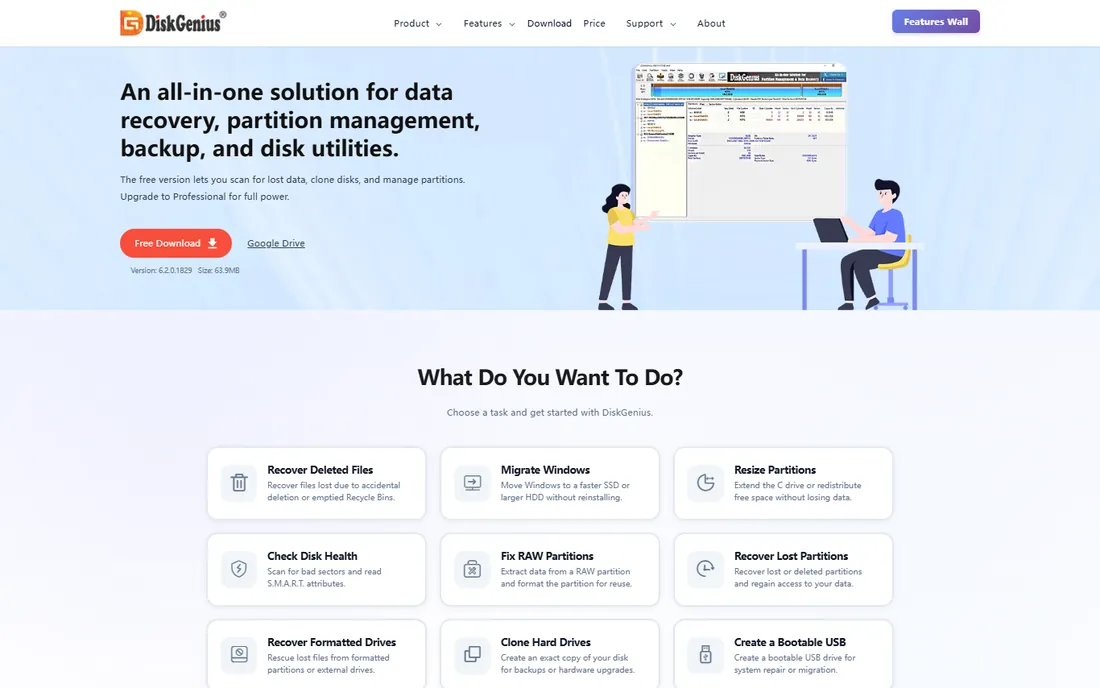
DiskGenius is a disk utility knife that happens to clone well. The free edition migrates the OS to an SSD, clones partitions and disks, and adds partition resizing, file recovery and bad-sector checking in the same window. If your drive project also involves repartitioning or checking disk health, doing it all in one tool saves time.
The interface packs a lot into small windows and looks its age. The paid edition gates the deeper recovery features, and the English docs can be rough. For pure cloning it is more tool than you need, but as an all-round free disk utility it earns its place.
What we like- Cloning plus partition editing, recovery and disk health in one tool
- Handles virtual disks
- Free edition covers system migration
Watch out for- Interface is dense and dated
- Some advanced functions need the paid edition
- Documentation is translated, occasionally unclear
#7
Hasleo Backup Suite
Best for: Free Windows backup with cloning included
Visit hasleo.com
Starting priceFree
Free planYes
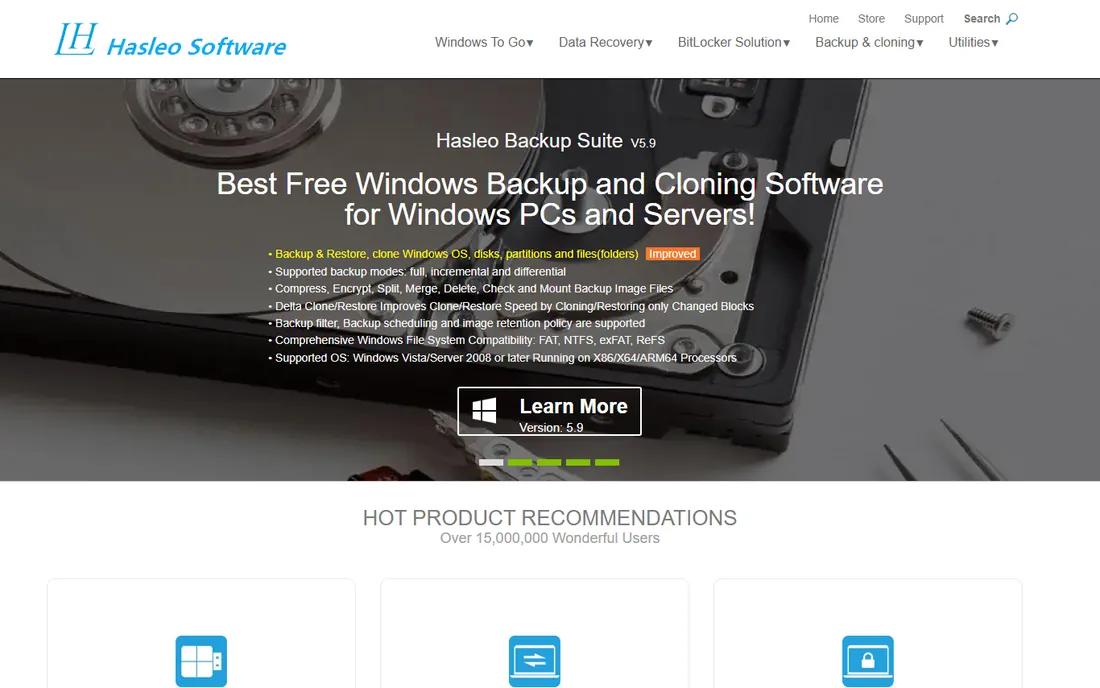
Hasleo Backup Suite is a sleeper: a complete Windows backup program, free, with disk and system cloning built in. It covers the full workflow, scheduled image backups for ongoing protection plus clone mode for drive upgrades, and builds WinPE rescue media for dead machines. For a home PC or small office that wants backup and cloning in one free package, it is strong value.
The tradeoffs are reach and polish. Windows only, a smaller community than the big names, and an interface that prioritizes function over looks. It has not been around as long as Clonezilla, so long-term trust is still building. But the feature set for zero dollars is hard to argue with.
What we like- Fully free backup and clone suite for Windows
- WinPE bootable media builder
- Scheduled backups alongside one-off clones
Watch out for- Windows only
- Smaller user base means fewer tutorials
- Interface is functional rather than polished
#8
Macrium Reflect
Best for: Users who remember the free edition and want the paid successor
Visit macrium.com
Starting priceSee website (trial available)
Free planTrial only (Free edition discontinued in 2024)
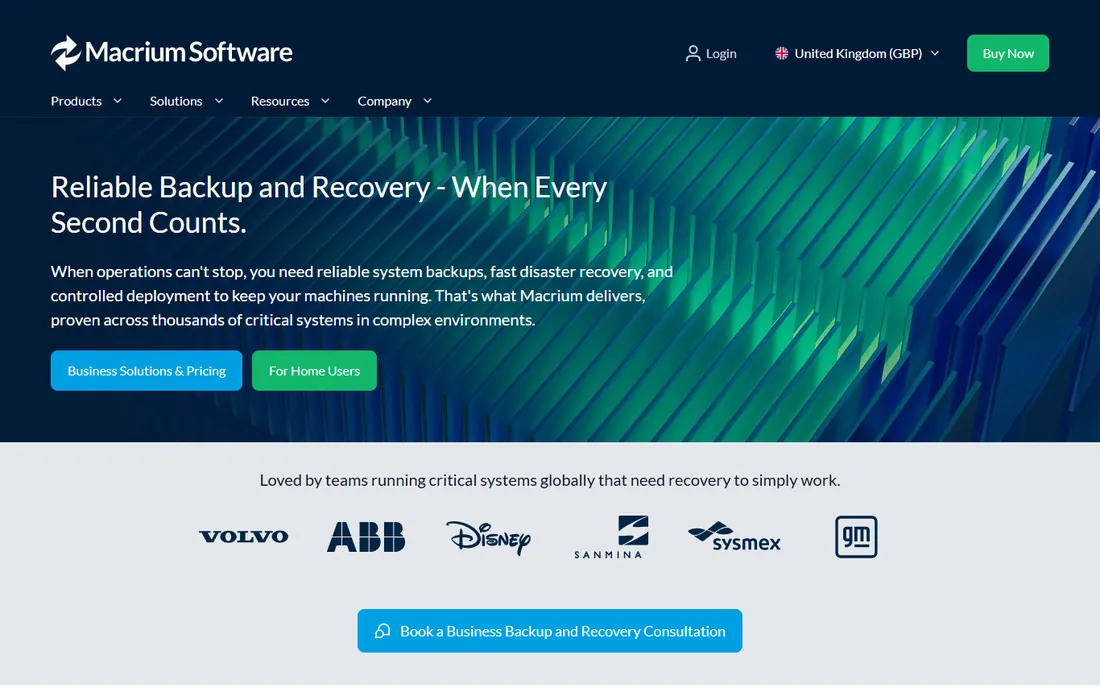
Macrium Reflect Free was for years the default recommendation in this category, which is why it is here: to tell you it is gone. The free edition was discontinued in 2024, and the current product is paid with a trial. The imaging engine remains excellent, and longtime users who buy it get reliable scheduled backups and rescue media.
Do not build a plan around finding the old free version on a download site; outdated imaging tools on modern hardware cause more problems than they solve. If you want Macrium's quality without paying, the honest move is to evaluate the trial, then decide. Everyone else should pick one of the seven genuinely free tools above.
What we like- Excellent imaging engine with a long track record
- Reliable rescue media
- Strong scheduling and retention in paid tiers
Watch out for- No free edition anymore
- Paid-only pricing for ongoing use
- Overkill if you just need one clone
Clone versus image: which one do you actually need?
Cloning copies a drive directly to another drive, producing a bootable duplicate you can swap in immediately. Imaging saves the drive as a file you restore later. For upgrading to a bigger SSD, cloning is what you want: clone, swap drives, boot. For ongoing protection against failure or ransomware, scheduled imaging to an external drive is the right habit, because a clone is a snapshot that goes stale.
Most tools here do both. The boot-disk tools (Clonezilla, Rescuezilla) lean toward imaging and deployment. The Windows apps (AOMEI, Hasleo, EaseUS) lean toward one-off clones. Pick by the job: one-time upgrade means clone; continuous safety net means image on a schedule.
What to check before you clone
Check the destination drive size first: the target must hold all the used data, and for direct cloning it usually needs to be as large as the source unless the tool supports cloning to smaller drives (AOMEI and Samsung handle this). Back up anything irreplaceable separately before you start; cloning is safe, but mistakes pick the wrong drive.
Boot into the tool rather than cloning a live system when you can; offline clones are more reliable. After cloning, boot from the new drive before you wipe the old one. Keep the old drive untouched for a week as a fallback. And if the source drive has bad sectors, use sector-by-sector mode and expect it to take hours.
How we chose
We searched the terms buyers use: free disk cloning software, clone HDD to SSD free and free disk imaging. For each candidate we checked the vendor's site for current free-edition status, since several former free tools have gone paid, and cross-checked with recent reviews and community discussion. Where pricing or free-tier details could not be confirmed, we wrote "See website".
Frequently asked questions
Is free disk cloning software safe to use?
Yes, the established tools are safe, but cloning always carries one risk: selecting the wrong destination drive wipes it. Read every confirmation screen, disconnect drives you are not using, and keep a separate backup of important files first.
Can I clone a larger HDD to a smaller SSD for free?
Yes, if the used data fits on the SSD. AOMEI Backupper's system clone and Samsung Data Migration handle this well. Clonezilla can do it with some manual partition work. The destination must be larger than the used space, not the source drive.
How long does cloning take?
Roughly 30 minutes to a few hours depending on data size and connection type. NVMe-to-NVMe is fastest; USB adapters are the bottleneck in most setups. Sector-by-sector clones of failing drives take the longest.
Do I need to reinstall Windows after cloning?
No. That is the point of cloning: the new drive is a bootable duplicate with Windows, programs and settings intact. Swap the drives and boot. You may need to reactivate Windows in rare cases with major hardware changes.
What happened to Macrium Reflect Free?
The free edition was discontinued in 2024. The current Macrium Reflect is paid software with a trial. Old free versions still float around download sites, but running outdated imaging software on current hardware is asking for trouble.
Sources we checked (8)
- https://clonezilla.org
- https://rescuezilla.com
- https://aomeitech.com
- https://easeus.com
- https://samsung.com
- https://diskgenius.com
- https://hasleo.com
- https://macrium.com
Is your product missing or out of date?
We review this list regularly. Vendors can request a listing, send updated pricing or ask about featured placement.

Shihab Mia · Founder, Rankite
Shihab has spent more than a decade helping SaaS and e-commerce brands grow through search. He writes Rankite's software buying guides from pricing pages, documentation and public user reviews. More about Shihab.