How we make this list: we compare pricing pages, product documentation and public user reviews. Ratings come from G2, Capterra or Trustpilot, with the date we checked them.
Key takeaways
- OBS Studio is the best free screen record app, with professional-grade capture and live streaming at no cost.
- Loom suits fast async video messages for teams, with a usable free tier and instant sharing links.
- ScreenPal suits tight budgets, with recording, editing, and hosting from $4 per month.
- Camtasia suits polished tutorials and training videos that need real editing, while ScreenFlow suits Mac creators who record and edit.
- Screencastify suits browser-based recording for classrooms, Descript suits editing recordings by editing a transcript, and Snagit suits quick annotated clips.
- Prices range from free to $179.88 per year, and several tools offer one-time purchases that avoid subscriptions.
Quick comparison
| Tool | Best for | Starting price | Free plan |
|---|
 OBS Studio OBS Studio | Free professional recording | Free | Yes |
 Loom Loom | Fast async team videos | $15 per user per month | Yes |
 ScreenPal ScreenPal | Affordable all-in-one | $4 per month | Yes |
 Camtasia Camtasia | Polished tutorials | $179.88 per year | No |
 ScreenFlow ScreenFlow | Mac recording and editing | $169 one-time | No |
 Screencastify Screencastify | Browser-based classroom recording | $7 per user per month | Yes |
 Descript Descript | Transcript-based editing | $16 per person per month | Yes |
 Snagit Snagit | Quick annotated clips | $39 per year | No |
Is your product missing or out of date?
We review this list regularly. Vendors can request a listing, send updated pricing or ask about featured placement.
The best screen record apps
#1OBS Studio
Best for: Free professional recording4.6/5 on
G2 (138 reviews, checked Oct 2026)
Visit obsproject.com
Starting priceFree
Free planYes
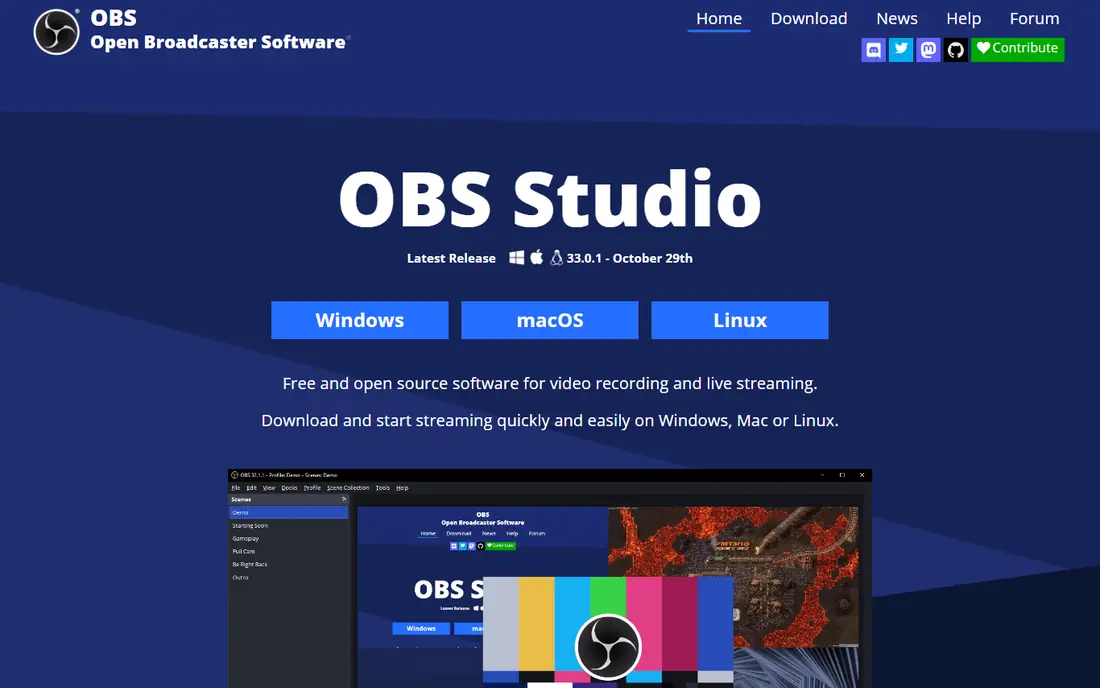
OBS Studio is genuinely free and genuinely professional, used by streamers and university departments alike for 4K capture, scene switching, overlays, green screen, and multi-source audio routing. The 2026 versions add a redesigned audio mixer and WebRTC support for lag-free recordings. There are no watermarks and no limits.
The price is paid in time: the interface is functional rather than friendly, first setup takes patience, and there is no built-in editor, so editing needs another app. For budget-conscious creators willing to tinker, output quality competes with anything here, including paid tools that cost hundreds per year.
What we like- Free and open source
- 4K capture
- Scene switching, overlays, and multi-source audio
Watch out for- Setup takes patience
- No built-in editor
- Interface functional rather than friendly
#2Loom
Best for: Fast async team videos4.7/5 on
G2 (2,415 reviews, checked Oct 2026)
Visit loom.com
Starting price$15 per user per month
Free planYes
Loom wins for quick team videos: record your screen and webcam, get a shareable link, and done, with cloud save, reactions, and auto-transcripts. The free Starter tier covers 25 videos at 5 minutes per recording in 720p, which suits occasional messages. Pro starts at $15 per user per month billed annually, with $18 monthly in some sources.
The free tier caps length and count, so heavy users need Pro. For fast async video messages at work, Loom is clearly the top pick, since its shareable links and reactions suit team workflows.
What we like- Record, get a link, done
- Cloud save
- Reactions and auto-transcripts
Watch out for- Free tier caps at 25 videos and 5 minutes per recording at 720p
- Pro price varies by source
#3ScreenPal
Best for: Affordable all-in-one4.5/5 on
G2 (139 reviews, checked Oct 2026)
Visit screenpal.com
Starting price$4 per month
Free planYes
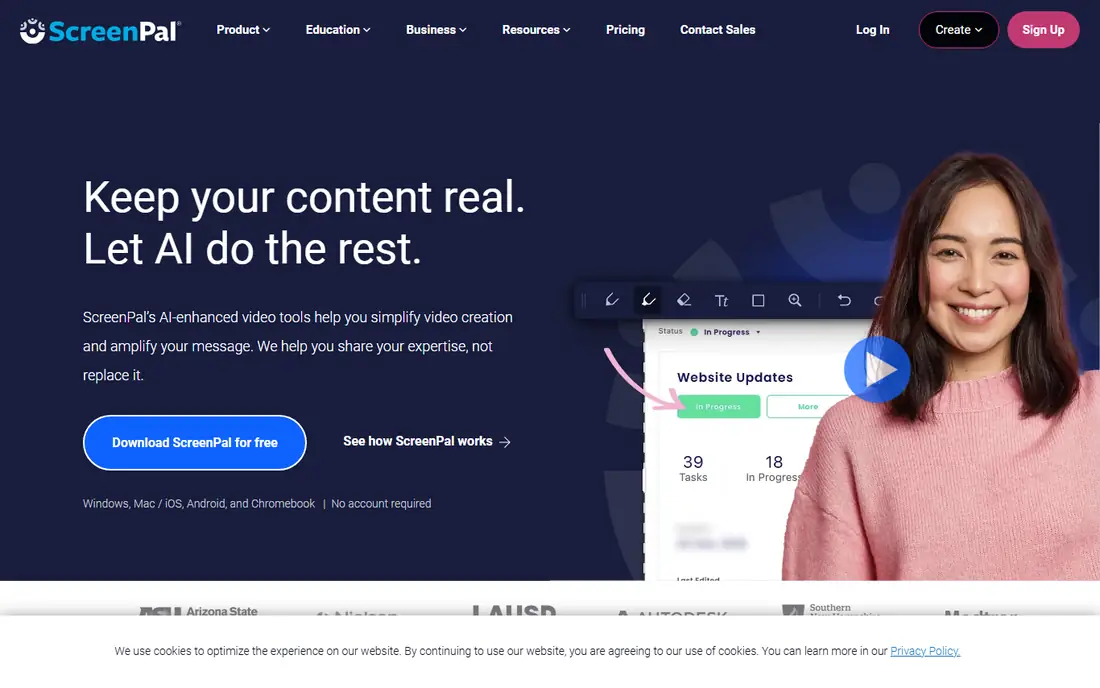
ScreenPal offers affordable all-in-one recording, editing, and hosting, with trim, crop, dynamic captions, and multi-track audio, plus full editing without uploads. The free tier covers 15-minute recordings, 10 hosted videos, and basic editing, while Solo Deluxe starts at $4 per month billed annually, with $3 per month in some sources.
Editing is less deep than Camtasia, and the free tier caps hosting. For teachers and quick how-tos on a tight budget, ScreenPal is clearly the best value, since its $4 monthly price undercuts most rivals.
What we like- Recording, editing, and hosting in one
- Trim, crop, captions
- Low price
Watch out for- Free tier caps at 15-minute recordings and 10 hosted videos
- Editing less deep than Camtasia
Starting price$179.88 per year
Free planNo
Camtasia is the complete tutorial-making suite, capturing screen, webcam, and system audio in one pass, then dropping you into a multi-track timeline for trims, callouts, zooms, and transitions. The 2026 version adds AI captions, filler word removal, and text-based editing through Audiate, so you can cut footage by deleting lines from a transcript. SCORM export suits corporate training.
The move to subscriptions in late 2024 annoyed longtime users, and Essentials runs $179.88 per year, with the Create tier at $249 adding AI tools and voiceover generation. There is no permanent free tier, with a trial offered instead. For polished tutorials and courses, Camtasia is clearly the best pick, since its timeline and AI captions suit lecture-heavy creators.
What we like- Recording plus real multi-track editor
- AI captions and text-based editing
- SCORM export
Watch out for- Subscription pricing since late 2024
- Essentials at $179.88 per year
- No permanent free tier
#5ScreenFlow
Best for: Mac recording and editing4.5/5 on
G2 (56 reviews, checked Oct 2026)
Visit telestream.net
Starting price$169 one-time
Free planNo
ScreenFlow sits between a recorder and a proper video editor, capturing screen, webcam, iOS device, and several audio sources, then giving you a layered timeline with transitions and motion graphics. Long lectures record smoothly thanks to Metal acceleration on Apple silicon, where some tools drop frames. Click effects and callouts make software tutorials easy to follow.
ScreenFlow is Mac only, and the one-time price is listed at $169 in some sources and $129 or $199 in others, so check the current page. There is no permanent free tier, with a trial offered instead. For Mac creators who record and edit, ScreenFlow is clearly the best pick, since its Mac-native timeline and Apple silicon performance are unmatched.
What we like- Mac-native recording and editing
- Layered timeline
- Smooth long lectures on Apple silicon
Watch out for- Mac only
- One-time price varies by source
- No permanent free tier
#6Screencastify
Best for: Browser-based classroom recording4.6/5 on
G2 (83 reviews, checked Oct 2026)
Visit screencastify.com
Starting price$7 per user per month
Free planYes
Screencastify offers browser-based recording for classrooms and quick demos, with no install needed and simple sharing to Google Drive and YouTube. The free tier covers limited videos and recording length, while paid plans start at $7 per user per month billed annually. Teachers value the classroom tools and easy student sharing.
Editing is basic compared with Camtasia or ScreenFlow, and the tool is Chrome-focused. For browser-based classroom recording, Screencastify is clearly the best pick, since its Chrome integration suits Google Classroom workflows.
What we like- Browser-based, no install
- Classroom-friendly
- Simple sharing
Watch out for- Free tier limits videos and length
- Editing basic
- Chrome-focused
#7Descript
Best for: Transcript-based editing4.6/5 on
G2 (928 reviews, checked Oct 2026)
Visit descript.com
Starting price$16 per person per month
Free planYes
Descript lets you edit recordings by editing a transcript: delete a line of text and the video cuts itself, which saves hours for lecture-heavy creators. Transcription, AI voice tools, and filler word removal are built in, and the free plan covers monthly media limits, with paid plans from $16 per person per month billed annually, or $24 monthly.
Transcript editing takes time to learn, and heavy media use needs higher tiers. For creators who edit by transcript, Descript is clearly the best pick, since its text-based editing saves many hours on lecture-heavy footage.
What we like- Edit video by editing a transcript
- AI voice tools
- Transcription included
Watch out for- Free plan has monthly media limits
- Learning curve for transcript editing
- Price varies by tier
#8Snagit
Best for: Quick annotated clips4.7/5 on
G2 (6,022 reviews, checked Oct 2026)
Visit techsmith.com
Starting price$39 per year
Free planNo
Snagit, from TechSmith, suits quick annotated captures rather than full videos, with best-in-class annotation, image plus video capture, and a fast workflow for how-to clips. If you only need quick annotated screenshots and simple clips, Snagit is cheaper and faster than any video editor.
Video editing is basic, and there is no permanent free tier, with a 15-day trial offered instead. For quick annotated captures, Snagit is clearly the best pick, since its annotation tools beat every video editor for still images and clips.
What we like- Best-in-class annotation
- Quick screenshots and short clips
- Fast workflow
Watch out for- No permanent free tier, 15-day trial only
- Video editing basic
- $39 per year
How we chose
We compared capture quality, editing depth, sharing speed, platform support, free tiers, and pricing. We also weighed export options, since a recorder that only exports to its own cloud or a single format creates extra work for creators who publish across platforms. Tools with one-time purchases scored higher for buyers who want to avoid subscriptions, while tools with instant sharing scored higher for team use. We favored tools with real free tiers over trials alone. We did not test any tool hands-on, and prices come from vendor and comparison sources, with conflicts noted.
Buying guide: what to check before you pick
Start with your output: quick team messages suit Loom or ScreenPal, polished courses suit Camtasia or ScreenFlow, live streams suit OBS Studio, and browser demos suit Screencastify. Match the tool to the output before you compare prices, since the cheapest tool that cannot edit is no bargain for a course creator. Next, check your platform, since ScreenFlow is Mac only and OBS runs on Windows, Mac, and Linux. Check free tier limits, since Loom caps videos and length, ScreenPal caps hosting, and Screencastify caps videos. Check editing needs, since OBS has no editor and Snagit has basic video editing, while Camtasia and ScreenFlow offer full timelines. Finally, trial the tool with a real recording, including system audio and webcam, since audio routing is the most common setup problem. Record a five-minute sample with your actual microphone and screen content, then check the export quality, file size, and captions before you commit to a yearly plan.
Frequently asked questions
What is the best free screen recorder?
OBS Studio is the best free recorder, with professional capture and no limits or watermarks. Loom and ScreenPal offer usable free tiers for quick videos, though both cap length, count, or hosting, so heavy users should plan for a paid tier. OBS Studio has no caps at all, which makes it the best free choice for long recordings and live streaming sessions overall today indeed.
Is Camtasia worth the price?
Camtasia is worth $179.88 per year if you publish tutorials weekly and need a real editor, AI captions, and SCORM export. For occasional recording, OBS Studio or ScreenPal costs far less and covers the basics very well indeed for most casual users today.
Can I record my screen on a Chromebook?
Yes, ScreenPal and Screencastify run in the browser and work on Chromebooks, while OBS Studio and Camtasia need Windows or Mac installs.
What is the best screen recorder for Mac?
ScreenFlow suits Mac creators who record and edit, with a one-time price and smooth Apple silicon performance. OBS Studio is the best free Mac option.
Do screen recorders capture system audio?
Yes, OBS Studio, Loom, ScreenPal, Camtasia, and ScreenFlow all capture system audio, though setup varies by platform and may need extra drivers on Mac.
Sources we checked (0)
Is your product missing or out of date?
We review this list regularly. Vendors can request a listing, send updated pricing or ask about featured placement.

Shihab Mia · Founder, Rankite
Shihab has 5+ years in B2B and SaaS SEO. He writes Rankite's software buying guides from pricing pages, documentation and public user reviews. More about Shihab.