How we make this list: we compare pricing pages, product documentation and public user reviews. Rankite is independent; if a vendor ever pays for a featured spot, that listing is clearly labeled Partner.
Key takeaways
- Camtasia and ScreenFlow remain the two complete record-plus-edit packages, and both record on your desktop with no upload wait.
- Loom and Screencastify are fastest for teams that record quick tutorials and share a link, with generous free tiers.
- OBS Studio is free and open source but expects you to edit elsewhere; it suits creators comfortable with a learning curve.
- Snagit and Movavi Screen Recorder are best for short, informal walkthroughs rather than structured courses.
- Bandicam offers strong high-frame-rate capture for tutorials that involve gaming or fast-moving software.
Quick comparison
| Tool | Best for | Starting price | Free plan |
|---|
 Camtasia Camtasia | polished tutorial courses with built-in editing | From $179.88/year | Free trial (free version with watermarked exports) |
 ScreenFlow ScreenFlow | Mac-based creators who edit their own lessons | From $199 (one-time) | Free trial |
 Loom Loom | fast screen and webcam videos shared by link | From $18 per user/month (billed annually) | Yes |
 OBS Studio OBS Studio | free multi-track recording and live capture | Free | Yes |
 Snagit Snagit | quick captures and short how-to clips | From $39/year | Free trial |
 Movavi Screen Recorder Movavi Screen Recorder | simple one-off tutorial recordings | From $34.95/year | Free trial (7 days, watermarked exports) |
 Bandicam Bandicam | high-performance capture of games and apps | From $33.26/year | Free trial (5-minute recording cap) |
 Screencastify Screencastify | browser-based tutorials and Chromebook teams | From $7 per user/month (billed annually) | Yes |
Is your product missing or out of date?
We review this list regularly. Vendors can request a listing, send updated pricing or ask about featured placement.
The best screen recording software for tutorials
Starting priceFrom $179.88/year
Free planFree trial (free version with watermarked exports)
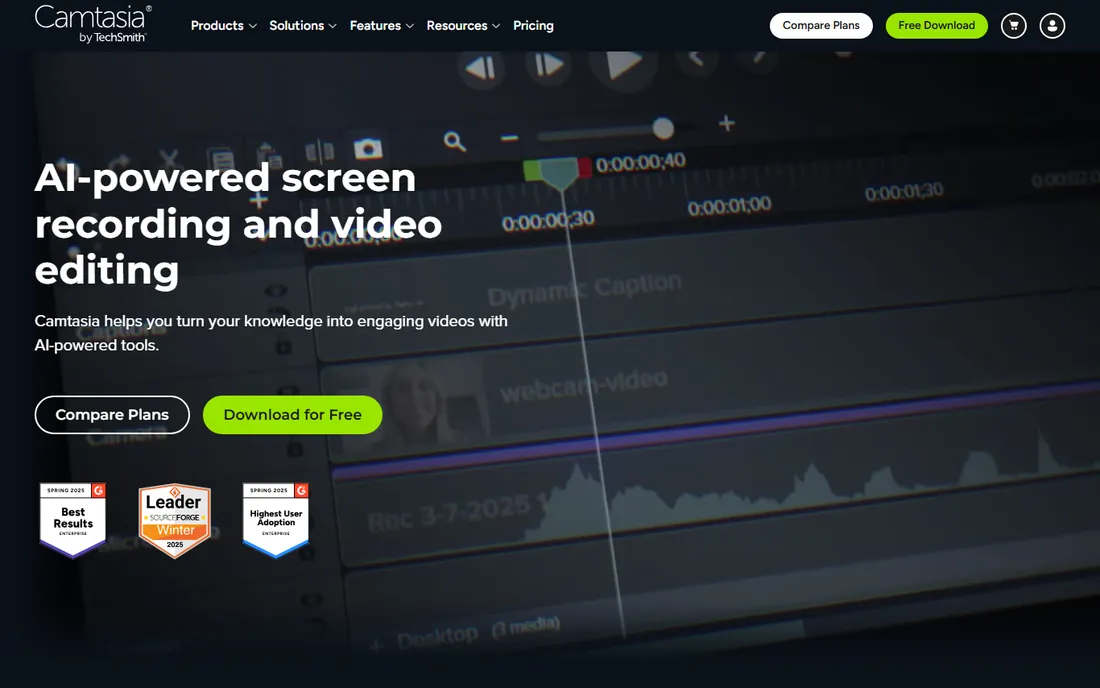
When a company needs to produce a series of polished training videos, Camtasia is usually the first tool that comes up, and there is a reason for that. It combines a capable recorder with a full editing timeline, so you can record a tutorial, cut mistakes, add zooms and callouts, and export directly, all without moving files between apps. The multi-track recording means your narration, screen and webcam stay on separate tracks, which makes fixing a slip of the tongue later much simpler.
The catch is cost and weight. The free version exports with a watermark, so it works as a trial rather than a permanent free tool. It also asks for decent hardware: TechSmith recommends 8GB of RAM at minimum and 16GB for comfort. For teams producing tutorials weekly, though, the bundled editing is worth it. Training, onboarding and customer-education teams in particular will find the templates and caption tools reduce the per-video effort sharply.
What we like- Complete recorder and multi-track editor in one app
- Cursor effects, callouts and templates built for instructional video
- Records screen, mic, system audio and webcam on separate tracks
Watch out for- Paid plans only remove the watermark
- Heavier system requirements than lightweight recorders
Starting priceFrom $199 (one-time)
Free planFree trial
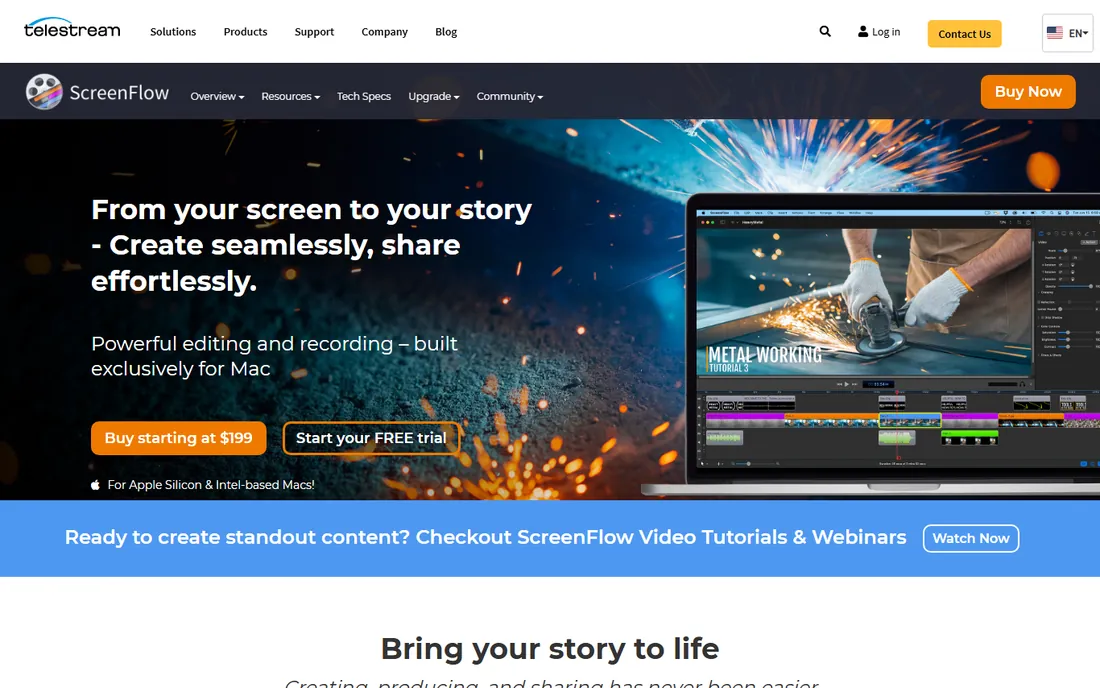
Mac owners who make tutorials have had one reliable answer for more than a decade: ScreenFlow. It records your screen, camera and microphone together and hands you a timeline editor that handles transitions, text animations, annotations and motion graphics. Features like style presets and templates are aimed directly at tutorial series, where every lesson should look the same without rebuilding the graphics each time. It also records iOS devices, which matters if you teach mobile apps.
The limitation is platform: there is no Windows version, so mixed teams need two tools. Pricing is a one-time license rather than a subscription, which is good value over time, but note that major version upgrades cost extra. If you teach on a Mac and want a single purchase instead of a subscription, ScreenFlow is the most direct choice on this list.
What we like- Simultaneous screen, camera and microphone recording
- Multi-app recording that switches between applications without missing a beat
- Closed caption editor with burn-in options
Watch out for- MacOS only
- New licenses start at $199, and version upgrades are paid
#3
Loom
Best for: fast screen and webcam videos shared by link
Visit loom.com
Starting priceFrom $18 per user/month (billed annually)
Free planYes
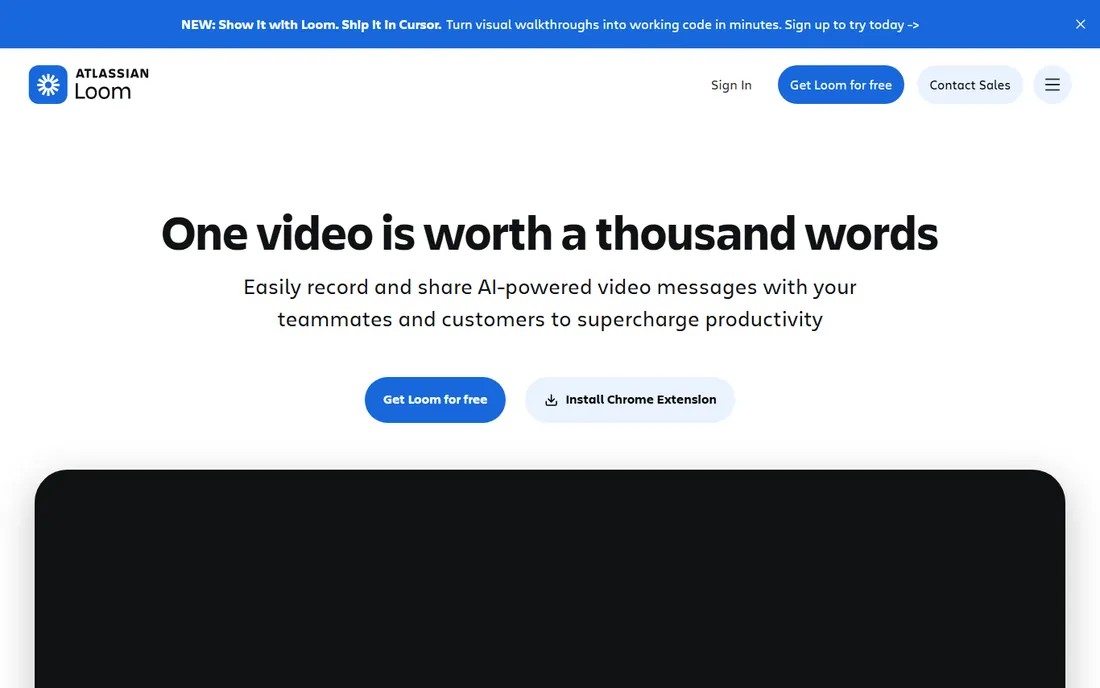
Not every tutorial needs to be edited. Sometimes the fastest path is to record, share the link and move on, and that is exactly where Loom shines. You record your screen, camera or both, and Loom uploads the video and gives you a shareable link automatically. Viewers can leave timestamped comments, which turns a one-way tutorial into a conversation. That loop is useful for internal training and customer support walkthroughs.
Loom is now part of Atlassian, and its editor covers trimming, stitching and simple overlays. But if your tutorials need animations, quizzes or precise audio work, you will pair Loom with something else. The free plan covers personal use well, and the paid tiers add longer recordings, more creators and admin controls. For teams that produce many short explainers rather than structured courses, Loom is the most efficient pick.
What we like- Record and share a link in minutes
- Uploads to the cloud instead of filling your hard drive
- Comments, reactions and AI transcripts on shared videos
Watch out for- Editing is basic compared to desktop tools
- Relies on cloud storage, so offline work is limited
Starting priceFree
Free planYes
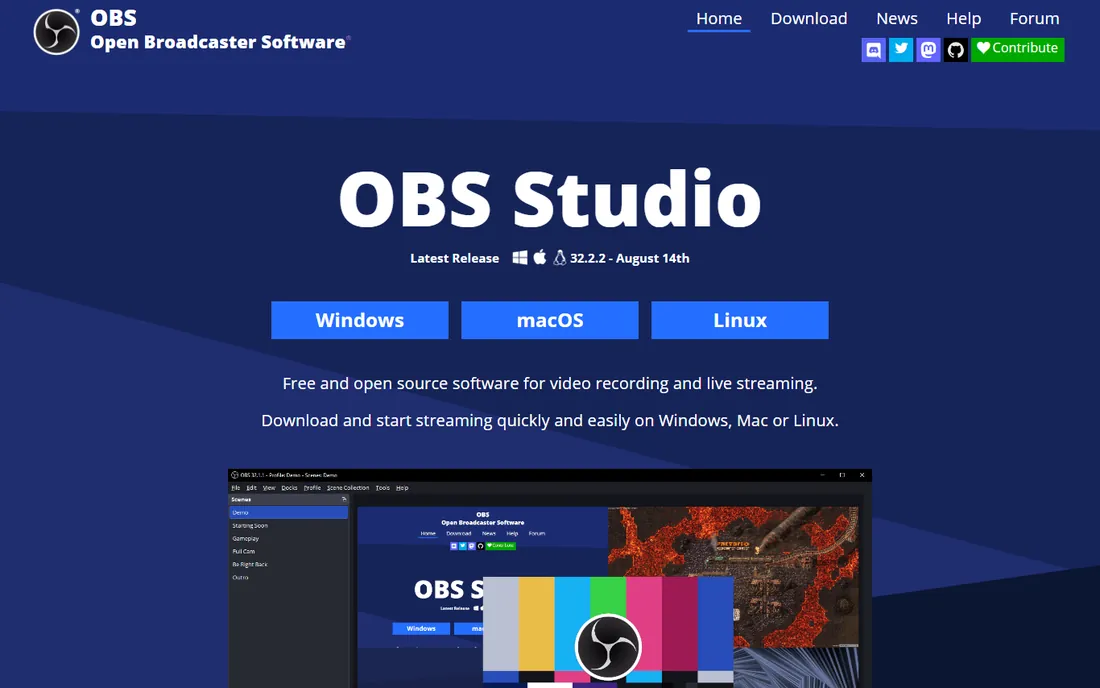
The most capable free recorder on this list is also the least friendly. OBS Studio records multiple sources at once, routes your microphone and desktop audio on separate tracks, and supports hardware encoding for smooth high-resolution capture. It is the default choice for streamers and for anyone recording gameplay or software demos at high frame rates. Being open source, it costs nothing and runs on all major operating systems.
The honest trade is effort. OBS records; it does not edit. You will need a separate editor to cut mistakes, add titles and captions. Its settings panels assume you know what bitrates and encoders are, and the first configuration session can take an afternoon. Creators who already edit in another app will not mind. Beginners who want a guided experience should look at Camtasia or Movavi instead.
What we like- Completely free and open source on Windows, Mac and Linux
- Multi-source scenes with webcam, browser and capture cards
- Powerful audio mixer with per-source filters
Watch out for- No built-in editing at all
- Interface takes real time to learn
Starting priceFrom $39/year
Free planFree trial
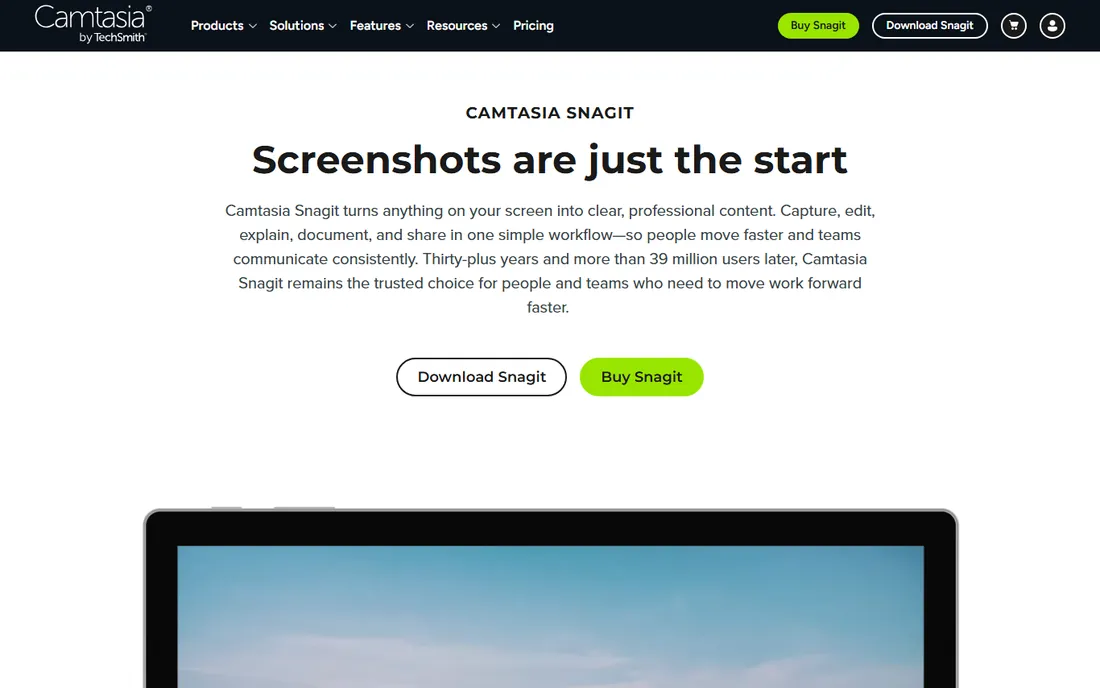
Snagit is the lightweight cousin of Camtasia, made by the same company. It excels at quick visual explanations: grab a screenshot, add arrows and numbered steps, or record a short clip and share it. Support teams use it to answer questions once with a visual that can be reused. The recording side captures screen, microphone and webcam, then lets you trim the clip before sharing.
For full-length tutorials, though, Snagit runs out of room. There is no multi-track timeline, no captions and no animations. Think of it as the tool for daily how-to communication rather than course production. At its price point it is a fair buy for teams that already use it for screenshots and want video added to the same workflow. If you need course-level editing, step up to Camtasia.
What we like- Fast capture of screenshots, video and scrolling pages
- Annotation tools for arrows, callouts and text
- Shares to email, chat apps and cloud storage
Watch out for- Video editing is limited to trimming
- Not designed for long-form tutorials
#6
Movavi Screen Recorder
Best for: simple one-off tutorial recordings
Visit movavi.com
Starting priceFrom $34.95/year
Free planFree trial (7 days, watermarked exports)
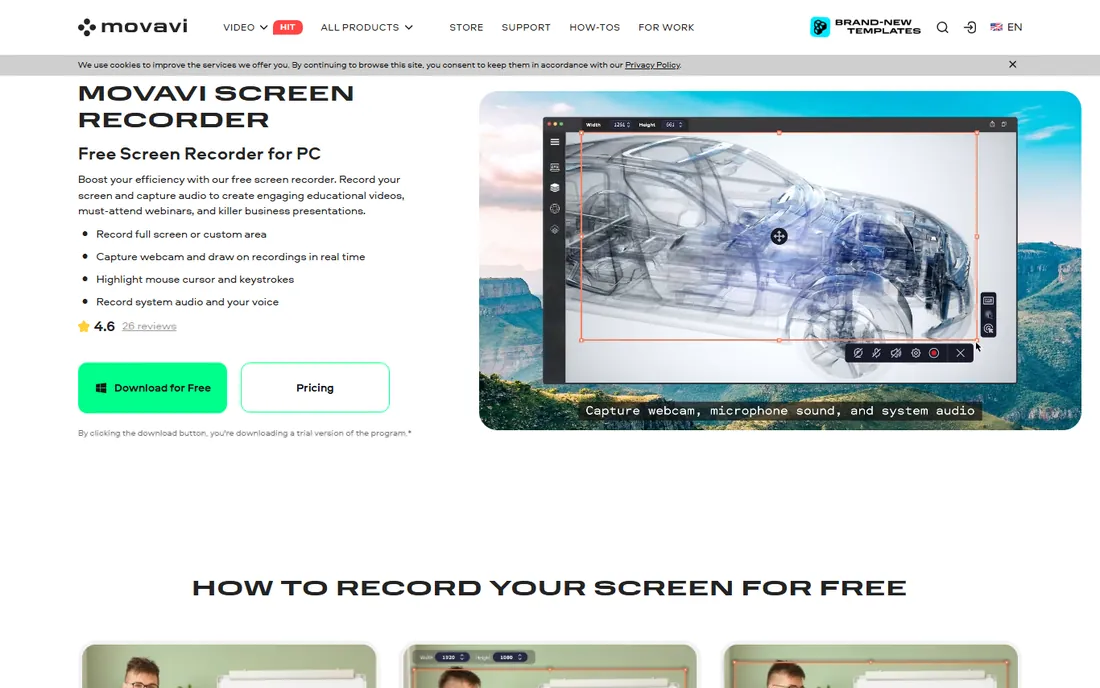
Movavi takes a different route: simple recording, simple pricing, and a focus on doing one job well. The interface is approachable, and features like drawing on the screen during a recording, highlighting the cursor and showing keystrokes are exactly what tutorial viewers need to follow along. A recording scheduler can capture webinars or live demos on a timer, which is handy when you cannot be at your desk.
The trial lasts seven days and watermarks exports, so factor the purchase into your plans if you want watermark-free output. Movavi does not include a serious editor, so longer tutorials will need another app for cutting and captions. For educators and small teams recording short how-tos and demo clips, it is an easy, affordable choice that gets out of your way.
What we like- Simple interface with real-time drawing and cursor highlighting
- Recording scheduler for capturing webinars unattended
- Records system audio, webcam and screen together
Watch out for- Trial exports carry a watermark
- No advanced editing, so polish happens elsewhere
Starting priceFrom $33.26/year
Free planFree trial (5-minute recording cap)
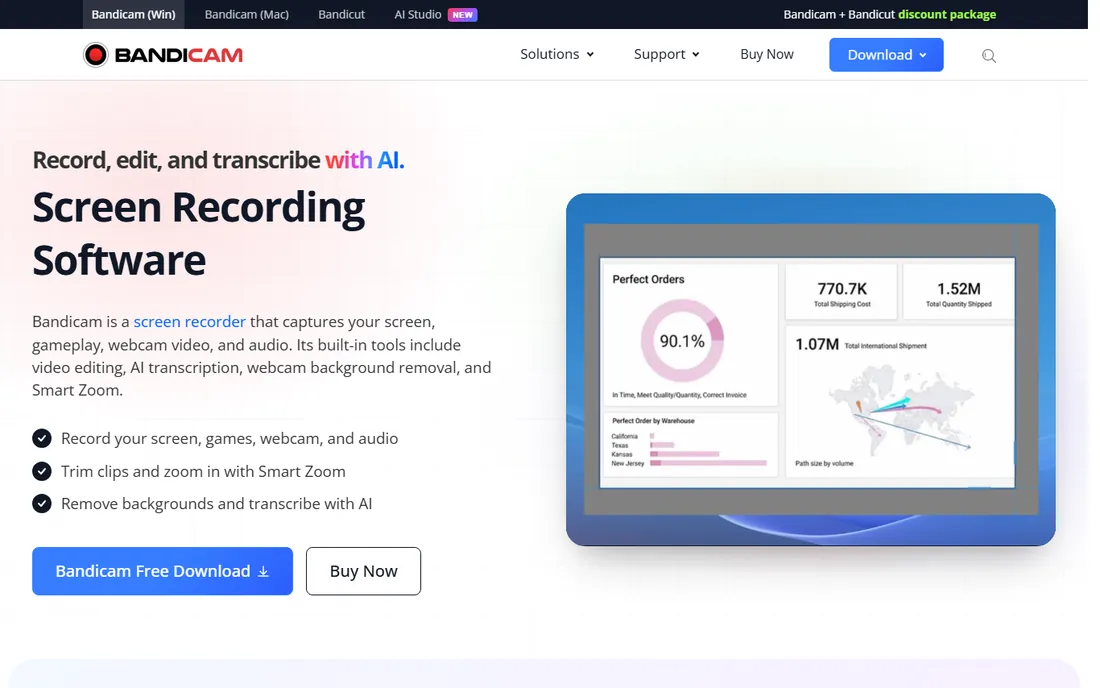
Bandicam built its reputation on high-performance capture with a tiny footprint. It records screen, gameplay and webcam feeds, and its capture engine stays efficient even at high frame rates and resolutions, which is why game-tutorial creators keep it around. Built-in tools cover trimming, Smart Zoom and AI transcription, so short tutorials can be finished without leaving the app. It also captures from DirectX, OpenGL and Vulkan applications cleanly.
The free version is more of a demo: recordings stop at five minutes, which is too short for most tutorials. The paid personal license is reasonably priced, but note that Windows and Mac are separate apps with separate licenses, and commercial use on video channels needs a business license. If your tutorials involve fast-moving software, games or 3D tools, Bandicam records them without dropped frames where heavier tools struggle.
What we like- Smooth high-frame-rate capture with low CPU impact
- Screen, game and webcam recording modes
- Built-in trimming and AI transcription
Watch out for- Free version caps recordings at 5 minutes
- Windows-focused, with a separate Mac app and license
Starting priceFrom $7 per user/month (billed annually)
Free planYes
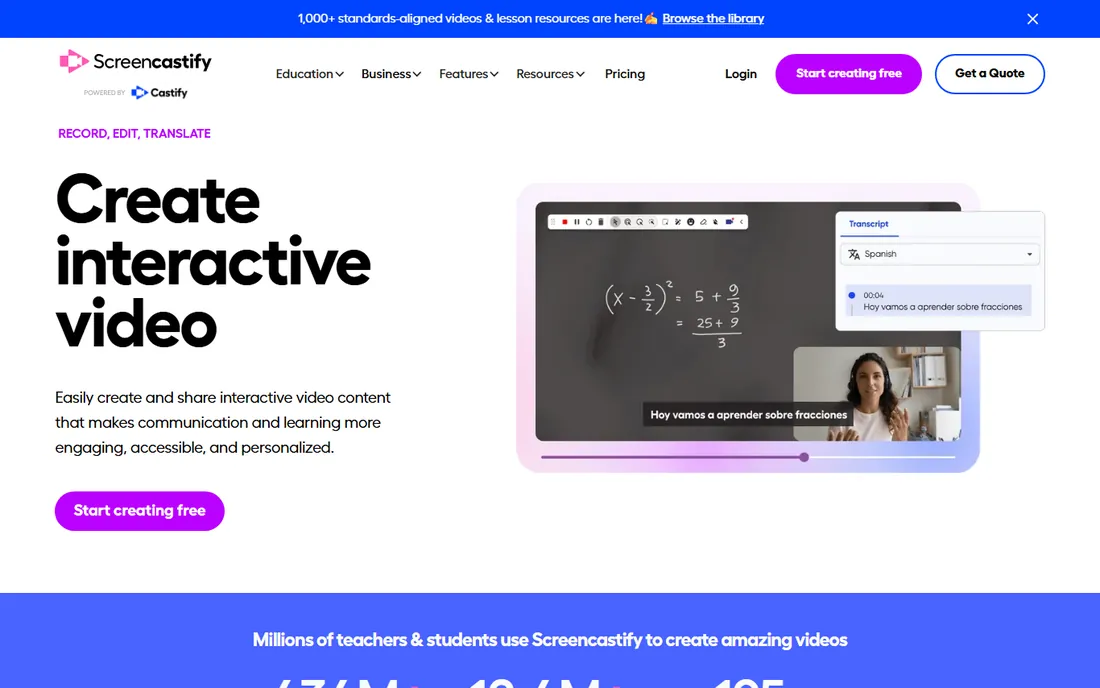
If your tutorials live in a browser or on a Chromebook, Screencastify deserves a look. It runs as a browser extension, so recording starts in a couple of clicks with nothing to install. Videos save to Google Drive and publish to YouTube, which fits education and remote teams already living in Google Workspace. Interactive features like embedded questions turn a plain tutorial into an assignment, a strong differentiator for teachers and trainers.
The free plan caps how many videos you can create and how long they can be, so heavier producers will need a paid tier. Editing is basic: trimming, drawing and captions, but nothing like a desktop timeline. For Chromebook-equipped schools and teams making quick browser-based walkthroughs, though, nothing else on this list is as frictionless.
What we like- Records from the browser with no install
- Tight Google Drive and YouTube integration
- Interactive questions and assignments for education
Watch out for- Free plan limits the number and length of videos
- Editing depth is modest compared to desktop tools
Buying guide: choosing the right recorder for your tutorials
Match the tool to your tutorial format first. Structured courses with many lessons reward the desktop editors: Camtasia or ScreenFlow. One-off explainers and internal walkthroughs fit Loom, Snagit or Screencastify, where speed of sharing matters more than polish. Game and software-demo tutorials need Bandicam or OBS for high-frame-rate capture.
Record and edit in one place, or split the work?
All-in-one tools cost more but keep your files in one project and save transfer time. A recorder plus a separate editor gives you better editing for less money but adds steps. If you publish more than two tutorials a month, the all-in-one route usually pays for itself in saved hours.
Check audio capture before you buy
Viewers forgive average video quality but not bad audio. Confirm the tool records your microphone and system audio on separate tracks if possible, and that it offers noise removal or at least clean gain control. Planning audio upfront saves the most common reshoot.
Think about where viewers will watch
Tutorials on your own platform or YouTube can be any format. Tutorials embedded in an LMS or knowledge base may need specific export settings or closed captions. Check export options and caption support before committing, especially for compliance with accessibility standards.
Mind the free-plan limits
Free tiers usually cap recording length, add watermarks or limit storage. Those limits are fine for testing, but production tutorials almost always need a paid plan. Budget for the tier that removes the limit you will hit first, which is usually recording length or the watermark.
How we chose
We compared pricing pages, documentation and public reviews from G2, Capterra and Reddit threads from tutorial creators. We prioritized tools with a track record in instructional content, clear current pricing, and features that matter for tutorials: multi-track capture, annotations, captions and sensible export options. We weighted honest limits, like watermarks, recording caps and platform restrictions, because those are what surprise buyers after purchase. We did not do hands-on testing; our assessments come from vendor documentation and reviewer experience.
Recording is only half the tutorial
A common mistake is treating the recording as the finished product. The tutorial is really three things: a clean recording, an edit that removes dead air and mistakes, and a delivery format that viewers can use. Tools with built-in editing handle all three, but if you choose a pure recorder like OBS, plan your editing step before you start. Also plan captions and a transcript from day one: they help accessibility, search and viewers who watch on mute. Many teams batch their editing work once a week instead of touching each video the day it is recorded, which keeps the process predictable.
Frequently asked questions
What is the best screen recording software for beginners making tutorials?
For beginners, Movavi Screen Recorder and Loom are the easiest starting points: both record in a few clicks with minimal setup. If you want editing in the same app, Camtasia is more powerful but still approachable, and its templates guide the editing process.
Can I make professional tutorials with free software?
Yes, with limits. OBS Studio produces excellent recordings for free, but you will need a separate free editor to cut and polish them. Loom and Screencastify have genuinely useful free tiers for short videos. Watermarks, recording-length caps and missing caption tools are the usual reasons people upgrade.
Do I need a separate video editor with these tools?
It depends on the tool. Camtasia and ScreenFlow include full editors, so you do not. Loom, Snagit, Movavi, Bandicam and Screencastify include only light trimming, so longer or polished tutorials benefit from a dedicated editor. OBS includes no editing at all.
What is the difference between Camtasia and ScreenFlow?
Both record and edit tutorials, but Camtasia runs on Windows and Mac while ScreenFlow is Mac-only. Camtasia uses a yearly subscription; ScreenFlow is a one-time purchase with paid upgrades. ScreenFlow tends to feel more native on macOS, while Camtasia offers broader platform support and a larger asset library.
How much storage do tutorial recordings use?
Raw screen recordings can run several gigabytes per hour at high resolution, so local storage fills up fast. Cloud tools like Loom and Screencastify avoid this by uploading automatically, while desktop tools need free disk space. Plan for at least 100GB of working space if you edit locally.
Which recorder is best for software tutorials with lots of clicks?
Look for tools that highlight the cursor, display keystrokes and let you zoom into areas of the screen. Camtasia, ScreenFlow, Movavi Screen Recorder and Bandicam all offer these instructional features. Zoom-to-cursor and click highlighting make tutorials far easier to follow.
Sources we checked (10)
- https://www.techsmith.com/camtasia/
- https://telestream.net/screenflow/overview.htm
- https://www.loom.com/
- https://obsproject.com
- https://www.techsmith.com/screen-capture.html
- https://www.movavi.com/screen-recorder/
- https://bandicam.com/
- https://www.screencastify.com/
- https://www.telestream.net/screenflow/upgrade.htm
- https://geekvibesnation.com/tested-the-5-best-screen-recording-software-for-windows-mac/
Is your product missing or out of date?
We review this list regularly. Vendors can request a listing, send updated pricing or ask about featured placement.

Shihab Mia · Founder, Rankite
Shihab has spent more than a decade helping SaaS and e-commerce brands grow through search. He writes Rankite's software buying guides from pricing pages, documentation and public user reviews. More about Shihab.