How we make this list: we compare pricing pages, product documentation and public user reviews. Ratings come from G2, Capterra or Trustpilot, with the date we checked them.
Key takeaways
- Truly free and unlimited options exist: Recuva free is uncapped on Windows, and PhotoRec and TestDisk are completely free and open source with no recovery limits.
- Freemium limits vary sharply: Disk Drill offers 500 MB free on Mac with a smaller limit on Windows, EaseUS offers up to 2 GB, Stellar offers 1 GB, and DMDE free recovers 4,000 files per folder.
- Stop using the drive immediately after data loss, install recovery software on a separate drive, and recover files to a different drive, since new writes overwrite recoverable data.
- Scan first and preview before paying: every tool here offers a free scan and preview, so only pay if your files are actually found.
- If a drive is not detected, shows 0 MB, clicks, or keeps asking to be formatted, stop scanning and use a professional lab, since repeated scans on dying hardware make things worse.
Quick comparison
Is your product missing or out of date?
We review this list regularly. Vendors can request a listing, send updated pricing or ask about featured placement.
The best file recovery software free
Starting priceFree
Free planYes
What we like- Recuva offers unlimited free recovery on Windows with a beginner-friendly wizard, covering quick deletion recovery without capacity limits. Install it on a separate drive, select the affected drive, enable Deep Scan, and recover to another drive. Pro starts from 19.95 to 24.95 dollars in comparison reporting, adding automatic updates and premium support, but the free version recovers without caps.
Watch out for- Recuva is Windows only, so Mac and Linux users need another tool. Deep Scan on large drives takes time, and recovery success drops sharply once files are overwritten. It suits quick Windows recovery better than RAID or badly damaged drives.
Starting priceFree
Free planYes
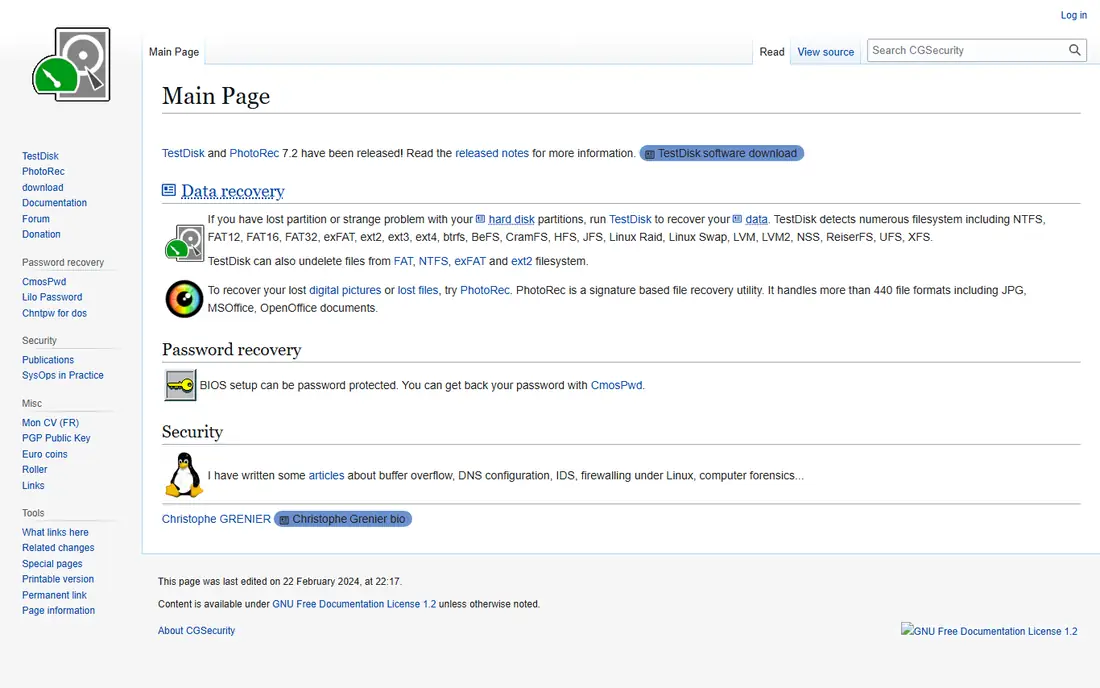
What we like- PhotoRec is completely free and open source with unlimited recovery, supporting more than 480 file types across Windows, Mac, and Linux. It recovers files by signature, making it the best zero-budget option when other tools hit free limits. It pairs with TestDisk from the same project for partition work.
Watch out for- PhotoRec is command-line only with no preview, and recovered files get generic names with no folder structure, so sorting results takes work. The interface assumes technical comfort, and beginners may prefer Recuva or EaseUS for guided recovery. It recovers files, not partitions, so pair it with TestDisk for lost partitions.
Starting priceFree
Free planYes
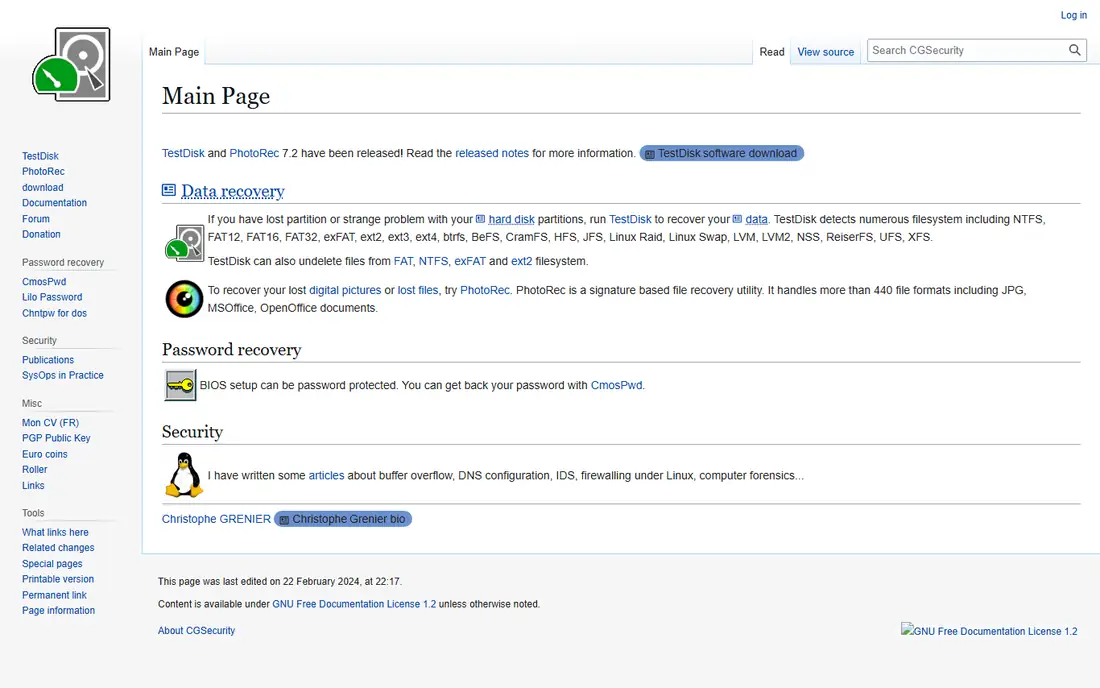
What we like- TestDisk is completely free and open source with unlimited partition repair, designed to find lost partitions and repair damaged partition structures. It suits zero-budget users with lost partitions rather than deleted files, and it runs on Windows, Mac, and Linux. It pairs with PhotoRec for file recovery after partitions are restored.
Watch out for- TestDisk is command-line only with a partition-focused workflow, making it less suitable for ordinary file recovery. Its text-based interface intimidates beginners, and misuse can worsen partition damage, so back up the drive image first where possible. File recovery itself belongs to PhotoRec, not TestDisk.

#4Disk Drill
Best for: All-around beginner recovery4.0/5 on
G2 (64 reviews, checked Oct 2026)
Visit cleverfiles.com
Starting priceFree
Free planYes
What we like- Disk Drill offers the easiest recommendation for non-technical users, with a plain visual interface: pick the drive, scan, preview photos and documents in a normal folder view, and recover. It creates byte-to-byte disk images of failing drives or memory cards first, so you scan the image instead of stressing the original, and it supports hard drives, SSDs, USB drives, SD cards, and most common file systems. Free recovery covers 500 MB on Mac, with a smaller limit on Windows in comparison reporting.
Watch out for- The free recovery limit on Windows is small, so the generous preview is the real free value for Windows users. Deep scans on large drives can take hours, and full recovery needs Pro from 89 dollars per year. Skip it if you only deleted one or two files on Windows and want a fully free tool: try Recuva or PhotoRec first.

#5EaseUS Data Recovery Wizard
Best for: Largest free tier for beginners4.8/5 on
G2 (424 reviews, checked Oct 2026)
Visit easeus.com
Starting priceFree
Free planYes
What we like- EaseUS offers the largest practical free recovery amount among beginner tools, up to 2 GB, starting at 500 MB and expandable to 2 GB via sharing in some comparisons. It follows a guided three-step workflow, handles deleted files, formatted drives, lost partitions, and RAW drives, and runs on Windows and Mac with good file previews. It suits beginners wanting the largest free tier without command-line tools.
Watch out for- Monthly subscription pricing from 69.95 dollars per month is poor value for one-time use, so compare the yearly price near 99.95 dollars before buying. Some advanced features sit in higher tiers, and the tool does not suit RAID recovery or Linux users. Free tier expansion via sharing adds friction.
Starting priceFree
Free planYes
What we like- Stellar Data Recovery offers 1 GB of free recovery, with strength in damaged photos and videos plus photo and video repair features. It suits Mac users and photographers recovering corrupted media, with a guided interface on Windows and Mac. Paid plans start from 59.99 dollars per year in comparison reporting, with higher tiers adding repair and RAID features.
Watch out for- The 1 GB free limit covers only small recoveries, and full recovery needs a yearly subscription. It suits photo and video recovery better than general file recovery at scale. Linux users need another tool, since Stellar covers Windows and Mac only.
Starting priceFree
Free planYes
What we like- DMDE offers budget professional-grade recovery, with a free edition recovering up to 4,000 files per folder, and paid plans from 20 to 48 dollars depending on edition. It runs on Windows, Mac, and Linux, suiting technicians who want professional features at a low price. The free edition covers many small recoveries fully without a data cap.
Watch out for- The interface assumes technical knowledge, and the per-folder file limit constrains large recoveries on the free edition. Beginners may prefer Disk Drill or EaseUS guided workflows. Paid editions vary by feature set, so compare editions before buying.
Starting priceFree
Free planYes
What we like- Windows File Recovery is Microsoft free official tool, command-line only, with no recovery caps beyond the tool design. It suits Windows users wanting a first-party tool without third-party installs, covering deleted files from local drives, USB drives, and memory cards. It pairs with the stop-using-it rule: install nothing new on the affected drive and recover to a different drive.
Watch out for- The command-line interface suits technical users only, with no graphical preview or guided wizard. Mode selection matters: regular mode suits recently deleted files, while extensive mode suits formatted or corrupted drives, so read the documentation before running it. Mac and Linux users need another tool entirely.
How we chose
We ranked tools on true free recovery limits, preview quality, ease of use, platform coverage, and paid upgrade honesty. Tools earned credit for unlimited free recovery, generous free tiers, free scan and preview before payment, and disk imaging for failing drives. We excluded tools with scan-only free tiers and no free recovery, since this article covers free recovery, not free scanning. Figures come from published pricing and 2026 comparison reporting checked in October 2026, and readers should confirm current terms directly, since free limits change with promotions and regions.
How to choose the right free file recovery software
Start with the stop-using-it rule: stop writing to the affected drive immediately, since new writes overwrite recoverable data, and the rule is physics, not myth. Next, pick by budget and skill: zero budget and technical comfort point to PhotoRec and TestDisk, Windows beginners point to Recuva free, and guided recovery with previews points to Disk Drill or EaseUS. Then scan first and preview before paying, since every tool here offers free scan and preview, so only pay if your files are actually found. Then recover to a different drive, never back to the same drive or card, or you risk overwriting files mid-recovery. Finally, know when to stop: if the drive is not detected, shows 0 MB, clicks, grinds, overheats, or keeps asking to be formatted, stop scanning and use a professional lab, since repeated scans on dying hardware make things worse, and a byte-to-byte image should come before any further reads.
Frequently asked questions
Is free data recovery software actually free?
Scanning costs nothing on most tools, but recovering data often costs money or is capped. PhotoRec allows unlimited free file recovery by signature, TestDisk provides unlimited free partition repair, and Recuva free is uncapped on Windows, while Disk Drill, EaseUS, and Stellar cap free recovery by volume.
What is the best completely free file recovery software?
PhotoRec is the best completely free option, with unlimited signature-based recovery and no limits, though it has no preview and gives recovered files generic names. TestDisk is the free companion for lost partitions, and Recuva is the best free graphical option on Windows.
Should I install recovery software on the same drive as lost files?
No. Install recovery software on a separate drive and recover files to a different drive. Installing on the same drive or recovering back to it can overwrite the data you are trying to preserve, the most frequent self-inflicted loss in recovery.
Can free software recover files from a formatted drive?
Yes, often. EaseUS, Disk Drill, PhotoRec, and Windows File Recovery extensive mode all handle formatted drives, though success depends on whether new data overwrote the old files. Scan and preview first to see what is actually recoverable before paying.
When should I use a professional recovery lab instead?
If the drive is not detected, shows 0 MB, clicks or grinds, overheats, or keeps asking to be formatted, stop scanning and use a professional lab. Physical damage needs clean-room work, and repeated scans on dying hardware make things worse.
Does PhotoRec keep file names and folders?
No. PhotoRec recovers files by signature with no limits, but it does not assign original names or folder structures to recovered files. Sorting generic-named results takes work, which is the trade-off for unlimited free recovery.
Sources we checked (0)
Is your product missing or out of date?
We review this list regularly. Vendors can request a listing, send updated pricing or ask about featured placement.

Shihab Mia · Founder, Rankite
Shihab has 5+ years in B2B and SaaS SEO. He writes Rankite's software buying guides from pricing pages, documentation and public user reviews. More about Shihab.
 Recuva
 PhotoRec
 TestDisk
 Stellar Data Recovery
 DMDE
DMDE Windows File Recovery