How we make this list: we compare pricing pages, product documentation and public user reviews. Rankite is independent; if a vendor ever pays for a featured spot, that listing is clearly labeled Partner.
Key takeaways
- TeraCopy is the easiest drop-in replacement for the Windows copy dialog, with checksum verification and a free personal tier.
- FastCopy wins on raw transfer speed for huge jobs, but the interface is dated and workplace use needs a paid Pro license.
- FreeFileSync and Grsync are the best free options when the job is syncing folders or backups rather than one-off copies.
- GS RichCopy 360 is the pick for IT teams moving data between servers, NAS boxes and cloud storage, at $49.99 per perpetual license.
Quick comparison
| Tool | Best for | Starting price | Free plan |
|---|
 TeraCopy TeraCopy | Windows users who want verification built in | $34.95 one-time (Pro) | Yes |
 FastCopy FastCopy | pushing hardware to its speed limit | See website | Yes (personal) |
 Copy Handler Copy Handler | resuming copies that got interrupted | Free | Yes |
 UltraCopier UltraCopier | open-source fans who want full control | Free | Yes |
 GS RichCopy 360 GS RichCopy 360 | server migrations and IT file replication | $49.99 per license (one-time) | Free trial |
 FreeFileSync FreeFileSync | keeping two folders identical | Free | Yes |
 Grsync Grsync | rsync without memorizing flags | Free | Yes |
 Second Copy Second Copy | automatic background profile backups | $29.95 one-time | Free trial |
 UltraFastCopy UltraFastCopy | fast Explorer-integrated copying on modern SSDs | See website | Yes |
Is your product missing or out of date?
We review this list regularly. Vendors can request a listing, send updated pricing or ask about featured placement.
Starting price$34.95 one-time (Pro)
Free planYes
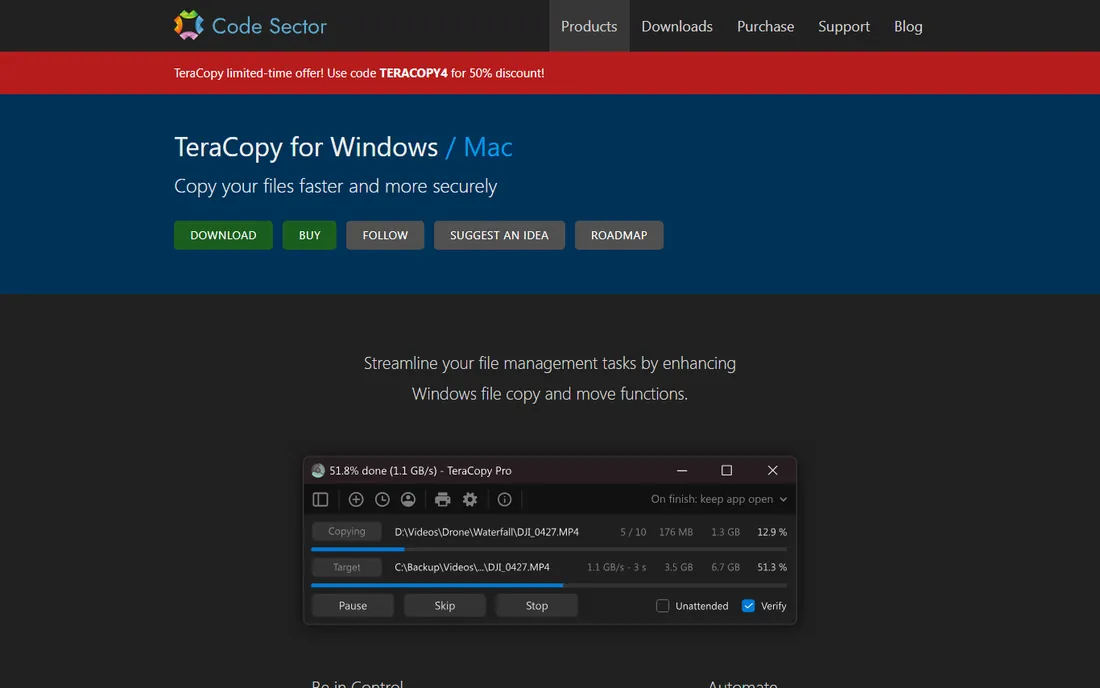
TeraCopy has been the default recommendation in this category for years, and version 4 (released 2026) keeps it there. It takes over the standard Windows copy and move actions, so every drag and drop gets pause and resume, an interactive queue, and file verification through checksums like SHA-256 and BLAKE3. For anyone who regularly moves large media libraries or backs up to external drives, the error recovery alone is worth the install: a failed file gets skipped and listed at the end instead of killing the whole job.
The free tier covers full personal use with no time limit, which handles most home users. The Pro license adds multi-target copying, editable file lists, favorite folders and HTML/CSV reports, plus the legal right to use it at work. Volume discounts exist for larger teams. If your copying needs stop at the desktop, the free version is the one to grab.
What we like- Replaces the Windows copy dialog
- Checksum verification with many algorithms
- Error recovery skips bad files instead of aborting
Watch out for- Pro license required for commercial use
- Some advanced features are paywalled
Starting priceSee website
Free planYes (personal)
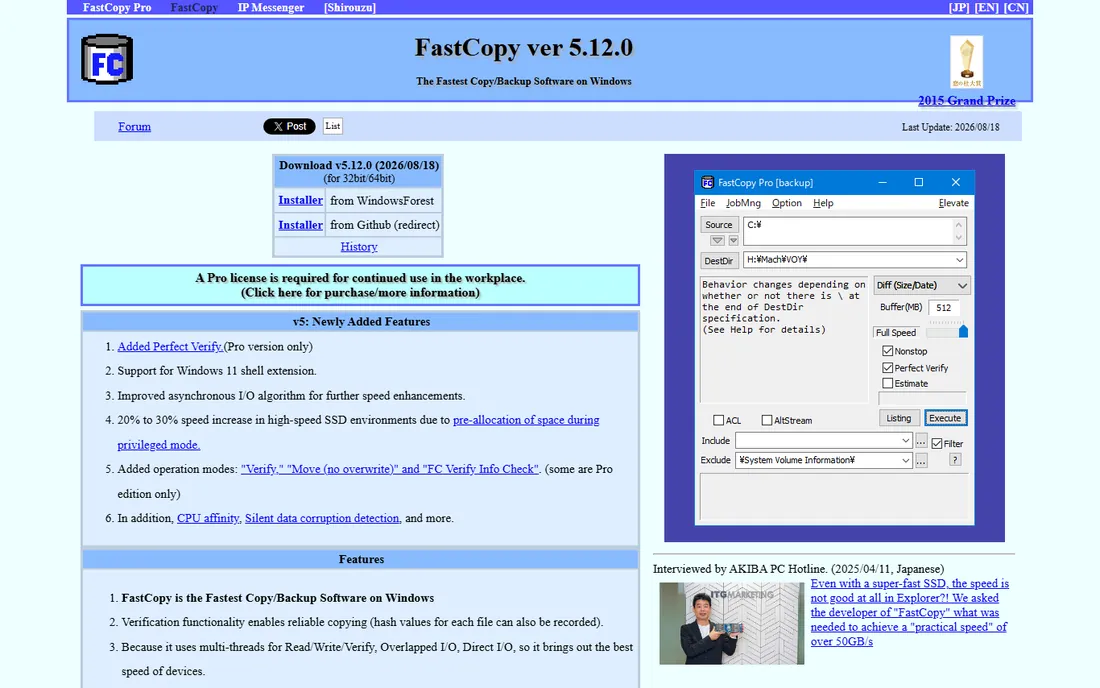
When the priority is finishing a transfer as fast as the drives allow, FastCopy is the tool benchmarkers reach for. It uses multi-threading and direct I/O to move millions of small files faster than most competitors, and it runs portably from a USB stick with no installation. Long path names past the old 260-character Windows limit and unicode filenames are handled without fuss.
The trade is convenience. FastCopy does not hook into Explorer the way TeraCopy does, so each job means opening the program and picking source and destination yourself. Licensing is the other thing to get right: the current version is free for personal home use, but workplace use requires a paid Pro license. Home users and technicians carrying it on a toolkit drive get the most from it.
What we like- Extremely fast with huge file counts
- Portable, no install needed
- Handles long paths and unicode names
Watch out for- Dated standalone interface
- Does not replace the Windows copy dialog by default
Starting priceFree
Free planYes
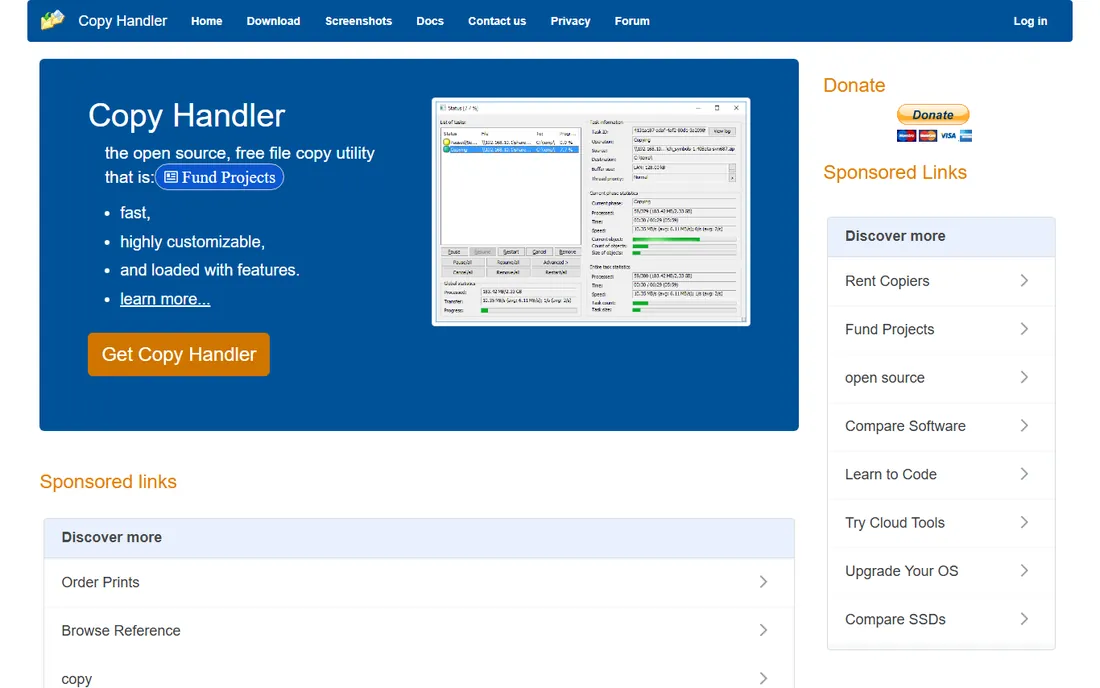
Copy Handler's standout feature is how it treats an interrupted transfer: partial copies stay usable and jobs pick up where they stopped instead of starting over. The queue view shows every pending task with fine-grained controls over order, priority and error handling, which makes it a good fit for long overnight copies across a network where connections drop.
The honest catch is the project's pace. The author has been open about Copy Handler going quiet for long stretches, with the 1.45 release candidate series arriving after years of inactivity. It still works on modern Windows, and it costs nothing, but go in knowing you are adopting mature, slow-moving software rather than an actively developed product.
What we like- Detailed queue with per-task control
- Resumes partial copies after interruptions
- Fully free and open source
Watch out for- Development has been nearly stalled for years
- Interface looks dated
Starting priceFree
Free planYes
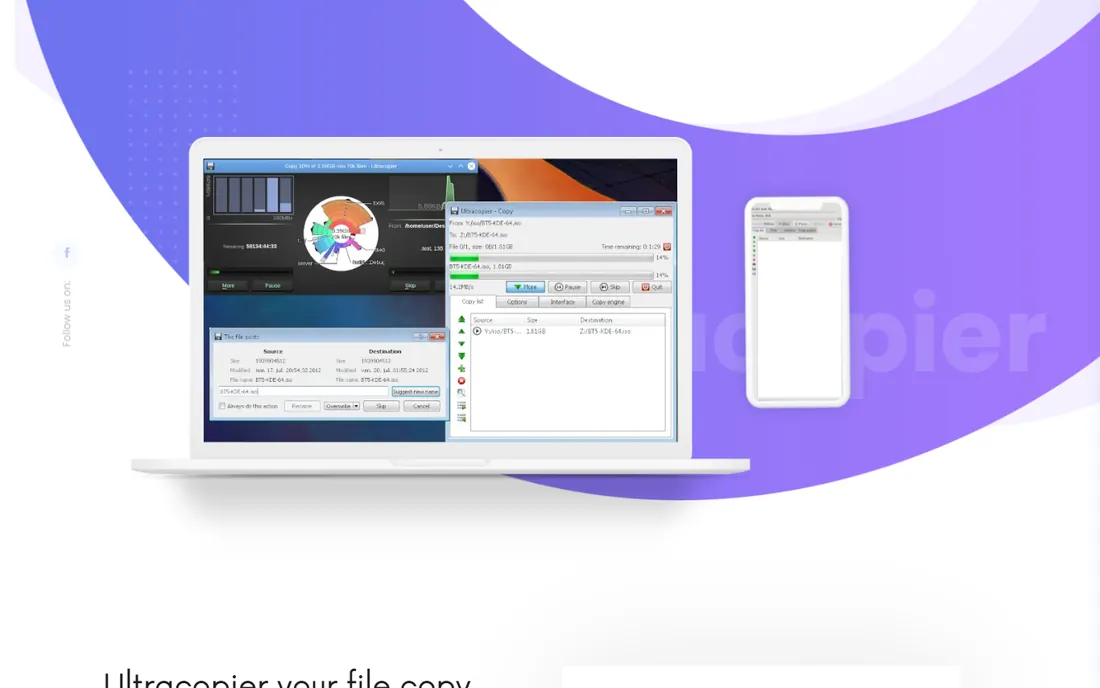
UltraCopier replaces the standard copy dialogs on Windows, macOS and Linux with a queue-based interface that supports pausing, resuming and on-the-fly speed throttling. The speed limit feature is genuinely useful: you can cap a background transfer so it does not saturate the disk while you keep working. A plugin system lets advanced users swap copy engines and themes.
It is free and GPLv3 licensed, which makes it the closest open-source equivalent to TeraCopy. The downside is polish. Settings run deep and the interface can confuse first-time users, and when something fails the error reporting takes more digging than the commercial alternatives. Power users will not mind; casual users might.
What we like- Pause, resume and speed limits on every transfer
- Plugin architecture for custom behavior
- Cross-platform
Watch out for- Configuration can overwhelm beginners
- Error logs are less friendly than TeraCopy's
Starting price$49.99 per license (one-time)
Free planFree trial
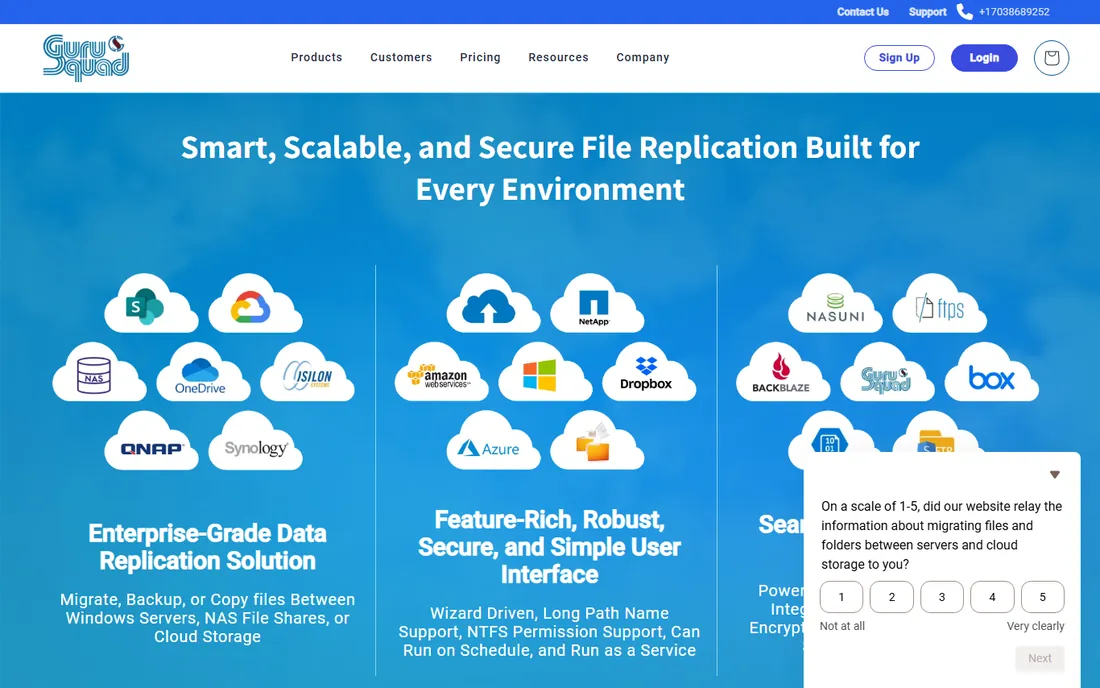
GS RichCopy 360 is the enterprise entry on this list and it shows. It is built for moving data between Windows servers, NAS shares and cloud storage, with multi-threaded transfers, delta-level replication, real-time mirroring, scheduling and a run-as-service mode. Open and locked files copy without interruption, and paths up to 32,000 characters are supported.
Licensing is perpetual at $49.99 per license for the Standard edition, with an Enterprise tier adding API access and centralized management. There is a free trial to test with. This is not the tool for copying holiday photos to a USB drive; it is the tool for the admin migrating a file server over a weekend, and for that job it is priced fairly.
What we like- Up to 255 simultaneous transfer threads
- Preserves NTFS permissions and long paths
- Cloud targets including Azure, AWS and Google Drive
Watch out for- Overkill and overpriced for simple desktop copying
- Aimed squarely at IT pros
Starting priceFree
Free planYes
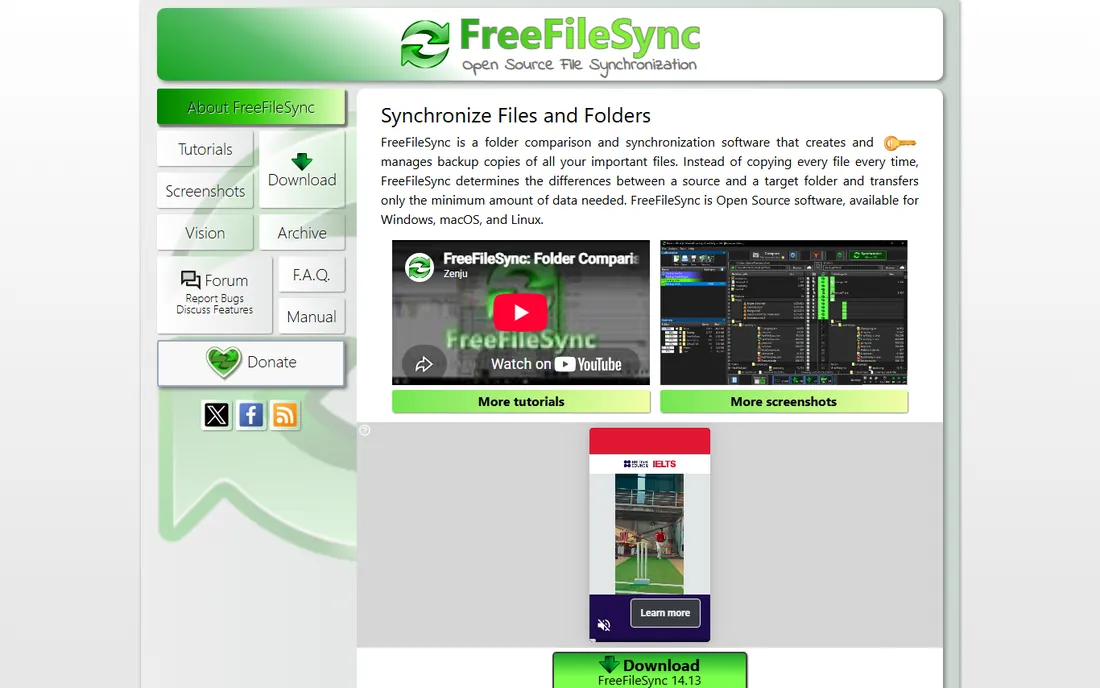
FreeFileSync answers a slightly different question than the rest of this list: instead of speeding up a single copy, it compares folders and transfers only what changed. That makes it ideal for recurring backups, with mirror, two-way and update modes plus batch jobs you can schedule. It talks to local disks, network shares, FTP/SFTP servers, Google Drive and MTP devices.
The core program is free and open source, and it may be used commercially at no cost. A donation unlocks the Donation Edition with parallel sync, auto-updates and a portable build. The interface is dense at first glance, but once the folder pairs are set up it runs quietly and fast. For backup-style copying, start here before spending anything.
What we like- Mirror, two-way, update and custom sync modes
- Syncs to FTP, SFTP, Google Drive and phones
- Completely free core
Watch out for- Donations pay for the nicest extras
- Interface packs a lot into one window
Starting priceFree
Free planYes
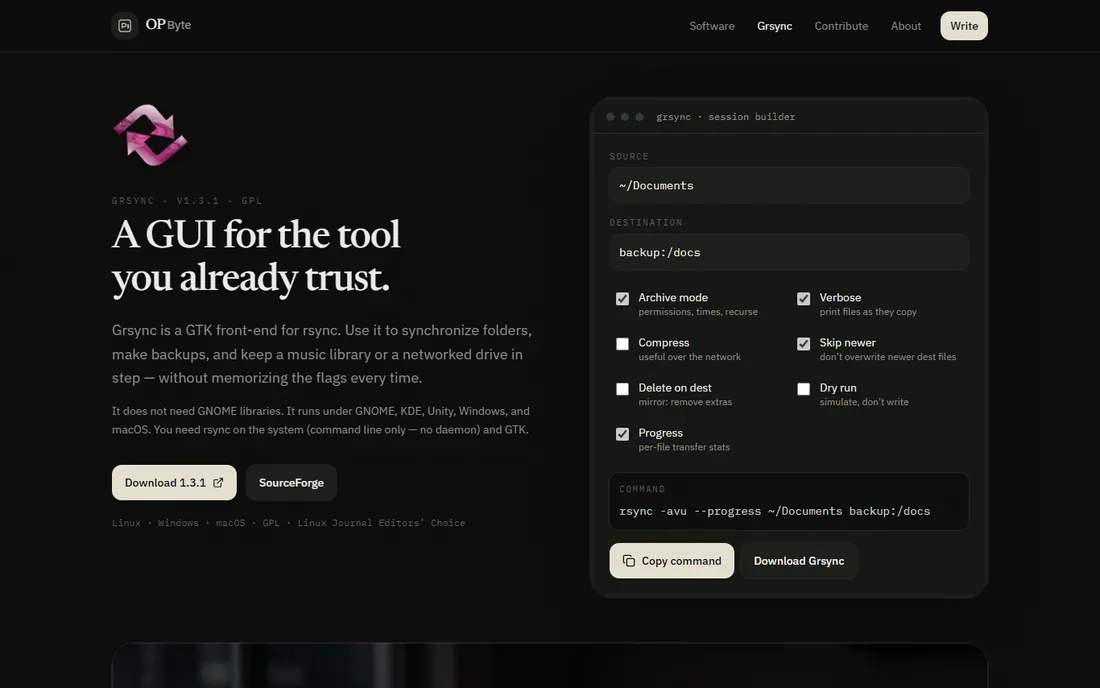
Grsync is a graphical front end for rsync, the battle-tested command-line sync tool. It turns rsync's famously cryptic flags into checkboxes and drop-downs, lets you save named sessions, and offers a simulation mode that previews exactly what a run would change before anything moves. For Linux users who want rsync's incremental speed without the manual page, it removes the learning curve.
It is free and GPL licensed. The limitation is inherent to the concept: it exposes only the most common rsync options, so exotic use cases still need the terminal. Windows users can run it, but the experience is smoothest on Linux. Pair it with scheduled sessions and you have a capable free backup copier.
What we like- Exposes rsync's power through checkboxes
- Saved sessions and dry-run previews
- Tiny and fast
Watch out for- Only covers common rsync options
- Primarily a Linux tool with a Windows build
Starting price$29.95 one-time
Free planFree trial
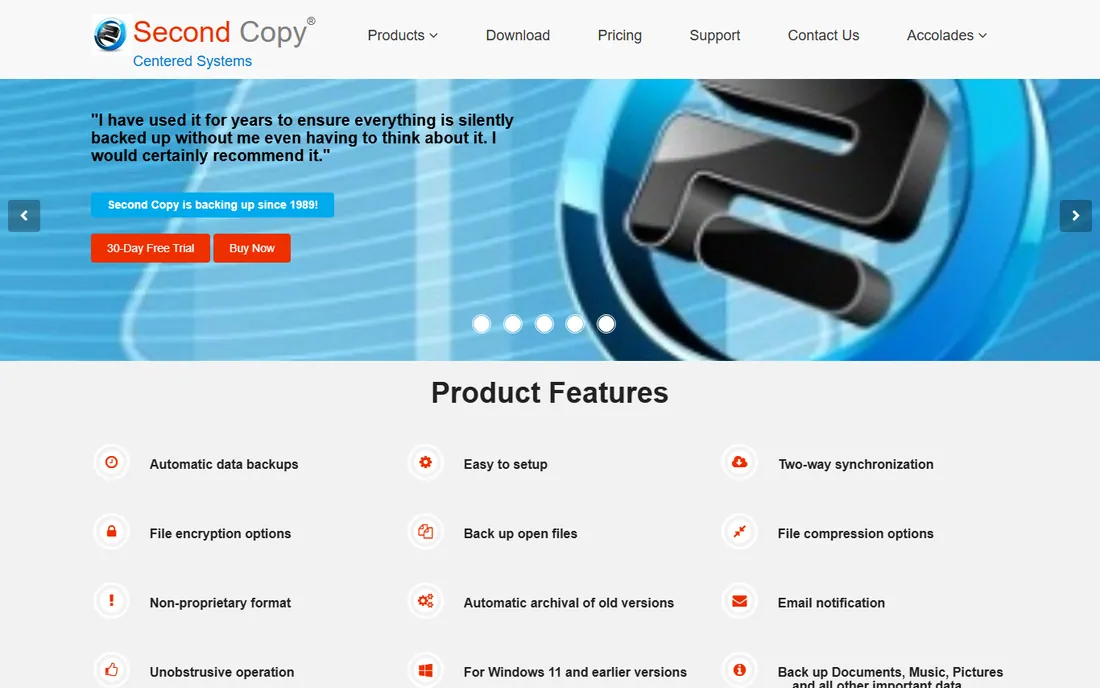
Second Copy sits in the system tray and copies files automatically according to profiles you define: source, destination, schedule, filters. The setup wizard explains each choice in plain language, and schedules can run as often as every minute. It handles open files, unicode names, FTP destinations and AES-256 encryption, and keeps up to 25 old versions of files.
The price is $29.95 for a single license with a trial available. One caveat worth stating plainly: recent user reports suggest the vendor has gone quiet, with support emails bouncing. The software itself still works on Windows 10 and 11, but buy it for what it does today, not for future updates.
What we like- Profile wizard is genuinely easy
- Schedules down to one-minute intervals
- Copies open files via shadow copy
Watch out for- Vendor responsiveness looks uncertain in recent years
- No cloud storage support
Starting priceSee website
Free planYes
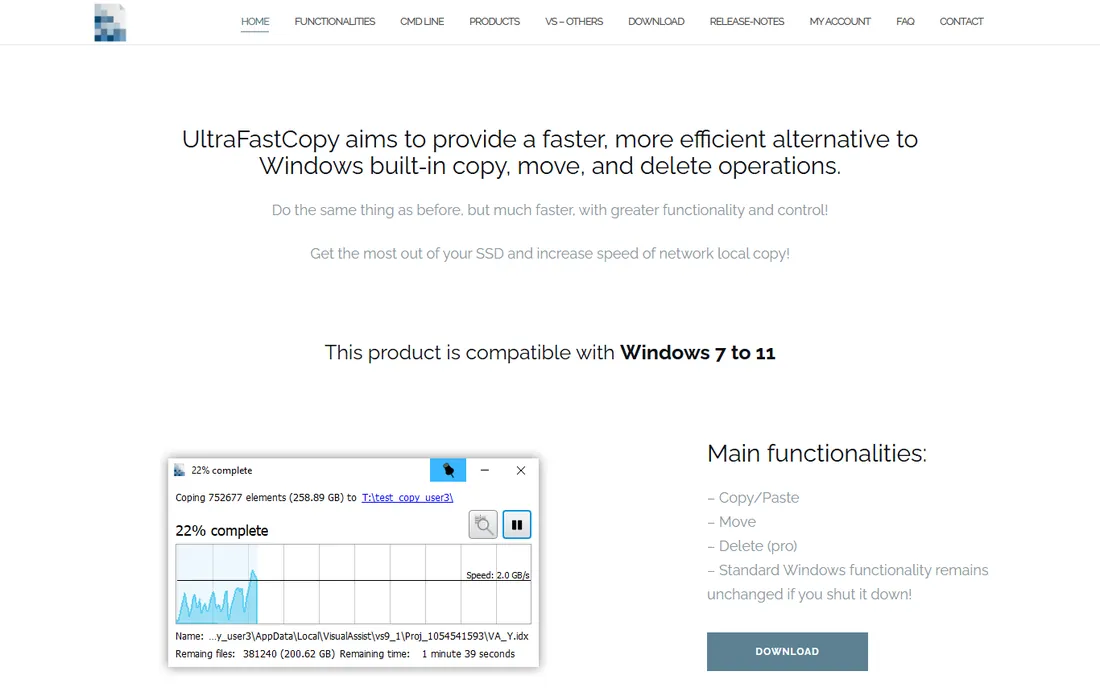
UltraFastCopy is a newer French-built tool designed to replace the Windows copy, move and delete dialogs with faster versions. The developer publishes head-to-head benchmarks against Windows Explorer, including dramatic improvements on deleting huge file counts and copying between fast NVMe SSDs. A toggle in the system tray switches its Explorer drag-and-drop integration on and off.
It follows a freemium model: the free tier covers everyday copying, with a Pro license unlocking the full feature set. It is Windows-only, which limits its audience, but on a modern Windows 11 machine with fast storage it is one of the quickest options here for the simple act of moving files.
What we like- Publishes its own benchmark results against Explorer
- Drag-and-drop Explorer integration
- Dark and light themes
Watch out for- Windows only
- Pro features need a paid license
How we chose
We compared tools that specifically improve on copying files: queueing, pause and resume, verification, speed and scheduling. We checked each vendor's site and pricing page, read documentation and recent independent reviews, and weighed real buyer factors like commercial licensing terms, platform support and whether the project is still maintained. We did not run timed benchmarks ourselves; speed claims come from the vendors and from independent testing roundups.
Match the tool to the job. If you copy files manually in Explorer and want the same workflow with fewer failures, TeraCopy or UltraFastCopy slot right in. If the job is a nightly backup or keeping a laptop and desktop in sync, a sync-oriented tool like FreeFileSync or Second Copy fits better than a pure copy accelerator.
Check the license for workplace use. FastCopy and TeraCopy both restrict their free tiers to personal use, and the commercial licenses are cheap enough that there is no reason to risk it. Also confirm the project is alive: Copy Handler and Second Copy both work fine today but show signs of slow or stalled development, which matters if you need support later.
Do you even need one in 2026
Windows 11 and modern file managers have improved, but the default copy still aborts a whole job on one bad file and gives you no verification that the copy matches the source. If you move gigabytes regularly, a dedicated tool pays for itself the first time it resumes instead of restarting. If you copy a few documents a week, skip the install.
Frequently asked questions
Is TeraCopy really faster than Windows copy?
It can be, especially on many small files, thanks to buffered transfers and multi-threading in version 4. The bigger win is reliability: error recovery, queuing and checksum verification, which the built-in copy does not offer.
Which file copy software is completely free?
Copy Handler, UltraCopier, FreeFileSync and Grsync are free and open source with no paid tier gating core features. TeraCopy, FastCopy and UltraFastCopy are free for personal use with paid licenses for commercial use.
Can these tools copy open or locked files?
Some can. TeraCopy uses a Windows service with volume shadow copy for locked files, Second Copy copies open files the same way, and GS RichCopy 360 handles locked files as part of its server feature set.
What is the fastest file copy software for Windows?
Independent tests usually put FastCopy at the top for raw throughput on huge jobs, with TeraCopy and UltraFastCopy close behind. Real-world speed depends far more on your drives than on the software.
Do I need to pay to use file copy software at work?
For TeraCopy and FastCopy, yes, their free licenses are personal-use only and workplace use needs a paid license. FreeFileSync and the open-source tools on this list can be used commercially at no cost.
Will these tools work on Windows 11?
Yes. All nine tools on this list support Windows 10 and 11, and most support Windows Server versions too. UltraCopier and FreeFileSync additionally run on macOS and Linux.
Sources we checked (11)
- https://codesector.com/teracopy
- https://fastcopy.jp/
- https://copyhandler.com/
- https://ultracopier.herman-brule.com/
- https://gurusquad.com/products/gs-richcopy-360
- https://freefilesync.org/
- https://www.opbyte.it/grsync/
- http://www.secondcopy.com/
- https://www.ultrafastcopy.com/
- https://worldmetrics.org/best/file-copy-software/
- https://nerdtechy.com/best-open-source-file-copy-software
Is your product missing or out of date?
We review this list regularly. Vendors can request a listing, send updated pricing or ask about featured placement.

Shihab Mia · Founder, Rankite
Shihab has spent more than a decade helping SaaS and e-commerce brands grow through search. He writes Rankite's software buying guides from pricing pages, documentation and public user reviews. More about Shihab.