How we make this list: we compare pricing pages, product documentation and public user reviews. Ratings come from G2, Capterra or Trustpilot, with the date we checked them.
Key takeaways
- Nero Burning ROM and Roxio Creator NXT suit people who still produce finished discs for clients, because both cover Blu-ray, disc copying, and cover design in one purchase.
- BurnAware Free, ImgBurn, and CDBurnerXP handle everyday data discs and audio CDs at no cost, which makes them the sensible starting point for occasional use.
- If you need menus, chapters, and subtitles for a playable video DVD, pick a dedicated authoring tool such as CyberLink Power2Go or DVDFab DVD Creator rather than a basic data burner.
- Check your drive and disc type before you buy, since Blu-ray support, M-Disc support, and Mac support vary a lot between tools on this list.
Quick comparison
Is your product missing or out of date?
We review this list regularly. Vendors can request a listing, send updated pricing or ask about featured placement.
The best DVD burning software

#1Nero Burning ROM
Best for: Finished disc projects and encryption4.5/5 on
G2 (29 reviews, checked Oct 2026)
Visit nero.com
Starting price$49.95
Free planFree trial
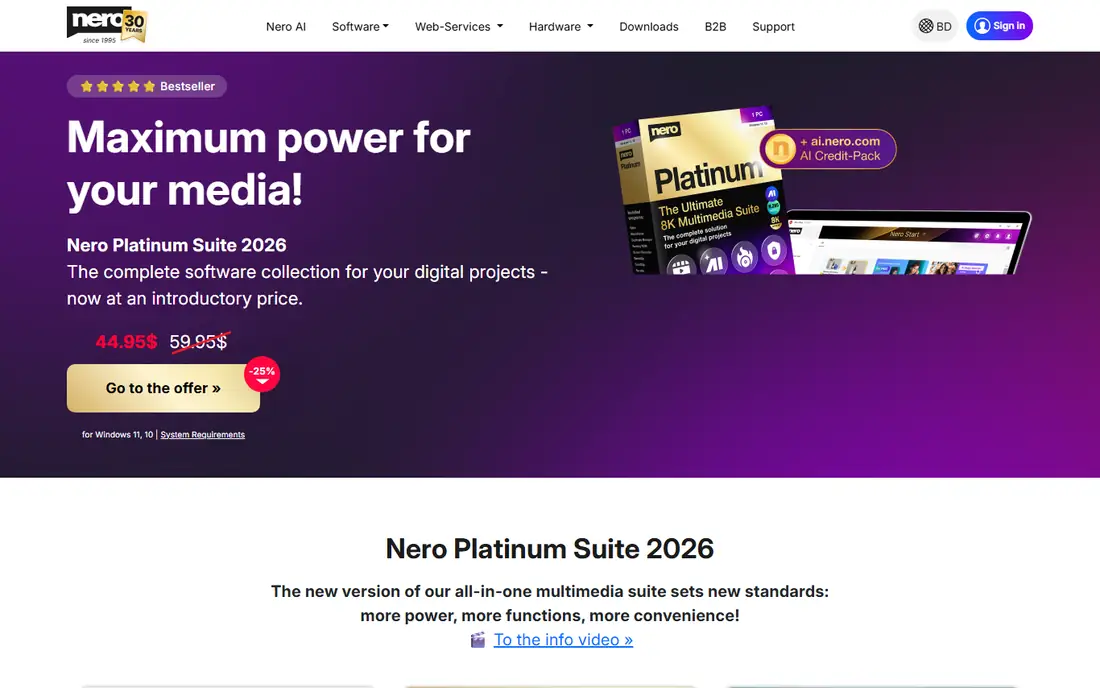
Nero Burning ROM remains the reference point for serious disc work on Windows. It burns data, audio, and video discs, copies discs, creates ISO images, and rips audio CDs with track details. The SecurDisc option adds password protection and encryption for sensitive archives, which matters when a disc leaves your office. For a small studio that still hands clients a physical disc, that combination is hard to match in a single program.
The trade-off is scope. Nero is a paid Windows product, so Mac users need another option, and casual users who burn one disc a year will find the full feature set more than they need. Installation also pulls in companion tools that some buyers may never open. Still, if disc burning is part of your regular workflow rather than a one-off task, Nero earns its price through reliability, verification options, and long support history.
What we like- Blu-ray and SecurDisc encryption support
- Disc copying and audio ripping
- Cover design included
Watch out for- Windows only
- Paid licence needed for full features

#2
Ashampoo Burning Studio
Best for: Simple burning with a clear interface
Visit ashampoo.com
Starting priceSee website
Free planYes
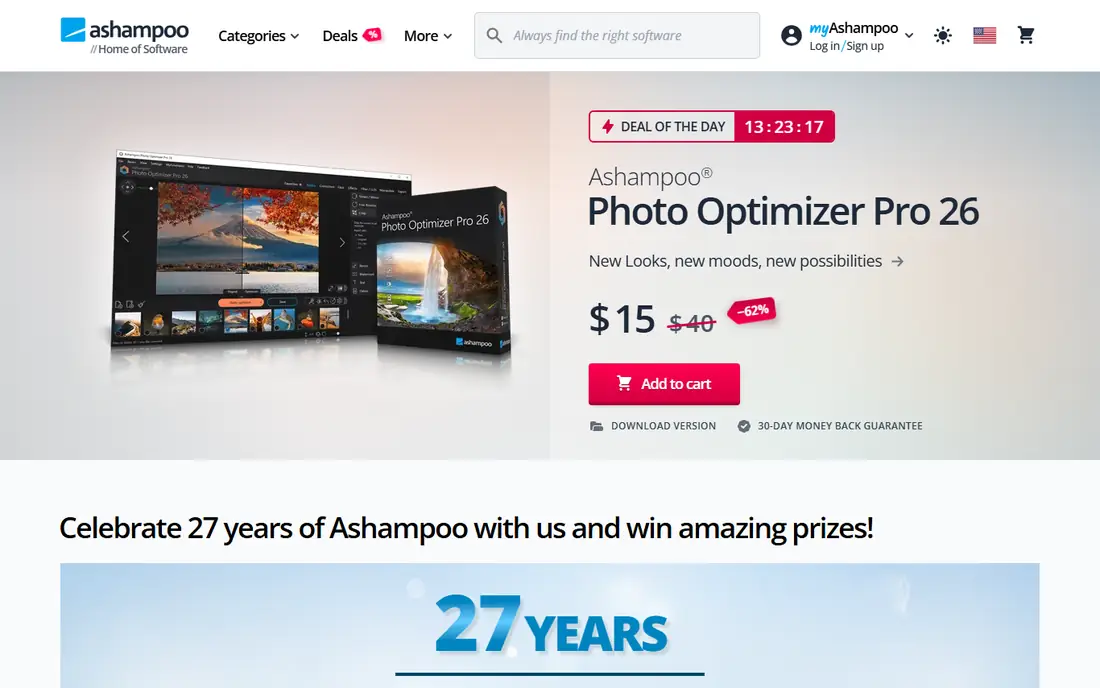
Ashampoo Burning Studio takes a different approach from Nero. The interface presents a short list of tasks, such as burn data, burn music, or copy a disc, and each task opens a guided screen. That design helps first-time users avoid the settings panels that make older burners feel intimidating. It also covers the basics well, including multi-disc spanning for large backups and audio CD creation from common music files.
Where Ashampoo falls short is depth. Power users who want fine control over burning speed, file systems, or verification settings may find fewer options than in Nero or ImgBurn. The free version also omits some features found in the paid edition, so check the edition comparison before you rely on it for Blu-ray work. For home archiving and family video discs, though, the balance of clarity and capability is strong.
What we like- Clean, beginner-friendly layout
- Data, audio, and video disc support
- Disc copying and image creation
Watch out for- Some advanced features sit behind the paid version
- Windows only

#3
Roxio Creator NXT
Best for: Multimedia discs plus video editing
Visit roxio.com
Starting price$99.99
Free planFree trial
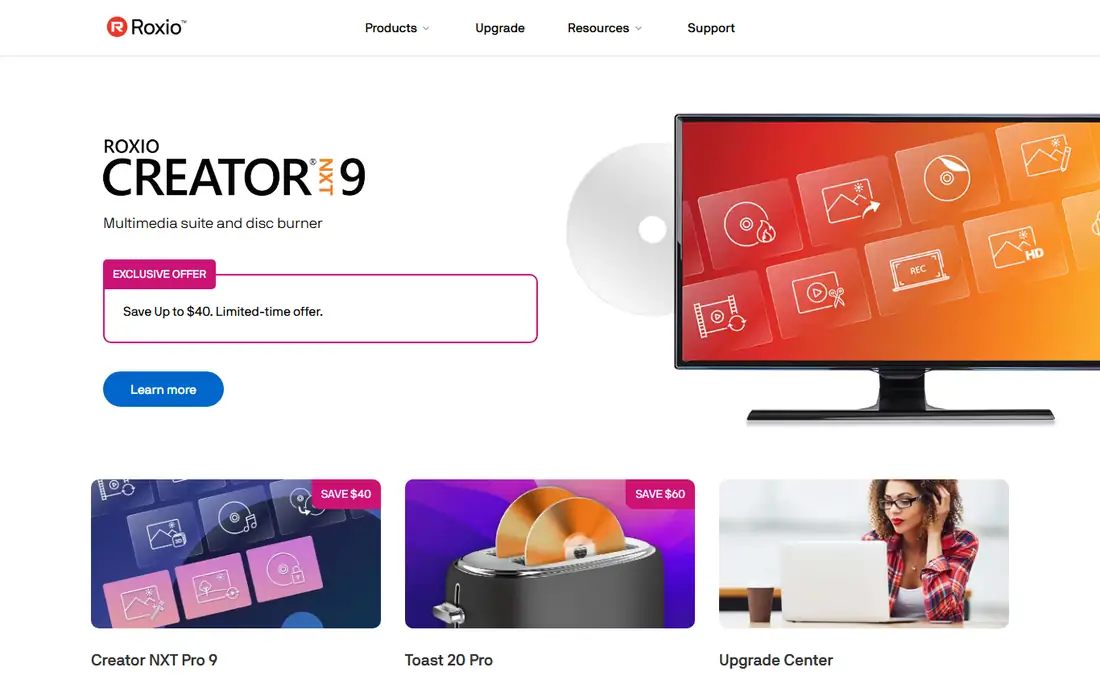
Roxio Creator NXT is best viewed as a media suite that happens to burn discs very well. Alongside data and video disc burning, it includes video editing, photo editing, and file conversion, so a home video project can move from editing to a finished DVD or Blu-ray without switching programs. That matters for people who produce wedding videos, school plays, or training discs and want menus and chapters to look polished.
The price reflects that breadth. At around $99.99 for the standard edition, it costs more than a burner alone, and the install size is larger than the free tools on this list. Windows-only support is another limit. Buy Roxio when you want one program for editing and disc delivery. If you only need to burn files you already prepared, a cheaper tool will do the same job.
What we like- Disc authoring plus video and photo editing
- Blu-ray support
- Broad format conversion
Watch out for- Higher price than burn-only tools
- Windows only
- Large install
Starting price$69.99
Free planFree trial
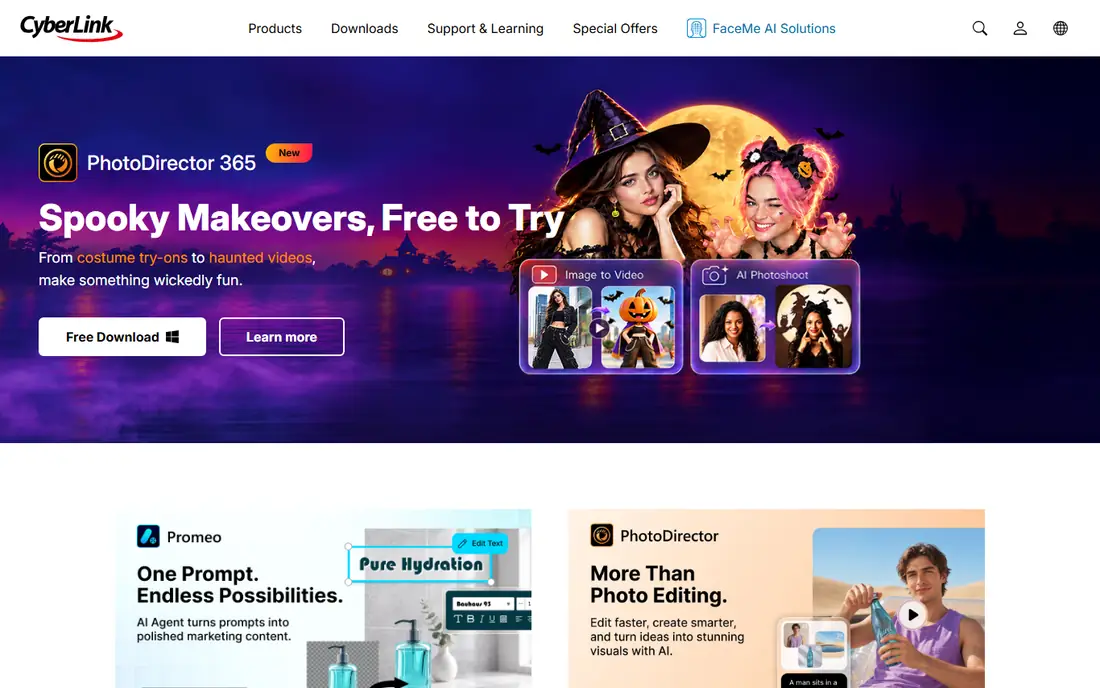
CyberLink Power2Go sits between a basic burner and a full media suite. It burns data, music, and video discs, converts media files, and creates video DVDs with menus and chapters. Encryption options help when you archive financial records, legal files, or medical material on disc. The program also handles Blu-ray discs, which keeps it useful for large backups that will not fit on a standard DVD.
For a quick data burn, Power2Go can feel like more program than the task needs. The menus and conversion options add steps that a minimal burner skips. Its strength shows on longer projects, where you want a playable video disc with a menu, or an encrypted archive you can store offsite. If either of those jobs appears regularly, the price is reasonable for the control you get.
What we like- Video DVD authoring with menus
- Encryption for sensitive data
- Broad format support
Watch out for- Windows only
- Interface can feel busy for simple burns
Starting price$29.95
Free planYes
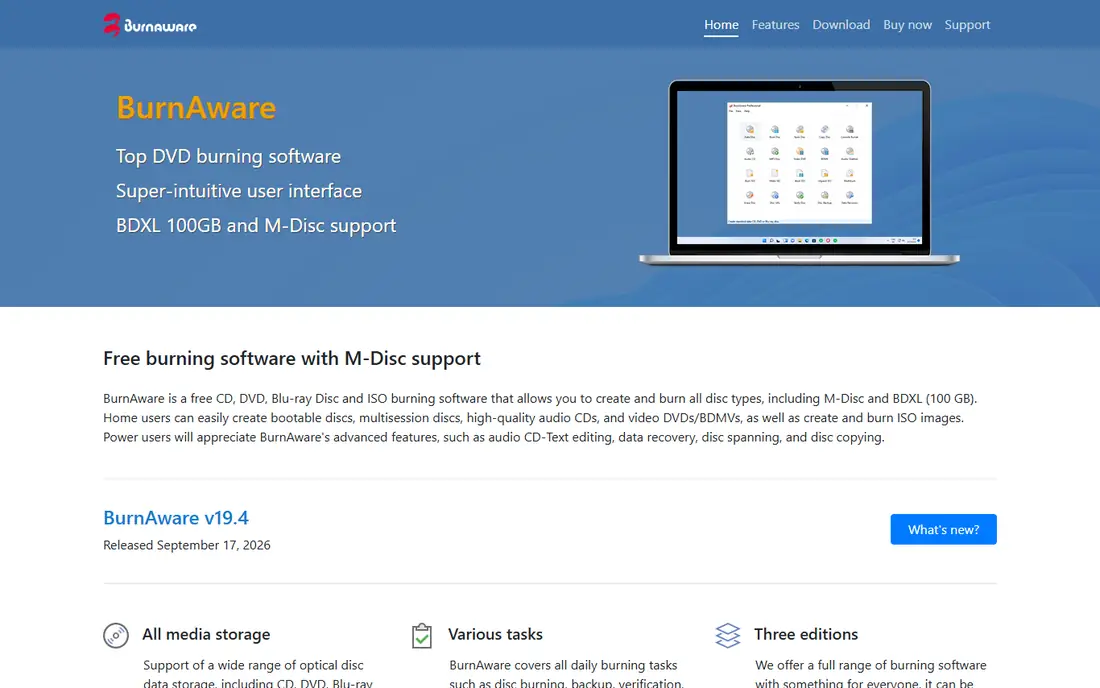
BurnAware is the tool to recommend to someone who asks for a burner that just works. The main window lists data, audio, video, and image tasks in plain language, and each task needs only a few clicks. The free version handles data discs, audio CDs, and ISO images, which covers most home and office needs. Paid editions add disc copying, audio extraction, and image editing for users who need more.
The free version has clear limits. You cannot copy a disc directly or extract audio tracks without upgrading, so check those two features before you settle on the free edition. BurnAware is also Windows only. Within those limits, it is one of the least frustrating burners available, and the paid Premium edition stays affordable compared with full media suites.
What we like- Very easy to learn
- Free version covers common tasks
- Supports CD, DVD, and Blu-ray
Watch out for- Free version omits disc copying and audio extraction
- Paid tiers needed for advanced tools
Starting priceFree
Free planYes
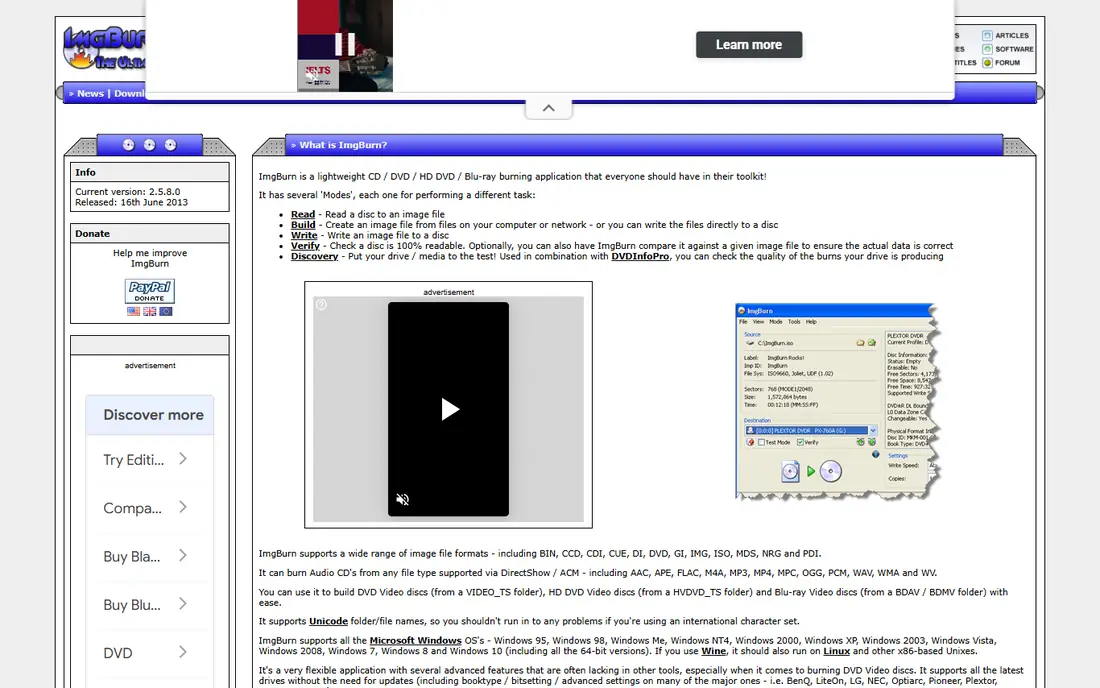
ImgBurn has survived for years because it does a narrow job extremely well. It burns ISO and image files, creates images from discs and folders, and gives experienced users control over write speed, verification, and layer breaks for dual-layer discs. The download is small, it runs quickly on older hardware, and it rarely gets in the way. For IT staff and archivists who work with disc images all day, that focus is a benefit rather than a gap.
New users should know what ImgBurn is not. It does not author video DVDs with menus, it does not edit video, and its interface looks dated next to Ashampoo or BurnAware. Development has also slowed, so you should not expect frequent new features. Use ImgBurn when you need a dependable image burner. Pair it with a separate authoring tool if you need playable video DVDs.
What we like- Small and fast
- Strong ISO and image support
- Precise control over burn settings
Watch out for- Dated interface
- No video DVD menu authoring
- Windows only
- No longer actively updated
Starting priceFree
Free planYes
CDBurnerXP is a free burner that covers the core tasks without trial limits or watermarks. It burns data discs, audio CDs, and ISO images, erases rewritable discs, and supports Blu-ray media. It also works in many languages, which helps in mixed-language offices. For a workplace that needs a free burner on several PCs, the licence terms are friendly and the program is light on system resources.
The program will not author a video DVD with animated menus, and its design has changed little over the years. Those limits matter less for data backup and audio CDs, which are its strengths. If your main jobs are copying files to disc, making audio CDs for a car or classroom, and burning ISO images for software installs, CDBurnerXP does them for free and with little fuss.
What we like- Free for personal and business use
- Burns data, audio, and ISO files
- Supports Blu-ray
Watch out for- Windows only
- Interface looks dated
- No video menu authoring

#8
DVDFab DVD Creator
Best for: Video DVD authoring from many formats
Visit dvdfab.cn
Starting priceSee website
Free planFree trial
DVDFab DVD Creator is built for one job: turning video files into a DVD that plays in a standard player. It accepts a wide range of video formats, lets you pick a menu template, add chapters, and include subtitles and extra audio tracks. That makes it useful for family archives, where source files arrive in different formats from phones, cameras, and older camcorders. The preview step helps catch a wrong aspect ratio or missing subtitle before you burn.
It is not the best pick for general data backup, since its strength is video authoring rather than file archiving. The full version is paid, so confirm the current price and licence term on the vendor site before you buy. For video DVD projects, though, the format support and menu options justify a look, especially if your source videos need conversion as well as burning.
What we like- Wide video format support
- Menu templates and chapters
- Subtitle and audio track options
Watch out for- Paid licence for full use
- Focused on video DVDs rather than general data burning
Starting priceFree
Free planYes
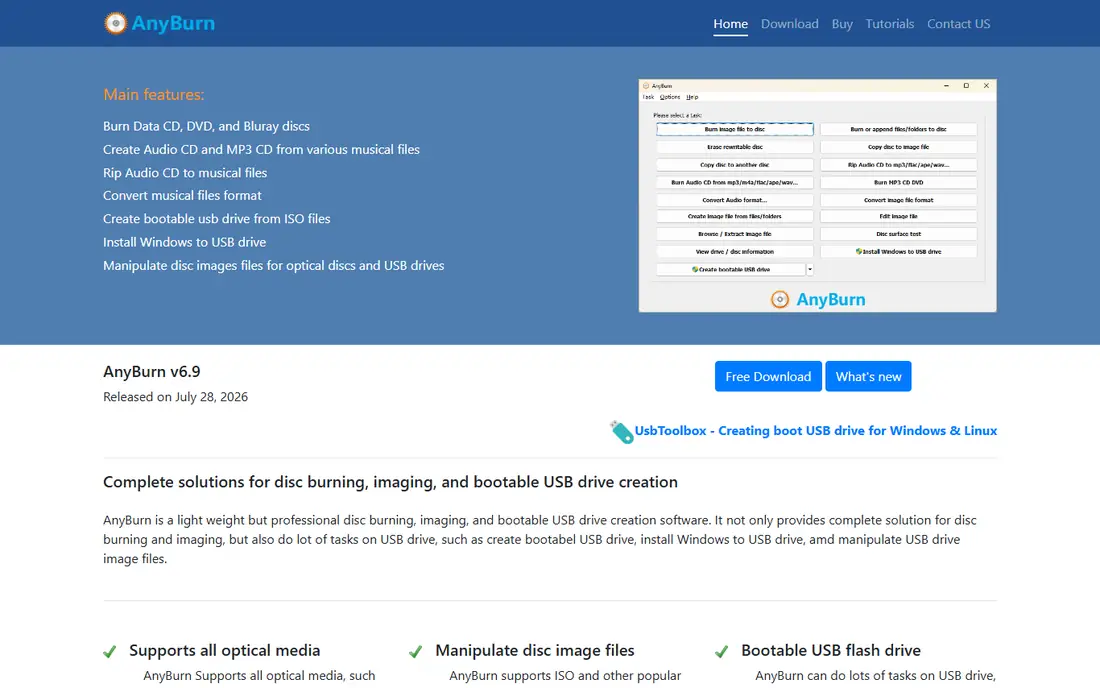
AnyBurn is a compact free burner for people who want no extras. It burns data discs and audio CDs, creates and burns image files, converts between image formats, and erases rewritable discs. The program opens fast, uses little memory, and keeps its options in a single clear window. On an older PC or a shared office machine, that lightness is a real advantage over larger suites.
AnyBurn will not create a video DVD with menus, and it does not include video editing or encryption extras. Those gaps are acceptable when the job is simple: back up a folder, burn an ISO, or make an audio CD. If you need menus or encryption, move up to Power2Go, DVDFab DVD Creator, or Nero. For free, fast, everyday burning, AnyBurn is a solid final option on this list.
What we like- Free and very light
- Burns data, audio, and images
- Converts image formats
Watch out for- No video DVD menus
- Windows only
- Basic interface
How we chose
We compared vendor pricing pages, product documentation, and public reviews on G2, Capterra, and Reddit, and we checked each tool for current Windows support, disc types covered, and whether video menu authoring was included. We favoured tools that are still available to download, that state their licence terms clearly, and that fit a distinct use case, from free data burning to paid client-ready disc production. We did not claim hands-on lab results, and we avoided tools with unclear ownership or broken download pages.
We also weighed fit by user type. A home user archiving photos needs a different tool from a studio delivering training DVDs, so the list mixes free burners with paid suites rather than ranking on price alone. Where a price could not be confirmed on the vendor site at the time of writing, we wrote See website instead of guessing.
What to check before you burn a disc
Match the tool to the disc you need
Start with the end product. A data backup needs only a data burner, while a DVD for a living-room player needs video authoring with menus and chapters. Blu-ray and M-Disc projects narrow the field further, since not every free tool supports them. Write down the disc type, the player it must work in, and whether you need encryption before you compare prices.
Check your drive, media, and file formats
Confirm that your PC still has a working optical drive, or budget for an external USB drive, since many new laptops ship without one. Buy the right media for the job: DVD-R for broad player support, DVD+R DL for larger video projects, and rewritable discs only when you plan to erase and reuse them. Convert unusual video formats before burning if your chosen tool does not list them as supported.
Burn slow, verify, and keep a second copy
Faster burn speeds save minutes but can raise the risk of errors on cheaper media, so use a moderate speed for important discs and turn on verification when the tool offers it. Label discs with a date and contents, store them away from heat and sunlight, and keep a second copy on a hard drive or cloud storage. A disc is a useful offline archive, but it should rarely be the only copy of anything you cannot replace.
Frequently asked questions
Is DVD burning software still useful in 2026?
Yes, for offline archives, car audio, classrooms, and clients who still use players. Discs work without an internet connection, cost little per unit, and play on hardware made over the past two decades. They are less useful for daily file sharing, where cloud storage and USB drives are faster.
What is the best free DVD burning software?
For most free use, BurnAware Free and CDBurnerXP cover data discs, audio CDs, and ISO burning with clear interfaces. ImgBurn suits image work, and AnyBurn suits very light, fast burns. Pick BurnAware or CDBurnerXP first if you want the easiest free start.
Can I burn a video DVD that plays in a normal DVD player?
Yes, but you need an authoring tool, not just a data burner. Power2Go, DVDFab DVD Creator, and Roxio Creator NXT create the video DVD structure, menus, and chapters that players expect. Burning video files as data will usually not play in a standard player.
Do I need Blu-ray support?
Only if you burn Blu-ray discs or need more than 4.7 GB on one disc. Standard DVDs hold about 4.7 GB on a single layer, while Blu-ray discs hold 25 GB or more. Check that both your drive and your software list Blu-ray support before you buy Blu-ray media.
Is it legal to copy a DVD I own?
It depends on your country and on copy protection. Burning your own home videos and unprotected files is generally fine. Copying a commercial, copy-protected disc may be restricted even for personal use in some places, so check local rules before you copy commercial discs.
Why did my burn fail?
Common causes are low-quality media, a burn speed that is too high, a dirty or failing drive, and a file that exceeds the disc capacity. Try a slower speed, a different brand of disc, and verification turned on. If failures continue on several discs, the drive itself may need cleaning or replacement.
Sources we checked (9)
- https://www.nero.com
- https://www.ashampoo.com
- https://www.roxio.com
- https://www.cyberlink.com
- https://www.burnaware.com
- https://www.imgburn.com
- https://cdburnerxp.se
- https://www.dvdfab.cn
- https://www.anyburn.com
Is your product missing or out of date?
We review this list regularly. Vendors can request a listing, send updated pricing or ask about featured placement.

Shihab Mia · Founder, Rankite
Shihab has 5+ years in B2B and SaaS SEO. He writes Rankite's software buying guides from pricing pages, documentation and public user reviews. More about Shihab.
 CyberLink Power2Go
 BurnAware
 ImgBurn
 CDBurnerXP
 AnyBurn