How we make this list: we compare pricing pages, product documentation and public user reviews. Rankite is independent; if a vendor ever pays for a featured spot, that listing is clearly labeled Partner.
Key takeaways
- EaseUS Partition Master is the best all-rounder for most users: free tier covers the basics, paid plans add OS migration and recovery.
- IM-Magic Partition Resizer and Macrorit Partition Expert are the value picks, with genuinely useful free editions and cheap paid upgrades.
- GParted is the free, open-source option for technicians comfortable booting from USB media.
- MiniTool Partition Wizard and AOMEI Partition Assistant suit users who want guided wizards for cloning and OS migration.
- DiskGenius stands out by combining partition management with data recovery and disk repair in one utility.
Quick comparison
Is your product missing or out of date?
We review this list regularly. Vendors can request a listing, send updated pricing or ask about featured placement.
The best disk management software

#1
EaseUS Partition Master
Best for: all-round partition management
Visit easeus.com
Starting priceSee website
Free planYes
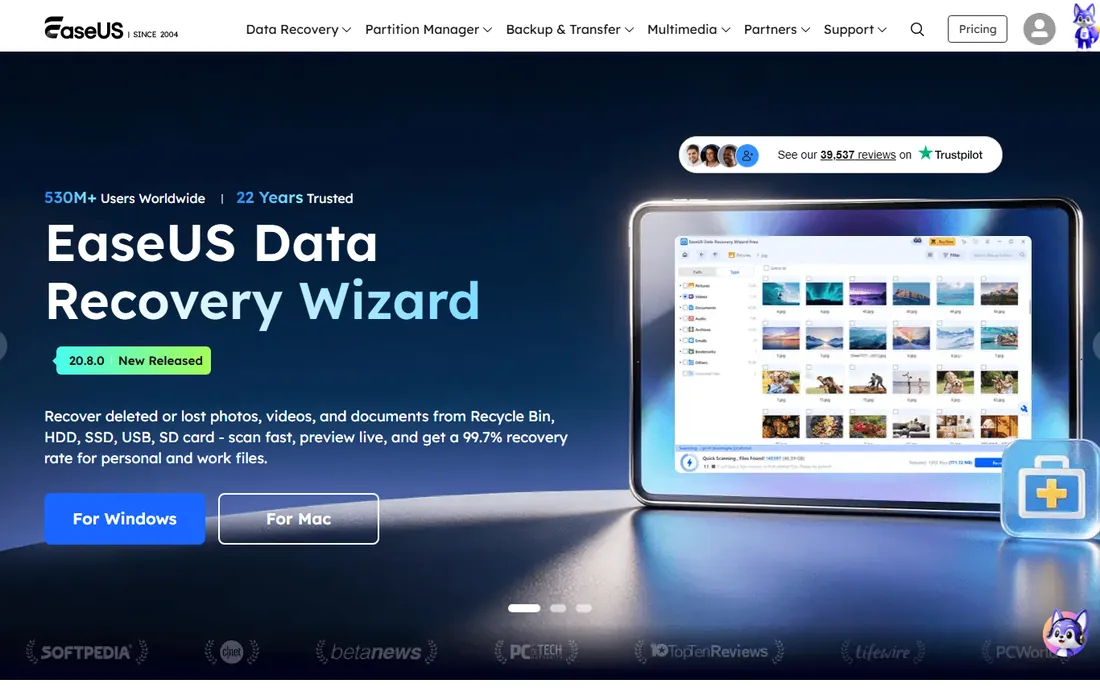
EaseUS Partition Master is the name most people meet first, and for good reason. The free edition handles the jobs that bring most users here: extending the C: drive into unallocated space, shrinking an oversized data partition, creating and formatting new partitions, and converting disks between MBR and GPT. Changes are staged and previewed before they apply, which prevents the "what did I just click" panic.
The paid editions add the heavier tools: migrating Windows to a new SSD without reinstalling, recovering lost partitions, rebuilding the MBR, and boot repair from WinPE media. EaseUS has sold this software since 2004, and the documentation and support are solid. The free version carries upsell prompts, which is the price of free. For a home user or small office that needs reliable partitioning with a safety net, this is the default recommendation.
What we like- Free tier covers resize, create, format and clone basics
- Paid plans add OS migration, partition recovery and boot repair
- Polished interface with change preview
Watch out for- Advanced features sit behind paid tiers
- Upsells appear inside the free version
Starting priceSee website
Free planYes
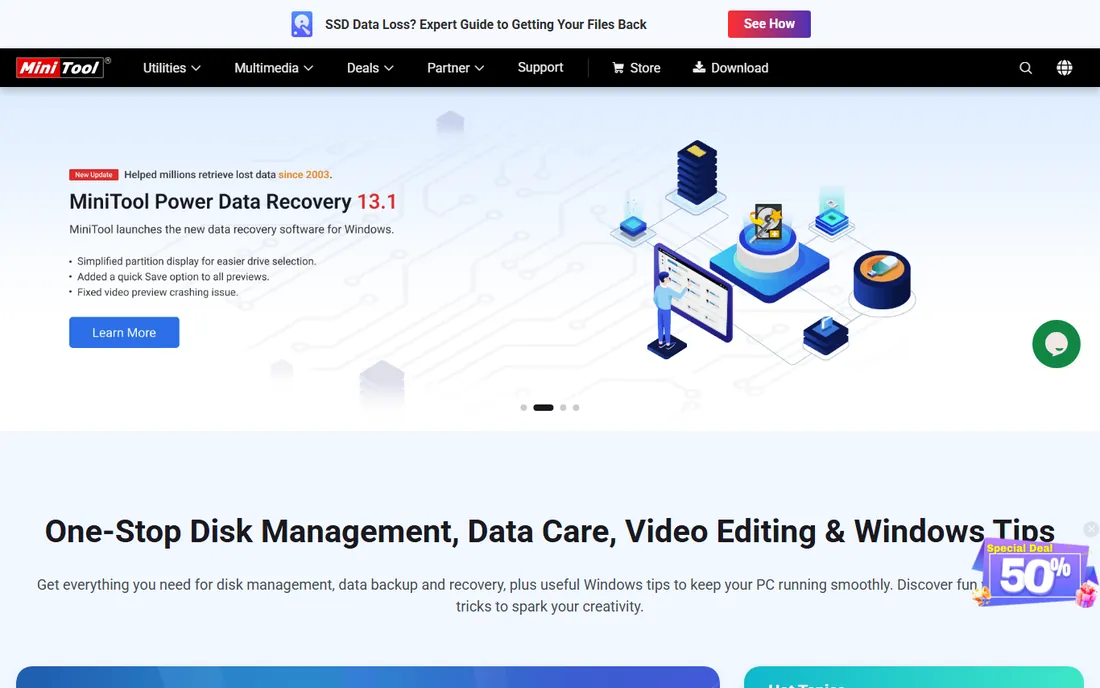
MiniTool takes the opposite approach from technician-oriented tools: everything is a wizard. The free Partition Wizard walks you through extending partitions, migrating the OS to SSD, copying disks and converting file systems step by step, with explanations at each stage. For users who find partition maps intimidating, that hand-holding has real value.
The free edition covers everyday resizing, formatting and basic cloning. Paid plans add OS migration to SSD, dynamic disk management and partition recovery. MiniTool also bundles genuinely useful extras like disk benchmarking and a space analyzer that shows what is eating your drive. Watch the installer for optional bundled software, and decline what you do not need. For beginners who want the safest possible path through their first repartition, MiniTool is the friendliest option here.
What we like- Wizard-driven interface suits non-technical users
- Free edition is generous for basic tasks
- Includes disk benchmarking and space analysis
Watch out for- Paid tiers needed for OS migration and dynamic disk work
- Installer bundles optional extras to decline
Starting priceSee website
Free planYes
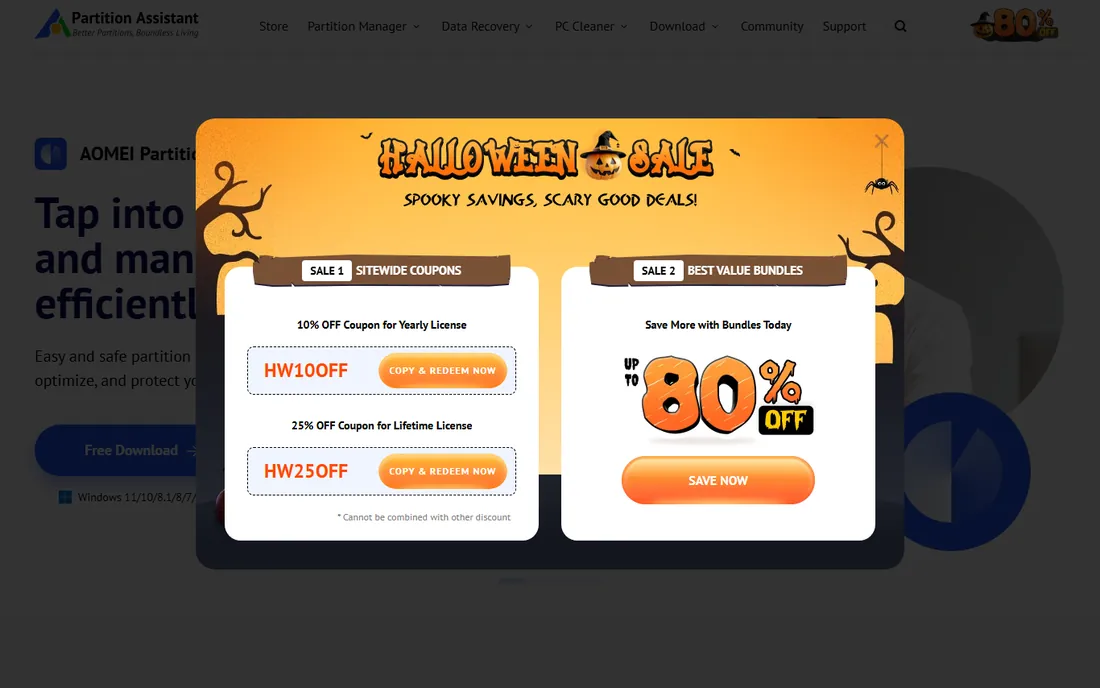
AOMEI Partition Assistant has quietly become one of the most capable tools in this category. The free Standard edition resizes, moves, merges, splits and formats partitions, converts between MBR and GPT, and migrates the OS to an SSD, a feature competitors often reserve for paid tiers. Disk cloning is straightforward, and the bootable media builder covers machines that will not start.
The paid Professional edition adds partition recovery, command-line partitioning, and dynamic disk management, while Server editions cover IT environments. The interface is functional rather than beautiful, with a lot packed into each dialog. For the specific job of moving Windows to a bigger or faster drive without reinstalling, AOMEI's free tier is one of the strongest offers on this list.
What we like- Strong disk cloning and OS-to-SSD migration
- Free standard edition covers core partitioning
- Server editions for IT admins
Watch out for- Interface packs many features into small dialogs
- Some advanced tools need the paid Pro edition
Starting priceSee website
Free planFree trial
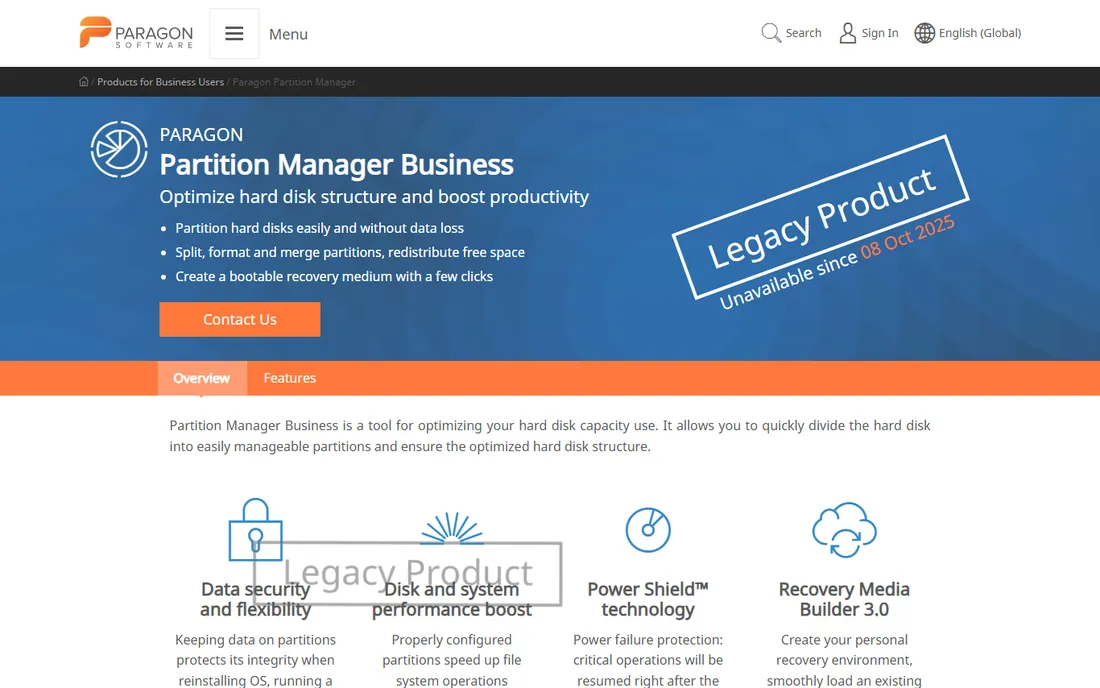
Paragon has been in the partitioning business for decades, and it shows in the engineering. Partition Manager Business handles the core jobs, create, resize, split and merge partitions, with Power Shield technology that resumes critical operations after a power failure. Hot Resize extends NTFS partitions without rebooting Windows, which matters on machines that cannot go down.
This is business software with business pricing; the free Community Edition of years past is gone, and home users get better value elsewhere on this list. For IT departments managing fleets of Windows machines, the reliability features, recovery media builder and support justify the cost. If you manage other people's computers for a living, Paragon belongs on your shortlist.
What we like- Business-grade reliability with power-failure protection
- Hot resize of NTFS without rebooting
- Recovery media builder included
Watch out for- Business pricing, no generous free home edition
- Interface prioritizes function over friendliness

#5
NIUBI Partition Editor
Best for: fast budget partitioning
Visit niubi.com
Starting priceSee website
Free planYes
NIUBI competes on two things: speed and price. The vendor claims its resize engine moves data faster than competitors, and independent testers have generally found it quick. Rollback protection restores the previous state if an operation is interrupted, which is the safety feature that matters most in this category. The free home edition covers the standard resize, move, merge and clone operations.
The tradeoffs are brand-related rather than technical: documentation is thinner, the community is smaller, and the interface will not win design awards. Server editions are priced aggressively against the bigger names. For budget-conscious users and small businesses that want the core partitioning job done fast and cheap, NIUBI is worth the download.
What we like- Fast resize operations with rollback protection
- Free edition for home users
- Server editions at competitive prices
Watch out for- Smaller brand with less documentation
- Interface is utilitarian

#6
Macrorit Partition Expert
Best for: value pick with rollback protection
Visit macrorit.com
Starting price$39.99 one-time
Free planYes
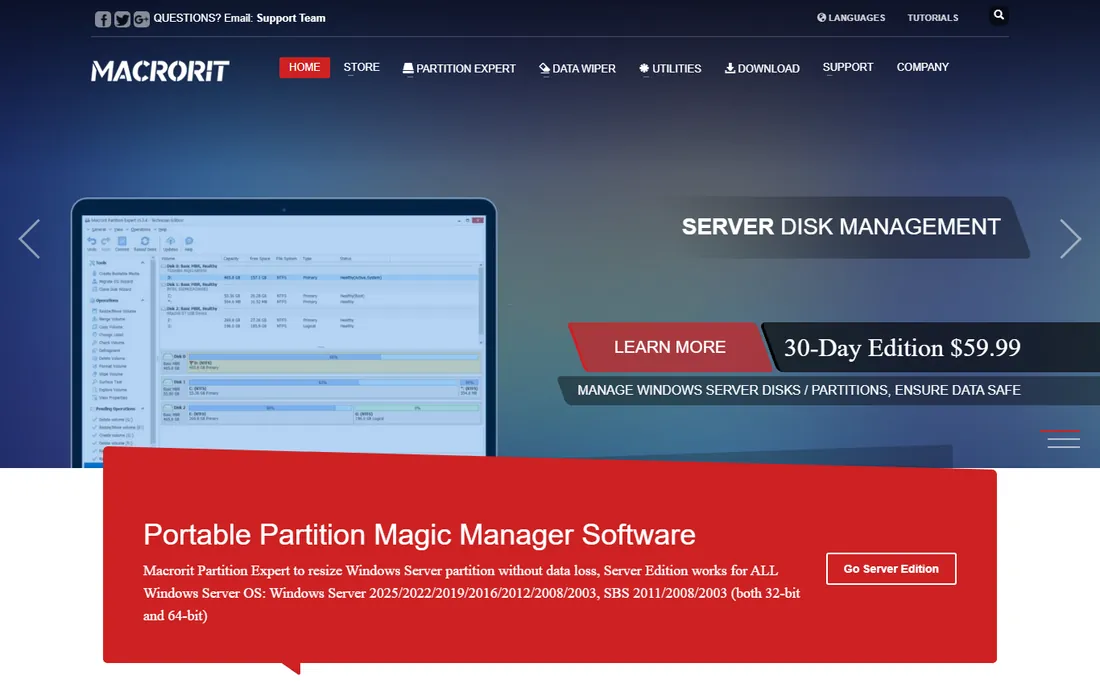
Macrorit's pitch is simple: professional partitioning at a fraction of the big-name price. The free edition handles basic resize, create and format work. The Pro edition, currently listed at $39.99, adds the full feature set with a one-time payment, no subscription. The standout engineering is the safety layer: cancel-at-will lets you stop an operation mid-way with data intact, and the one-second rollback restores everything if power fails or the system crashes.
A portable edition runs from USB without installing, which technicians appreciate. The company is smaller than EaseUS or MiniTool, so expect less hand-holding in documentation. But the price-to-feature ratio is hard to argue with. For a home user who wants paid-grade safety features without a paid-grade price, this is the value pick.
What we like- Pro edition at $39.99 is among the cheapest paid options
- Cancel-at-will and one-second rollback data protection
- Portable edition runs without installing
Watch out for- Brand is less known, so fewer independent reviews
- Advanced server features need higher tiers
Starting priceFree (home)
Free planYes
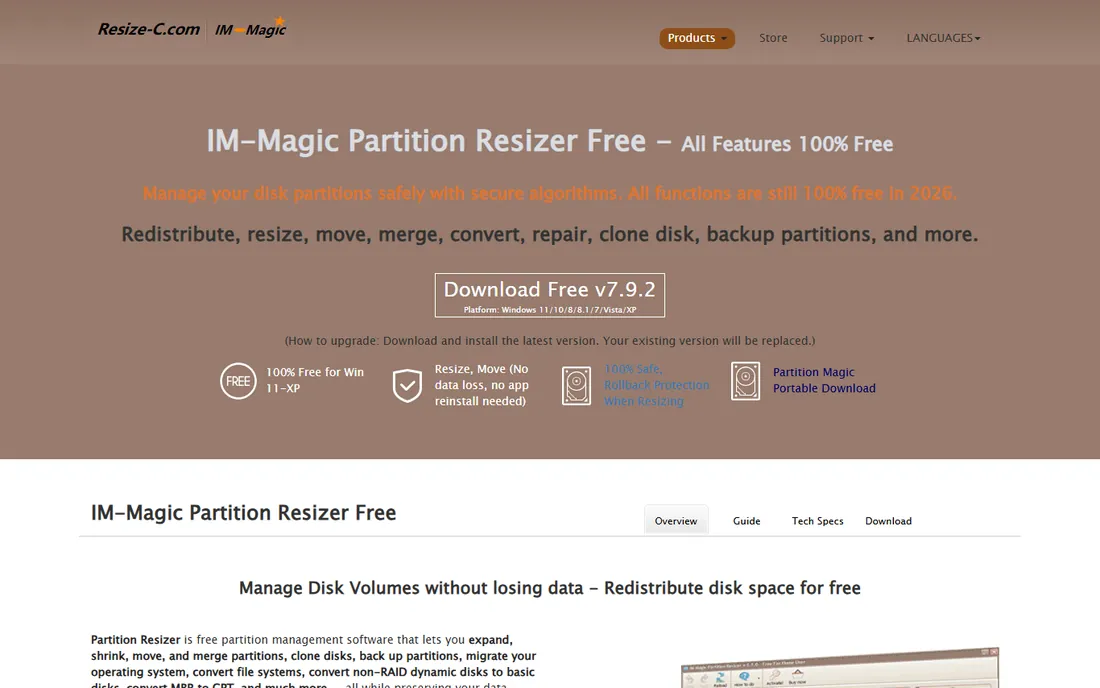
IM-Magic makes an unusual promise and keeps it: every feature remains free for home users. Resize, move, merge, clone, migrate the OS, convert MBR to GPT and dynamic to basic disks, all without paying. Rollback protection guards against interrupted operations, and a portable edition runs without installation. It even handles the tricky partitions, EFI system, recovery and OEM, that trip up lesser tools.
The business model is honest about its limits: commercial and server use requires paid editions starting at $139 for Server. The interface looks its age, but the functionality is current, with version updates through 2026. For home users who want the whole toolbox for free, with no feature gates, this is the most generous offer in the category.
What we like- All features free for home users in 2026
- Rollback protection and portable edition
- Handles EFI, recovery and BitLocker-adjacent partitions
Watch out for- Paid server editions start at $139
- Interface is dated
- Free license excludes commercial use
Starting priceFree
Free planYes
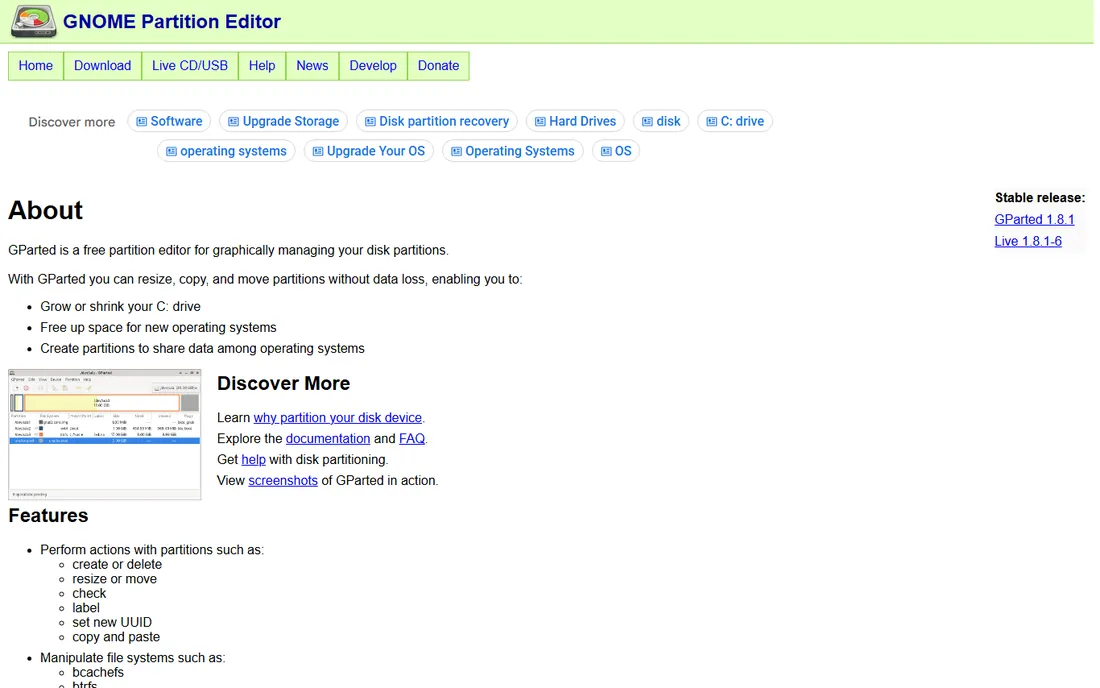
GParted is the tool technicians keep on a USB stick. It is a free, open-source partition editor that boots from GParted Live media and manages disks on Windows, Mac and Linux machines. The file system support is unmatched: NTFS, FAT32, exFAT, ext4, btrfs, HFS+, XFS and more, with resize, move, copy, check and label operations across all of them.
Because it runs outside Windows, it can modify the system drive freely, which installed tools cannot always do. The cost is convenience: you boot into a Linux environment, and there is no support line. For IT pros, dual-boot users and anyone rescuing an unbootable machine, GParted is indispensable. For a nervous first-timer resizing C: on a working laptop, pick a Windows wizard tool instead.
What we like- Completely free and open source
- Supports an enormous range of file systems
- Runs from bootable USB on any machine
Watch out for- Linux-based live environment, not a Windows app
- No official support
- Intimidating for beginners
Starting price$69.90
Free planYes
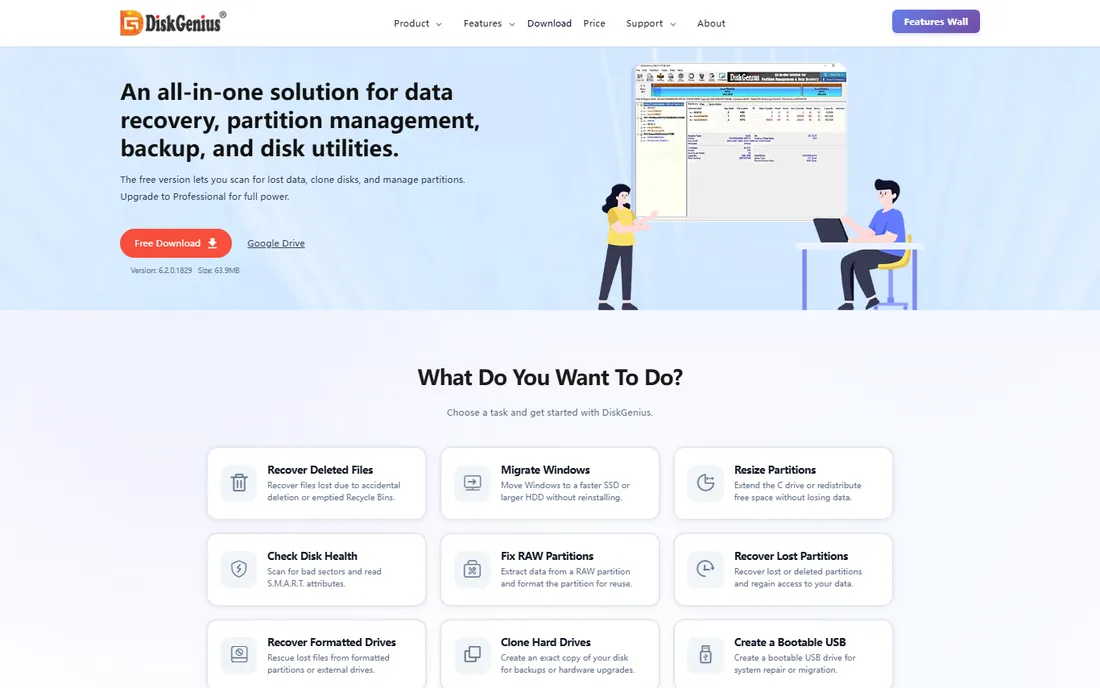
DiskGenius is the Swiss army knife of this list. Beyond standard partitioning, resize, format, convert GPT/MBR, clone, migrate Windows, it includes data recovery for deleted and formatted files, partition table recovery, disk health checks, sector editing and boot repair. When a disk problem is ambiguous, is the partition broken or is the data gone, having both toolkits in one app saves real time.
The free edition covers basic partition management, cloning and OS migration, plus scanning and previewing recoverable files. The Professional edition starts at $69.90 with one-time licensing and no auto-renewal, adding full recovery, sector tools and dynamic disk conversion. The interface packs a lot in, which can overwhelm, but the breadth is genuine. For technicians and power users who want one utility for the whole disk, this is the pick.
What we like- Combines partition management, data recovery, backup and disk repair
- Free edition covers basic partitioning and cloning
- One-time licensing with no auto-renewal
Watch out for- Interface is dense with features
- Full recovery and sector tools need the Pro edition
The free editions in this category are unusually capable. IM-Magic gives home users everything. GParted gives technicians everything. EaseUS, MiniTool and AOMEI cover the common jobs free. So when does paying make sense?
Paid licenses buy four things: OS migration without limits, partition and data recovery, server and commercial use rights, and support. If you are moving Windows to an SSD, recovering a deleted partition, managing servers, or doing this for clients, the paid tier earns its price quickly. Macrorit Pro at $39.99 and DiskGenius Pro from $69.90 are the cheapest routes to the full toolkit; both are one-time payments, not subscriptions.
One warning: "lifetime" licenses in this market sometimes mean the lifetime of the major version, not your lifetime. Read the license terms. And never pay before testing the free edition on a non-critical drive, since partitioning behavior varies between tools.
What to check before you resize anything
Partitioning is safe when done right and catastrophic when done wrong. These checks take ten minutes and prevent nearly every disaster.
Back up first, always. Partitioning tools are reliable, but power failures, failing drives and user error exist. A full disk image before you start turns any mistake into an inconvenience instead of a crisis. Every vendor on this list would tell you the same.
Second, check the drive's health. Resizing a partition on a failing drive can push it over the edge. Run a SMART check or the disk health tool in DiskGenius or AOMEI before moving data around. If the drive shows bad sectors or warnings, clone it to a healthy drive first.
Third, understand what the built-in Windows Disk Management cannot do, so you know why you are buying software. It cannot extend a partition into non-adjacent unallocated space, cannot move partitions, cannot merge them, and cannot convert MBR to GPT without wiping. If your job needs any of those, you need one of the tools above.
Finally, for SSDs, confirm 4K alignment after operations. Misaligned partitions slow SSDs measurably. The reputable tools on this list handle alignment automatically, but it is worth verifying on older drives.
How we chose
We verified each product against its vendor's own site: the product is current, the free or paid edition described is genuinely offered, and development is active. Pricing comes from vendor pages where published; where vendors use quote-based or promotional pricing, we say so. We weighed documentation quality, public review coverage and community discussion, and fit for different buyers, from nervous first-timers to IT professionals. We did not run hands-on partitioning tests on live drives. Safety features like rollback protection and change previews weighed heavily, because in this category the cost of failure is your data.
Frequently asked questions
Is it safe to resize a partition without losing data?
Yes, with reputable tools, when the drive is healthy and you back up first. Modern partition managers move data safely and include rollback protection against power failures. The risk cases are failing drives, interrupted operations on tools without rollback, and user error like resizing the wrong partition. Back up, verify the drive health, and double-check which partition you selected.
Can I extend my C: drive without reinstalling Windows?
Yes. Shrink or move a neighboring partition to create unallocated space adjacent to C:, then extend C: into it. If the unallocated space is not adjacent, use the tool's move function to shuffle partitions. All the tools on this list handle this; IM-Magic and EaseUS document the exact steps.
What is the difference between MBR and GPT?
They are two ways of organizing a disk's partition table. GPT is the modern standard: it supports drives over 2TB, more partitions, and works with UEFI boot. MBR is the legacy format, limited to 2TB and four primary partitions. The tools above convert between them, usually without data loss on non-system disks.
Do I need to pay for a partition manager?
Often not. The free editions of EaseUS, MiniTool, AOMEI, IM-Magic and Macrorit cover everyday resizing and formatting, and GParted is fully free. Pay when you need OS migration without limits, partition recovery, server support, commercial use rights, or vendor support. Try the free tier on your actual task first.
Why can't Windows Disk Management extend my partition?
Usually because the unallocated space is not directly adjacent to the partition, or because the partition is not NTFS. Windows can only extend into contiguous unallocated space to the right. Third-party tools move partitions to make space adjacent, which is the step Windows cannot do.
Sources we checked (13)
- https://www.easeus.com/
- https://minitool.com/
- https://www.diskpart.com/
- https://www.partition-manager.com/
- https://www.niubi.com/
- https://macrorit.com/
- https://www.resize-c.com/
- https://gparted.org/
- https://www.diskgenius.com/
- http://www.easeus.com/partition-master/free-partition-manager.html
- https://www.guru99.com/best-free-partition-management-software-windows.html
- https://www.softwaretestinghelp.com/free-disk-partition-manager/
- https://thesweetbits.com/best-disk-partition-manager/
Is your product missing or out of date?
We review this list regularly. Vendors can request a listing, send updated pricing or ask about featured placement.

Shihab Mia · Founder, Rankite
Shihab has spent more than a decade helping SaaS and e-commerce brands grow through search. He writes Rankite's software buying guides from pricing pages, documentation and public user reviews. More about Shihab.
 MiniTool Partition Wizard
 AOMEI Partition Assistant
 Paragon Partition Manager
 IM-Magic Partition Resizer
 GParted
 DiskGenius