How we make this list: we compare pricing pages, product documentation and public user reviews. Ratings come from G2, Capterra or Trustpilot, with the date we checked them.
Key takeaways
- Kling and Runway lead for realistic motion from a photo, with Kling offering a lower starting price and Runway offering a fuller editing suite.
- Pika and PixVerse suit fast social clips, with simple controls and lower starting prices than full production platforms.
- Adobe Firefly and Canva fit teams that already work in those ecosystems and need video as one part of a wider design workflow.
- Free plans are useful for testing, but most limit credits, clip length, or resolution, so check the free tier before you plan a series.
- The best photo for animation is sharp, well lit, and simple, because cluttered or low-resolution images tend to produce distorted motion.
Quick comparison
| Tool | Best for | Starting price | Free plan |
|---|
 Runway Runway | Professional image to video with editing tools | $12 per user/month (billed annually) | Yes |
 Kling AI Kling AI | Realistic motion at a low starting price | See website | Yes |
 Pika Pika | Fast stylized clips for social media | $8 per user/month (billed annually) | Yes |
 Luma Dream Machine Luma Dream Machine | High-quality clips for post-production | See website | Yes |
 Hailuo AI Hailuo AI | Multi-reference and character-led clips | See website | Yes |
 PixVerse PixVerse | Daily free credits for quick drafts | $8 per user/month (billed annually) | Yes |
 Adobe Firefly Adobe Firefly | Client work inside Adobe tools | $9.99 per user/month | Yes |
 Canva Canva | Simple video inside a design workflow | $15 per user/month (Pro, billed annually) | Yes |
 CapCut CapCut | Social video with built-in editing | See website | Yes |
Is your product missing or out of date?
We review this list regularly. Vendors can request a listing, send updated pricing or ask about featured placement.
#1Runway
Best for: Professional image to video with editing tools4.1/5 on
G2 (105 reviews, checked Oct 2026)
Visit runwayml.com
Starting price$12 per user/month (billed annually)
Free planYes
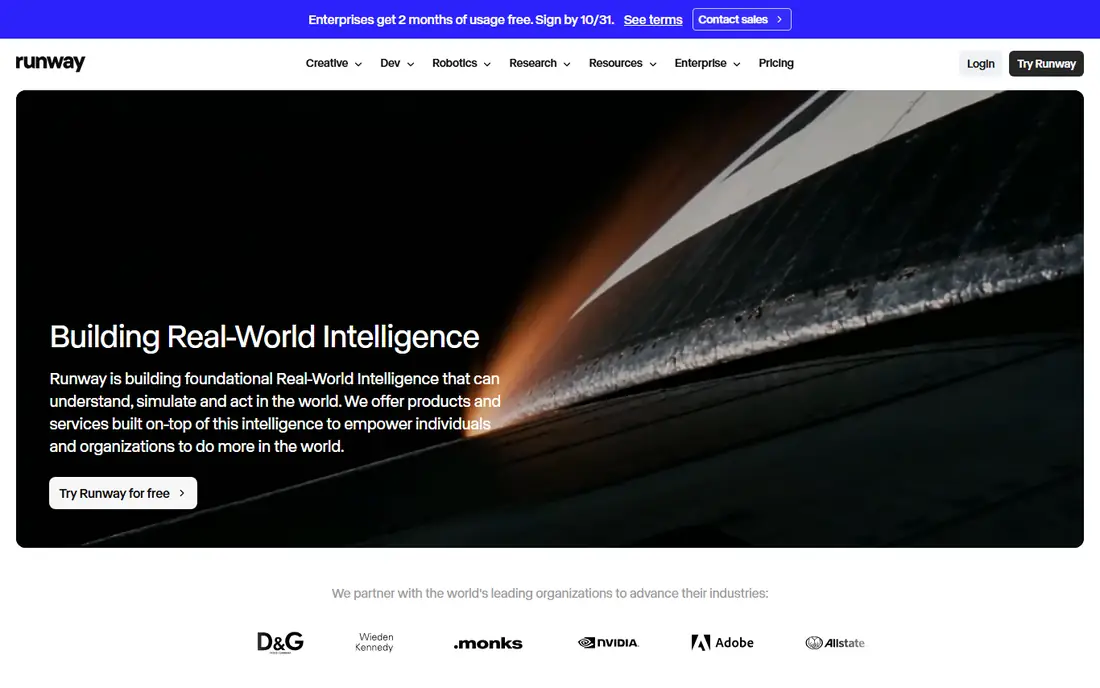
Runway is the most complete platform on this list for turning a photo into a finished clip. You can animate an image, adjust camera movement, and then edit, upscale, and add sound in the same workspace. That matters when a clip is not just a social post, but part of a client deliverable or a brand video that needs polish.
The cost reflects that breadth. The Standard plan starts at $12 per user per month billed annually, and the free tier gives a one-time credit allowance rather than a monthly refill. Runway fits best for creators and small production teams that need reliable motion, editing tools, and a workflow they can repeat, rather than a single free experiment.
What we like- Strong motion quality and character consistency
- Full editing suite beyond generation
- No watermark on paid plans
Watch out for- Free credits are one-time only, with no monthly refill
- Higher tiers are needed for the newest models
Starting priceSee website
Free planYes
Kling has built a following because its motion looks natural at a price below many rivals. A portrait can turn its head, a product shot can rotate, and a scene can gain slow camera movement without the warping that weaker models produce. Daily free credits make it easy to test several prompts before paying.
The trade-off is complexity. Different models, clip lengths, and quality settings use credits at different rates, so budgeting takes a little practice. Kling fits best for creators who animate photos often, want realistic results, and prefer a lower monthly cost over a full editing suite.
What we like- Good price-to-quality balance for realistic motion
- Daily free credits for regular testing
- Longer clips through extensions on higher tiers
Watch out for- Credit math can be confusing across models and lengths
- Top models and features require higher plans
Starting price$8 per user/month (billed annually)
Free planYes
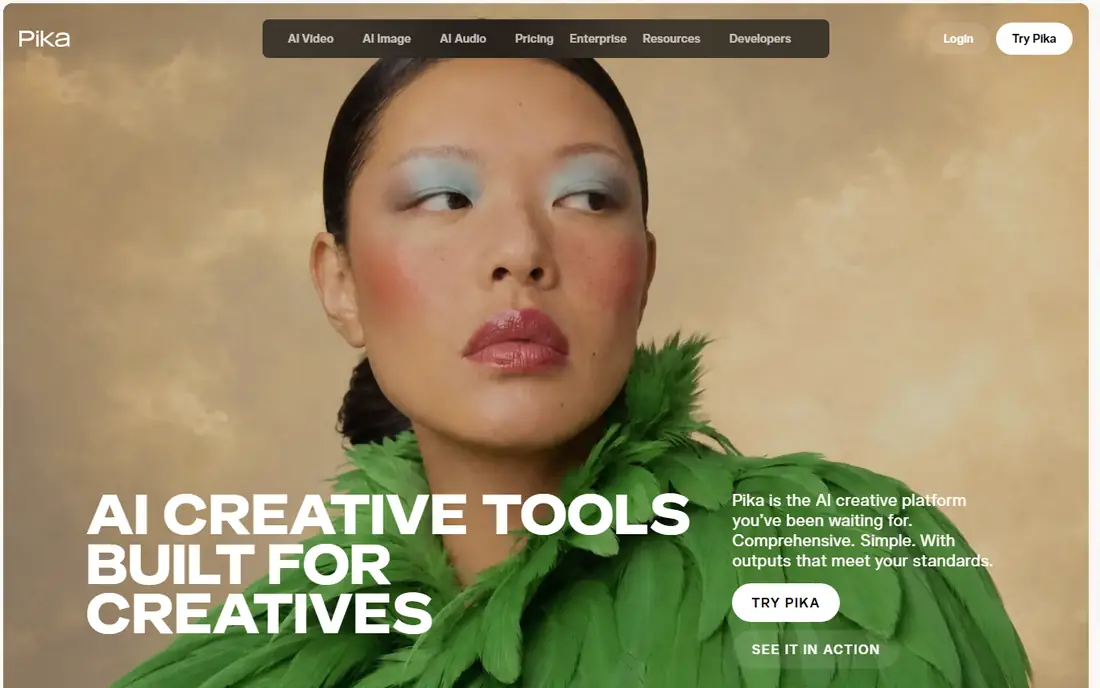
Pika is built for speed. Upload a photo, describe the motion, and get a short clip that works well for TikTok, Reels, and Shorts. The interface stays out of the way, which helps when you need several variations of one idea in a single session.
Pika is less suited to long, cinematic sequences or complex multi-shot stories. Clip length is short, and the best quality and licensing terms sit above the entry plan. Pika fits best for social creators who want quick, stylized animation and are happy to keep clips short.
What we like- Simple interface and fast generation
- Good for stylized effects and social formats
- No watermark on any tier, based on public pricing guides
Watch out for- Free access is limited to packs rather than monthly credits
- Commercial license requires a higher plan
#4
Luma Dream Machine
Best for: High-quality clips for post-production
Visit lumalabs.ai
Starting priceSee website
Free planYes
Luma Dream Machine appeals to editors who care about how a clip looks after it leaves the generator. The motion is smooth, detail holds up reasonably well, and the output can slot into a timeline with other footage. That makes it a good choice when the generated clip is raw material, not the final post.
The limits are familiar: short clips, credit-based pricing, and higher costs for higher resolution. Luma fits best for creators and editors who already have an editing workflow and want strong image to video quality to feed into it.
What we like- Strong visual quality for short clips
- Useful for footage that will be edited further
- Clean interface for image to video
Watch out for- Pricing and credit use vary by plan and model
- Short clip lengths limit storytelling in one generation
Starting priceSee website
Free planYes
Hailuo, also known as MiniMax video, is useful when one photo is not enough. In modes that accept multiple references, you can keep a character or product more consistent across shots, which is a common weak point for image to video tools. For creators making a short series around one subject, that consistency is valuable.
Free generations are watermarked, so plan to pay if the clip will be published. Hailuo fits best for creators who want character-led clips, do not need a full editing suite, and are willing to learn which model suits each type of shot.
What we like- Handles multiple reference images in some modes
- Good for character and scene-led animation
- Low-cost entry compared with larger platforms
Watch out for- Free output carries a watermark
- Model and feature access varies by plan
Starting price$8 per user/month (billed annually)
Free planYes
PixVerse is a practical draft tool. Daily free credits let you test a photo, try a different motion prompt, and compare results without paying for each attempt. That makes it good for learning what works, and for creators who post often but do not need top-end production quality every time.
Paid plans start at $8 per user per month billed annually, with higher tiers for better resolution and more credits. PixVerse fits best for hobbyists, students, and social creators who want a low-cost way to animate photos regularly, with an easy upgrade path when volume grows.
What we like- Daily free credits for regular practice
- Simple image to video workflow
- Low starting price for a paid plan
Watch out for- Entry plan caps resolution on some settings
- Credit limits can run out quickly on longer clips
#7Adobe Firefly
Best for: Client work inside Adobe tools4.4/5 on
G2 (373 reviews, checked Oct 2026)
Visit adobe.com
Starting price$9.99 per user/month
Free planYes
Adobe Firefly is the safest pick for teams that already deliver work through Adobe apps. A photo can be animated, then moved into Premiere Pro or another Adobe tool for finishing, without changing file habits or team permissions. For client work, the clearer approach to training content and commercial use also helps in conversations with cautious clients.
The limit is clip length and scope. Firefly is not a full video production platform, and longer stories need several generations stitched together. Firefly fits best for designers and agencies already paying for Adobe, who need short, usable video from photos as part of a wider project.
What we like- Fits Adobe Creative Cloud workflows
- Designed for commercial use with clearer content sourcing
- Free daily generations for testing
Watch out for- Clips are short, around five seconds on many settings
- Video is one feature in a wider plan, not a standalone studio
#8Canva
Best for: Simple video inside a design workflow4.7/5 on
G2 (7,678 reviews, checked Oct 2026)
Visit canva.com
Starting price$15 per user/month (Pro, billed annually)
Free planYes
Canva is not trying to beat Runway or Kling on motion quality. Its strength is convenience: a marketer can animate a product photo, add a headline and logo, and export a social post without opening a second app. For small teams that publish often, that saved time matters more than cinematic motion.
The shared AI allowance is the catch. Video generations draw from the same pool as other AI features, so heavy video use can eat the allowance quickly. Canva fits best for marketers and small businesses that already design in Canva and need simple, branded video from photos.
What we like- Video generation sits inside a familiar design tool
- Easy to add text, branding, and layouts
- Good for teams that already use Canva
Watch out for- Video quality and control are below dedicated generators
- AI allowance is shared across Magic Studio tools
Starting priceSee website
Free planYes
CapCut is the most social-first tool here. After animating a photo, you can trim, add captions, music, transitions, and effects without exporting to another editor. That all-in-one flow is why many short-form creators start and finish a post inside CapCut.
The free tier is generous for editing, but AI video features and some exports are stronger on Pro, and pricing varies by platform. CapCut fits best for creators who live on short-form video and want generation plus editing in one place, rather than a standalone generator.
What we like- Full editor plus AI tools in one app
- Strong for TikTok and Reels formats
- Free tier covers a lot of editing work
Watch out for- Best video features and higher quality exports sit on Pro
- Web and app pricing can vary by region and store
How we chose
We checked vendor pricing pages, product documentation, and public reviews on G2, Capterra, and Reddit, and compared each tool on image to video quality, clip length, resolution, credit system, free plan, and export options. Tools were kept only if they accept a photo as input today, return a video clip, and are available to US users. Where pricing was unclear or varied by region, we marked it as See website instead of publishing a guessed number.
We gave extra weight to tools that handle faces, products, and camera movement without heavy distortion, since those are the cases most readers will try first. A tool with beautiful demo clips but a confusing credit system scored lower than a slightly less polished tool with clear, repeatable results.
How to get better results from a photo
Good input and a clear prompt do more for quality than any single setting. Use the checks below before you spend credits on a large batch.
Start with a clean photo
Use a sharp, well-lit image with a clear subject and a simple background. Faces should be front-facing or close to it, and products should fill a good part of the frame. Low-resolution, blurry, or crowded photos tend to produce warped faces, extra limbs, or shifting backgrounds.
Describe motion, not just the scene
A prompt such as "slow push-in, subject turns slightly, hair moves in a light breeze" gives the model more to work with than "make this video." Name the camera move, the subject move, and the pace. Keep it to one main action per clip, since asking for several actions at once often causes distortion.
Test short, then extend
Generate a short clip first, check the face, hands, and edges, and only then try a longer or higher-resolution version. If the short clip fails, a longer one will usually fail in the same place and cost more credits. Save the prompt and settings that work, so a series keeps a consistent look.
Plan for editing, not a single perfect clip
Treat generated clips as raw material. Trim the first and last frames, where motion often jumps, add captions or music in an editor, and keep clips short for social feeds. A five to ten second clip that is clean beats a longer clip with a visible glitch in the middle.
Frequently asked questions
Can AI really turn a single photo into a video?
Yes, within limits. The tool animates the photo by predicting motion for the subject, background, and camera, based on your prompt. Results are best for short clips with simple motion. Complex actions, fast movement, and multiple people in one frame are more likely to show distortion.
Which free AI tool is best for photo to video?
Kling offers daily free credits and realistic motion, which makes it a strong free starting point. Pika and PixVerse also offer free access, though with limits on credits or packs. Try the same photo on two or three free tiers before paying, since motion quality varies by subject.
How long can a photo to video clip be?
Most tools in this guide produce clips of five to ten seconds per generation, with some offering extensions or chained generations for longer sequences. Runway clips reach about sixteen seconds on some settings, while Kling can extend clips on higher tiers. For a longer video, plan to generate several clips and edit them together.
Will the video have a watermark on a free plan?
It depends on the tool. Some free tiers, such as Hailuo, watermark output, while others remove the watermark on paid plans. Check the free plan terms for each tool before publishing, since a watermark can make a clip unusable for client or brand work.
Do I need video editing skills to use these tools?
No, for basic use. Upload a photo, write a motion prompt, and download the clip. Editing skills help when you want to trim glitches, add text or music, and combine clips into a longer video, but they are not required to create a first clip.
Can I use AI photo to video clips commercially?
That depends on the tool and plan. Some plans include commercial use, while others restrict it to lower tiers or require a higher plan. Check the license terms for the exact plan you buy, especially for client work, ads, and paid social posts, before publishing.
Sources we checked (9)
- https://runwayml.com/pricing
- https://klingai.com/pricing
- https://pika.art/pricing
- https://lumalabs.ai/pricing
- https://hailuoai.video/pricing
- https://pixverse.ai/pricing
- https://www.adobe.com/products/firefly/pricing.html
- https://www.canva.com/pricing
- https://www.capcut.com/pricing
Is your product missing or out of date?
We review this list regularly. Vendors can request a listing, send updated pricing or ask about featured placement.

Shihab Mia · Founder, Rankite
Shihab has 5+ years in B2B and SaaS SEO. He writes Rankite's software buying guides from pricing pages, documentation and public user reviews. More about Shihab.