How we make this list: we compare pricing pages, product documentation and public user reviews. Ratings come from G2, Capterra or Trustpilot, with the date we checked them.
Key takeaways
- Adobe Photoshop remains the most complete choice when you need generative fill, precise layers, and a huge plugin and tutorial base, but it is a subscription and it takes time to learn.
- Luminar Neo, DxO PhotoLab, and ON1 Photo RAW suit photographers who prefer a one-time purchase, with AI tools built around portraits, raw quality, or an all-in-one workflow.
- Topaz Photo is the specialist pick for rescuing noisy, soft, or low-resolution photos, rather than a full editor for everyday creative work.
- Browser editors such as Canva, Fotor, and Pixlr are the fastest route to AI background removal, object removal, and social-ready edits, and each has a free plan worth trying first.
- The best AI photo editing app for you depends more on file type, volume, and device than on a single headline feature.
Searching for the best AI photo editing app can feel confusing because the tools do very different jobs. Some clean up a photo you already like. Others generate new parts of an image, replace a sky, or rebuild a face from a low-resolution file. A few do a little of everything in a browser, with no download at all. This guide separates those jobs so you can match the tool to the work you actually do.
The list below mixes desktop editors, a repair specialist, and browser tools. Prices are in US dollars where a vendor page made them clear. Where a price changes often with promotions, the entry says See website, and you should check the checkout page before you buy.
Quick comparison
| Tool | Best for | Starting price | Free plan |
|---|
 Adobe Photoshop Adobe Photoshop | Full generative and layer editing | $22.99 per month (billed annually) | Free trial (7 days) |
 Adobe Lightroom Adobe Lightroom | Organizing and editing large photo libraries | See website | Free trial |
 Luminar Neo Luminar Neo | One-click AI portrait and scene edits | See website | Free trial |
 Topaz Photo Topaz Photo | Denoise, sharpen, and upscale | $199 per year | No |
 DxO PhotoLab DxO PhotoLab | High-quality raw conversion | $159.99 one-time purchase | Free trial (30 days) |
 ON1 Photo RAW ON1 Photo RAW | All-in-one editing without a subscription | $99.99 one-time purchase | Free trial |
 Canva Canva | Fast social and design edits in a browser | See website | Yes |
 Fotor Fotor | Quick browser edits and AI generation | See website | Yes |
 Pixlr Pixlr | Free browser editing with AI tools | $1.99 per month | Yes |
Is your product missing or out of date?
We review this list regularly. Vendors can request a listing, send updated pricing or ask about featured placement.
#1Adobe Photoshop
Best for: Full generative and layer editing4.6/5 on
G2 (13,426 reviews, checked Oct 2026)
Visit adobe.com
Starting price$22.99 per month (billed annually)
Free planFree trial (7 days)
Photoshop is the reference point for this category, and its AI tools are now woven through the normal editing workflow. Generative Fill lets you select an area and describe what should appear there, while Generative Expand extends a canvas beyond its original edges. Subject selection, sky replacement, and neural filters handle many routine jobs in a few clicks. Underneath those features, you still get the layers, masks, brushes, and color controls that professionals rely on for client work.
That depth is also the main drawback. A casual editor may open Photoshop for a simple fix and find a large interface and terms that take weeks to learn. At $22.99 per month on an annual plan billed monthly, it costs more over two or three years than a one-time purchase from a smaller vendor. It makes most sense if you edit often, need PSD compatibility, or already use other Adobe apps.
What we like- Generative Fill and Generative Expand
- Deep layers, masks, and selection tools
- Wide plugin, format, and tutorial support
Watch out for- Subscription cost adds up
- Learning curve is steep for casual users
#2Adobe Lightroom
Best for: Organizing and editing large photo libraries4.6/5 on
G2 (3,299 reviews, checked Oct 2026)
Visit adobe.com
Starting priceSee website
Free planFree trial
Lightroom suits photographers who shoot in volume and need order as much as editing power. Its catalog tools, ratings, keywords, and collections help you find a photo months later, and presets plus batch edits keep a whole shoot consistent. AI masks can select a subject, sky, or background, and Denoise can clean up high ISO raw files before you start grading color. The mobile app extends the same library to a phone, which helps when you shoot, cull, and share on the same day.
Lightroom is not a replacement for Photoshop for complex compositing or detailed rebuilding of a damaged area. It also ties much of its value to Adobe cloud storage, so check how much storage your plan includes. For large libraries, the mix of organization, non-destructive edits, and AI masking is hard to beat in one program.
What we like- Strong catalog, presets, and batch editing
- AI masks and Denoise for raw files
- Edits sync across desktop, web, and mobile
Watch out for- Less suited to heavy compositing or pixel-level retouching
- Cloud storage limits vary by plan
#3Luminar Neo
Best for: One-click AI portrait and scene edits4.4/5 on
G2 (115 reviews, checked Oct 2026)
Visit skylum.com
Starting priceSee website
Free planFree trial
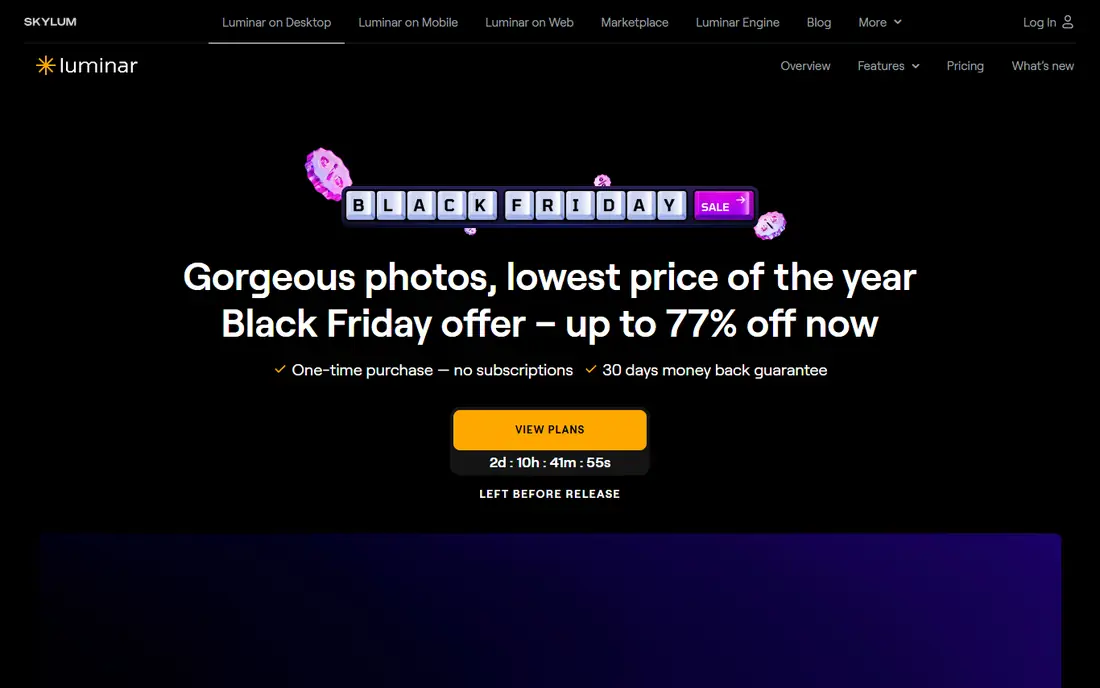
Luminar Neo is built for photographers who want a visible result quickly, without building a complex mask by hand. SkyAI can replace a flat sky, SkinAI and FaceAI can smooth skin and adjust facial light, and GenErase can remove an unwanted object and fill the gap. RelightAI adjusts light across a scene, which helps when a portrait was shot in uneven shade. The interface stays calmer than Photoshop, and most tools ask for a slider or a click rather than a long series of steps.
The trade-off is control and library depth. Luminar Neo works well standalone or as a plugin, but very large catalogs may still suit Lightroom better. Pricing needs a careful read, because a perpetual license and a time-limited period for generative tools are not the same thing. Check which features stay available after the first year.
What we like- Named AI tools for sky, skin, face, and relighting
- Works standalone or as a plugin
- Perpetual license option
Watch out for- Generative features have a time-limited access period on some plans
- Catalog tools are lighter than Lightroom
#4Topaz Photo
Best for: Denoise, sharpen, and upscale4.3/5 on
G2 (2 reviews, checked Oct 2026)
Visit topazlabs.com
Starting price$199 per year
Free planNo
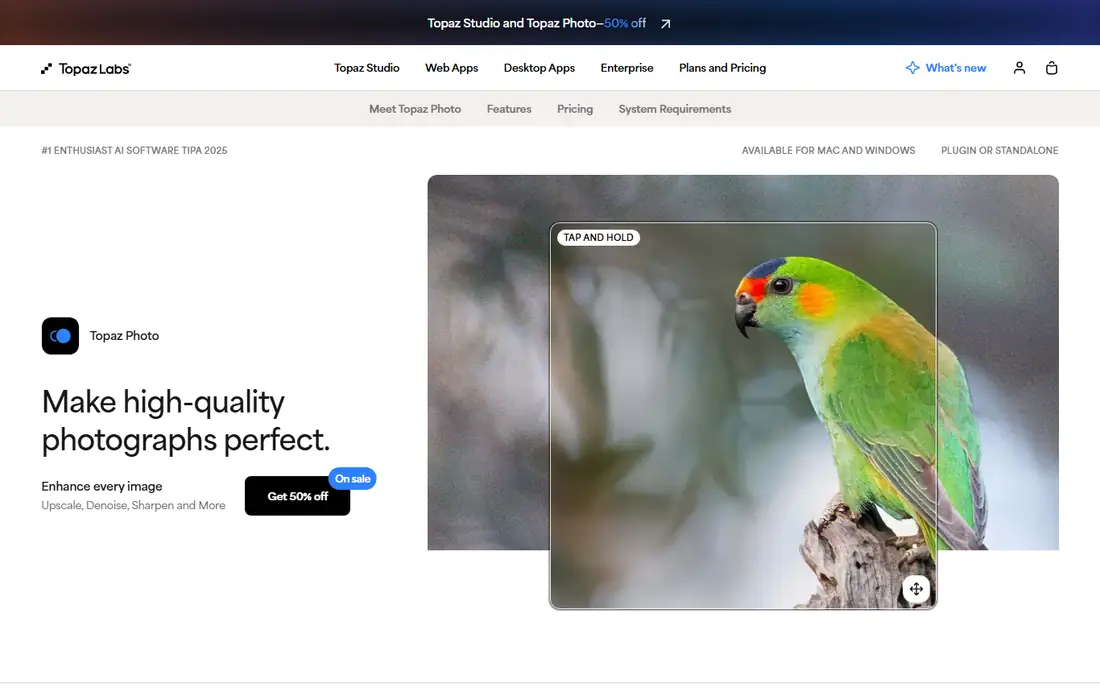
Topaz Photo answers a narrow question very well: can this flawed photo be saved. It focuses on noise reduction, sharpening, face recovery, lighting and color balance, and upscaling, using models trained for each job. Autopilot can suggest settings for a photo, and you can then adjust the result. It runs as a standalone app or as a plugin for Photoshop, Lightroom Classic, Capture One, and Apple Photos, so it fits into an existing workflow rather than replacing it.
Because it is a specialist, Topaz Photo is not the right first editor for someone who needs layers, text, cataloging, or design tools. The regular price of $199 per year is also poor value if you only upscale a few photos a year, even though first-year pricing is often lower. For wildlife, event, and archive work, where soft or noisy files are common, it can pay for itself by rescuing shots that would otherwise be deleted.
What we like- Strong denoise, sharpen, face recovery, and upscaling
- Local rendering keeps files on your computer
- Plugin support for major editors
Watch out for- Not a full photo editor or organizer
- Regular price is high for occasional use
#5DxO PhotoLab
Best for: High-quality raw conversion4.4/5 on
Capterra (14 reviews, checked Oct 2026)
Visit dxo.com
Starting price$159.99 one-time purchase
Free planFree trial (30 days)
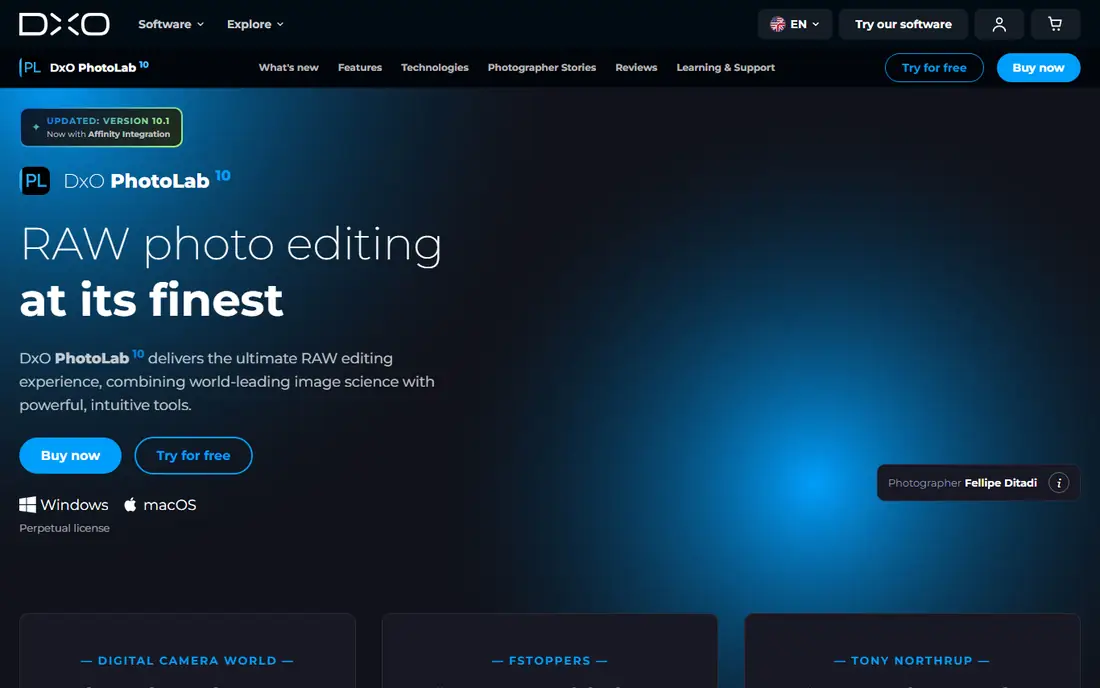
DxO PhotoLab starts from raw quality, not from effects. Its DeepPRIME and DeepPRIME XD noise reduction aims to clean high ISO files while keeping detail, and its camera and lens modules apply corrections measured in a lab rather than generic profiles. Version 10 adds AI masks, depth masks, and a revised color grading tool, so local edits can target a person, a face feature, or a foreground and background separately. For photographers who print large or crop heavily, that early raw quality can matter more than a flashy filter.
The Essential edition starts at $159.99 as a one-time purchase, while Elite is higher and adds the full feature set. A 30-day free trial gives full access, which is enough time to test it on your own camera files. PhotoLab does not try to be a design app, and its library tools are lighter than a full catalog system. If you want the best raw starting point and you are happy to finish creative work elsewhere, it is a strong pick.
What we like- DeepPRIME noise reduction and lens corrections based on lab measurements
- AI masks including depth masks
- Perpetual license with no subscription
Watch out for- No mobile companion app in the same workflow
- Interface and library tools feel narrower than Lightroom
#6
ON1 Photo RAW
Best for: All-in-one editing without a subscription
Visit on1.com
Starting price$99.99 one-time purchase
Free planFree trial
ON1 Photo RAW tries to replace a stack of apps with one program. You can browse files where they live, develop raw files, work with layers and masks, apply effects, and export, without moving between separate editors. Its AI set covers noise reduction, sharpening, upscaling, sky replacement, generative erase, and super select masking. The MAX edition adds photo restoration, plugin use inside Photoshop and Lightroom, and an AI culling assistant for large shoots.
That breadth means the interface has many panels to learn, and a new user may need a few sessions before it feels natural. Pricing is flexible, with a one-time purchase starting at $99.99 and subscriptions that add cloud sync and updates. Before buying, check whether the feature you want, such as Restore AI or plugin support, is in the standard edition or only in MAX.
What we like- Browser, raw editor, layers, and effects in one app
- NoNoise AI, Resize AI, and Generative Erase included
- One-time purchase or subscription choice
Watch out for- Large feature set can feel busy at first
- Some advanced features sit in the higher MAX edition
#7Canva
Best for: Fast social and design edits in a browser4.7/5 on
G2 (7,678 reviews, checked Oct 2026)
Visit canva.com
Starting priceSee website
Free planYes
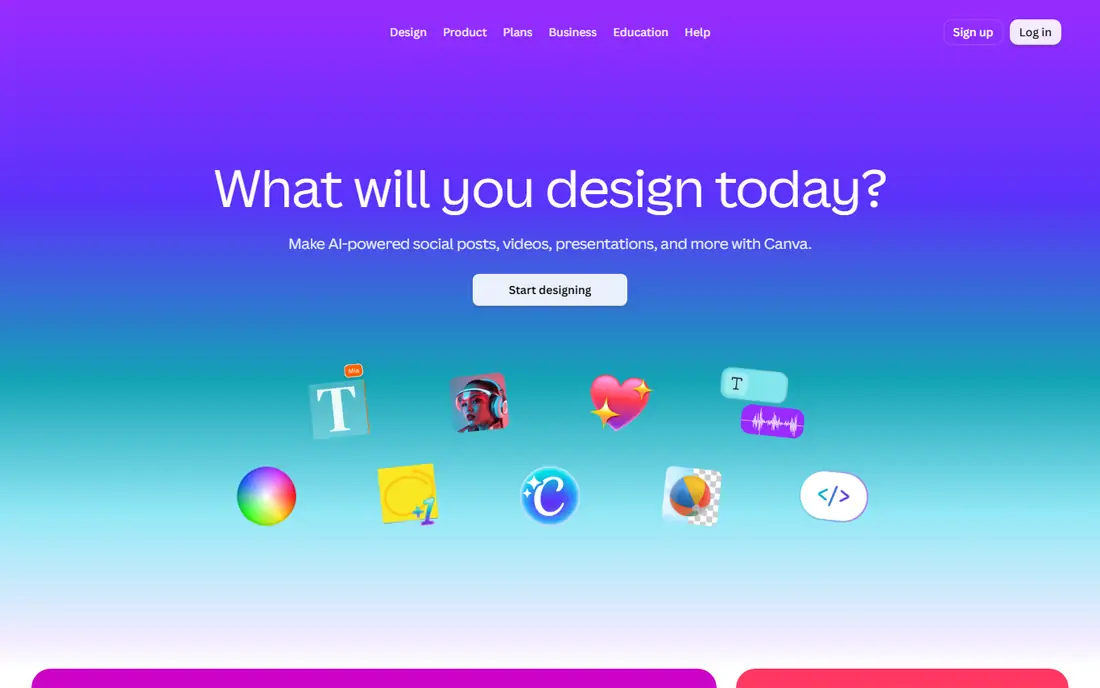
Canva is not a raw editor, and it does not try to be one. Its strength is speed for social posts, presentations, marketing graphics, and simple photo fixes. You can remove a background, use AI tools to edit or expand parts of an image, add text and design elements, and export in sizes made for each platform. The free plan covers many everyday jobs, and the template library helps a small business owner produce consistent graphics without design training.
The limits show up when a photo needs careful color grading, lens correction, or high-resolution print work. Canva works best on finished JPEG or PNG files, not as a raw workflow. Some AI features sit behind the paid Pro plan, and the free plan limits storage and premium assets.
What we like- Huge template library
- Background remover and Magic Edit tools in the browser
- Easy sharing and team collaboration
Watch out for- Less precise than a desktop raw editor
- Many AI features need a paid plan
#8Fotor
Best for: Quick browser edits and AI generation4.2/5 on
G2 (342 reviews, checked Oct 2026)
Visit fotor.com
Starting priceSee website
Free planYes
Fotor sits between a simple filter app and a full editor. In a browser, you can adjust light and color, retouch a portrait, remove a background, replace an object with a text prompt, or expand an image beyond its borders. Its collage maker and batch editor help when you need to prepare many images for a shop, a blog, or a social feed. Because it runs online, it works on a modest computer and on mobile without installing desktop software.
The browser approach also sets the ceiling. Fotor is not built for detailed raw development, complex layers, or large print files. The free plan is useful for testing, but higher-resolution exports and some AI features need a paid plan.
What we like- Browser editor with no download
- AI background removal, object replacement, and image expansion
- Collage and batch tools
Watch out for- Free plan has limits and ads in some areas
- Less depth for raw or print work
#9Pixlr
Best for: Free browser editing with AI tools4.4/5 on
G2 (751 reviews, checked Oct 2026)
Visit pixlr.com
Starting price$1.99 per month
Free planYes
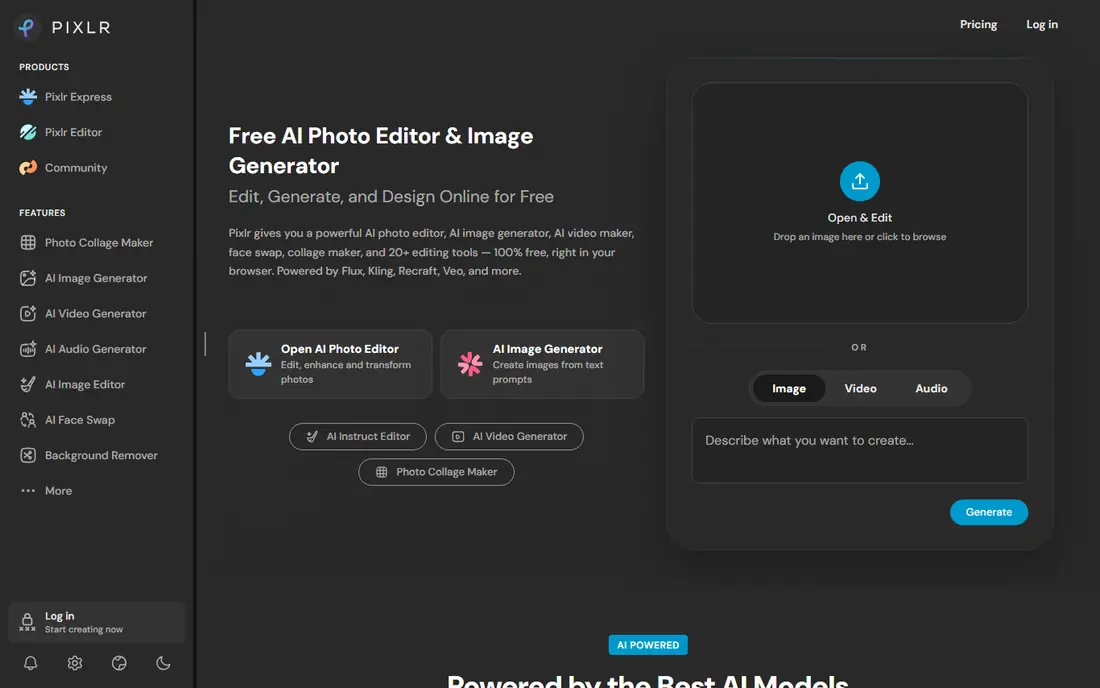
Pixlr is the closest free browser option to a desktop editor in this list. It offers layers, masks, filters, and retouching, plus AI tools for background removal, object removal, generative fill, image expansion, and upscaling. You can open it, edit a photo, and export without installing software, which makes it useful on a shared computer or a Chromebook. Paid plans start at $1.99 per month according to the Pixlr homepage, and they remove ads and add AI credits and assets.
The free plan is genuinely usable, but it is not unlimited. AI credits, ads, and some premium models are the main limits, and the wide tool set can feel crowded at first. Pixlr also needs a browser and an internet connection, so it is not the pick for offline raw work.
What we like- Free browser editing with layers and masks
- AI background removal, object removal, and generative fill
- No download needed
Watch out for- Free plan includes ads and AI credit limits
- Interface can feel crowded with many tools
How we chose
We compared vendor pricing pages, feature documentation, and public user feedback on sites such as G2, Capterra, and Reddit, and we checked each homepage to confirm the product still exists and matches its category. We favored tools that solve a clear job, whether generative editing, raw quality, photo repair, or fast browser work. We also weighed price structure, free trials, platform support, and export options.
No tool was ranked on a single feature. A strong AI effect matters less if the export is limited, the price rises sharply after a promotion, or the app cannot handle your file type.
What to check before you pay
Start with your file type and volume
Raw shooters should shortlist Lightroom, DxO PhotoLab, ON1 Photo RAW, and Luminar Neo, because browser editors are built mainly for JPEG and PNG files. If you edit a few photos a month for social media, a free browser tool may cover everything. High-volume photographers should test batch editing and export speed on their own files, not on sample images.
Read the price, not just the headline
Subscriptions, one-time purchases, and promotional first-year prices behave very differently over time. Check whether the price is billed monthly or annually, how many devices are covered, and whether AI features need renewal or credits. A lower first-year price can hide a higher renewal.
Keep control over the final image
AI tools can over-smooth skin, invent detail that was not there, or change colors in ways that look fine on a phone and poor in print. Look for strength sliders and non-destructive editing, so you can dial back an effect. Keep an original copy of every important photo before you apply a generative edit.
Frequently asked questions
What is the best AI tool for photo editing for beginners?
Canva, Fotor, and Pixlr are the easiest starting points, because they run in a browser and guide you through background removal, object removal, and simple enhancements. Luminar Neo is the best desktop step up if you want stronger AI portrait and scene tools without learning Photoshop. Try a free plan or trial first, and only pay once you know which tools you use every week.
What is the best AI photo editing app for professionals?
Adobe Photoshop is the most complete professional choice, thanks to generative fill, layers, and broad format and plugin support. Lightroom fits large libraries, while DxO PhotoLab and Topaz Photo suit raw quality or photo repair. Many professionals use two tools together, for example Lightroom for organization and Photoshop for finishing.
Can AI photo editors replace Photoshop?
For many everyday jobs, yes. Background removal, sky replacement, portrait retouching, and upscaling are now available in several cheaper or free tools. Photoshop still leads for complex compositing, detailed retouching, and work that must match a strict client or print standard. The right question is not whether an AI tool can replace Photoshop in general, but whether it can replace the specific Photoshop jobs you do.
Are free AI photo editors good enough?
Free plans from Canva, Fotor, and Pixlr are good enough for social media, blogs, small shops, and family photos. They have limits on resolution, AI credits, premium assets, and ads, and they are weaker for raw files and large prints. If you sell prints, shoot client work, or edit raw files weekly, a paid desktop editor will usually save time and give cleaner results.
Does AI editing reduce photo quality?
It can, if an effect is pushed too far. Heavy denoise can smooth texture, aggressive upscaling can invent detail, and generative fill can add elements that do not match the original light. Use moderate settings, check the result at full size, and keep the original file. For archival or documentary photos, keep AI changes minimal and note what was altered.
Do I need a fast computer for AI photo editing?
Desktop AI tools run faster on a modern processor and graphics card, especially for denoise, upscaling, and generative fill. Browser tools shift much of the work online, so they can run on a modest computer, but they need a stable internet connection. If your computer is older, start with a browser editor or use a trial to test desktop performance on your own photos before you buy.
Sources we checked (9)
- https://www.adobe.com/products/photoshop.html
- https://www.adobe.com/products/photoshop-lightroom.html
- https://skylum.com/luminar
- https://www.topazlabs.com/topaz-photo
- https://www.dxo.com/dxo-photolab/
- https://www.on1.com/products/photo-raw/
- https://www.canva.com/
- https://www.fotor.com/
- https://pixlr.com/
Is your product missing or out of date?
We review this list regularly. Vendors can request a listing, send updated pricing or ask about featured placement.

Shihab Mia · Founder, Rankite
Shihab has 5+ years in B2B and SaaS SEO. He writes Rankite's software buying guides from pricing pages, documentation and public user reviews. More about Shihab.