How we make this list: we compare pricing pages, product documentation and public user reviews. Rankite is independent; if a vendor ever pays for a featured spot, that listing is clearly labeled Partner.
Key takeaways
- Start with your printer's native slicer: Bambu Studio for Bambu Lab, PrusaSlicer for Prusa, UltiMaker Cura for everything else. They are free and tuned for the hardware.
- OrcaSlicer is the enthusiast favorite: free, open source, deep calibration tools, and profiles for Bambu, Prusa, Voron, Creality and more.
- Resin printers need a resin slicer: Lychee Slicer (free Lite tier) and ChiTuBox handle supports and hollowing far better than FDM tools.
- Simplify3D is the only paid slicer here; everyone else is free, so try two or three before spending anything.
Quick comparison
| Tool | Best for | Starting price | Free plan |
|---|
 UltiMaker Cura UltiMaker Cura | Anyone wanting the most widely used free FDM slicer | Free | Yes |
 PrusaSlicer PrusaSlicer | Prusa owners and anyone wanting a clean open-source slicer | Free | Yes (open source, always free) |
 Bambu Studio Bambu Studio | Bambu Lab printer owners | Free | Yes |
 OrcaSlicer OrcaSlicer | Enthusiasts who want the most capable free slicer | Free | Yes (open source) |
 Simplify3D Simplify3D | Users who want commercial support and broad printer compatibility | Paid (see website) | Free trial |
 Lychee Slicer Lychee Slicer | Resin printing with the friendliest workflow | Free (Lite); Plus and Library subscriptions see website | Yes (Lite version free; 30-day Plus trial) |
 ChiTuBox ChiTuBox | Resin printer owners wanting a mature free slicer | Free (Basic); Pro tier see website | Yes |
 ideaMaker ideaMaker | Raise3D owners and anyone managing multiple printers | Free | Yes |
 SuperSlicer SuperSlicer | Tinkerers who want every setting PrusaSlicer hides | Free | Yes (open source) |
Is your product missing or out of date?
We review this list regularly. Vendors can request a listing, send updated pricing or ask about featured placement.
The best slicer software
You download a beautiful model, hit print, and twelve hours later you have a bird's nest of plastic. Nine times out of ten, the slicer settings caused it, not the printer. The slicer translates your model into the layer-by-layer instructions (G-code) the printer follows: temperatures, speeds, supports, infill. Choosing the right one matters more than most beginners expect, and nearly all of them are free. These nine cover FDM and resin, beginners and engineers.
#1
UltiMaker Cura
Best for: Anyone wanting the most widely used free FDM slicer
Visit ultimaker.com
Starting priceFree
Free planYes
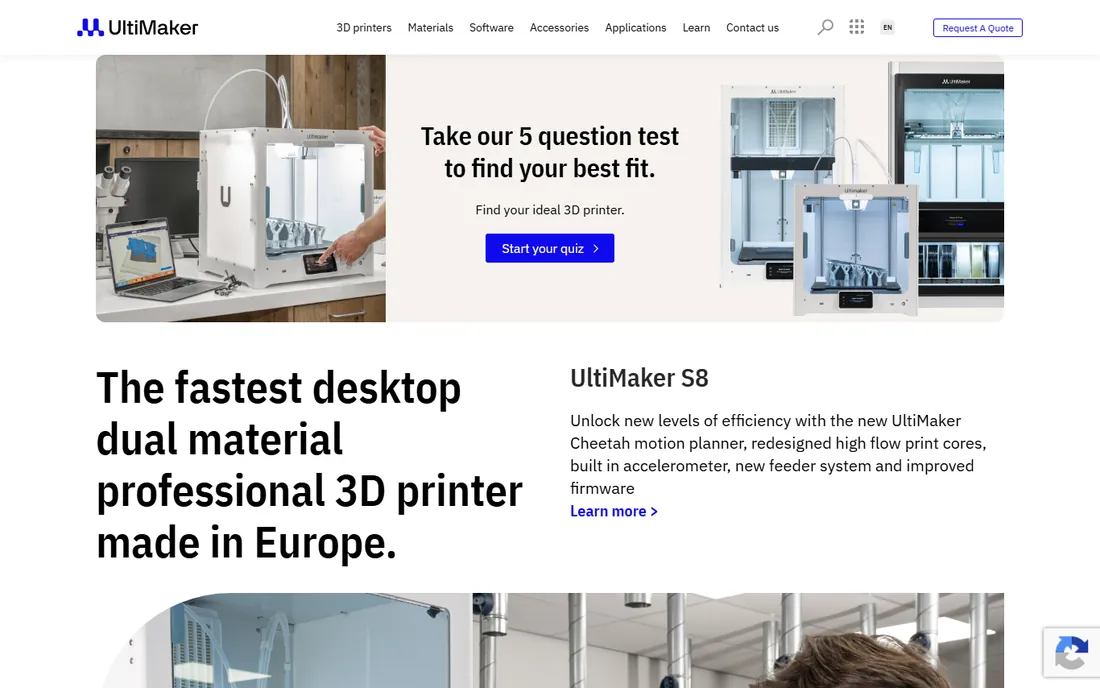
Cura is the default slicer for the FDM world: free, open source, and shipped with profiles for hundreds of printers beyond UltiMaker's own. Beginners get a simple recommended mode (pick quality, infill and supports), while custom mode exposes everything. The marketplace adds plugins for calibration, OctoPrint integration and more.
The honest catch is that "works with everything" means "perfect for nothing." Printer-specific slicers usually produce better first prints on their own hardware. But if you own a Creality, Anycube or any printer without a first-party slicer, Cura is where you start, and many never leave.
What we like- Enormous profile library: hundreds of third-party printers work out of the box
- Intuitive recommended mode for beginners plus 400+ settings in custom mode
- Huge community for troubleshooting
Watch out for- Can feel bloated on older computers
- Advanced users eventually outgrow its calibration tools
- UltiMaker's focus is its own printers first
#2
PrusaSlicer
Best for: Prusa owners and anyone wanting a clean open-source slicer
Visit prusa3d.com
Starting priceFree
Free planYes (open source, always free)
PrusaSlicer earns its reputation one reliable print at a time. It is free, open source, and maintained by a printer company that tests it on a massive print farm, which shows in the default profiles: load a Prusa printer, pick a filament, and the first print usually just works. The 3.0 preview adds multi-printer projects, safe community plugins and a true offline mode.
Non-Prusa owners can absolutely use it (profiles exist for many printers), but Cura or OrcaSlicer often fit third-party machines better. If you own a Prusa, this is not a choice; it is the answer. Everyone else should know it as the open-source benchmark.
What we like- Completely free and open source with no tiers
- Excellent default profiles that produce great prints with minimal tuning
- Version 3.0 brings multi-printer projects and a new profile system
Watch out for- Optimized for Prusa machines first
- The interface is functional rather than beautiful
- Fewer hand-holding wizards than Cura
Starting priceFree
Free planYes
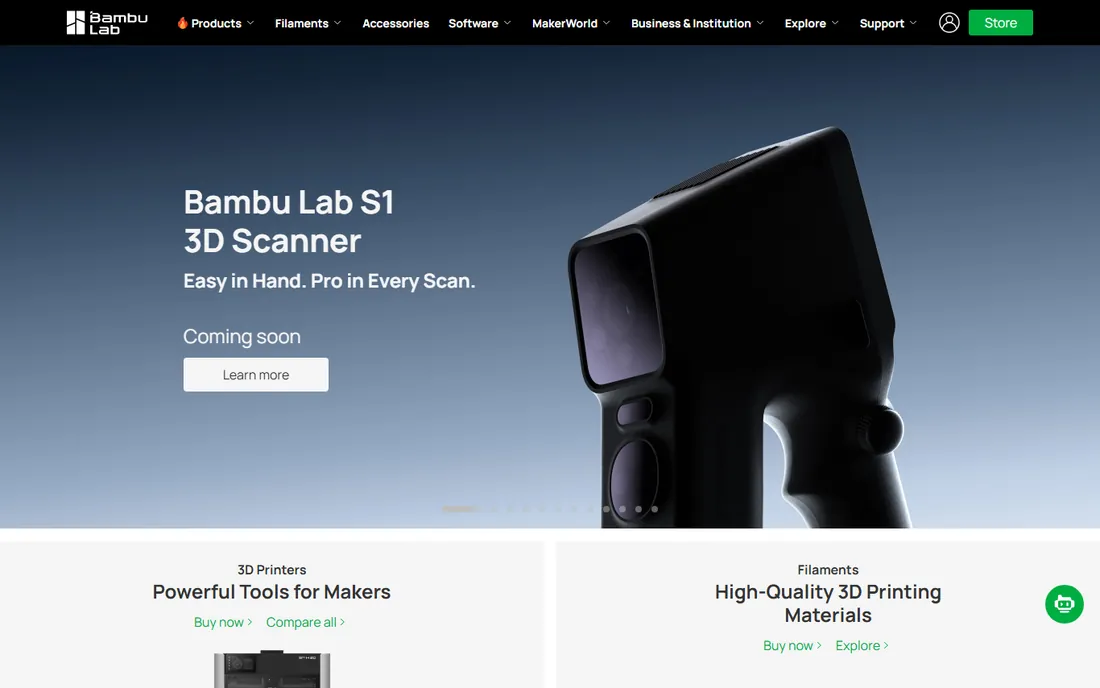
Bambu Studio is the reason Bambu Lab printers feel effortless: the slicer, the printer and the cloud work as one system. Slice, send wirelessly, watch the camera, manage the AMS filament system, all without touching an SD card. The paint tools for multi-color printing are the easiest in the business.
The lock-in is the point and the problem. On a Bambu printer it is superb; on anything else, use OrcaSlicer, which shares its DNA without the cloud dependency. Bambu owners should start here and learn its calibration tools before shopping elsewhere.
What we like- Deeply integrated with Bambu printers: wireless send, camera monitoring, AMS filament management
- Fast slicing engine
- Multi-color painting tools built in
Watch out for- Really only makes sense with Bambu hardware
- Some features depend on Bambu's cloud
- Open-source purists prefer OrcaSlicer's independence
Starting priceFree
Free planYes (open source)
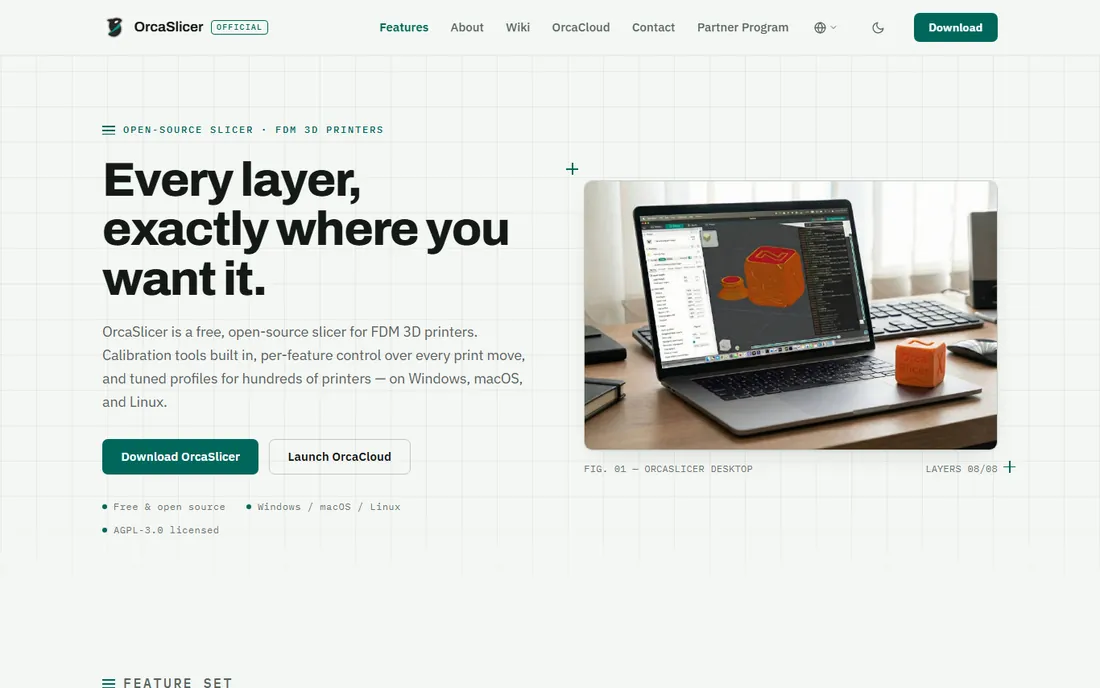
OrcaSlicer is what happens when the community takes Bambu Studio's foundation and aims it at everyone. It is free, open source, and packed with the calibration tools enthusiasts actually use: temperature towers, flow-rate tests, retraction tuning, scarf seams and adaptive bed meshing, all built in rather than bolted on. Printer support spans Bambu, Prusa, Voron, VzBot, RatRig, Creality and Klipper-based machines.
Beginners should know what they are getting into: this is a power tool with hundreds of settings. But for anyone who has outgrown Cura's recommended mode, OrcaSlicer is the upgrade that costs nothing. (Note: the project's own site warns that lookalike domains are scams; www.orcaslicer.com is the official one.)
What we like- Built-in calibration suite (temperature towers, flow rate, pressure advance)
- Precise wall, seam and support controls
- Profiles for Bambu, Prusa, Voron, Creality, Klipper machines and more
Watch out for- The depth of settings overwhelms beginners
- Documentation lives in a wiki rather than guided tutorials
- Development pace means frequent updates
#5
Simplify3D
Best for: Users who want commercial support and broad printer compatibility
Visit simplify3d.com
Starting pricePaid (see website)
Free planFree trial
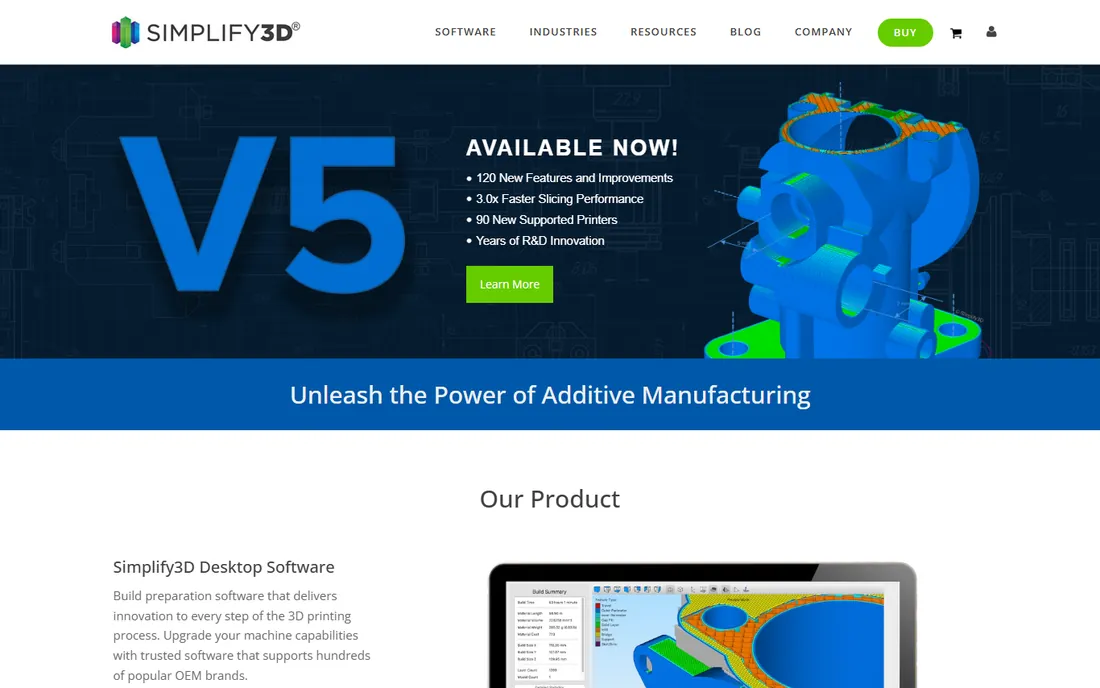
Simplify3D was the premium slicer before the free tools caught up, and version 5 modernized it with a new slicing engine, better supports and a streamlined interface. Its strength remains compatibility: hundreds of printers with tested profiles, plus professional support when something goes wrong. For businesses running mixed printer fleets, one supported tool has appeal.
The honest question is why pay when Cura, PrusaSlicer and OrcaSlicer are free and excellent. The answer is support contracts and fleet uniformity, not print quality. Hobbyists should exhaust the free options first; businesses that need a throat to choke can justify the license.
What we like- Supports hundreds of printers with tuned profiles from in-house testing
- Fast slicing engine (version 5 claims 3x faster slicing)
- Professional support and extensive learning resources
Watch out for- The only paid slicer on this list while excellent free options exist
- Historically slow major updates frustrated users
- The value case is harder than it was five years ago
#6
Lychee Slicer
Best for: Resin printing with the friendliest workflow
Visit mango3d.io
Starting priceFree (Lite); Plus and Library subscriptions see website
Free planYes (Lite version free; 30-day Plus trial)
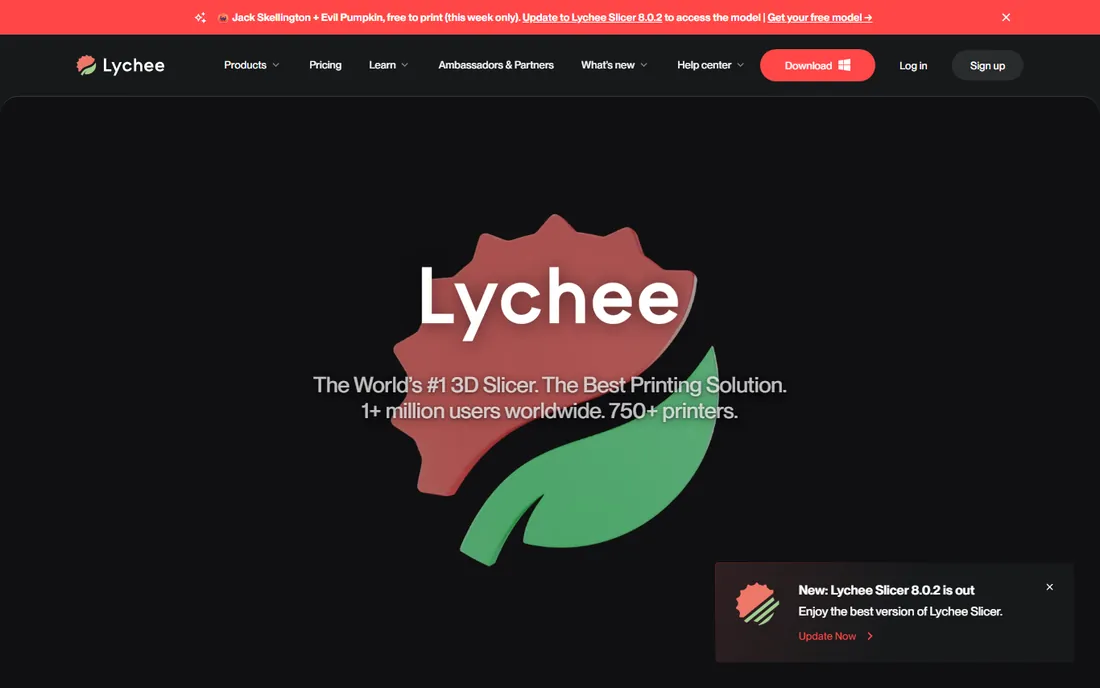
Resin printing lives or dies on supports, and Lychee Slicer handles them better than any FDM slicer pressed into resin duty. Auto-orientation, hollowing with drain holes, island detection and one-click pre-supported models (via the Library) compress the resin learning curve dramatically. The free Lite version covers real printing; Plus adds the advanced automation.
FDM users should look elsewhere; this is a resin specialist that happens to slice filament. For anyone with an Elegoo, Anycubic or Phrozen resin printer, Lychee versus ChiTuBox is the real decision, and both offer free tiers to compare.
What we like- Purpose-built for resin: auto-supports, hollowing and island detection done well
- Clean modern interface
- 750+ supported printers and a huge community
Watch out for- The best features sit in the paid Plus tier
- Primarily a resin tool (FDM support exists but is secondary)
- Subscription rather than one-time purchase
Starting priceFree (Basic); Pro tier see website
Free planYes
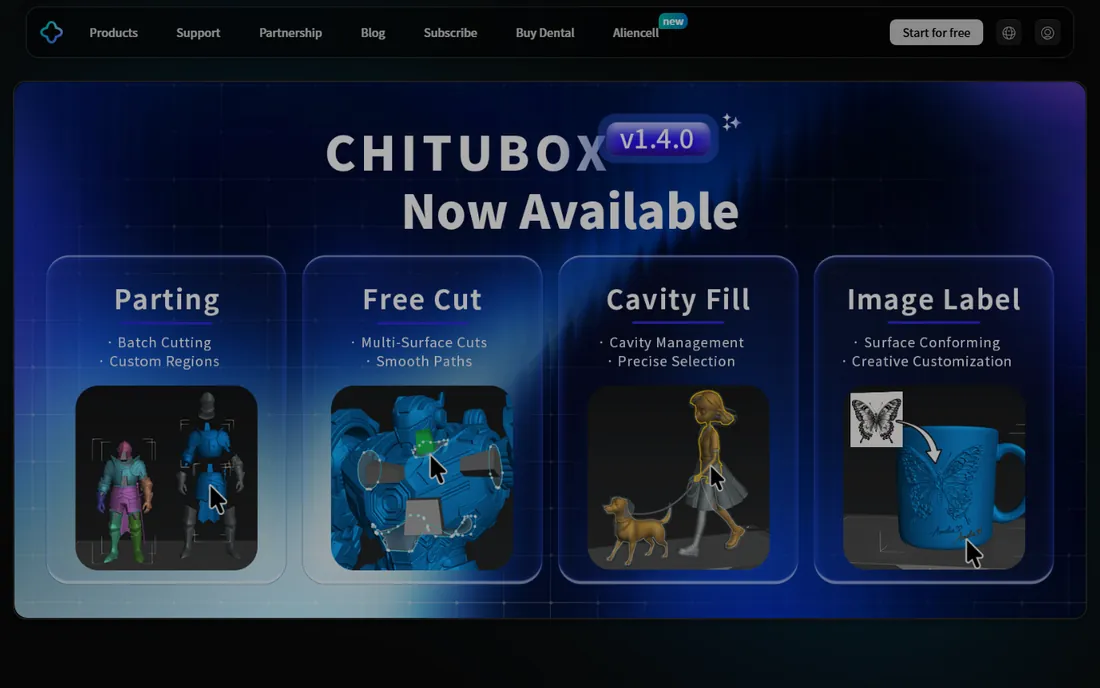
ChiTuBox has sliced resin longer than almost anyone, and it shows in the manual control: support placement, editing and fine-tuning are precise enough for dental and jewelry work. The free Basic tier handles what most hobbyists need, with Pro adding automation for production users.
Against Lychee, the trade is polish versus control: Lychee feels modern and guides you, ChiTuBox assumes you know what you are doing. Resin beginners may prefer Lychee's hand-holding; experienced users often keep ChiTuBox for its exactness. Both are free to try, so run the same model through each.
What we like- Long-established resin slicer with deep printer compatibility
- Strong manual support editing for perfectionists
- Free Basic tier covers most hobbyist needs
Watch out for- The interface feels dated next to Lychee
- Advanced automation favors the paid Pro tier
- FDM is not its world
#8
ideaMaker
Best for: Raise3D owners and anyone managing multiple printers
Visit raise3d.com
Starting priceFree
Free planYes
ideaMaker is Raise3D's free slicer, and it is better than most manufacturer slicers have any right to be. The interface is clean, support painting is precise, and managing multiple printers (with RaiseCloud for remote monitoring) suits small print farms. It handles standard FDM workflows with minimal fuss.
Outside the Raise3D ecosystem it is a competent general slicer without a standout reason to switch from Cura or OrcaSlicer. Raise3D owners should use it natively; everyone else can treat it as a solid free alternative worth a test drive.
What we like- Free with excellent multi-printer management
- Clean interface with powerful custom support painting
- Pairs with RaiseCloud for remote fleet monitoring
Watch out for- Best experience is on Raise3D hardware
- The community is smaller than Cura's or OrcaSlicer's
- Fewer third-party profiles
#9
SuperSlicer
Best for: Tinkerers who want every setting PrusaSlicer hides
Visit github.com
Starting priceFree
Free planYes (open source)
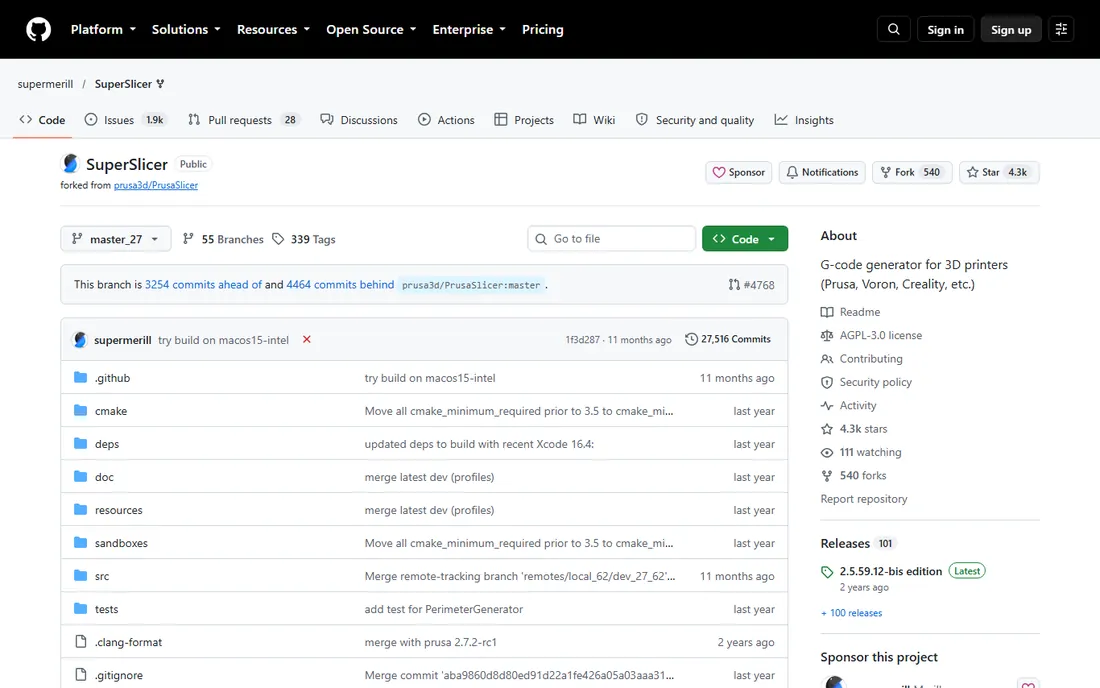
SuperSlicer is PrusaSlicer with the safety off: a community fork that adds the calibration and fine-tuning settings power users beg for. Built-in calibration prints, better thin-wall handling, denser top-layer infill options and hole-size compensation give engineers control the mainstream slicers hide. It is free, open source and runs on Windows, Mac and Linux.
This is a specialist's tool. If terms like "pressure advance" and "ironing" mean nothing to you yet, start with PrusaSlicer or OrcaSlicer. When you find yourself wishing for one more setting, SuperSlicer probably has it.
What we like- Extends PrusaSlicer with deep calibration and fine-tuning options (top-surface controls, thin-wall handling, hole compensation)
- Full command-line interface
- No telemetry or accounts
Watch out for- The interface exposes everything, which intimidates
- Smaller community than PrusaSlicer or OrcaSlicer
- Development is essentially one dedicated maintainer
FDM or resin: choose the right slicer type first
Slicers split by process, and using the wrong type guarantees frustration. FDM slicers (Cura, PrusaSlicer, Bambu Studio, OrcaSlicer, Simplify3D, ideaMaker, SuperSlicer) generate toolpaths for filament printers: perimeters, infill, temperatures, retraction. Resin slicers (Lychee, ChiTuBox) generate layer images and support structures for masked LCD printers: orientation, hollowing, drain holes, exposure times.
The two are not interchangeable. Slicing a resin print in Cura or an FDM print in Lychee produces garbage. Identify your printer type first (filament spool versus resin vat), then choose within the right half of this list. Hybrid owners need one of each, which is fine since the best options are free.
How we chose
We covered the slicers people actually use: the manufacturer-native tools, the universal free options, the enthusiast favorites, and both resin specialists. For each we opened the vendor's homepage, confirmed the product is current and free or paid as stated, and checked the official download source (including OrcaSlicer's warning about scam lookalike domains). Paid tiers without published prices are marked "See website."
The settings that matter most
New users drown in settings; experienced users tune maybe ten. For FDM, the big five are layer height (detail versus speed), wall count (strength), infill density and pattern (strength versus weight and time), print temperature (layer adhesion), and retraction (stringing). Supports matter for overhangs: learn tree or organic supports before defaulting to lines everywhere.
For resin, the critical settings are exposure time (under-exposed prints fail, over-exposed lose detail), lift speed and distance (peel forces), and support density and tip size (scars versus failures). In both processes, calibrate with the built-in test prints before committing to a 20-hour job. The slicer's calibration tools exist precisely so you stop guessing.
Frequently asked questions
What does slicer software do?
It converts a 3D model (STL, OBJ or 3MF file) into layer-by-layer instructions your printer understands: toolpaths and temperatures for FDM printers (G-code), or layer images and exposures for resin printers. Without a slicer, the printer cannot print the model.
Which slicer should a beginner use?
Use your printer manufacturer's slicer first: Bambu Studio for Bambu Lab, PrusaSlicer for Prusa, Lychee or ChiTuBox for resin printers. For printers without a native slicer, start with UltiMaker Cura. Graduate to OrcaSlicer when you want deeper control.
Is there a free slicer that does everything?
OrcaSlicer comes closest for FDM: free, open source, deep calibration tools and broad printer support. For resin, Lychee Slicer's free Lite tier and ChiTuBox Basic cover most needs. Only Simplify3D charges on this list.
Can I use Cura with a resin printer?
No. Cura is an FDM slicer; resin printers need a resin slicer like Lychee Slicer or ChiTuBox that generates supports, hollowing and exposure settings. Using the wrong slicer type produces unprintable files.
What is the difference between OrcaSlicer and Bambu Studio?
OrcaSlicer is built on Bambu Studio's open-source foundation but targets all printers, not just Bambu's, with deeper calibration tools and no cloud dependency. Bambu owners get tighter printer integration from Bambu Studio; everyone else gets more from OrcaSlicer.
Do I need a paid slicer?
Almost certainly not. The free slicers here match or beat Simplify3D, the only paid option, on features. Pay only if you need commercial support, manage a mixed printer fleet under one supported tool, or want Lychee Plus's automation for production resin work.
Sources we checked (9)
- https://ultimaker.com
- https://www.prusa3d.com
- https://bambulab.com
- https://www.orcaslicer.com
- https://simplify3d.com/
- https://mango3d.io/
- https://www.chitubox.com
- https://raise3d.com/
- https://github.com/supermerill/SuperSlicer
Is your product missing or out of date?
We review this list regularly. Vendors can request a listing, send updated pricing or ask about featured placement.

Shihab Mia · Founder, Rankite
Shihab has spent more than a decade helping SaaS and e-commerce brands grow through search. He writes Rankite's software buying guides from pricing pages, documentation and public user reviews. More about Shihab.