How we make this list: we compare pricing pages, product documentation and public user reviews. Rankite is independent; if a vendor ever pays for a featured spot, that listing is clearly labeled Partner.
Key takeaways
- Blender and Autodesk Fusion are the two modeling heavyweights: free and open source versus professional paid CAD.
- Tinkercad is the free starting point for beginners, running entirely in the browser.
- PrusaSlicer, OrcaSlicer, Bambu Studio and UltiMaker Cura are the free slicers that turn models into printable files.
- Lychee Slicer covers resin printing, where the workflow differs from filament.
The best 3D software for 3D printing
Every 3D print starts as software, twice over. First a modeler creates the object: a bracket, a figurine, a replacement knob. Then a slicer translates that model into the layer-by-layer instructions the printer follows. Beginners often download a model and only ever meet the slicer; makers who design their own live in the modeler. These eight tools cover both halves of the workflow, from free browser CAD to professional engineering software.

#1
Blender
Best for: Free, professional-grade 3D modeling, sculpting and design
Visit blender.org
Starting priceFree (open source, forever)
Free planYes
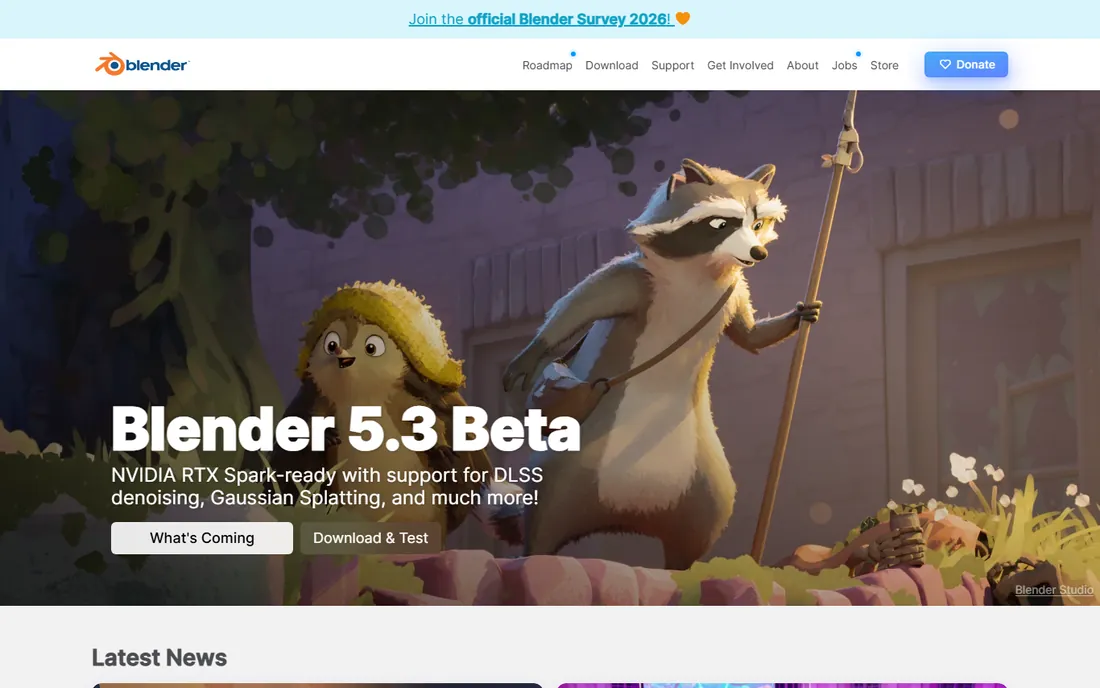
Blender is the free 3D creation suite the industry respects: modeling, sculpting, rendering and animation in one GPL-licensed package, free forever with no catch. For 3D printing, its sculpting tools are superb for organic models (figurines, miniatures, art pieces), and add-ons handle mesh analysis, wall thickness and export repair.
The learning curve is the price of admission: Blender's interface assumes commitment. And for precise mechanical parts, parametric CAD (Fusion, below) is the better paradigm. But for freeform design at zero cost, nothing touches Blender. Export to STL or 3MF and slice anywhere.
What we like- Completely free and open source under the GPL, with no paid tier
- Full modeling, sculpting, UV and 3D-print toolset
- Massive community, tutorials and add-ons
Watch out for- The interface overwhelms beginners
- It is a general 3D suite, not CAD, so precise engineering dimensions take workarounds
- Print-specific workflow needs add-ons

#2
Autodesk Fusion
Best for: Professional parametric CAD for functional printed parts
Visit autodesk.com
Starting priceSee website
Free planSee website
When the part must fit, Fusion is the answer. Parametric CAD means you design with real dimensions, constraints and relationships: change one measurement and the model updates correctly. For functional prints (brackets, enclosures, mechanical parts, replacement components), that precision is non-negotiable, and Fusion is the professional standard makers graduate to.
It is paid subscription software; the homepage did not publish pricing, so check the vendor's site for current plans and trial options. Hobbyists should start free with Tinkercad or Blender and move to Fusion when their designs demand engineering rigor.
What we like- Industry-standard parametric modeling: precise dimensions, assemblies and engineering drawings
- Integrated simulation and CAM for advanced users
- Huge professional user base and learning resources
Watch out for- Paid subscription with no published price on the homepage
- Overkill for decorative prints
- The learning curve is steep for hobbyists
#3
Tinkercad
Best for: Beginners designing their first printable models in the browser
Visit tinkercad.com
Starting priceFree
Free planYes
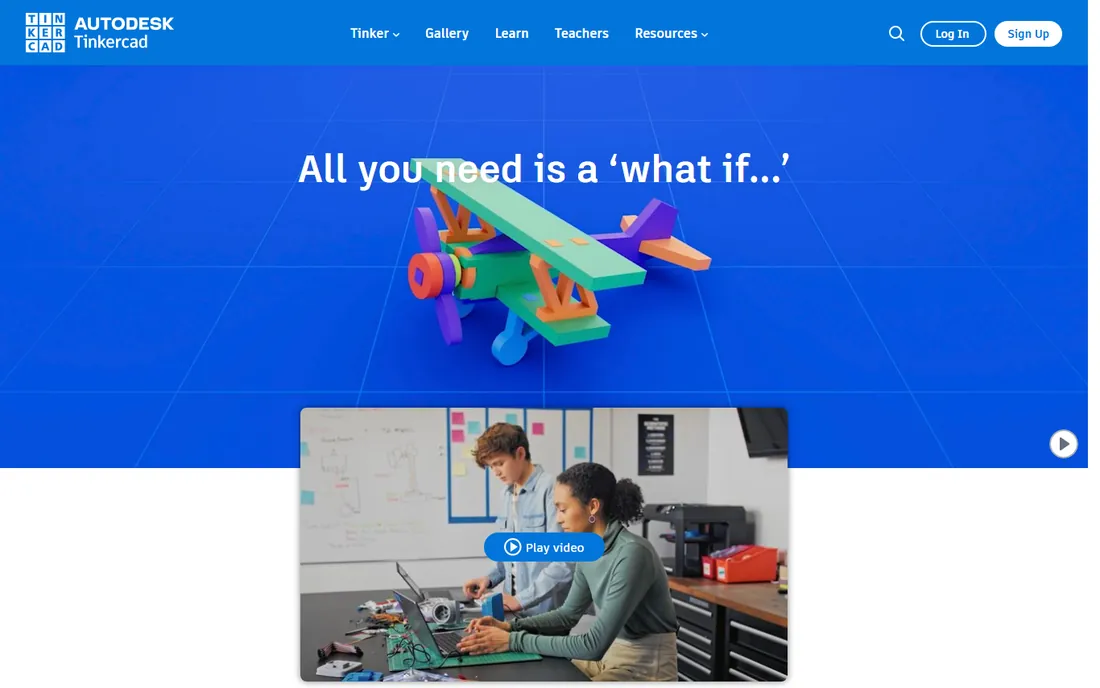
Tinkercad is where most makers start: a free, browser-based 3D design tool from Autodesk that teaches modeling by combining simple shapes. No downloads, no strings attached, designs exportable for printing. Its classroom adoption (100M+ users) means tutorials and lesson plans are everywhere.
Every experienced designer eventually hits its ceiling: no parametric history, limited precision, no advanced surfacing. That is fine. Tinkercad's job is to get a beginner from zero to a first successful print in an afternoon, and it does that better than anything else. Graduate to Fusion or Blender when you are ready.
What we like- Completely free web app: no downloads, no installs
- Trusted by over 100 million users with 800M+ designs
- Kid-safe and classroom-friendly with lessons included
Watch out for- Too simple for complex or precise engineering work
- Browser-only means no offline use
- Advanced users outgrow it quickly

#4
PrusaSlicer
Best for: Free, open-source slicing with excellent default profiles
Visit prusa3d.com
Starting priceFree (open source)
Free planYes
PrusaSlicer is the slicer that treats print quality as a craft. Free and open source, it offers meticulous control over layers, supports, seams and speeds, with printer profiles so well tuned that many non-Prusa owners use it as their daily driver. Prusa's own description is modest: it is completely free, runs on modest hardware, and just works.
For FDM printing, PrusaSlicer versus OrcaSlicer is the friendly rivalry of the moment; both are free, so try both. PrusaSlicer's strengths are its profiles, its stability and the trust that comes from the Prusa name. Beginners may prefer Bambu Studio's simpler defaults.
What we like- Free and open source, from the respected Prusa team
- Superb built-in profiles for Prusa and many third-party printers
- Regular updates with genuinely useful new features
Watch out for- The interface is dense for absolute beginners
- Some advanced tuning features trail OrcaSlicer
- Development follows Prusa's priorities

#5
OrcaSlicer
Best for: Tuners who want deep calibration and quality controls, free
Visit orcaslicer.com
Starting priceFree (open source, AGPL-3.0)
Free planYes
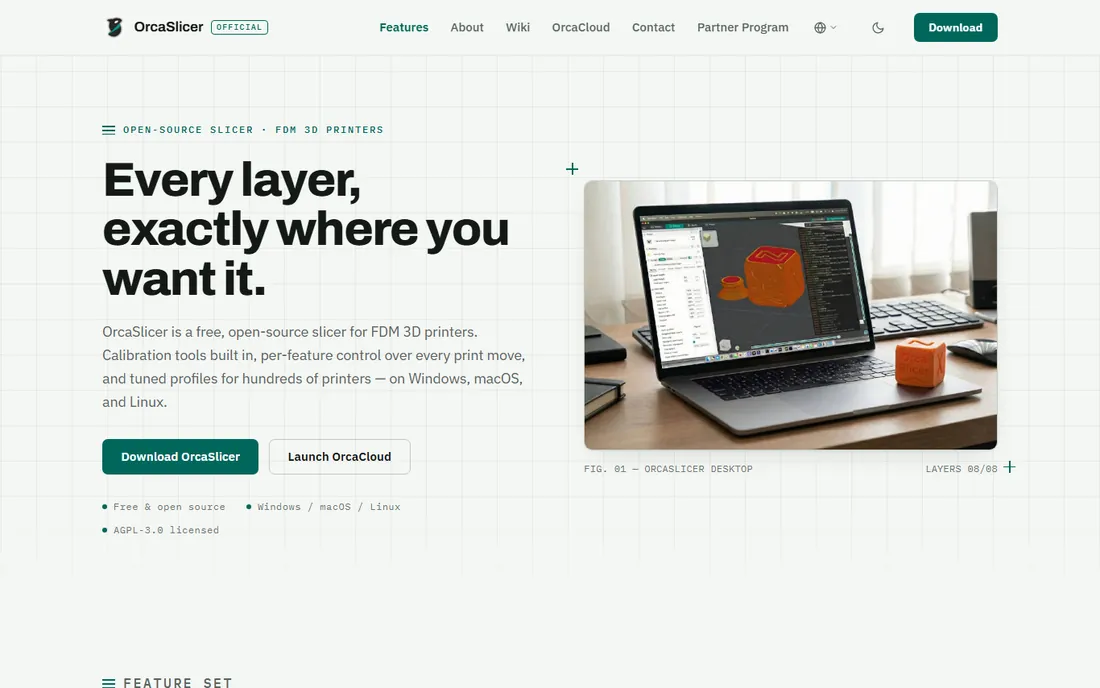
OrcaSlicer is the tuner's slicer: it treats print quality as an engineering problem to be measured and controlled. The built-in calibration lab generates flow-rate, pressure-advance, temperature and tolerance tests inside the slicer, and the quality controls expose settings most slicers hide: scarf seams, per-feature speed overrides, smart supports. It is AGPL-3.0 licensed, developed in the open, with no account and no telemetry.
The vendor's site confirms the price plainly: 0 USD, free on every platform. For anyone chasing the perfect print on a tuned machine, OrcaSlicer is the free tool that goes deepest. Beginners should start with Bambu Studio or PrusaSlicer's defaults first.
What we like- Free and open source with no account or telemetry
- Built-in calibration suite (flow, pressure advance, temperature towers)
- Fine-grained wall, seam and support controls
- Profiles for hundreds of printers
Watch out for- The depth can overwhelm beginners
- Community-driven support rather than a company help desk
- Newest printers may wait for community profiles

#6
Bambu Studio
Best for: Bambu Lab owners who want the smoothest integrated workflow
Visit bambulab.com
Starting priceFree
Free planYes
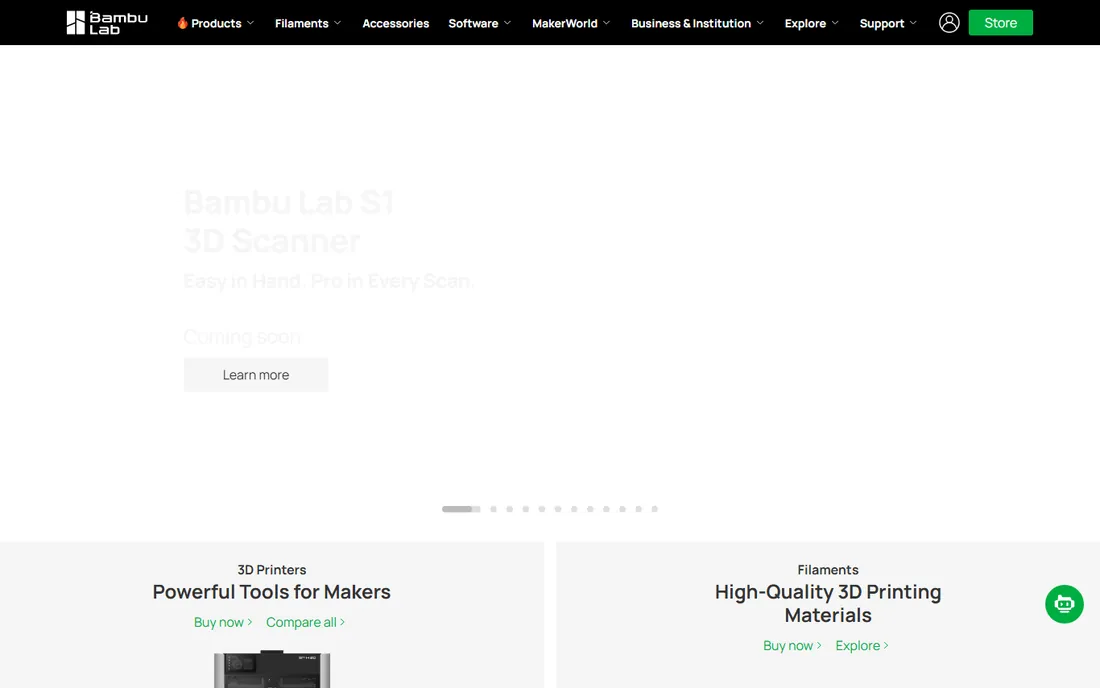
Bambu Studio is the reason Bambu Lab printers feel effortless: a free slicer designed around the hardware, with profiles, network printing and model library (MakerWorld) integrated. For Bambu owners, it is the path of least resistance to great prints, including multi-color work that is painful in generic slicers.
It also works with other printers, though the integration shines with Bambu machines. The trade-off is ecosystem gravity: the smoothest experience comes with Bambu's cloud services and materials. For Bambu owners this is the default; everyone else should compare PrusaSlicer and OrcaSlicer.
What we like- Free slicer tightly integrated with Bambu Lab printers and MakerWorld
- Excellent defaults that produce great prints with minimal tuning
- Multi-color and multi-material support built in
Watch out for- Best with Bambu Lab printers
- The ecosystem nudges toward Bambu's cloud and filament
- Power tuners may prefer OrcaSlicer's depth

#7
UltiMaker Cura
Best for: The veteran free slicer with the widest printer support
Visit ultimaker.com
Starting priceFree
Free planYes
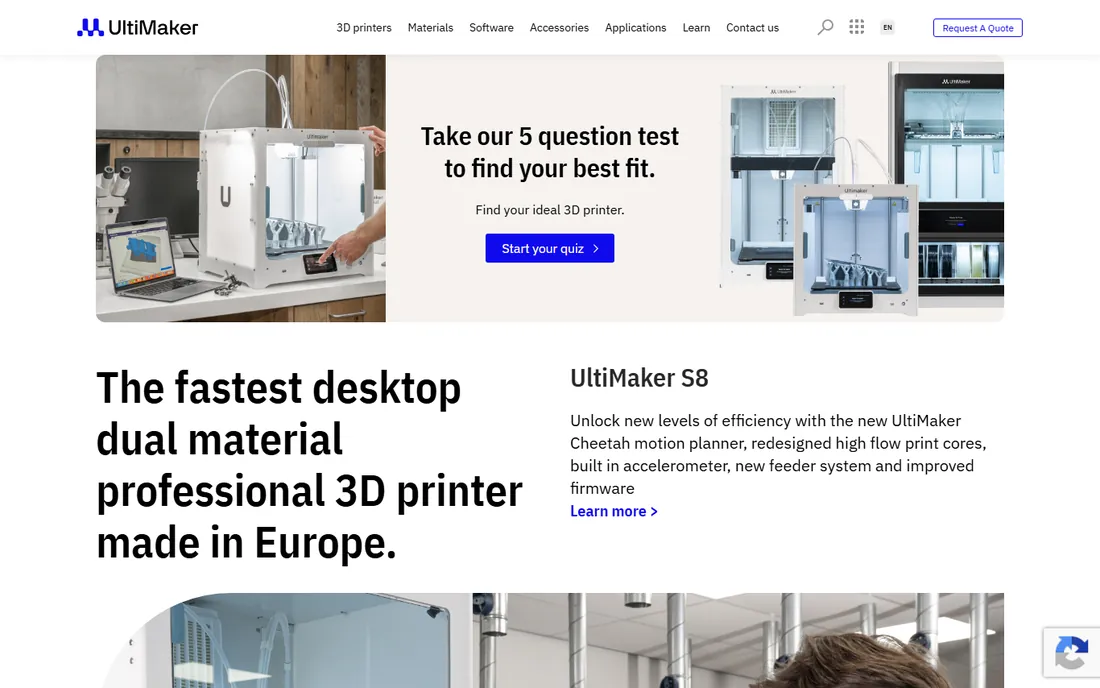
UltiMaker Cura is the slicer that taught a generation: free, mature, and compatible with an enormous range of printers through community profiles and plugins. Its marketplace extends it into specialized workflows, and its print settings library remains the most comprehensive in any free slicer.
Newer slicers have surpassed it in calibration tooling and interface polish, but Cura's breadth is unmatched: if you own an unusual or older printer, Cura probably has a profile. For UltiMaker printer owners it is the native choice; for everyone else it is the reliable fallback that supports everything.
What we like- Free with the longest track record in desktop slicing
- Supports hundreds of printers beyond UltiMaker's own
- Huge plugin marketplace and community profiles
Watch out for- The interface shows its age next to OrcaSlicer
- Default profiles vary in quality by printer
- Development pace is steadier than exciting
Starting priceFree (Pro upgrade available, see website for current pricing)
Free planYes
Resin printing is a different workflow from filament: orientation, supports and exposure settings matter enormously, and generic FDM slicers do not speak its language. Lychee Slicer is the resin community's favorite: intelligent support generation, hollowing and print preparation, with a free tier that covers everyday resin work.
Note: the vendor's site returned errors during research, so confirm current pricing and download sources directly before installing. For resin printer owners, Lychee (or the printer maker's bundled slicer) is essential software; filament users should ignore this entry entirely.
What we like- Purpose-built for resin printing with smart support generation
- Free tier covers the core workflow
- Widely used in the resin community
Watch out for- Resin-only: irrelevant for filament printers
- Advanced features sit in the paid Pro tier
- The vendor site could not be fully verified during research
How we chose
We defined 3D printing software as the tools in the print workflow: 3D modelers for designing printable objects and slicers for preparing them. Printer manufacturers' stores and filament sellers did not qualify; where a printer company makes the software (Bambu Studio, PrusaSlicer, Cura), we evaluated the software. For each candidate we opened the vendor's homepage and recorded pricing only where published; most tools here are free.
Quick comparison
| Tool | Best for | Starting price | Free plan |
|---|
| Blender | Free, professional-grade 3D modeling, sculpting and design | Free (open source, forever) | Yes |
| Autodesk Fusion | Professional parametric CAD for functional printed parts | See website | See website |
| Tinkercad | Beginners designing their first printable models in the browser | Free | Yes |
| PrusaSlicer | Free, open-source slicing with excellent default profiles | Free (open source) | Yes |
| OrcaSlicer | Tuners who want deep calibration and quality controls, free | Free (open source, AGPL-3.0) | Yes |
| Bambu Studio | Bambu Lab owners who want the smoothest integrated workflow | Free | Yes |
| UltiMaker Cura | The veteran free slicer with the widest printer support | Free | Yes |
 Lychee Slicer Lychee Slicer | Resin (MSLA) printing workflow and supports | Free (Pro upgrade available, see website for current pricing) | Yes |
Is your product missing or out of date?
We review this list regularly. Vendors can request a listing, send updated pricing or ask about featured placement.
Modeler versus slicer: which do you need?
Newcomers often conflate the two. The modeler (Blender, Fusion, Tinkercad) creates the 3D shape. The slicer (PrusaSlicer, OrcaSlicer, Bambu Studio, Cura, Lychee) converts a shape into printer instructions. If you download models from Printables or MakerWorld, you only need a slicer. If you design original parts, you need both.
The common progression: start with downloaded models and a slicer, learn the printer, then learn Tinkercad for simple original designs, then graduate to Blender (organic) or Fusion (mechanical) when ambition demands it. Each step is free except Fusion, so the only cost is learning time.
Choosing the right software for your printing
Start with your printer and your goal. Bambu Lab owners: Bambu Studio. Prusa owners: PrusaSlicer. Other FDM printers: OrcaSlicer for tuning depth, Cura for broad compatibility. Resin printers: Lychee Slicer. Then add a modeler when you want to design: Tinkercad for first designs, Blender for sculptural work, Fusion for engineering parts.
The practical advice: do not learn everything at once. Get successful prints with your slicer first; a working printer teaches faster than any tutorial. When failed prints stop being the printer's fault and start being the design's fault, that is the moment to learn CAD. And keep every tool free until Fusion's precision becomes the bottleneck, which for many hobbyists is never.
Frequently asked questions
Do I need to know 3D modeling to start 3D printing?
No. Millions of printable models are free on Printables, MakerWorld and Thingiverse; you only need a slicer to print them. Learn modeling when you want objects that do not exist yet. Tinkercad gets beginners designing within an hour.
Which is better: PrusaSlicer or OrcaSlicer?
Both are free and excellent. PrusaSlicer offers superb default profiles and stability; OrcaSlicer offers deeper calibration and quality controls. Many users keep both installed. Try PrusaSlicer first for reliability, add OrcaSlicer when you start tuning for perfection.
Can Blender be used for 3D printing?
Yes, with caveats. Blender excels at organic, sculptural models and exports clean STL/3MF files. For precise mechanical parts with exact dimensions, parametric CAD like Fusion is better. Blender add-ons for mesh analysis and 3D-print checks close much of the gap.
What is the difference between FDM and resin slicing?
FDM slicers (PrusaSlicer, Orca, Cura, Bambu Studio) generate toolpaths for extruded plastic filament. Resin slicers (Lychee) prepare layers for UV-cured liquid resin, with different concerns: orientation, supports, hollowing and exposure times. The software is not interchangeable between the two technologies.
Is paid 3D printing software worth it?
For most hobbyists, no: the free tools (Blender, Tinkercad, PrusaSlicer, OrcaSlicer, Cura) cover the complete workflow. Paid software earns its keep in professional contexts: Fusion for engineering work, Lychee Pro for heavy resin users, and commercial CAD for businesses. Start free and pay only when a specific limitation costs you real time or money.
Sources we checked (8)
- https://www.blender.org
- https://www.autodesk.com
- https://tinkercad.com/
- https://www.prusa3d.com
- https://orcaslicer.com/
- https://www.bambulab.com
- https://ultimaker.com/
- https://www.lycheeslicer.com
Is your product missing or out of date?
We review this list regularly. Vendors can request a listing, send updated pricing or ask about featured placement.

Shihab Mia · Founder, Rankite
Shihab has spent more than a decade helping SaaS and e-commerce brands grow through search. He writes Rankite's software buying guides from pricing pages, documentation and public user reviews. More about Shihab.