How we make this list: we compare pricing pages, product documentation and public user reviews. Ratings come from G2, Capterra or Trustpilot, with the date we checked them.
Key takeaways
- Google Calendar remains the simplest starting point for most households and Google Workspace teams, because sharing is built into accounts people already use.
- Teamup stands out when a schedule must be shared with people outside one company, since viewers can see a calendar without creating an account.
- Calendly and Doodle solve different problems: Calendly is for booking time with you, while Doodle is for finding a time a group can agree on.
- TimeTree is the strongest low-cost choice for families and small groups that need several shared calendars in one place.
- Fantastical is worth the price mainly for Apple and Windows users who want natural language entry, strong time zone handling, and polished calendar views.
Quick comparison
| Tool | Best for | Starting price | Free plan |
|---|
 Google Calendar Google Calendar | Google Workspace teams and households | See website | Yes |
 Teamup Teamup | Sharing schedules with outside partners | See website | Yes |
 Calendly Calendly | External booking links | See website | Yes |
 Doodle Doodle | Group polls and meeting votes | See website | Yes |
 Zoho Calendar Zoho Calendar | Small businesses using Zoho apps | See website | Yes |
 TimeTree TimeTree | Families and small groups | $4.49 per month | Yes |
 Fantastical Fantastical | Power users on Apple and Windows | See website | No |
Is your product missing or out of date?
We review this list regularly. Vendors can request a listing, send updated pricing or ask about featured placement.
The best shared calendar apps
Starting priceSee website
Free planYes
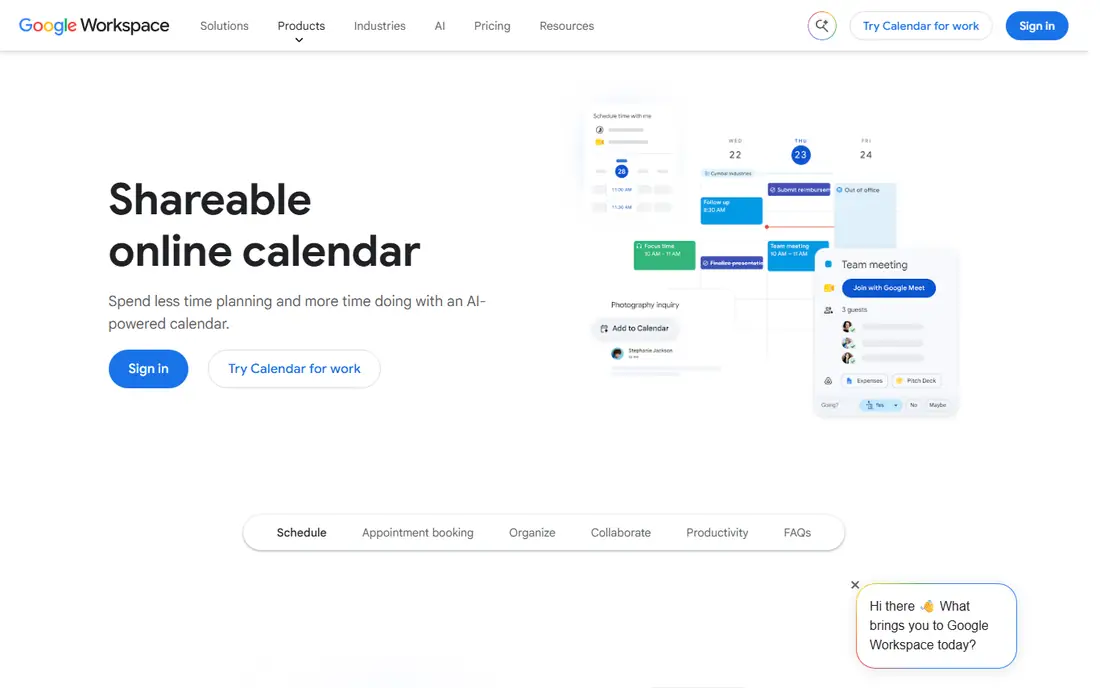
Google Calendar works because it asks little of the people you share with. A family member or coworker with a Google account can view, edit, or add events based on the permission you set, and changes show up at once on phones and computers. You can keep separate calendars for work, school, and personal plans, then choose which ones each person can see. That separation matters when you want to share work availability without sharing private details.
The calendar also handles the basics with care. Recurring events, reminders, time zone display, and invitations are easy to set up, and events created from Gmail can be added with a small amount of effort. For a team already using Google Workspace, this is often the right default, since documents, email, and video calls sit in the same account system. The limit shows up when a team needs to manage rooms, vehicles, shifts, or many separate sub-calendars with different access rules. Google Calendar can do some of that with extra calendars and settings, but it is not built as a resource planner. If your main need is a clear shared schedule for people you know, it is hard to beat for price and ease of use.
What we like- Simple sharing controls
- Works well on web, iOS, and Android
- Strong integration with Gmail and Google Meet
Watch out for- Fewer team resource controls than Teamup
- Booking features are less complete than Calendly
#2Teamup
Best for: Sharing schedules with outside partners4.5/5 on
G2 (329 reviews, checked Oct 2026)
Visit teamup.com
Starting priceSee website
Free planYes
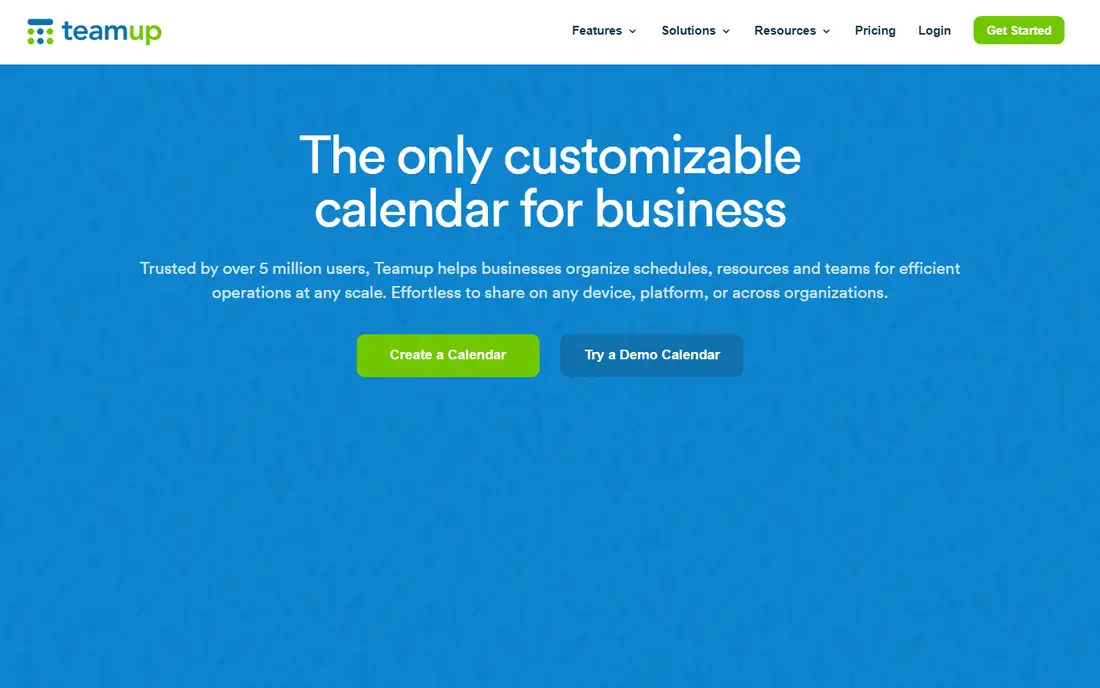
Teamup was built for schedules that cross company lines. You can create a calendar for a project, a department, or a set of resources, then share a link that lets a contractor, client, or volunteer see only what they need to see. That link-based access removes a common point of friction, because outside partners do not have to join your email system or install a specific app to check a date. Inside the calendar, color coding and sub-calendars keep different jobs, locations, and people apart.
Access control is where Teamup earns its place on this list. Administrators can set read-only access for some people, event creation for others, and fuller editing rights for managers, all within the same calendar. Comments, file attachments, and signups can be added to events, so a schedule entry can carry the context a team needs. The trade-off is presentation: Teamup is practical rather than pretty, and people who want a polished personal calendar may prefer Google Calendar or Fantastical for daily use. For operations, field teams, schools, and community groups, that practical focus is a strength, not a weakness.
What we like- Viewers do not need an account
- Nine permission levels for access control
- Many views, including Scheduler and Table
Watch out for- Design feels plain next to newer calendar apps
- Full features require a paid plan
#3Calendly
Best for: External booking links4.7/5 on
G2 (2,674 reviews, checked Oct 2026)
Visit calendly.com
Starting priceSee website
Free planYes
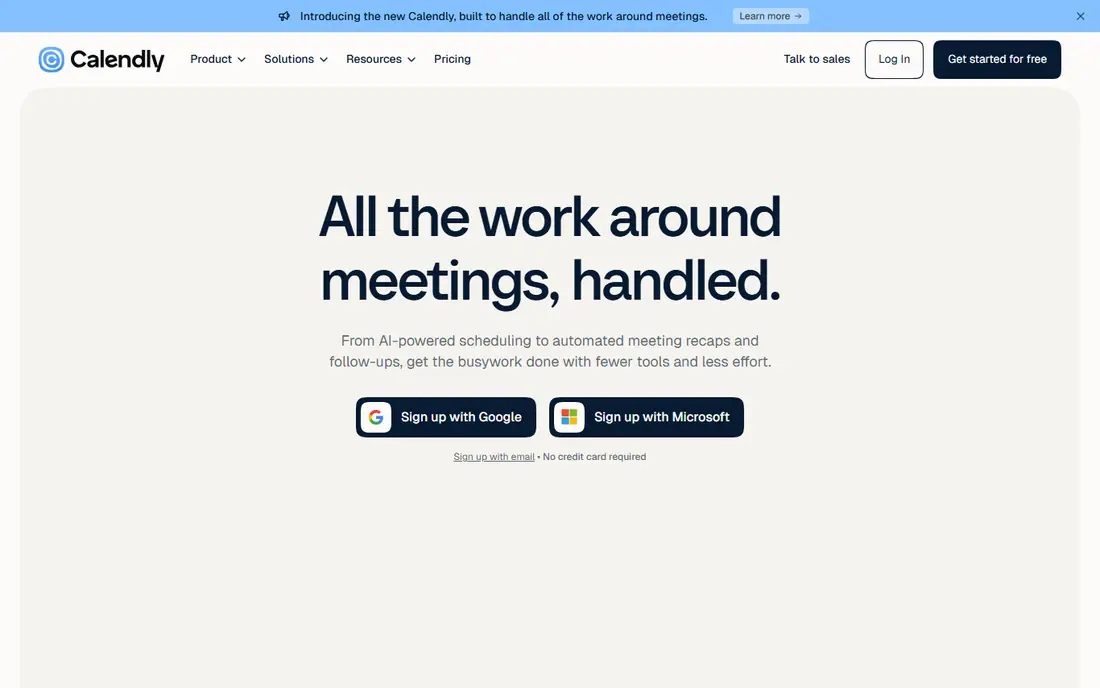
Calendly changes the question from "when are you free" to "pick a time that works." You set your working hours, connect your calendar, and share a link. The other person sees only open slots and books one, which removes long email threads about availability. Reminders go out by email or text, and the invitee can reschedule through the same link, so a missed meeting does not restart the whole process. For sales calls, interviews, coaching sessions, and client meetings, that flow saves real time each week.
The tool has grown beyond simple booking links. Teams can route visitors to the right person, collect payments at booking time, and add forms that qualify a lead before a meeting is set. Those features are useful, but they sit on paid plans, and a small team should check the current pricing page before assuming a feature is included in the free plan. Calendly is also not a replacement for a shared team calendar. It is best paired with Google Calendar, Outlook, or another calendar that holds the full schedule, while Calendly handles the front door for outside bookings.
What we like- Clear booking pages for one-to-one and group meetings
- Automatic reminders and rescheduling
- Wide range of integrations
Watch out for- Paid plans are needed for team routing and advanced controls
- Less useful as a general shared family calendar
#4Doodle
Best for: Group polls and meeting votes4.4/5 on
G2 (2,071 reviews, checked Oct 2026)
Visit doodle.com
Starting priceSee website
Free planYes
Doodle is the right pick when no single person controls the schedule. You propose several times, send a poll, and each person votes for the slots that work. The winning time becomes clear without a group chat full of conflicting replies. That model fits board meetings, family gatherings, volunteer shifts, and any event where five or more people must agree on one slot. Voters do not need a Doodle account for a basic poll, which keeps participation high.
In recent versions, Doodle has added booking pages and a day view that brings meetings, tasks, and focus time together. Those additions make it more useful for daily work, but the poll remains its core strength. If you mostly book one-to-one meetings with clients, Calendly or a similar booking tool will feel more direct. If your recurring problem is "we cannot find a time that suits everyone," Doodle solves that problem in the most direct way on this list, and the free plan is enough to test it with a real group before paying.
What we like- Simple polls for finding a group time
- Booking pages for one-to-one meetings
- No account needed for poll voters
Watch out for- Paid features are needed for branding and team controls
- Polls can feel slow for very large groups
#5Zoho Calendar
Best for: Small businesses using Zoho apps4.4/5 on
G2 (71 reviews, checked Oct 2026)
Visit zoho.com
Starting priceSee website
Free planYes
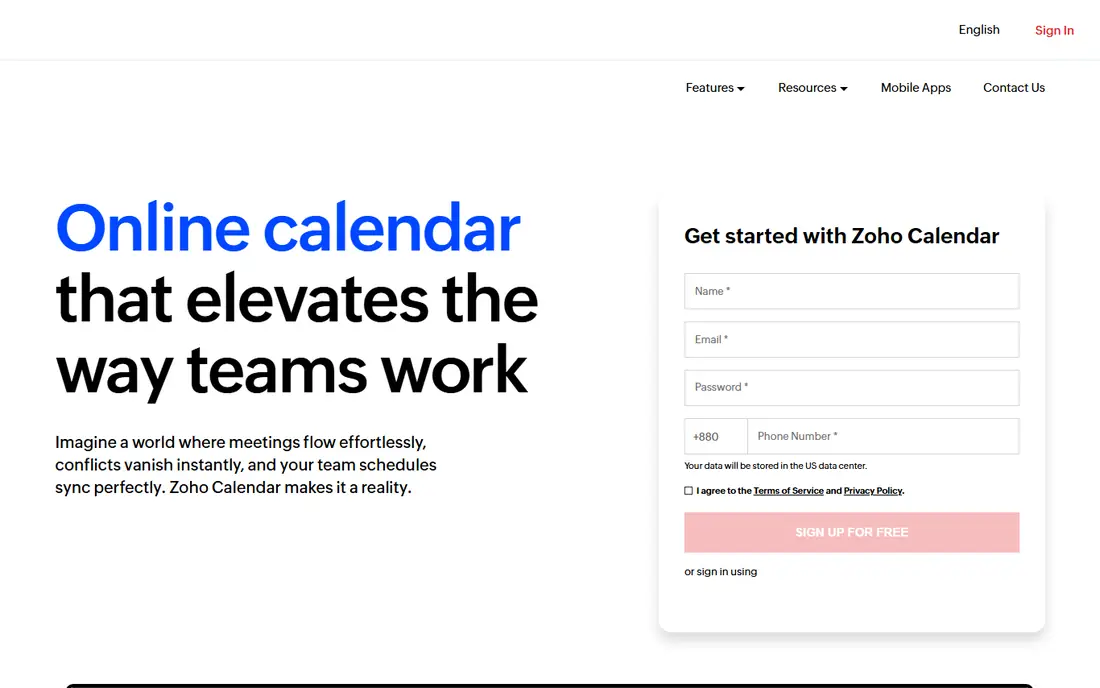
Zoho Calendar gives small businesses a capable shared calendar at no starting cost. You can create group calendars for teams and projects, book resources such as rooms or equipment, and invite people inside or outside your company to events. The calendar works on the web and on mobile apps, and it connects with Zoho Mail, Zoho Meeting, and third-party tools such as Zoom and Microsoft Teams. For a business that already uses Zoho for email or customer records, that connection keeps scheduling close to the rest of the work.
Smart Add is a small feature with a large effect on daily use. You can type an event in plain words, such as a meeting title and a time, and Zoho Calendar fills in the details. Time zone display, color-coded categories, and custom reminders help teams that work across regions or handle many events per day. The main limit is that Zoho Calendar, on its own, does not match Calendly for external booking or Teamup for complex permission schemes. As part of a Zoho setup, however, it is a strong, low-cost shared calendar that most small teams can adopt without a long setup process.
What we like- Free for individuals and teams
- Group calendars and resource booking
- Syncs with Google, Outlook, and other calendars
Watch out for- Interface is functional rather than polished
- Best value is inside the wider Zoho suite
Starting price$4.49 per month
Free planYes
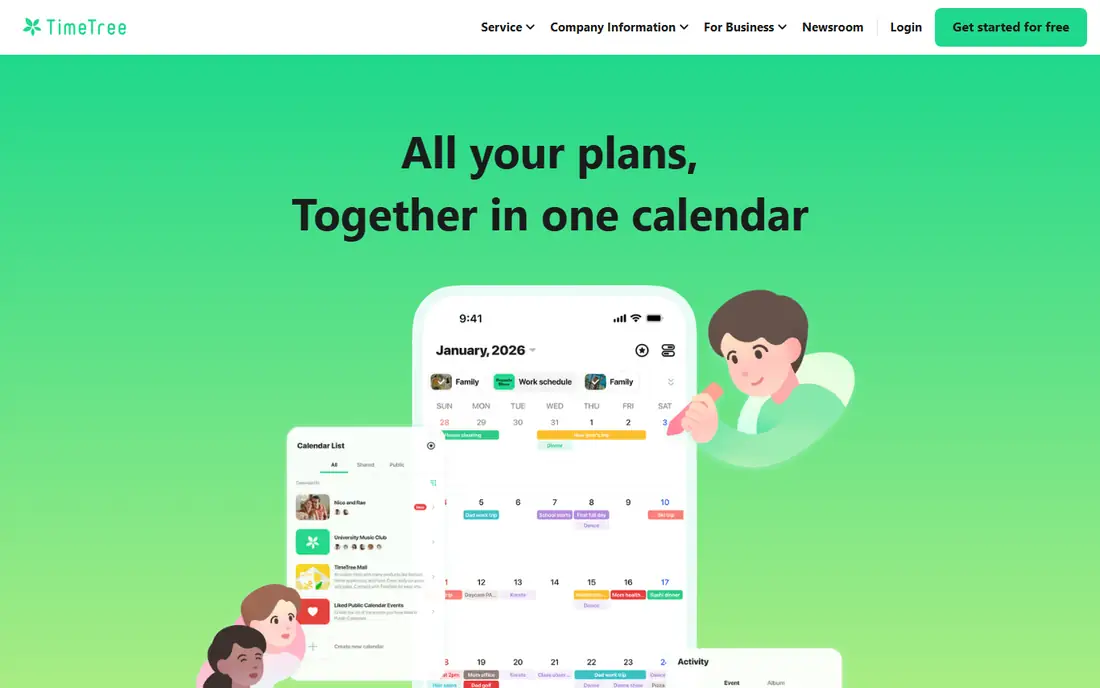
TimeTree is built around groups, not individual schedules. You create a calendar for your household, another for a sports team, and another for a school group, then invite the right people to each one. Each member sees only the calendars they belong to, and filters let you view one group at a time or see everything together. That structure fits family life well, where parents, children, grandparents, and coaches all need different slices of the same week.
The free version covers the core need: shared events, notes, and group chat around plans. Premium, listed at $4.49 per month on the TimeTree homepage, removes ads and adds file attachments, a vertical view, pinned events, and priority support. Those extras are pleasant, but they are not required for basic sharing. TimeTree is less suited to a business that needs CRM links, payment collection, or deep admin controls. For a family, a club, or a small team that wants a simple shared calendar without a company email system, it is one of the easiest options to adopt and keep using.
What we like- Multiple shared calendars for different groups
- Easy invite flow for family and friends
- Premium plan is low cost
Watch out for- Fewer business integrations than Google or Zoho
- No advanced booking page features
#7Fantastical
Best for: Power users on Apple and Windows4.4/5 on
G2 (18 reviews, checked Oct 2026)
Visit flexibits.com
Starting priceSee website
Free planNo
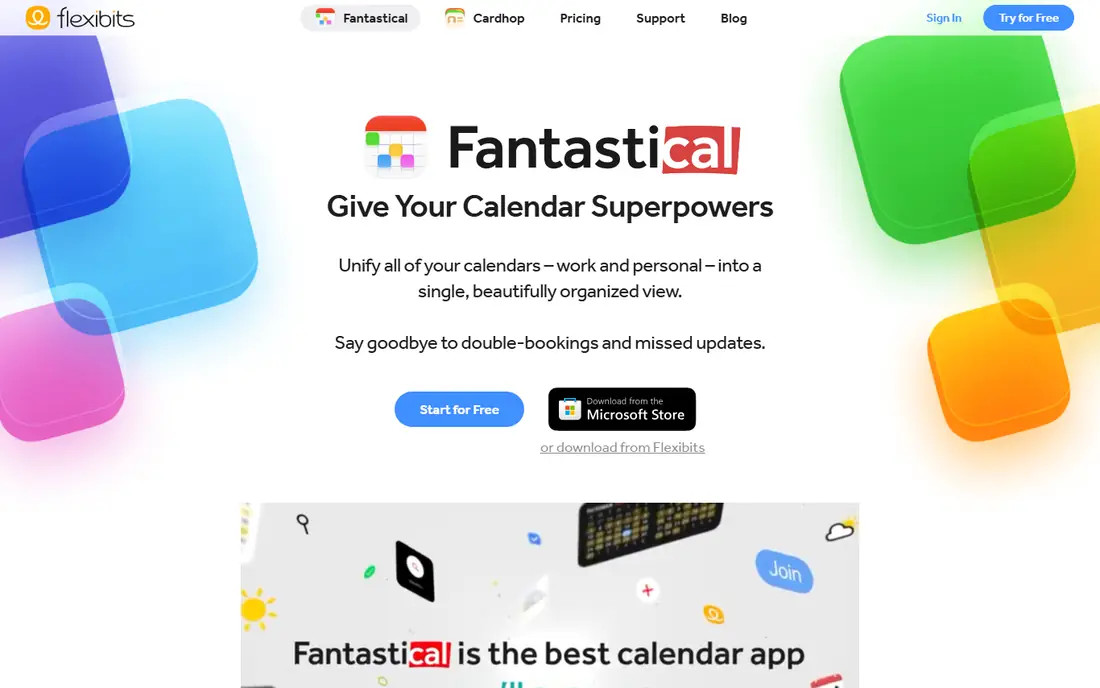
Fantastical brings together calendars from Google, iCloud, Exchange, and other sources into one clean view. Instead of opening several apps to check work and personal plans, you see them side by side, with tasks included. Natural language entry is the feature most users notice first: typing a sentence with a title, a person, and a time creates a complete event. That small saving, repeated many times per week, adds up for people who schedule often.
Time zone handling is another clear strength. Fantastical shows converted times in a clear way, which helps when you schedule across regions, and a weather forecast sits inside calendar views so outdoor plans can be checked at a glance. Scheduling features, including openings that let others pick a time and proposals that let a group vote on options, make it useful for work as well as personal planning. The cost is the main drawback, since the full feature set needs a subscription, and Android phone users should check current platform support before buying. For Mac, iPhone, iPad, and Windows users who live in their calendar, Fantastical is a polished upgrade over a basic calendar app.
What we like- Natural language event creation
- Strong time zone and weather display
- Scheduling links with proposals and openings
Watch out for- Full features require a paid subscription
- Android phone support is still limited
How we chose
We compared tools that are available in the United States in 2026 and that support sharing a calendar with at least one other person, not just private scheduling. We checked each vendor homepage to confirm the product loads and belongs to the named tool, and we reviewed pricing pages, feature documentation, and public help material for sharing controls, booking options, integrations, and mobile support. We gave weight to how easy it is for a guest or family member to view a calendar, how clearly permissions can be limited, and how well each tool fits a stated use case, such as family planning, team operations, or client booking. Price was treated as a starting point only, since plans change, and readers should confirm the current price on the vendor site before buying.
What to check before you pick a shared calendar
Start with who needs to see the schedule
A household needs simple sharing and a low learning curve. A business with outside contractors needs permission levels and link-based access. A sales team needs booking pages and reminders. Picking the audience first narrows the list fast, because a tool that is excellent for one group can be awkward for another.
Check permissions, not just sharing
Sharing a calendar is easy. Controlling what each person can see and change is harder. Ask whether guests can be limited to one sub-calendar, whether event details can be hidden from read-only viewers, and whether you can remove access in one step when someone leaves a project. Teamup and Zoho Calendar handle these questions better than a basic personal calendar.
Test booking and polling separately
Booking links and group polls look similar, but they solve different problems. A booking link works when one host sets availability and guests pick a slot. A poll works when no host can dictate the time and the group must vote. If you need both, you may need two tools, or a tool such as Doodle or Fantastical that covers both jobs in one place.
Confirm calendar connections
A shared calendar that does not connect to the calendars people already use will be ignored. Check that your pick syncs with Google Calendar, Outlook, or Apple Calendar as needed, and that mobile apps are available for the phones your group actually uses. Also check time zone handling if your group spans regions, since a meeting set in one zone and read in another is a common source of missed calls.
Frequently asked questions
What is the best shared calendar app for families?
TimeTree and Google Calendar are the strongest family picks. TimeTree is built for separate group calendars, while Google Calendar is already on most phones and works well for households that use Gmail and Google accounts.
Can I share a calendar with someone who does not use the same app?
Yes, in many cases. Teamup lets viewers open a shared calendar through a link without an account, and Google Calendar and Zoho Calendar support sharing by email and calendar feeds. The exact access depends on the permission you set.
Is a free shared calendar app enough for a small business?
For many small teams, yes. Google Calendar, Zoho Calendar, and TimeTree cover basic sharing at no cost. You should move to a paid plan when you need advanced permissions, resource booking, branded booking pages, or admin controls for a larger team.
What is the difference between a shared calendar and a booking tool?
A shared calendar shows a schedule to a group. A booking tool lets outsiders pick an open slot from your availability. Calendly is mainly a booking tool, while Teamup and Google Calendar are mainly shared calendars, though some tools cover both jobs.
Do shared calendar apps work across time zones?
Yes. The tools on this list display events in the viewer's time zone or show a second time zone on the calendar. Fantastical and Zoho Calendar are especially clear here, but you should still confirm the time in the invitation before an important meeting.
Should I use one calendar app for work and personal plans?
You can, if you keep separate calendars inside one app and control who sees each one. Many people keep a work calendar, a personal calendar, and a family calendar in Google Calendar or Fantastical, then share only the calendars that others need to see.
Sources we checked (7)
- https://calendar.google.com
- https://www.teamup.com
- https://calendly.com
- https://doodle.com
- https://www.zoho.com/calendar/
- https://timetreeapp.com
- https://flexibits.com/fantastical
Is your product missing or out of date?
We review this list regularly. Vendors can request a listing, send updated pricing or ask about featured placement.

Shihab Mia · Founder, Rankite
Shihab has 5+ years in B2B and SaaS SEO. He writes Rankite's software buying guides from pricing pages, documentation and public user reviews. More about Shihab.