How we make this list: we compare pricing pages, product documentation and public user reviews. Rankite is independent; if a vendor ever pays for a featured spot, that listing is clearly labeled Partner.
Key takeaways
- Every tool here supports multiple monitors, but they differ in how: TeamViewer, AnyDesk and Splashtop handle multi-monitor switching best, while VNC-based tools are more basic.
- For IT support teams managing many machines, GoTo Resolve, ConnectWise ScreenConnect and Zoho Assist bundle remote access with ticketing and management.
- RustDesk is the open-source option for multi-monitor remote desktop with no licensing cost, and Chrome Remote Desktop is the free Google alternative.
- Multi-monitor performance depends on bandwidth and encoding more than the feature checkbox: trial with your real network before committing.
Quick comparison
| Tool | Best for | Starting price | Free plan |
|---|
 TeamViewer TeamViewer | general remote access with multi-monitor | See website | Free trial |
 AnyDesk AnyDesk | fast low-latency connections | See website | Free trial |
 Splashtop Splashtop | high-performance remote work | See website | Free trial |
 RemotePC RemotePC | affordable always-on access | See website | Free trial |
 GoTo Resolve GoTo Resolve | IT support and management | See website | Free trial |
 Zoho Assist Zoho Assist | web-based remote support | See website | Yes |
 ScreenConnect ScreenConnect | MSP remote support | See website | Free trial |
 RealVNC RealVNC | lightweight VNC access | See website | Free trial |
 Chrome Remote Desktop Chrome Remote Desktop | free simple remote access | Free | Yes |
 RustDesk RustDesk | open-source self-hosted access | Free | Yes |
Is your product missing or out of date?
We review this list regularly. Vendors can request a listing, send updated pricing or ask about featured placement.
The best remote desktop software for multiple monitors
Starting priceSee website
Free planFree trial
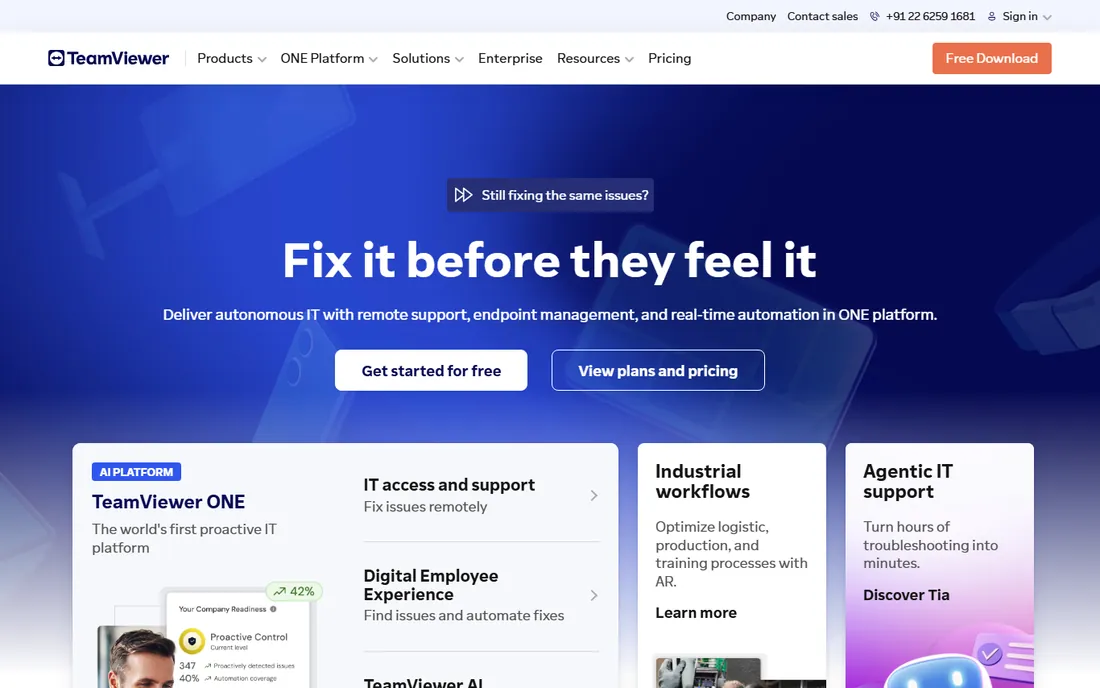
TeamViewer is the remote desktop name everyone knows, and its multi-monitor support is genuinely good. When you connect to a machine with two or three displays, you can view them individually, switch between them or show all at once, with the remote screen scaling to fit your local setup. It works across Windows, macOS, Linux, mobile and even in browsers.
The platform covers the full remote access picture: unattended access for servers and workstations, file transfer, remote printing, session recording and meeting features. IT teams use it for support, and individuals use it to reach their office workstation from home. The connection quality adapts to bandwidth well.
The honest drawbacks are price and the commercial-use detection. TeamViewer is among the most expensive options here, and the free version aggressively flags suspected commercial use, which frustrates legitimate personal users. For businesses that need dependable multi-monitor remote access with minimal fuss, it remains the safe default.
What we like- Reliable multi-monitor display and switching
- Works across all major platforms
- Strong brand and support
Watch out for- Premium pricing
- Free version flags commercial use aggressively
Starting priceSee website
Free planFree trial
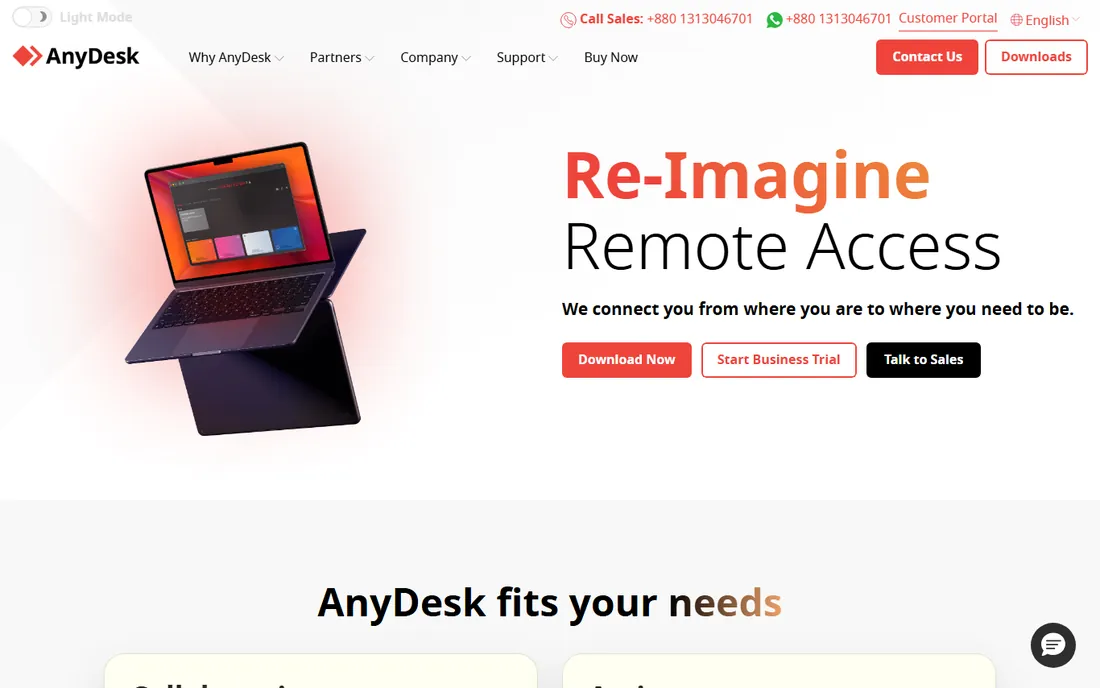
AnyDesk built its reputation on speed. Its proprietary codec delivers low-latency remote sessions that feel responsive even on poor connections, which matters when you are working across multiple monitors all day. The multi-monitor support lets you switch between remote displays or view them side by side, and the client itself is a tiny download.
The performance focus shows in daily use. Designers, developers and support techs who live in remote sessions notice the difference in cursor responsiveness and screen refresh. Unattended access, file transfer, session permissions and address book features cover the standard needs. It runs on every major platform including Raspberry Pi.
The trade-off is polish and breadth. The interface is functional rather than friendly, and fleet management, custom branding and advanced security controls sit behind higher tiers. It is less of an IT management suite than GoTo Resolve or ScreenConnect. For pure connection quality with multi-monitor support, it is a top pick.
What we like- Very low latency even on weak connections
- Good multi-monitor navigation
- Lightweight client
Watch out for- Interface is spartan
- Advanced management features need higher tiers
Starting priceSee website
Free planFree trial
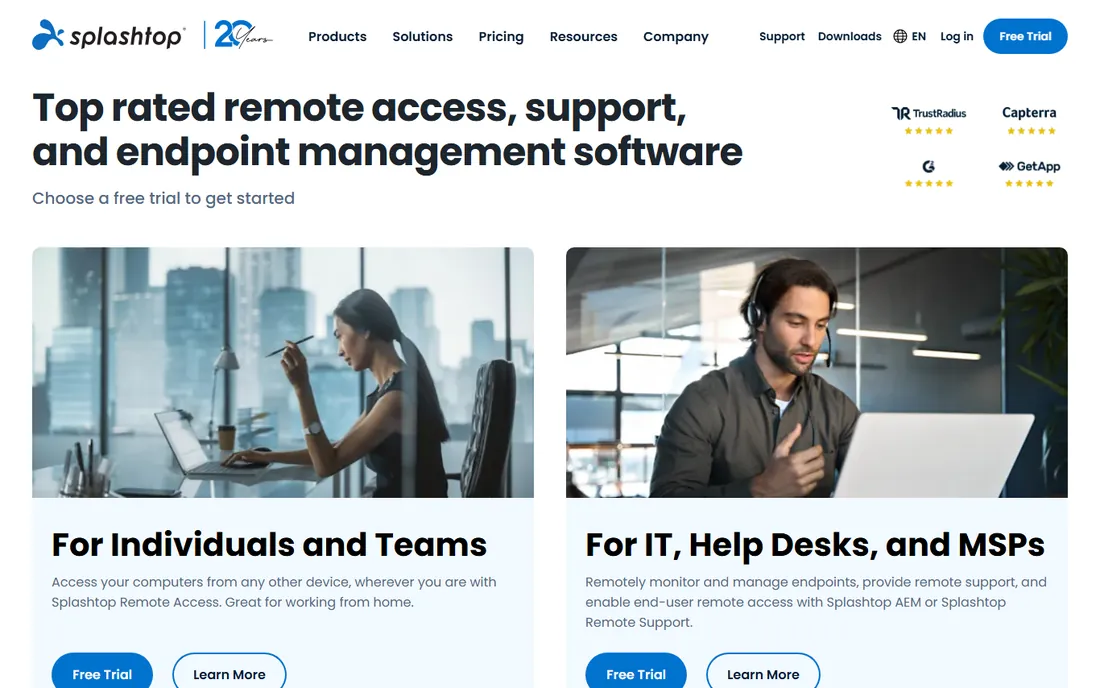
Splashtop is the remote desktop of choice for people who work remotely on powerful workstations: video editors, CAD designers and developers with multi-monitor setups. The streaming performance handles high resolutions and multiple displays smoothly, with 4K support and low latency that makes remote work feel local.
The multi-monitor experience is a highlight. You can view all remote monitors simultaneously, match the remote layout to your local one and switch quickly between displays. The business products add SSO, audit logs, remote print and file transfer, with security certifications that satisfy IT departments. Pricing undercuts TeamViewer significantly.
The honest complaint is the product lineup. Splashtop sells several editions (Business Access, SOS, Remote Support, Enterprise) and figuring out which one you need takes effort. Some features you expect are edition-specific. But for performance-per-dollar with multi-monitor setups, it is hard to beat.
What we like- Excellent streaming performance for multi-monitor
- Affordable business pricing
- Strong security
Watch out for- Product lineup is confusing
- Some features split across editions
Starting priceSee website
Free planFree trial
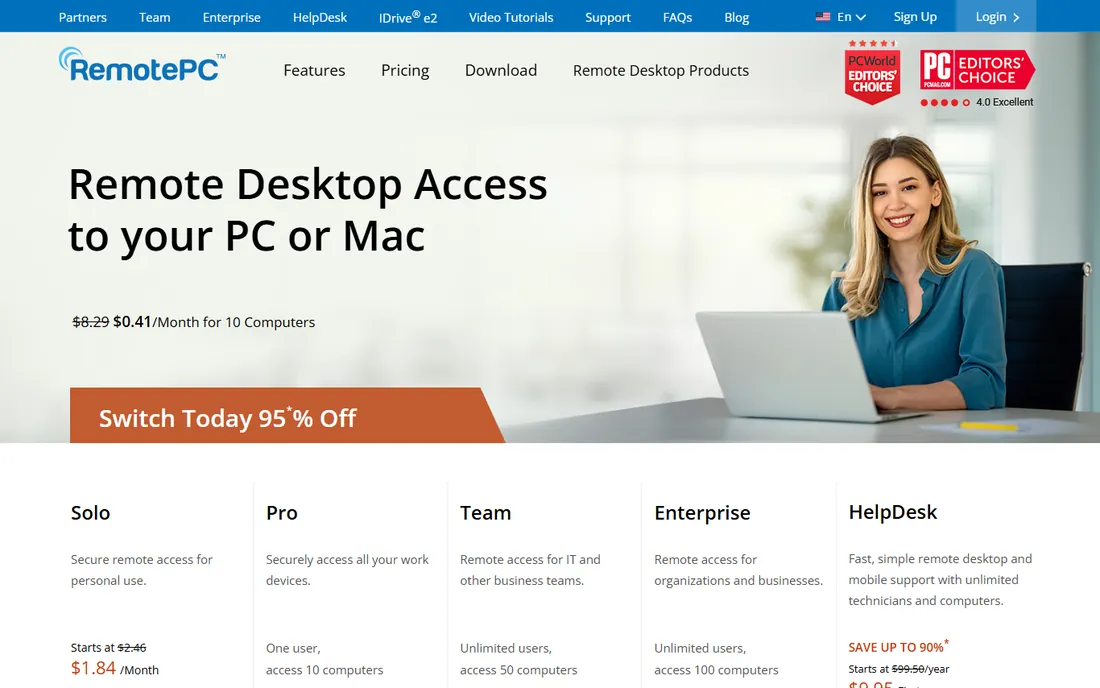
RemotePC competes on price. Its plans cover always-on remote access to many computers for a fraction of what TeamViewer or AnyDesk charge, with unlimited computers on some tiers. For a small business that needs to reach a handful of office PCs from home, the economics are compelling.
The feature set covers the essentials: unattended access, file transfer, remote printing, session recording and multi-monitor support. Setup is straightforward and the web access works without installing software. It also bundles cloud backup in some plans, which is a nice extra.
The catch is performance and refinement. On fast local networks it is fine; over the internet with multiple high-resolution monitors, it feels slower than Splashtop or AnyDesk. The multi-monitor controls are basic compared with the leaders. If budget is the priority and expectations are modest, it delivers. If performance matters, pay more.
What we like- Very low pricing for always-on access
- Unlimited computers on some plans
- Simple setup
Watch out for- Performance lags the leaders
- Multi-monitor features are basic
Starting priceSee website
Free planFree trial
GoTo Resolve, from the company formerly known as LogMeIn, is the IT support platform that includes remote desktop as part of a bigger picture. Technicians get multi-monitor remote control, unattended access and file transfer, plus ticketing, device management, patching and background system tools in the same console.
The integration is the point. Instead of juggling a remote tool, a ticket system and a device manager, the help desk works from one place. Remote sessions launch from tickets, device health data is visible during the session, and common fixes run as background tasks without interrupting the user. Multi-monitor support handles the tech's own multi-display setup and the end user's.
The drawback is the audience. This is priced and packaged for IT teams, not for someone who wants to reach their home PC. Small shops may find it more than they need. But for internal IT and MSPs that want support plus management, it consolidates several subscriptions into one.
What we like- Combines remote support with IT management
- Good for help desks
- Trusted vendor
Watch out for- Priced for IT teams, not individuals
- Some features need the full GoTo suite
Starting priceSee website
Free planYes
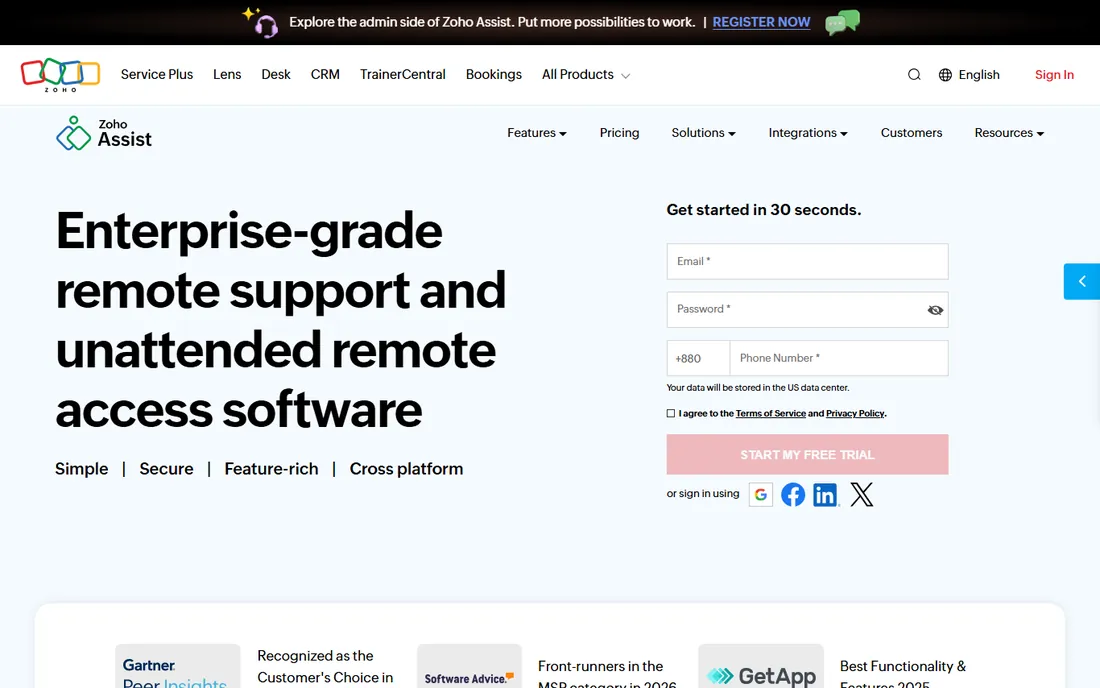
Zoho Assist is the remote support tool for teams that want to start now: it runs in the browser, the free plan covers light use, and paid plans are among the cheapest here. Support agents invite customers with a link, take control of the screen and handle multi-monitor setups without anyone installing software.
The browser-based approach is the differentiator. For ad-hoc support, where the end user will not install a client, it removes the biggest friction point. Unattended access, file transfer, session recording and reboot-and-reconnect cover the standard support workflow. Integration with Zoho Desk ties sessions to tickets.
The honest limits are performance and polish. It does not match Splashtop or AnyDesk for responsiveness on multi-monitor high-resolution sessions, and the multi-monitor switching is functional rather than elegant. For planned support workflows on a budget, especially inside the Zoho ecosystem, it is the value pick.
What we like- Runs in the browser with no install
- Free plan available
- Good value paid tiers
Watch out for- Performance is mid-range
- Multi-monitor controls less refined
Starting priceSee website
Free planFree trial
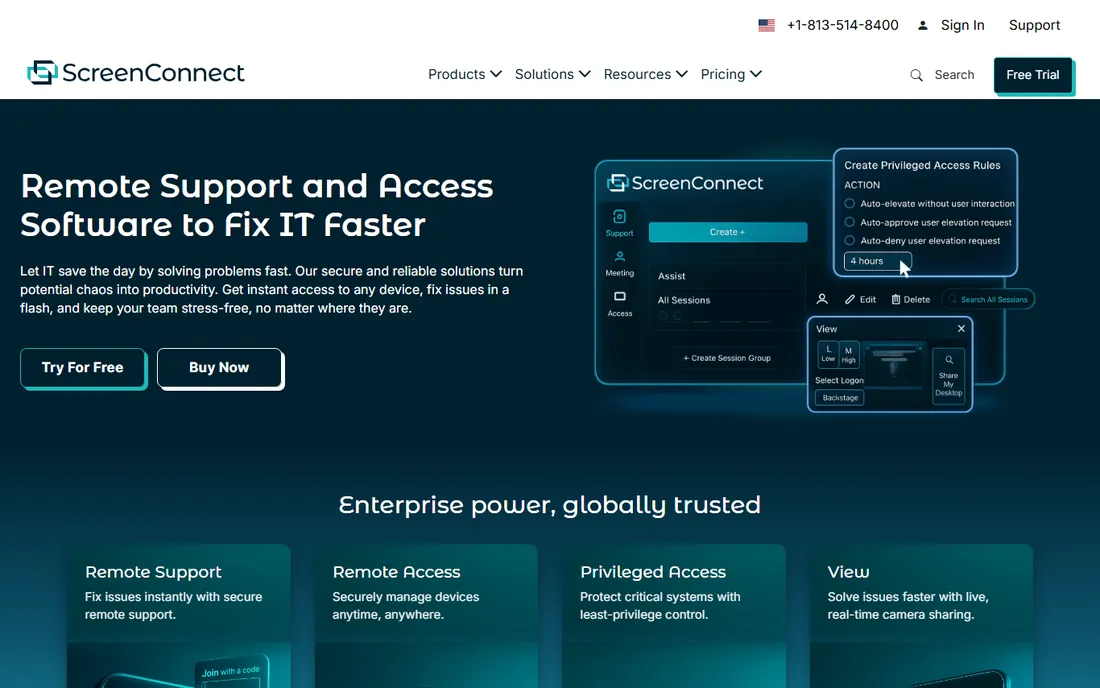
ConnectWise ScreenConnect is the remote support tool that managed service providers swear by. Technicians get fast remote control with multi-monitor support, background access without interrupting users, command-line tools, file transfer and session auditing. The self-hosted option lets MSPs run it on their own infrastructure.
The depth is what keeps MSPs loyal. You can run scripts, manage processes and services, transfer files and troubleshoot without ever showing a window on the user's screen. The audit trail satisfies compliance requirements, and the per-technician pricing scales with the support team rather than the endpoint count.
The trade-off is the learning curve and look. The interface is powerful but dated, and new technicians need training to use the advanced features. It is overkill for simple remote access needs. For MSPs and IT departments doing serious remote support across multi-monitor endpoints, it remains the technician's choice.
What we like- Deep remote support toolkit
- Self-hosted option
- Loved by MSPs
Watch out for- Interface is utilitarian
- Pricing is per technician
Starting priceSee website
Free planFree trial
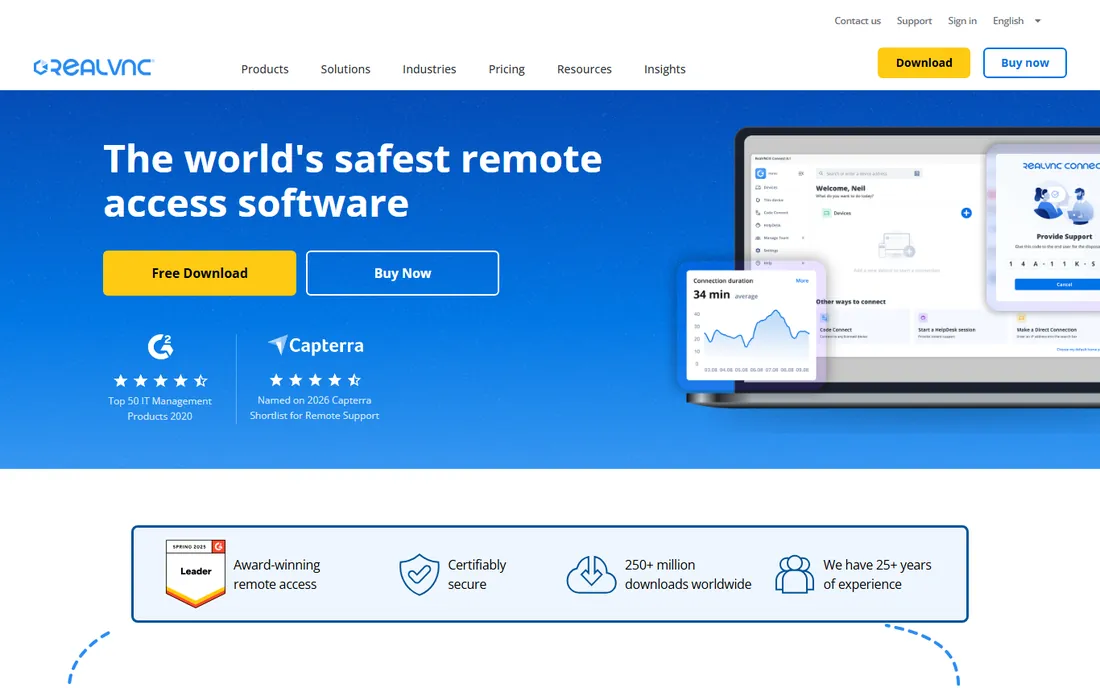
RealVNC is the commercial evolution of the original VNC remote desktop protocol. It is lightweight, runs on everything from Windows and macOS to Linux and Raspberry Pi, and the protocol compatibility means it works with other VNC viewers and servers. Multi-monitor support exists, letting you view and switch between remote displays.
The appeal is simplicity and footprint. Where TeamViewer and AnyDesk are full platforms, RealVNC is a focused remote desktop tool with modest system requirements. It suits technical users, labs, embedded systems and anyone who wants VNC's universality with commercial support and security.
The honest limits are features and polish. Multi-monitor handling is basic compared with the leaders, and there is no ticketing, device management or advanced support toolkit. It is a remote desktop tool, not an IT platform. For straightforward remote access to multi-monitor machines without the platform overhead, it does the job.
What we like- Lightweight and cross-platform
- The original VNC, highly compatible
- Simple licensing
Watch out for- Basic multi-monitor handling
- Fewer support features
Starting priceFree
Free planYes
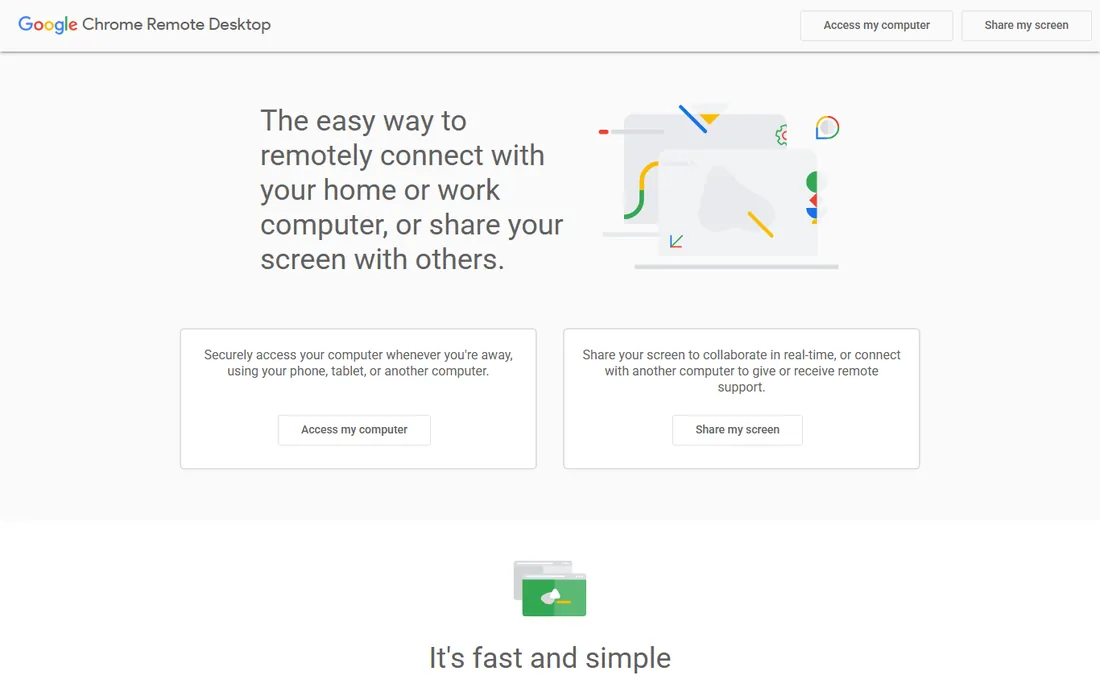
Chrome Remote Desktop is Google's free remote access tool, and its pitch is simplicity: install the extension, set a PIN and connect from any Chrome browser or the mobile app. It is free for personal and commercial use with no catches, which no other tool here can claim.
For basic needs, it works. You get remote control, clipboard sharing and multi-monitor viewing, all without accounts, licenses or configuration. It is the fastest way to help a family member or reach your own machines occasionally.
The limitations are everything else. Multi-monitor support is rudimentary, there is no file transfer in the traditional sense, no session management, no unattended access controls worth mentioning and no support for IT workflows. It is a personal tool, not a business platform. But free is free, and for simple multi-monitor access it is enough.
What we like- Completely free
- Dead simple setup
- Works in the browser
Watch out for- Minimal features
- Multi-monitor support is rudimentary
Starting priceFree
Free planYes
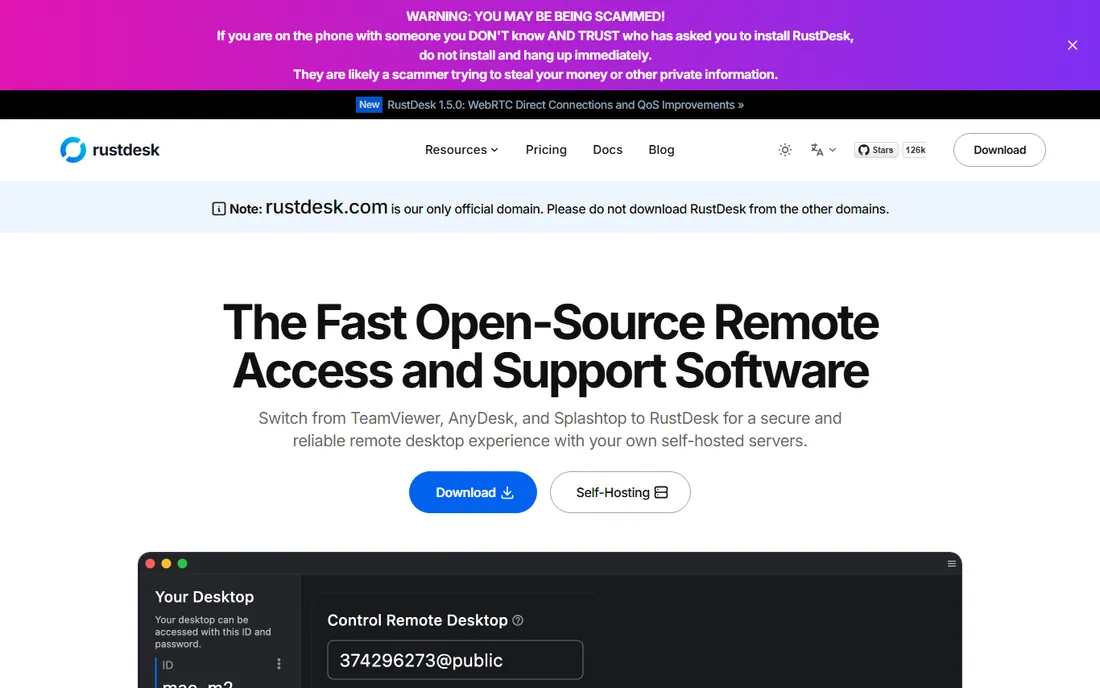
RustDesk is the open-source answer to TeamViewer: a full remote desktop client with multi-monitor support, file transfer, chat and unattended access, free forever, with the option to self-host the relay server so no traffic passes through third parties. It runs on Windows, macOS, Linux, Android and iOS.
The self-hosting is the killer feature for privacy-conscious organizations. Companies that cannot let remote session traffic traverse vendor servers run their own RustDesk server and keep everything in-house. The multi-monitor support handles display switching well, and performance is respectable.
The honest catch is the DIY nature. Setup, especially self-hosting, needs technical skill, and support comes from the community rather than a vendor SLA. It lacks the management consoles, audit features and polish of commercial platforms. For technical teams that want free, private multi-monitor remote desktop, it is the obvious choice.
What we like- Free and open source
- Self-hostable relay server
- Good multi-monitor support
Watch out for- Setup needs technical skill
- Support is community-based
What multi-monitor support actually means
"Supports multiple monitors" covers a wide range. The basics: viewing each remote display, switching between them and spanning them across your local screens. The better implementations let you choose which remote monitor appears on which local monitor, blank the remote screens for privacy and adjust quality per display.
What the checkbox does not tell you is performance. Two 4K monitors generate a lot of pixels, and the encoding quality determines whether the session feels local or laggy. This is where Splashtop and AnyDesk earn their reputations, and where budget tools show their limits. Always trial with your actual monitor configuration and network, because a demo on one 1080p screen tells you nothing.
Also check the direction that matters to you. Most tools handle the remote machine having multiple monitors. Fewer handle it elegantly when the local machine has one monitor and the remote has three. Test your specific combination during the trial.
What to check before you buy
Start with your use case: occasional personal access, daily remote work or IT support at scale. Those are three different products, and buying a support platform for personal access wastes money in both directions. Second, trial multi-monitor performance on your real network with your real monitor setup, not the vendor's demo environment.
Third, check the security story: encryption standards, two-factor authentication, SSO for teams and audit logs for support use. Fourth, verify platform coverage for every machine you need to reach, including the odd ones like Linux servers or ARM devices. Finally, read the licensing carefully: per-user, per-technician, per-device and concurrent-session models produce wildly different bills at scale.
How we chose
We compared vendor product pages, documentation and public review sources, then confirmed every homepage was live in October 2026. The browser search tool was unavailable during this article's research, so vendor URLs were sourced from previously verified writer files in this workspace and re-verified with fresh checks. Where we could not verify a vendor-published price we say so. Nothing here reflects hands-on testing; assessments come from documentation, feature lists and public user feedback.
Frequently asked questions
Which remote desktop software is best for multiple monitors?
TeamViewer, AnyDesk and Splashtop have the most refined multi-monitor support. Splashtop leads on performance per dollar, AnyDesk on latency and TeamViewer on overall reliability. Trial all three with your monitor setup before deciding.
Is there a free remote desktop tool with multi-monitor support?
Yes. Chrome Remote Desktop is free and handles multiple monitors basically. RustDesk is free, open source and more capable, including self-hosting. Both beat paid tools on price and lose on polish and support features.
Do I need fast internet for multi-monitor remote desktop?
It helps a lot. Multiple high-resolution monitors multiply the bandwidth needed. The better tools adapt quality to available bandwidth, but a slow connection will still feel laggy. Wired connections beat Wi-Fi for sustained remote work.
Can I use remote desktop software for IT support?
Yes, and several tools here are built for it: GoTo Resolve, ScreenConnect and Zoho Assist bundle remote control with ticketing and device management. Pure access tools like Chrome Remote Desktop are not suitable for support workflows.
Is remote desktop software secure?
The reputable vendors encrypt sessions, offer two-factor authentication and publish security certifications. The bigger risks are weak passwords, reused credentials and phishing. Use strong unique passwords, enable 2FA and keep the software updated.
Sources we checked (10)
- https://www.teamviewer.com
- https://www.anydesk.com
- https://www.splashtop.com
- https://www.remotepc.com
- https://www.goto.com
- https://www.zoho.com/assist
- https://www.screenconnect.com
- https://www.realvnc.com
- https://remotedesktop.google.com
- https://www.rustdesk.com
Is your product missing or out of date?
We review this list regularly. Vendors can request a listing, send updated pricing or ask about featured placement.

Shihab Mia · Founder, Rankite
Shihab has spent more than a decade helping SaaS and e-commerce brands grow through search. He writes Rankite's software buying guides from pricing pages, documentation and public user reviews. More about Shihab.