How we make this list: we compare pricing pages, product documentation and public user reviews. Ratings come from G2, Capterra or Trustpilot, with the date we checked them.
Key takeaways
- AI coding help now sits at the center of most developer stacks, with GitHub Copilot and Cursor covering different styles of work.
- Planning tools matter as much as coding tools, because lost context between tickets, docs, and time logs is where weeks quietly disappear.
- Free tiers are strong in this category, so a solo developer can build a capable setup before paying for anything.
- The best stack is a small one: one editor or AI assistant, one place for plans and notes, and one honest record of where time goes.
Quick comparison
| Tool | Best for | Starting price | Free plan |
|---|
 GitHub Copilot GitHub Copilot | AI completions inside your existing editor | $10 per month | Yes |
 Cursor Cursor | AI-first coding with agents across a codebase | $20 per month | Yes |
 Notion Notion | Docs, plans, and team knowledge in one place | See website | Yes |
 Toggl Track Toggl Track | Time tracking tied to projects and billing | See website | Yes |
 Raycast Raycast | Fast launching and commands on macOS | See website | Yes |
 Visual Studio Code Visual Studio Code | A free, extensible editor for most languages | Free | Yes |
 Obsidian Obsidian | Private, local notes linked into a knowledge base | Free | Yes |
Is your product missing or out of date?
We review this list regularly. Vendors can request a listing, send updated pricing or ask about featured placement.
#1GitHub Copilot
Best for: AI completions inside your existing editor4.4/5 on
G2 (397 reviews, checked Oct 2026)
Visit github.com
Starting price$10 per month
Free planYes
For many developers, Copilot is the lowest friction way to add AI help to work that is already underway. It lives in the editor you already use, so there is no new interface to learn and no migration of files or settings. Inline suggestions handle boilerplate, repetitive patterns, and small functions, while chat can explain a block of code, draft a test, or suggest a fix when an error message is unclear. That combination suits developers who like their current setup and want help inside it rather than a new tool to adopt.
The catch is review discipline. Copilot guesses what comes next based on context, and a confident looking suggestion can still be wrong, outdated, or a poor fit for the project style. Teams get the most value when they treat suggestions as a draft from a fast junior colleague: useful, often correct, and always worth a read before merging. Pricing also deserves a close look for heavy users, since agent features draw on credits and the free tier caps completions each month. Start on the free tier, measure how often you accept suggestions, and move to a paid plan only when the limit starts to bite.
What we like- Works inside VS Code, JetBrains IDEs, and other editors
- Chat and agent features sit next to the code
- Free tier covers light individual use
Watch out for- Suggestions still need review, especially in unfamiliar codebases
- Heavy agent use can push costs up through usage credits
#2Cursor
Best for: AI-first coding with agents across a codebase4.6/5 on
G2 (326 reviews, checked Oct 2026)
Visit cursor.com
Starting price$20 per month
Free planYes
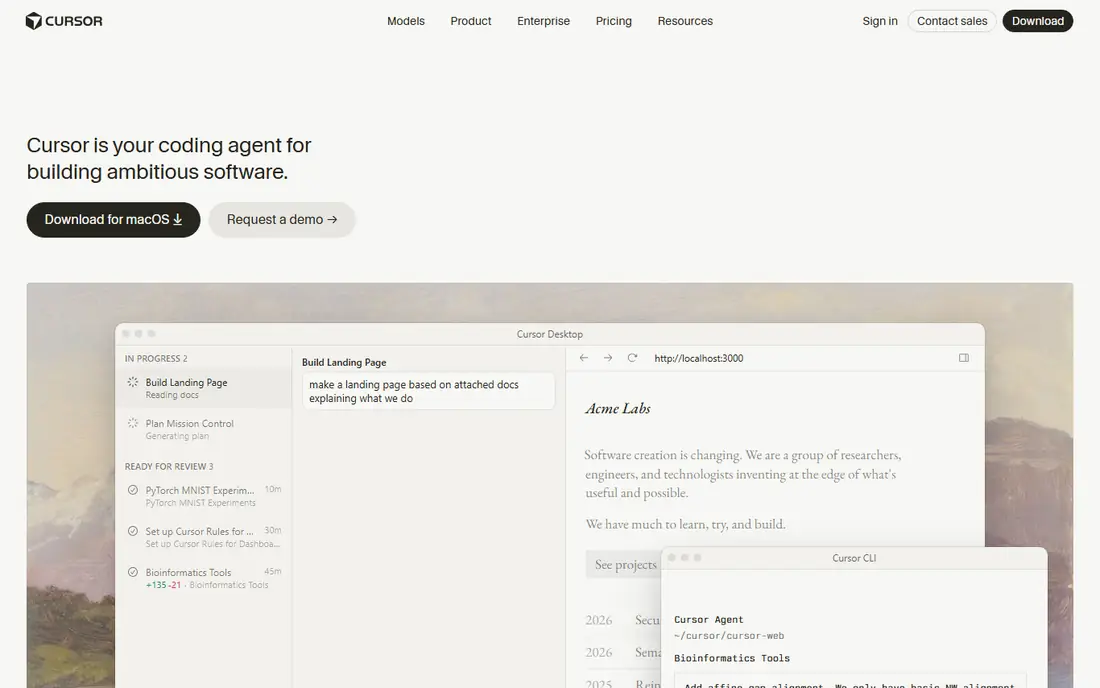
Cursor takes a different approach from an assistant that plugs into your editor. It is the editor, built around AI from the start, with agents that can plan a change, edit several files, run commands, and report back for review. That design pays off on larger jobs, such as refactoring a module, adding a feature that touches the API and the interface, or clearing a backlog of small fixes in one session. Developers who already use VS Code will find the layout, shortcuts, and extensions familiar, which keeps the switch short.
The trade off is control. An agent given a vague prompt may solve the wrong problem very efficiently, so clear task descriptions, small scopes, and frequent checkpoints matter more here than with simple autocomplete. Reviewing a multi file diff also takes real attention, and skipping that review is how subtle bugs slip in. Cursor suits developers who are comfortable directing AI work, checking diffs carefully, and keeping tasks small enough to verify. If you mainly want completions while you type, a lighter assistant may be enough.
What we like- Agent mode can work across many files at once
- Model choice covers several leading providers
- Familiar to VS Code users
Watch out for- Agent runs can wander without clear instructions
- Higher usage costs more on paid plans
#3Notion
Best for: Docs, plans, and team knowledge in one place4.6/5 on
G2 (13,834 reviews, checked Oct 2026)
Visit notion.com
Starting priceSee website
Free planYes
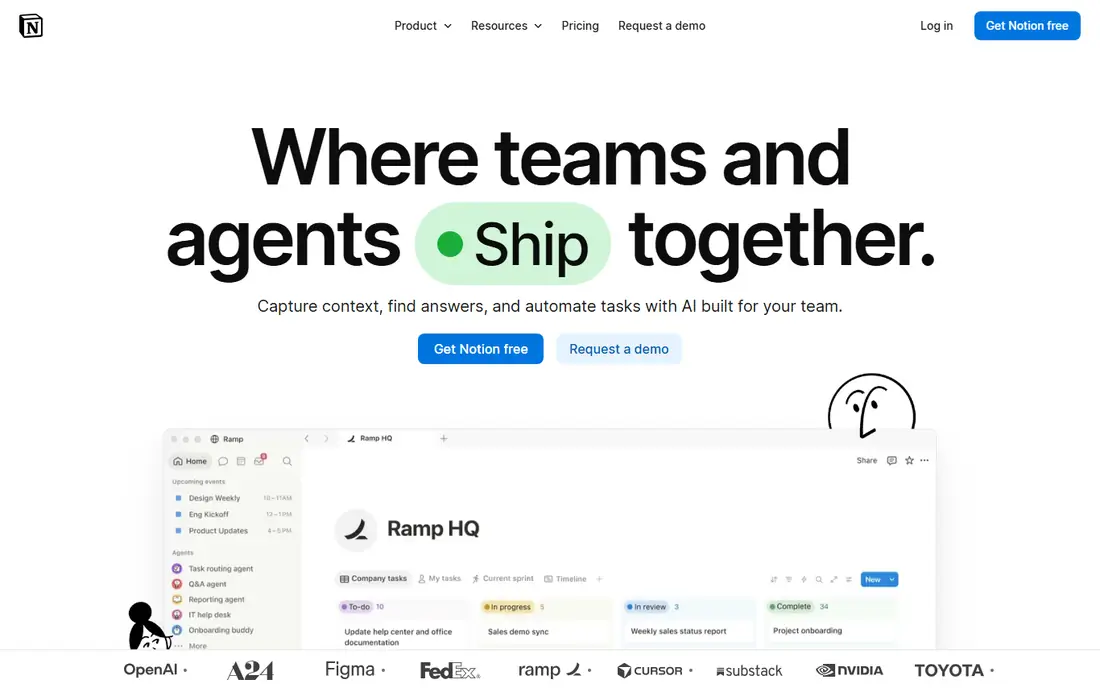
Notion earns its place in a developer stack not as a coding tool but as the place where decisions live. Specs, API notes, launch checklists, onboarding guides, and sprint plans can sit in one searchable workspace instead of scattered across chat threads and personal folders. Databases add structure when you need it, so a bug tracker, a content calendar, or a simple roadmap can live next to the prose that explains it. For small teams, that flexibility means one tool can replace several single purpose apps.
Flexibility is also the risk. A workspace with no agreed structure tends to accumulate duplicate pages, stale docs, and half finished databases, and new joiners then struggle to find the current version of anything. The fix is boring and effective: name one owner for the workspace, agree on a small set of page types, and archive ruthlessly at the end of each project. Check the current pricing page before committing, since AI features and team plans sit on top of the free tier. Used with discipline, Notion becomes the memory of the team rather than another drawer of forgotten notes.
What we like- Flexible pages, databases, and docs in one workspace
- Good for specs, roadmaps, and meeting notes
- Broad template library
Watch out for- Can grow messy without an owner for structure
- Performance can slow on very large workspaces
#4Toggl Track
Best for: Time tracking tied to projects and billing4.6/5 on
G2 (1,589 reviews, checked Oct 2026)
Visit toggl.com
Starting priceSee website
Free planYes
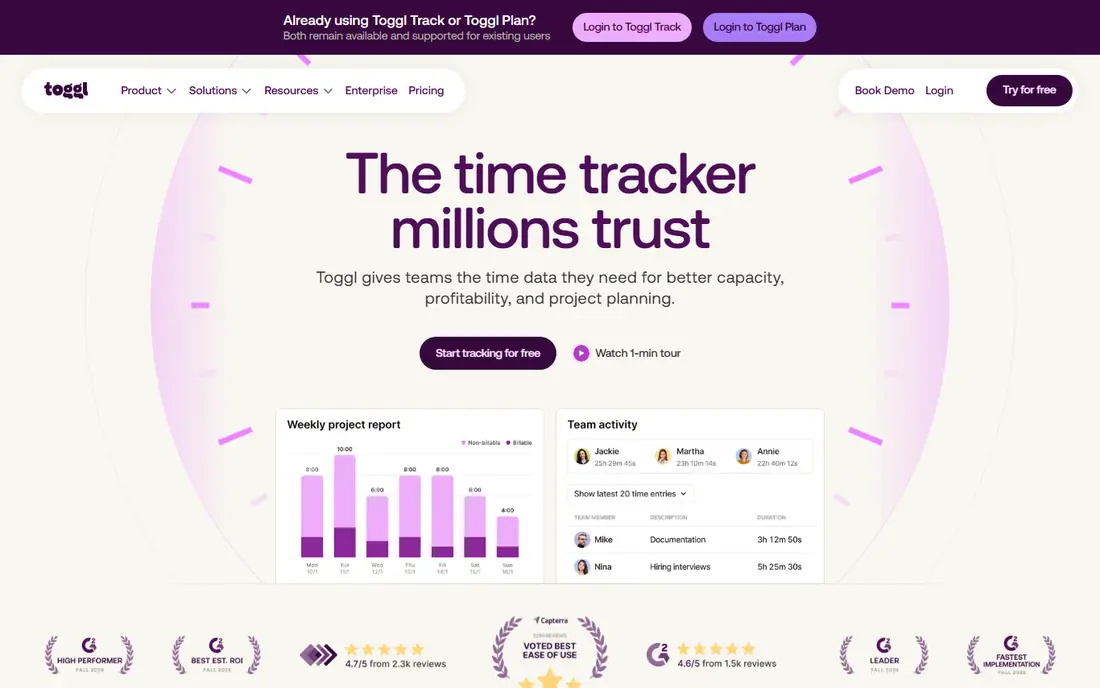
Toggl Track answers a question that estimates alone cannot: where did the hours actually go. A developer starts a timer, tags the project and task, and stops it when the work ends, which builds a record that is useful for invoices, retrospectives, and future quotes. Reports show billable versus non billable time, time per client, and projects running over estimate, all without surveillance style features such as screenshots. Freelancers use it to bill with confidence, and teams use it to spot overloaded people before burnout becomes a resignation.
The honest weakness is habit. A tracker that only one person uses produces a partial picture, and a tracker that everyone forgets produces none at all. Browser extensions and calendar integrations help, since starting a timer can sit next to the task itself rather than in a separate app to remember. Managers should also be clear about why time is tracked, because a tool framed as oversight will be resisted while the same tool framed as better estimates and fairer workloads will be used. Check the vendor pricing page for current team plans, since reporting depth and capacity planning vary by tier.
What we like- One click timers on web, desktop, and mobile
- Reports split time by project, client, and task
- No screenshots or intrusive monitoring
Watch out for- Value depends on consistent use by the whole team
- Advanced planning features sit on higher plans
Starting priceSee website
Free planYes
Raycast is the kind of tool that feels small until you remove it. On macOS it replaces the built in launcher with a command bar that opens apps, searches files, runs scripts, manages clipboard history, and triggers extensions for tools such as GitHub, Linear, and package managers. Developers who live on the keyboard save dozens of small context switches a day, and those savings add up across a week of tickets, reviews, and deploys. Snippets handle repeated text, window management keeps the desktop tidy, and community extensions cover many workflows without writing custom scripts.
Two limits shape who should buy it. First, it only runs on macOS, so mixed platform teams cannot standardize on it, and Windows or Linux developers will need a different launcher. Second, the free version covers the core launcher well, while AI features and some advanced tools sit on a paid plan, so check the current pricing page against what you will actually use. Raycast rewards a short setup session: install the handful of extensions you will use daily, learn the shortcuts, and delete the rest. Left at defaults it is still a better launcher, but configured well it becomes the front door to the whole machine.
What we like- Replaces the macOS launcher with commands, snippets, and extensions
- Deep integrations with common developer tools
- Fast keyboard driven workflow
Watch out for- MacOS only, so Windows and Linux developers need an alternative
- The best extensions take time to configure well
#6Visual Studio Code
Best for: A free, extensible editor for most languages4.7/5 on
G2 (2,735 reviews, checked Oct 2026)
Visit code.visualstudio.com
Starting priceFree
Free planYes
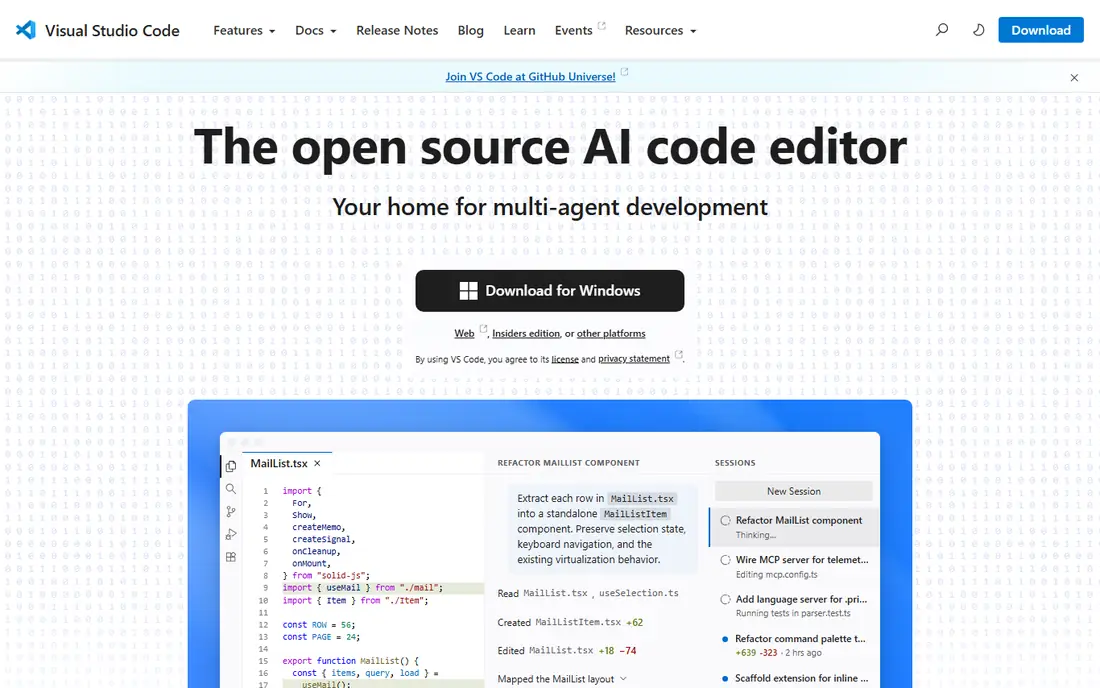
Visual Studio Code remains the default editor for a large share of developers for a simple reason: it is free, it supports nearly every major language, and its extension marketplace lets each developer shape it to their stack. Built in Git support, debugging, terminal access, and remote development over SSH or containers cover daily work without extra purchases. Settings sync keeps the same setup across machines, and profiles let one person keep separate configurations for different projects or clients. For beginners, that low cost and broad documentation make it an easy first editor. For experienced developers, it is a stable base that AI assistants can plug into.
The price of that flexibility is setup time. Out of the box, VS Code is a capable editor rather than a full featured IDE for every language, so Java, C sharp, Python, and other stacks each need their own extensions and configuration. Developers who expect everything to work with no setup may prefer a language specific IDE, while those who enjoy tuning their environment will see the same flexibility as a strength. Keep extensions lean, since a long list of rarely used extensions slows startup and invites conflicts. Paired with Copilot or a similar assistant, VS Code covers most development work at no license cost at all.
What we like- Free and open source
- Huge extension marketplace
- Strong Git, debugging, and remote development support
Watch out for- Needs extensions and settings to match a full IDE
- Very large projects can feel heavy without tuning
#7Obsidian
Best for: Private, local notes linked into a knowledge base4.5/5 on
G2 (13 reviews, checked Oct 2026)
Visit obsidian.md
Starting priceFree
Free planYes

Obsidian suits developers who want notes that stay theirs. Everything is stored as plain Markdown files on the local device, so notes remain readable without the app, easy to back up, and simple to move into Git or another system later. Links between notes build a personal knowledge base over time: a debugging note links to a library note, which links to a project retrospective, and the graph view surfaces connections that a flat folder list hides. That structure fits research notes, code snippets, architecture decisions, and learning logs better than a single long document.
The limits are about sharing and sync. Real time collaboration is not the point here, so teams that need a shared wiki with simultaneous editing should look at Notion or a similar tool instead. Syncing across devices and publishing notes as a website are paid add ons, although many developers sync the plain files with their own tools instead. Obsidian is free for personal use, which makes it an easy trial: write daily notes for a month, link them as you go, and see whether the graph starts to answer questions you used to search chat history to solve. For solo developers and small teams with a Git based workflow, it is a durable, low cost second brain.
What we like- Notes stored as plain local files you own
- Links and graph view connect ideas across projects
- Large plugin community
Watch out for- Sync and publishing are paid add ons
- No built in real time collaboration like a shared wiki
How we chose
We compared pricing pages, product documentation, and public reviews on sites such as G2 and Capterra, and we favored tools that are actively maintained, widely used by developers, and honest about their limits. Each pick had to solve a distinct problem in a developer workflow, from writing code to planning work, tracking time, launching tools, or keeping notes. We excluded tools that were discontinued, that only fit a single narrow language, or that duplicated another pick without a clear advantage. Prices shown here were checked against vendor pages and public pricing summaries in October 2026, and anything we could not verify is marked as See website, so readers should confirm the current plan before buying.
What to check before you pay
A productive stack is decided by fit, not by feature count. Start by naming the bottleneck in your current week. If code output is slow, an AI assistant will help more than another planning app. If tickets and specs keep getting lost, a docs workspace will help more than a faster launcher. If estimates keep missing, time data will help more than either. Pick one tool for the biggest bottleneck, use it for two full weeks, and only then add the next one.
Match the tool to team size
Solo developers can run almost entirely on free tiers, with VS Code, Obsidian, and a free AI tier covering most needs. Small teams should weigh per seat pricing carefully, since a tool that costs little for one person can become a large monthly bill for ten. Larger teams should check admin controls, single sign on, data export, and support response times before rolling a tool out, because those details matter more at scale than a long feature list.
Watch the pricing model
Some tools charge per user per month, some charge a flat monthly fee, and some add usage based charges for AI features. Annual billing usually lowers the monthly rate but locks you in for a year, so prefer monthly billing during a trial period. Check what happens to your data if you cancel, whether exports are complete, and whether a free plan keeps your work readable after a downgrade. A cheap entry price means little if leaving the tool costs a week of migration work.
Keep the stack small
Every new tool adds login, notifications, and maintenance. A stack of three or four tools that everyone actually uses will beat a stack of ten tools that half the team ignores. Review the stack each quarter, remove tools that have not earned their place, and merge overlapping tools where one can cover two jobs. The goal is fewer context switches and clearer ownership, not a longer list of subscriptions.
Frequently asked questions
What is the single most useful productivity tool for a developer?
There is no single answer, because the bottleneck differs by person. Developers who write a lot of code usually gain most from an AI assistant such as GitHub Copilot or Cursor. Developers who lose time to planning and context switching usually gain more from a docs workspace and a fast launcher. Start with the bottleneck, not the most popular tool.
Are free plans enough for a solo developer?
Often yes. VS Code and Obsidian are free, Notion and Toggl Track have usable free tiers, and both AI assistants offer free tiers with limits. A solo developer can build a complete setup at no cost and pay only when a limit, such as AI usage caps or team features, starts to block real work.
Should I pick GitHub Copilot or Cursor?
Pick Copilot if you are happy with your current editor and want AI help inside it. Pick Cursor if you want an AI first editor where agents can work across many files at once. Both offer free tiers, so trying each for a week on real tasks is the fastest way to decide.
How do I avoid wasting money on developer tools?
Trial one tool at a time, measure whether it changes a real outcome such as shipped tickets, estimate accuracy, or time spent searching for information, and cancel tools that do not. Prefer monthly billing at first, check per seat costs for the whole team, and confirm data export before committing to annual billing.
Is time tracking worth it for salaried developers?
It can be, even without billing. Time data shows which projects consume the week, where estimates go wrong, and when one person carries too much load. The value depends on the team using the data to improve planning and workload balance rather than to monitor individuals.
Sources we checked (7)
- https://github.com/features/copilot
- https://www.cursor.com
- https://www.notion.com
- https://toggl.com/track
- https://www.raycast.com
- https://code.visualstudio.com
- https://obsidian.md
Is your product missing or out of date?
We review this list regularly. Vendors can request a listing, send updated pricing or ask about featured placement.

Shihab Mia · Founder, Rankite
Shihab has 5+ years in B2B and SaaS SEO. He writes Rankite's software buying guides from pricing pages, documentation and public user reviews. More about Shihab.