How we make this list: we compare pricing pages, product documentation and public user reviews. Ratings come from G2, Capterra or Trustpilot, with the date we checked them.
Key takeaways
- Ezgif is the best free GIF maker for most people, because it converts, edits, and optimizes GIFs in the browser with no watermark and no account.
- Tenor is the fastest route from a video clip to a shareable GIF with captions, and it is free.
- ScreenToGif is the best free desktop option on Windows for recording your screen straight to GIF and editing frame by frame.
- Canva and Adobe Express suit designed GIFs with text, templates, and brand colors, and both offer free plans.
- Kapwing is worth paying for only when GIFs are part of a wider video workflow, since its free plan adds a watermark.
- Free GIF makers differ most on watermarks, file size limits, and export quality, so check those three things before you commit to one.
Quick comparison
| Tool | Best for | Starting price | Free plan |
|---|
 Ezgif Ezgif | Browser based GIF editing and optimization | Free | Yes |
 Tenor Tenor | Fast shareable GIFs from video clips | Free | Yes |
 ScreenToGif ScreenToGif | Windows screen recording to GIF | Free | Yes |
 Canva Canva | Designed GIFs with templates | Free | Yes |
 Adobe Express Adobe Express | Branded GIFs in the Adobe ecosystem | Free | Yes |
 Kapwing Kapwing | GIFs inside a video workflow | $16 per month | Yes |
 Imgflip Imgflip | Quick GIFs from video with text | Free | Yes |
 GIMP GIMP | Frame by frame animation with full editing power | Free | Yes |
Is your product missing or out of date?
We review this list regularly. Vendors can request a listing, send updated pricing or ask about featured placement.
The best gif maker app free
#1Ezgif
Best for: Browser based GIF editing and optimization3.5/5 on
Trustpilot (23 reviews, checked Oct 2026)
Visit ezgif.com
Starting priceFree
Free planYes
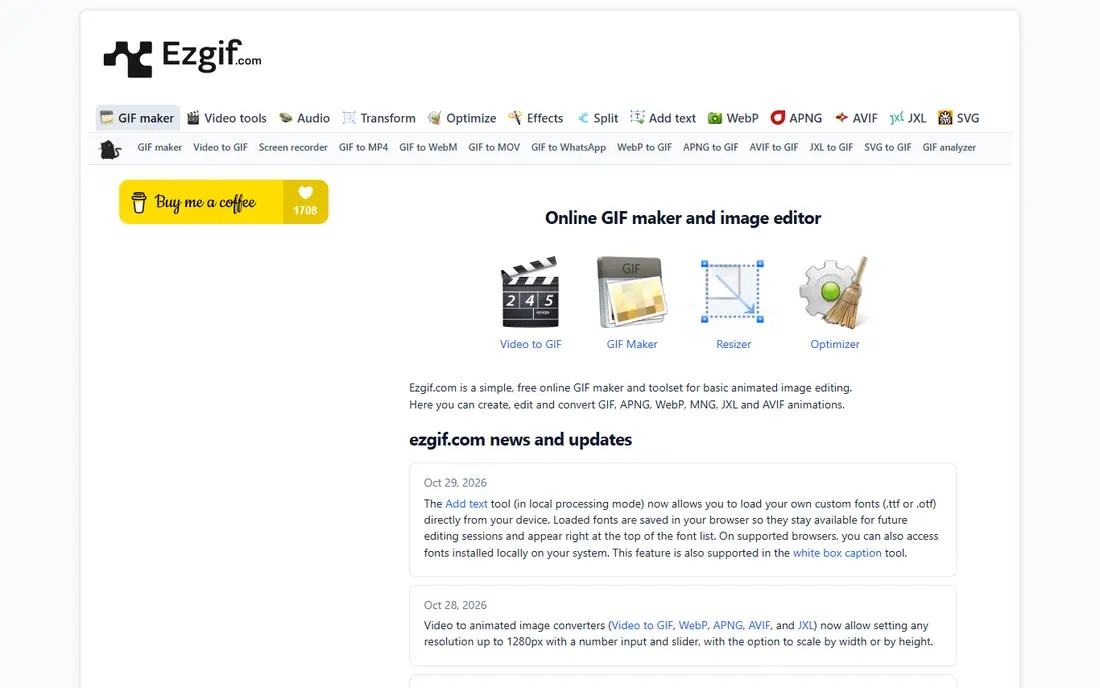
Ezgif is a free set of browser tools for creating and editing animated GIFs, and it covers nearly every GIF task without asking you to install anything or create an account. Upload a video or a set of images and it builds a GIF. Upload an existing GIF and you can crop, resize, rotate, reverse, change speed, add text, split frames, or optimize the file size. It also converts between GIF, MP4, WebM, APNG, and WebP, which matters when a platform prefers video over GIF.
The standout feature is the optimizer. GIF files are often large, and Ezgif applies lossy compression that can cut file size by a large amount with little visible loss in quality. That makes it the tool to run every GIF through before posting to a blog, a chat app, or social media. The interface looks dated and there are no design templates, but for pure GIF work it is hard to beat, and it never adds a watermark to your export.
What we like- No watermark
- No account needed
- Strong optimizer and format converter
Watch out for- Dated interface
- No design templates
- File size limit on uploads
Starting priceFree
Free planYes
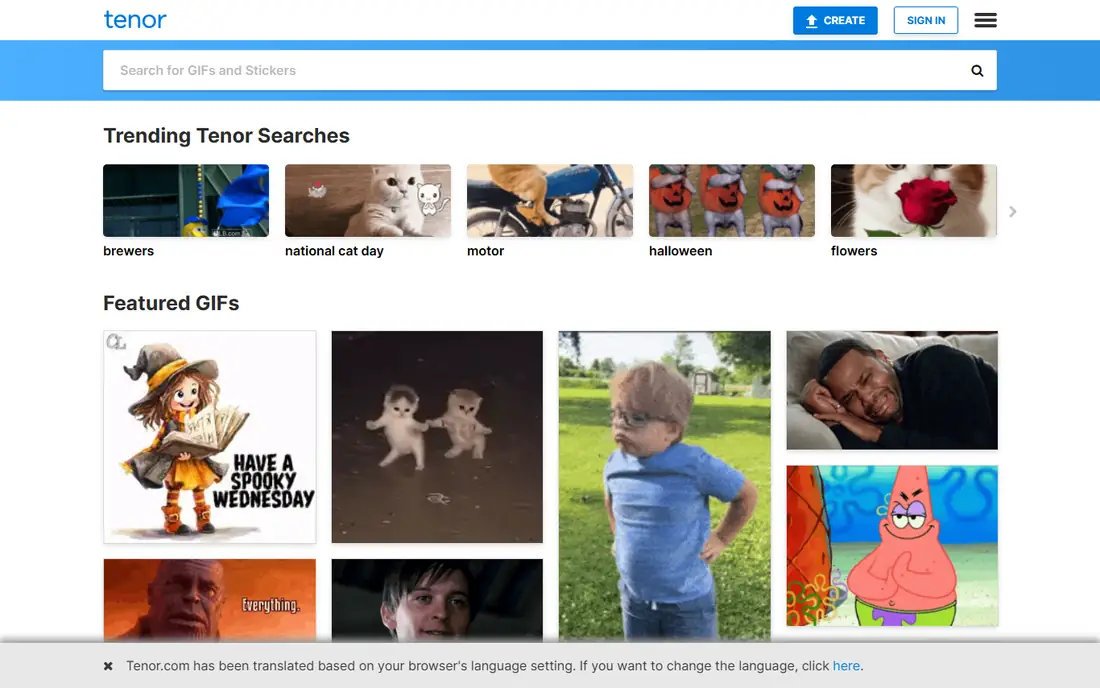
Tenor is a large GIF platform, owned by Google, and its free GIF maker turns a video clip into a shareable GIF in a few steps. Trim the clip, add a caption, and share the result to messaging apps and social media, or copy a link. Tenor GIFs are built into many keyboards and chat apps, which makes sharing simple once the GIF is made.
The trade off is control. Tenor does not offer frame by frame editing, fine speed control, or file size optimization, so it suits quick social GIFs more than documentation or web publishing. Export quality also depends on the source clip. Still, when speed matters more than precision, Tenor gets a clip to a shareable GIF very fast.
What we like- Very fast creation
- Huge GIF library
- Easy sharing to messaging apps
Watch out for- Limited frame level editing
- Account needed for some features
- Quality varies by source
Starting priceFree
Free planYes
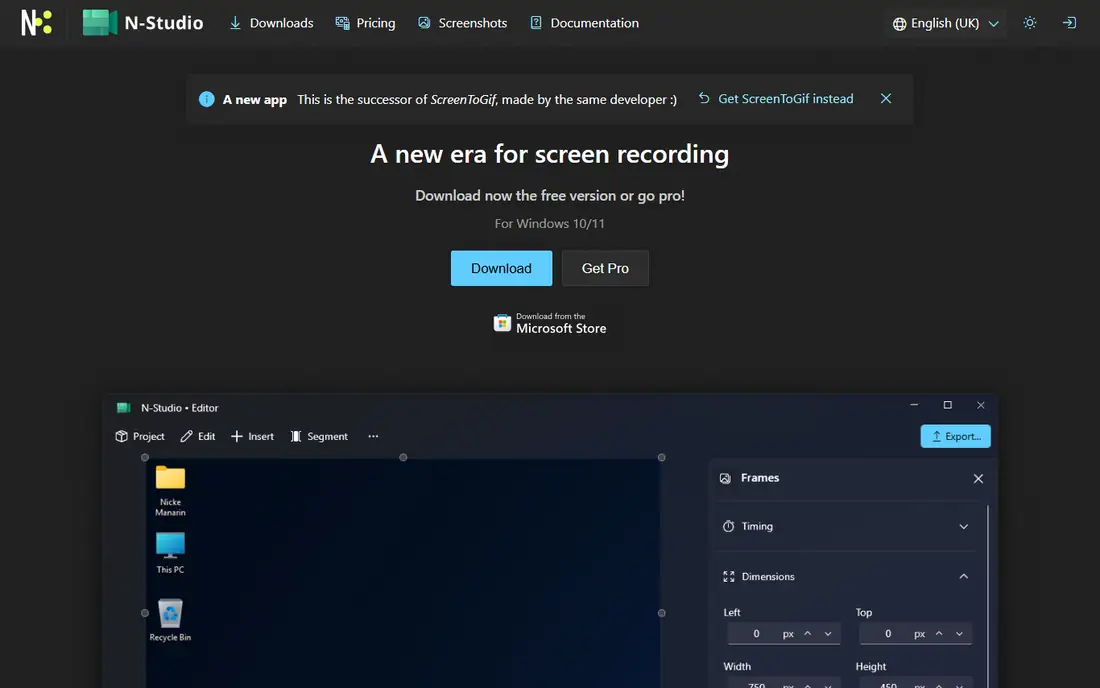
ScreenToGif is a free, open source Windows app that records a screen area and gives you a full frame editor before export. Select a region, record, stop, and you land in the editor, where you can delete individual frames, set custom delays to pause on key steps, add text or captions to specific moments, crop, resize, and preview the animation. It also captures from a webcam and includes a sketchboard mode for drawing animations.
That frame editor is what sets ScreenToGif apart from other free recorders. Documentation GIFs often need a pause on one step or a frame removed where the cursor wandered, and ScreenToGif handles both without a second tool. Exports cover GIF, APNG, WebP, and video. The limits are platform and polish: it runs on Windows only, and the interface takes a little time to learn. For Windows users who make tutorial or bug report GIFs, it is the best free choice.
What we like- Records screen, webcam, or sketchboard
- Full frame editor
- Open source
Watch out for- Windows only
- Interface takes time to learn
- No cloud sharing built in
#4Canva
Best for: Designed GIFs with templates4.7/5 on
G2 (7,678 reviews, checked Oct 2026)
Visit canva.com
Starting priceFree
Free planYes
Canva is a browser based design tool with a free plan, and its animation features make it a strong GIF maker for designed content. Start from a template, add text, shapes, photos, and brand colors, animate the elements, and export as a GIF. The template library covers social posts, ads, presentations, and banners, so you rarely start from a blank page.
Canva suits marketing GIFs, announcements, and social content far better than video conversion or screen recording. Frame level control is limited, and some stock assets and brand kit features sit behind the paid Pro plan. Export settings for GIFs are also basic compared with Ezgif. If your GIF needs to look designed rather than recorded, though, Canva is the easiest free route to a polished result.
What we like- Large template library
- Easy text and brand tools
- Works in the browser
Watch out for- Less frame level control
- Some assets need a paid plan
- GIF export settings are basic
#5Adobe Express
Best for: Branded GIFs in the Adobe ecosystem4.5/5 on
G2 (855 reviews, checked Oct 2026)
Visit adobe.com
Starting priceFree
Free planYes
Adobe Express is Adobe's browser based design tool, and its free plan includes animation and GIF export. It offers Adobe fonts, stock photos, and templates, plus simple tools for animating text and images. Users who already work with Adobe products will find the interface familiar, and brand assets carry across Adobe tools.
Like Canva, Adobe Express is built for designed GIFs, not for converting videos or recording screens. Some templates, assets, and brand kit features require a paid plan, and you need an Adobe account. For teams already inside the Adobe ecosystem, or for anyone who wants Adobe fonts in a quick animated social post, it is a solid free option.
What we like- Adobe fonts and stock assets
- Simple animation tools
- Brand kit on paid plans
Watch out for- Some features need a paid plan
- Less suited to video conversion
- Adobe account needed
#6Kapwing
Best for: GIFs inside a video workflow3.9/5 on
G2 (40 reviews, checked Oct 2026)
Visit kapwing.com
Starting price$16 per month
Free planYes
Kapwing is a cloud based video editor that also exports GIFs, and it is the pick when GIFs are one part of a larger content workflow. Its timeline editor supports trimming, captions, overlays, subtitles, and layouts, and teams can collaborate on projects in the browser. A GIF made in Kapwing can sit next to the full video it came from, which suits creators who publish both formats.
The catch is the free plan. Free exports carry a watermark, and removing it requires the Pro plan at $16 per month. That makes Kapwing a poor choice if you only need occasional GIFs, since Ezgif does that job free with no watermark. If your team already uses Kapwing for video, though, the GIF tools come as part of the same workflow and are worth using.
What we like- Full timeline video editor
- Captions and overlays
- Cloud based collaboration
Watch out for- Free plan adds a watermark
- Pro plan costs $16 per month
- More complex than single purpose tools
Starting priceFree
Free planYes
Imgflip is a browser tool best known for memes, and its GIF maker converts video to GIF quickly with text, cropping, and timing controls. Paste a video link or upload a file, trim the clip, add top and bottom text, and export. The meme template library is a bonus when the GIF is meant to be humorous.
Imgflip is simpler than Ezgif and faster to use for a one off GIF, but it lacks a frame editor and fine optimization controls. The free plan shows ads, and the Pro plan at $10 per month removes watermarks and limits. For quick GIFs with text, Imgflip is a good free choice, while Ezgif remains better for optimization and precise editing.
What we like- Very fast video to GIF conversion
- Easy text and crop tools
- Meme templates built in
Watch out for- Paid Pro plan at $10 per month removes limits
- No frame editor
- Ads on the free plan
#8GIMP
Best for: Frame by frame animation with full editing power4.3/5 on
G2 (1,484 reviews, checked Oct 2026)
Visit gimp.org
Starting priceFree
Free planYes
GIMP is a free, open source image editor that works on Windows, Mac, and Linux, and it can build GIFs frame by frame using layers. Place each frame on its own layer, set the delay for each layer, preview the animation, and export as a GIF with looping turned on. The full image editing power of GIMP sits behind every frame, so you can retouch, add text, adjust color, and composite images before exporting.
The workflow is manual, and GIMP is not a video to GIF converter, so it suits artists and designers who want full control over each frame rather than quick conversions. The learning curve is steeper than any other tool on this list. For a hand crafted animated GIF where every frame matters, though, GIMP gives you more control than any other free tool.
What we like- Free and open source
- Layers act as animation frames
- Runs on Windows, Mac, and Linux
Watch out for- Steep learning curve
- No video to GIF conversion
- Workflow is manual
How we chose
We ranked tools by how usable they are without paying, favoring tools with no watermark on free exports and no account requirement. We gave extra weight to tools that cover a distinct job, such as screen recording, browser editing, or designed GIFs, rather than listing near identical converters. We also weighed export quality, file size control, and platform coverage, since a GIF maker that only works on one device suits fewer readers. Pricing comes from vendor pricing pages and public listings checked in October 2026, and unverifiable prices are listed as See website.
Buying guide
Start by naming your source material. If you start from a video file, Ezgif, Tenor, or Imgflip will serve you best. If you start from your screen, ScreenToGif on Windows is the clear pick. If you start from a blank design, Canva or Adobe Express will get you to a polished GIF faster than any converter.
Next, check the watermark and file size rules before you invest time. A watermark on a free export can ruin an otherwise good GIF, and a large file may fail to upload to some platforms or slow down a web page. Run every finished GIF through an optimizer when file size matters, and test the export on the platform where it will live.
Finally, think about how often you will make GIFs. Occasional creators should stick with free browser tools and avoid subscriptions. Frequent creators, especially teams, may find a paid plan like Kapwing Pro worthwhile, but only when the wider video features get regular use. For most readers, a combination of Ezgif for conversion and one design tool for branded content covers every need at no cost.
Frequently asked questions
What is the best free GIF maker app overall?
Ezgif is the best free GIF maker for most people, because it converts, edits, and optimizes GIFs in the browser with no watermark and no account. Tenor is faster for social GIFs, and ScreenToGif is better for Windows screen recordings.
Can I make GIFs without a watermark for free?
Yes. Ezgif and ScreenToGif export without watermarks on their free plans. Kapwing adds a watermark to free exports, so avoid its free plan when a clean export matters.
What is the best free GIF maker for detailed frame editing?
GIMP gives the most control over individual frames, since each layer acts as a frame and the full image editor sits behind it. ScreenToGif is the better pick when the frames come from a screen recording.
How do I keep GIF file sizes small?
Trim the clip to the shortest length that works, reduce the frame rate and dimensions, limit the color palette, and run the result through an optimizer like Ezgif. Each step can cut file size without a visible loss in quality.
Is a paid GIF maker worth it?
A paid plan is worth it only when you need its wider features regularly, such as Kapwing video editing or Canva brand kits. For occasional GIFs, the free tools on this list are enough.
Sources we checked (0)
Is your product missing or out of date?
We review this list regularly. Vendors can request a listing, send updated pricing or ask about featured placement.

Shihab Mia · Founder, Rankite
Shihab has 5+ years in B2B and SaaS SEO. He writes Rankite's software buying guides from pricing pages, documentation and public user reviews. More about Shihab.