How we make this list: we compare pricing pages, product documentation and public user reviews. Rankite is independent; if a vendor ever pays for a featured spot, that listing is clearly labeled Partner.
Key takeaways
- The most common backup strategy in small business is hope: hope the laptop survives, hope the external drive still spins, hope ransomware picks someone else. Every tool below replaces hope with an automated schedule.
- Cloud backup and file sync are different things. OneDrive or Dropbox mirror your files, so ransomware-encrypted copies sync everywhere. True backup keeps version history you can roll back to.
- Unlimited storage plans (Backblaze, Carbonite, CrashPlan) win for heavy data; fixed-storage plans (IDrive) win when you back up many devices on one account.
- Two tools here are genuinely free: Duplicati is open source with no storage included, and Veeam's Community Edition protects up to 10 workloads at no cost.
The misconception that costs businesses the most data is the belief that syncing files to the cloud counts as a backup. It does not. When ransomware encrypts your local files, those encrypted versions sync to OneDrive or Dropbox within seconds, and your "second copy" is just as broken as the first. Backup software keeps history: previous versions of every file, snapshots from before the incident, and deleted files that stay recoverable. That is the line between inconvenience and disaster.
Quick comparison
| Tool | Best for | Starting price | Free plan |
|---|
 IDrive IDrive | most storage for the money | $99.50/year (5TB Personal) | Yes (10GB free) |
 Backblaze Backblaze | unlimited backup for one computer | $9/month ($99/year) | Free trial (15 days) |
 Carbonite Carbonite | set-and-forget unlimited backup | $95.99/year (Basic) | Free trial (15 days) |
 Acronis Cyber Protect Home Office Acronis Cyber Protect Home Office | backup plus built-in security | $49.99/year | Free trial (30 days) |
 CrashPlan CrashPlan | small business endpoint backup | $7.33/user/month (billed annually at $88) | Free trial (14 days) |
 EaseUS Todo Backup EaseUS Todo Backup | disk imaging and cloning | $39.95/year (Home) | Yes |
 Veeam Veeam | free backup for up to 10 workloads | See website | Yes (Community Edition, up to 10 workloads) |
 Duplicati Duplicati | free open-source backup, your storage | Free | Yes |
Is your product missing or out of date?
We review this list regularly. Vendors can request a listing, send updated pricing or ask about featured placement.
The best file backup software
Starting price$99.50/year (5TB Personal)
Free planYes (10GB free)
IDrive's pitch is simple: one account, every device, priced on storage instead of per machine. The Personal plan gives 5TB for $99.50 per year, and that single account backs up Windows PCs, Macs, phones, tablets, and even NAS units. For a small business with five laptops and a pile of phones, that structure beats paying per device by a wide margin.
It also behaves like real backup, not sync. IDrive keeps up to 30 previous versions of every file without counting them against your quota, offers point-in-time snapshots for rolling back after ransomware, and never deletes a file from your account just because it left your computer. The Express service even ships a physical drive for very large first backups or restores.
The catch is the pricing dance. First-year discounts are aggressive, so the renewal number feels like a jump. Still, $99.50 per year for 5TB across unlimited devices is the strongest value on this list for multi-device households and small teams.
What we like- One account covers unlimited devices
- 5TB for $99.50/year is the best per-terabyte price here
- 10GB free plan with no credit card
Watch out for- First-year discounts make renewal pricing look steep
- Interface packs in a lot of features
- SaaS backup costs extra
Starting price$9/month ($99/year)
Free planFree trial (15 days)
Backblaze is the tool people recommend when someone asks for the simplest possible cloud backup. You install it, and it backs up everything on the computer by default, documents, photos, music, no picking and choosing folders. External USB drives are included at no extra charge. Pricing is one flat line: $9 per month, $99 per year, or $189 for two years, per computer, with unlimited storage.
That per-computer model is both the strength and the limitation. If you have one desktop with 4TB of video projects, Backblaze is a bargain. If you have six machines, you pay six times, and IDrive starts looking much cheaper. The business plan follows the same per-computer pricing with admin controls added.
One detail worth knowing: file version history defaults to 30 days, with a $2 per month add-on to extend it to a year. For most people that is fine, but if you need to recover a file you deleted months ago, check the retention before you need it.
What we like- Truly unlimited storage per computer
- Dead-simple setup with no file picking
- External USB drives backed up at no extra cost
Watch out for- One license covers one computer
- 30-day version history unless you pay extra
- No free tier, only a 15-day trial
Starting price$95.99/year (Basic)
Free planFree trial (15 days)
Carbonite has been doing automatic cloud backup since before most people thought about it, and the formula has not changed much: install it, forget it, restore with one click when something breaks. Three personal tiers, Basic at $95.99 per year, Plus at $131.99, and Prime at $161.99, all include unlimited storage for one computer. Plus adds external hard drive backup, automatic video backup, and Webroot antivirus; Prime adds courier delivery of recovered files.
The 15-day free trial is worth using because Carbonite's whole value proposition is invisibility. It throttles itself, backs up continuously, and stays out of the way. Whether that is worth the premium over Backblaze comes down to the extras: the bundled antivirus on Plus and the longer track record in business environments.
Carbonite also sells business plans with compliance support for HIPAA, FERPA, and GLBA, which matters for regulated small businesses. If your industry has documentation requirements, that alone can settle the choice.
What we like- Unlimited storage on every tier
- Automatic backup with one-click restore
- Plus and Prime add antivirus and video backup
Watch out for- Priced per computer like Backblaze
- Basic tier skips external drive backup
- Frequent promos make the "real" price murky
#4
Acronis Cyber Protect Home Office
Best for: backup plus built-in security
Visit acronis.com
Starting price$49.99/year
Free planFree trial (30 days)
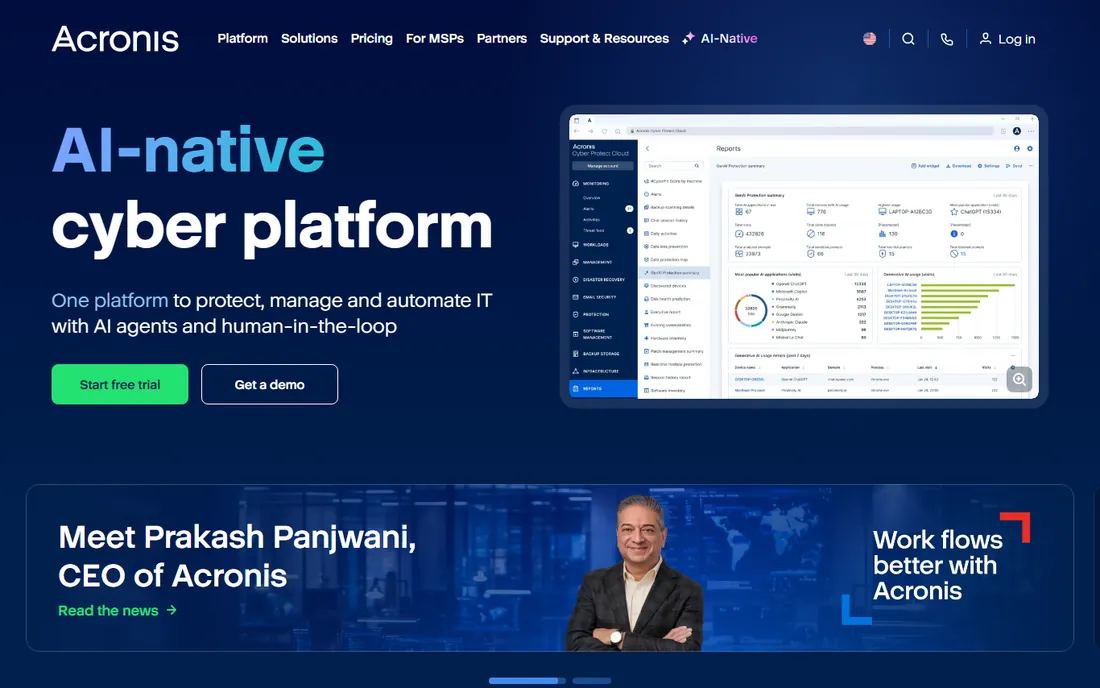
Acronis stopped being just a backup company a while ago. Cyber Protect Home Office, the successor to True Image, bundles disk imaging backup with antivirus, ransomware protection, and vulnerability assessments in one console. Yearly packages start at $49.99, with Essentials around $50 per computer and higher tiers adding online storage and identity protection.
The backup itself is the serious kind: full disk images, incremental and differential backups, and bare-metal restore to dissimilar hardware, which means you can move your entire system to a new machine, not just recover files. Local, NAS, and cloud destinations are all supported, and mobile apps back up phones too.
The honest tradeoff is scope. If you already have security software you like, you are paying for overlap. But for a small business owner who wants one subscription covering both backup and endpoint protection, Acronis is the most complete package here, and the 30-day trial is long enough to test a full image restore.
What we like- Combines backup with antivirus and ransomware protection
- Full disk imaging with bare-metal restore
- Covers Windows, Mac, and Linux
Watch out for- The security bundle is overkill if you only want backup
- Tiered plans complicate the choice
- No free version
Starting price$7.33/user/month (billed annually at $88)
Free planFree trial (14 days)
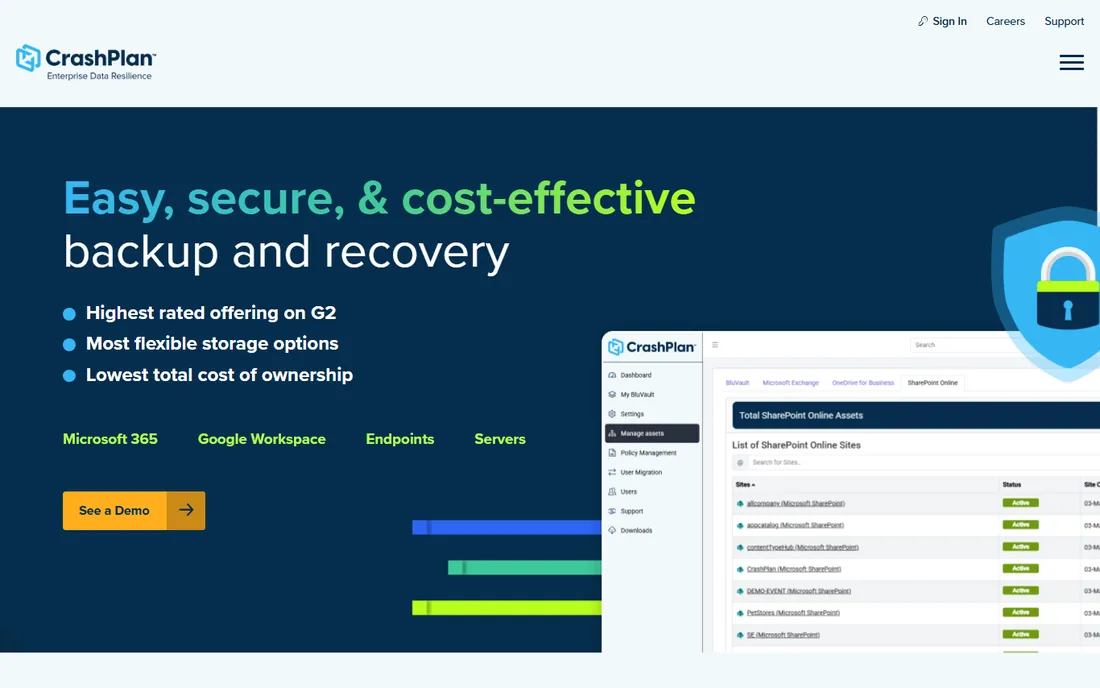
CrashPlan is built for the IT reality of small business: laptops scattered across home offices, no central server, and nobody remembering to back up. The small business plan costs $7.33 per user per month billed annually ($88 per year), with unlimited cloud storage and unlimited versioning. Backup runs continuously in the background, and restores are self-serve, no IT ticket required.
What sets it apart is storage flexibility. You can back up to CrashPlan's cloud, your own Azure or S3 storage, or even pool unused OneDrive storage from your Microsoft 365 subscription into a backup container. That last trick is patented and genuinely clever for businesses already paying for Microsoft 365.
The limitation is scope: CrashPlan does file-level backup, not full disk imaging, and there are no mobile apps. For protecting the documents and work product on employee laptops, which is what most small businesses actually need, it is one of the most focused tools here.
What we like- Unlimited storage and unlimited versioning
- Continuous backup that just runs
- Can back up to your own storage, not just theirs
Watch out for- Per-user pricing adds up for larger teams
- No mobile backup apps
- File-level backup only, no disk imaging
Starting price$39.95/year (Home)
Free planYes
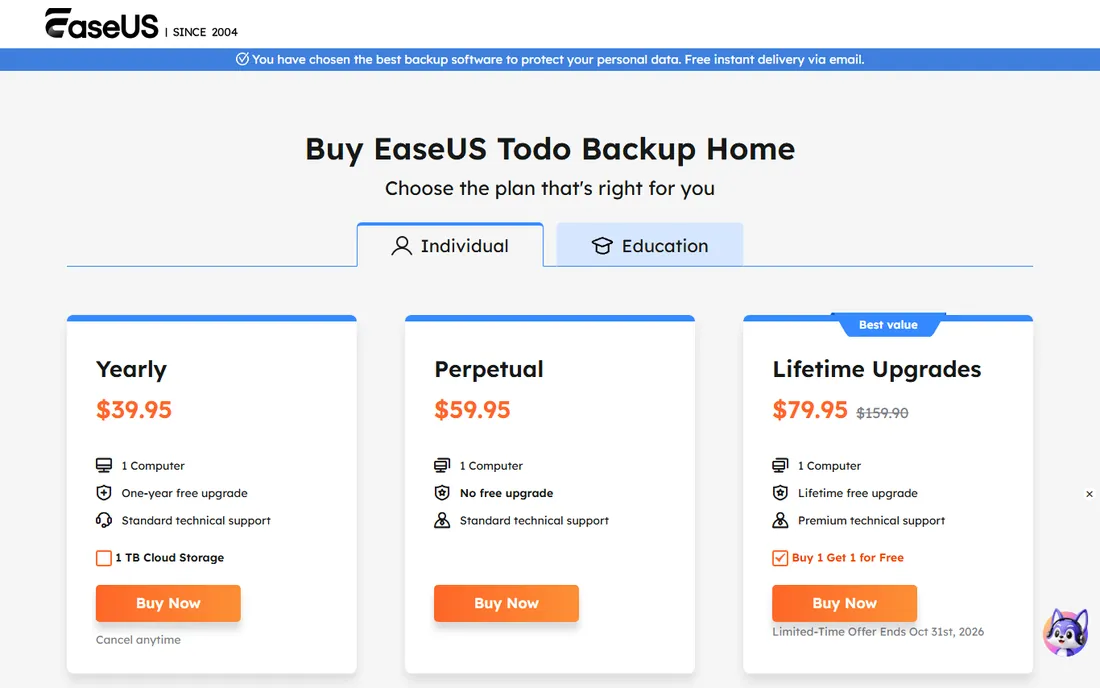
EaseUS Todo Backup is the classic Windows imaging tool, and it is one of the few backup products left that still sells a genuine perpetual license. The Home edition is $39.95 per year, $59.95 perpetual, or $79.95 with lifetime upgrades, all for one computer. There is also a capable free version covering file, disk, partition, and system backup with scheduling and encryption.
Where it earns its place is disk operations. Cloning a Windows install to a new SSD, creating full system images, and restoring to different hardware are its home turf. The 1TB of bundled cloud storage on the yearly plan is a bonus, though most users will point it at a local drive or NAS.
Long-term testing by reviewers found it fast and reliable, with minor quirks like occasionally defaulting a system backup to the same drive being backed up. For a small business standardizing on Windows machines, the perpetual license makes the long-term math very friendly.
What we like- Real perpetual license option ($59.95)
- Disk cloning for SSD upgrades
- Free version covers the basics well
Watch out for- Windows-focused
- Paid tiers needed for cloning and dissimilar-hardware restore
- Checkout upsells need watching
Starting priceSee website
Free planYes (Community Edition, up to 10 workloads)
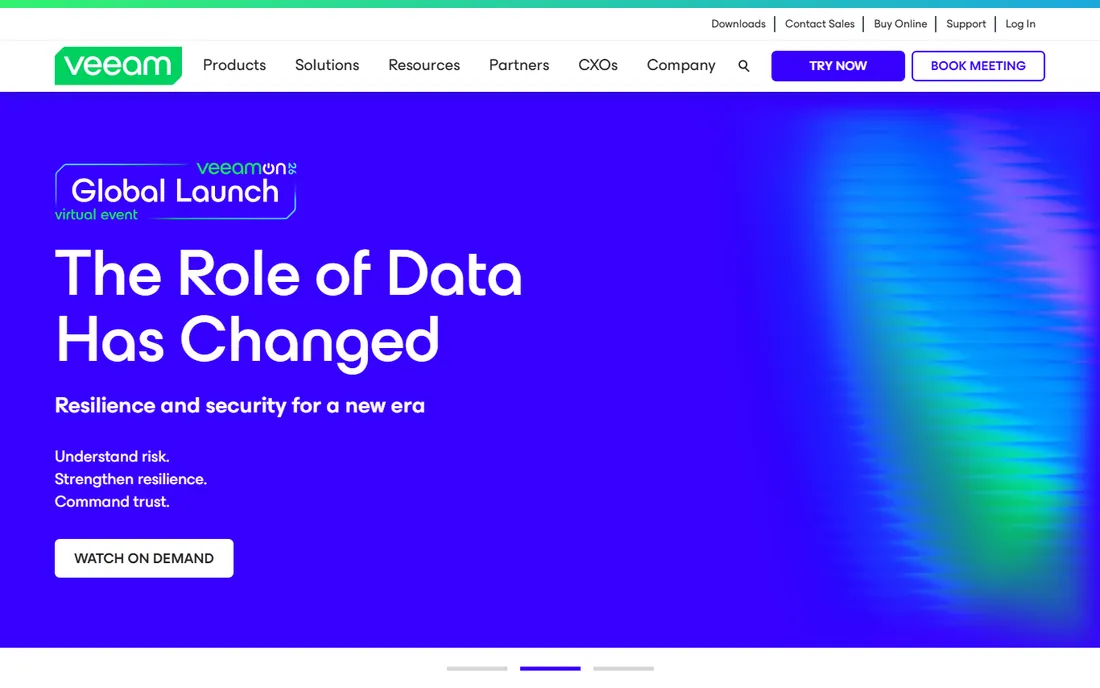
Veeam is the enterprise standard for virtual machine backup, and its Community Edition is a gift to small environments: free backup and replication for up to 10 workloads, VMs, servers, workstations, or NAS devices, with no expiration. The free Veeam Agent for Windows and Mac backs up individual computers with image, volume, or file-level jobs.
This is not the tool for someone who wants backup to "just happen." Veeam assumes you know what a workload is and can configure a backup repository. But for a small business with a virtualized server or a handful of machines and someone technical on staff, the Community Edition delivers capabilities that cost thousands elsewhere.
Paid editions are quote-based and enterprise-priced, scaling into the full Data Platform with monitoring, ransomware detection, and recovery orchestration. Most small businesses will never need them, which is exactly why the free tier is such a strong entry on this list.
What we like- Community Edition is free with no time limit
- Enterprise-grade backup and replication
- Free agents for Windows and Mac
Watch out for- Paid editions are quote-based and enterprise-priced
- Overkill for simple file backup
- Setup assumes IT knowledge
Starting priceFree
Free planYes
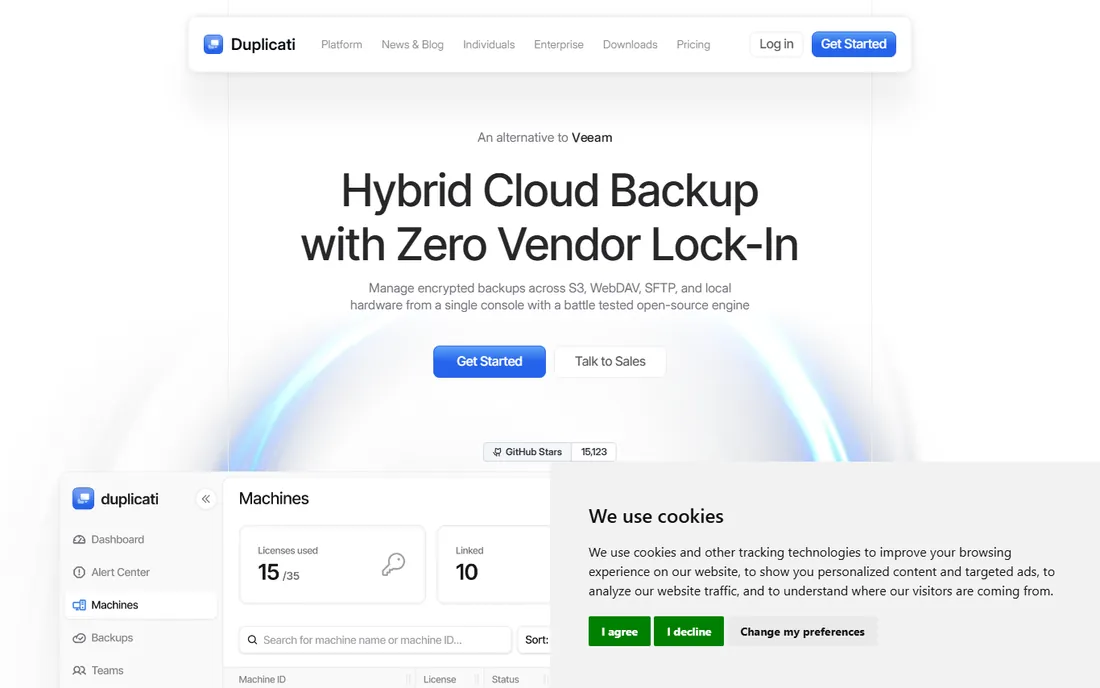
Duplicati takes a different approach from everything else here: it is only the backup engine. The software is free and open source, and you point it at whatever storage you already have or want to buy, Amazon S3, Backblaze B2, Google Drive, a NAS, an FTP server, or a local drive. It encrypts everything with AES-256 locally before upload, so the storage provider never sees your data.
That separation is the point. There is no vendor lock-in, no per-device fee, and no subscription tier that can change under you. Incremental backups, deduplication, scheduling, and versioning are all included. The tradeoff is that you are the administrator: you choose the storage, you pay the storage bill, and community forums are your support line.
For a technical small business owner who already pays for cloud storage, or one who wants backups on a NAS they control, Duplicati plus cheap object storage is the lowest-cost serious backup on this list. Just go in knowing the setup is a project, not a three-click install.
What we like- Completely free and open source
- Works with 20+ storage backends including S3 and Backblaze B2
- AES-256 encryption before upload
Watch out for- You supply and pay for the storage separately
- No vendor support on the free tier
- Interface is functional, not polished
How we chose
We focused on the real jobs in file backup: automatic cloud backup for computers, multi-device coverage on one account, disk imaging and cloning, and free options for tight budgets. We verified each homepage directly and took pricing from each vendor's own pricing, purchase, or announcement pages. We did not run hands-on tests; instead we compared documented storage models, retention policies, platform support, and the fine print that decides real costs, like per-device versus per-account pricing.
Match the pricing model to your device count
This is the decision that matters most, and most buyers get it backwards. Count your devices first. One computer with terabytes of data favors unlimited per-computer plans like Backblaze or Carbonite. Several computers, phones, and a NAS on one account favors storage-metered plans like IDrive, where 5TB covers everything for one price. A business with employee laptops favors per-user plans like CrashPlan.
Then check the retention policy. How long are old versions and deleted files kept? Backblaze defaults to 30 days of version history, IDrive keeps 30 versions, CrashPlan keeps unlimited versions. If someone deletes a file and nobody notices for two months, the retention policy decides whether it still exists.
Finally, test the restore before you need it. Every vendor on this list offers a trial or free tier. Run a real restore of a real folder during the trial, including to a different machine if that is your disaster plan. A backup you have never restored is a theory, not a safety net.
The 3-2-1 rule, explained plainly
Backup professionals recommend the 3-2-1 rule: three copies of your data, on two different types of media, with one copy off-site. In practice for a small business, that means the original files on the computer, a local copy on an external drive or NAS, and a cloud copy with one of the tools above. The cloud copy is the one that survives fire, theft, and flood.
Ransomware changed the math slightly. Modern backup needs version history and ideally immutable copies, backups that cannot be altered or deleted even by an attacker with your credentials. CrashPlan's unlimited versioning, IDrive's snapshots, and Acronis's ransomware protection all address this. Whatever you choose, confirm that an encrypted file today does not overwrite your last good copy.
Frequently asked questions
Isn't syncing to OneDrive or Google Drive enough?
No. Sync mirrors your files across devices, so ransomware-encrypted or accidentally deleted files propagate everywhere within seconds. Backup keeps historical versions you can roll back to. Use sync for access, backup for protection; they solve different problems.
How much storage do I actually need?
Add up the data on all devices you want to protect, then add 30 to 50 percent for version history and growth. A typical small business laptop holds 200 to 500GB. Five such laptops fit comfortably in IDrive's 5TB plan, while a single video workstation with 3TB of footage favors an unlimited plan like Backblaze.
What is the difference between file backup and disk imaging?
File backup copies your documents, photos, and selected folders. Disk imaging copies the entire drive, operating system, applications, and all, so you can restore a dead machine to a working state in one operation. Acronis, EaseUS, and Veeam do imaging; Backblaze, Carbonite, and CrashPlan focus on files.
Can I back up more than one computer on a single account?
It depends on the pricing model. IDrive covers unlimited devices under one storage-based account. Backblaze, Carbonite, and EaseUS charge per computer. CrashPlan charges per user. Duplicati is free software, so you install it on as many machines as you like and only pay for the storage you use.
How long does the first backup take?
Longer than you expect. The initial upload of hundreds of gigabytes can take days on a typical home or office connection, running in the background. Everything after that is incremental and finishes in minutes. IDrive's Express service ships a physical drive for very large first backups if the wait is unacceptable.
What happens if I stop paying?
Your backups stop updating and, after a grace period, the vendor deletes your stored data. Policies differ, so check before you commit. This is one reason Duplicati appeals to some buyers: your backups live on storage you control, so no subscription lapse can take them away.
Sources we checked (14)
- https://www.acronis.com/
- https://www.globenewswire.com/en/news-release/2023/09/19/2745564/0/en/Acronis-Unveils-First-Ever-AI-powered-All-in-One-Cyber-Protection-Solution-for-Consumers.html
- https://www.backblaze.com/cloud-backup/business/landing/ad/use-cases/general-cloudbackup-v3
- https://backblaze.com/
- https://www.carbonite.com/
- https://carbonite.com/personal/pricing/
- https://www.crashplan.com/pricing/
- https://crashplan.com/
- https://www.easeus.com/backup-software/tb-home-buy.html
- https://idrive.com/
- https://blog.idrive.com/2026/03/26/idrive-does-it-again-12-consecutive-years-as-pcmags-editors-choice-with-a-4-5-rating/
- https://www.veeam.com/
- https://helpcenter.veeam.com/docs/one/userguide/license_types.html
- https://duplicati.com/
Is your product missing or out of date?
We review this list regularly. Vendors can request a listing, send updated pricing or ask about featured placement.

Shihab Mia · Founder, Rankite
Shihab has spent more than a decade helping SaaS and e-commerce brands grow through search. He writes Rankite's software buying guides from pricing pages, documentation and public user reviews. More about Shihab.