How we make this list: we compare pricing pages, product documentation and public user reviews. Ratings come from G2, Capterra or Trustpilot, with the date we checked them.
Key takeaways
- ShareX is the best free clipping tool for Windows power users.
- Snagit leads for professional documentation and training material.
- The built-in Snipping Tool covers casual clipping with no install.
- Lightshot is the fastest option for a quick capture and share link.
- Flameshot suits users who want clean open-source annotation.
Quick comparison
| Tool | Best for | Starting price | Free plan |
|---|
 ShareX ShareX | Power users and automation | Free | Yes |
 Snagit Snagit | Professional documentation | From $39 per year | Free trial |
 Greenshot Greenshot | Lightweight annotation | Free | Yes |
 PicPick PicPick | Designers and presenters | Free for personal use | Yes |
 Lightshot Lightshot | Quick captures and links | Free | Yes |
 Flameshot Flameshot | Open-source annotation | Free | Yes |
 ScreenRec ScreenRec | Link-first capture and recording | Free | Yes |
 Snipping Tool Snipping Tool | Built-in casual clipping | Free | Yes |
Is your product missing or out of date?
We review this list regularly. Vendors can request a listing, send updated pricing or ask about featured placement.
The best clipping software for PC
#1ShareX
Best for: Power users and automation4.8/5 on
G2 (80 reviews, checked Oct 2026)
Visit getsharex.com
Starting priceFree
Free planYes
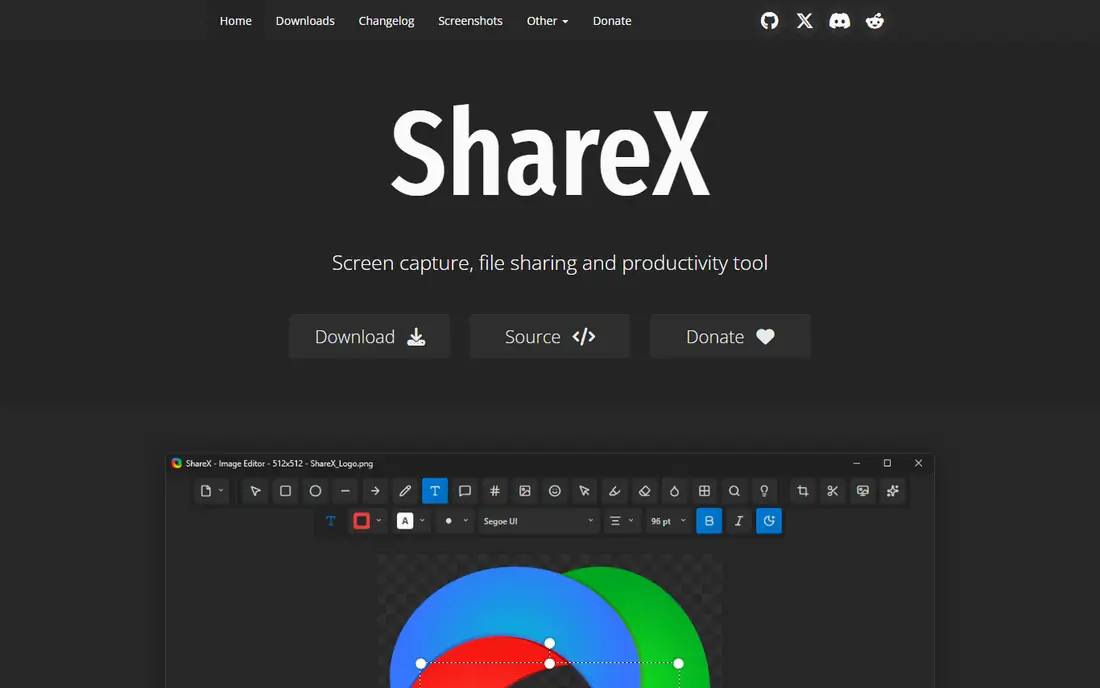
ShareX is the best free clipping tool for Windows. It covers full-screen, window, and custom-area captures, plus scrolling captures, screen recording, and quick GIFs. The editor adds arrows, text, highlights, and blur for sensitive areas, and built-in OCR pulls text out of images for pasting elsewhere. Captures can upload automatically to more than 70 destinations.
The settings menu runs deep, which can overwhelm a first-time user, and the interface looks dated next to newer apps. Windows is the only platform. For a power user who clips all day, ShareX offers paid-tool features at no cost.
What we like- Free and open source
- Scrolling capture, GIFs, and recording
- Over 70 upload targets
- OCR
Watch out for- Deep settings menu can overwhelm beginners
- Windows only
- Interface looks dated
#2Snagit
Best for: Professional documentation4.7/5 on
G2 (6,022 reviews, checked Oct 2026)
Visit techsmith.com
Starting priceFrom $39 per year
Free planFree trial
Snagit is the paid standard for documentation. Scrolling capture grabs long web pages and documents, step tools number each click in a guide, and the editor handles callouts, stamps, and templates that make tutorials look professional. Video recording and sharing cover quick walkthroughs alongside stills.
At $39 a year it costs more than free rivals, and it is overkill for someone who clips once a week. For technical writers, trainers, and support teams who produce documentation daily, Snagit pays for itself in polish and speed.
What we like- Scrolling capture and pro annotation
- Step tools for guides
- Video recording
- Maintained by TechSmith
Watch out for- Subscription pricing
- Overkill for occasional clips
- Heavier install
Starting priceFree
Free planYes
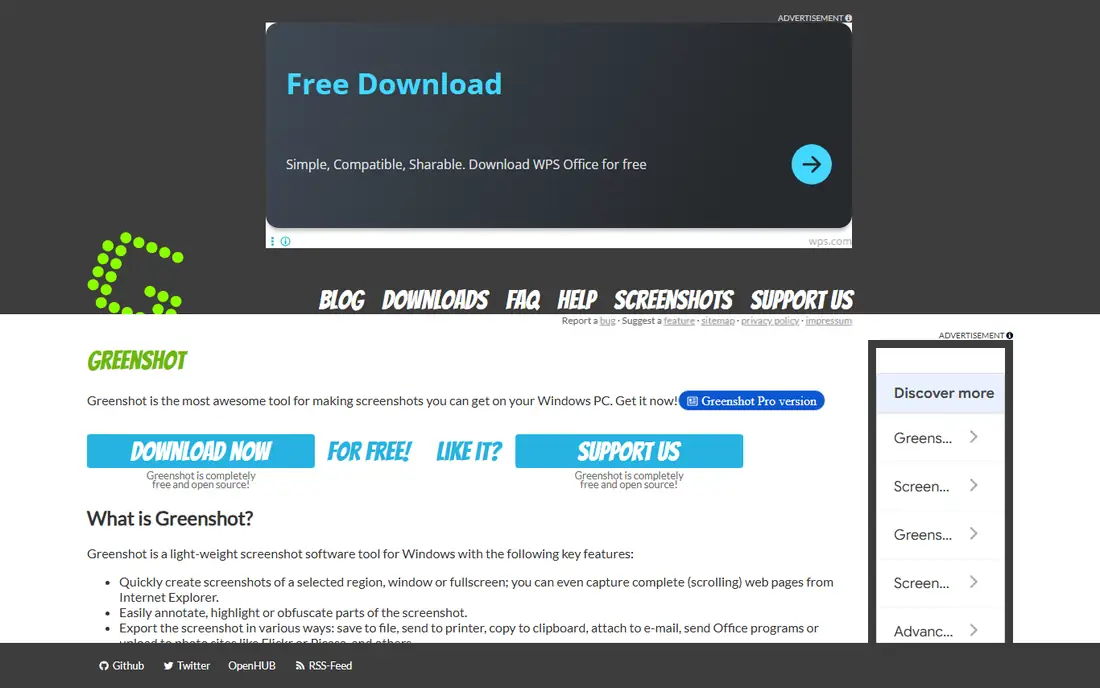
Greenshot pairs quick capture with a focused editor, and it stays out of the way. Press a hotkey, select an area, and annotate with arrows and text before saving or sending to a printer, file, or editor. It runs light on system resources, which suits older PCs.
There is no screen recording or GIF capture, and its scrolling capture route is outdated for modern browsers. For a Windows user who wants simple annotation on top of quick captures, Greenshot is a solid free setup alongside the built-in tool.
What we like- Free and lightweight
- Focused editor
- Quick capture with hotkeys
Watch out for- No screen recording or GIF
- Scrolling capture is outdated for modern browsers
- Windows focused
Starting priceFree for personal use
Free planYes
PicPick is a comprehensive Windows capture tool aimed at designers and presenters. Beyond scrolling capture and recording, it bundles graphic design accessories such as a color picker, pixel ruler, color palette, whiteboard, and magnifier. The editor adds shadows, frames, motion blur, and watermarks, and sharing covers social platforms, Drive, Dropbox, and FTP.
The free version covers personal use only, so commercial users need a paid plan around $24 to $30. For a designer who clips, measures colors, and annotates in one app, PicPick packs unusual breadth.
What we like- Scrolling capture and recording
- Color picker, ruler, and magnifier
- Strong editor with shadows and frames
Watch out for- Free version is personal use only
- Windows only
- Paid plan needed for commercial use
Starting priceFree
Free planYes
Lightshot is the speed pick. Select an area, make a quick edit, and share a link in seconds. The tiny footprint suits low-end PCs, and the workflow is so simple that anyone can learn it in a minute.
Limits are real: no scrolling capture, no recording, and upload links are public, so never upload sensitive material through its cloud. Annotation stays basic. For low-risk quick shares, Lightshot is the fastest tool here.
What we like- Extremely fast
- Simple editor
- Instant share links
- Tiny footprint
Watch out for- No scrolling capture or recording
- Upload links are public
- Basic annotation only
Starting priceFree
Free planYes
Flameshot started on Linux and now runs on Windows and Mac too. Its on-screen annotation toolbar is the best-looking among free tools, captures can be pinned to the desktop as reference, and custom keyboard shortcuts keep capture fast. No account is needed.
There is no scrolling capture, recording, or cloud upload in official builds, and some options require editing configuration files. For a developer or open-source fan who wants clean local annotation, Flameshot is an elegant choice.
What we like- Free and open source
- Beautiful on-screen annotation toolbar
- Pin captures to desktop
- Custom hotkeys
Watch out for- No scrolling capture or recording
- No cloud upload in official builds
- Some settings need file edits
#7ScreenRec
Best for: Link-first capture and recording4.8/5 on
G2 (12 reviews, checked Oct 2026)
Visit screenrec.com
Starting priceFree
Free planYes
ScreenRec suits teams that live on share links. Capture a screenshot or record a video, annotate it, and send a link instead of a file. The same app runs on Windows, Mac, and Linux, and cloud storage keeps captures accessible across machines.
The link-first model means cloud features need an account, and editing is lighter than Snagit. Free storage limits apply to heavy users. For bug reports, walkthroughs, and async feedback, ScreenRec turns a capture into a link in seconds.
What we like- Capture, annotation, recording, and cloud links in one app
- Works on Windows, Mac, and Linux
Watch out for- Link-first model needs an account for cloud features
- Editing is lighter than Snagit
- Free storage limits apply
Starting priceFree
Free planYes
The Windows Snipping Tool is already on your PC, and for casual clipping it is enough. Win+Shift+S opens rectangle, window, and freeform capture, basic markup covers arrows and highlights, and text actions extract text from captures. Short video capture and GIF output cover simple screen clips.
There is no scrolling capture or cloud sharing, and annotation stays basic. For a user who clips a few times a week and wants nothing to install, start here and only move on when its limits bite.
What we like- Already installed on Windows
- Opens with Win+Shift+S
- Basic markup and text actions
- Short video capture
Watch out for- No scrolling capture
- No cloud sharing
- Annotation is basic
How we chose
We compared tools on capture modes, annotation, scrolling capture, recording, sharing, and pricing, using vendor pages and published comparisons from 2026. We favored tools Windows users can use today with a distinct strength. We did not claim hands-on testing, and where prices varied by plan we quoted the standard figure.
How to pick the right clipping software
Start with how often you clip. A few clips a week need only the Snipping Tool or Lightshot, while daily clipping rewards ShareX or Snagit with hotkeys, history, and automation. If you write documentation, Snagit step tools and templates save hours. If you annotate code or designs, Flameshot or PicPick give cleaner markup.
Then check the capture modes you actually need. Scrolling capture matters for long pages and chat threads, but several free tools lack it, so confirm before choosing. Recording and GIF support matter for bug reports and walkthroughs, where a moving clip explains more than a still. Cloud sharing suits teams, but treat public links carefully: Lightshot uploads are public, so sensitive screenshots should stay local or use a private destination.
Privacy and storage deserve a decision too. ShareX and Flameshot keep captures local by default, while ScreenRec and Lightshot route through cloud links. If you clip passwords, customer data, or internal dashboards, prefer local storage and blur sensitive areas before sharing. Finally, test hotkeys and workflow for a week: the best clipping tool is the one whose shortcut becomes muscle memory, not the one with the longest feature list.
Setting up a capture workflow takes ten minutes and pays off daily. Pick one hotkey for region capture and one for full screen, and use them everywhere so capture becomes reflex. Set a default save folder with automatic file names that include the date, since a folder of files named Screenshot 1 through Screenshot 200 is useless when you need one from last month. Choose a default image format too: PNG for crisp text and diagrams, JPEG for photos where file size matters. If you share captures with a team, agree on an annotation style, one arrow color for attention and one highlight color for changes, so readers learn to read your markups at a glance. Turn on capture history where the tool offers it, because the clip you need is often the one you took three days ago and forgot to save. Finally, review your destinations: local folders for sensitive material, private cloud folders for team sharing, and never a public link for anything internal.
Common mistakes slow clipping down. Many people install a heavy tool for occasional use and then avoid it because it feels slow to open. Others upload sensitive captures to public links without checking the sharing model. Pick the lightest tool that covers your real capture modes, set one hotkey, and keep captures organized in a dated folder so old clips stay findable. Revisit your choice after a month of real use: if you never touch scrolling capture or recording, a lighter tool will serve you better, and if you keep hitting the same limit, that limit is the signal to upgrade to a paid tool rather than fighting a free tool that was never built for that job in the first place.
Multi-monitor setups add one more choice. Some tools capture all screens at once, others ask you to pick a screen first, and a few let you capture a window that spans monitors. If you work with two or three displays, test this behavior early: a tool that grabs the wrong screen every time will cost you more patience than any feature list is worth.
Frequently asked questions
What is the best free clipping software for PC?
ShareX, for its scrolling capture, GIFs, recording, OCR, and upload targets at no cost. Greenshot and Flameshot are simpler free alternatives for annotation.
Is the Windows Snipping Tool enough?
For casual clipping, yes. It covers rectangle, window, and freeform capture with basic markup. Heavy users will miss scrolling capture, history, and cloud sharing.
Which clipping tool is best for documentation?
Snagit, for step tools, templates, scrolling capture, and polished annotation. It costs $39 a year, but documentation teams save real time with it.
Can I capture a full scrolling web page?
Yes, with ShareX, Snagit, or PicPick. Greenshot and Lightshot do not offer reliable scrolling capture on modern browsers.
Are Lightshot share links private?
No. Lightshot upload links are public, so anyone with the link can view the image. Never upload sensitive material through its cloud sharing.
Does ShareX work on Mac?
No. ShareX is Windows only. Mac users can use Flameshot or ScreenRec, both of which run on macOS.
Sources we checked (8)
- https://getsharex.com
- https://www.techsmith.com/screen-capture.html
- https://getgreenshot.org
- https://picpick.app
- https://app.prntscr.com
- https://flameshot.org
- https://screenrec.com
- https://support.microsoft.com/windows/snipping-tool
Is your product missing or out of date?
We review this list regularly. Vendors can request a listing, send updated pricing or ask about featured placement.

Shihab Mia · Founder, Rankite
Shihab has 5+ years in B2B and SaaS SEO. He writes Rankite's software buying guides from pricing pages, documentation and public user reviews. More about Shihab.