How we make this list: we compare pricing pages, product documentation and public user reviews. Ratings come from G2, Capterra or Trustpilot, with the date we checked them.
Key takeaways
- Remove.bg is the fastest one-click option for a single image, with a free tier for low-resolution previews and paid credits for full resolution.
- Canva and Adobe Express suit users who remove a background as one step in a larger design, not as a standalone task.
- PhotoRoom is built for product photos, with templates and batch processing for sellers and small brands.
- Pixlr and Fotor give a free or low-cost route with editing tools included, which helps when you also need to touch up the image.
- Always check export resolution and edge quality on your own photos, because results vary with hair, fur, glass, and busy backgrounds.
Quick comparison
| Tool | Best for | Starting price | Free plan |
|---|
 Remove.bg Remove.bg | Fast one-click removal | See website | Yes |
 Adobe Express Adobe Express | Background removal inside Adobe design | See website | Yes |
 Canva Canva | Removal inside a design workflow | $15 per user/month (Pro, billed annually) | Yes |
 PhotoRoom PhotoRoom | Product photos for sellers | See website | Yes |
 Pixlr Pixlr | Free editing plus background removal | See website | Yes |
 Fotor Fotor | Simple editing and background removal | See website | Yes |
 Slazzer Slazzer | Batch removal for many images | See website | Yes |
 Removal.AI Removal.AI | Simple web removal with credits | See website | Yes |
 ClipDrop ClipDrop | Removal plus other AI image tools | See website | Yes |
Is your product missing or out of date?
We review this list regularly. Vendors can request a listing, send updated pricing or ask about featured placement.
#1Remove.bg
Best for: Fast one-click removal4.4/5 on
G2 (31 reviews, checked Oct 2026)
Visit remove.bg
Starting priceSee website
Free planYes
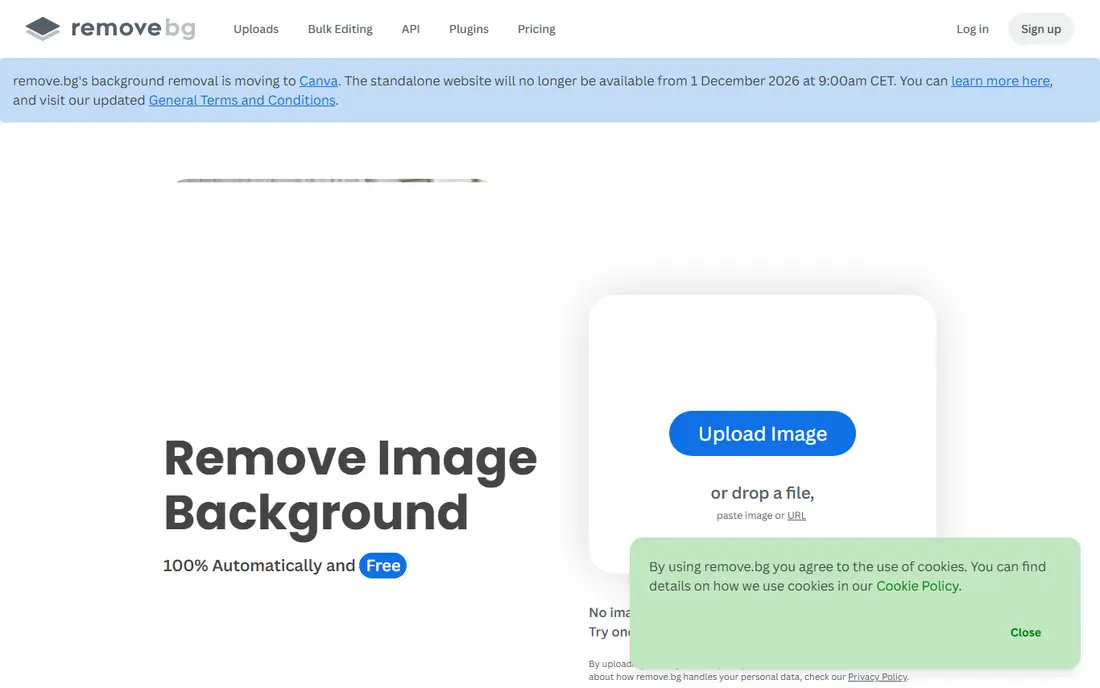
Remove.bg is the tool most people try first, and for a reason. Upload an image, wait a few seconds, and download a cutout with a transparent background. For product shots on a plain background and portraits with clear separation, the edge is often good enough to use without manual cleanup.
The business model is credit-based, so check how many full-resolution images you need each month before judging cost. A few images a month can stay cheap, while a store with hundreds of listings will need a paid plan or API credits. Remove.bg fits best for quick, one-off removals and for teams that need a reliable API for batch work.
What we like- Very fast for a single image
- Clean edges on many product and portrait photos
- API and integrations for batch workflows
Watch out for- Full-resolution downloads require paid credits
- Free previews are low resolution
#2Adobe Express
Best for: Background removal inside Adobe design4.5/5 on
G2 (855 reviews, checked Oct 2026)
Visit adobe.com
Starting priceSee website
Free planYes
Adobe Express is a good pick when background removal is not the whole job. After removing a background, you can drop the subject onto a social template, add text, and export in the right size for each platform, without switching apps. That workflow saves time for marketers who produce many variations of one image.
Express is not a dedicated batch eraser, and heavy users may prefer a credit-based tool for volume. Adobe Express fits best for marketers and small businesses already using Adobe tools, who want removal plus design in one place.
What we like- Removal sits inside a full design app
- Easy to place a cutout on a new background or template
- Adobe file and font ecosystem for brand work
Watch out for- Removal quality depends on the image, like all AI tools
- Some features require a paid plan
#3Canva
Best for: Removal inside a design workflow4.7/5 on
G2 (7,678 reviews, checked Oct 2026)
Visit canva.com
Starting price$15 per user/month (Pro, billed annually)
Free planYes

Canva's background remover is a Pro feature, so free users cannot rely on it for regular work. For Pro users, it is convenient: remove the background, place the subject on a template, add branding, and export. The value comes from the whole Canva workflow, not from removal alone.
If you only need removal and nothing else, a cheaper credit tool may cost less. Canva fits best for teams that already pay for Pro and want removal as part of social, ad, and presentation design.
What we like- One-click removal on Pro, inside a familiar editor
- Huge template library for social, ads, and print
- Easy team sharing and brand kits
Watch out for- Background removal requires Pro, not the free plan
- Edge control is less detailed than a dedicated editor
#4PhotoRoom
Best for: Product photos for sellers4.3/5 on
G2 (20 reviews, checked Oct 2026)
Visit photoroom.com
Starting priceSee website
Free planYes
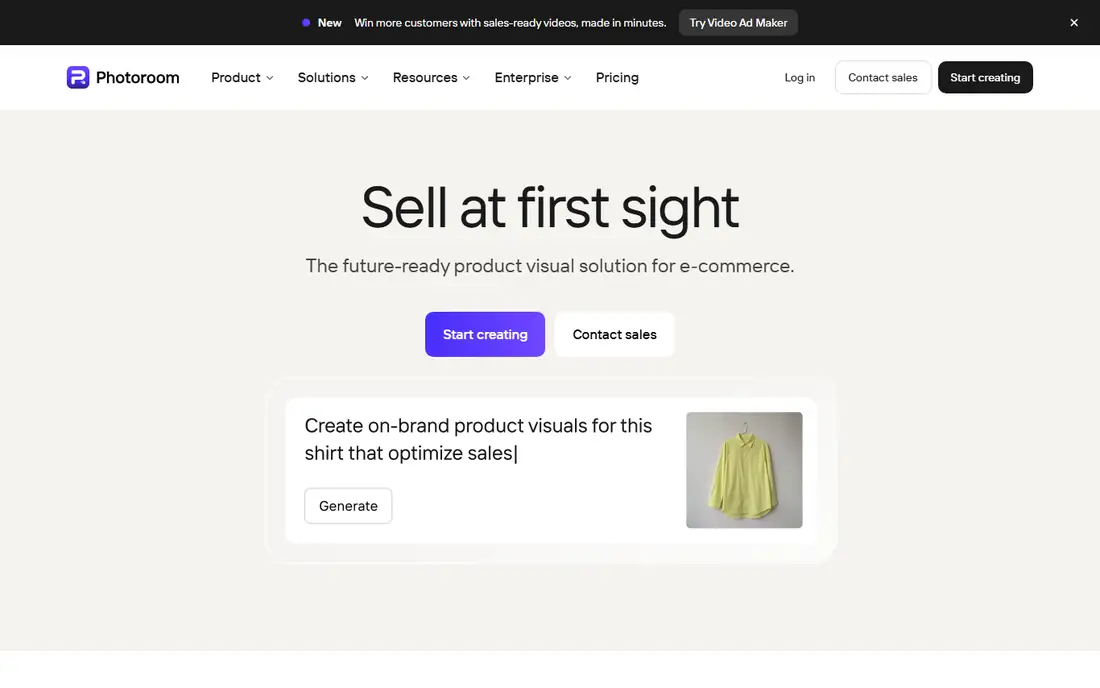
PhotoRoom is designed around a specific job: making a product photo look ready for a store listing. Remove the background, pick a clean studio background or a template, adjust size for a marketplace, and repeat for the next product. Batch tools help sellers who photograph many items in one session.
The trade-off is scope. PhotoRoom is not a general design app, and users who need full layout, text, and print tools will still need another program. PhotoRoom fits best for online sellers, small brands, and resellers who process product photos regularly.
What we like- Templates and backgrounds built for product listings
- Batch processing for multiple images
- Mobile app for shooting and editing on the go
Watch out for- Best features require a paid plan
- Less suited to complex design work beyond product images
#5Pixlr
Best for: Free editing plus background removal4.4/5 on
G2 (751 reviews, checked Oct 2026)
Visit pixlr.com
Starting priceSee website
Free planYes
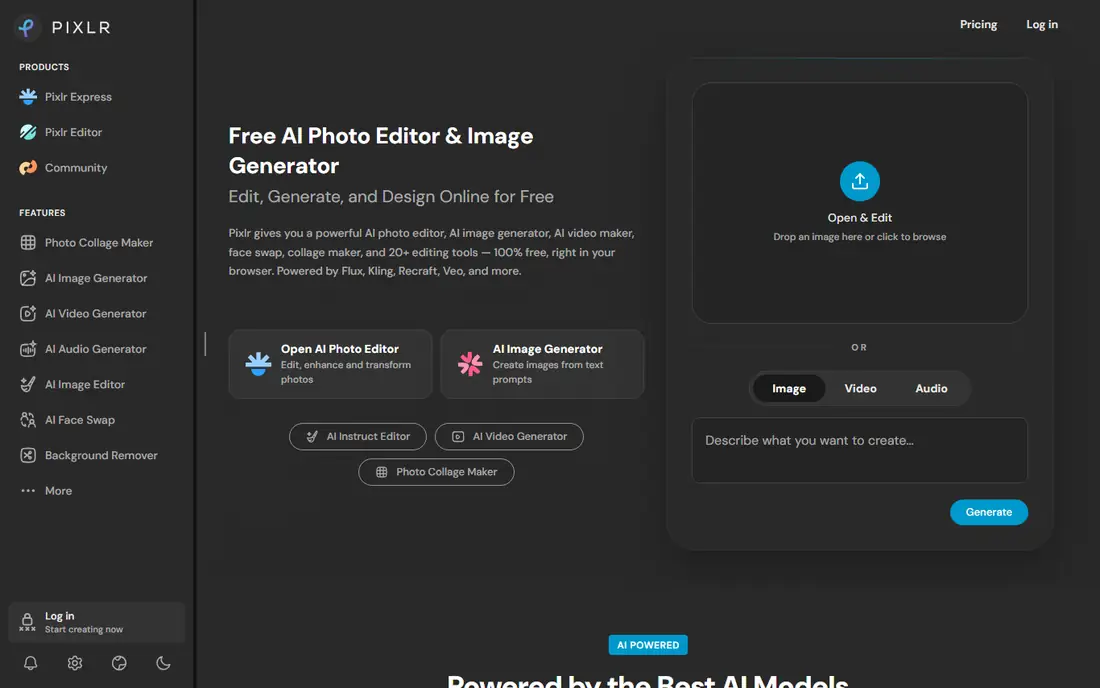
Pixlr combines a browser photo editor with an AI background remover, which is useful when the cutout needs a small fix. After removal, you can refine edges, adjust color, or place the subject on a new background in the same tab. That saves the step of exporting to a second editor.
Free use comes with ads and limits, and paid plans remove those limits and add features. Pixlr fits best for casual users, students, and small teams who want removal plus editing in a free browser tool.
What we like- Free tier covers editing and removal for casual use
- Browser-based, with no install needed
- Manual tools for fixing edges after AI removal
Watch out for- Free tier includes ads and limits
- Interface can feel crowded for new users
#6Fotor
Best for: Simple editing and background removal4.2/5 on
G2 (342 reviews, checked Oct 2026)
Visit fotor.com
Starting priceSee website
Free planYes
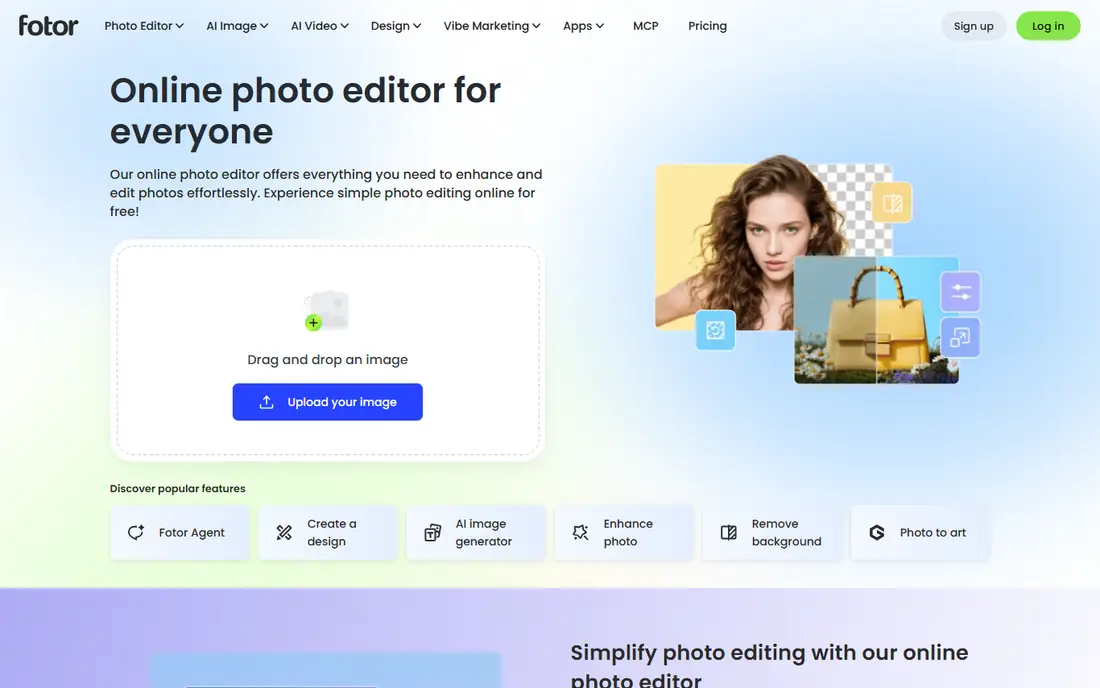
Fotor is aimed at users who want a straightforward editor, not a professional retouching suite. Background removal is one click, and the resulting cutout can go straight into a social post, collage, or simple design. The learning curve is low, which helps for occasional use.
Complex subjects still need checking at full zoom, and batch or high-resolution work requires a paid plan. Fotor fits best for beginners and social creators who want simple removal plus basic editing without learning a heavy program.
What we like- Simple interface for beginners
- Editing, collage, and design tools in one place
- Good for quick social images
Watch out for- High-resolution and batch features sit on paid plans
- Edge accuracy varies on complex hair and fur
Starting priceSee website
Free planYes
Slazzer is a practical choice when the job is volume, not design. Upload many images, get transparent cutouts, and move them into a store or catalog workflow. The API option suits teams that want removal built into an upload pipeline, rather than a manual step for each photo.
For a single social image, Slazzer offers little advantage over Remove.bg or a design app. Slazzer fits best for sellers, agencies, and developers who need reliable batch removal and can budget credits by image count.
What we like- Batch and API options for volume work
- Simple web interface for single images
- Useful for e-commerce image pipelines
Watch out for- Less design tooling than Canva or Adobe Express
- Credit costs add up at high volume
#8Removal.AI
Best for: Simple web removal with credits4.2/5 on
G2 (47 reviews, checked Oct 2026)
Visit removal.ai
Starting priceSee website
Free planYes
Removal.AI keeps the experience minimal: upload, remove, download. That simplicity appeals to users who do not want to learn a full editor for one task. The credit system lets occasional users pay only for the full-resolution images they actually need.
The lack of design tools means you will still need another app to build a finished graphic. Removal.AI fits best for occasional users who want a simple, no-install eraser and are happy to pay per high-resolution image.
What we like- Clean, simple web workflow
- Credit system for occasional full-resolution downloads
- No install required
Watch out for- Limited editing and design features
- Free tier is best for testing, not production volume
Starting priceSee website
Free planYes
ClipDrop, from Stability AI, bundles background removal with other image tools, which helps when a photo needs more than one fix. A product shot might need background removal, cleanup of a distraction, and a resolution boost, and ClipDrop can handle several of those steps in one place.
If you only need removal, a dedicated tool may be faster and cheaper. ClipDrop fits best for creators who regularly use several AI image tools and want them in a single account.
What we like- Background removal alongside cleanup, relighting, and upscaling
- Useful when one image needs several AI fixes
- Browser-based workflow
Watch out for- Some tools and higher limits require a paid plan
- Removal alone is not better than dedicated rivals
How we chose
We checked vendor pricing pages, product documentation, and public reviews on G2, Capterra, and Reddit, and compared each tool on edge accuracy, speed, export resolution, free plan, batch support, and editing features. Tools were kept only if they remove backgrounds with AI today, are available to US users, and offer a usable free tier or trial. Where pricing was credit-based or varied by plan, we marked it as See website instead of publishing a single figure.
We gave extra weight to edge quality on hair, fur, and product edges, since those cases separate a usable cutout from one that needs manual repair. A tool that is fast but leaves a visible halo scored lower than a slightly slower tool with cleaner edges.
How to get a clean cutout every time
The photo you start with matters as much as the tool you pick. Use the checks below to reduce halos, missing hair, and low-resolution exports.
Start with a clear, high-resolution photo
Use the highest resolution you have, with good light and a background that contrasts with the subject. A dark subject on a dark background, or a busy pattern behind hair, will challenge any AI eraser. If you control the shoot, use a plain background and even lighting.
Zoom in before you publish
Check the edge at full size, especially around hair, fur, glasses, and translucent objects. Look for halos, jagged edges, and missing details. A cutout that looks fine as a thumbnail can look rough at full size on a product page or print.
Fix edges in an editor when needed
If the AI edge is close but not perfect, refine it with a brush or feather tool in Pixlr, Photoshop, or another editor, rather than running the same image through a second eraser. Small manual fixes often save more time than repeated AI attempts.
Match export size to the final use
Download at the resolution your final use requires, not just the free preview size. A low-resolution cutout will look soft on a large product image or print, even if the edge is clean. Check whether full resolution requires credits or a paid plan before you start a batch.
Frequently asked questions
What is the best free background eraser tool?
Remove.bg, Pixlr, and PhotoRoom all offer free tiers that work well for testing and occasional use. Free tiers usually limit resolution or add watermarks on some plans, so check export terms before using a free cutout for a store listing or client work.
How accurate are AI background erasers?
Accuracy is high for products and portraits on plain backgrounds, and lower for hair, fur, glass, and busy backgrounds. Always zoom in on the edge before publishing. For difficult images, a manual refinement step in an editor gives a better result than relying on AI alone.
Can I remove backgrounds in bulk?
Yes. PhotoRoom, Slazzer, and Remove.bg offer batch processing or API options for many images at once. Batch pricing is usually credit-based, so estimate your monthly image count before choosing a plan.
Do background erasers work on phones?
Yes. PhotoRoom and Canva offer mobile apps, and most web erasers work in a mobile browser. For best results, upload a high-resolution photo rather than a compressed social media copy.
Will a transparent background work everywhere?
Transparent PNG files work in most design tools, websites, and marketplaces, but some platforms convert images to JPEG and fill transparency with white or black. Check the platform's image rules before uploading, and keep a version on a solid background as a backup.
Is background removal enough for a good product photo?
No, on its own. Good lighting, sharp focus, correct size, and a consistent background style matter as much as removal. Use removal as one step in a product photo workflow, alongside cropping, color correction, and size checks for each marketplace.
Sources we checked (9)
- https://www.remove.bg/pricing
- https://www.adobe.com/express/pricing
- https://www.canva.com/pricing
- https://www.photoroom.com/pricing
- https://pixlr.com/pricing
- https://www.fotor.com/pricing
- https://www.slazzer.com/pricing
- https://removal.ai/pricing
- https://clipdrop.co/pricing
Is your product missing or out of date?
We review this list regularly. Vendors can request a listing, send updated pricing or ask about featured placement.

Shihab Mia · Founder, Rankite
Shihab has 5+ years in B2B and SaaS SEO. He writes Rankite's software buying guides from pricing pages, documentation and public user reviews. More about Shihab.