How we make this list: we compare pricing pages, product documentation and public user reviews. Ratings come from G2, Capterra or Trustpilot, with the date we checked them.
Key takeaways
- AI image enhancers upscale, denoise, sharpen, and repair photos, but they cannot invent detail that was never in the original with certainty.
- Topaz Photo AI leads on desktop quality, while Adobe Enhance leads for photographers already in Lightroom or Photoshop.
- Upscaling works best up to 2x or 4x from a decent source, since a tiny, blurry source stays soft no matter the tool.
- Old photo repair needs a different workflow than modern photo cleanup, with scratch, color, and face tools mattering most.
- Test each tool on your own photos, since results vary by image type, noise level, and subject.
Quick comparison
Is your product missing or out of date?
We review this list regularly. Vendors can request a listing, send updated pricing or ask about featured placement.

#1Topaz Photo AI
Best for: Desktop photo enhancement4.3/5 on
G2 (2 reviews, checked Oct 2026)
Visit topazlabs.com
Starting priceSee website
Free planFree trial
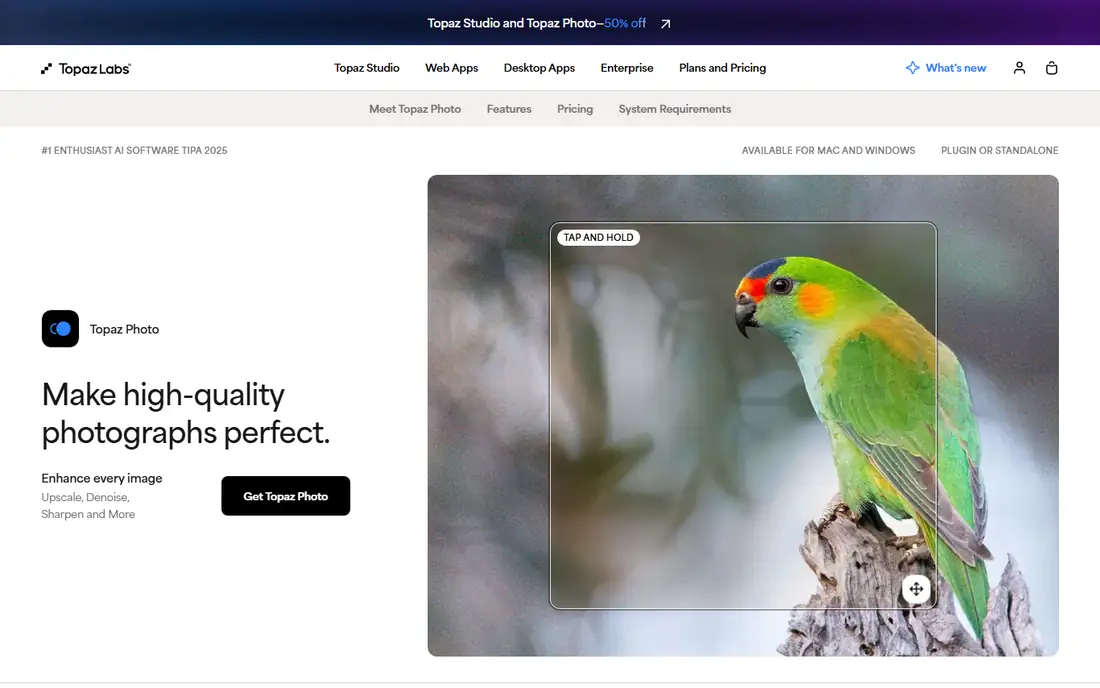
Topaz Photo AI combines denoise, sharpen, face recovery, and upscale in one desktop app, with autopilot settings that detect what each photo needs. Batch processing handles many photos at once, and quality on noisy or soft photos often beats web tools. Photographers use it as a first pass before Lightroom or Photoshop edits.
Desktop only limits mobile users, the one time price runs higher than web subscriptions, and a good GPU speeds processing greatly. For a photographer who enhances many photos on desktop, Topaz Photo AI offers the strongest all round quality.
What we like- Denoise, sharpen, and upscale in one
- Autopilot settings
- Batch processing
Watch out for- Desktop only
- Price is one time but higher
- GPU helps
Starting priceSee website
Free planFree trial
Adobe Enhance features, including Super Resolution in Lightroom and Camera Raw and AI denoise, live inside apps photographers already use, so enhancement fits existing workflows without new software. Super Resolution doubles resolution with AI detail, while denoise AI cleans high ISO noise while keeping detail. Results integrate with RAW editing and presets.
An Adobe subscription is required, and upscaling limits apply per feature, so very large prints may need a dedicated tool. For a photographer already paying for Adobe, Enhance features cover most enhancement needs without extra cost.
What we like- Built into Adobe apps
- Super Resolution
- Denoise AI
Watch out for- Needs Adobe subscription
- Upscaling limits apply
Starting priceSee website
Free planFree trial
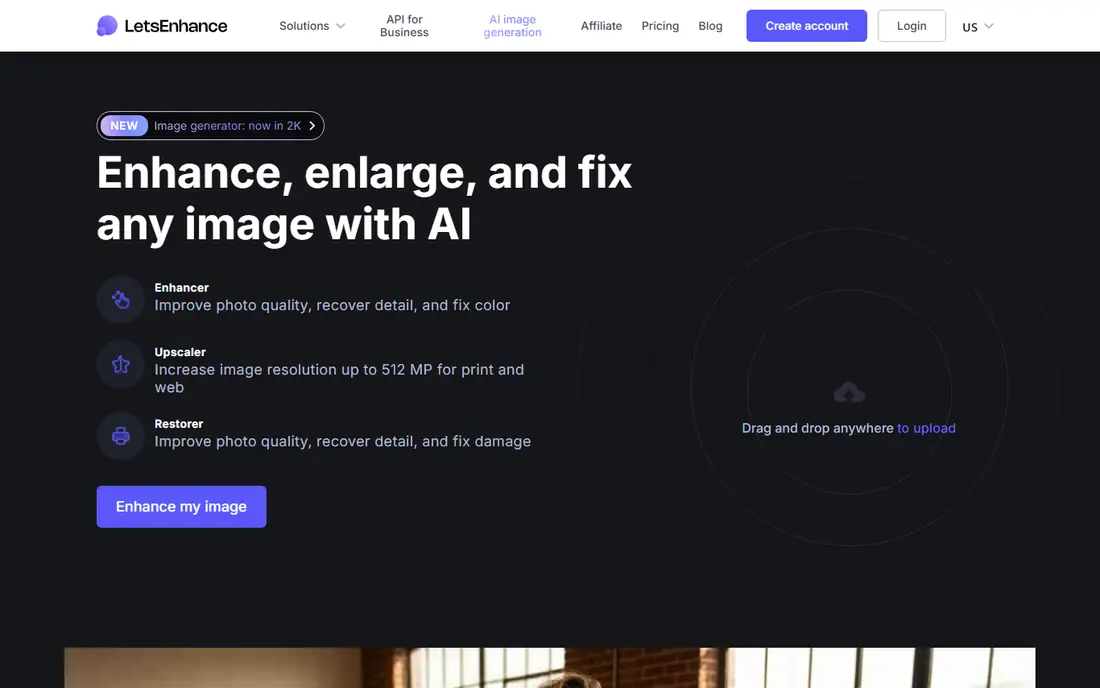
Let's Enhance offers web based AI upscaling with color and tone options, plus an API for apps that need enhancement at scale. The web flow suits users who enhance occasionally without installing software, and presets cover photos, illustrations, and print needs. Results on product and portrait photos are generally strong.
Credit costs add up for heavy use, and batch limits on low plans slow large jobs. For a web user who needs quality upscaling without desktop software, Let's Enhance gives a polished, simple service.
What we like- Web based
- Upscaling plus color
- API available
Watch out for- Credits cost adds up
- Batch limits on low plans
Starting priceSee website
Free planFree trial
VanceAI bundles many web tools, including an image upscaler, denoiser, sharpener, background remover, and old photo restorer, in one suite with an API. The breadth suits users with varied needs, from product photos to old family pictures, without buying several tools. A free trial lets users test each tool before paying.
Quality varies by tool, with upscaling stronger than some niche tools, and the credit system needs watching for large jobs. For a user who wants many enhancement tools in one web account, VanceAI offers good breadth.
What we like- Many tools in one suite
- Upscaler, denoiser, sharpener
- API
Watch out for- Quality varies by tool
- Credits system

#5Remini
Best for: Mobile photo enhancement4.6/5 on
G2 (13 reviews, checked Oct 2026)
Visit remini.ai
Starting priceSee website
Free planFree trial
Remini, a mobile first enhancer, specializes in face enhancement and old photo repair, turning blurry selfies and damaged family photos into sharper, cleaner versions. The app flow suits phone users who enhance on the go, with filters and repair modes for different photo types. Results on faces often impress, especially for old or low quality portraits.
Subscription cost adds up, and the mobile focus limits desktop batch workflows. For a phone user who enhances portraits and old photos, Remini offers the most convenient mobile experience.
What we like- Mobile first
- Face enhancement
- Old photo repair
Watch out for- Subscription cost
- Mobile focus limits desktop use

#6Upscale.media
Best for: Free web upscaling4.6/5 on
G2 (10 reviews, checked Oct 2026)
Visit upscale.media
Starting priceFree
Free planFree
Upscale.media, from Pixelbin, offers free web upscaling up to 4x with a simple upload and download flow, no software install needed. The tool suits a quick upscale of a single image, such as a product photo or social image that needs more resolution. Results on clean sources are solid for a free tool.
Features are basic compared with Topaz or VanceAI, with limited batch options and no advanced repair tools. For a free, fast, single image upscale, Upscale.media covers the basics well.
What we like- Free tier
- Simple web upload
- Up to 4x
Watch out for- Features are basic
- Batch options are limited
Starting priceSee website
Free planFree trial
Topaz Gigapixel focuses on large scale upscaling, up to 6x, with face recovery and detail models tuned for print and large displays. Batch processing handles many images, and quality on large prints often beats web tools, since the desktop models use more compute. Photographers and print shops use Gigapixel when resolution matters most.
Desktop only limits web users, the price runs higher than a web subscription, and a good GPU speeds jobs greatly. For large prints or displays where maximum resolution matters, Gigapixel offers the strongest upscaling.
What we like- Upscaling to 6x
- Face recovery
- Batch processing
Watch out for- Desktop only
- Higher price
- GPU helps
Starting priceSee website
Free planFree trial
Nero AI Upscaler, from Nero, offers a simple web flow for upscaling photos and anime images, with models tuned for each type. The interface suits casual users who want a quick upscale without learning a desktop app, and a free trial lets users test results. Anime upscaling, a niche many tools ignore, works well here.
Features are basic, with no deep repair suite, and quality varies by image type and source quality. For a casual web user who needs a simple upscale, including anime art, Nero AI Upscaler gives a friendly option.
What we like- Simple web flow
- Photo and anime models
- Free trial
Watch out for- Features are basic
- Quality varies by image
How we chose
We compared upscale quality, denoise and sharpen strength, face and old photo repair, batch processing, ease of use, pricing, and public photographer feedback. We favored tools that preserve natural detail rather than over smoothing, and tools that state limits honestly about what AI can recover. No hands on testing is claimed, and prices are shown as Free where a free tier exists, or See website where pricing varies.
Getting natural results from AI enhancement
Start from the best source you have, since a larger, cleaner original always beats a tiny, heavily compressed copy, whatever the tool claims. Enhance in stages, denoise first, then sharpen lightly, then upscale, checking each stage at full size, since over processing at one stage compounds errors later. Avoid max settings, since aggressive denoise turns skin to plastic and aggressive sharpening adds halos around edges.
Old photos, faces, and print preparation
For old photos, scan at high resolution first, since a good scan gives the enhancer more to work with than a phone photo of a print. Use face recovery sparingly, since strong face models can change likeness, especially for family photos where accuracy matters more than smoothness. For print, upscale to the print size at 300 dots per inch where possible, then check a test print, since screen previews hide print flaws. A careful, staged workflow beats any single max setting.
When enhancement cannot help
Enhancement cannot recover a face that was never in focus, read a license plate from a few pixels, or restore detail lost to heavy compression with certainty, since AI invents plausible detail, not true detail. For evidence, forensic, or legal use, disclose enhancement and keep the original, since enhanced detail is an interpretation, not a fact. Honest limits protect both your work and anyone who relies on it.
Before you decide
Compare the enhanced version side by side with the original at full size before you publish, since small previews hide over smoothing, halos, and invented detail. Keep the original file untouched in a separate folder, so you can always re enhance with better tools later instead of enhancing an already enhanced copy. For product photos, enhance lighting and sharpness lightly and keep colors true, since buyers complain when a product arrives looking different from its photo. Test batch settings on three sample photos first, because a setting that works for portraits may ruin scenery shots and a single batch run can damage hundreds of images. For social media, export at the platform recommended size after enhancement, since uploading a huge file lets the platform compress it and undo your work. Check skin texture after face enhancement and dial it back if pores vanish, because natural skin with some texture looks more real than plastic smooth skin.
Frequently asked questions
Can AI enhancers fix a very blurry photo?
Partly, since AI can sharpen mild blur and denoise, but it cannot truly recover a face or text that was never sharp in the original. Results look better, yet invented detail may differ from reality. For important photos, keep expectations modest and keep the original.
Is Topaz Photo AI better than Adobe Enhance?
Topaz Photo AI often wins on dedicated denoise and upscale quality, while Adobe Enhance wins on workflow for photographers already in Lightroom or Photoshop. Many photographers use both, with Topaz for tough photos and Adobe for everyday edits. Test both on your own photos before you buy.
How much can I upscale a photo?
Most tools upscale 2x to 4x well from a decent source, with Gigapixel reaching 6x for print use. Beyond that, quality drops and invented detail grows, so larger upscales suit illustrations better than photos. Start from the largest clean source available for best results.
Are free AI enhancers good enough?
Free tools such as Upscale.media suit occasional single image upscales, while paid tools suit batch work, old photo repair, and print quality. Test a free tool on your images first, and pay only when free results fall short on your actual photos. For professional print work, paid desktop tools usually justify the cost.
Can AI enhancers repair old damaged photos?
Yes, for scratches, fading, and mild damage, especially with Remini or VanceAI old photo tools, though severe tears and missing faces need manual retouching. Scan at high resolution first, enhance in stages, and check likeness carefully, since strong face models can alter appearance. For precious family photos, keep the original scan safe.
Sources we checked (8)
- https://www.topazlabs.com/topaz-photo-ai
- https://www.adobe.com/products/photoshop.html
- https://letsenhance.io
- https://vanceai.com
- https://remini.ai
- https://www.upscale.media
- https://www.topazlabs.com/gigapixel-ai
- https://ai.nero.com
Is your product missing or out of date?
We review this list regularly. Vendors can request a listing, send updated pricing or ask about featured placement.

Shihab Mia · Founder, Rankite
Shihab has 5+ years in B2B and SaaS SEO. He writes Rankite's software buying guides from pricing pages, documentation and public user reviews. More about Shihab.
 Adobe Enhance
 Let's Enhance
 VanceAI
 Topaz Gigapixel
 Nero AI Upscaler