How we make this list: we compare pricing pages, product documentation and public user reviews. Ratings come from G2, Capterra or Trustpilot, with the date we checked them.
Key takeaways
- Start with the damage, not the brand: face tools suit portraits, while scratch and tear repair needs a broader restoration workflow.
- VanceAI Photo Restorer is the most restoration-focused browser option, with a credit system that suits small batches.
- Remini is fastest on a phone for faces, but weekly pricing adds up quickly if you restore a large archive.
- Topaz Photo gives photographers the most control on a desktop, but it needs a capable computer and a subscription.
- Always keep the original scan untouched, because AI can invent detail that was never in the photo.
Quick comparison
| Tool | Best for | Starting price | Free plan |
|---|
 VanceAI Photo Restorer VanceAI Photo Restorer | one-click restoration in a browser | $9.90 per month | Yes |
 Remini Remini | quick mobile face restoration | $6.99 per week | Yes |
 Topaz Photo Topaz Photo | photographers who want desktop control | $39 per month | Free trial |
 MyHeritage MyHeritage | family historians with photo archives | See website | Yes |
 Fotor Fotor | budget all-in-one photo editing | See website | Yes |
 Hotpot.ai Hotpot.ai | cheap web restoration without heavy setup | See website | Yes |
 Photomyne Photomyne | digitizing whole albums with a phone | $59.99 per year | Free trial |
 PicWish PicWish | batch enhancement and cleanup | $6.99 per month | Yes |
 LetsEnhance LetsEnhance | web upscaling with different photo modes | $9 per month | Yes |
Is your product missing or out of date?
We review this list regularly. Vendors can request a listing, send updated pricing or ask about featured placement.
#1VanceAI Photo Restorer
Best for: one-click restoration in a browser4.5/5 on
G2 (15 reviews, checked Oct 2026)
Visit vanceai.com
Starting price$9.90 per month
Free planYes
VanceAI Photo Restorer is built around the specific job of rescuing old prints. You upload a scan, and the tool works on scratches, stains, faded color and soft faces in one pass. That focus matters, because a general photo editor will sharpen an image without addressing the damage that makes an old photo look old.
The catch is the credit model. Free credits cover only a few images, and each restoration uses credits, so a box of 200 scans becomes a budgeting exercise rather than a single purchase. Check how many credits a high-resolution output uses before you commit, and run your most important photos first. If a photo has a tear across a face or a large missing area, expect an approximation, not a true recovery, and keep the original scan for comparison.
What we like- Dedicated scratch and damage repair
- Face detail pass for portraits
- Colorize and upscale in the same account
Watch out for- Credit limits make large archives hard to price
- Results vary on heavily damaged photos
- Desktop app is a separate purchase in some plans
#2Remini
Best for: quick mobile face restoration4.6/5 on
G2 (13 reviews, checked Oct 2026)
Visit remini.ai
Starting price$6.99 per week
Free planYes
Remini is the tool most people reach for on a phone, and the reason is speed. Open the app, pick a photo, tap enhance, and a blurry portrait usually comes back sharper within seconds. That simplicity suits family members who do not want to learn editing software, and it is a good way to test whether a faded portrait is worth printing. The face work is often the strongest part of the result, especially on small, low-resolution originals.
The price is the main reason to pause. A weekly plan that looks small on a receipt adds up to a large annual total, so it only makes sense for a short, intensive project or for regular use. There is also almost no way to dial back the effect. If the result looks too smooth or changes a face in a way you do not like, you cannot fine tune it in the app. Use the free tier first, work through a few key photos, and cancel promptly if you only needed a short burst.
What we like- Very simple one-tap workflow
- Strong results on faces in portraits
- Works on photos and short videos
Watch out for- Weekly pricing is expensive over months
- Little manual control
- AI can smooth faces or invent detail
#3Topaz Photo
Best for: photographers who want desktop control4.3/5 on
G2 (2 reviews, checked Oct 2026)
Visit topazlabs.com
Starting price$39 per month
Free planFree trial
Topaz Photo is the desktop choice for people who already edit photos and want control over each step. Instead of one button, you get models for noise, sharpness, upscaling and face recovery, and you can adjust each one. Processing runs locally, so you are not uploading private family photos to a cloud service for every edit, and batch work is practical once you learn the settings. For photographers rescuing a shoot with high ISO noise or soft focus, that control is worth more than a one-tap app.
The trade-off is cost and hardware. The subscription is now the standard route, and older machines will process slowly or struggle with large files. Start with a modest strength setting on portraits, because the defaults can erase skin texture and make a person look plastic. If you only restore photos a few times a year, a cheaper web tool will usually do, but if you edit weekly, Topaz Photo earns its place on a desktop.
What we like- Local processing on your own computer
- Separate denoise, sharpen and upscale models
- Works as a plugin for Photoshop and Lightroom
Watch out for- Subscription pricing is high for occasional use
- Needs a modern computer with a capable graphics card
- Face results can look over-processed at default settings
Starting priceSee website
Free planYes
MyHeritage makes sense if you are already building a family tree. You upload a photo to your family site, enhance it, colorize it, and attach it to the people in the photo, all in one account. The enhancer is strongest on small, blurry faces in group photos, where it can pull individual faces into clearer focus.
It is less convincing as a standalone restoration purchase. The photo features ride along with a genealogy subscription, so someone who only wants to fix ten photos may pay for a much larger service. Free enhancements are limited, and the tool does not focus on physical damage such as scratches and tears in the way a dedicated restorer does. Use it for family history work, and pair it with a dedicated tool when a print is physically damaged.
What we like- Photo tools sit beside family tree records
- Simple upload and enhance workflow
- Colorization and repair features in one place
Watch out for- Photo tools are bundled with a genealogy service
- Limited free enhancements
- Not the best choice for torn or heavily damaged prints
#5Fotor
Best for: budget all-in-one photo editing4.2/5 on
G2 (342 reviews, checked Oct 2026)
Visit fotor.com
Starting priceSee website
Free planYes
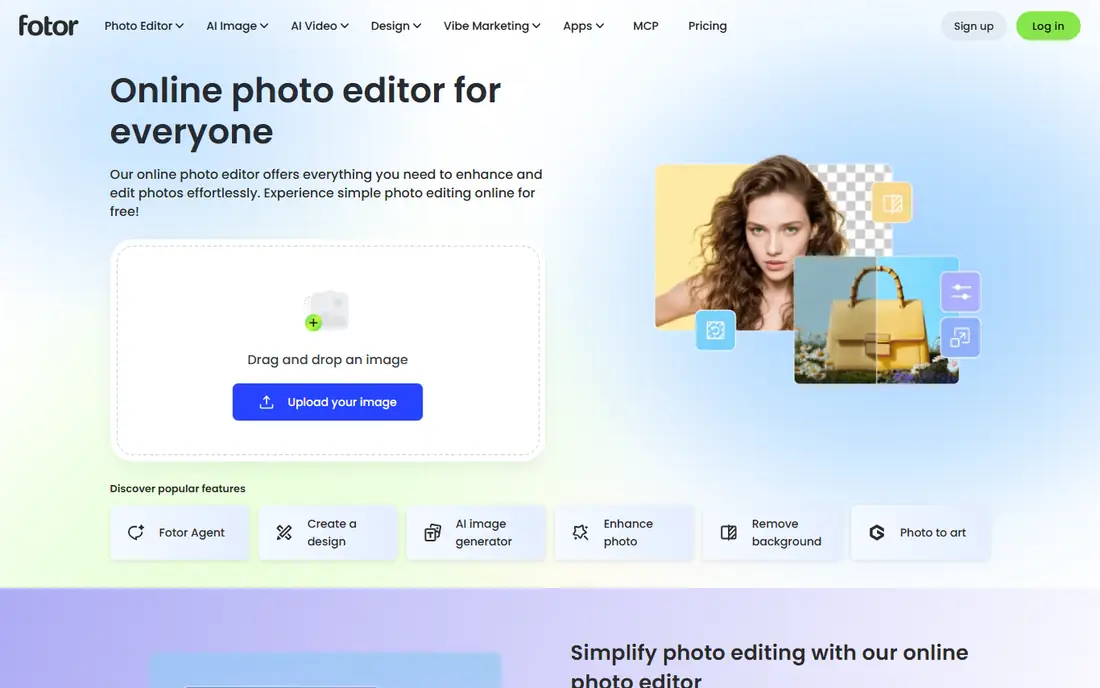
Fotor is a general photo editor that also handles enhancement, color correction and cleanup, which makes it a practical pick for people who want one account for many small jobs. If you restore an old photo, then need to crop it, adjust color and make a collage for a family event, you can do all of that without moving files between apps. The interface is friendly for beginners, and the free tier lets you test the basic workflow before paying.
That breadth is also the limit. Fotor does not offer the same damage-specific repair as VanceAI or the same face depth as Remini, so badly scratched prints may come back cleaner but still visibly damaged. Treat it as a good value editor with useful enhancement, rather than a specialist restorer, and check the pricing page for the current plan before you rely on a feature for a large project.
What we like- Broad editor beyond restoration
- Browser based with mobile apps
- Easy batch editing for everyday photos
Watch out for- Restoration is one feature among many, not the core focus
- Advanced features sit behind a paid plan
- Output quality varies by photo type
#6
Hotpot.ai
Best for: cheap web restoration without heavy setup
Visit hotpot.ai
Starting priceSee website
Free planYes
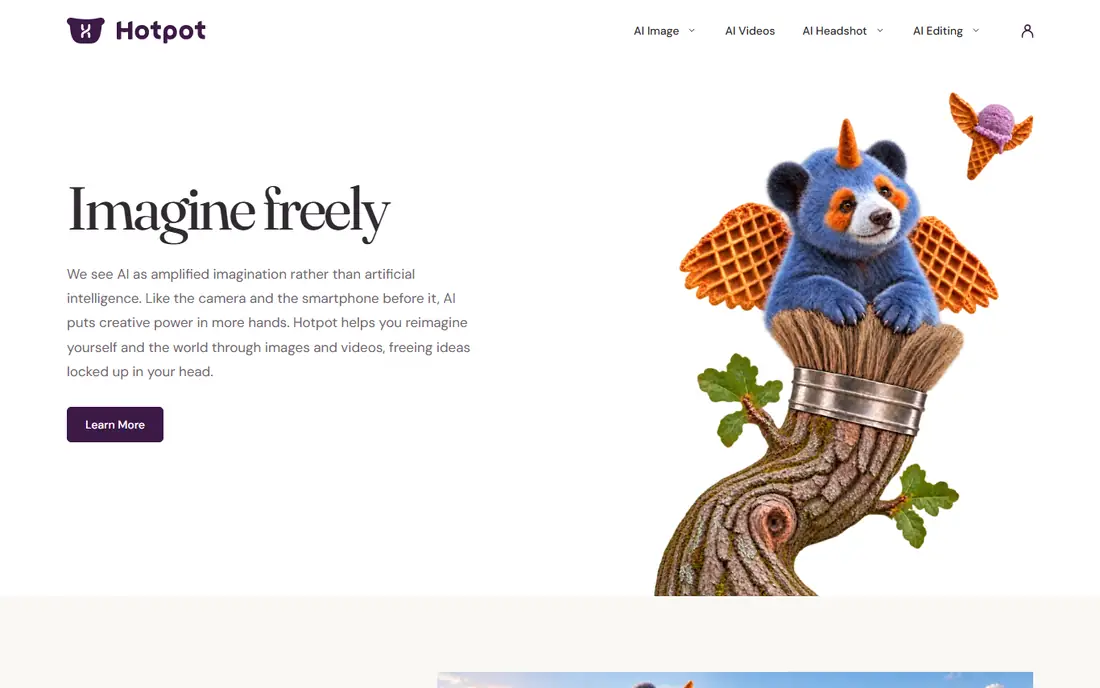
Hotpot.ai suits a quick job: a handful of photos, a browser, and no wish to install an app. You can try basic restoration and enhancement without a long setup, which is helpful when a relative sends you a scan and asks for a cleaner copy the same day. The web approach also means it works on almost any computer, including older machines that would struggle with desktop AI software.
The honest limit is depth. Hotpot.ai covers many image tools, and restoration is one part of a wider set, so it will not match a specialist on a torn or badly faded print. Pricing and credits are best confirmed on the vendor pricing page at the time you buy, because web credit packs change. For small batches and simple fixes, it is a low cost starting point, and you can move a difficult photo to a specialist tool if the first result falls short.
What we like- No software to install
- Simple web tools for repair and enhancement
- Low friction for a few photos
Watch out for- Restoration features are narrower than dedicated tools
- Credit and plan details change, so check before buying
- Limited manual control
Starting price$59.99 per year
Free planFree trial
Photomyne starts earlier in the process than most tools on this list: it helps you digitize the album itself. Point a phone at several prints at once, and the app detects, crops and straightens them, then lets you organize the results into albums with names, dates and places. That scanning step is often the real bottleneck for families, and Photomyne handles it better than a general enhancer that expects a clean scan as input.
Once scanned, you can sharpen, colorize and restore photos, but check the credit rules for AI restoration, because it is not always included in the base plan at the level you expect. A trial is worth using to scan one album end to end, including export, before you pay for a year. If you only have ten loose prints, a browser restorer is simpler, but if you have shelves of albums, Photomyne saves hours at the scanning stage.
What we like- Scanning workflow built for albums
- Auto detect, crop and rotate for multiple photos
- Albums, tags and sharing in one app
Watch out for- AI restoration uses extra credits in some plans
- Web access needs an active membership
- Best value only if you scan regularly
#8PicWish
Best for: batch enhancement and cleanup4.8/5 on
G2 (6 reviews, checked Oct 2026)
Visit picwish.com
Starting price$6.99 per month
Free planYes
PicWish is a practical middle ground for people with many photos to clean up, not just one treasured portrait. You can enhance a batch, remove backgrounds for product or archive use, and keep moving without opening a separate tool for each job.
For a badly damaged print, PicWish may improve sharpness and color without fully repairing scratches or tears, so keep expectations in line with its generalist design. Read the plan details carefully, because daily free limits and credit use can affect a large batch. When the job is volume and consistency, PicWish is a good fit, and when the job is one fragile portrait, a face or damage specialist may do better.
What we like- Batch processing for many files
- Background removal and enhancement in one account
- Desktop and mobile apps available
Watch out for- Restoration depth is less than a specialist
- Free tier has daily limits
- Some features use credits on top of a plan
Starting price$9 per month
Free planYes
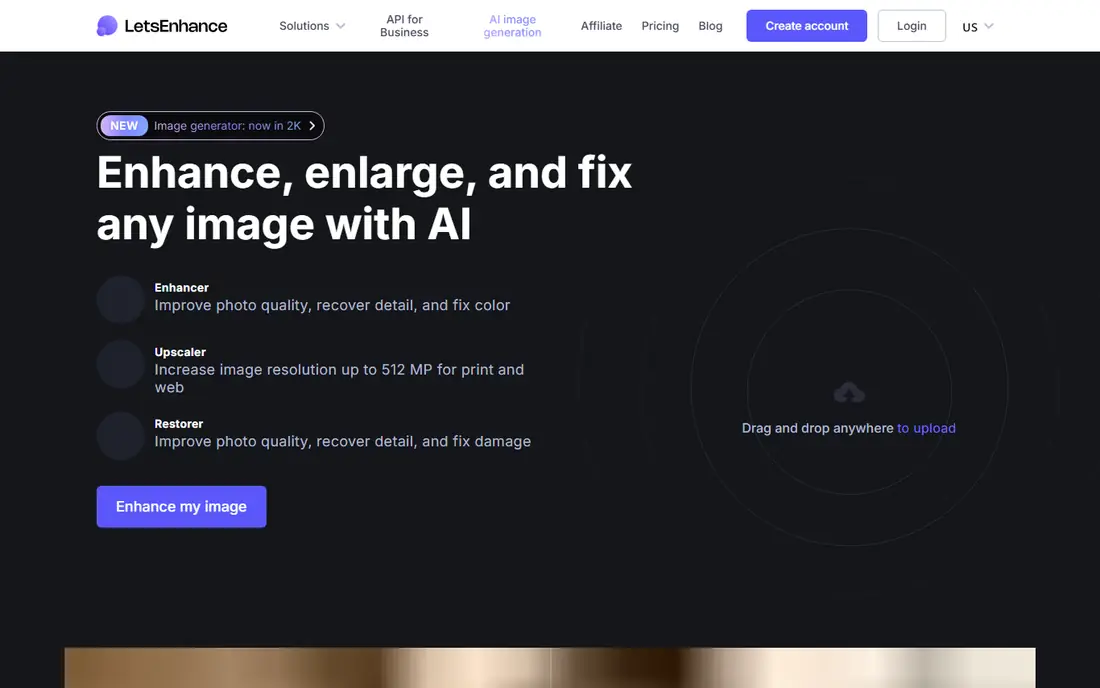
LetsEnhance is a web upscaler with a useful old photo mode, which sets it apart from tools that only sharpen. You choose the goal first, upscale, enhance or sharpen, and pick a model suited to the photo type, rather than applying one generic filter. That choice helps on scanned prints, where a gentle model preserves text and fine detail better than an aggressive one. Batch uploads also help when you have a folder of scans to work through.
The credit system is the part to plan around. Each image uses credits, and higher resolutions use more, so a large archive needs a larger plan or a staged approach. Keep the original file, compare at full size, and watch eyes, teeth and text, because any AI upscaler can invent plausible detail. For print work, LetsEnhance is a strong web option, provided you budget credits and check each result closely.
What we like- Separate modes for old photos, portraits and general images
- Upscaling to large print sizes
- Batch processing for up to 20 images at once
Watch out for- Credit based, so large batches need planning
- No desktop app for offline work
- Creative upscaling can invent detail on old photos
How we chose
We compared vendor pricing pages, product documentation and public reviews on G2, Capterra and Reddit, and we checked each homepage to confirm the product exists and matches the name on this list. We favored tools with a clear restoration or enhancement workflow, a usable free tier or trial, and honest limits on damage repair, and we dropped tools that only sharpened without addressing old photo damage. Prices shown are starting prices from vendor pages or third party pricing summaries checked in October 2026, and where a price could not be confirmed we wrote See website rather than guessing.
What to check before you pay
Start by sorting your photos into three piles: portraits with soft faces, prints with physical damage, and photos that only need a larger size for printing. Scan at the highest resolution you can manage, at least 600 dpi for small prints, and save the scan as an uncompressed file before any AI work.
Test on your hardest photo first
Run the free tier or trial on the most damaged photo you actually care about, not an easy test image. Check the face at full size, look for invented teeth, glasses or jewelry, and compare the result beside the original. If the tool smooths skin too much, try a lower strength setting or a different model, and if it invents detail, move that photo to manual repair or accept a softer, more faithful result.
Budget for credits and exports
Credit tools look cheap until you count a whole album, so estimate the total before you buy. Ask how many credits one image uses at your chosen output size, whether unused credits roll over, and whether exports carry a watermark on the free plan. For a one-off project, a short subscription that you cancel after the project is often cheaper than a year plan, but set a reminder to cancel, because weekly and monthly plans renew automatically.
Keep the original and the story
Never overwrite the original scan. Save the restored copy under a new name, keep the original beside it, and note where the AI may have guessed. For family history, add names, dates and places while relatives can still confirm them, because a sharper photo with the wrong person identified is worse than a blurry photo with the right caption. If a photo has historical or legal value, keep an unedited copy as the record and treat the restored version as an interpretation.
Frequently asked questions
Can AI restore a photo that is torn in half?
It can improve a torn photo, but it cannot recover detail that is missing from the scan. A good tool will fill small scratches and stains with plausible texture, while a large tear across a face will usually need manual repair or a lower expectation. Scan both halves if you have them, and keep the original.
Will AI change the face in an old portrait?
Yes, it can. Face models infer detail from patterns in other photos, so eyes, teeth and skin texture may look plausible without matching the real person. Compare the result with other photos of the same person, and prefer a softer result over a sharp one that looks like a different person.
Is a free plan enough for a family album?
A free plan is enough for a test and for a few photos, but not for a whole album. Daily limits, credit caps and watermarks usually push regular users to a paid plan. Work through your most important photos on the free tier first, then choose a plan based on the total count.
Should I scan photos myself or use a phone app?
A flatbed scanner at high resolution gives the best input for restoration, while a phone scanning app is faster for whole albums. If a photo is fragile or very valuable, use a scanner and handle it as little as possible.
Do I need a desktop tool, or is a web tool enough?
A web tool is enough for most family restoration, especially for small batches and simple damage. A desktop tool suits photographers who edit often, need batch control, or prefer local processing for privacy. Start with a web tool, and move to desktop only if you hit its limits on control or volume.
Can I print a restored photo at a large size?
You can, but only if the restored file has enough resolution for the print size. Upscaling helps, yet it does not create true detail, so check the file at 100 percent before ordering a large print. A small test print is cheaper than a large canvas that reveals AI artifacts.
Sources we checked (9)
- https://vanceai.com/
- https://remini.ai
- https://www.topazlabs.com/
- https://www.myheritage.com
- https://www.fotor.com
- https://hotpot.ai
- https://photomyne.com
- https://picwish.com
- https://letsenhance.io
Is your product missing or out of date?
We review this list regularly. Vendors can request a listing, send updated pricing or ask about featured placement.

Shihab Mia · Founder, Rankite
Shihab has 5+ years in B2B and SaaS SEO. He writes Rankite's software buying guides from pricing pages, documentation and public user reviews. More about Shihab.