How we make this list: we compare pricing pages, product documentation and public user reviews. Ratings come from G2, Capterra or Trustpilot, with the date we checked them.
Key takeaways
- Generative recolor means AI changes colors in an image or design while keeping shapes, shading, and detail intact.
- Adobe Firefly leads for vector recolor in Illustrator, while Recraft leads for AI generated images with precise palette control.
- Photo recolor tools such as Picsart and Fotor suit product shots and portraits, with different strengths for each.
- Palette control matters most, since a recolor that ignores brand colors is useless for commercial work.
- Always check output rights and color accuracy on screen and in print, since AI colors shift between displays and printers.
Quick comparison
| Tool | Best for | Starting price | Free plan |
|---|
 Adobe Firefly Adobe Firefly | Vector and image recolor | See website | Free trial |
 Recraft Recraft | AI images with palette control | Free | Free |
 Picsart Picsart | Photo recolor and replace | Free | Free |
 Fotor Fotor | Photo recolor for sellers | Free | Free |
 Canva Canva | Quick recolor for social | Free | Free |
 Pixlr Pixlr | Browser photo recolor | Free | Free |
 PhotoRoom PhotoRoom | Product photo recolor | Free | Free |
 Clipdrop Clipdrop | AI photo editing suite | Free | Free |
Is your product missing or out of date?
We review this list regularly. Vendors can request a listing, send updated pricing or ask about featured placement.
The best AI generative recolor service
#1Adobe Firefly
Best for: Vector and image recolor4.4/5 on
G2 (373 reviews, checked Oct 2026)
Visit adobe.com
Starting priceSee website
Free planFree trial
Adobe Firefly powers Generative Recolor in Illustrator, where a designer types a prompt or picks a palette and Firefly recolors vector artwork while keeping shapes and structure. That vector focus matters, since logos, packaging, and illustrations need clean, editable color, not a flat raster repaint. Firefly also generates and recolors raster images, with commercial use terms built for business customers.
Credits limit heavy use on lower plans, and the best recolor features sit inside paid Creative Cloud plans. Integration with Illustrator, Photoshop, and Express keeps recolored work inside a familiar workflow. For a designer who recolors brand art and vector work, Firefly is the most professional option available.
What we like- Generative Recolor in Illustrator
- Brand safe training
- Creative Cloud integration
Watch out for- Best features need Adobe plans
- Credits limit heavy use
#2Recraft
Best for: AI images with palette control4.7/5 on
G2 (456 reviews, checked Oct 2026)
Visit recraft.ai
Starting priceFree
Free planFree
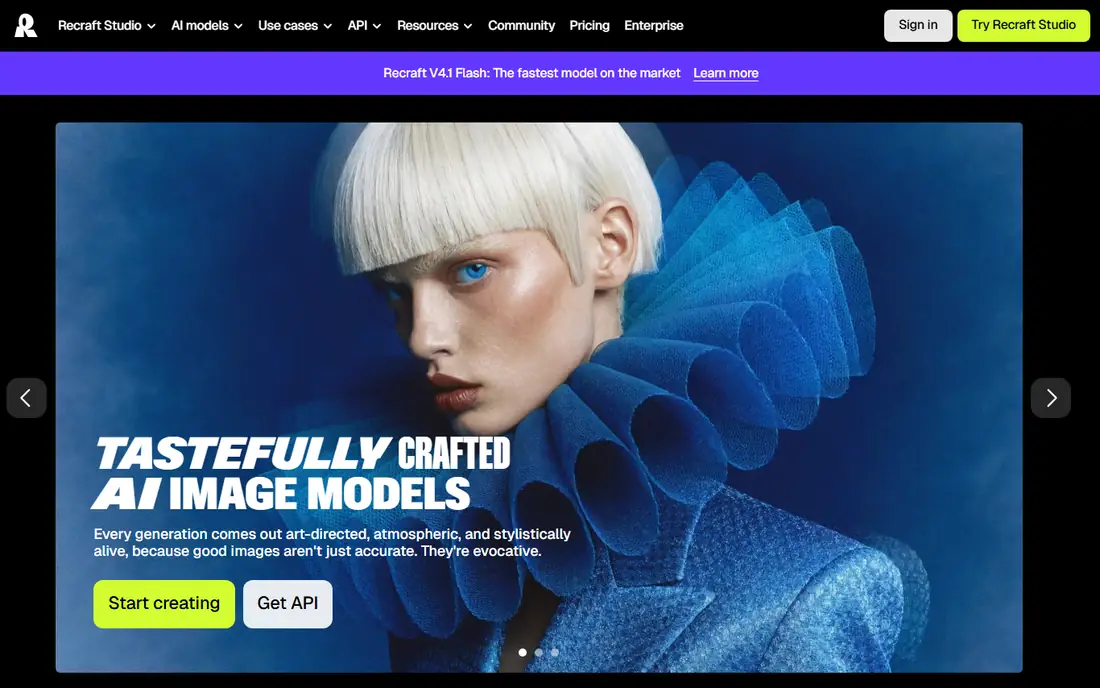
Recraft generates images with strong control over color palette, style, and composition, and it can export vector results for further editing. Designers pick colors explicitly, so a recolor matches brand guidelines rather than drifting toward generic AI palettes. Generation is fast, and the interface suits both new users and professionals who want precise control.
The platform is newer than Adobe, so tutorials and community resources are thinner, and some advanced print workflows need export to other tools. For a creator who generates and recolors images with a strict palette, Recraft offers control that broader AI tools often lack.
What we like- Precise palette and style control
- Vector output
- Fast generation
Watch out for- Newer platform
- Community smaller than Adobe
#3Picsart
Best for: Photo recolor and replace4.5/5 on
G2 (797 reviews, checked Oct 2026)
Visit picsart.com
Starting priceFree
Free planFree
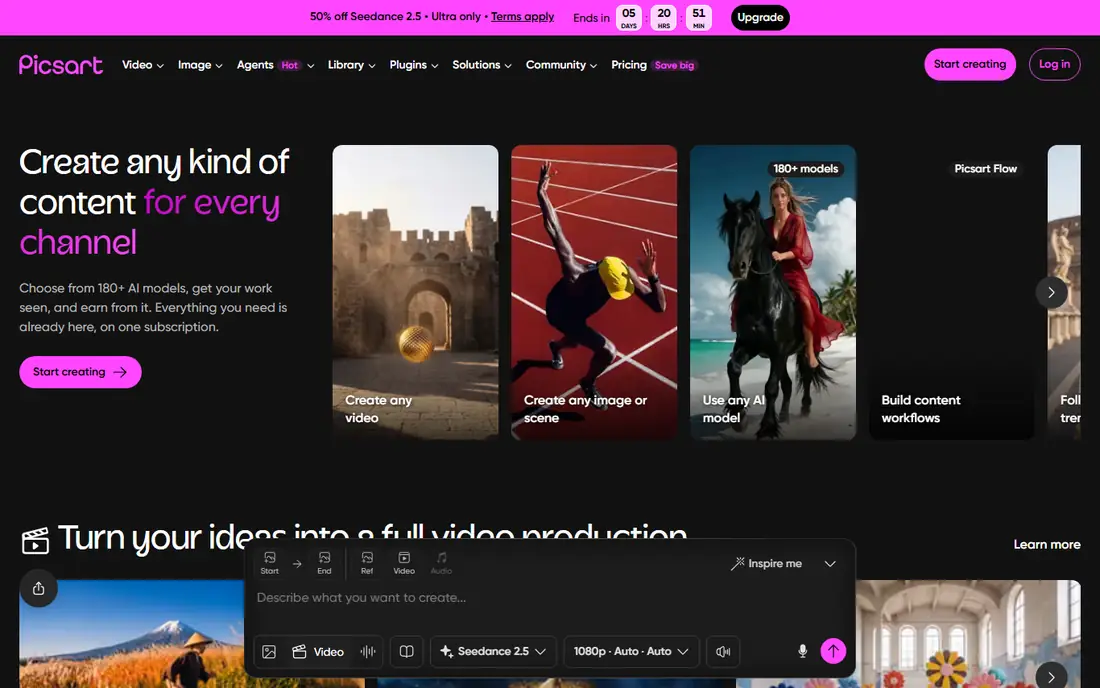
Picsart lets users recolor objects in photos with AI Replace, changing a shirt, a car, or a product color while keeping lighting and texture believable. The mobile app suits quick social and seller photos, and templates speed up common edits. Batch tools help sellers who recolor many product shots in one session.
Free exports carry limits and watermarks on some features, and the most precise tools need the Gold plan. Quality varies with photo complexity, so detailed patterns may need manual cleanup. For a mobile creator or seller who recolors photos daily, Picsart balances speed and quality well.
What we like- AI Replace and recolor
- Mobile friendly
- Huge template library
Watch out for- Free exports carry limits
- Advanced tools need Gold plan
#4Fotor
Best for: Photo recolor for sellers4.2/5 on
G2 (342 reviews, checked Oct 2026)
Visit fotor.com
Starting priceFree
Free planFree
Fotor offers AI recolor and photo enhancement tools aimed at online sellers, with batch processing for product catalogs. A seller can recolor a product line into several colorways from one base photo, then export images sized for marketplaces. Templates for banners, listings, and social posts keep the workflow in one place.
Free tier exports limit resolution, and AI recolor quality varies with fabric texture and lighting, so hero images deserve a manual check. Paid plans raise limits and add batch capacity. For a seller who needs many colorways fast, Fotor gives a practical, affordable path.
What we like- AI photo tools
- Batch processing
- Seller friendly templates
Watch out for- Free tier limits resolution
- AI quality varies by image
#5Canva
Best for: Quick recolor for social4.7/5 on
G2 (7,678 reviews, checked Oct 2026)
Visit canva.com
Starting priceFree
Free planFree
Canva brings AI recolor to a design platform most teams already use, with Magic Edit, background tools, and color adjustment for social posts, ads, and presentations. Brand Kits on Pro plans lock brand colors, fonts, and logos, so team recolors stay consistent. Templates cover nearly every social format, which speeds up daily content.
Precision lags dedicated tools, since Canva favors speed over pixel control, and complex photo recolors may look flat. For a marketing team that recolors social graphics and ads quickly, Canva is the easiest shared workspace, and its collaboration tools suit distributed teams.
What we like- Magic Edit and recolor
- Huge template range
- Team sharing
Watch out for- Precision is limited
- Brand color control needs Pro
#6Pixlr
Best for: Browser photo recolor4.4/5 on
G2 (751 reviews, checked Oct 2026)
Visit pixlr.com
Starting priceFree
Free planFree
Pixlr runs full photo editing in the browser, with layers, masks, and AI tools for recolor and object replacement. A designer can open a photo, select an object, and shift its color without installing software, which suits shared machines and quick jobs. The interface mirrors desktop editors more closely than most browser tools.
Ads appear on the free tier, and heavy files depend on browser and machine speed. Paid plans remove ads and raise limits. For a browser based editor who wants layer control plus AI recolor, Pixlr is a strong free starting point.
What we like- No install needed
- Layer editing
- AI tools in browser
Watch out for- Ads on free tier
- Performance depends on browser
#7PhotoRoom
Best for: Product photo recolor4.3/5 on
G2 (20 reviews, checked Oct 2026)
Visit photoroom.com
Starting priceFree
Free planFree
PhotoRoom focuses on product photos, with AI background removal, studio backgrounds, and color tools that recolor products for listings. Sellers can shoot a product once, then generate several colorways and backgrounds sized for Amazon, Etsy, or Shopify. Batch exports handle catalog updates without repeating each edit.
Portrait and complex scene editing are thinner than general photo editors, and full resolution exports need a paid plan. For an online seller whose main need is product colorways, PhotoRoom keeps the workflow tight and fast.
What we like- Product focused AI
- Background and color control
- Batch exports
Watch out for- Portrait and scene editing is thinner
- Paid plans for full resolution
Starting priceFree
Free planFree
Clipdrop, from Stability AI, bundles AI photo tools including cleanup, relight, image upscaling, and recolor in one suite, with API access for developers who want to embed tools in their own apps. Relight and cleanup pair well with recolor, since lighting fixes make a new color look natural rather than pasted on. The web tools run without install.
Tools feel like separate apps rather than one editor, so a full workflow may hop between them, and free use carries limits. For a developer or creator who wants Stability AI tools with API access, Clipdrop offers a flexible suite at a low entry cost.
What we like- Stability AI tools
- Cleanup, relight, and recolor
- API access
Watch out for- Tools are separate apps
- Free limits apply
How we chose
We compared recolor accuracy, palette and brand control, vector versus raster output, batch capacity, pricing, rights terms, and public designer feedback. We favored tools that keep shapes and shading intact, respect a chosen palette, and export at usable resolution for commercial work. No hands on testing is claimed, and prices are shown as Free where a free tier exists, or See website where plans vary by credits and seats.
Recoloring for brand and commercial work
Start with a locked palette, since AI recolor drifts without one. Define brand colors by hex code, test the recolor on your darkest and lightest images, and check the result on both screen and print proofs, because colors shift between the two. For vector work, recolor in Illustrator with Firefly or Recraft vector output, so colors stay editable for later campaigns. For photos, keep the original file untouched and save recolors as new versions, since a client may ask for the original colorway later.
Rights, quality checks, and batch workflow
Check output rights before commercial use, since AI tool terms differ on training data and commercial licenses, and Adobe offers clearer commercial terms than most free tools. Inspect recolors at full resolution for edge halos, texture loss, and skin tone shifts, especially on portraits and fabric, where AI errors show first. For batch work, recolor one hero image first, approve it with the client or team, then run the batch with the same settings, and spot check every tenth image. A short approval step before batch runs prevents a catalog full of off brand colors.
Matching color across channels
Test recolors in the channel where they will appear, since social feeds, marketplace pages, and print catalogs render color differently. Export sRGB for web and marketplace use, and CMYK proofs for print, and compare the two before a large run. Keep a color log with hex codes, tool settings, and approval dates, so a future designer can match a colorway without guessing. Consistent color across channels builds brand trust faster than any single striking image. When a colorway performs well, save its settings as a preset or template, so future campaigns reuse the exact same values without manual matching each time, and share that preset with every designer on the team, without exception, from the very start of each project.
Frequently asked questions
What is generative recolor?
Generative recolor uses AI to change colors in an image or vector design while keeping shapes, shading, and detail. Unlike a simple hue shift, it understands objects and lighting, so a red shirt becomes blue with plausible shadows and texture. Vector recolor keeps colors editable, while photo recolor bakes the change into pixels.
Can AI recolor match exact brand colors?
Yes, when the tool accepts hex codes or palette input, such as Recraft and Adobe Firefly with brand palettes. Free tools that only accept text prompts drift more, so check output against your brand guide. Always proof the result on screen and in print before publishing.
Is AI recolored work safe for commercial use?
It depends on the tool terms, since training data and commercial licenses differ. Adobe Firefly is built for commercial use with clearer terms, while free tools may limit commercial rights. Read the current terms for your plan, and keep records of tool and license for client work.
Does recolor work on photos and vectors?
Both, but with different tools. Firefly and Recraft handle vectors best, while Picsart, Fotor, and PhotoRoom handle photos best. Vector output stays editable for logos and packaging, while photo output suits listings and social posts. Pick the tool that matches your file type.
Why do AI recolors sometimes look wrong?
AI struggles with complex patterns, transparent materials, and skin tones, and colors shift under different lighting in the photo. A recolor that ignores lighting looks pasted on. Fix lighting first with relight or cleanup tools, then recolor, and inspect at full resolution before publishing.
Sources we checked (8)
- https://www.adobe.com/products/firefly.html
- https://www.recraft.ai
- https://picsart.com
- https://www.fotor.com
- https://www.canva.com
- https://pixlr.com
- https://www.photoroom.com
- https://clipdrop.co
Is your product missing or out of date?
We review this list regularly. Vendors can request a listing, send updated pricing or ask about featured placement.

Shihab Mia · Founder, Rankite
Shihab has 5+ years in B2B and SaaS SEO. He writes Rankite's software buying guides from pricing pages, documentation and public user reviews. More about Shihab.