How we make this list: we compare pricing pages, product documentation and public user reviews. Ratings come from G2, Capterra or Trustpilot, with the date we checked them.
Key takeaways
- No tool is built only for gemstones. The best results come from general photo editors with strong batch, color and spot-removal controls, used with a repeatable shooting setup.
- Lightroom Classic and Capture One suit teams that shoot hundreds of stones a day, because one set of adjustments can be synced across a whole session.
- Photoshop is the most precise option for facet reflections, inclusions and dust, but its batch tools run recorded actions, so your photos need to be shot consistently.
- Photoroom is the quickest route to clean white or colored backgrounds for catalog and marketplace listings, but it is weak at color-critical work.
- darktable and GIMP cost nothing and can handle serious batches, but you pay in setup time and a steeper learning curve.
- Prices change often, so check each vendor's pricing page before you commit. Where we could not confirm a current number, this guide says See website.
Quick comparison
| Tool | Best for | Starting price | Free plan |
|---|
 Adobe Photoshop Adobe Photoshop | Detailed cleanup and scripted batches | See website | Free trial |
 Adobe Lightroom Classic Adobe Lightroom Classic | Syncing edits across large shoots | See website | Free trial |
 Capture One Capture One | Color accuracy and tethered shooting | See website | Free trial |
 Photoroom Photoroom | Fast background removal in bulk | See website | Yes |
 ON1 Photo RAW ON1 Photo RAW | One-time purchase editing with batch tools | See website | Free trial |
 Affinity Affinity | Low-cost layered editing | See website | Yes |
 darktable darktable | Free RAW batch processing | Free | Yes |
 GIMP GIMP | Free pixel editing with batch plugins | Free | Yes |
Is your product missing or out of date?
We review this list regularly. Vendors can request a listing, send updated pricing or ask about featured placement.
The best software for bulk retouching gemstone images
#1Adobe Photoshop
Best for: Detailed cleanup and scripted batches4.6/5 on
G2 (13,426 reviews, checked Oct 2026)
Visit adobe.com
Starting priceSee website
Free planFree trial
Photoshop is where you go when a single stone needs real work. Removing a speck of dust inside a table facet, cleaning a scratch on a setting, or rebuilding a clipped highlight on a cabochon are all jobs it does better than anything else on this list. It also supports masks that separate the stone from its background cleanly, which matters when the buyer is judging cut and color.
For bulk work, you record an action (crop, white balance nudge, sharpen, export size) and run it over a folder with the Batch command or the Image Processor script. This works well when every photo comes from the same lightbox, lens and distance. It works badly when lighting drifts, because the action applies the same numbers to every file.
The honest catch is cost and effort. Adobe sells Photoshop on subscription, and the plan you pick (Photoshop alone or a bundle with Lightroom) changes the price, so check the current page. Expect to spend a day building and testing a good action before you trust it on a few hundred files.
What we like- Best-in-class spot healing, masking and layer control
- Actions and Image Processor handle repeat steps across folders
- Huge library of tutorials and third-party actions
Watch out for- Subscription only, with no perpetual license
- Batch tools replay fixed steps and cannot judge each stone
#2Adobe Lightroom Classic
Best for: Syncing edits across large shoots4.6/5 on
G2 (901 reviews, checked Oct 2026)
Visit adobe.com
Starting priceSee website
Free planFree trial
Lightroom Classic suits a seller who photographs a full parcel in one sitting. You fix white balance and exposure on one reference image, copy those settings to the rest, then tweak outliers. Because lighting in a tabletop setup is usually stable, that single adjustment often covers most of the set.
Its catalog is the other reason to consider it. You can tag photos by stock number, rate keepers, and export in several sizes at once, such as a large file for your website and a smaller one for marketplaces. Export presets save a lot of repetitive clicking.
The limits show up on fine detail. Spot removal is fine for sensor dust and small marks, but complex reflections inside a gem are easier to handle in Photoshop. Most jewelry shops end up using both, which is why Adobe's photography bundle is popular in this niche.
What we like- Sync settings across hundreds of photos in a click
- Presets and catalog keep stones organized by SKU or batch
- Raw editing with local adjustments and spot removal
Watch out for- Subscription only
- Dust and reflection cleanup is less precise than in Photoshop
#3Capture One
Best for: Color accuracy and tethered shooting4.5/5 on
G2 (78 reviews, checked Oct 2026)
Visit captureone.com
Starting priceSee website
Free planFree trial
Capture One is the choice when color fidelity is the main complaint. Gemstones live and die on hue, tone and saturation, and a sapphire that looks slightly gray online leads to returns. Its color editor lets you select a narrow range, such as a specific blue, and adjust only that without disturbing the rest of the image.
The tethered workflow is a second strength. You connect the camera, shoot, and see the result in the app right away, with a style applied automatically. That means retouching begins at capture, and the bulk step afterward is mostly verification and export.
The tradeoff is complexity. The interface asks more of a new user, and its cleanup tools are lighter than Photoshop's, so you may still need a second program for heavy retouching. Subscription and perpetual license options have changed over time, so read the current terms before buying.
What we like- Strong color editor for fine control over hue and saturation ranges
- Tethered capture lets you check each stone on screen as you shoot
- Styles and sessions suit studio workflows
Watch out for- Steeper learning curve than Lightroom
- Pricing options vary by camera brand and plan type
#4Photoroom
Best for: Fast background removal in bulk4.3/5 on
G2 (20 reviews, checked Oct 2026)
Visit photoroom.com
Starting priceSee website
Free planYes
Photoroom is a quick fix for sellers who need clean, uniform product images for a store or marketplace. Upload a batch, remove the backgrounds, drop the stones onto a consistent white or neutral backdrop, and export. For a catalog of simple faceted stones, that can turn a day of manual masking into a short job.
Gems are a hard test for any automatic cutout tool. Transparent and translucent stones pick up the background color, and AI tools sometimes cut away part of a pale edge or create a hard halo. Always check a sample of results at full size before you run a thousand images.
Treat it as a finishing step rather than your main editor. It is not designed to correct color or remove inclusions, so pair it with a raw editor that handles exposure and white balance first. Plan limits on batch size and export resolution differ by tier, so confirm them on the pricing page.
What we like- Removes backgrounds on many images at once
- Templates for white, colored and shadowed backgrounds
- Works on web, phone and through an API
Watch out for- Automatic cutouts can clip translucent edges of stones
- Limited control over color accuracy
#5
ON1 Photo RAW
Best for: One-time purchase editing with batch tools
Visit on1.com
Starting priceSee website
Free planFree trial
ON1 Photo RAW is aimed at photographers who want one program to browse, edit and export without paying a monthly fee for every tool. It combines a raw developer, layers, masking and batch processing, so a small jeweler can handle most of the pipeline in one place.
Batch work is straightforward. You build a preset, select a set of images in the browser, apply it, and export to the sizes you need. That covers the typical steps of exposure fix, crop and sharpen.
The catch is depth. For a flawless macro of a high-value stone, you will probably hit its limits on complex retouching. It is a good middle ground for volume work, not a replacement for a full pixel editor on hero images. Check the vendor site for current purchase and subscription pricing, since both have shifted between versions.
What we like- Raw processing, layers and batch export in one app
- Presets can be applied to many files at once
- Offers a purchase option as well as a subscription
Watch out for- Smaller community and fewer jewelry-specific tutorials
- Retouching tools are less refined than Photoshop's
Starting priceSee website
Free planYes

Affinity, now owned by Canva, is the budget path for a small shop that wants Photoshop-style retouching without a Photoshop bill. It offers layers, masks, healing and clone tools, so cleaning a stone and its background is entirely possible. The software has been offered free, though the exact terms and which features need a paid Canva plan have changed, so confirm on the site.
Batch handling is where it trails Adobe. It has batch conversion and macro-style repeats, but the automation is not as deep or as widely documented, so expect more trial and error when building a repeatable pipeline.
This option fits an owner who retouches a modest number of stones each week and does most of the work by hand with some automation. If you process thousands of files a month, a catalog-based tool will save more time.
What we like- Layer-based photo editing with healing, clone and masking tools
- Free to use under Canva's current model
- No Adobe subscription needed
Watch out for- Batch features are less flexible than Adobe actions
- Some advanced features may sit behind a Canva paid plan
Starting priceFree
Free planYes
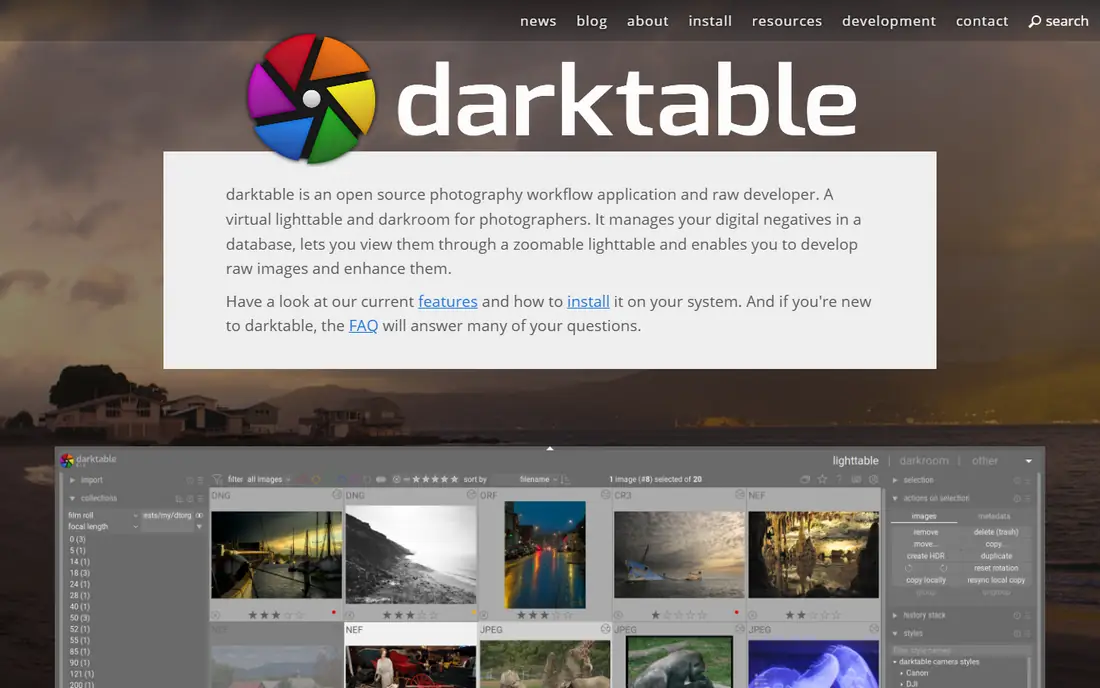
darktable is a raw editor and photo manager built by volunteers. It lets you copy the edit history from one image and paste it onto a selection, which is the same idea as Lightroom's sync. For a stable studio setup, that is often all a bulk workflow needs.
It has solid color tools, including color calibration and masking by parametric ranges, so you can fine-tune the tone of a stone without paying anything. It also supports retouching modules such as healing and cloning for basic dust removal.
The cost is your time. The module-based interface is dense, and there is no support desk to call if an export fails. It suits a technically comfortable owner or an in-house person who will invest a week learning it, and it makes a good first step before moving to a paid tool.
What we like- Open source and free with no account
- Copy and paste edit history across many images
- Works on Windows, macOS and Linux
Watch out for- Interface takes time to learn
- Documentation and support come from the community, not a company
#8GIMP
Best for: Free pixel editing with batch plugins4.3/5 on
G2 (1,484 reviews, checked Oct 2026)
Visit gimp.org
Starting priceFree
Free planYes
GIMP is the free pixel editor most people try first. It offers layers, masks and healing, so occasional retouching on a gemstone photo is possible. For volume, a community plugin called BIMP applies a set of steps such as resize, rename, sharpen and format conversion to a whole folder.
Treat its batch scope realistically. BIMP is good at mechanical tasks and less good at per-image color judgement. GIMP also does not process camera raw files on its own, so you usually pair it with a raw converter like darktable.
For a seller on a tight budget, the combination of darktable for raw edits and GIMP for cleanup costs nothing and covers most needs. Just be prepared for a rougher workflow and no vendor support.
What we like- Free and open source
- Healing, clone and layer masks for cleanup
- Batch plugins such as BIMP can resize, rename and convert large folders
Watch out for- Weak raw handling without outside tools
- Batch plugins are basic, and color management takes care
How we chose
We built this list by reading vendor pricing pages, product documentation and feature lists, then comparing them with public user feedback on G2, Capterra and Reddit. We looked at the things that matter for gemstone work: raw support, color control, batch and sync features, spot removal, export options, operating system support and cost model. We did not run hands-on tests, and we do not claim to have rated image quality ourselves.
We also favored tools that fit small and mid-size businesses, meaning a jeweler, gem dealer or online seller with a few people and no dedicated retoucher. Where we could not confirm a current price from the vendor, we wrote See website instead of guessing. Plans and promotions change often, so confirm the figure before you buy.
What to look for before you buy
Fix the photo setup first
Software cannot rescue inconsistent photos. A fixed light box, a gray card in the first frame of each batch, the same camera distance and a consistent background will let a single edit apply cleanly across hundreds of stones. Bulk retouching works when the inputs are uniform.
Decide how much retouching each stone needs
Split your stock into tiers. Low-value melee and commodity stones can go through a fully automatic pipeline of white balance, crop, sharpen and export. High-value stones deserve a manual pass in a pixel editor, where you can check inclusions, color and edges at full size.
Check color management
Buyers judge stones by color, so pick a tool that supports calibrated monitors and ICC profiles. Export in sRGB for the web, and review a sample on a phone and a laptop. Be careful with any retouching that changes how a stone looks, since misleading edits cause returns and, in some cases, disputes about disclosure. Fixing dust and lighting is normal, but altering color, clarity or inclusions can misrepresent the gem.
Test automatic background removal on real stones
Run ten of your trickiest photos, such as translucent, pale and very dark stones, through any AI cutout tool. Zoom in on the edges and look for lost facets or halos. If the tool fails on your stones, a manual mask in Photoshop or Affinity is safer.
Count the real cost
Add up subscriptions, one-time purchases, storage and the hours spent building presets. A free tool that takes you a week to learn can still cost more than a paid plan that works on day one. Also confirm that you can export your edits and original files, so you are not locked in.
Frequently asked questions
What is the best software for bulk retouching gemstone images?
For most small sellers, Lightroom Classic or Capture One handles the bulk step, with Photoshop used for individual stones that need detailed cleanup. If you want a free path, darktable plus GIMP covers the same ground with more setup work. The right choice depends on your volume and how color-critical your buyers are.
Can AI remove backgrounds from gemstone photos accurately?
It can on opaque stones with clear edges, and tools like Photoroom save a lot of time there. Translucent and pale gems are harder, because the stone picks up the backdrop color and the cutout may clip the edge. Check results at full size and keep a manual masking option for difficult stones.
How do I keep gemstone colors consistent across a batch?
Shoot with the same lighting and include a gray card in each session, then set white balance once and sync it across the batch. A calibrated monitor and a consistent export profile, usually sRGB, keep the color the same when buyers view it. Spot-check a few images from each batch rather than assuming the sync worked.
Is it acceptable to retouch gemstone photos?
Cleaning dust, correcting exposure and removing a distracting background are standard practice. Changing a stone's color, hiding inclusions or altering its cut makes the image misleading and can cause returns or legal problems. Keep edits honest and disclose treatments in the listing.
Do I need a subscription, or can I buy software once?
Adobe sells its tools by subscription, and Capture One has offered both subscription and perpetual options in the past. ON1 has offered a purchase option, and darktable and GIMP are free. Check each vendor's current terms, because these models change.
How many images can I process at once?
Desktop tools such as Lightroom Classic, Capture One and darktable can handle thousands of files on a normal modern computer, though speed depends on your hardware and file size. Online tools like Photoroom set batch limits by plan. Confirm those limits before choosing a cloud option for large catalogs.
Sources we checked (9)
- https://www.adobe.com/products/photoshop.html
- https://www.adobe.com/products/photoshop-lightroom-classic.html
- https://www.captureone.com
- https://www.photoroom.com
- https://www.on1.com
- https://affinity.studio
- https://www.darktable.org
- https://www.gimp.org
- https://www.capterra.com/p/229092/Adobe-Photoshop/pricing/
Is your product missing or out of date?
We review this list regularly. Vendors can request a listing, send updated pricing or ask about featured placement.

Shihab Mia · Founder, Rankite
Shihab has 5+ years in B2B and SaaS SEO. He writes Rankite's software buying guides from pricing pages, documentation and public user reviews. More about Shihab.