How we make this list: we compare pricing pages, product documentation and public user reviews. Ratings come from G2, Capterra or Trustpilot, with the date we checked them.
Google Docs vs Microsoft Word at a Glance
Google Docs is the top pick for people who want a free word processor that opens in any browser, with real-time collaboration and comments built in. Microsoft Word is the top pick for people who want the deepest formatting, the widest file compatibility and a desktop app that works fully offline. Both write the same kind of documents, but they suit different habits. Docs is for fast shared drafts, while Word is for polished files that must look right everywhere.
Key takeaways:
- Google Docs is free with a Google account, with Workspace Starter at 7 dollars per user per month.
- Microsoft Word comes with Microsoft 365 Personal at 9.99 dollars a month or 99.99 dollars a year.
- Docs wins on free access and live collaboration, while Word wins on formatting and offline depth.
- Docs suits shared drafts and school work, while Word suits contracts, reports and publishing.
- LibreOffice Writer is the best free desktop alternative, and WPS Office is the cheapest paid suite.
Which is better for documents, Google Docs or Microsoft Word?
Google Docs and Microsoft Word both write documents, but they start from different places. Docs lives in the browser, saves every change as you type, and lets several people edit the same document at once with comments and suggestions. It is free with a Google account, and it opens on any device with no install. Word is a desktop app first, with the deepest formatting in this list, from styles and tables of contents to mail merge, track changes and field codes. It reads and writes the DOCX format that most of the world uses, and it works fully offline. The right pick depends on the job. Choose Docs if you draft with others, share links instead of files, and want a free tool that is always in step. Choose Word if you format long reports, exchange files with clients, or need the result to look the same on every machine. Sharing and speed favour Docs, while formatting and compatibility favour Word.
How much do Google Docs and Microsoft Word cost?
Google Docs costs nothing. It is free with a Google account, with no limit on documents, and it runs in any browser. Google Workspace adds business features, with Starter at 7 dollars per user per month, Standard at 14 dollars and Plus at 22 dollars. Microsoft Word has no free desktop version. It comes with Microsoft 365 Personal at 9.99 dollars a month or 99.99 dollars a year for one person, with 1 TB of OneDrive storage and the desktop apps on up to five devices. Family costs 12.99 dollars a month or 129.99 dollars a year for up to six people. Business plans changed in July 2026, with Business Basic now at 7 dollars per user per month and Business Standard at 14 dollars. Over three years, one person pays nothing for Docs and 299.97 dollars for Word on annual billing. A five-person team pays nothing for Docs, 1,260 dollars for Workspace Starter, and 2,100 dollars for Microsoft 365 Business Standard over three years.
For teams, the choice splits by how a team shares work. Google Docs is the stronger default for teams that draft together, since real-time editing, comments and suggestions are built in, sharing is a link, and the free plan covers a small group trying it out. Microsoft Word fits teams that exchange files with clients, since DOCX is the standard format, track changes is the strongest in this list, and the desktop app works fully offline. Notion is the best alternative for teams that want docs with databases and wikis, while Coda suits teams that want docs with tables and automations. LibreOffice Writer is the best free desktop pick for a team that wants no subscription at all, and WPS Office is the cheapest paid suite for a team that wants Microsoft-style apps at a lower price.
Google Docs vs Microsoft Word Compared Side by Side
The table below puts the eight tools side by side on starting price, free plan and best use, so you can shortlist in a minute.
| Tool | Starting price | Free plan | Best for |
| Google Docs | Free | Yes, free with a Google account | Shared drafts and live collaboration |
| Microsoft Word | $9.99 per month or $99.99 per year | No, web version only with a free account | Deep formatting and DOCX compatibility |
| LibreOffice Writer | Free | Yes, free and open source | Free desktop word processing |
| Zoho Writer | Free | Yes, free for personal use | Clean writing with Zoho integration |
| WPS Office | Free, Premium from $29.99 per year | Yes, free with ads on mobile | Cheap Microsoft-style suite |
| Apple Pages | Free | Yes, free on Apple devices | Polished documents on Apple devices |
| Notion | $10 per user per month billed annually | Yes, free for one person | Docs plus databases and wikis |
| Coda | $12 per user per month billed annually | Yes, free for small teams | Docs with tables and automations |
Quick comparison
| Tool | Best for | Starting price | Free plan |
|---|
 Google Docs | Shared drafts, live collaboration and free writing in the browser | Free, Google Workspace from $7 per user per month (Starter plan) | Yes, free with a Google account |
 Microsoft Word | Deep formatting, DOCX compatibility and offline desktop work | $9.99 per month or $99.99 per year (Microsoft 365 Personal) | No, web version only with a free Microsoft account |
 LibreOffice Writer | Free desktop word processing with no subscription | Free | Yes, free and open source |
 Zoho Writer | Clean writing with Zoho apps and simple collaboration | Free | Yes, free for personal use |
 WPS Office | A cheap Microsoft-style suite with Writer, Spreadsheets and Presentation | Free, Premium from $29.99 per year | Yes, free with ads on mobile |
 Apple Pages | Polished documents, reports and newsletters on Apple devices | Free | Yes, free on iPhone, iPad and Mac with an Apple account |
 Notion | Docs plus databases, wikis and team workspaces | $10 per user per month billed annually (Plus plan) | Yes, free for one person with unlimited pages and blocks |
 Coda | Docs with tables, buttons and automations for teams | $12 per user per month billed annually (Pro plan) | Yes, free for small teams with limited doc size |
Is your product missing or out of date?
We review this list regularly. Vendors can request a listing, send updated pricing or ask about featured placement.
The eight tools below cover free browser writing, desktop formatting, open source suites and team docs. Prices were checked 18 November 2026.
#1Google Docs
Best for: Shared drafts, live collaboration and free writing in the browser4.6/5 on
G2 (114 reviews, checked Oct 2026)
Visit docs.google.com
Starting priceFree, Google Workspace from $7 per user per month (Starter plan)
Free planYes, free with a Google account
Google Docs is the simplest tool in this list, and that is its strength. It is free with a Google account, it opens in any browser, and several people can edit the same document at once with comments and suggestions. For short notes, meeting minutes and shared drafts, it is faster to open than any desktop app. Google Workspace adds business features, with Starter at 7 dollars per user per month, Standard at 14 dollars and Plus at 22 dollars. The trade-offs are formatting and offline depth. Docs handles everyday documents well, but long reports with complex styles, cross-references and tables of contents are harder than in Word. Offline use works through the browser extension, but the full feature set needs a connection.
What we like- Free, real-time collaboration, comments and suggestions, strong search, works in any browser
Watch out for- Formatting is weaker than Word for long reports, and it needs a connection for the full feature set
#2Microsoft Word
Best for: Deep formatting, DOCX compatibility and offline desktop work4.7/5 on
G2 (2,062 reviews, checked Oct 2026)
Visit microsoft.com
Starting price$9.99 per month or $99.99 per year (Microsoft 365 Personal)
Free planNo, web version only with a free Microsoft account
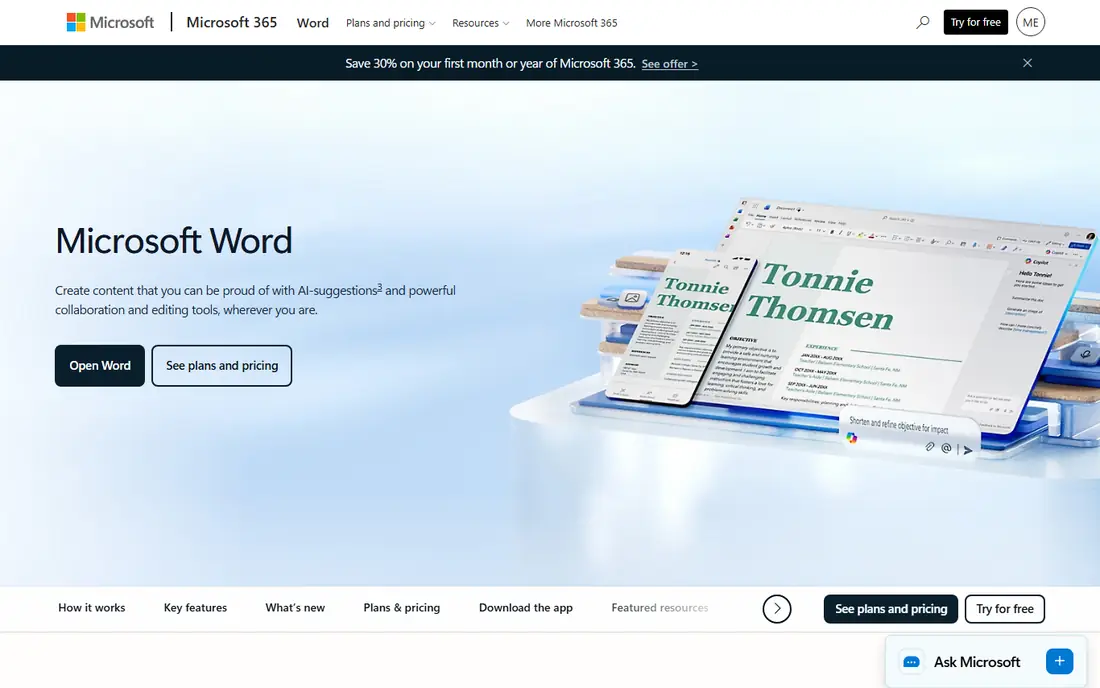
Microsoft Word is the standard that every other word processor is measured against. It has the deepest formatting in this list, from styles and section breaks to tables of contents, footnotes, mail merge and field codes, and it reads and writes the DOCX format that most of the world uses. Track changes is the strongest in this list, which is why editors, lawyers and publishers still ask for Word files. It comes with Microsoft 365 Personal at 9.99 dollars a month or 99.99 dollars a year, with 1 TB of OneDrive storage and the desktop apps on up to five devices. The trade-offs are cost and the web version. The desktop app needs a paid subscription, and the free web version is weaker than the desktop app, with fewer formatting tools and no full offline use.
What we like- The deepest formatting in this list, track changes, mail merge, full offline use, DOCX is the world standard
Watch out for- The desktop app needs a paid subscription, and the web version is weaker than the desktop app
#3LibreOffice Writer
Best for: Free desktop word processing with no subscription4.1/5 on
G2 (87 reviews, checked Oct 2026)
Visit libreoffice.org
Starting priceFree
Free planYes, free and open source
LibreOffice Writer is the best free desktop word processor in this list. It is free and open source, it installs on Windows, Mac and Linux, and it handles everyday documents, long reports and mail merge without a subscription. It reads and writes DOCX files well, though complex Word formatting can shift a little on import. Styles, tables of contents, footnotes and templates are all included, and it works fully offline. The trade-offs are polish and collaboration. The interface looks dated next to Word and Docs, and real-time collaboration is weak, since Writer is a desktop app first. For a solo writer or a small team that wants no subscription at all, it is the strongest free pick here.
What we like- Free and open source, full desktop app, strong DOCX support, works fully offline, runs on Windows, Mac and Linux
Watch out for- The interface looks dated next to Word, and real-time collaboration is weak
#4Zoho Writer
Best for: Clean writing with Zoho apps and simple collaboration4.4/5 on
G2 (97 reviews, checked Oct 2026)
Visit zoho.com
Starting priceFree
Free planYes, free for personal use
Zoho Writer is the quiet free option in this list. It is free for personal use, with a clean interface that stays out of the way, and it handles everyday documents, tables and images well. Real-time collaboration lets several people edit the same document, and it reads and writes DOCX files cleanly. It also fills and signs documents, which suits forms and contracts, and it works with other Zoho apps for mail, sheets and storage. The trade-offs are storage and scale. The free plan has storage limits, and business features need Zoho Workplace, with Standard at 3 dollars per user per month. For a solo writer who wants a free browser word processor with more polish than Docs, it is worth a look.
What we like- Free, clean interface, real-time collaboration, good DOCX support, fills and signs documents, works with other Zoho apps
Watch out for- The free plan has storage limits, and business features need a paid Zoho Workplace plan
#5WPS Office
Best for: A cheap Microsoft-style suite with Writer, Spreadsheets and Presentation4.4/5 on
G2 (335 reviews, checked Oct 2026)
Visit wps.com
Starting priceFree, Premium from $29.99 per year
Free planYes, free with ads on mobile
WPS Office is the cheapest paid suite in this list. It is free, with Writer, Spreadsheets and Presentation apps that look and feel like Microsoft Office, so Word users find their way around in minutes. It reads and writes DOCX files well, it includes PDF tools, and it runs on Windows, Mac, Linux, iOS and Android. Premium costs 29.99 dollars a year, and it adds an ad-free screen, 20 GB of cloud storage, WPS AI credits and advanced PDF tools. The trade-offs are ads and storage. The free tier shows ads on mobile, and cloud storage is small without a paid plan. For a writer who wants Microsoft-style apps at a third of the price of Microsoft 365 Personal, WPS is the strongest value pick here.
What we like- Free, looks and feels like Microsoft Office, strong DOCX support, PDF tools, runs on Windows, Mac, Linux, iOS and Android
Watch out for- The free tier shows ads on mobile, and cloud storage is small without a paid plan
#6Apple Pages
Best for: Polished documents, reports and newsletters on Apple devices4.3/5 on
G2 (376 reviews, checked Oct 2026)
Visit apple.com
Starting priceFree
Free planYes, free on iPhone, iPad and Mac with an Apple account
Apple Pages is the free word processor for people inside the Apple ecosystem. It is free on iPhone, iPad and Mac, with polished templates for reports, newsletters and resumes, and layout tools that suit documents with images and text boxes. Real-time collaboration lets several people edit the same document, and it exports to Word and PDF, which covers sharing with people outside Apple. The trade-offs are platform and compatibility. Pages runs only on Apple devices, with a basic web view on iCloud, so a Windows PC or an Android phone cannot join the same document. Word files can also shift a little on export, so check the result before sending a file to a client. For polished documents on Apple devices, though, nothing in this list is prettier.
What we like- Free, polished templates, strong layout tools, real-time collaboration, exports to Word and PDF
Watch out for- Apple devices only, and Word files can shift a little on export
#7Notion
Best for: Docs plus databases, wikis and team workspaces4.6/5 on
G2 (13,834 reviews, checked Oct 2026)
Visit notion.com
Starting price$10 per user per month billed annually (Plus plan)
Free planYes, free for one person with unlimited pages and blocks
Notion is the most flexible tool in this list, though it is not a true word processor. A page can hold text, tables, boards, calendars and databases, so one workspace can replace a notes app, a wiki and a simple tracker. The free plan covers one person with unlimited pages and blocks, which is enough for most personal use. Plus costs 10 dollars per user per month billed annually, and Business costs 20 dollars, adding more admin controls and AI features. The trade-off is formatting. Notion pages follow a block layout, so long documents with complex styles, footnotes and tables of contents are harder than in Word. Export to Word and PDF works, but the result can need tidying. Notion suits team docs and wikis, not finished manuscripts.
What we like- Databases, templates and wikis in one workspace, strong sharing, huge template library
Watch out for- Not a true word processor, and formatting is weaker than Word for long documents
#8
Coda
Best for: Docs with tables, buttons and automations for teams
Visit coda.io
Starting price$12 per user per month billed annually (Pro plan)
Free planYes, free for small teams with limited doc size
Coda turns documents into small apps. A page can hold tables that behave like a database, buttons that run actions, and automations that send reminders or update rows. That makes it a strong pick for team hubs, project trackers and meeting systems that outgrow a plain document. Pro costs 12 dollars per user per month billed annually, and Business costs 33 dollars, adding more automations and admin controls. The free plan covers small teams with limited doc size, which is enough to test the model. The trade-off is the learning curve. Coda asks you to think in tables and formulas, which feels strange at first, and a simple letter can take longer to set up than in Docs or Word.
What we like- Docs that work like apps, with tables, buttons and automations, strong templates, good for team hubs
Watch out for- The doc-as-app model takes time to learn, and paid plans start higher than Notion
Frequently asked questions
Is Google Docs really free?
Yes, Google Docs is free with a Google account, with no limit on documents and no paid tier for the core app. You can write, share and collaborate from any browser, and files save as you type. The only costs are optional, such as Google Workspace at 7 dollars per user per month for business features, or extra Google storage beyond the free 15 GB that is shared across Gmail, Drive and Photos.
Can Word open Google Docs files?
Yes, Word can open files exported from Docs, and Docs can open Word files. Export a Docs file as DOCX from the File menu, then open it in Word, and most text, headings and tables carry over cleanly. Complex formatting, such as tracked changes and advanced styles, can shift a little, so check the result before sending a file to a client. Working in DOCX from the start avoids most of these shifts.
Does Google Docs work offline?
Google Docs works offline through the browser extension, which lets you read and edit documents without a connection, and changes sync when you reconnect. The setup needs Chrome and the Google Docs Offline extension, and it works best on documents you already opened. Word works fully offline with no setup, since it is a desktop app. If you write on planes or in places with weak wifi, Word is the safer pick for long documents.
Which is better for students, Docs or Word?
Docs suits students who draft with classmates, because real-time editing, comments and suggestions are free, and sharing is a link. Word suits students who write long essays and theses, because styles, tables of contents and footnotes are stronger, and the desktop app works fully offline. Both are free for students in practice, since Docs is free and many schools give Word through Microsoft 365, so try both before choosing.
Should I pay for Microsoft 365 Personal?
Pay for Personal if you want the desktop Word app, since it costs 9.99 dollars a month or 99.99 dollars a year and adds 1 TB of OneDrive storage plus Excel, PowerPoint and Outlook. Skip it if you only need basic writing and collaboration, since Docs is free and covers most everyday documents. Buy it when you format long reports, exchange DOCX files with clients, or need the desktop app to work fully offline.
Sources we checked (8)
- https://docs.google.com
- https://www.microsoft.com/en-us/microsoft-365/word
- https://www.libreoffice.org/discover/writer/
- https://www.zoho.com/writer/
- https://www.wps.com
- https://www.apple.com/pages/
- https://www.notion.com
- https://coda.io
Is your product missing or out of date?
We review this list regularly. Vendors can request a listing, send updated pricing or ask about featured placement.

Shihab Mia · Founder, Rankite
Shihab has 5+ years in B2B and SaaS SEO. He writes Rankite's software buying guides from pricing pages, documentation and public user reviews. More about Shihab.