How we make this list: we compare pricing pages, product documentation and public user reviews. Ratings come from G2, Capterra or Trustpilot, with the date we checked them.

Key takeaways
- NetSpot and Acrylic Wi-Fi Analyzer give the most complete picture for homes and small offices, with heatmaps that show exactly where signal drops.
- inSSIDer and WifiInfoView are the best free starting points when you only need to see nearby networks, channels and signal strength.
- Fing answers a different question, showing which devices are on your network, which matters when slow Wi-Fi is really a crowded network.
- Ekahau and TamoGraph are professional survey tools, worth the price only when you design or troubleshoot networks for clients.
Quick comparison
Is your product missing or out of date?
We review this list regularly. Vendors can request a listing, send updated pricing or ask about featured placement.
The best WiFi analyzer apps
Starting priceFree plan
Free planYes
NetSpot is the analyzer most people should start with, because it turns signal numbers into a picture. Walk around your home or office with a laptop or Android device, tap your position on a floor plan, and NetSpot builds a heatmap of signal strength, noise and channel overlap. Dead spots, weak corners and overloaded channels become visible at a glance, which beats guessing where to move a router or add an access point.
The free plan covers basic analysis, while Pro and Enterprise add planning, larger surveys, commercial use and detailed reports. The iOS version is narrower, focusing on internet speed heatmaps rather than full Wi-Fi scanning, because Apple limits what apps can see about nearby networks. For a home or small office survey on a laptop, NetSpot is the most approachable tool that still produces professional-looking results.
What we like- Visual heatmaps for coverage and noise
- Analyzer view with SSID, channel and signal details
- Works on macOS, Windows, Android and iOS
Watch out for- Full surveys and planning need Pro or Enterprise
- IOS version focuses on speed heatmaps
- Large projects need a methodical walk-through
Starting priceFree
Free planYes
Fing solves the mystery that a channel analyzer cannot: who is actually on your network. It scans and lists every connected device, identifies many by brand and model from a catalog of 450,000 device models, and lets you run speed tests and track when devices come and go. That visibility matters when Wi-Fi feels slow because a neighbor, an old device or a forgotten gadget is using bandwidth, not because the signal is weak.
Fing is not a Wi-Fi analyzer in the channel sense. It will not map coverage or recommend a clearer channel, so pair it with NetSpot or inSSIDer when you need both views. Continuous monitoring with real-time alerts needs a paid plan and a Fing Agent running on a Raspberry Pi or Docker. For home users, the free scan alone often finds the surprise device that explains a slow evening.
What we like- Fast device discovery with a large device catalog
- Speed tests and presence tracking
- Desktop, mobile, web and agent options
Watch out for- Not a channel or heatmap analyzer
- Continuous monitoring needs a subscription
- Device identification can be generic on some networks
Starting priceFree
Free planYes

inSSIDer is the classic free Wi-Fi scanner, now offered by MetaGeek alongside its paid spectrum tools. It lists nearby networks with their SSID, channel, band and signal strength, so you can spot a crowded channel and pick a quieter one for your own router. For a home user whose Wi-Fi slows every evening, that single view often reveals the problem: a dozen neighbors sharing the same channel.
The limits are clear. inSSIDer does not build heatmaps, plan networks or analyze spectrum interference from non-Wi-Fi devices like microwaves, which is where the paid Chanalyzer and Wi-Spy hardware come in. The vendor homepage now leads with those paid bundles, so inSSIDer can take a moment to find. As a free first step, though, it remains one of the easiest ways to see your wireless neighborhood.
What we like- Free scanning of nearby networks
- Clear channel and signal views
- Simple enough for first-time users
Watch out for- No heatmaps or site surveys
- Vendor site now centers on paid Oscium hardware
- Advanced troubleshooting needs paid tools
Starting priceSee website
Free planNo

Acrylic Wi-Fi Analyzer is a Windows tool for people who want more than a network list. It analyzes nearby access points and clients in real time, measures performance, and offers troubleshooting recommendations, with Wi-Fi 7 support across frequency bands. The wider Acrylic Suite adds heatmaps for site surveys and a sniffer for packet-level analysis, so a technician can move from a quick check to a full investigation without changing vendors.
Acrylic is built for Windows laptops and tablets, and its licensing varies across the Analyzer, Heatmaps and Sniffer products, so check the current store pricing for the tool you need. Casual home users may find NetSpot or inSSIDer simpler for a one-off check. For IT staff and installers who work on Windows and want a structured, report-ready workflow, Acrylic is a strong professional choice.
What we like- Real-time analysis with device and access point views
- Wi-Fi 7 support across bands
- Heatmap and sniffer tools in the same suite
Watch out for- Windows-focused
- Pricing is license-based and varies by product
- Suite depth can overwhelm casual users

#5Ekahau AI Pro
Best for: Professional Wi-Fi design4.4/5 on
G2 (17 reviews, checked Oct 2026)
Visit ekahau.com
Starting priceSee website
Free planNo
Ekahau is the name most wireless professionals reach for when a network must work in a warehouse, hospital, school or large office. AI Pro designs and optimizes networks, while the Measure Pro and full Software Suite add survey and analyzer tools, with cloud project sync and API integrations. The Sidekick 2 measurement device captures precise survey data that software alone cannot, which is why Ekahau results carry weight with clients.
The price and hardware requirements put Ekahau out of reach for home users, and even small businesses should weigh it against NetSpot Pro first. Ekahau earns its cost when you design networks for a living, need defensible survey reports, or troubleshoot roaming and capacity problems across a large site. For a single home or office, it is simply more tool than the job needs.
What we like- Industry-standard design and optimization tools
- AI-assisted planning and troubleshooting
- Sidekick 2 hardware for precise surveys
Watch out for- Expensive professional pricing
- Full survey features need Sidekick 2 hardware
- Overkill for home use

#6
TamoGraph Site Survey
Best for: Site surveys and planning
Visit tamos.com
Starting priceSee website
Free planFree trial

TamoGraph Site Survey, from TamoSoft, focuses on one job: showing how a wireless network actually performs in a real building. You survey with a laptop, and the software maps coverage, signal strength and data rates, then helps you plan access point placement before buying hardware. Predictive modeling lets you test a design on a floor plan, which can save the cost of installing access points in the wrong places.
TamoGraph is a professional tool with professional pricing and a free trial, and its workflow assumes some networking knowledge. Home users will get faster answers from NetSpot, and small offices may not need its depth. For consultants, installers and IT teams who survey regularly and need reports clients can act on, TamoGraph is a credible alternative to Ekahau at a different price point.
What we like- Precise coverage and performance surveys
- Predictive planning before hardware is installed
- Clear visual reports
Watch out for- Professional pricing
- Windows-focused workflow
- Learning curve for first-time surveyors

#7
WiFiman
Best for: Free mobile network scanning
Visit ui.com
Starting priceFree
Free planYes

WiFiman is Ubiquiti free network tool for phones and tablets, and it is the mobile analyzer to try when you want a quick scan without a laptop. It shows nearby networks, channels and signal strength, lists devices, and includes speed tests, which covers the most common home troubleshooting questions in one free app. Ubiquiti users get extra value, since WiFiman ties into the wider UniFi ecosystem.
Two limits apply. The vendor homepage at ui.com covers the whole UniFi hardware range, so WiFiman itself is found through the app stores rather than a dedicated product page, and the deepest management features assume UniFi access points. Apple also limits Wi-Fi scanning on iOS, so Android users get a fuller view. For a free, fast mobile check, WiFiman is still one of the best options available.
What we like- Free scanning from Ubiquiti
- Signal, channel and device views on mobile
- Speed tests included
Watch out for- Vendor homepage covers the whole UniFi range
- Deepest features assume UniFi hardware
- IOS scanning limits apply like other mobile apps
Starting priceFree
Free planYes
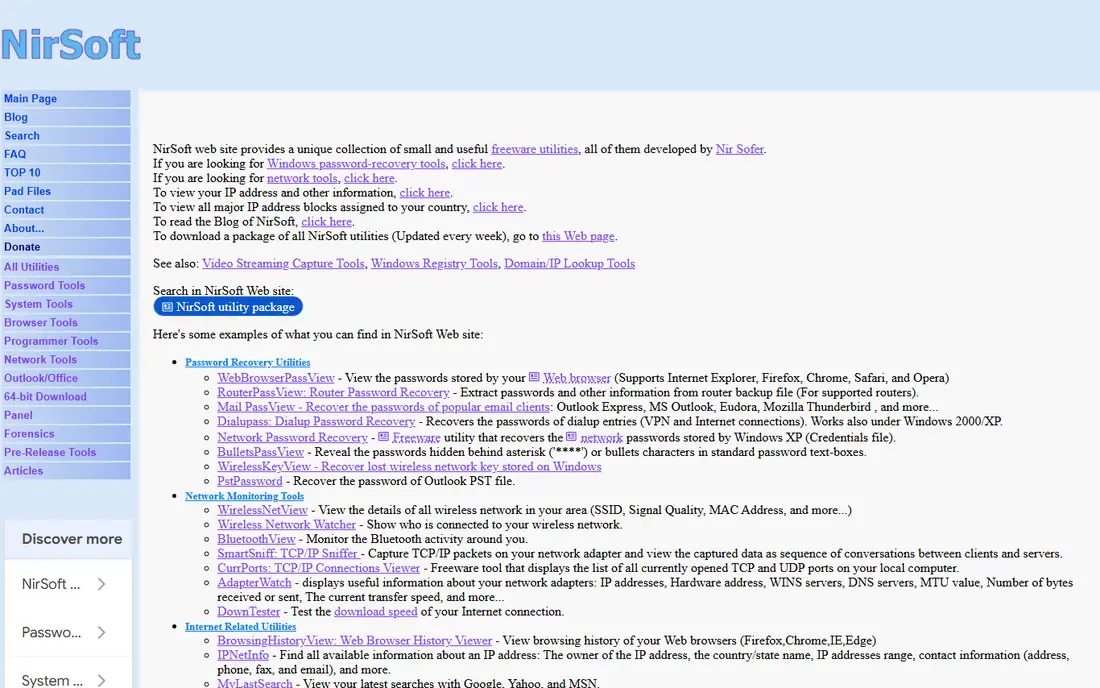
WifiInfoView, from NirSoft, is the smallest tool on this list and proud of it. It is a free, portable Windows utility that lists every wireless network in range with its SSID, signal quality, channel, security type, MAC address and more, in a sortable table you can export. There is nothing to install and nothing to configure, which makes it ideal for a technician USB toolkit or a quick check on a borrowed laptop.
The interface is plain and assumes you know what SSID, channel and dBm mean, so beginners may prefer NetSpot visual approach. There are no heatmaps, no channel graphs and no recommendations, just accurate data in a table. For experienced users who want a fast, free, no-nonsense scan on Windows, WifiInfoView is hard to fault.
What we like- Free, tiny and portable with no install
- Lists SSID, signal, channel, security and MAC details
- Sorts and exports results
Watch out for- Windows only
- No heatmaps or graphs of the NetSpot kind
- Plain interface with no guidance for beginners
How we chose
We compared Wi-Fi analyzer apps on the questions that fix real problems: can you see nearby networks and channels, can you map where signal drops, can you find which devices use the network, and can you produce a report someone else can act on. We checked vendor homepages and feature pages, and weighed public reviews and professional feedback, with attention to platform limits, since iOS restricts Wi-Fi scanning more than Android, Windows or macOS. We did not claim hands-on testing of every app, and results depend on your adapter and environment, so test any analyzer in your own space before buying a paid plan.
How to use a Wi-Fi analyzer to fix slow Wi-Fi
Start with a scan, not a purchase. Open inSSIDer, NetSpot or WiFiman near your router and note which channels neighbors use on 2.4 GHz and 5 GHz. On 2.4 GHz, channels 1, 6 and 11 are the only ones that do not overlap, so pick the least crowded of those three. On 5 GHz and 6 GHz, more channels are available, so pick a wide but quiet one. Change the channel in your router settings, rescan, and check whether speeds improve before spending money on new hardware.
If changing channels does not help, map coverage. Walk your home with NetSpot or Acrylic heatmaps and mark where signal falls below about -70 dBm, which is where video calls and streaming start to struggle. A weak corner far from the router usually needs a moved router, a wired access point or a mesh node, not a stronger antenna setting. Check Fing at the same time for unknown devices or bandwidth hogs, and check for non-Wi-Fi interference from microwaves, baby monitors and Bluetooth gear, which a spectrum tool can reveal. Fix in order: channel, placement, devices, then hardware.
A short troubleshooting checklist
- Scan channels near the router and pick the least crowded option for each band.
- Walk the space with a heatmap tool and mark areas below -70 dBm.
- Check Fing or a similar scanner for unknown or heavy devices on your network.
- Move the router to a central, high spot away from thick walls and metal.
- Test speed in the weak spot after each change, so you know what actually helped.
Frequently asked questions
What is the best free Wi-Fi analyzer app?
inSSIDer is the best free desktop scanner for a quick channel and signal check, while WiFiman is the best free mobile scanner. NetSpot free plan adds heatmaps on desktop and Android for users who want a visual survey. For a one-off home problem, start with inSSIDer or WiFiman, and move to NetSpot when you need a map of the whole space.
Why does my Wi-Fi analyzer show different results on iPhone and Android?
Apple limits what iPhone apps can see about nearby Wi-Fi networks, so iOS analyzers show less detail and focus on speed tests or your own connection. Android, Windows and macOS allow fuller scanning of SSIDs, channels and signal strength. For a complete survey, use a laptop or Android device rather than an iPhone.
What signal strength is good for Wi-Fi?
Signal strength is measured in dBm, where numbers closer to zero are stronger. Around -30 to -50 dBm is excellent, -50 to -65 dBm is good for most uses, and below -70 dBm is where video calls, gaming and streaming often struggle. A heatmap that shows -70 dBm or weaker in a room you use daily points to a placement or coverage problem worth fixing.
Do I need a paid analyzer for my home?
Usually not. Free tools cover channel selection, device discovery and basic coverage checks, which fix most home problems. Paid tools earn their price when you survey a large home, run a business, or need reports for clients. Start free, and only upgrade if a free heatmap shows a problem you cannot solve with channel and placement changes.
Can a Wi-Fi analyzer see devices connected to my network?
Some can. Fing specializes in device discovery and identification, and several analyzers list clients associated with nearby access points. A scanner shows devices on networks you can see, but it cannot see traffic inside an encrypted network or identify devices with randomized addresses with certainty. Use device discovery to spot surprises, not as a security audit on its own.
How do I pick the best Wi-Fi channel?
Scan with an analyzer, count how many networks share each channel, and check their signal strength, since a distant weak network matters less than a strong neighbor on the same channel. On 2.4 GHz, choose among channels 1, 6 and 11. On 5 GHz, choose a channel with the fewest strong neighbors and enough width for your speed needs. Rescan after changing, since neighbors change channels too.
Sources we checked (8)
- https://www.netspotapp.com
- https://www.fing.com
- https://www.metageek.com
- https://www.acrylicwifi.com
- https://www.ekahau.com
- https://www.tamos.com
- https://www.ui.com
- https://www.nirsoft.net
Is your product missing or out of date?
We review this list regularly. Vendors can request a listing, send updated pricing or ask about featured placement.

Shihab Mia · Founder, Rankite
Shihab has 5+ years in B2B and SaaS SEO. He writes Rankite's software buying guides from pricing pages, documentation and public user reviews. More about Shihab.
 NetSpot
 Fing
Fing inSSIDer
 Acrylic Wi-Fi Analyzer
 WifiInfoView