How we make this list: we compare pricing pages, product documentation and public user reviews. Ratings come from G2, Capterra or Trustpilot, with the date we checked them.
Key takeaways
- "Best web tools" is a broad keyword, so this list covers a general purpose toolkit: one tool each for writing, design, notes, tasks, files, chat, and editing.
- Google Docs, Canva, Notion, Trello, and Grammarly all offer free plans that cover real daily work, which makes this stack cheap to start.
- Figma leads for interface design, while Google Drive suits file storage and Slack suits team chat, so pick by the job rather than by brand.
- Free plans carry limits on storage, history, and seats, so check those limits before building a whole workflow around a free tier.
Quick comparison
Is your product missing or out of date?
We review this list regularly. Vendors can request a listing, send updated pricing or ask about featured placement.
Starting priceFree
Free planYes
Google Docs is the default writing tool for most browser-based work, and its strength starts with collaboration. Several people can edit one document at the same time, leave comments, and suggest changes, while revision history records every edit for later review. It opens in any browser with no install, which suits shared computers and Chromebooks.
The limits are layout and scale. Docs handles reports, letters, and drafts well, but page design, complex tables, and very long documents feel cramped next to desktop word processors. Offline access works through a browser extension and needs setup before you lose connection. For everyday writing and shared editing at no cost, Docs is the safest first pick.
What we like- Free with a Google account
- Real time co-editing
- Strong revision history
Watch out for- Offline work needs setup
- Advanced layout is limited
- Large docs can slow down
#2Canva
Best for: Quick design and templates4.7/5 on
G2 (7,678 reviews, checked Oct 2026)
Visit canva.com
Starting priceFree
Free planYes
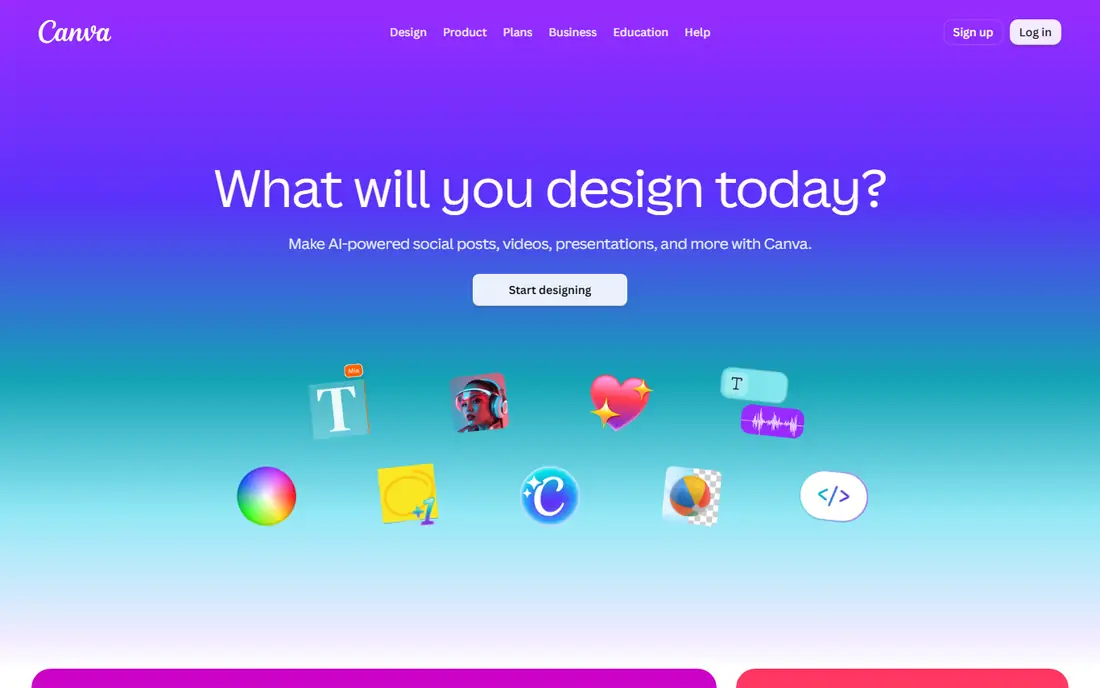
Canva suits people who need good looking graphics without design training. Its template library covers social posts, presentations, posters, flyers, and resumes, and the drag and drop editor lets a beginner change text, colors, and images in minutes. The free tier covers most everyday design work, which makes Canva a low risk starting point.
The trade is depth. Premium photos, fonts, and background removal sit behind the paid Pro plan, and print color control is basic next to professional design software. Teams that need strict brand kits and approval flows will outgrow the free tier. For a small business or creator who posts daily, Canva covers the most design jobs per dollar.
What we like- Huge template library
- Easy drag and drop editor
- Free tier covers social posts and slides
Watch out for- Paid assets sit behind Pro
- Print control is basic
- Brand tools need higher plans
#3Notion
Best for: Notes and databases4.6/5 on
G2 (13,834 reviews, checked Oct 2026)
Visit notion.so
Starting priceFree
Free planYes
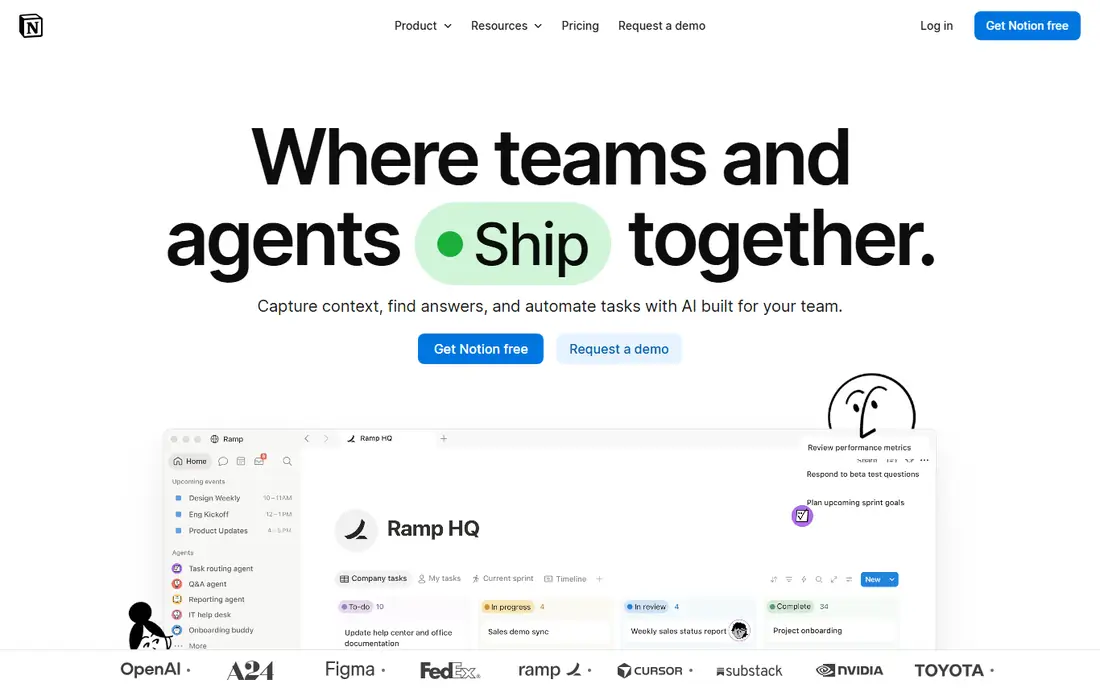
Notion combines notes, wikis, task lists, and databases in one workspace, which suits people who want a single home for plans, research, and reference material. Pages can hold text, tables, calendars, and embedded files, and databases let you filter and sort the same information several ways. The free plan covers personal use well, including unlimited pages and blocks for individuals.
The limits are offline access and speed. Notion works best with a connection, and very large workspaces with many databases can feel slow. Database features also take time to learn, so new users should start with simple pages before building complex systems. For a freelancer or student organizing work across projects, Notion replaces several separate apps.
What we like- Notes, wikis, and databases in one place
- Flexible page structure
- Generous free plan
Watch out for- Offline mode is limited
- Large workspaces can slow down
- Learning curve for databases

#4Trello
Best for: Simple task boards4.4/5 on
G2 (14,064 reviews, checked Oct 2026)
Visit trello.com
Starting priceFree
Free planYes
Trello is the simplest task tool on this list, and that simplicity is its appeal. Work lives on boards with lists and cards, so a project reads left to right from to do to done, and dragging a card updates its status. The free tier covers small teams with unlimited cards, which suits personal projects and side work.
The trade is reporting. Trello has no built-in workload charts or deep analytics on free plans, and large projects with many boards can feel scattered. Paid views such as timeline and calendar help, but teams that need resource planning should look at fuller project tools. For a person or small team that wants tasks visible at a glance, Trello stays the easiest choice.
What we like- Boards are easy to learn
- Drag and drop cards
- Free tier covers small teams
Watch out for- Reporting is basic
- Large projects need paid views
- Automation limits apply on free plans
Starting priceFree
Free planYes
Grammarly checks writing wherever you type, from email and documents to social posts, and flags grammar, spelling, and punctuation problems as you go. The free plan covers the core corrections most writers need, while the paid plan adds style, tone, and clarity suggestions. Browser and document integrations mean checks follow you rather than living in one app.
The limits are judgment. Grammarly suggestions are sometimes wrong for technical terms, names, or deliberate style choices, so every change deserves a quick review. Users handling sensitive text should also check data settings before pasting confidential material. For students, job seekers, and professionals who write daily, Grammarly is a cheap safety net.
What we like- Catches grammar and spelling across apps
- Tone suggestions
- Works in browser and docs
Watch out for- Style advice needs the paid plan
- AI suggestions need review
- Privacy minded users should check settings
#6Figma
Best for: Interface design4.7/5 on
G2 (1,593 reviews, checked Oct 2026)
Visit figma.com
Starting priceFree
Free planYes
Figma is the standard for interface design in the browser, letting designers and developers work on the same file at the same time. Its free tier covers personal projects and small teams, and the community library offers ready-made UI kits, icons, and templates that speed up early work. Comments and dev handoff features keep design and code in step.
The trade is complexity for non-designers. Figma assumes some design knowledge, so a beginner making a simple social graphic will find Canva faster. Full offline work is also limited, since Figma is built for the web. For a team designing apps or websites, Figma is the clear pick.
What we like- Real time design collaboration
- Strong free tier
- Huge community file library
Watch out for- Needs a connection for full work
- Learning curve for beginners
- Advanced prototyping sits in paid tiers
Starting priceFree
Free planYes
Google Drive is the file home for the Google toolkit, storing documents, images, and videos with sharing links and folder permissions. The free 15 GB allowance, shared across Gmail, Docs, and Photos, covers light use, and search across file names and text finds documents fast. Sharing controls let owners set view, comment, or edit access per person.
The limits are capacity and control. Photos and video eat the free allowance quickly, and advanced admin controls, shared drives, and larger storage sit on paid Workspace plans. Desktop sync also needs a separate app install. For a person already using Docs and Gmail, Drive is the natural storage choice.
What we like- 15 GB free storage shared across Google services
- Easy sharing
- Strong search
Watch out for- Free storage fills fast with photos and video
- Desktop sync needs the app
- Large team controls need paid plans

#8Slack
Best for: Team chat4.5/5 on
G2 (39,944 reviews, checked Oct 2026)
Visit slack.com
Starting priceFree
Free planYes
Slack organizes team chat into channels by topic, project, or team, which keeps conversations findable compared with group email threads. Its integration library connects chat to file tools, task boards, and code services, so updates land where the team already works. The free plan covers small teams with core chat and calls.
The limits are history and noise. Free plans keep only the most recent 90 days of message history, and busy channels can flood members with alerts unless notification settings are tuned. Built-in video calls suit quick check-ins rather than large meetings. For a small team that lives in chat, Slack remains the most widely supported option.
What we like- Channels keep topics separate
- Huge app integrations
- Searchable history on paid plans
Watch out for- Free history is limited to 90 days
- Notification overload is common
- Video calls are basic
How we chose
We ranked tools by breadth of use, free plan value, ease of learning, collaboration, and fit with the rest of the toolkit. We favored tools that cover a daily job well on a free plan, since a general toolkit should cost little to start, and we gave extra weight to tools that pair cleanly, such as Docs with Drive and Trello with Slack. We also weighed limits honestly, because a free plan that blocks real work is worse than a cheap paid plan.
We also weighed entry cost plainly. Every tool on this list starts free, so the starting price is written as Free, while paid upgrades are noted where they change the value. Where paid pricing differs across sources, we wrote See website rather than guessing, so readers check the vendor pricing page for current figures.
Buying guide
Start by naming the job that causes the most friction. If files are scattered, start with Drive. If tasks are unclear, start with Trello or Notion. If writing quality is the problem, start with Grammarly. Fix the biggest pain first, then add one tool at a time, since a toolkit adopted all at once rarely sticks.
Next, check free plan limits before building a workflow around them. Storage caps, message history limits, and seat limits are the usual reasons to upgrade, so test the free tier on real work for a few weeks and note where it blocks you. Then upgrade only the tool that blocks you, rather than paying for a bundle of features you rarely use.
Finally, review the stack once a quarter. Check seats, storage, and whether each tool is still used weekly, and cancel or downgrade anything that has become a duplicate. A small toolkit used daily beats a large one that nobody opens.
Frequently asked questions
What is the best web tool overall?
There is no single winner, since this list covers different jobs. Google Docs suits writing, Canva suits quick design, Notion suits notes, and Trello suits tasks. Start with the job that hurts most.
Can I run a small business on free plans alone?
Yes, in part. Docs, Canva, Notion, Trello, Drive, and Grammarly all offer free plans, while Slack keeps 90 days of history free. Storage, history, and team controls are the usual reasons to upgrade.
Do I need both Notion and Google Docs?
Not always. Docs covers writing and shared editing, while Notion covers flexible notes and databases. Many people use both, but a solo worker may be fine with one plus a task tool.
Which tool should I start with?
Start with the job that causes the most friction now. If files are scattered, start with Drive. If tasks are unclear, start with Trello or Notion. Fix the biggest pain first.
Are these tools good for personal use too?
Yes. All eight work for personal projects, study, and freelance work, and the free plans are often enough for an individual. Paid plans mainly add team features, storage, and history.
Sources we checked (0)
Is your product missing or out of date?
We review this list regularly. Vendors can request a listing, send updated pricing or ask about featured placement.

Shihab Mia · Founder, Rankite
Shihab has 5+ years in B2B and SaaS SEO. He writes Rankite's software buying guides from pricing pages, documentation and public user reviews. More about Shihab.
 Google Docs
 Grammarly
 Google Drive