How we make this list: we compare pricing pages, product documentation and public user reviews. Rankite is independent; if a vendor ever pays for a featured spot, that listing is clearly labeled Partner.
The problem every RGB owner knows
You buy a graphics card, a keyboard, some fans, and RAM, and you end up with four different programs fighting over your lights. Each vendor's app wants to be the only one running, none of them talk to each other, and together they eat more background resources than some games. RGB software exists to fix exactly that: one program controlling every light in the build, synced to effects, games, or music. These seven are the ones worth installing.
Quick comparison
| Tool | Best for | Starting price | Free plan |
|---|
 SignalRGB SignalRGB | Gamers with mixed-brand builds who want one app for everything | Free (SignalRGB Pro subscription includes all effects and integrations) | Yes |
 OpenRGB OpenRGB | Enthusiasts who want free, open-source, cross-platform RGB control | Free | Yes |
 Corsair iCUE Corsair iCUE | Builds where Corsair makes most of the RGB hardware | Free | Yes |
 Razer Chroma Razer Chroma | Razer peripheral owners who want the Chroma ecosystem | Free | Yes |
 NZXT CAM NZXT CAM | NZXT hardware owners who also want free system monitoring | Free | Yes |
 ASUS Armoury Crate ASUS Armoury Crate | ASUS motherboard and ROG component owners | Free | Yes |
 Thermaltake TT RGB Plus Thermaltake TT RGB Plus | Thermaltake fan, cooler and case owners | Free | Yes |
Is your product missing or out of date?
We review this list regularly. Vendors can request a listing, send updated pricing or ask about featured placement.
Key takeaways
- If your build mixes brands, start with SignalRGB (free tier) or OpenRGB (free, open source); vendor apps assume you bought their hardware.
- Every vendor app here is free because the hardware is the product; SignalRGB is the only one with a meaningful paid tier.
- Check compatibility lists before installing: no software controls hardware it does not support, and motherboard RGB headers are the usual gotcha.
- Running two RGB apps at once causes conflicts; pick one and uninstall the rest.
The best RGB software
#1
SignalRGB
Best for: Gamers with mixed-brand builds who want one app for everything
Visit signalrgb.com
Starting priceFree (SignalRGB Pro subscription includes all effects and integrations)
Free planYes
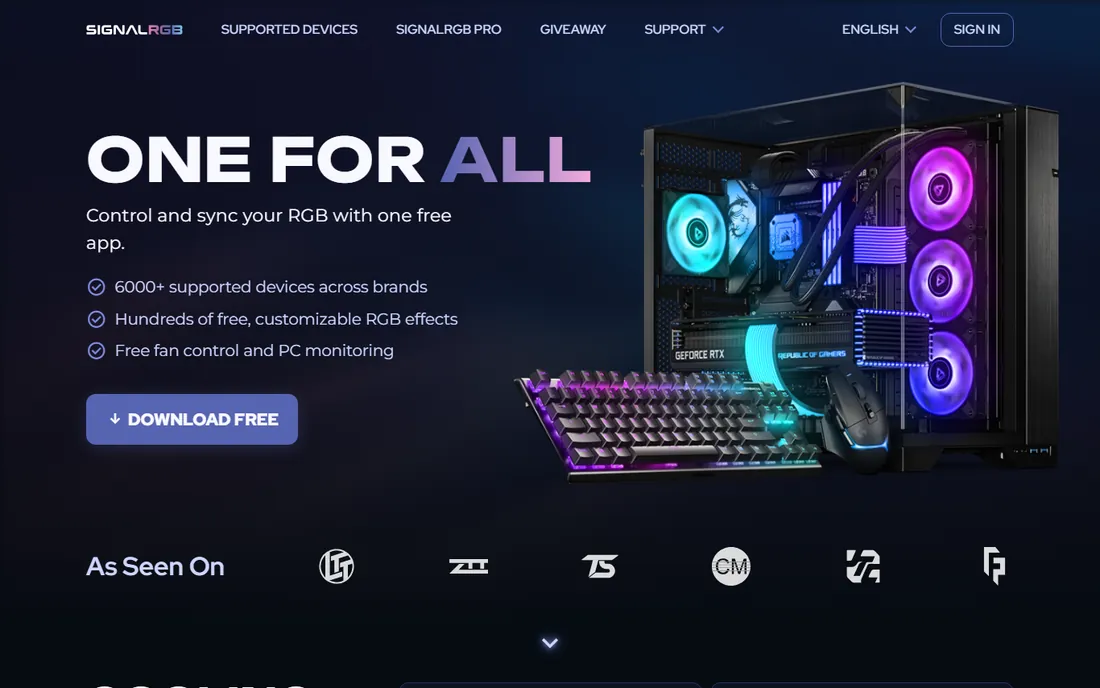
SignalRGB is the closest thing to a universal remote for PC lighting. Instead of running Corsair's app for fans, Razer's for the keyboard, and the motherboard vendor's for RAM, SignalRGB talks to all of them from one interface, with hundreds of effects, game integrations that react to in-game events, audio visualizers, and even camera-reactive lighting. It has grown beyond lighting into fan control, system monitoring and macros, aiming to replace the whole vendor-app tray.
The honest catch is the paywall placement. The free tier is genuinely useful, but the headline features (most game integrations, the full effect library, camera reactive effects) need Pro. For a mixed-brand build, though, one Pro subscription is cheaper and lighter than four vendor apps fighting in the background.
What we like- Controls devices across brands in one app
- 250+ effects and 45+ game integrations
- Also handles fan curves, monitoring and macros
Watch out for- The best effects and game integrations sit behind the Pro subscription
- Can be resource-heavy compared to OpenRGB
#2
OpenRGB
Best for: Enthusiasts who want free, open-source, cross-platform RGB control
Visit openrgb.org
Starting priceFree
Free planYes
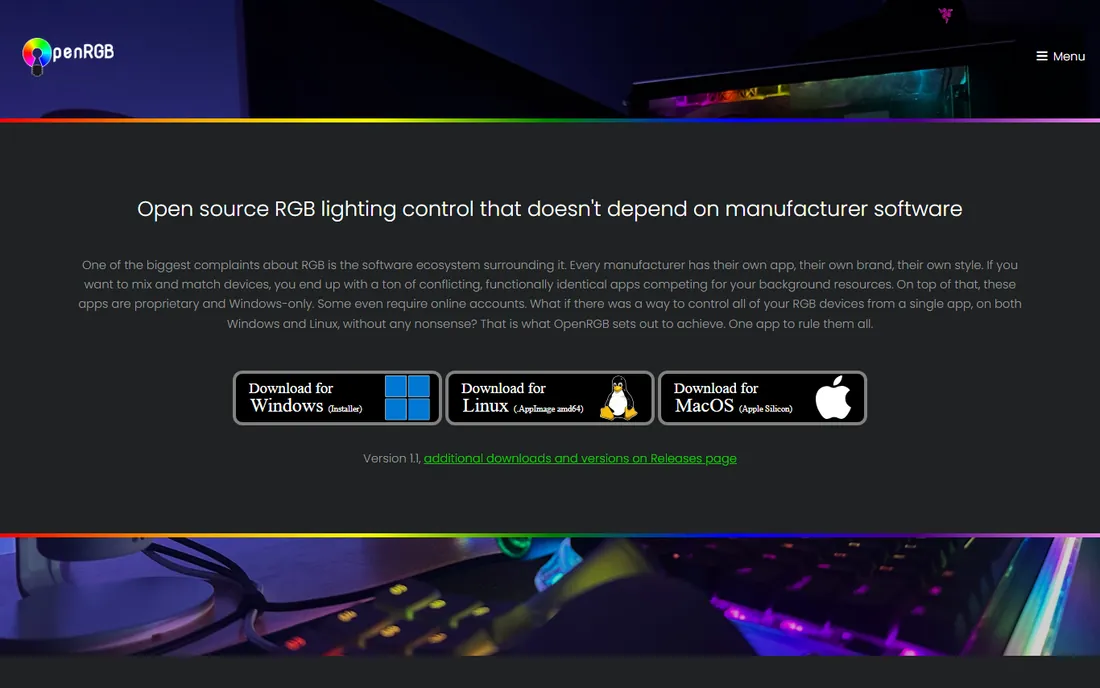
OpenRGB is the enthusiast's answer: one lightweight, open-source app to replace every proprietary RGB program. It supports a huge range of devices through its hardware abstraction layer, runs on Windows, Linux and macOS (RGB control on Linux is rare), and includes a network SDK so third-party software can drive your lights for game integrations, music visualization or ambient lighting. Plugins add an effects engine and a visual layout editor.
The honest catch is that open source means you are the support department. Brand-new hardware may wait for a community contributor to add support, and the UI will not win design awards. But it is free forever, light on resources, and the only serious option for Linux users or anyone who refuses vendor lock-in.
What we like- Free and open source under GPL
- Runs on Windows, Linux and macOS
- Lightweight with a plugin system and SDK for game integrations
Watch out for- Community-supported, so new devices depend on contributors
- The interface is functional rather than polished
#3
Corsair iCUE
Best for: Builds where Corsair makes most of the RGB hardware
Visit corsair.com
Starting priceFree
Free planYes
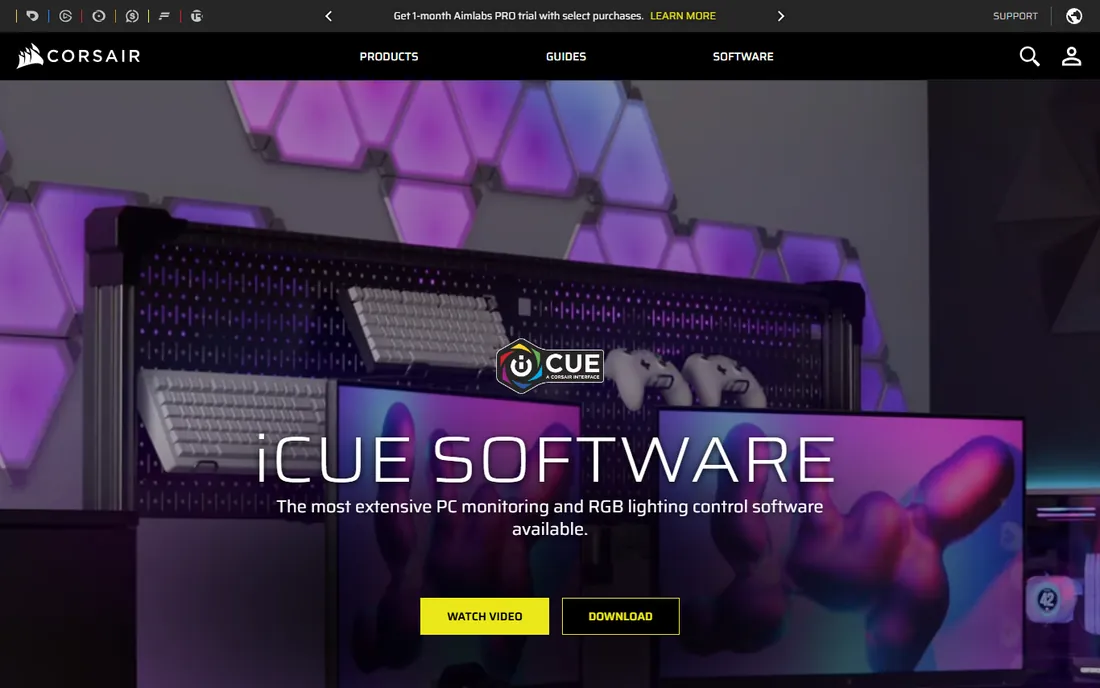
iCUE is the most fully featured vendor app in RGB. For Corsair devices it does everything: per-LED control, Murals that paint effects from images, fan curves, DRAM profiles, LCD screen widgets, macros, and audio settings. It also reaches beyond Corsair to ASUS motherboards and graphics cards, Philips Hue, Nanoleaf, Govee and Elgato Stream Deck, plus game integrations with Ubisoft, Activision and Blizzard titles.
The honest catch is the obvious one: iCUE exists to sell Corsair hardware. If your build is mostly Corsair, it is excellent and free. If your build is mostly anything else, you are running a heavy app for partial control. Corsair owners should install it; everyone else should look at SignalRGB or OpenRGB first.
What we like- Deep control over Corsair devices plus third-party motherboard, Hue, Nanoleaf and Govee support
- ICUE Murals for image-based effects
- Game integrations with major studios
Watch out for- Designed around Corsair hardware
- Non-Corsair device support is limited to specific partnerships
#4
Razer Chroma
Best for: Razer peripheral owners who want the Chroma ecosystem
Visit razer.com
Starting priceFree
Free planYes
Razer Chroma is the most recognizable name in RGB, and the ecosystem is genuinely broad: hundreds of supported devices, a free SDK developers use to build game integrations, and Chroma Connect extending control to partners like Govee, Yeelight, Philips Hue, Nanoleaf and Twinkly. The standalone Chroma app brings Chroma Studio, the visualizer and Connect together, with a Mac preview now available.
The honest catch is fragmentation. Basic lighting lives in Synapse, advanced control in the Chroma app, and the full experience assumes Razer peripherals. Non-Razer owners get little. But if your desk is already Razer, Chroma is free, polished, and has the deepest game-integration catalog of any vendor app.
What we like- 16.8 million colors with polished effects
- Chroma Studio for advanced layering
- Connects to 50+ third-party partners including Hue and Nanoleaf
- Windows Dynamic Lighting support
Watch out for- Best experience requires Razer devices
- Advanced control needs the separate Chroma app alongside Synapse
#5
NZXT CAM
Best for: NZXT hardware owners who also want free system monitoring
Visit nzxt.com
Starting priceFree
Free planYes
NZXT CAM is unusual: it is genuinely useful even with zero NZXT hardware. Any Windows PC gets real-time CPU, GPU, memory and storage monitoring with temperature graphs, free, no account, no upsell. Add NZXT hardware and a second set of controls becomes available: fan curves, RGB lighting control, and Kraken LCD customization with GIFs and live readouts. Over 1.4 million users run it, and more than half have no NZXT hardware at all.
The honest catch is the hardware boundary. CAM cannot control your RAM or graphics card lighting, and fan control needs an NZXT controller. It is also Windows-only. As a free monitoring app it is excellent; as RGB software it only makes sense if NZXT made your cooler, fans or motherboard.
What we like- Free with no account required
- Works on any Windows PC for monitoring
- Controls NZXT fans, RGB and Kraken LCDs
- 1.4M+ users
Watch out for- RGB and fan control require NZXT hardware
- Cannot control RAM or GPU lighting
- Windows only
#6
ASUS Armoury Crate
Best for: ASUS motherboard and ROG component owners
Visit asus.com
Starting priceFree
Free planYes
Armoury Crate is the app ASUS wants on every ROG and TUF machine: it unifies Aura Sync lighting across the motherboard, graphics card, cooler and peripherals, alongside fan control, performance profiles and driver updates. On a new ROG laptop or desktop it is preinstalled, and on ASUS motherboards it offers to install on first boot.
The honest catch is reputation. Armoury Crate has a long history of being resource-heavy and occasionally troublesome to uninstall cleanly, though recent versions are better. It is also firmly ASUS-first: useful if ASUS made your board, pointless otherwise. ASUS builders should use it for the motherboard and GPU, then decide whether SignalRGB or OpenRGB handles the rest better.
What we like- Preinstalled on ROG and TUF systems
- Unifies motherboard, GPU, cooler and peripheral lighting
- Includes system tuning beyond RGB
Watch out for- Tied to ASUS hardware
- Historically heavy and occasionally buggy
- The best experience needs an ASUS-centric build
Starting priceFree
Free planYes

TT RGB Plus (now in its 2.0 generation) is Thermaltake's control software for its RGB fans, liquid coolers, cases and accessories. It offers per-LED lighting customization, fan speed control and lighting effects synced across Thermaltake components, free with the hardware.
The honest catch is scope: it controls Thermaltake devices and nothing else. In a mixed build it becomes exactly the kind of single-vendor tray app this category exists to eliminate. Thermaltake-heavy builders should install it; everyone else should pick a universal tool and leave this one off.
What we like- Full control over Thermaltake RGB fans, coolers and cases
- Per-LED customization
- Free with the hardware
Watch out for- Only controls Thermaltake devices
- A niche pick unless your build is Thermaltake-heavy
How we chose
We picked the RGB tools that real builders actually install: the two universal options (SignalRGB, OpenRGB) and the vendor apps with the largest installed bases. For each we opened the vendor's site, confirmed the software is current and free, and noted where paid tiers exist. We excluded motherboard-vendor apps with no standalone presence and tools whose domains have lapsed.
What to check before you commit
Check the compatibility list first. Every tool here publishes which devices it supports, and "supports your motherboard's RGB header" is the detail that matters most. RAM and GPU lighting are the usual gaps: CAM cannot do either, and universal tools depend on community or vendor support for specific models.
Run one RGB app, not three. Multiple lighting programs fight over the same hardware controllers, causing flicker, crashes, or devices that stop responding. Pick your primary tool, uninstall the vendor apps you are replacing, and disable any motherboard RGB service you no longer need.
Weigh the subscription against the hardware. SignalRGB Pro is the only paid tier here worth evaluating; compare its cost against the value of the game integrations and effects you will actually use. Everything else is free because the hardware already paid for it.
Mind the install order when switching tools. The cleanest path is to uninstall the old RGB program first, reboot, then install the new one, because leftover background services are the main cause of devices not being detected. If a device still does not appear, check whether it needs a firmware update from the vendor; RGB controllers sometimes need newer firmware before third-party software can see them. And keep your motherboard BIOS reasonably current: RGB header behavior and device detection both depend on it more than most builders expect.
Frequently asked questions
What is the best RGB software for mixed-brand builds?
SignalRGB (free tier, Pro for full features) or OpenRGB (free, open source). Both control devices across brands from one app, replacing multiple vendor programs.
Is RGB software free?
Almost always. Vendor apps (iCUE, Chroma, CAM, Armoury Crate, TT RGB Plus) are free with the hardware. OpenRGB is free and open source. SignalRGB has a free tier with a Pro subscription for premium effects and integrations.
Can one app control all my RGB?
SignalRGB and OpenRGB come closest, supporting devices across many brands. Vendor apps primarily control their own hardware with limited third-party partnerships. Always check the compatibility list for your specific devices.
Why do my RGB lights flicker or not respond?
Usually conflicting software: two RGB apps fighting over the same controller. Uninstall or disable all but one lighting program, and check that your motherboard's RGB service is not running separately.
Does RGB software work on Linux or Mac?
OpenRGB runs on Windows, Linux and macOS. Razer offers a Chroma app preview for Mac. Most vendor apps are Windows-only.
Does RGB software slow down my PC?
Lightweight tools like OpenRGB barely register. Heavier suites with monitoring, effects engines and overlays use more resources; if you notice an impact, switch to a lighter tool or disable features you do not use.
Sources we checked (7)
- https://signalrgb.com/
- https://openrgb.org/
- https://www.corsair.com/us/en/icue
- https://www.razer.com/chroma
- https://nzxt.com/software/cam
- https://www.asus.com/me-en/support/FAQ/1041654
- https://thermaltake.com/
Is your product missing or out of date?
We review this list regularly. Vendors can request a listing, send updated pricing or ask about featured placement.

Shihab Mia · Founder, Rankite
Shihab has spent more than a decade helping SaaS and e-commerce brands grow through search. He writes Rankite's software buying guides from pricing pages, documentation and public user reviews. More about Shihab.