How we make this list: we compare pricing pages, product documentation and public user reviews. Ratings come from G2, Capterra or Trustpilot, with the date we checked them.
Key takeaways
- LightBurn is the standard paid choice for most makers, because it designs and controls diode, CO2, and fiber machines in one app.
- Free control tools work well, but each one serves one controller family, so check your machine before you choose.
- Design software and control software are different jobs: many makers use Inkscape or GIMP for artwork, then a control app to run the job.
- Controller type matters more than brand hype: GRBL, Ruida, Trocen, and galvo boards each need compatible software.
- Laser work carries real safety risks, including fire and eye injury, so follow your machine manual, use ventilation, and never leave a job unattended.
Quick comparison
| Tool | Best for | Starting price | Free plan |
|---|
 LightBurn LightBurn | All-in-one design and control | $99 one-time | Free trial |
 LaserGRBL LaserGRBL | Free GRBL diode control | $0 | Yes |
 RDWorks RDWorks | Free Ruida CO2 control | $0 | Yes |
 EZCad2 EZCad2 | Fiber and galvo marking | $0 bundled | Yes |
 xTool Creative Space xTool Creative Space | xTool machine owners | $0 | Yes |
 Inkscape Inkscape | Free vector design | $0 | Yes |
 GIMP GIMP | Free photo and raster design | $0 | Yes |
 MeerK40t MeerK40t | K40 CO2 lasers on Mac and Windows | $0 | Yes |
 CypCut CypCut | Industrial fiber cutting control | See website | No |
Is your product missing or out of date?
We review this list regularly. Vendors can request a listing, send updated pricing or ask about featured placement.
The best laser cutting software
Starting price$99 one-time
Free planFree trial
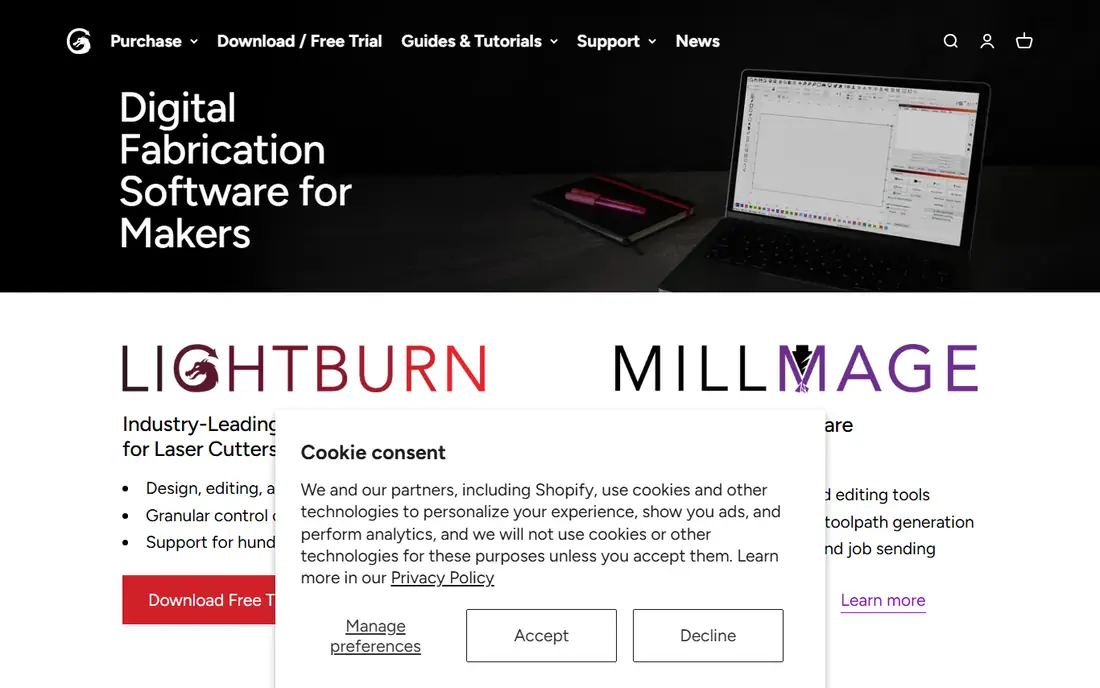
LightBurn is the program most serious makers settle on, because it combines vector design, image processing, and machine control in one cross-platform app. Core, at the price shown above, covers GRBL, Smoothieware, and Marlin machines, while Pro adds Ruida, Trocen, and galvo support for CO2 and fiber lasers. Layers, power and speed settings, camera alignment, and material libraries all live in one workflow, which reduces the need to jump between design and control apps for every job.
The license is perpetual for the version you buy, with a 30-day trial and an update renewal after a year, so the total cost over several years is higher than the first payment alone. Pro costs more than Core, and beginners may find the feature depth larger than they need at first. Still, if you own more than one machine type, or you plan to grow from diode to CO2 or fiber, LightBurn is the safest single purchase in this guide.
What we like- Design and control in one app
- Broad controller support
- Runs on Windows, Mac, and Linux
Watch out for- Paid license
- Pro needed for fiber and galvo
- Update renewal costs extra after a year
Starting price$0
Free planYes
LaserGRBL is a free, open source control program for GRBL based diode lasers on Windows. It loads an image or vector file, lets you set power, speed, and size, and sends the job to the machine with a simple interface. For a hobbyist with a low cost diode laser, it is often the first control tool to try, because it costs nothing and does the core job well. It also pairs naturally with a design app like Inkscape for artwork preparation.
LaserGRBL does almost no design work, so you will need a second program for serious artwork, and it runs on Windows only, which excludes Mac-only households unless they use a virtual machine or a second computer. It also does not control Ruida or galvo machines. Choose LaserGRBL when you have a GRBL diode laser, a Windows computer, and a tight budget. Choose LightBurn when you want design and control together, or you use a Mac.
What we like- Free and open source
- Simple GRBL control
- Good for beginners on Windows
Watch out for- Windows only
- Little design work
- GRBL machines only
Starting price$0
Free planYes
RDWorks is the bundled control software for many Ruida based CO2 lasers, and it remains a capable free option for owners of those machines. It handles vector cutting and raster engraving, layer settings, power and speed control, and direct communication with Ruida controllers. For a shop that bought a Ruida CO2 machine, RDWorks costs nothing extra and does the essential control work without a subscription.
The interface feels dated, and beginners often find the workflow less intuitive than LightBurn, with more manual steps for importing, layering, and previewing jobs. It is also Windows only. Many Ruida owners start with RDWorks, then move to LightBurn Pro for a cleaner workflow and cross-platform support. RDWorks fits budget conscious Ruida owners who are willing to learn an older interface. It fits less well for Mac users or makers who want modern design tools built in.
What we like- Free with Ruida machines
- Direct Ruida control
- Layer and power settings
Watch out for- Windows only
- Dated interface
- Steep learning curve for beginners
Starting price$0 bundled
Free planYes

EZCad2 is the standard control software for fiber and UV galvo lasers built on JCZ boards, which power many ComMarker, OMTech fiber, and white-label fiber engravers. It offers precise control over marking parameters, hatch patterns, and galvo movement, which matters for metal marking, deep engraving, and small detailed work. Because it ships free with the machine, most fiber owners already have it, and learning it is part of owning that machine type.
EZCad2 is focused on marking rather than full design and cutting workflows, and its interface is technical and unforgiving for beginners. It runs on Windows only, and artwork usually comes from another design program. Fiber owners who want a more modern workflow often add LightBurn Pro, which supports galvo machines, while keeping EZCad2 for specific jobs. Choose EZCad2 as your included fiber control tool, and add design software alongside it.
What we like- Free with JCZ galvo boards
- Precise marking control
- Widely used for fiber lasers
Watch out for- Windows only
- Marking focused, not cutting design
- Hard for beginners
Starting price$0
Free planYes
xTool Creative Space, also called XCS or xTool Studio in newer versions, is the free software for xTool diode, CO2, and infrared machines. It combines design, image processing, and machine control in one app for Windows, Mac, and mobile, with built-in project files and AI assisted design features that help beginners start a first project quickly. Camera positioning on supported models also simplifies placement, which is a common pain point for new makers.
The obvious limit is brand lock-in: XCS controls xTool machines, not other brands, so it cannot follow you if you switch to a different maker. Advanced features also vary by model, and serious makers may still prefer LightBurn for cross-brand work. xTool owners should start with XCS, because it is free, tuned to their machine, and easy to learn. Only add LightBurn if you need cross-brand support or deeper control features.
What we like- Free for xTool owners
- Design and control together
- Built-in project ideas and AI features
Watch out for- Works only with xTool machines
- Less flexible for other brands
- Advanced features vary by model
#6Inkscape
Best for: Free vector design4.4/5 on
G2 (417 reviews, checked Oct 2026)
Visit inkscape.org
Starting price$0
Free planYes
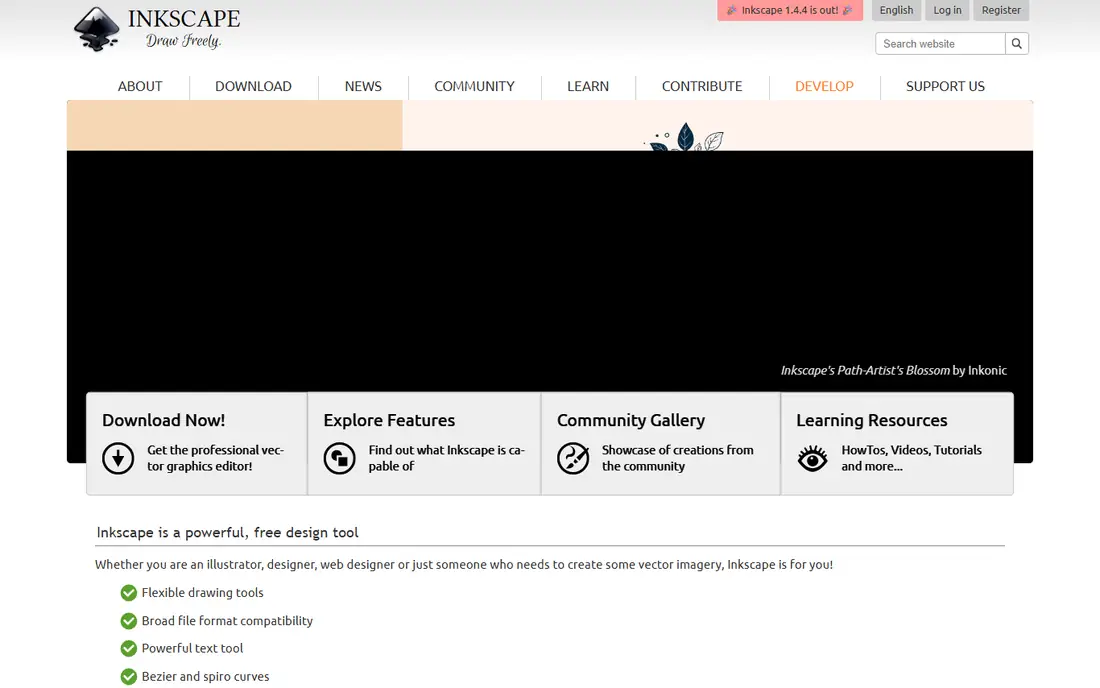
Inkscape is a free, open source vector design program that many laser makers use to create artwork before sending it to a control app. It handles shapes, text, node editing, tracing bitmaps into vectors, and exporting SVG or DXF files that laser software can read. For cutting work, where clean vector paths matter more than photo effects, Inkscape is the free standard, and it runs on Windows, Mac, and Linux.
Inkscape does not control a laser directly, so you still need LaserGRBL, LightBurn, RDWorks, or another control tool to run the job. New users also face a learning curve with vector concepts like nodes, paths, and fills. Pair Inkscape with your control app: design in Inkscape, export a clean file, set layers and power in the control app, and test on scrap material before a final cut.
What we like- Free and open source
- Strong vector tools
- Exports SVG and DXF for laser work
Watch out for- Not a machine control tool
- Learning curve for new vector users
- No direct laser settings
#7GIMP
Best for: Free photo and raster design4.3/5 on
G2 (1,484 reviews, checked Oct 2026)
Visit gimp.org
Starting price$0
Free planYes
GIMP is a free, open source image editor that helps prepare photos and raster artwork for engraving. It can adjust contrast, convert to grayscale, clean up backgrounds, and apply dithering style effects that improve how a photo translates to burned dots on wood, slate, or metal. For engraving, where tonal range and dot patterns decide the result, that preparation step matters as much as machine settings.
GIMP does not create clean vector cut paths as well as Inkscape, and it does not control a laser, so it is a preparation tool, not a complete laser workflow. Its interface also takes time to learn. Use GIMP for photo engraving preparation, Inkscape for vector cutting design, and a control app to run the job. That three part workflow is common among experienced makers and costs nothing in software.
What we like- Free and open source
- Strong photo editing
- Useful for engraving preparation
Watch out for- Not a vector or control tool
- Interface can feel complex
- Raster only for laser work
Starting price$0
Free planYes
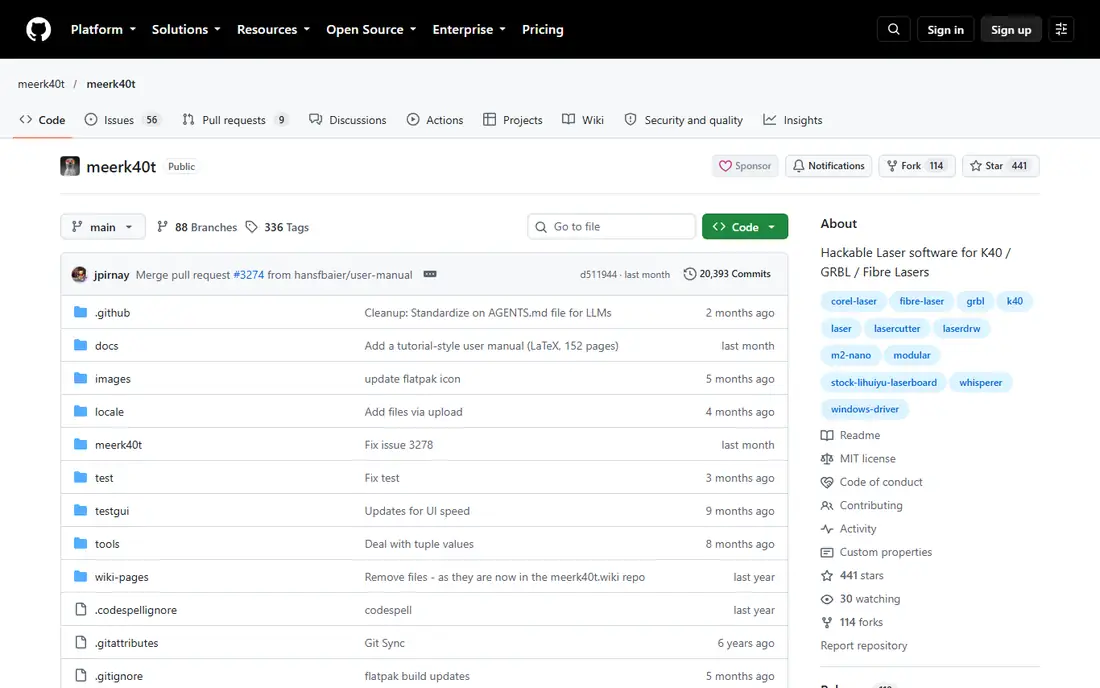
MeerK40t is a free, open source program for K40 class CO2 lasers, which are popular low cost entry machines. It stands out because it runs on Mac as well as Windows, unlike LaserGRBL and RDWorks, which are Windows only. That makes it a useful option for Mac owners with a K40 who do not want to buy LightBurn yet, or who want a free control tool that matches their computer.
MeerK40t is focused on K40 machines, so it is not a general control tool for Ruida, GRBL diode, or galvo lasers. Its community is smaller than LightBurn, and setup, including driver and board configuration, needs care. K40 owners on a Mac should try MeerK40t first, and consider LightBurn Pro later if they want broader support and a more polished workflow.
What we like- Free and open source
- Supports K40 machines
- Runs on Mac and Windows
Watch out for- K40 focused
- Smaller community than LightBurn
- Setup needs care
Starting priceSee website
Free planNo
CypCut, from Friendess, is control software for industrial fiber laser cutting machines, especially those using CypOne controllers. It offers nesting to fit many parts on a sheet, production management, cutting parameter libraries, and features for sheet metal work that hobby tools do not attempt. Shops cutting metal parts at volume need that production focus, where material waste and cutting time directly affect profit.
CypCut is a commercial product with pricing by license and machine type, and it is far beyond what a hobby maker needs. It also assumes industrial hardware, so it will not run a desktop diode or CO2 machine. Choose CypCut when you run an industrial fiber cutting shop and need production control. Hobby and small shop makers should stay with LightBurn, LaserGRBL, RDWorks, or their machine bundled software.
What we like- Built for industrial fiber cutting
- Nesting and production features
- Supports CypOne controllers
Watch out for- Commercial price
- Industrial focus
- Overkill for hobby makers
How we chose
We compared controller support, design versus control features, operating system coverage, pricing, and fit for hobby versus industrial use, using vendor pages, documentation, and public reviews. Prices were checked in October 2026, and any price we could not confirm is shown as See website. We did not claim hands-on testing. The list favors software a buyer can actually run on their machine today, with controller compatibility stated plainly.
How to match software to your machine
Check your controller first, before you buy anything. A GRBL diode laser, a Ruida CO2 laser, a Trocen machine, and a JCZ galvo fiber laser each need different software, and the wrong choice will not connect at all. Look at your machine manual, controller board, or vendor page to confirm the controller family, then shortlist only tools that support it. A trial of LightBurn is a good test, because its trial will quickly show whether your machine connects.
Next, decide whether you need design, control, or both. If you already design in Inkscape or GIMP, a free control tool may be enough. If you want one app for both jobs, LightBurn or your machine bundled software is simpler. Finally, test on scrap material with low power settings, check ventilation and fire safety, and keep a material settings notebook. Good settings for one wood or acrylic type rarely transfer cleanly to another, and a notebook saves repeated test cuts.
Frequently asked questions
What is the best laser cutting software for beginners?
For most beginners, LightBurn is the best paid choice, and your machine bundled software is the best free start. xTool owners should start with xTool Creative Space, GRBL diode owners with LaserGRBL on Windows, and Ruida owners with RDWorks, then move to LightBurn if they want one app for design and control.
Is LightBurn worth $99?
For many makers, yes. Core at $99 covers GRBL machines, while Pro at $199 adds Ruida, Trocen, and galvo support. The license is perpetual, with a renewal for updates after a year. If you own one machine and a free tool already works well, you may not need it yet.
Can I use free software for laser cutting?
Yes. LaserGRBL, RDWorks, EZCad2, xTool Creative Space, Inkscape, GIMP, and MeerK40t are all free, but each serves a specific controller or design job. Check controller compatibility and operating system support before you rely on a free tool.
Do I need different software for engraving and cutting?
Not necessarily. Most control tools handle both, using raster settings for engraving and vector settings for cutting. Design preparation differs: photos need raster editing in GIMP, while cut shapes need vector design in Inkscape, even when the same control app runs both jobs.
Is laser cutting safe at home?
Laser cutting carries fire, smoke, and eye risks, so safety matters. Use ventilation or extraction, wear laser safety glasses rated for your laser type when required, keep a fire extinguisher nearby, and never leave a running laser unattended. Follow your machine manual and local rules for materials, because some materials release toxic fumes when cut.
Sources we checked (9)
- https://lightburnsoftware.com/pricing
- https://lasergrbl.com
- https://www.rdworks.com
- https://www.ezcad.com
- https://www.xtool.com
- https://inkscape.org
- https://www.gimp.org
- https://meerk40t.com
- https://www.cypcut.com
Is your product missing or out of date?
We review this list regularly. Vendors can request a listing, send updated pricing or ask about featured placement.

Shihab Mia · Founder, Rankite
Shihab has 5+ years in B2B and SaaS SEO. He writes Rankite's software buying guides from pricing pages, documentation and public user reviews. More about Shihab.