How we make this list: we compare pricing pages, product documentation and public user reviews. Ratings come from G2, Capterra or Trustpilot, with the date we checked them.
Key takeaways
- Wireshark remains the default for deep packet inspection, because it is free, cross-platform, and supports hundreds of protocols.
- tcpdump suits servers and remote troubleshooting, where a command line capture beats a graphical interface.
- Flow tools such as ManageEngine NetFlow Analyzer and Paessler PRTG suit ongoing bandwidth and device monitoring better than one-off packet captures.
- GlassWire suits individual Windows users who want a clear view of which apps use the network, while Kismet suits wireless detection work.
- Only capture traffic you are authorized to inspect, and store captures carefully, since packets can contain passwords, tokens, and personal data.
Quick comparison
Is your product missing or out of date?
We review this list regularly. Vendors can request a listing, send updated pricing or ask about featured placement.

#1Wireshark
Best for: Deep packet analysis4.7/5 on
G2 (151 reviews, checked Oct 2026)
Visit wireshark.org
Starting priceFree
Free planYes
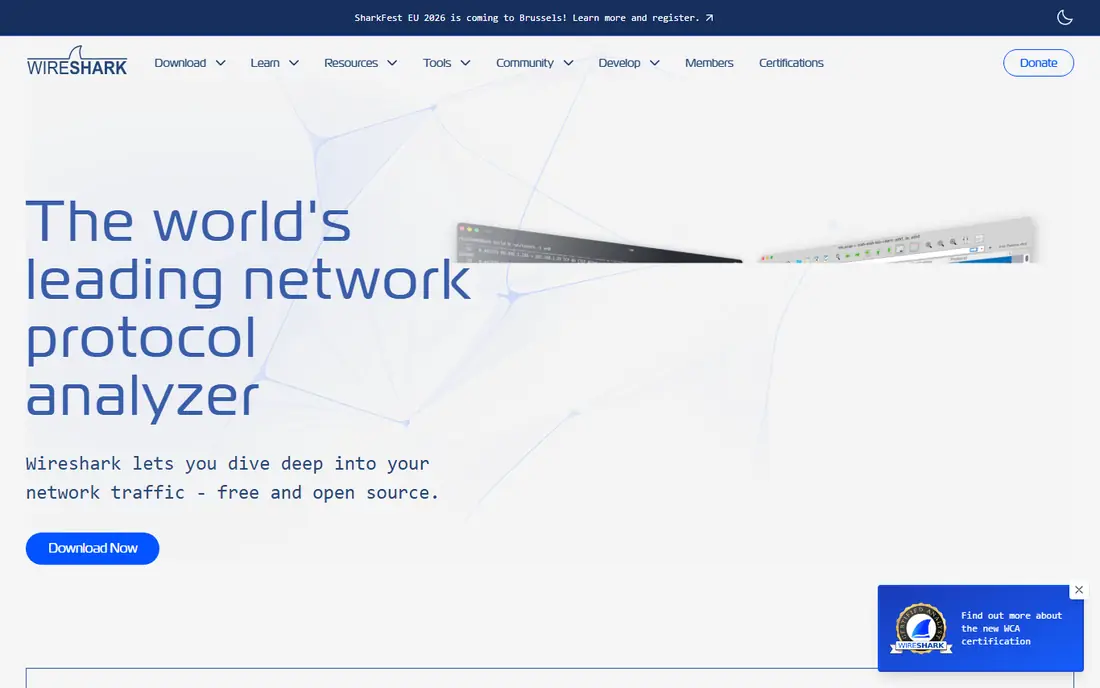
Wireshark is the tool most network engineers reach for first when a problem needs packet-level proof. It captures live traffic, decodes hundreds of protocols, and lets you filter by IP address, port, protocol, or conversation. When an app times out, a file transfer stalls, or a device behaves oddly, Wireshark shows whether packets left, arrived, were retransmitted, or never appeared at all. That detail settles arguments that logs alone cannot resolve.
The tool runs on Windows, macOS, and Linux, and it can also open captures made elsewhere, which makes it useful for remote teams. A colleague can capture on a server, send the file, and you can analyze it offline with the same filters. The honest catch is complexity: beginners face a dense interface and a large filter language, and large captures grow quickly if you capture everything on a busy link. Start with a capture filter for the host or port in question, save early, and stop the capture as soon as you have the failure.
What we like- Free and open source
- Deep protocol dissectors
- Strong filtering and offline analysis
Watch out for- Steep learning curve for beginners
- Large captures need disk space and care
Starting priceFree
Free planYes
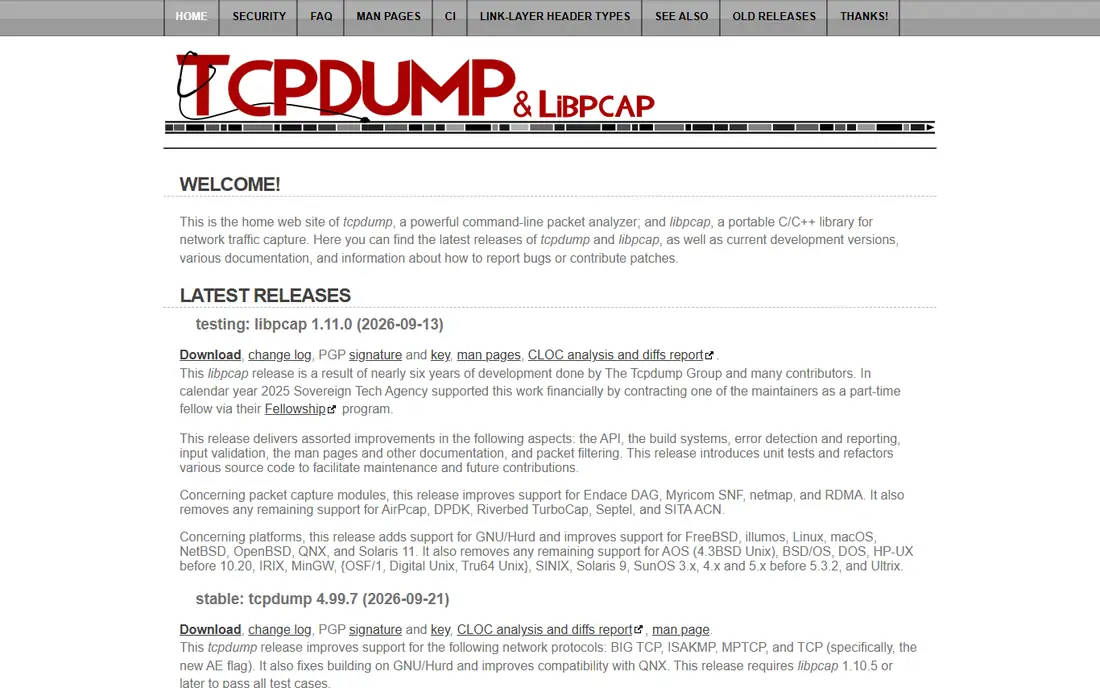
Servers rarely have a desktop, which is where tcpdump earns its place. It runs from a terminal, captures packets on a chosen interface, and writes standard capture files that Wireshark can open later. You can run it over SSH on a remote host, rotate files by size, and limit capture to a single host or port to keep files small. For overnight faults and intermittent issues, a scheduled or triggered tcpdump capture often catches what a manual session misses.
The trade-off is readability. tcpdump prints packet summaries to the terminal, but detailed protocol analysis is easier after moving the file to Wireshark. Filter syntax also takes practice, since a broad capture on a busy server fills disk fast. Use it as the capture tool on headless systems and Wireshark as the analysis tool on your workstation, and the pair covers most troubleshooting without any license cost.
What we like- Lightweight and scriptable
- Ideal for servers and remote hosts
- Standard capture file format
Watch out for- No graphical packet view
- Requires command line comfort and filter knowledge

#3SolarWinds Network Performance Monitor
Best for: Large network monitoring4.5/5 on
Capterra (76 reviews, checked Oct 2026)
Visit solarwinds.com
Starting priceSee website
Free planFree trial
SolarWinds Network Performance Monitor suits teams that manage many devices and need continuous visibility, not a single capture. It discovers devices, maps the network, tracks performance, and alerts when links, interfaces, or devices cross thresholds. Flow and packet data help explain whether a slowdown comes from bandwidth, a device, or an application path. Reporting also helps capacity planning, since trends over weeks matter more than one busy afternoon.
Setup and cost separate it from free sniffers. It runs on Windows Server, needs planning for polling, database size, and licensing by monitored elements, and pricing is quote-based for larger estates. A small office with one switch will find it excessive. A mid-size or enterprise team with dozens of sites, however, gains a single view that a laptop capture cannot provide, and the trial is the right way to test polling load before buying.
What we like- Device discovery and mapping
- Performance alerts and reporting
- Broad vendor support
Watch out for- Enterprise pricing and Windows Server needs
- Heavier setup than a simple sniffer
Starting priceSee website
Free planFree trial

Flow analysis answers a different question from packet capture: who used the bandwidth, when, and for what. ManageEngine NetFlow Analyzer collects flow records from routers, switches, and firewalls, then reports top talkers, applications, and conversations over time. That view helps when users report slow internet at certain hours, or when an unknown device consumes bandwidth overnight. Flow records are also far smaller than full packet captures, so retention over weeks stays practical.
The limit is device support. Flow export must be enabled on network hardware, and older or low-end devices may not support it well. Flow data also shows headers and volumes, not full payloads, so a protocol fault still needs Wireshark for detail. Use NetFlow Analyzer for ongoing bandwidth governance and trend work, and keep Wireshark ready for the deep dive when a flow report points to a specific host or conversation.
What we like- Clear bandwidth and application reporting
- Flow data is lighter than full packet capture
- Alerting on traffic anomalies
Watch out for- Depends on flow-capable devices
- Full packet detail still needs a tool such as Wireshark

#5Paessler PRTG
Best for: All-round network monitoring4.7/5 on
G2 (213 reviews, checked Oct 2026)
Visit paessler.com
Starting price$200 per user/month (billed annually)
Free planFree trial
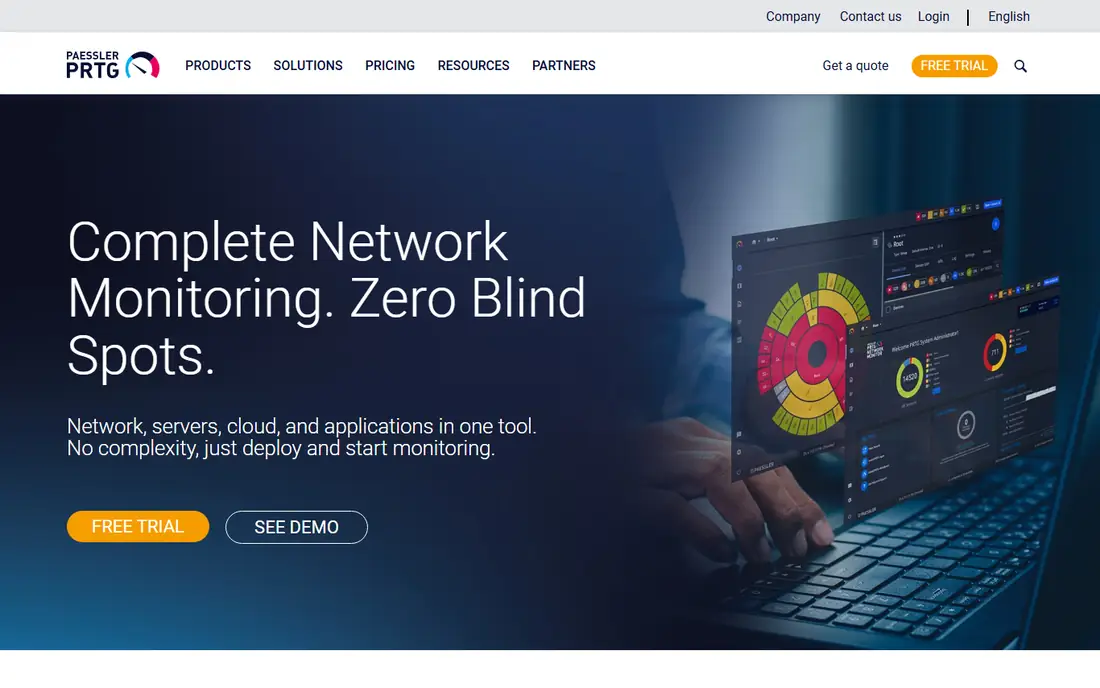
Paessler PRTG monitors devices, servers, applications, and traffic from one console, using sensors for ping, SNMP, flow protocols, and packet sniffing. That breadth suits small and mid-size IT teams that want one tool for uptime, bandwidth, and basic traffic analysis, rather than separate products for each job. Dashboards and maps make it easier to show status to managers and to spot which site or device needs attention first. PRTG 500, sized for 50 devices, costs $200 per month when billed annually, which gives a clear starting point for budgeting.
Sensor management is the catch. Each monitored metric uses a sensor, so a broad deployment can reach the plan limit faster than expected. Packet sniffing sensors also need placement on a span or mirror port to see the right traffic, which requires switch configuration. Plan sensor counts by device and service before buying, start with critical systems, and add coverage in stages. For teams that want monitoring plus occasional sniffing in one product, PRTG is a practical middle ground.
What we like- Many sensor types in one console
- Maps and dashboards
- Straightforward sensor-based pricing
Watch out for- Sensor counts grow fast
- Packet sniffing sensors need careful placement

#6GlassWire
Best for: Personal Windows monitoring4.6/5 on
G2 (50 reviews, checked Oct 2026)
Visit glasswire.com
Starting priceSee website
Free planYes
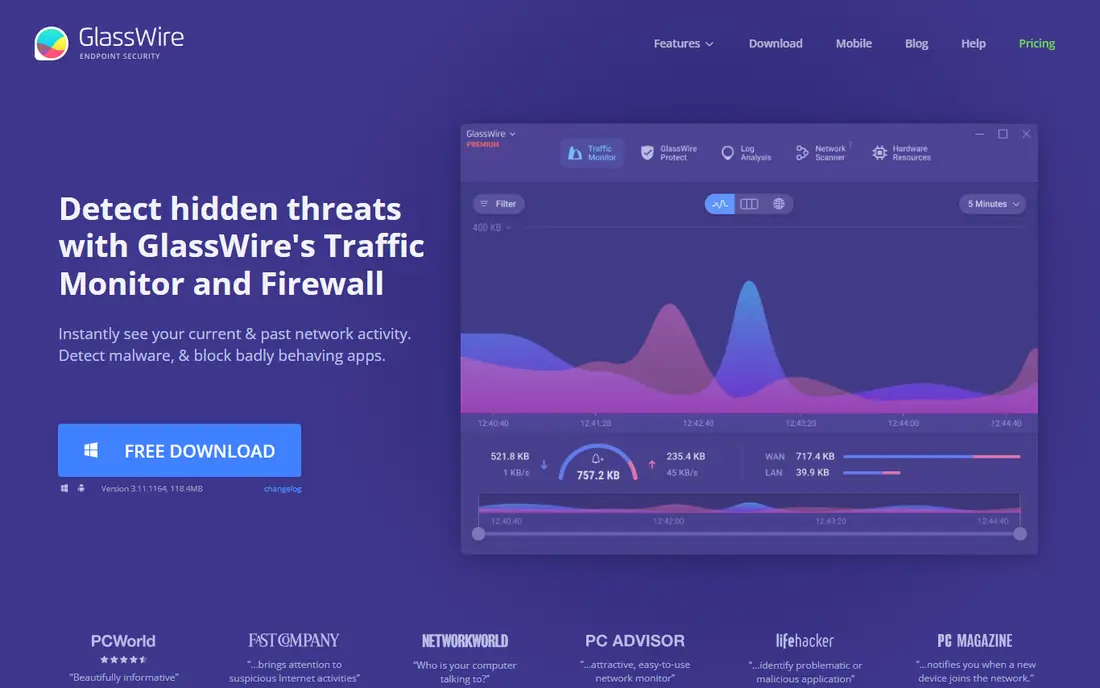
GlassWire fits a different audience: a Windows user who wants to know which app just used the network. Its graph shows traffic over time, breaks use down by application, and alerts when a new app or device appears. That clarity helps when a laptop feels slow, a game lags, or an unfamiliar program phones home. The free version covers basic monitoring, while paid plans add longer history and extra features.
It is not a replacement for Wireshark in a professional troubleshooting workflow. Protocol detail is thinner, analysis features are simpler, and it runs only on Windows. For a home user, a freelancer, or a small office PC, though, GlassWire turns network activity into something readable without learning packet filters. Use it for awareness and early warnings, and move to Wireshark when a problem needs protocol-level evidence.
What we like- Clear per-app network view
- Alerts for new devices and apps
- Easy for non-specialists
Watch out for- Windows only
- Not a full enterprise packet analyzer
Starting priceFree
Free planYes
Wireless troubleshooting needs a tool that listens to radio traffic, not only wired packets. Kismet detects Wi-Fi networks and clients, plus Bluetooth and Zigbee devices where hardware supports them, and logs what it finds for later review. That makes it useful for site surveys, rogue access point checks, and tracking down an unknown wireless device. It runs on Linux, macOS, and Windows in varying forms, and it is free and open source.
Hardware compatibility is the main friction. Not every wireless adapter supports monitor mode well, so check adapter support before planning a survey. The interface also assumes more technical comfort than GlassWire, and interpreting wireless captures takes practice. For security reviews and wireless audits, Kismet remains a strong free choice, provided you only scan networks you own or are authorized to test.
What we like- Free and open source
- Detects Wi-Fi, Bluetooth, and Zigbee devices
- Useful for site surveys
Watch out for- Wireless setup varies by adapter
- Interface is less polished than commercial tools
Starting priceSee website
Free planFree trial
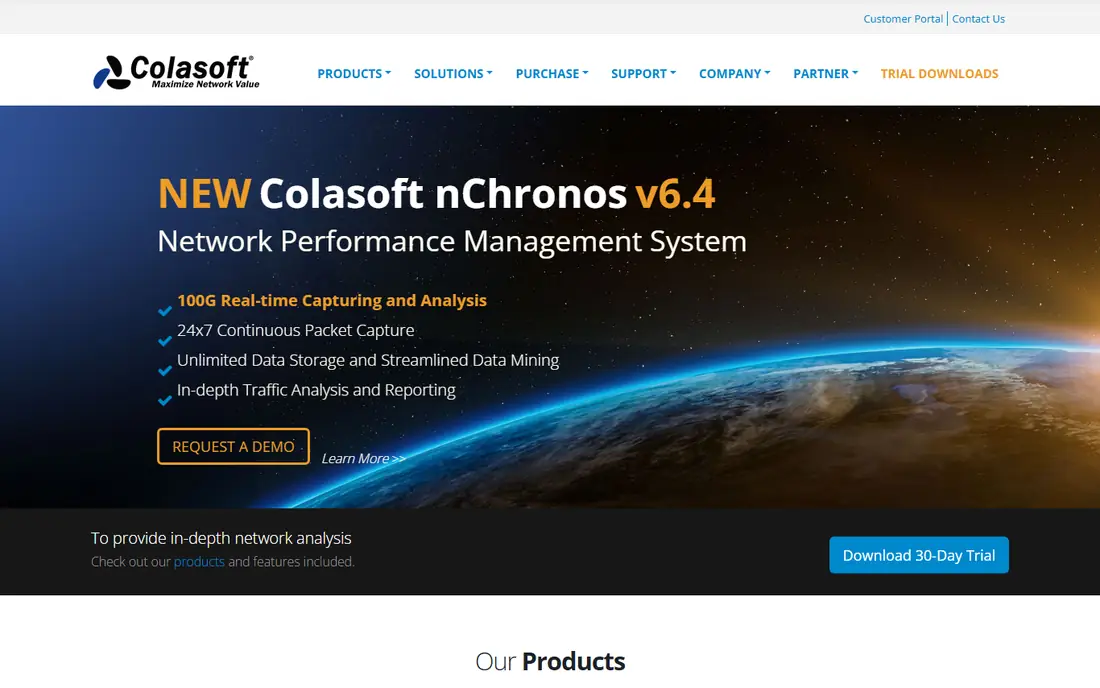
Colasoft Capsa gives Windows teams a graphical packet analyzer without the learning curve of Wireshark. It captures traffic, breaks it down by protocol and host, and presents dashboards that highlight top conversations and bandwidth use. Small network teams often prefer that guided view when they need an answer quickly and do not capture packets every day. A free edition and trial let a team test capture on its own network before buying.
The limits are platform and depth. Capsa runs on Windows and Windows Server, so Linux and macOS shops will still need Wireshark or tcpdump. Advanced enterprise features also sit on higher editions, which raises cost for larger deployments. For a Windows-based team that wants readable packet analysis with less setup, Capsa is a credible alternative, especially when the main job is troubleshooting rather than protocol research.
What we like- Windows-friendly packet capture
- Dashboards and protocol breakdowns
- Good for small network teams
Watch out for- Windows only
- Enterprise features sit on higher editions
Starting priceSee website
Free planYes
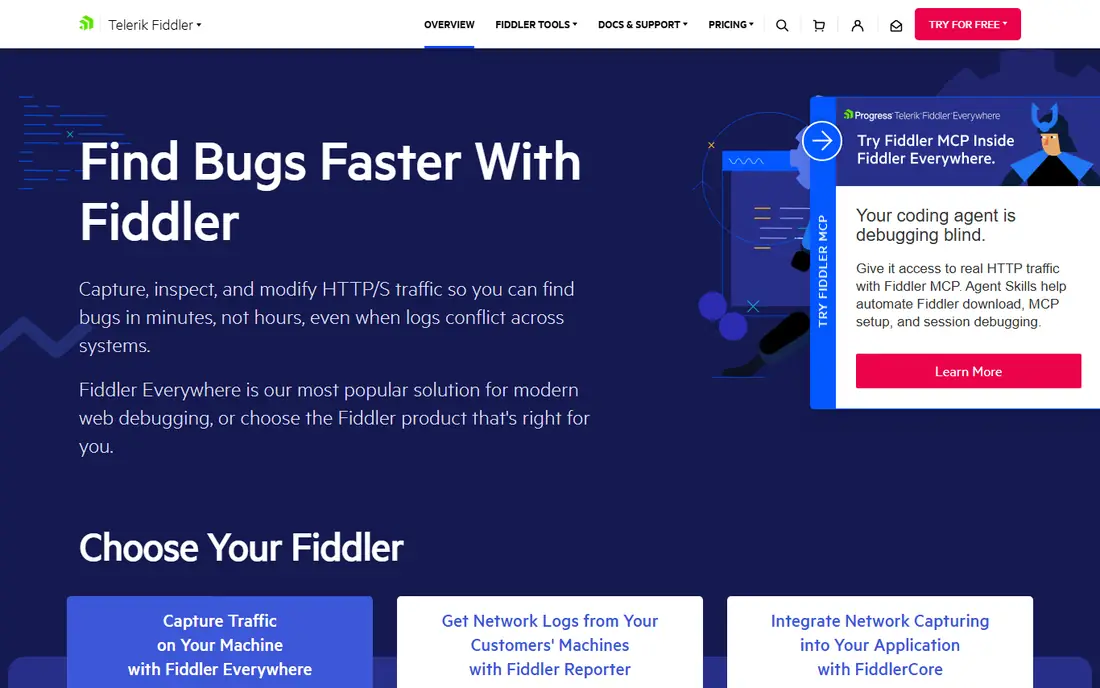
Web developers and testers need to see HTTP requests, not raw Ethernet frames, and Fiddler is built for that job. It acts as a proxy, captures web traffic, and lets you inspect headers, bodies, cookies, and timing. You can replay a request, change a value, and see how an app responds, which speeds up debugging for APIs, login flows, and slow pages. A free version covers much of this work, with paid editions adding team and enterprise features.
Fiddler is not a general network sniffer. It will not capture non-web protocols in the same way, and HTTPS inspection requires installing a trusted certificate, which must be handled carefully and removed when testing ends. For app and web work, though, it is often faster than filtering a full packet capture for HTTP traffic. Use Fiddler for web debugging and Wireshark when the fault sits below the web layer.
What we like- Excellent for HTTP and HTTPS debugging
- Request inspection and replay
- Useful for developers and testers
Watch out for- Focused on web traffic, not full network packets
- HTTPS decryption needs careful certificate setup
Starting priceSee website
Free planYes
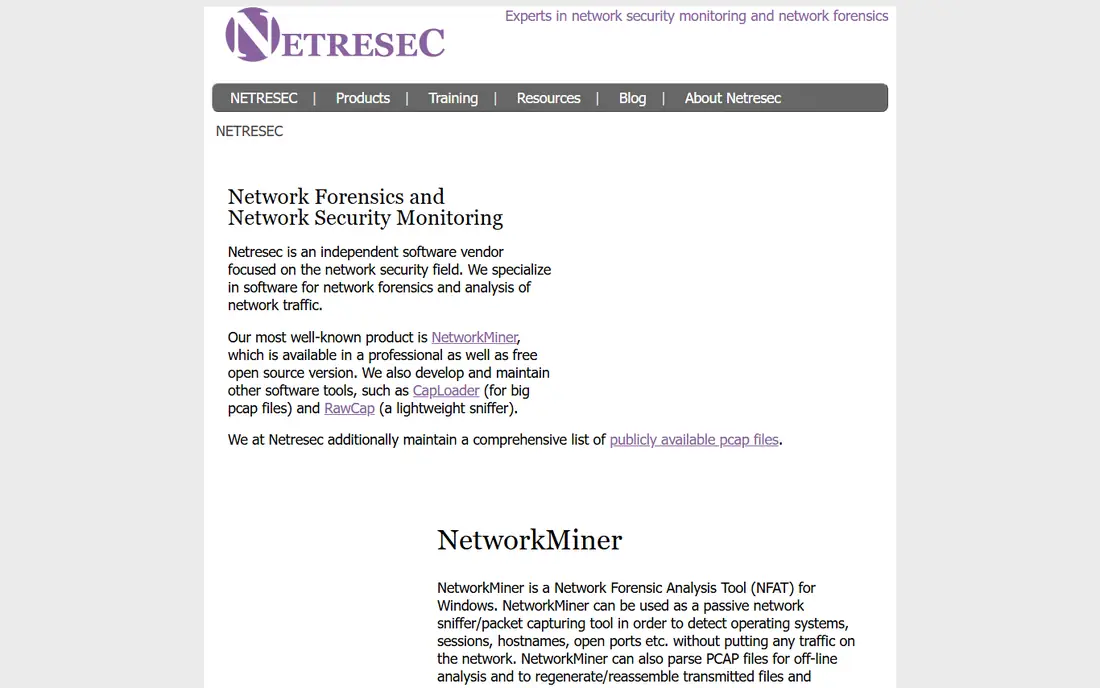
NetworkMiner approaches packet analysis from a forensic angle. Instead of only listing packets, it parses a capture and extracts hosts, sessions, files, images, and other artifacts that help an investigator understand what happened. That view suits incident review, malware traffic checks, and classroom analysis, where the question is what data moved rather than only which packets arrived. A free version covers basic analysis, while the paid edition adds more parsers and features.
It is not a live monitoring dashboard, so teams that need alerts and trends should pair it with PRTG, SolarWinds, or NetFlow Analyzer. Capture still comes from Wireshark, tcpdump, or another sniffer, and NetworkMiner reads the resulting file. For security teams that review captures after an event, that workflow is efficient: capture once, analyze in Wireshark for protocol detail, and use NetworkMiner to surface files and sessions quickly.
What we like- Extracts files and credentials artifacts from captures
- Good for incident review
- Free version for basic analysis
Watch out for- Analysis-focused, not a live monitoring tool
- Advanced features need a paid edition
How we chose
We compared vendor pages, product documentation, and public reviews on G2, Capterra, and Reddit, with attention to capture method, protocol support, platform, and pricing model. A tool stayed on the list only if it captures or analyzes IP traffic today and fits a clear job, such as deep inspection, flow reporting, wireless detection, web debugging, or forensic review. We weighted free availability, learning curve, deployment needs, and company-size fit, since a tool that suits an enterprise network team may overwhelm a single Windows user. Pricing was checked against vendor pages where published, and marked as See website where pricing is quote-based or varies by edition.
Using a sniffer safely and legally
Packet capture is powerful, and that power carries responsibility. Capture only traffic on networks you own or are authorized to test, and tell the network owner what you plan to capture before you start. In a workplace, coordinate with IT and security, since a capture can reveal credentials, internal addresses, and personal data. Limit the capture filter to the hosts and ports relevant to the fault, and stop as soon as you have enough evidence.
Protect the capture file
Treat a capture file like a sensitive document. Store it in a restricted folder, delete it when the investigation ends, and avoid sending it over unsecured channels or posting it in public support threads. If you must share it with a vendor or a colleague, redact or truncate payloads where possible, and confirm the recipient will handle it securely. These habits matter more than any single tool choice, since a leaked capture can expose far more than a screenshot.
Start narrow, then widen
A common beginner mistake is capturing everything on a busy network and then drowning in packets. Start with a capture filter for one host, one conversation, or one port, and use display filters to narrow further during analysis. If the fault does not appear, widen the filter in steps. Narrow captures save disk, load faster, and reduce the chance of collecting unrelated personal traffic.
Frequently asked questions
What is the best ip sniffer tool for beginners?
Wireshark is the best learning tool because it is free, well documented, and widely used, though its interface takes time to learn. GlassWire is easier for a Windows user who only wants to see which apps use the network. Start with GlassWire for awareness, then learn Wireshark when you need protocol detail for a real fault.
Is it legal to use an IP sniffer?
It is legal to capture traffic on a network you own or are authorized to test, and it is risky or unlawful to capture traffic on networks you do not control. Workplace and public networks require permission from the owner, and some traffic may be protected by privacy law or company policy. When in doubt, get written permission before capturing.
Do I need a paid sniffer for home use?
Usually not. Wireshark, tcpdump, Kismet, and the free versions of GlassWire, Fiddler, and NetworkMiner cover most home troubleshooting and learning. Paid tools add value when you need continuous monitoring, reporting, alerts, or support across many devices, which matters more for businesses than for a single home network.
What is the difference between a sniffer and a flow analyzer?
A sniffer captures packets, including headers and often payloads, for detailed protocol analysis. A flow analyzer summarizes traffic by conversation, application, and volume over time, without storing every packet. Sniffers suit fault diagnosis, while flow tools suit bandwidth management, trend reporting, and long-term retention.
Why does my sniffer only see my own traffic?
On a switched network, a normal interface sees traffic addressed to that host plus broadcast traffic, not traffic between other hosts. Seeing wider traffic usually requires a span or mirror port on a managed switch, a network tap, or monitor mode for wireless. Those options need switch access and permission, and they should only be used on authorized networks.
Can a sniffer read encrypted traffic?
A sniffer can see packet headers, timing, sizes, and destination addresses for encrypted traffic, but it cannot read the encrypted payload without the keys. TLS and VPN traffic therefore limits payload inspection, which is why web debugging tools use a local proxy certificate for testing. Never install a decryption certificate on a device you do not control, and remove test certificates when work ends.
Sources we checked (10)
- https://www.wireshark.org/
- https://www.tcpdump.org/
- https://www.solarwinds.com/pricing
- https://www.manageengine.com/products/netflow/pricing.html
- https://www.paessler.com/pricing
- https://www.glasswire.com/pricing
- https://www.kismetwireless.net/
- https://www.colasoft.com/pricing
- https://www.telerik.com/fiddler/pricing
- https://www.netresec.com/pricing
Is your product missing or out of date?
We review this list regularly. Vendors can request a listing, send updated pricing or ask about featured placement.

Shihab Mia · Founder, Rankite
Shihab has 5+ years in B2B and SaaS SEO. He writes Rankite's software buying guides from pricing pages, documentation and public user reviews. More about Shihab.
 tcpdump
 ManageEngine NetFlow Analyzer
 Kismet
 Colasoft Capsa
 Fiddler
 NetworkMiner