How we make this list: we compare pricing pages, product documentation and public user reviews. Ratings come from G2, Capterra or Trustpilot, with the date we checked them.
Key takeaways
- Adobe Acrobat Online is the strongest free single file converter, with excellent table accuracy on digital PDFs and no sign in for the first conversion.
- Smallpdf offers two free conversions a day across its tools with no account for a single file, and files auto delete from servers one hour after conversion.
- Sejda and iLovePDF suit small batches, with clear free caps and auto delete policies, while Tabula is the free open source pick for table extraction on your own computer.
- Scanned PDFs need OCR, which most free tiers gate: Adobe handles scans best, while Smallpdf and iLovePDF reserve OCR for paid plans.
Quick comparison
Is your product missing or out of date?
We review this list regularly. Vendors can request a listing, send updated pricing or ask about featured placement.
Starting priceFree
Free planYes
Adobe Acrobat Online is the strongest free single file converter, with browser conversion at the same quality level as desktop Acrobat and excellent table accuracy on digital PDFs. Drag in a PDF and download a spreadsheet, or open it directly in Excel for the web, with table structure preserved better than most rivals.
Free use is limited: a second conversion prompts sign in, and heavy use needs a paid Acrobat plan starting around 14.99 dollars a month in published comparisons. Scanned PDFs convert through OCR, but the result will not be picture perfect where text sits inside images. For one careful conversion, Acrobat Online is the pick.
What we like- Excellent table accuracy on digital PDFs
- Browser conversion at desktop quality
- Handles text tables and images
Watch out for- Free conversions are limited and a second file prompts sign in
- Paid Acrobat plans needed for heavy use
- Scanned output is not picture perfect

#2Smallpdf
Best for: Quick occasional conversions4.5/5 on
G2 (306 reviews, checked Oct 2026)
Visit smallpdf.com
Starting priceFree
Free planYes
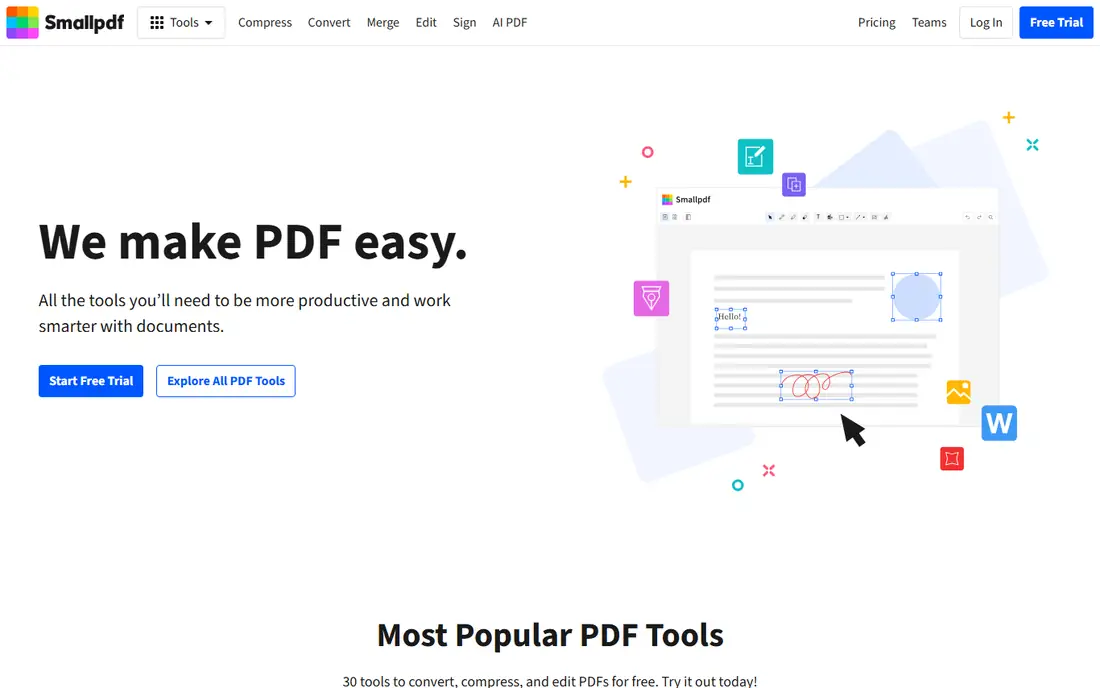
Smallpdf is the polished quick converter, with a very user friendly interface, Google Drive and Dropbox integration, and files that auto delete from servers one hour after conversion. Free use covers 2 total conversions a day across all tools, with no email required for a single file, which suits an occasional user converting a single statement.
OCR and batch conversion sit on Pro, so scanned PDFs convert poorly on free, and there is no native Mac app, though the web app covers Mac browsers. For an occasional user who wants the fastest path to a spreadsheet, Smallpdf is the pick.
What we like- Very user friendly
- 2 free conversions a day across tools with no account for a single file
- Files auto delete after one hour
Watch out for- OCR and batch sit on Pro
- Capped at 2 conversions a day
- No native Mac app
#3iLovePDF
Best for: Easy drag and drop workflow4.6/5 on
G2 (583 reviews, checked Oct 2026)
Visit ilovepdf.com
Starting priceFree
Free planYes
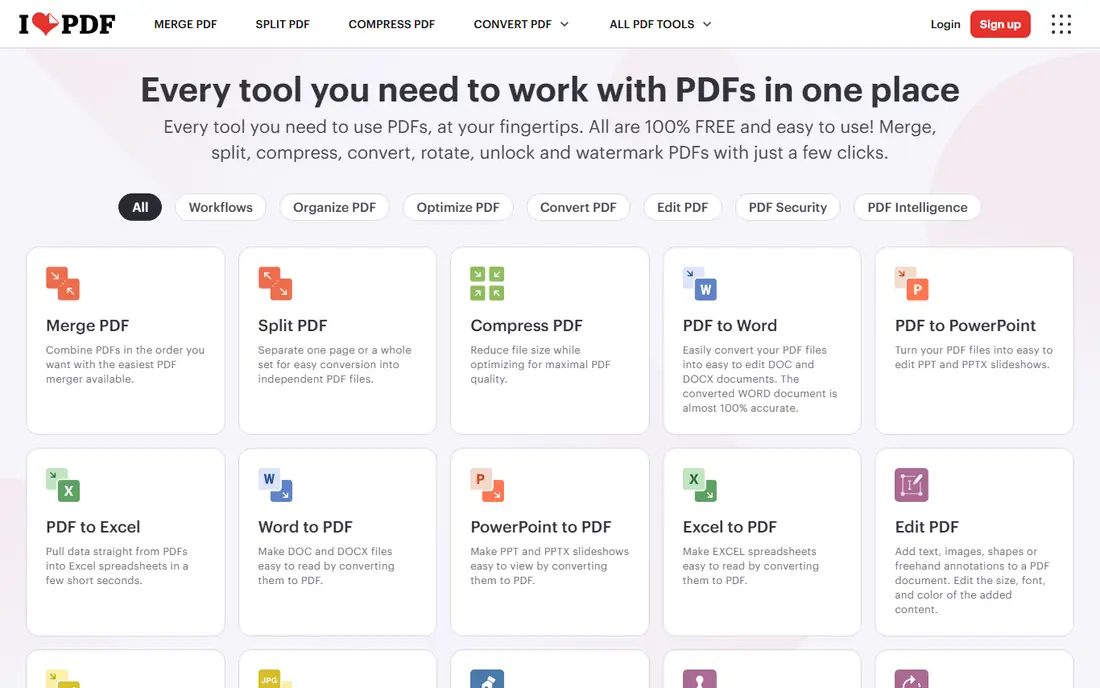
iLovePDF offers an easy, approachable workflow: drag and drop a PDF, or upload from Google Drive or Dropbox, then choose no OCR to convert a text based PDF for free. The suite covers PDF to Word, Excel, PowerPoint and images, plus PDF/A on Premium, which makes it a useful all round PDF toolbox beyond one conversion.
Free use carries caps, and OCR requires a paid upgrade, so scanned documents convert poorly on the free tier. For an occasional user who wants one familiar tool for many PDF jobs, iLovePDF is the pick.
What we like- Simple drag and drop interface
- Mobile and desktop apps plus cloud import
- Large suite of PDF tools beyond conversion
Watch out for- Free caps on usage
- OCR needs a paid upgrade
- No OCR option means scanned tables convert poorly on free

#4Sejda
Best for: Small batches and CSV export4.5/5 on
G2 (42 reviews, checked Oct 2026)
Visit sejda.com
Starting priceFree
Free planYes
Sejda suits small batches and data workflows, with exports to XLSX and CSV, transparent free limits and files that auto delete after 2 hours. The CSV option helps business intelligence and import workflows where a spreadsheet is not the final destination, and structured tables convert well.
Free use caps pages, file size and tasks, so larger batches need a paid plan, and OCR varies on scans. For a user converting a few structured tables to CSV or Excel, Sejda is the pick.
What we like- Exports to XLSX and CSV
- Transparent free limits
- Files auto delete after 2 hours
Watch out for- Free caps on pages, size and tasks
- Paid plans needed for larger batches
- OCR varies on scans

#5PDF Candy
Best for: No account basic conversions3.8/5 on
G2 (18 reviews, checked Oct 2026)
Visit pdfcandy.com
Starting priceFree
Free planYes
PDF Candy is the no account toolbox pick, with browser conversion plus many other PDF tools and an auto delete policy for uploaded files. Basic web conversions need no account, which lowers friction for a one off job.
OCR varies on scans, and batch plus offline work needs the paid desktop app. For a user who wants assorted PDF tools without signing up, PDF Candy is the pick.
What we like- No account needed for basic web conversions
- Many PDF tools in one place
- Auto delete policy for uploaded files
Watch out for- OCR varies on scans
- Paid desktop app needed for batch and offline work
- Interface is busier than Smallpdf
Starting priceFree
Free planYes
Tabula is the free open source pick for table extraction, designed specifically to pull tables from PDFs into CSV or Excel on your own computer. Because files never upload to a server, Tabula suits sensitive documents that should never leave your machine, and there are no daily caps.
Setup needs a Java runtime and some patience, there is no OCR for scanned PDFs, and the interface is functional rather than polished. For a technical user extracting tables from digital PDFs privately, Tabula is the pick.
What we like- Completely free and open source
- Runs on your own computer so files never upload
- Built for table extraction
Watch out for- Needs a Java runtime and some setup
- No OCR for scanned PDFs
- Interface is functional rather than polished
Starting priceFree
Free planYes
Excel Power Query is the best free method for users who already have Microsoft 365 Excel, since the PDF connector detects tables automatically and imports them without a third party tool. Open Data, Get Data, From File, From PDF, preview tables in the Navigator, transform data, then load to a sheet, with refreshable imports when the source PDF updates.
Accuracy exceeds 95 percent on structured data in published guides, but multi page tables can time out on large files, and the connector needs a current Microsoft 365 version. For an Excel user converting tables regularly, Power Query beats any online converter.
What we like- Built into Microsoft 365 Excel at no extra cost
- Detects tables automatically
- Refreshable imports for updated PDFs
Watch out for- Needs Microsoft 365 Excel
- Accuracy above 95 percent only on structured data
- Multi page tables can time out on large files
How we chose
We compared free tier limits, table accuracy, OCR support, export formats, privacy policies and platform support from vendor pages and independent comparisons checked in 2026, and we weighed single file accuracy, batch capability, CSV export and whether files leave your computer. We favored tools with transparent free limits and auto delete policies, and we noted where OCR sits behind a paywall. No tool was credited with hands-on testing, and no accuracy figures beyond published vendor and comparison claims were invented for this guide.
What to check before you pick
First, identify your PDF type. Digital PDFs with real text tables convert well on any free tool here, while scanned PDFs need OCR, which only Adobe handles well on free and which Smallpdf and iLovePDF reserve for paid plans. For scans, check scan quality too: clean 300 DPI scans convert far better than skewed phone photos.
Second, protect sensitive documents. Online converters upload your file to a server, so avoid them for financial statements, medical records or legal documents unless you trust the auto delete policy, and prefer Tabula or Power Query for private data since files never leave your machine. Finally, expect cleanup: published guides suggest 10 to 15 minutes of cleanup per table for one off conversions, so budget time to check numbers, merged cells and column alignment before using extracted data. Also confirm the output format your next tool needs: a finance workflow may want XLSX with formatting preserved, while a data import may want clean CSV, and choosing the wrong format means rework after conversion.
Frequently asked questions
What is the best completely free PDF extract tool?
Tabula for table extraction on your own computer, with no caps and no uploads, and Excel Power Query for Excel users. For browser conversion, Adobe Acrobat Online offers the best free single file accuracy.
Can free tools extract tables from scanned PDFs?
Only with OCR, which most free tiers gate. Adobe Acrobat Online handles scans best on free, while Smallpdf and iLovePDF reserve OCR for paid plans. For frequent scans, a paid OCR tool or a dedicated OCR engine beats any free converter.
How many free conversions do I get per day?
Smallpdf allows 2 total conversions a day across its tools, Adobe allows a limited number before prompting sign in, and Sejda caps pages, size and tasks. Tabula and Power Query have no daily caps since they run locally.
Is it safe to upload PDFs to online converters?
For ordinary documents, yes with a trusted auto delete policy: Smallpdf deletes files after one hour, Sejda after two hours. For sensitive financial, medical or legal documents, use a local tool like Tabula or Power Query instead.
What is the best tool for messy tables with merged cells?
Able2Extract Online, whose custom conversion mode lets you manually adjust rows and columns and preview before converting. Automatic converters often mangle merged cells, so manual correction is worth the time for important tables.
Can I extract PDF data without Excel?
Yes, Sejda and Tabula export CSV, which opens in Google Sheets, Apple Numbers, LibreOffice Calc and most data tools. Adobe, Smallpdf and iLovePDF export XLSX, which also opens in free spreadsheet apps.
Sources we checked (4)
- https://docparsemagic.com/blog/best-free-pdf-to-excel-converter
- https://www.jotform.com/blog/how-to-convert-pdf-to-excel/
- https://www.computertechreviews.com/the-5-best-pdf-to-excel-convert0ers-for-2026/
- https://copyprogramming.com/howto/copying-a-table-from-pdf-to-excel
Is your product missing or out of date?
We review this list regularly. Vendors can request a listing, send updated pricing or ask about featured placement.

Shihab Mia · Founder, Rankite
Shihab has 5+ years in B2B and SaaS SEO. He writes Rankite's software buying guides from pricing pages, documentation and public user reviews. More about Shihab.
 Adobe Acrobat Online
 Tabula
 Excel Power Query
 Able2Extract Online