How we make this list: we compare pricing pages, product documentation and public user reviews. Ratings come from G2, Capterra or Trustpilot, with the date we checked them.
Key takeaways
- Adobe Acrobat and Foxit PDF Editor suit professionals who extract pages daily inside a full PDF editor.
- Smallpdf, ILovePDF, and PDF Candy suit occasional users who want fast browser-based extraction without installing software.
- PDF24 and PDFsam Basic suit users who want free desktop extraction without upload limits or subscriptions.
- Sejda suits users who need extraction plus light editing in a browser, with a generous free tier.
- For sensitive documents, prefer desktop tools over browser upload tools, since uploads send your files to a third-party server.
Quick comparison
| Tool | Best for | Starting price | Free plan |
|---|
 Adobe Acrobat Adobe Acrobat | Professional full PDF editing | See website | No |
 Smallpdf Smallpdf | Fast browser extraction | Free | Yes |
 ILovePDF ILovePDF | Simple browser PDF tools | Free | Yes |
 PDF24 PDF24 | Free desktop PDF suite | Free | Yes |
 Sejda Sejda | Browser extraction plus editing | Free | Yes |
 PDFsam Basic PDFsam Basic | Free desktop page splitting | Free | Yes |
 Foxit PDF Editor Foxit PDF Editor | Full PDF editor alternative | See website | No |
 PDF Candy PDF Candy | Browser PDF toolkit | Free | Yes |
Is your product missing or out of date?
We review this list regularly. Vendors can request a listing, send updated pricing or ask about featured placement.
#1Adobe Acrobat
Best for: Professional full PDF editing4.7/5 on
Capterra (4,264 reviews, checked Oct 2026)
Visit adobe.com
Starting priceSee website
Free planNo
Adobe Acrobat suits professionals who extract pages as part of daily PDF work. Its Organize Pages tool lets users select, reorder, delete, and extract pages precisely, with output saved as a new PDF or split into separate files. Full editing, signing, and security features surround extraction, so one subscription covers most PDF needs.
Subscription cost is the main drawback, and Acrobat feels heavy for a single extraction task. Acrobat works best for offices that already use Adobe tools or handle PDFs constantly. For professional, reliable extraction, it remains the standard.
What we like- Reliable page extraction
- Full editing suite
- Strong security options
Watch out for- Subscription cost
- Heavier than single-purpose tools
#2Smallpdf
Best for: Fast browser extraction4.5/5 on
G2 (306 reviews, checked Oct 2026)
Visit smallpdf.com
Starting priceFree
Free planYes
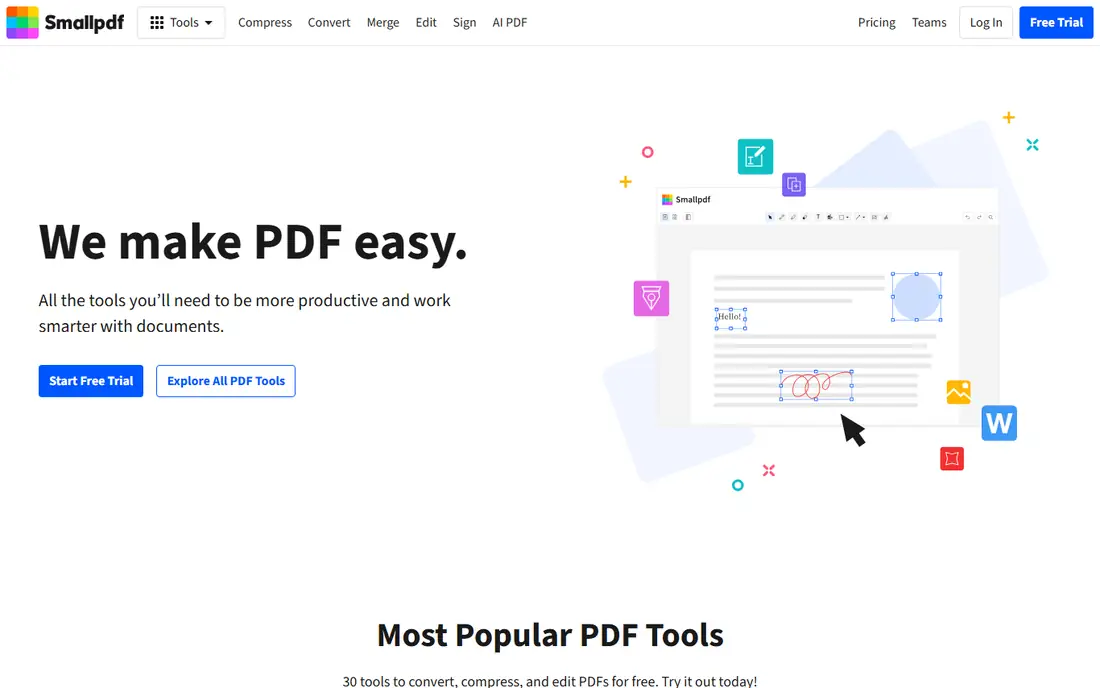
Smallpdf suits occasional users who want to extract pages in a browser without installing software. Drag a PDF in, pick pages, and download the result in under a minute, with a clean interface that needs no learning. That speed suits students, office workers, and anyone handling a PDF once in a while.
The free tier limits daily tasks, and uploads send files to Smallpdf servers, which matters for sensitive documents. Smallpdf works best for non-sensitive, occasional extraction where convenience beats privacy. For fast browser extraction, it is the easiest option.
What we like- Very easy to use
- Fast uploads
- Clean interface
Watch out for- Free tier limits tasks per day
- Uploads leave your device
#3ILovePDF
Best for: Simple browser PDF tools4.6/5 on
G2 (583 reviews, checked Oct 2026)
Visit ilovepdf.com
Starting priceFree
Free planYes
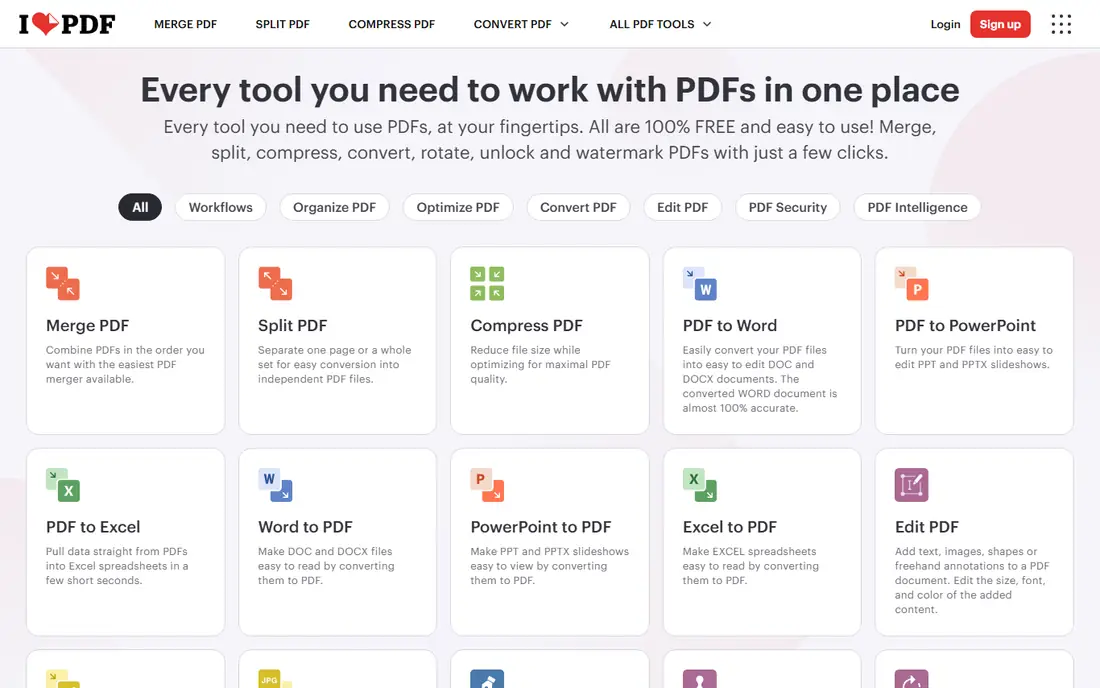
ILovePDF suits users who want simple browser extraction plus a full PDF toolkit in one place. Its Extract PDF Pages tool offers a clear page picker with thumbnails, and related tools cover merging, splitting, compressing, and converting PDFs. A mobile app extends the same workflow to phones.
Free tier limits apply to task frequency and file size, and uploads leave your device, so sensitive files need desktop tools instead. ILovePDF works best for everyday, non-sensitive PDF tasks in a browser. For simple browser extraction, it is a reliable pick.
What we like- Simple page picker
- Many PDF tools
- Mobile app available
Watch out for- Free tier limits
- Uploads leave your device
Starting priceFree
Free planYes
PDF24 suits users who want free desktop extraction without uploads or subscriptions. Its desktop app includes page extraction, merging, splitting, and compression, with files staying on your computer throughout. That privacy plus free price suits offices handling contracts, medical forms, or financial documents.
The interface feels dated, and the desktop app focuses on Windows, with browser tools covering other systems. PDF24 works best for Windows users who want free, private PDF handling. For free desktop extraction, it is the strongest option.
What we like- Free desktop app
- No upload needed
- Full PDF toolkit
Watch out for- Interface feels dated
- Windows focus
#5Sejda
Best for: Browser extraction plus editing4.5/5 on
G2 (42 reviews, checked Oct 2026)
Visit sejda.com
Starting priceFree
Free planYes
Sejda suits users who need extraction plus light editing in a browser, like deleting pages, rotating, and adding text before downloading. Its free tier is generous for occasional use, and Sejda states that uploaded files delete automatically after a few hours, which eases privacy concerns somewhat. That combination suits office workers who tweak PDFs before sharing them.
Free tier limits pages per task, and uploads still leave your device, so highly sensitive files need desktop tools. Sejda works best for browser users who want extraction plus small edits in one pass. For browser extraction with editing, it stands out.
What we like- Page extraction plus light editing
- Generous free tier
- Files deleted after hours
Watch out for- Free tier limits pages per task
- Uploads leave your device
#6PDFsam Basic
Best for: Free desktop page splitting4.2/5 on
G2 (48 reviews, checked Oct 2026)
Visit pdfsam.org
Starting priceFree
Free planYes
PDFsam Basic suits users who want free, precise desktop page splitting without extra features. Its split and extract modules let users pick page ranges, split by bookmarks, or extract selected pages into new files, all locally on their computer. Open source licensing keeps it free forever, which suits schools and nonprofits.
It covers extraction only, not full PDF editing, and its interface is plain compared with Acrobat. PDFsam works best for users who split PDFs often and want a focused, private tool. For free desktop splitting, it is the most precise option.
What we like- Free and open source
- Precise page splitting
- Desktop privacy
Watch out for- Extraction only, no full editing
- Interface is plain
#7Foxit PDF Editor
Best for: Full PDF editor alternative4.6/5 on
G2 (3,783 reviews, checked Oct 2026)
Visit foxit.com
Starting priceSee website
Free planNo
Foxit PDF Editor suits professionals who want a full PDF editor at lower cost than Acrobat. Its page organization tools extract, reorder, and delete pages easily, while editing, signing, and collaboration features cover most office PDF work. Lower pricing than Acrobat appeals to small businesses and teams buying many licenses.
Subscription cost still applies, and its interface differs from Acrobat, so Acrobat users need adjustment time. Foxit works best for teams that want full editing without Adobe prices. For a full editor alternative, it is the leading choice.
What we like- Full editing suite
- Lower cost than Acrobat
- Page organization tools
Watch out for- Subscription cost
- Interface differs from Acrobat
#8PDF Candy
Best for: Browser PDF toolkit3.8/5 on
G2 (18 reviews, checked Oct 2026)
Visit pdfcandy.com
Starting priceFree
Free planYes
PDF Candy suits users who want a broad browser PDF toolkit with simple page extraction included. Its tools cover extraction, merging, splitting, conversion, and compression, with a desktop app option for users who prefer local processing. That breadth suits users who handle varied PDF tasks in one place.
Free tier limits apply in browser mode, and uploads leave your device unless the desktop app is used. PDF Candy works best for everyday PDF tasks where convenience matters and files are not highly sensitive. For a broad browser toolkit, it is a solid pick.
What we like- Many PDF tools in one place
- Simple page extraction
- Desktop app option
Watch out for- Free tier limits
- Uploads leave your device in browser mode
How we chose
We compared PDF page extraction tools on extraction precision, ease of use, privacy, price, and extra features, using vendor pages, free tier documentation, and public user experience. The reference buyer was a user who needs to extract pages from a PDF, so extraction accuracy and output quality mattered more than full editing suites. Privacy was weighed heavily, since PDF uploads expose document contents. Free tier limits were checked against real use, since headline free claims often hide page or task caps. That caution applies to free claims across all tools on this list, so test limits before relying on them for urgent work. Output format support was checked for scanned documents. Batch processing support was compared for large jobs. Mobile app availability was checked for on-the-go use. A tool that handles scanned pages cleanly matters most for offices digitizing paper archives. Support for password-protected files was checked, since locked PDFs appear often in legal and finance work.
Choose desktop for sensitive documents
Use PDF24, PDFsam Basic, Acrobat, or Foxit for contracts, medical records, and financial files, since files stay on your computer. Browser tools suit only non-sensitive documents. Delete browser uploads where the tool allows it, and avoid uploading documents with personal identifiers even to trusted tools. When in doubt, choose desktop processing over browser convenience for any regulated document. Check deletion policies before uploading sensitive files anywhere. Prefer tools that delete uploads automatically within hours. Verify deletion claims in privacy policies before trusting them. Privacy habits matter more than any single tool choice for sensitive work. When a document must go through a browser tool, strip personal identifiers first where possible.
Match frequency to pricing
Occasional users should use free browser tools, while daily users should buy Acrobat or Foxit for speed and reliability. Paying for daily use saves time that free limits waste. Calculate time saved per extraction and compare it with subscription cost, since even small daily savings justify paid tools quickly. Revisit the calculation yearly as volume changes. Include team time, not just your own, in the calculation. Factor in waiting time for browser uploads on large files. Include error correction time for failed extractions. A realistic time calculation usually favors paid desktop tools for daily users. Add the cost of missed deadlines when free limits block urgent work.
Check output quality before sharing
Open the extracted PDF and confirm page order, quality, and text selection work before sending it on. Some browser tools compress output, which can blur scanned pages. Test text search in the output, since broken text layers frustrate recipients who need to copy content. Keep the original PDF until recipients confirm the extracted version works. Compare file sizes before and after extraction for compression clues. Check bookmarks and links in the output where relevant. Verify page numbers match the original document. A two-minute output check prevents embarrassing errors in shared documents. Check that form fields still work where the original PDF used them.
Frequently asked questions
How do I extract pages from a PDF?
Open the PDF in an extraction tool, select the pages you want, and save them as a new PDF. Desktop tools like PDFsam and PDF24 do this locally, while browser tools like Smallpdf and ILovePDF do it after upload.
Is it safe to extract PDF pages online?
Browser tools are safe for non-sensitive documents, but uploads send files to a server, so avoid them for contracts, medical, or financial files. Desktop tools keep files on your computer and suit sensitive documents.
What is the best free tool to extract PDF pages?
PDF24 and PDFsam Basic are best free desktop tools, while Smallpdf and ILovePDF are best free browser tools. Desktop tools win on privacy, while browser tools win on convenience.
Can I extract a single page from a large PDF?
Yes, all tools on this list let you pick individual pages or ranges, including single pages from large documents. PDFsam and Acrobat offer the most precise range controls for large files.
Does extraction reduce PDF quality?
Extraction usually preserves quality, though some browser tools compress output by default. Check output settings and open the result before sharing, especially for scanned documents.
Sources we checked (8)
- https://www.adobe.com/acrobat.html
- https://smallpdf.com
- https://www.ilovepdf.com
- https://tools.pdf24.org
- https://www.sejda.com
- https://pdfsam.org
- https://www.foxit.com/pdf-editor/
- https://pdfcandy.com
Is your product missing or out of date?
We review this list regularly. Vendors can request a listing, send updated pricing or ask about featured placement.

Shihab Mia · Founder, Rankite
Shihab has 5+ years in B2B and SaaS SEO. He writes Rankite's software buying guides from pricing pages, documentation and public user reviews. More about Shihab.