How we make this list: we compare pricing pages, product documentation and public user reviews. Ratings come from G2, Capterra or Trustpilot, with the date we checked them.
Key takeaways
- Google Drive and OneDrive are the best everyday choices if you already use Google or Microsoft tools, because sharing, editing, and storage sit in one place.
- WeTransfer and Smash suit one-off large sends, since recipients get a simple download link without access to your main storage.
- MEGA and pCloud stand out for privacy and encryption, but check whether encryption covers files at rest, in transit, or both before you rely on it.
- Free limits are easy to hit with video, so confirm the per-file limit, the total storage limit, and how long a link stays live before you send an important file.
Quick comparison
| Tool | Best for | Starting price | Free plan |
|---|
 Google Drive Google Drive | Everyday sharing in Google Workspace | $1.99 per month | Yes |
 Dropbox Dropbox | Sync plus one-off transfers | $9.99 per month | Yes |
 WeTransfer WeTransfer | Simple large sends without storage | See website | Yes |
 Microsoft OneDrive Microsoft OneDrive | Sharing inside Microsoft 365 | $1.99 per month | Yes |
 Box Box | Business sharing with controls | See website | Yes |
 MEGA MEGA | Private sharing with encryption | See website | Yes |
 pCloud pCloud | Lifetime and encrypted storage options | See website | Yes |
 Smash Smash | Very large transfers with no size cap | See website | Yes |
Is your product missing or out of date?
We review this list regularly. Vendors can request a listing, send updated pricing or ask about featured placement.
The best file sharing apps for work and personal use
Starting price$1.99 per month
Free planYes
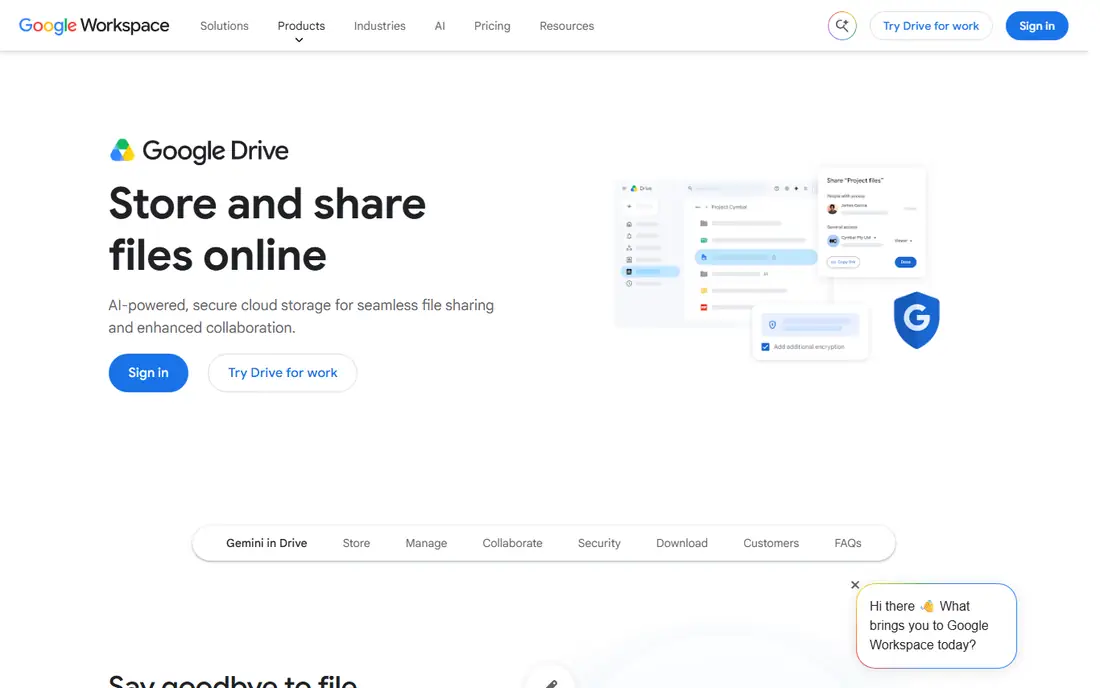
Google Drive is the easiest file sharing choice for anyone already using Gmail, Docs, or Photos. Every Google account includes 15 GB of free storage, and you can share a file or folder with view, comment, or edit access in a few clicks. Recipients can download without a Google account when link sharing is turned on, which removes friction for clients and friends.
The limit is total storage, not just Drive files, since Gmail and Photos share the same 15 GB. Video creators and photographers will need a Google One plan, starting at 100 GB, sooner than expected. If your work already lives in Google tools, Drive is the most practical default.
What we like- 15 GB free storage shared across Google services
- Simple link sharing
- Strong Docs and Sheets integration
Watch out for- Free storage fills quickly with Photos and Gmail
- Large single files count against your total storage
#2Dropbox
Best for: Sync plus one-off transfers4.4/5 on
G2 (31,453 reviews, checked Oct 2026)
Visit dropbox.com
Starting price$9.99 per month
Free planYes
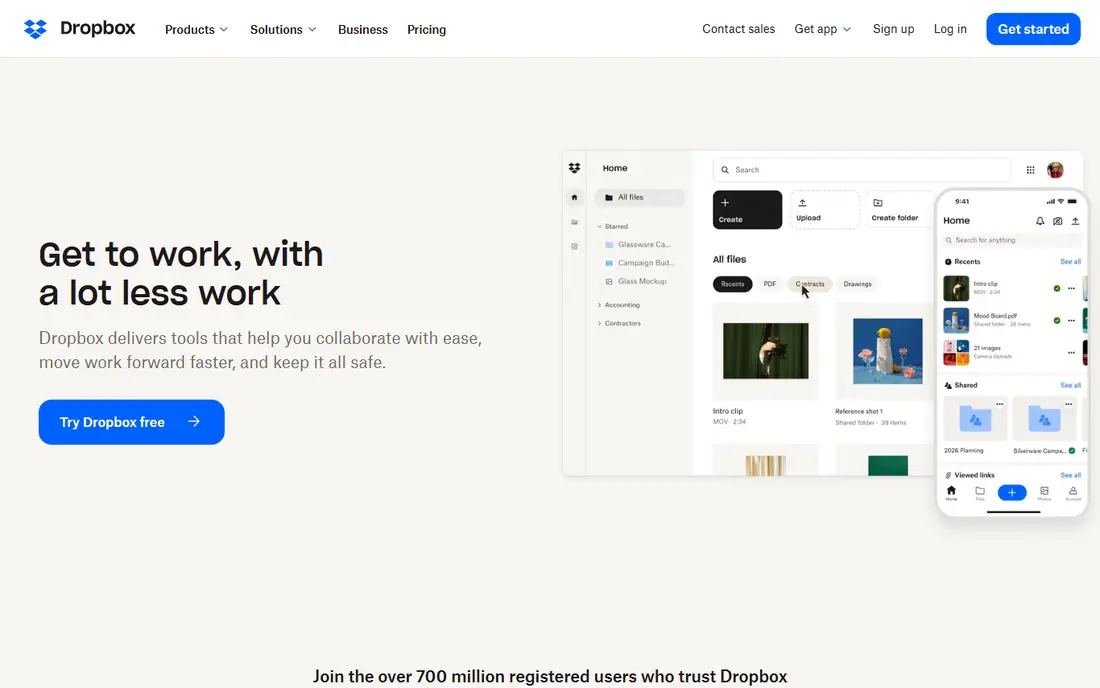
Dropbox built its name on sync that simply works. Files update across phone, laptop, and web without manual uploads, and shared folders keep teams on the same version. Dropbox Transfer adds a separate option for one-off sends, so you can share a finished file without giving access to your main folders.
The free plan is small at 2 GB, which makes Dropbox a paid choice for most serious users. Transfer limits also vary by plan, so check the per-transfer size before you promise a client a large delivery. Dropbox suits teams that want sync and sharing in one dependable app.
What we like- Reliable sync across devices
- Dropbox Transfer for one-off sends
- Previews for many file types
Watch out for- Free plan offers only 2 GB
- Paid plans cost more than some storage-only rivals
#3WeTransfer
Best for: Simple large sends without storage4.6/5 on
G2 (522 reviews, checked Oct 2026)
Visit wetransfer.com
Starting priceSee website
Free planYes

WeTransfer is built for one job: send a file, get a link, move on. You upload files, add recipients or copy a link, and the recipient downloads without joining your storage system. That simplicity is valuable for freelancers sending finished video, design files, or photos to clients who should not see your whole drive.
Free sends are limited, with recent free terms covering smaller transfers and a monthly cap on the number of sends, so check current limits before a large delivery. Paid plans raise transfer size, add password protection, and extend storage time. Choose WeTransfer when you send finished work, not when you need ongoing collaboration.
What we like- Very simple sending flow
- No account needed for basic sends in many cases
- Links expire automatically
Watch out for- Free transfers are limited in size and number
- Password protection and longer storage need a paid plan
#4Microsoft OneDrive
Best for: Sharing inside Microsoft 3654.3/5 on
G2 (10,433 reviews, checked Oct 2026)
Visit onedrive.com
Starting price$1.99 per month
Free planYes
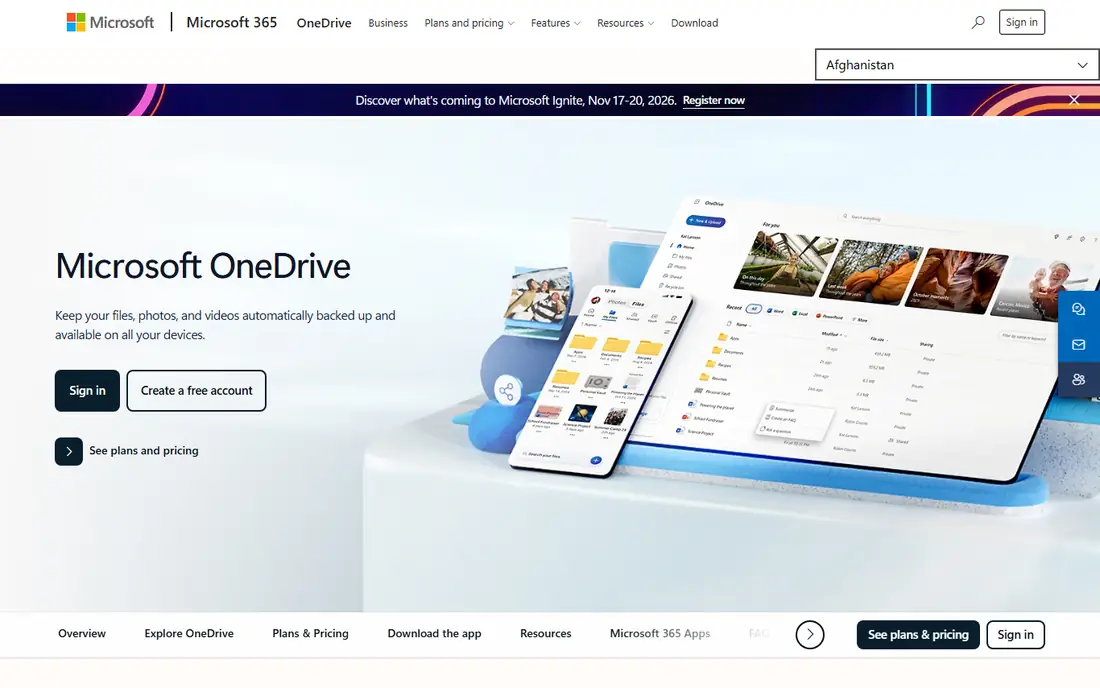
OneDrive is the natural file sharing choice for Microsoft 365 users. You can share directly from Word, Excel, PowerPoint, and Teams, co-edit documents in real time, and control link expiry and permissions from the same menu. Personal plans start with extra storage, while Microsoft 365 plans bundle much larger storage with Office apps.
The standalone free tier is only 5 GB, so it fills quickly with photos and documents. OneDrive also feels less natural if your team uses Google tools every day. For offices, schools, and teams already paying for Microsoft 365, OneDrive is the lowest-friction option.
What we like- Deep Word, Excel, and Teams integration
- 5 GB free
- Simple sharing from Office apps
Watch out for- Free storage is small
- Best value comes with a Microsoft 365 subscription
#5Box
Best for: Business sharing with controls4.2/5 on
G2 (5,259 reviews, checked Oct 2026)
Visit box.com
Starting priceSee website
Free planYes
Box is designed for business file sharing first. Admins can set permissions, expiry dates, watermarks, and access controls, and teams can automate approvals and reviews around shared content. Integrations with Google Workspace, Microsoft 365, Slack, and other business tools help Box fit into existing workflows.
Casual users will find the free personal plan limited, and the interface is more formal than Drive or Dropbox. Box makes sense when you share sensitive work files, need audit trails, or manage access for many staff and outside contacts. For simple personal sharing, a lighter app is usually enough.
What we like- Strong admin controls
- Workflow and compliance features
- Broad app integrations
Watch out for- Personal free plan is limited
- Interface can feel business-heavy for casual users
Starting priceSee website
Free planYes
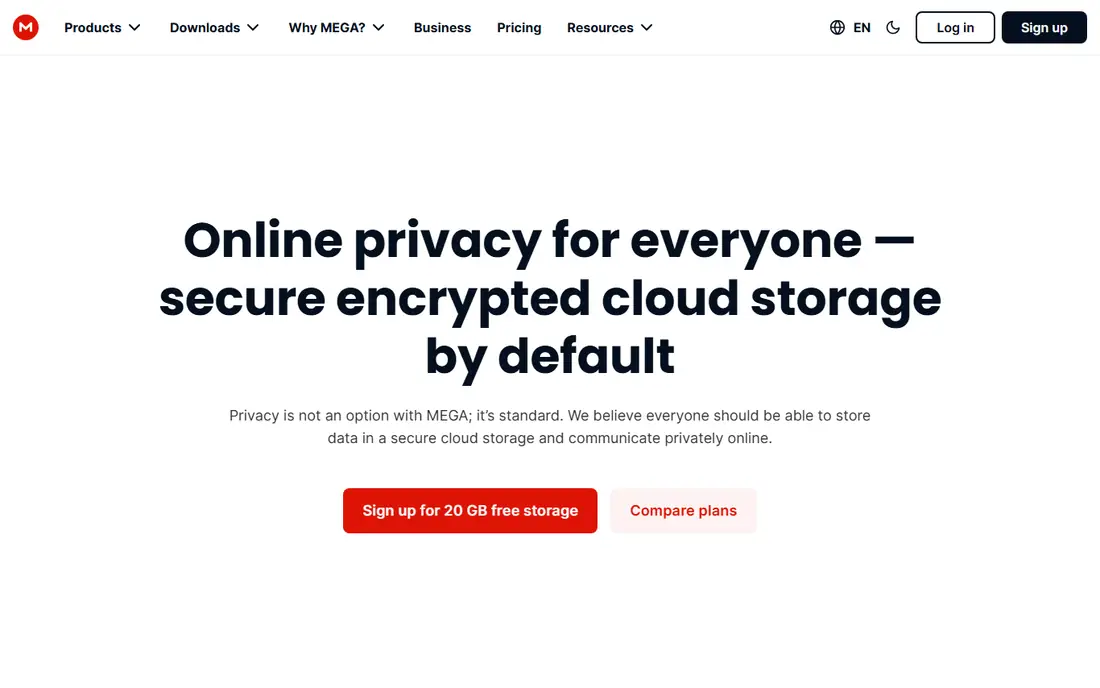
MEGA puts privacy at the center of its sharing model. Files are encrypted before upload in its end-to-end design, so only you and people with the link and key can read them. You can also set passwords and expiry dates on links, which helps when sharing sensitive documents with a small group.
The trade-off is collaboration. Real-time document editing and deep Office or Google integrations are not MEGA strengths, and its free storage, often around 20 GB, is subject to plan terms. MEGA suits people who prioritize private sharing over co-editing, especially for personal files and client documents that should not sit in a shared workspace.
What we like- End-to-end encryption by design
- Generous free storage
- Password-protected links
Watch out for- Collaboration features are thinner than Drive
- Free storage terms can change
#7pCloud
Best for: Lifetime and encrypted storage options4.3/5 on
G2 (166 reviews, checked Oct 2026)
Visit pcloud.com
Starting priceSee website
Free planYes
pCloud offers cloud storage with file sharing, media streaming, and an optional encryption folder for sensitive files. The encryption add-on uses client-side protection, which means files in that folder are encrypted on your device before upload. Lifetime plans are also available for people who prefer a one-time payment over a monthly subscription.
Check the details before you buy, because encryption is not part of the base plan, and lifetime plans cover storage only, not every future feature. pCloud is a good fit for people who want a long-term personal drive, media access on the go, and the option to add stronger encryption for a subset of files.
What we like- Optional client-side encryption add-on
- Lifetime plans available
- Good media playback
Watch out for- Encryption is a paid add-on, not included by default
- Free plan is 10 GB
#8Smash
Best for: Very large transfers with no size cap4.6/5 on
G2 (6 reviews, checked Oct 2026)
Visit fromsmash.com
Starting priceSee website
Free planYes
Smash takes a different approach from storage apps by removing the file size cap that limits many rivals. You can send very large files through a link, with free transfers available and paid plans that remove waiting times and add branding and longer availability. That makes Smash useful for video, audio, and design teams that hit size limits elsewhere.
Smash is not a storage or collaboration tool, so do not use it as a permanent home for files. Free transfers may wait in a queue when demand is high, which matters for urgent deliveries. For a one-off huge send, Smash is one of the most practical options available.
What we like- No fixed file size limit on transfers
- Simple link sharing
- Paid plans speed up large uploads
Watch out for- Free transfers can queue during busy periods
- No ongoing storage or collaboration features
How we chose
We reviewed vendor pricing and feature pages, plus current comparisons of free limits and transfer sizes, and we favored services that are still actively maintained in 2026. We included storage apps, transfer-only apps, and privacy-focused options, because file sharing covers all three jobs. We also noted where a price or limit could not be confirmed from the vendor page at the time of writing, and we used See website in those cases rather than publishing a figure we could not verify.
Choosing between storage and transfer
Storage apps such as Drive, Dropbox, OneDrive, and Box are best when you collaborate, revise, and keep files over time. Transfer apps such as WeTransfer and Smash are best when you deliver a finished file once and do not want the recipient inside your folders. Many people need both, and using one of each is often cheaper than forcing a storage app to act as a delivery tool.
Controls that matter for sensitive files
Check link expiry, password protection, download limits, and whether you can revoke access after sharing. Business users should also check admin controls, audit logs, and whether shared links can be restricted to specific people rather than anyone with the link. For personal files, expiry and password protection are usually enough.
Video, photos, and large projects
Video files grow quickly, and a 2 GB or 5 GB free plan will not hold many projects. Before you send video, confirm the per-file limit, not only total storage, and test a smaller file first if the deadline is tight. For recurring large deliveries, a paid transfer plan or a larger storage plan will save more time than juggling free limits each week.
What to do before you hit send
Preview the file, check the recipient list, and confirm whether the link allows editing or only viewing. A view-only link prevents accidental changes to a final file, while an edit link suits a document still in progress. After delivery, revoke or expire links for sensitive files rather than leaving them live indefinitely.
Frequently asked questions
What is the best free file sharing app?
Google Drive is the best free starting point for most people, with 15 GB shared across Google services and simple link sharing. If privacy matters more, MEGA offers encrypted sharing with a generous free tier, while WeTransfer suits one-off sends without storage.
How large a file can I send for free?
It depends on the service and whether you mean storage or a one-off transfer. Drive and Dropbox limits depend on your total storage, while WeTransfer and Smash set per-transfer limits that change with free and paid plans, so check the current limit on the vendor page before a large send.
Is it safe to share files with a public link?
A link that anyone can open is convenient but risky for sensitive files. Use password protection, set an expiry date, restrict access to specific people when possible, and revoke the link after the recipient has downloaded the file.
Should I use a transfer app or a storage app for client work?
Use a transfer app for finished deliveries that should not give clients access to your workspace. Use a storage app for work in progress, shared folders, and revisions, where both sides need to see the latest version.
Do file sharing apps keep my files after I delete a link?
Deleting a link usually stops new access, but the file may remain in your account until you delete it there as well. For sensitive deliveries, delete both the link and the file from the service once delivery is confirmed, unless you need an archive copy.
Can I share files without an account?
Some transfer services allow sending without a full account for basic transfers, while storage services usually require an account to upload. Recipients can often download from a link without creating an account, which is useful for clients and friends.
Sources we checked (8)
- https://www.drive.google.com
- https://www.dropbox.com
- https://www.wetransfer.com
- https://www.onedrive.com
- https://www.box.com
- https://www.mega.io
- https://www.pcloud.com
- https://www.fromsmash.com
Is your product missing or out of date?
We review this list regularly. Vendors can request a listing, send updated pricing or ask about featured placement.

Shihab Mia · Founder, Rankite
Shihab has 5+ years in B2B and SaaS SEO. He writes Rankite's software buying guides from pricing pages, documentation and public user reviews. More about Shihab.