How we make this list: we compare pricing pages, product documentation and public user reviews. Rankite is independent; if a vendor ever pays for a featured spot, that listing is clearly labeled Partner.
Key takeaways
- CapCut is the default free editor for short-form video, with AI tools and templates built in.
- Canva and Adobe Express combine video editing with design, ideal for branded social content.
- Descript turns long videos and podcasts into social clips by editing the transcript.
- VN and Clipchamp offer free editing with no watermark, a rare combination.
- Filmora bridges beginner simplicity and professional features for growing creators.
Quick comparison
| Tool | Best for | Starting price | Free plan |
|---|
 CapCut CapCut | Fast short-form video editing | Free | Yes |
 Canva Canva | Branded social posts and video | See website | Yes (limited) |
 Adobe Express Adobe Express | Quick branded content with AI | See website | Yes (limited) |
 Descript Descript | Turning long videos into clips | See website | Yes (limited) |
 VN Video Editor VN Video Editor | Free mobile editing, no watermark | Free | Yes |
 Clipchamp Clipchamp | Free browser-based editing | Free | Yes |
 Filmora Filmora | Growing creators and marketers | See website | Free trial |
Is your product missing or out of date?
We review this list regularly. Vendors can request a listing, send updated pricing or ask about featured placement.
Starting priceFree
Free planYes
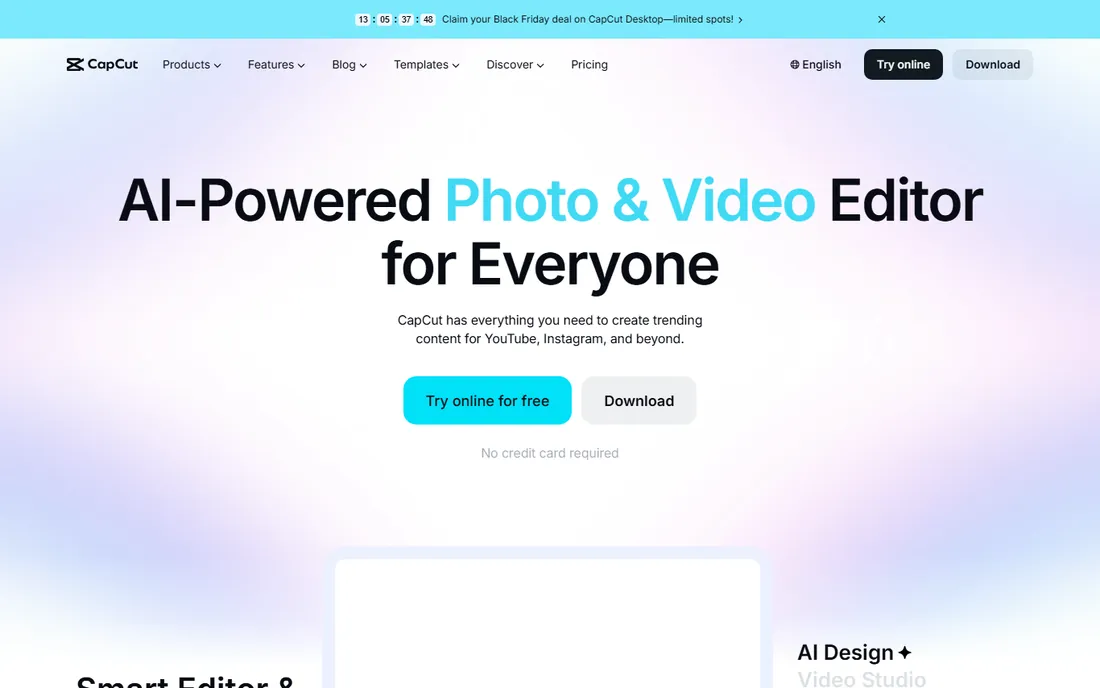
CapCut has become the default editor for short-form creators. The free version covers multi-track editing, auto captions, background removal, and a huge template library for Reels and TikTok, with 1080p export. AI tools generate or enhance video, and text-to-speech creates voiceovers without recording.
It is the fastest route from footage to posted video, and it costs nothing to start. Power users will eventually bump into paid Pro features, but the free tier alone handles what most social posts need. The template library deserves special mention: trending formats arrive constantly, so creators can ride a trend the same day it appears rather than rebuilding it from scratch.
What we like- Free tier is genuinely powerful
- AI captions, background removal, and templates
- Phone, desktop, and browser
Watch out for- Paid tiers needed for premium effects
- Tied to ByteDance's ecosystem
Starting priceSee website
Free planYes (limited)
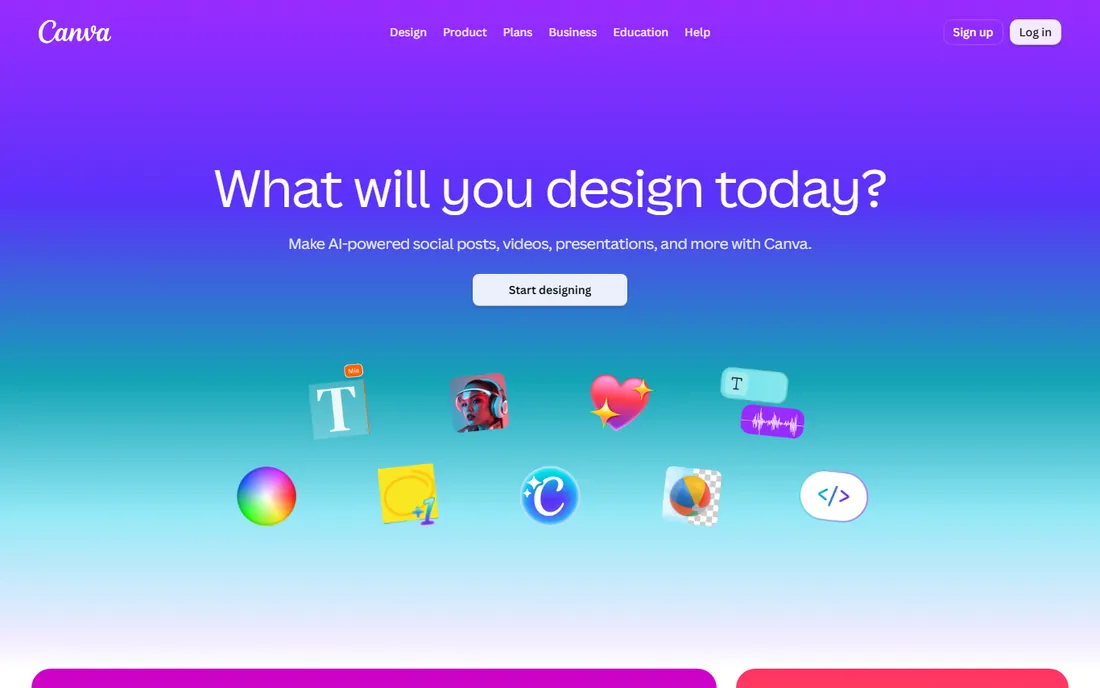
Canva approaches social video from the design side. Trim and arrange clips, add text, graphics, and animations, resize for every platform, and keep brand colors and fonts consistent across a team. For marketers producing announcement videos, Stories, and promos, that design-first workflow beats a traditional timeline.
It will not replace a real NLE for complex edits, but most social content does not need one. The free plan covers the basics; Pro adds the brand and AI features. Teams also benefit from shared folders and approval workflows, which keep a content calendar moving without files bouncing through email.
What we like- Video plus design in one canvas
- Brand kits keep teams consistent
- Massive template library
Watch out for- Not a true timeline editor
- Advanced video features need Pro
Starting priceSee website
Free planYes (limited)
Adobe Express is the quick-creation app: trim, caption, and resize video with one-click tools, generate images and video with Firefly AI designed to be commercially safe, and start from thousands of templates. The AI Assistant builds content from a prompt.
For small businesses already in Adobe's world, it is the fastest way to produce on-brand social content. It is a content maker, not a video editor; longer or complex edits belong in Premiere. The commercially safe AI is a genuine differentiator for brands worried about the legal gray areas of generated imagery.
What we like- Generative AI built for commercial use
- One-click video tools
- Integrates with Creative Cloud
Watch out for- Free plan has limits
- Serious editing needs Premiere
Starting priceSee website
Free planYes (limited)
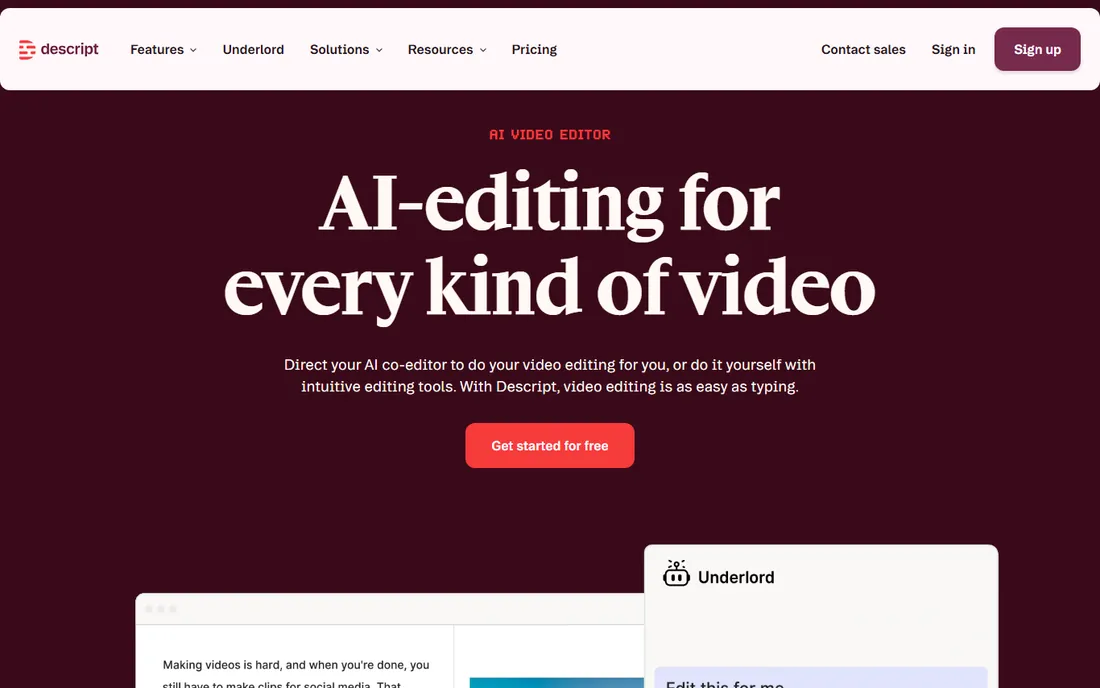
Descript's superpower is text-based editing: record or upload, get a transcript, and cut the video by deleting words. Its Underlord AI turns raw recordings into tight cuts, and Studio Sound cleans audio in one click. Nothing repurposes a podcast or webinar into social clips faster.
Marketers and podcasters get the most from it. Traditional editors who want frame-level control will find it limiting, but for spoken content, it is unmatched. The free plan lets you test the workflow on real projects before committing, which is the honest way to decide whether text editing clicks for you.
What we like- Edit video by editing the transcript
- AI removes filler and silences
- Made for clip repurposing
Watch out for- Not for cinematic editing
- Paid tiers needed for serious volume
Starting priceFree
Free planYes
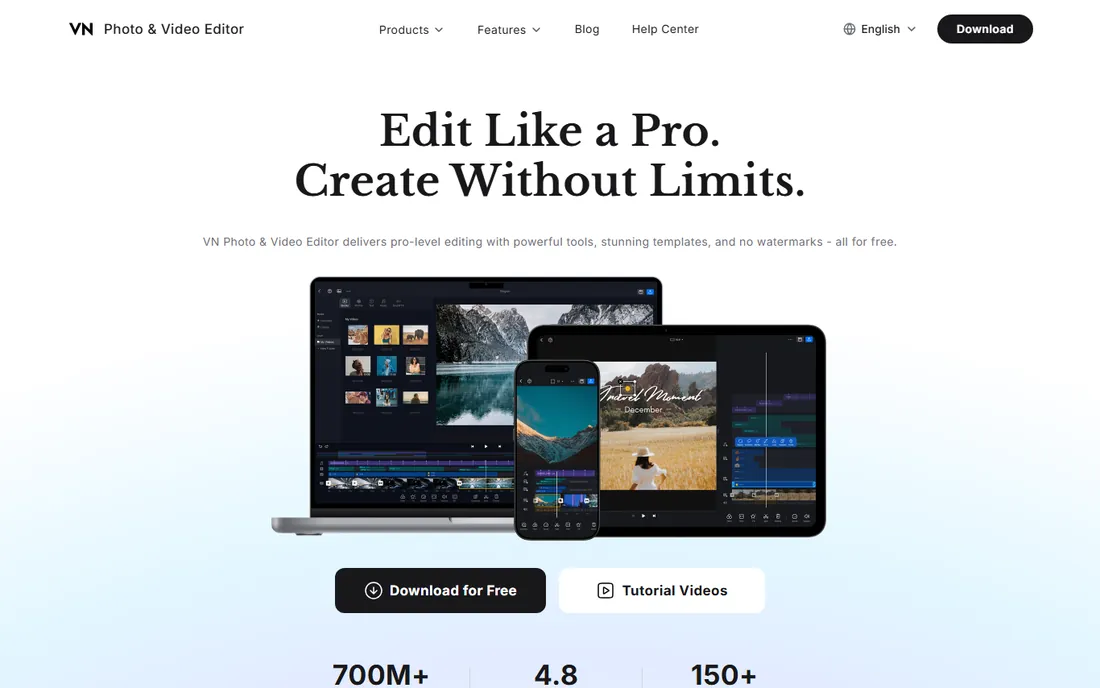
VN is the sleeper pick: a free mobile editor with no watermark, multi-track timeline, keyframes, and templates, rated 4.8 on the App Store with over 700 million downloads. It offers the control CapCut reserves for paid tiers, without charging anything.
Creators who find CapCut's paid upsells annoying should try VN. The learning curve is slightly steeper, but the freedom from watermarks and fees is worth it. Its keyframe and curve tools give mobile editors a level of motion control that feels closer to desktop software than to a phone app.
What we like- Completely free with no watermark
- Pro-level mobile timeline
- 150+ free templates
Watch out for- Smaller ecosystem than CapCut
- Desktop version is basic
Starting priceFree
Free planYes
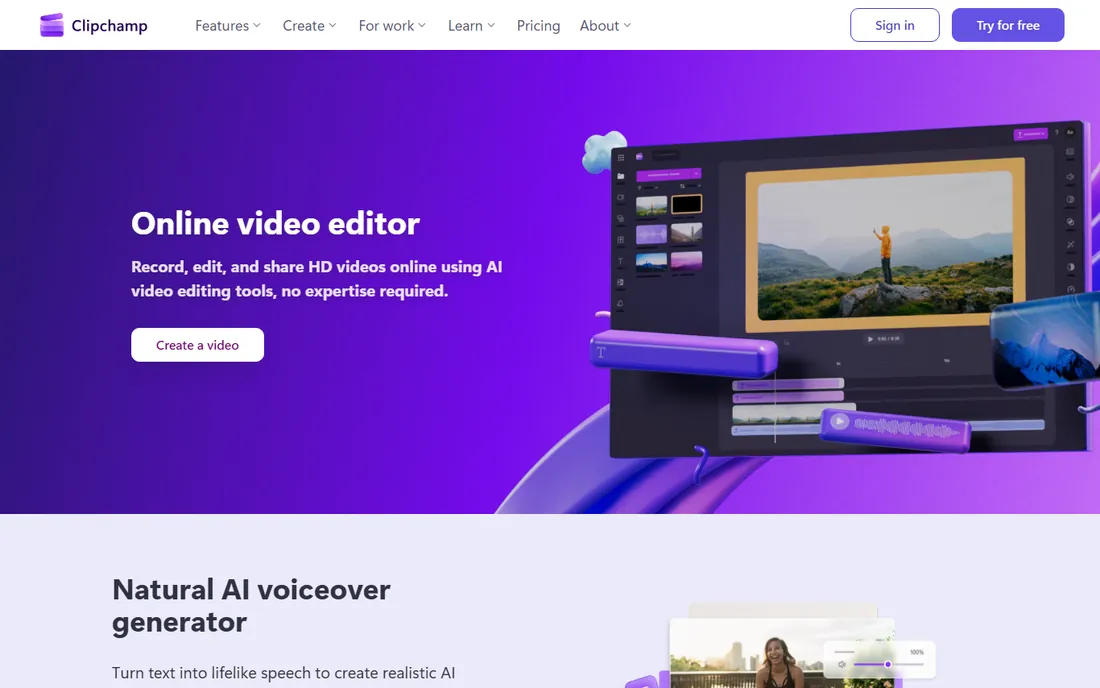
Clipchamp, owned by Microsoft, is the rare browser editor that is genuinely free: unlimited HD exports with no watermark, AI subtitle generation in over 80 languages, text-to-speech voiceovers, and screen recording. It comes with Windows 11.
For teams and beginners who want to edit without installing anything, it is the easiest start in this list. Power users will outgrow it, but as a free social video tool it punches far above its weight. The screen and webcam recorder makes it a solid pick for tutorial creators and internal training videos, not just social posts.
What we like- No download, works in the browser
- Unlimited free HD exports without watermark
- AI captions and voiceovers
Watch out for- Premium features need Microsoft 365
- Browser editing is less snappy than desktop
Starting priceSee website
Free planFree trial
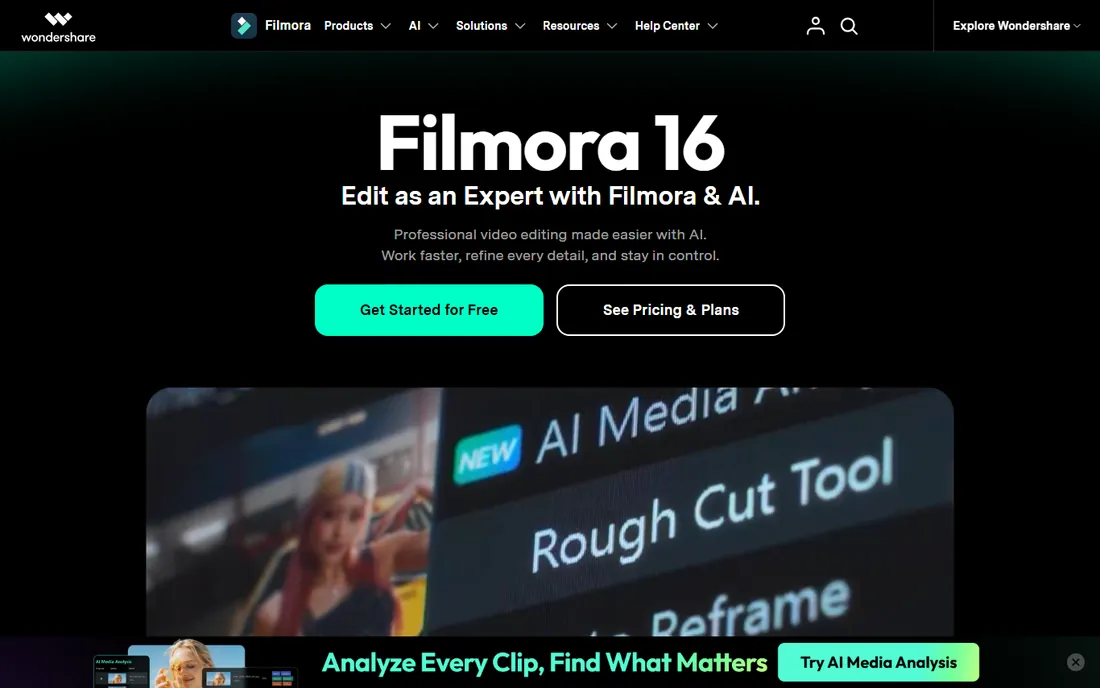
Filmora bridges the gap between simple social editors and professional NLEs. AI media analysis organizes footage, text-based editing speeds rough cuts, and the timeline supports keyframes, camera tracking, and color grading. Over 2.9 million creative assets keep content fresh.
The free trial exports with a watermark, so budget for a plan. For creators outgrowing phone editors but not ready for Premiere, Filmora is the natural next step. The one-time and subscription options give flexibility, and the mobile apps let you start an edit on the phone and finish it on the desktop.
What we like- Beginner-friendly with pro depth
- AI tools for captions, tracking, and cleanup
- Huge asset library
Watch out for- Free exports carry a watermark
- Subscription for full access
How we chose
We reviewed vendor product pages, feature documentation, and creator-focused reviews, comparing free-tier limits, watermark policies, mobile and desktop availability, and social-specific features like auto captions and templates. Every tool had to be currently available with a working website. We did not claim hands-on testing.
Start with your device and format. Phone-first vertical creators should use CapCut or VN; both are free and built for Reels and TikTok. Desktop or browser workers should look at Clipchamp, Canva, or Adobe Express for branded content, and Descript for spoken-word repurposing.
Read the free plan's fine print. "Free" ranges from CapCut's generous tier to Filmora's watermarked trial. If you publish daily, a watermark or export cap will cost you more in workarounds than a subscription costs.
Think about brand consistency if you post as a business. Canva and Adobe Express keep fonts, colors, and logos consistent across a team, which matters more than editing power for most marketing content. Solo creators can prioritize speed and effects instead.
Do not ignore captions. Most social video is watched with the sound off, so auto-caption quality directly affects watch time. CapCut, Descript, and Clipchamp all generate captions well; test which one handles your accent and vocabulary best before you build a workflow around it.
Different platforms reward different editing. TikTok and Reels favor fast cuts, captions, and trending templates: CapCut and VN excel here. YouTube and LinkedIn favor longer, polished videos where Descript's text editing or Filmora's grading earn their keep. Instagram mixes both, which is why Canva's resize-for-every-platform workflow is popular with social managers. Pick the editor that matches where your audience actually watches.
Aspect ratio handling is the practical test. A good social editor reframes one edit for 9:16, 1:1, and 16:9 without starting over. CapCut, Canva, and Filmora all handle this; confirm it works smoothly in whichever tool you shortlist, because manually rebuilding every format gets old fast.
How to keep a social editing workflow fast
Speed is the whole point of social editing, so build a workflow that protects it. Save caption styles, brand colors, and intro and outro clips as reusable presets in whichever tool you choose. CapCut and Canva both support saved templates, and Descript lets you reuse layouts across episodes. Every recurring decision you eliminate is minutes saved on every post.
Separate capture from editing. Batch your filming into one session, then edit in another; switching between the two halves your momentum. Keep raw footage organized by project and date, because the clip you need for next week is always the one you cannot find. A boring folder structure beats a brilliant memory.
Finally, publish natively. Export in the platform's preferred resolution and upload from the app rather than cross-posting watermarked downloads. Platforms quietly deprioritize content with competitor watermarks, so a clean export from CapCut or VN posted directly to Reels will outperform the same video shared sideways from TikTok.
Frequently asked questions
What is the best free video editing software for social media?
CapCut is the best free all-rounder for short-form video, while VN offers free mobile editing with no watermark. Clipchamp is the best free browser option with unlimited watermark-free HD exports. All three are strong enough that most creators never need to pay for editing software at all.
Which editor is best for Instagram Reels and TikTok?
CapCut, built for exactly this: vertical templates, auto captions, effects, and fast export. VN is the free no-watermark alternative with more manual control. Both export in the vertical formats Reels and TikTok expect, so either one works from shoot to post.
Can I edit social media videos without downloading software?
Yes. Clipchamp, Canva, Adobe Express, and CapCut all run in the browser. Clipchamp and Canva are the most capable free browser options.
What is the best tool for turning podcasts into video clips?
Descript. Its text-based editing and AI clip features are purpose-built for repurposing long recordings into shareable social clips.
Do free editors add watermarks?
Some do. Filmora's free trial watermarks exports, while CapCut, VN, and Clipchamp export without watermarks on their free tiers. Always check before committing to a workflow.
Sources we checked (7)
- https://www.capcut.com/
- https://canva.com/
- https://www.adobe.com/express/
- https://www.descript.com/
- https://vlognow.me/
- https://clipchamp.com/
- https://filmora.wondershare.com/
Is your product missing or out of date?
We review this list regularly. Vendors can request a listing, send updated pricing or ask about featured placement.

Shihab Mia · Founder, Rankite
Shihab has spent more than a decade helping SaaS and e-commerce brands grow through search. He writes Rankite's software buying guides from pricing pages, documentation and public user reviews. More about Shihab.