How we make this list: we compare pricing pages, product documentation and public user reviews. Ratings come from G2, Capterra or Trustpilot, with the date we checked them.
Key takeaways
- Notion and Google Workspace cover most planning and document work between them.
- Canva and Grammarly raise the quality of everyday design and writing without specialist skills.
- Slack, Zoom, and Trello keep communication, meetings, and tasks in separate, clear places.
- Dropbox remains a dependable choice for file storage and sharing across devices.
Quick comparison
| Tool | Best for | Starting price | Free plan |
|---|
 Notion Notion | Notes, docs, and team knowledge | $10 per user/month | Yes |
 Google Workspace Google Workspace | Email, docs, and shared files for teams | See website | Free trial |
 Canva Canva | Quick design for non-designers | See website | Yes |
 Slack Slack | Team messaging and channel organization | See website | Yes |
 Zoom Zoom | Video meetings and webinars | See website | Yes |
 Trello Trello | Simple visual task boards | See website | Yes |
 Dropbox Dropbox | File storage and sharing | See website | Yes |
 Grammarly Grammarly | Writing checks across apps | $12 per member/month | Yes |
Is your product missing or out of date?
We review this list regularly. Vendors can request a listing, send updated pricing or ask about featured placement.
#1Notion
Best for: Notes, docs, and team knowledge4.6/5 on
G2 (13,834 reviews, checked Oct 2026)
Visit notion.so
Starting price$10 per user/month
Free planYes
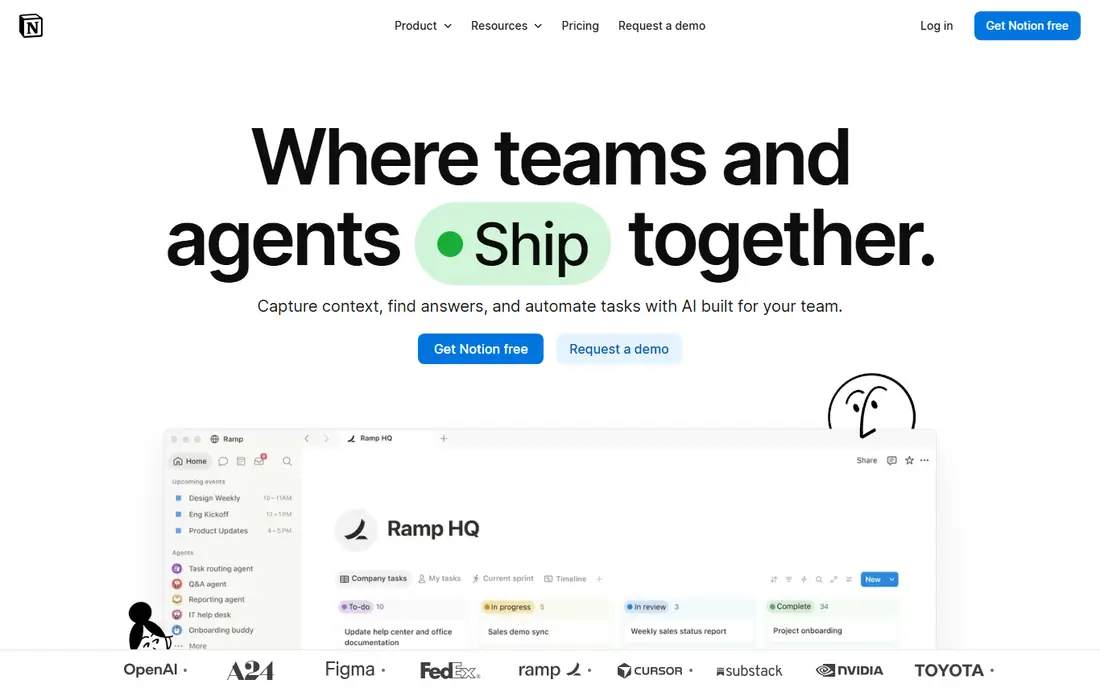
Notion earns the first spot because it can hold so much of a personal or team toolkit in one place. Notes, project boards, databases, docs, and calendars share the same workspace, so a plan, a task list, and the reference material for that plan do not live in three separate apps. Templates help a new user start without building every page from scratch.
The risk with Notion is sprawl. A workspace with no naming rules and no owner for each database becomes hard to search within a few months. Set a simple structure early: one home page, a small set of databases, and a rule for archiving old pages. The free plan suits an individual, while teams should budget for Plus or Business.
What we like- Flexible pages, databases, and docs in one workspace
- Good templates for planning and tracking
- Free plan is useful for individuals
Watch out for- Can become messy without clear structure
- Full AI features require higher tiers
#2Google Workspace
Best for: Email, docs, and shared files for teams4.6/5 on
G2 (48,175 reviews, checked Oct 2026)
Visit workspace.google.com
Starting priceSee website
Free planFree trial
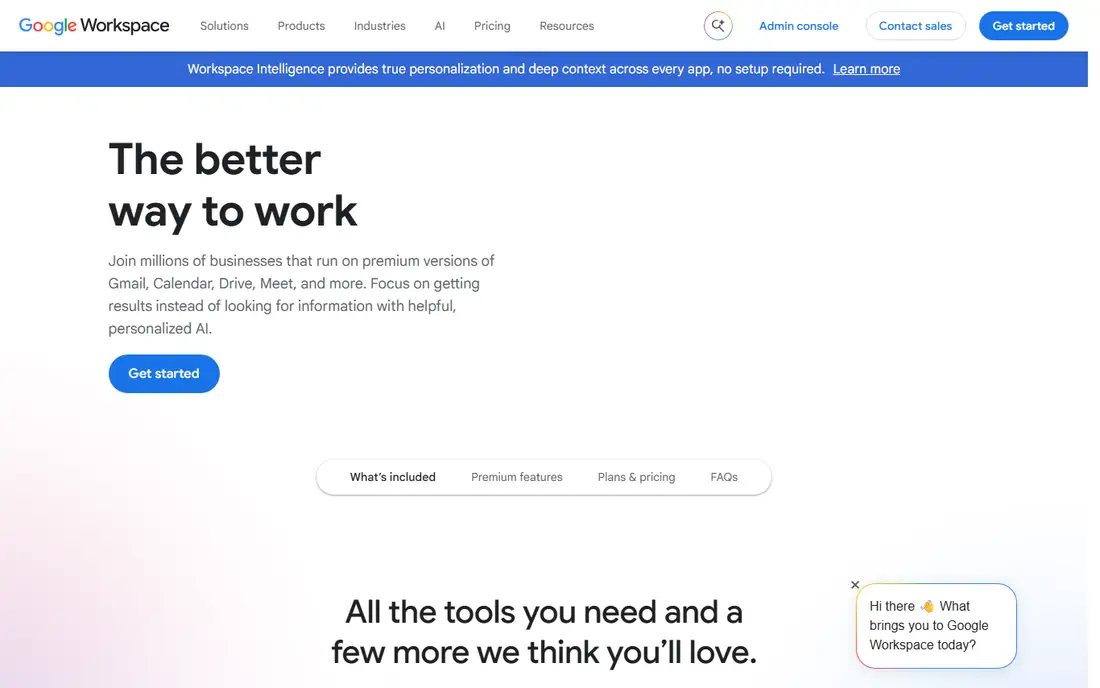
Google Workspace is the safe default for a team that needs email, documents, spreadsheets, and storage under one account. Most collaborators already know Docs and Sheets, so sharing and commenting rarely need training. A business account also adds a custom domain, admin controls, and shared drives for team files.
The choice is mainly about plan and storage. Entry plans cover the core apps, while higher plans add more storage and admin features. A team that relies on large video files or long retention should check storage limits before standardizing on the lowest tier. The 14-day trial is a fair way to check admin setup and migration.
What we like- Gmail, Docs, Sheets, and Drive together
- Real-time collaboration that most people already know
- Admin controls for business accounts
Watch out for- Storage and AI features vary by plan
- Switching away later takes planning
#3Canva
Best for: Quick design for non-designers4.7/5 on
G2 (7,678 reviews, checked Oct 2026)
Visit canva.com
Starting priceSee website
Free planYes
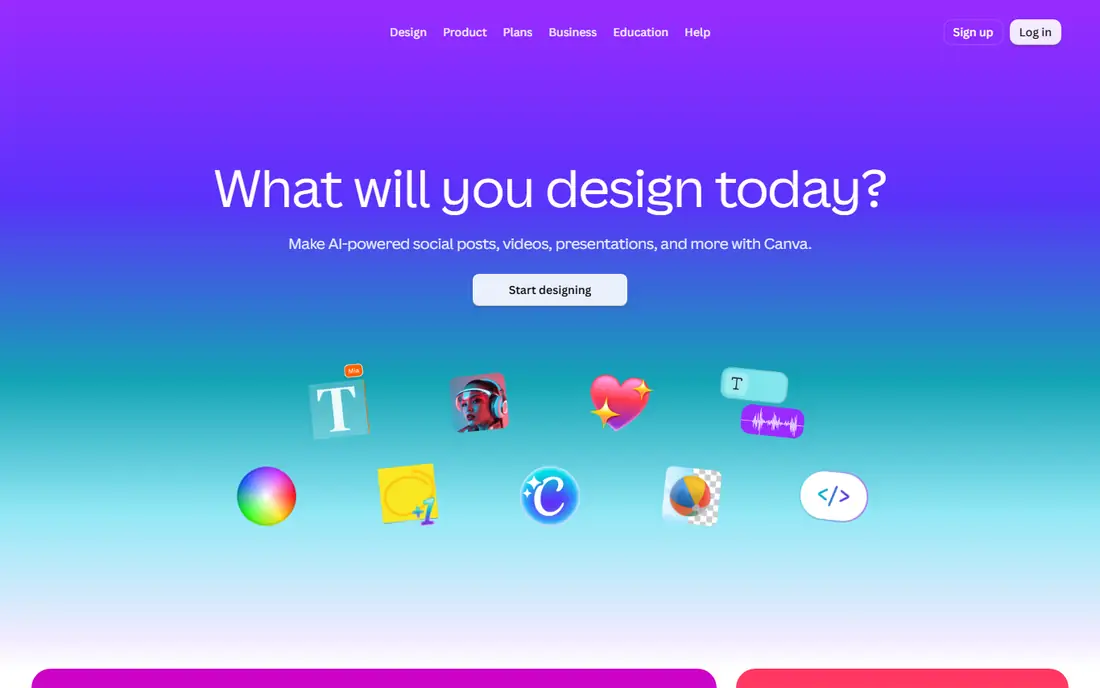
Canva belongs in a general toolkit because so much daily work now needs a visual: a social post, a slide, a flyer, a simple video thumbnail. Templates let a non-designer produce clean work quickly, and brand colors and fonts can be saved so every output looks consistent. For a small business, that consistency matters more than advanced illustration tools.
Canva does not replace professional design software for print production or complex illustration, and that limit should be clear from the start. Use it for fast, everyday design, and keep a designer or a more advanced tool for work that needs precise color, layout, or file control. The free plan covers a surprising amount of daily needs.
What we like- Thousands of templates for social, slides, and print
- Brand kit and team folders on paid plans
- Easy exports for common formats
Watch out for- Not a replacement for professional design software
- Some premium assets require a paid plan
#4Slack
Best for: Team messaging and channel organization4.5/5 on
G2 (39,944 reviews, checked Oct 2026)
Visit slack.com
Starting priceSee website
Free planYes
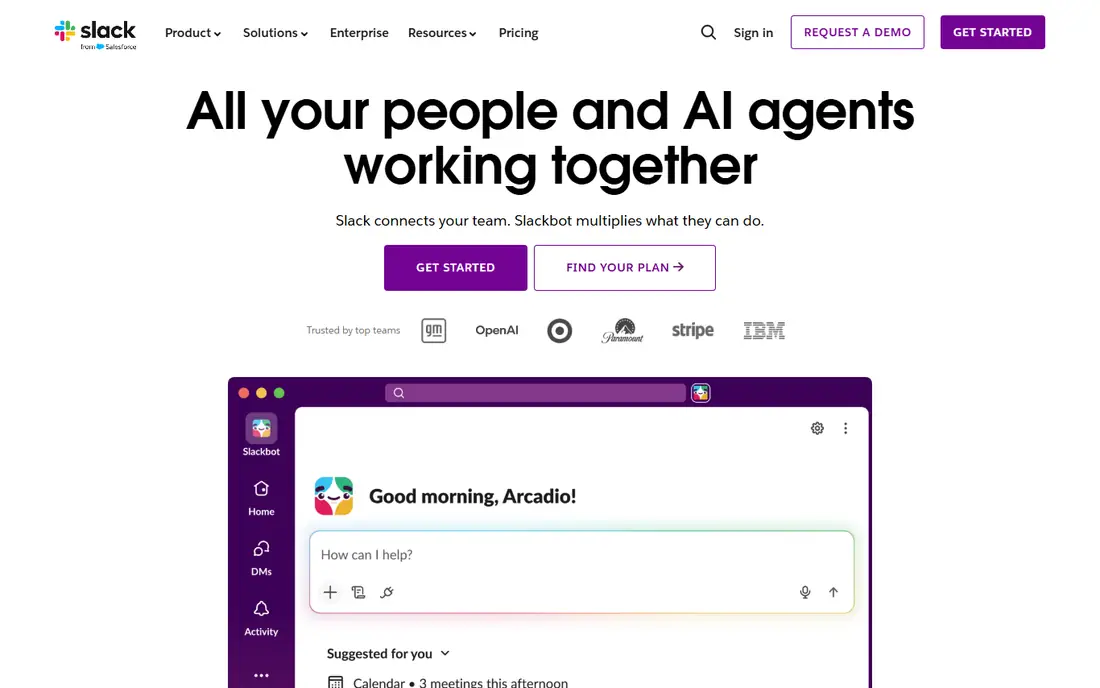
Slack replaces long email threads with channels organized by topic, project, or team. A question, its answer, and the related files stay in one place, which makes it easier for a new team member to catch up. Integrations bring alerts from other tools into the channel where the work happens, so fewer updates get lost in an inbox.
Slack needs the same discipline as any inbox. Too many channels, too many notifications, and no archiving rule will turn it into noise. Set channel naming rules, mute low-priority channels, and archive finished projects. The free plan works for a small team, while paid plans matter when full message history becomes important.
What we like- Channels keep topics separate from email
- Huge integration catalog
- Searchable message history on paid plans
Watch out for- Message history limits apply on the free plan
- Channel sprawl needs active management
Starting priceSee website
Free planYes
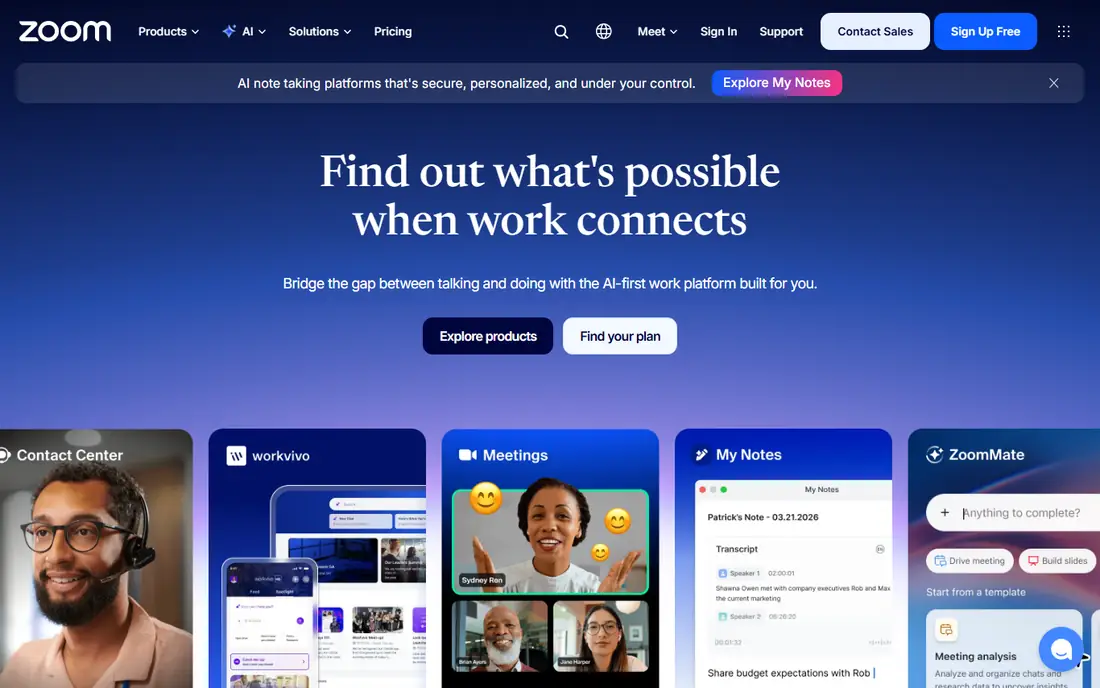
Zoom remains the meeting tool that guests are least likely to struggle with, and that familiarity is a real feature. A host can start a meeting, share a screen, record the session, and send a follow-up without asking attendees to install an unfamiliar app. Webinar and phone options extend the same platform when a team outgrows basic meetings.
The free plan limits group meeting length, so a team that meets daily should budget for a paid plan. Check which features sit in the base plan and which require an add-on, especially for webinars, large meetings, and phone service. For most small teams, the paid Workplace plan covers the core need.
What we like- Reliable video meetings that most guests know
- Webinar, phone, and chat options in one platform
- Recording and captions on many plans
Watch out for- Meeting time limits apply on the free plan
- Add-ons can raise the total cost
#6Trello
Best for: Simple visual task boards4.4/5 on
G2 (14,064 reviews, checked Oct 2026)
Visit trello.com
Starting priceSee website
Free planYes
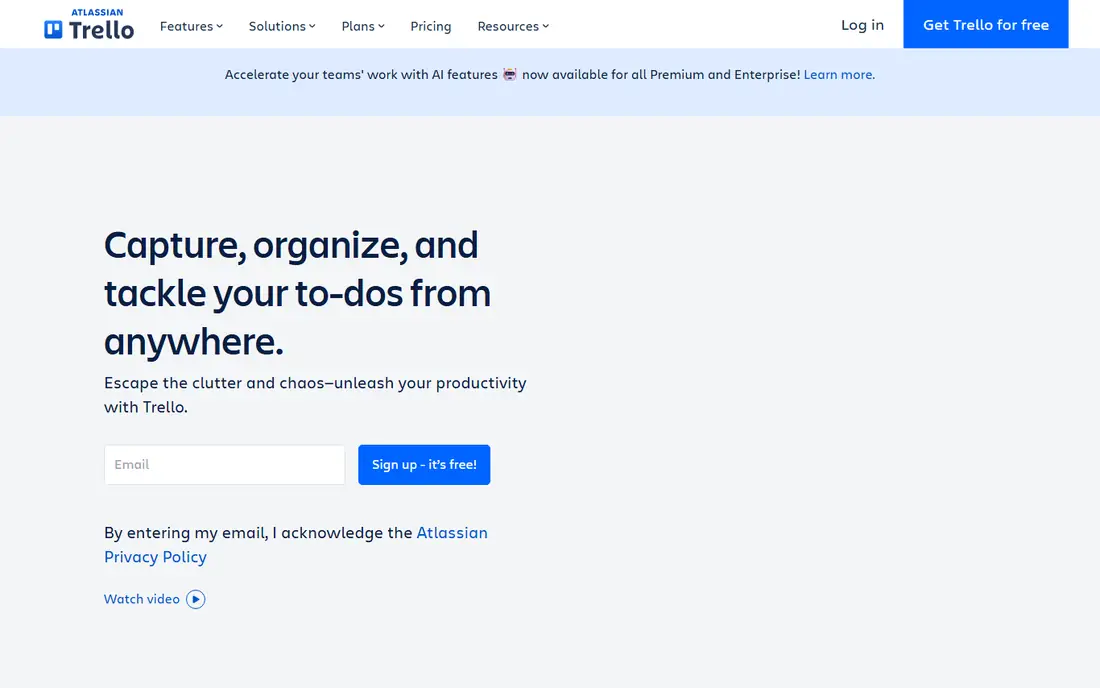
Trello is the simplest way to make work visible. A board shows what is to do, what is in progress, and what is done, and a card can hold a checklist, a due date, an attachment, and a comment. That clarity helps a small team or a solo worker who does not need a full project management suite.
Trello shows its limits on larger projects. Reporting, workload views, and cross-board planning require higher plans or add-ons, and a board with hundreds of cards needs regular archiving. Use Trello when the work is a clear flow of tasks, and pick a fuller project tool when dependencies and reporting drive the work.
What we like- Boards, lists, and cards are easy to learn
- Power-Ups add calendars, automation, and integrations
- Free plan covers basic boards
Watch out for- Weak for complex project reporting
- Large boards need careful organization
#7Dropbox
Best for: File storage and sharing4.4/5 on
G2 (31,453 reviews, checked Oct 2026)
Visit dropbox.com
Starting priceSee website
Free planYes
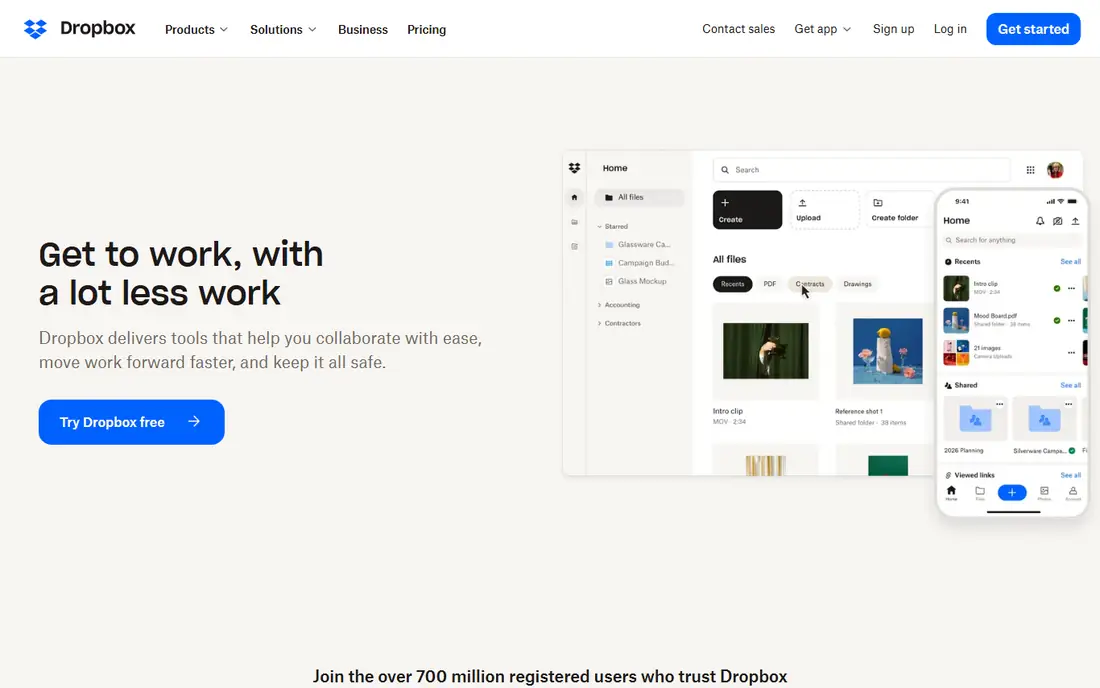
Dropbox is a dependable home for files that need to be shared and synced across devices. A folder can be shared with a client, a contractor, or a team, with permission controls that limit who can edit. Version history helps when a file is overwritten by mistake, and the mobile apps make files available away from a desk.
The main decision is storage. The free plan is small, so a team with large media files should compare Plus and Business storage before committing. Dropbox also works well alongside Google Workspace or Notion, because it focuses on files rather than trying to be a full office suite.
What we like- Reliable sync across devices
- Simple sharing links with permission controls
- File version history on paid plans
Watch out for- Storage limits matter on lower plans
- Advanced collaboration features cost more
#8Grammarly
Best for: Writing checks across apps4.7/5 on
G2 (14,073 reviews, checked Oct 2026)
Visit grammarly.com
Starting price$12 per member/month
Free planYes
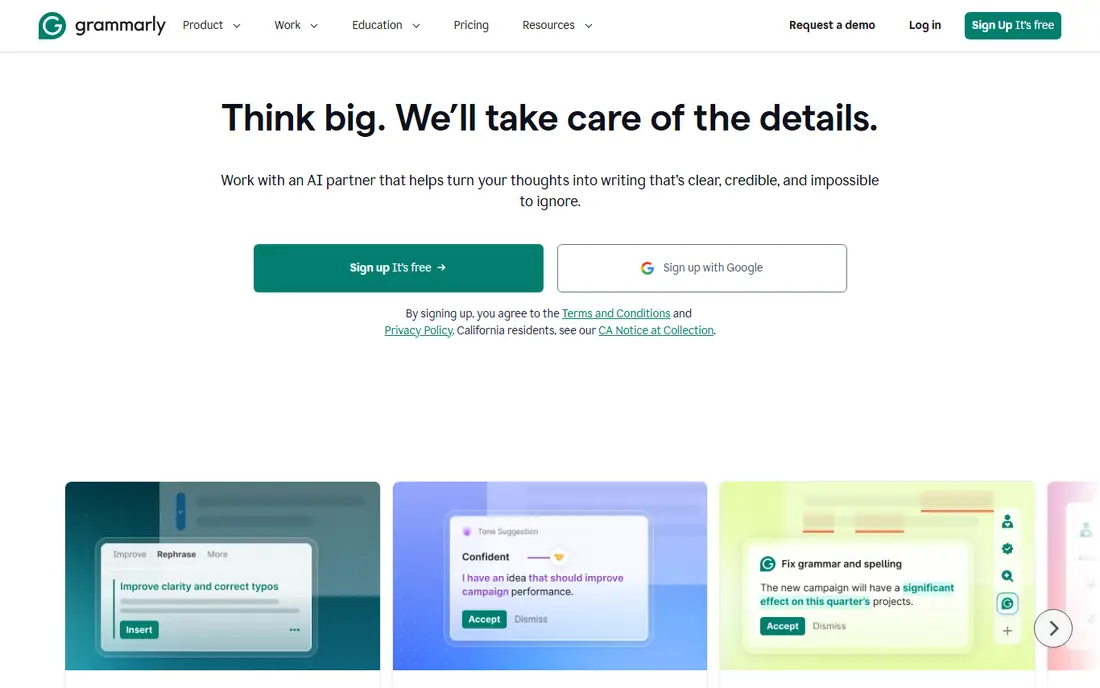
Grammarly fits a toolkit because writing now happens everywhere: email, docs, chat, and social posts. The tool checks grammar, clarity, and tone as a person types, which catches errors that a quick read often misses. For a team that publishes client-facing writing, that extra pass raises the standard without adding a formal review step to every message.
Grammarly is an aid, not an editor. It can suggest a clearer sentence, but it cannot judge whether a claim is accurate or whether a message is appropriate for the reader. Pro adds full-sentence rewrites and brand tone controls, while the free plan covers the basic checks that most individuals need.
What we like- Grammar, clarity, and tone suggestions in many apps
- Works in browsers, docs, and email
- Free plan covers basic writing checks
Watch out for- Suggestions still need human judgment
- Full sentence rewrites require Pro
How we chose
We compared vendor pricing pages and product documentation with public reviews on G2, Capterra, and Reddit, looking for tools that are currently available, widely used, and useful across different kinds of work. We checked learning curve, free plan value, collaboration features, and how well each tool fits with the others in the list. We did not claim hands-on testing, and we did not invent ratings or user counts.
Where a price could not be verified on the vendor pricing page during this review, the table says See website. Check the current plan page before buying, because free limits and storage tiers change.
Start with the four jobs that happen every day: writing, planning, communicating, and storing files. Pick one strong tool for each job before adding extras. A second tool for the same job usually adds confusion, not capability, unless the team has a clear reason for both.
Review the toolkit once a quarter. Cancel tools that duplicate another app, archive boards and channels that are finished, and check storage and seat counts against the actual team size. A toolkit that grows without review slowly becomes the problem it was meant to solve.
Keep the count low
Eight tools can already feel like a lot. If a new tool does not replace an existing one or fill a clear gap, wait before adding it. Fewer tools mean fewer logins, fewer bills, and less time spent searching for where a file lives.
Use free plans first
Most tools here offer a free plan or trial. Use that period for real work, not just a tour, and check the limits that matter: storage, history, meeting length, and team seats.
Set simple rules
Agree on where docs live, how tasks are named, and which channel is for which topic. Tools do not create order on their own; a few shared rules do.
Frequently asked questions
What are the best digital tools for a small team?
Notion, Google Workspace, Slack, and Zoom cover most small-team needs, with Trello for tasks and Dropbox for files. Add Canva and Grammarly when design and writing quality matter daily.
Can I use these tools for free?
Yes, in part. Notion, Canva, Slack, Zoom, Trello, Dropbox, and Grammarly all offer free plans, while Google Workspace offers a trial. Free limits on storage, history, and meeting length are the usual reason to upgrade.
Do I need both Notion and Google Workspace?
Not always. Google Workspace covers email and office docs, while Notion covers flexible notes and databases. Many teams use both, but a solo worker may be fine with one plus a task tool.
Which tool should I start with?
Start with the job that causes the most friction now. If files are scattered, start with Dropbox or Google Drive. If tasks are unclear, start with Trello or Notion. Fix the biggest pain first.
Are these tools good for personal use too?
Yes. All eight work for personal projects, study, and freelance work, and the free plans are often enough for an individual. Paid plans mainly add team features, storage, and history.
How often should I review my toolkit?
Review it once a quarter. Check seats, storage, and whether each tool is still used weekly. Cancel or downgrade anything that has become a duplicate.
Sources we checked (8)
- https://www.notion.so
- https://workspace.google.com
- https://www.canva.com
- https://slack.com
- https://zoom.us
- https://trello.com
- https://www.dropbox.com
- https://www.grammarly.com
Is your product missing or out of date?
We review this list regularly. Vendors can request a listing, send updated pricing or ask about featured placement.

Shihab Mia · Founder, Rankite
Shihab has 5+ years in B2B and SaaS SEO. He writes Rankite's software buying guides from pricing pages, documentation and public user reviews. More about Shihab.