How we make this list: we compare pricing pages, product documentation and public user reviews. Rankite is independent; if a vendor ever pays for a featured spot, that listing is clearly labeled Partner.
Key takeaways
- An external drive is only as good as the software writing to it: pick a tool with scheduled image backups and a bootable rescue media builder.
- Free is genuinely enough for most home users: Veeam Agent, AOMEI Backupper Standard, EaseUS Todo Backup Free and Paragon Backup and Recovery CE all back up to USB drives at no cost.
- Acronis Cyber Protect Home Office (from $49.99/year) is the fullest package, adding anti-ransomware and cloud storage to local backups.
- Mac owners choosing between Time Machine and a third-party tool should look at Carbon Copy Cloner for cloning and scheduling control.
- NovaBACKUP (€99.95/year for PC with Cloud) is the pick if you want the external drive plus an offsite copy in one product.
Quick comparison
| Tool | Best for | Starting price | Free plan |
|---|
 Acronis Cyber Protect Home Office Acronis Cyber Protect Home Office | Households that want backup, anti-malware and cloud storage in one subscription | $49.99/year | Free trial |
 Macrium Reflect Macrium Reflect | Windows users who care about imaging quality and restore reliability | See website (annual subscription) | Free trial |
 EaseUS Todo Backup EaseUS Todo Backup | Beginners who want backup software that explains itself | See website | Yes |
 AOMEI Backupper AOMEI Backupper | Home users who want free backup plus free disk cloning | See website | Yes |
 Veeam Agent for Windows Veeam Agent for Windows | Users who want one solid free backup job with enterprise DNA | Free | Yes |
 NovaBACKUP NovaBACKUP | Users who want the external drive copy plus an offsite copy in one product | €99.95/year (PC with Cloud, includes 1TB cloud storage) | Free trial (15 days) |
 Paragon Backup and Recovery Paragon Backup and Recovery | Users who want capable free imaging with no account required | Free (Community Edition) | Yes |
 Carbon Copy Cloner Carbon Copy Cloner | Mac users who want more control than Time Machine offers | See website | Free trial (30 days) |
Is your product missing or out of date?
We review this list regularly. Vendors can request a listing, send updated pricing or ask about featured placement.
Backup software for external hard drives, compared
Here is the mistake almost everyone makes: they buy the external drive, drag a few folders onto it once, and call it a backup. Six months later the drive holds a stale copy of half their files and nothing of the system that runs them. Backup software exists to close that gap: scheduled runs, full system images, incremental updates, and a rescue disk that boots when Windows will not. These eight tools are the ones worth installing, from free workhorses to the paid suites that add security and cloud storage.
#1
Acronis Cyber Protect Home Office
Best for: Households that want backup, anti-malware and cloud storage in one subscription
Visit acronis.com
Starting price$49.99/year
Free planFree trial
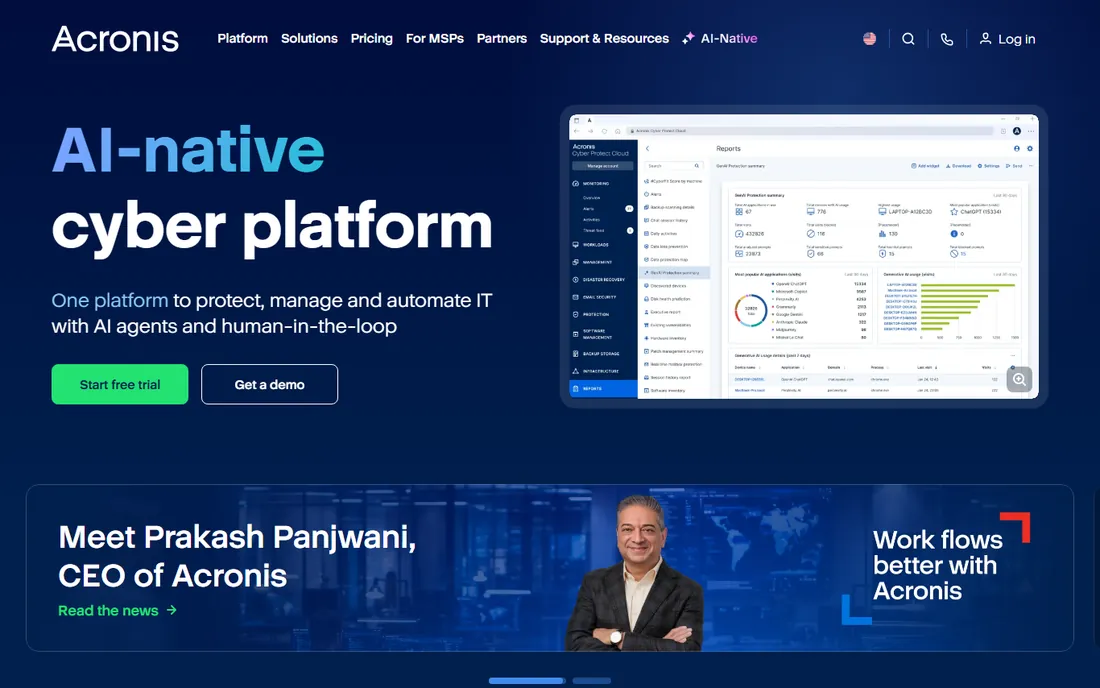
Acronis is the everything option. Cyber Protect Home Office (the current name for the old True Image) does full image backup to your external drive, backs up to network storage and its own cloud, and layers on ransomware protection that guards the backups themselves. Plans start at $49.99 per year for a single computer, with higher tiers adding cloud storage and identity protection. For a family with several machines and phones, one subscription covers the lot.
The trade is that you are buying a security suite that does backup, not a pure backup tool. It runs heavier than the free imagers below, and the subscription never ends. If you want one product that handles backup and protection together, this is it. If you only need a scheduled image of your PC to a USB drive, the free tools do that without the yearly bill.
What we like- Full-disk imaging plus file backup to external drives, NAS or Acronis Cloud
- Built-in anti-ransomware that watches backup files
- Covers Windows, Mac, iOS and Android under one account
Watch out for- Annual subscription with no perpetual option
- The security extras add weight some users do not want from a backup tool
#2
Macrium Reflect
Best for: Windows users who care about imaging quality and restore reliability
Visit macrium.com
Starting priceSee website (annual subscription)
Free planFree trial
Macrium Reflect has been the technicians choice for Windows imaging for years, and Reflect X brought it current. It images disks and partitions to external USB drives, does incremental and differential chains, builds WinPE rescue media, and restores fast. The free version that made its name is gone from the current lineup, so check the trial and the current subscription pricing on Macrium's site before committing.
What you are paying for is restore confidence. Macrium's rescue environment and delta restore are the parts reviewers consistently praise, and that matters at 2 a.m. when the SSD dies. Beginners may find the interface dense compared with EaseUS or AOMEI. For anyone who has been burned by a backup that would not restore, Macrium is the safe pair of hands.
What we like- Fast, reliable disk imaging with a long track record
- Rescue media builder and rapid delta restore
- Strong scheduling and retention rules
Watch out for- Moved to subscription pricing with Reflect X
- Interface assumes you know what an image backup is
#3
EaseUS Todo Backup
Best for: Beginners who want backup software that explains itself
Visit easeus.com
Starting priceSee website
Free planYes
EaseUS Todo Backup is the easiest recommendation for someone setting up their first real backup. The free version covers system backup, disk and partition imaging, file backup and bootable rescue media, which is more than most paid tools offered a decade ago. The interface walks you through each job in plain language, and PCWorld testing has praised its speed. Paid tiers add Outlook backup, faster support and cloud storage options.
The free version is not a trial; it does not expire. Advanced users will notice missing pieces like some backup schemes and priority support, which sit in the paid Home edition. For an external-drive backup routine on a home PC, the free tier is complete enough that many users never pay.
What we like- Genuinely useful free version including system backup and rescue media
- Clear step-by-step interface
- Fast imaging speeds in independent tests
Watch out for- Free version omits some advanced scheduling
- Upsell prompts for the paid tiers appear in the interface
#4
AOMEI Backupper
Best for: Home users who want free backup plus free disk cloning
Visit aomeitech.com
Starting priceSee website
Free planYes

AOMEI Backupper Standard is the free tool that keeps showing up in technician toolkits. It backs up the system, disks, partitions and files to external drives, clones disks for SSD upgrades, syncs folders, and runs scheduled jobs, all without paying. The paid Professional edition adds universal restore to different hardware, command-line backup and priority support for users who manage several machines.
For the external-hard-drive use case, Standard covers it: schedule a weekly system image to the USB drive and forget it. AOMEI offers no cloud of its own, so offsite copies need your own storage. If cloning is on your list too, say for migrating to a bigger drive, AOMEI doing both jobs free is hard to beat.
What we like- Free Standard edition includes system backup, disk clone and file sync
- Scheduled backups in the free tier
- Straightforward interface
Watch out for- No proprietary cloud storage
- Some advanced features (dissimilar hardware restore, PXE boot) need the paid Pro edition
#5
Veeam Agent for Windows
Best for: Users who want one solid free backup job with enterprise DNA
Visit veeam.com
Starting priceFree
Free planYes
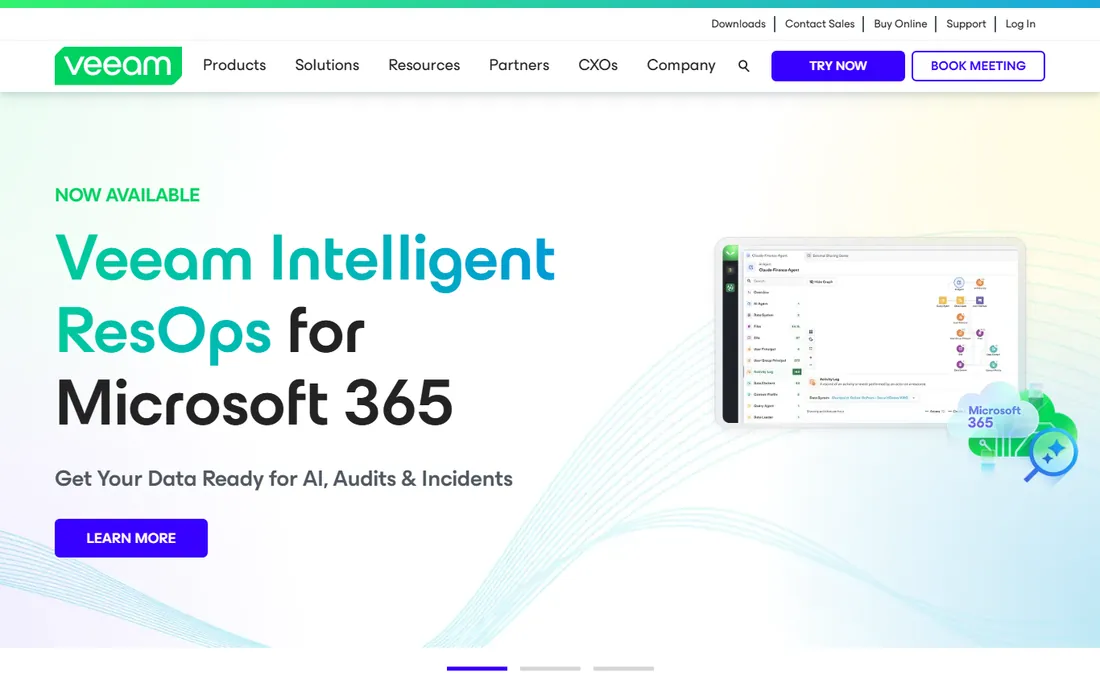
Veeam Agent is the odd one on this list: enterprise backup DNA, free for personal use. The free edition backs up the entire computer, volumes or files to an external drive, a network share or a Veeam repository, with scheduling and a recovery media builder. It is the same engine Veeam sells to data centers, minus the management console and multi-job flexibility.
The limits are deliberate. One backup job per machine in the free edition, and you register an account to download it. For a single PC backing up to a single external drive, one job is exactly what you need. IT folks who already trust Veeam at work tend to install this at home and never think about backup again.
What we like- Free edition does full image backup to external drive or network share
- Recovery media creation built in
- From the vendor behind enterprise backup, so the engine is proven
Watch out for- Free edition limited to one backup job
- Download requires creating a Veeam account
#6
NovaBACKUP
Best for: Users who want the external drive copy plus an offsite copy in one product
Visit novabackup.com
Starting price€99.95/year (PC with Cloud, includes 1TB cloud storage)
Free planFree trial (15 days)
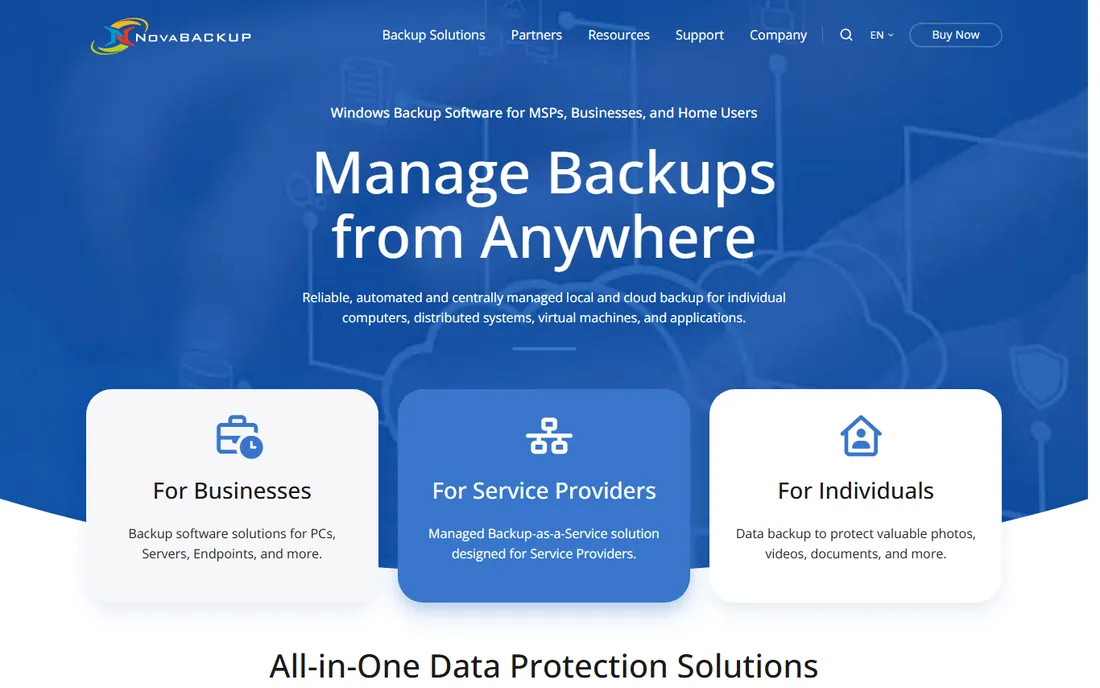
NovaBACKUP answers the question every backup guide asks: what if the house burns down with the external drive in it? The PC with Cloud plan pairs local backup to your USB drive with 1TB of cloud storage in one subscription at €99.95 per year. You get file and image backup, scheduling, encryption and bare-metal restore, plus support from a company that has done backup since the 1980s.
The obvious comparison is a free local tool plus a separate cloud backup subscription, which can cost less in total. NovaBACKUP's case is simplicity: one vendor, one interface, one bill, and the offsite copy actually happens because it is built in. The 15-day trial is full-featured, so test the cloud upload speed on your connection before paying.
What we like- Local backup to any drive plus 1TB of NovaBACKUP cloud in one subscription
- File and image backup with AES encryption
- US-based support with a long track record
Watch out for- Priced in euros on the vendor page
- The cloud bundle costs more than local-only tools if you never use the offsite copy
Starting priceFree (Community Edition)
Free planYes
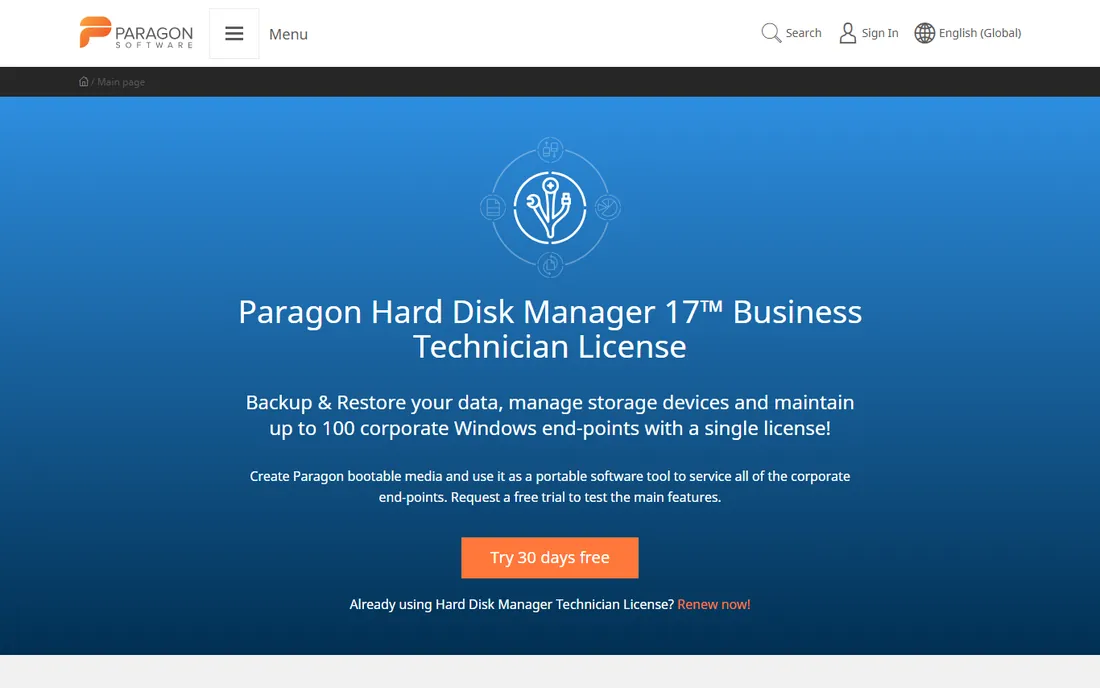
Paragon's Backup and Recovery Community Edition is the quiet free option. It does file backup and full disk imaging with incremental support, scheduled jobs, password protection and a WinPE-based recovery environment, free for personal use and downloadable without creating an account. Paragon has sold storage software since 1994, and the imaging engine shows it.
The interface will not win design awards, and power features like advanced partitioning sit in the paid Hard Disk Manager. But for imaging a Windows PC to an external drive on a schedule, the Community Edition asks for nothing and delivers the essentials. It is a good fit for a second PC or a relative's computer where you want set-and-forget without license management.
What we like- Community Edition is free for non-commercial use with no registration
- File and full-disk image backup with scheduling
- WinPE recovery media builder
Watch out for- Interface feels dated next to EaseUS and AOMEI
- Advanced features live in the paid Hard Disk Manager suite
#8
Carbon Copy Cloner
Best for: Mac users who want more control than Time Machine offers
Visit bombich.com
Starting priceSee website
Free planFree trial (30 days)
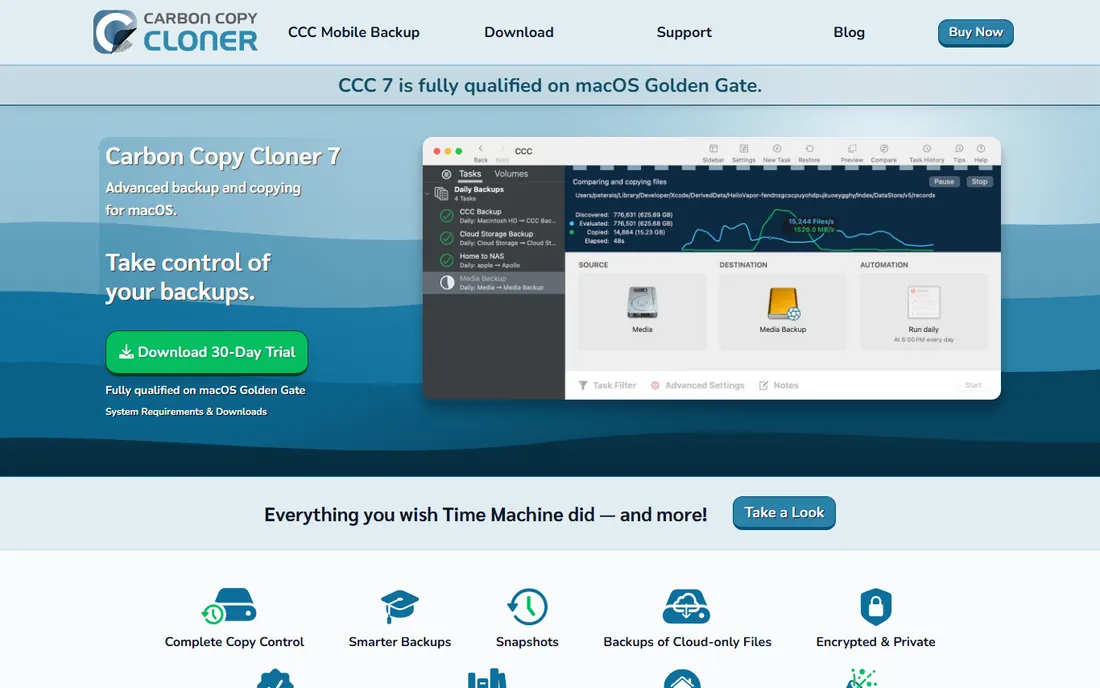
Carbon Copy Cloner is the Mac answer to this whole category. Where Time Machine runs on its own rigid schedule, CCC lets you clone drives exactly, keep versioned backups on an external disk, browse snapshots of how files looked at specific times, and schedule tasks your way. The 30-day trial is fully functional with no account or card required, which tells you plenty about how the vendor treats customers.
The price is per household, and upgrades have historically been discounted for existing owners. Apple Silicon Macs changed some cloning behaviors, so check the current version's notes for your machine. For Mac users whose external drive deserves better than an unmanaged Time Machine volume, CCC is the long-standing pick.
What we like- Exact clones plus versioned backups to external drives
- Snapshot navigator to browse backup history
- Scheduling far more flexible than Time Machine
Watch out for- Mac only
- Paid license after the 30-day trial, no free tier
How to choose backup software for an external drive
Start with the destination. Every tool here writes to USB external drives, but check the details: does it handle drives that disconnect and reconnect, can it wake the drive for a scheduled run, and does it verify the backup after writing? Verification is the feature that separates real backup software from copy utilities. A backup that was never verified is a hope, not a plan.
Next, decide between image backup and file backup. An image captures the whole system and restores a dead drive to bootable in one step; file backup is lighter and better for grabbing documents. Most users want both: a monthly or weekly image plus daily file backup. Then check the rescue story. If Windows will not boot, can this tool boot the PC from a USB stick and restore the image? Every serious option here includes a rescue media builder; make sure you actually create the stick before you need it.
Finally, think about offsite. An external drive next to the PC protects against drive failure, not fire or theft. That is NovaBACKUP's whole pitch with its cloud bundle, and the reason many users pair a free local tool with a separate cloud backup. At minimum, rotate two external drives and keep one elsewhere.
Image backup vs file backup: which do you need?
An image backup copies the disk sector by sector: operating system, programs, settings, everything. When the drive dies, you restore the image to a new drive and boot exactly where you left off. It is slower and the files are bigger, but it is the only backup that recovers from total drive failure in one step. Macrium, Veeam Agent, AOMEI and Paragon all do this well.
File backup copies selected files and folders. It is fast, the backups are small, and restoring a single deleted document takes seconds. What it cannot do is rebuild a dead system; you reinstall Windows, reinstall programs, then restore files. For documents that change daily, file backup on a frequent schedule is ideal.
The practical answer is both. Run a system image weekly to the external drive and back up working files daily. Every tool on this list except the Mac-only CCC handles both on Windows, so the choice comes down to interface, price and whether you want the security and cloud extras.
How we chose
We focused on tools that back up Windows or Mac systems to locally attached external drives, since that is the buying question. For each candidate we checked the vendor's site for current editions and pricing, read reviews on PCWorld, Macworld and practitioner forums, and compared imaging, scheduling, rescue media and verification features. Prices are stated only where the vendor publishes them; everywhere else we wrote "See website" rather than repeating third-party numbers. No hands-on testing was involved.
Frequently asked questions
Is an external hard drive enough for backup?
It protects against drive failure, which is the most common data loss. It does not protect against fire, theft or ransomware that encrypts attached drives. Pair the external drive with either an offsite copy or a cloud backup for real protection.
How often should I back up to an external drive?
Weekly full system images plus daily file backups is a solid routine for most home users. Leave the drive connected and let the software run on schedule; backups you have to remember to start do not happen.
Do I need to keep the external drive connected all the time?
Scheduled backups need the drive present when the job runs. Many users leave it connected; others plug it in on a schedule. If the drive is always connected, ransomware can reach it, so either disconnect between backups or use software with ransomware protection like Acronis.
What is rescue media and do I need it?
Rescue media is a bootable USB stick created by the backup software. If Windows will not start, you boot from the stick and restore your system image. Create it once, test that it boots, and store it with the external drive.
Can I use the same external drive for backup and file storage?
You can, but a dedicated backup drive is better. Mixing storage and backups complicates retention, and a full drive can cause backup jobs to fail. External drives are cheap; give backup its own.
Sources we checked (6)
- https://www.globenewswire.com/en/news-release/2023/09/19/2745564/0/en/Acronis-Unveils-First-Ever-AI-powered-All-in-One-Cyber-Protection-Solution-for-Consumers.html
- https://get.novabackup.com/data-backup-software
- https://www.pcworld.com/article/2550730/easeus-todo-backup-review.html
- https://www.macworld.com/article/2405539/carbon-copy-cloner-review.html
- https://www.bestbackupreviews.com/reviews/paragon-backup-recovery-review/
- https://techdows.com/download-veeam-for-pc-windows-11-10-mac.html
Is your product missing or out of date?
We review this list regularly. Vendors can request a listing, send updated pricing or ask about featured placement.

Shihab Mia · Founder, Rankite
Shihab has spent more than a decade helping SaaS and e-commerce brands grow through search. He writes Rankite's software buying guides from pricing pages, documentation and public user reviews. More about Shihab.