How we make this list: we compare pricing pages, product documentation and public user reviews. Ratings come from G2, Capterra or Trustpilot, with the date we checked them.
Key takeaways
- Remini and Lensa suit AI-enhanced and stylized portraits, while Canva and Photoshop Express suit editing real family photos into polished portraits.
- Fotor, PicsArt, and PhotoDirector balance editing, templates, and collage tools for families who want variety without professional software.
- BeFunky suits quick, simple edits and collages for users who want a finished portrait fast with little learning.
- Check privacy settings before uploading family photos, especially photos of children, and prefer apps that do not use your photos to train models without consent.
Quick comparison
| Tool | Best for | Starting price | Free plan |
|---|
 Remini Remini | AI photo enhancement | Free | Yes |
 Canva Canva | Templates and design | Free | Yes |
 Photoshop Express Photoshop Express | Professional-grade edits | Free | Yes |
 Fotor Fotor | All-round editing | Free | Yes |
 PicsArt PicsArt | Creative edits and stickers | Free | Yes |
 Lensa Lensa | AI stylized portraits | Free | Yes |
 PhotoDirector PhotoDirector | Guided edits and effects | Free | Yes |
 BeFunky BeFunky | Quick simple edits | Free | Yes |
Is your product missing or out of date?
We review this list regularly. Vendors can request a listing, send updated pricing or ask about featured placement.
The best apps for creating family portraits
#1Remini
Best for: AI photo enhancement4.6/5 on
G2 (13 reviews, checked Oct 2026)
Visit remini.ai
Starting priceFree
Free planYes
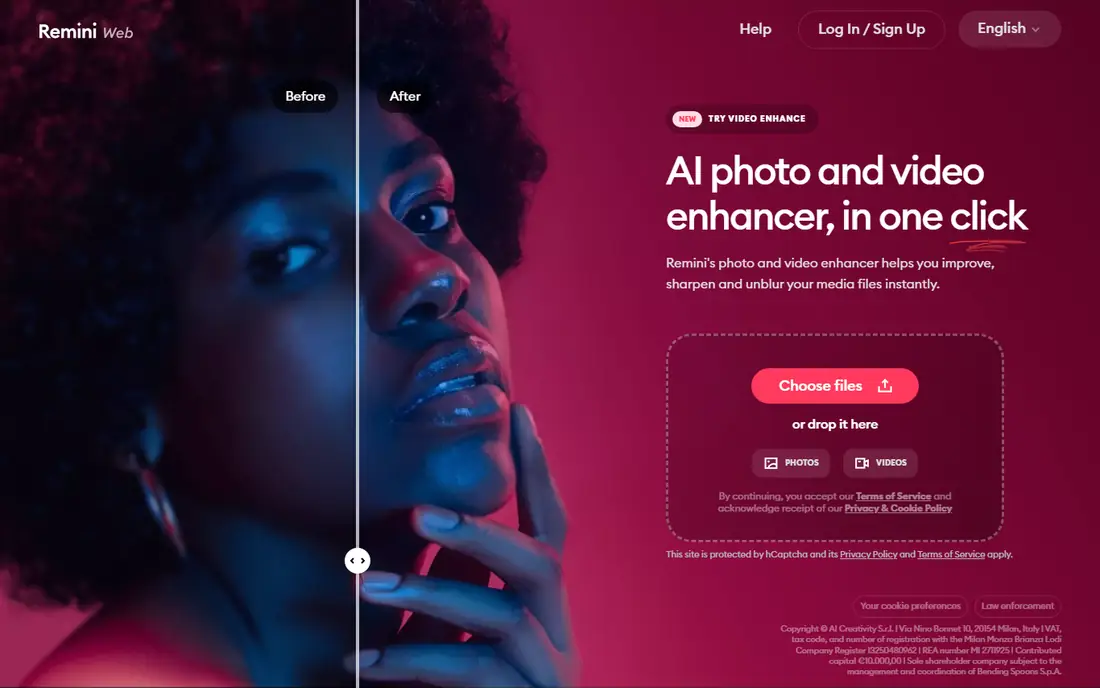
Remini suits families with old, blurry, or low-resolution photos they want to turn into presentable portraits. Its AI enhancement sharpens faces, restores detail in faded prints, and cleans up phone photos taken in poor light. The one-tap flow means grandparents and non-technical users can improve a photo without learning editing tools.
The free tier limits how many photos you can enhance, and heavy enhancement can look artificial, with waxy skin and over-sharpened eyes. Use Remini for rescue jobs and light enhancement, then finish in a fuller editor if you want natural results. For restoring family history into wall-ready portraits, it is the most focused tool available.
What we like- Sharpens old and blurry photos
- Restores faces well
- Simple one-tap flow
Watch out for- Free tier is limited
- Results can look over-processed
#2Canva
Best for: Templates and design4.7/5 on
G2 (7,678 reviews, checked Oct 2026)
Visit canva.com
Starting priceFree
Free planYes
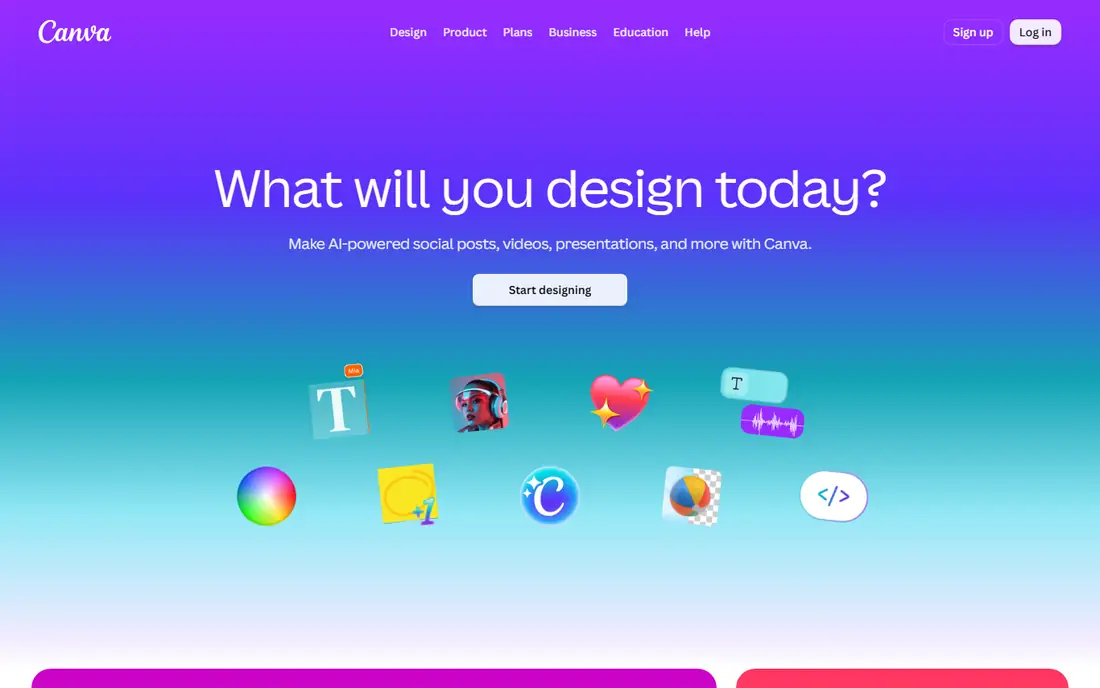
Canva suits families who want a finished portrait design, not just an edited photo. Its templates cover framed portraits, holiday cards, collages, and announcement layouts, and drag-and-drop editing lets anyone add names, dates, and decorative frames. Sharing straight to print services or social media is built in, which suits gifts and cards.
Raw photo editing depth is limited compared with Photoshop Express, and the best templates and background tools sit behind Pro. Canva works best as the finishing step: enhance the photo elsewhere, then design the portrait layout in Canva. For family cards and framed layouts, it is the easiest path to a polished result.
What we like- Portrait and collage templates
- Easy text and frames
- Huge template library
Watch out for- Editing depth is limited
- Best features need Pro
Starting priceFree
Free planYes
Photoshop Express suits users who want near-professional control on a phone. Its color, light, and retouch tools handle skin tones, exposure, and blemishes with more precision than most free editors, and Adobe presets give quick starting points for portrait looks. Batch edits help when preparing several family photos for one album.
The interface feels busy for beginners, and some features need an Adobe account or premium access. Casual users may prefer Canva or BeFunky for speed. For families who care about color accuracy and print quality, Photoshop Express gives the most control in a free app.
What we like- Strong color and light tools
- Healing and retouch
- Adobe quality
Watch out for- Some features need sign-in or premium
- Interface is busy
#4Fotor
Best for: All-round editing4.2/5 on
G2 (342 reviews, checked Oct 2026)
Visit fotor.com
Starting priceFree
Free planYes
Fotor suits families who want one app for editing, collage, and design without switching tools. Its portrait retouch tools smooth skin and whiten teeth gently, while collage templates arrange several family photos into one portrait layout. Web and mobile versions share projects, so editing can start on a phone and finish on a computer.
Ads appear in the free tier, and several advanced tools need Pro, which can interrupt a quick edit session. Fotor still covers more ground free than most rivals, and its balance of editing and design suits families who want variety. For an all-rounder, Fotor is a safe pick.
What we like- Editing plus collage plus design
- Portrait retouch tools
- Web and app
Watch out for- Ads in free tier
- Some tools need Pro
#5PicsArt
Best for: Creative edits and stickers4.5/5 on
G2 (797 reviews, checked Oct 2026)
Visit picsart.com
Starting priceFree
Free planYes
PicsArt suits creative families who want playful portraits with stickers, filters, and effects. Its library covers seasonal frames, fun stickers, and artistic filters that turn a plain family photo into a themed portrait for holidays or birthdays. Collage tools arrange multiple photos, and the community offers remix ideas for inspiration.
The interface is busy, with many upsells for Gold, and serious retouching lags behind Photoshop Express. PicsArt works best for fun, shareable portraits rather than formal framed prints. For playful family portraits with personality, it offers the most creative options.
What we like- Huge sticker and filter library
- Collage tools
- Active community
Watch out for- Busy interface
- Many features need Gold subscription
Starting priceFree
Free planYes
Lensa suits families who want stylized, artistic portraits from ordinary selfies and phone photos. Its AI avatars render people in illustrated, painted, and fantasy styles that look impressive as gifts or profile images. The flow is simple: upload photos, pick a style pack, and receive a set of portraits.
AI style packs cost extra beyond the free tier, results vary by photo quality and face angle, and privacy terms deserve a careful read before uploading family photos, especially of children. Lensa is best for fun, stylized portraits, not for replacing a real family photo session. For artistic portraits, it is the most polished AI option.
What we like- Striking AI portrait styles
- Good face handling
- Simple flow
Watch out for- AI styles cost extra
- Results vary
- Privacy terms need checking
Starting priceFree
Free planYes
PhotoDirector suits users who want guided help through portrait editing. Its guided edits walk beginners through retouching, lighting, and background changes step by step, while AI tools handle sky replacement, object removal, and face shaping. The mobile app covers most family portrait needs without desktop software.
Full features need a subscription, and the desktop version is a separate product with its own pricing, which can confuse buyers. Mobile users who want guidance and strong AI tools will still find the free tier useful. For learners who want help at every step, PhotoDirector teaches while it edits.
What we like- Guided edits for beginners
- AI sky and object tools
- Strong mobile app
Watch out for- Full features need subscription
- Desktop version is separate
#8BeFunky
Best for: Quick simple edits4.2/5 on
G2 (108 reviews, checked Oct 2026)
Visit befunky.com
Starting priceFree
Free planYes
BeFunky suits users who want a finished family portrait in minutes with no learning curve. Its editor covers cropping, color, and light with clear sliders, while the collage maker arranges family photos into printable layouts quickly. Batch editing helps when preparing many photos for an album or card set.
Editing depth is shallow compared with Photoshop Express or PhotoDirector, and finer retouching options need premium. BeFunky is the right pick for speed and simplicity, not for detailed portrait work. For quick, clean family portraits, it is the fastest tool on this list.
What we like- Very easy to use
- Collage maker
- Batch edits
Watch out for- Editing depth is shallow
- Premium features are limited free
How we chose
We compared portrait apps on editing quality, ease of use, template and collage options, and price, using app store listings, vendor pages, and public user experience. The reference buyer was a family member editing phone photos into printable portraits, not a professional photographer, so ease and output quality mattered more than advanced controls. Privacy notes were added where AI upload terms deserve attention. Print quality was judged on color accuracy and sharpness at common frame sizes, not just screen appearance. Free tier limits were weighed heavily, since most families start free. Subscription value was judged on features families actually use weekly. Export quality for printing was checked separately from screen previews. Watermark behavior on free exports was also noted. Batch export speed was considered for large family albums. Mobile and web versions were compared where both exist. Customer support responsiveness was noted for paid tiers. Template variety was judged for holiday and birthday use.
How to pick the right app
Start from your photo, not the app
Blurry or old photos need Remini first, good photos need an editor like Photoshop Express, and finished designs need Canva or BeFunky. Matching the app to the photo saves time and frustration. It also avoids paying for features you will never use on a photo that only needed a light touch. Start with the cheapest fix that solves the photo problem. Upgrade only when the free result clearly falls short. Compare free and paid results side by side before paying. Save the original photo before any edit.
Check privacy before uploading children photos
Read how each app stores and uses uploaded photos, and avoid AI generators for children photos unless you are comfortable with their terms. Local editing apps keep photos on your device more often than cloud AI tools. When an app asks for a full photo library, limit access to selected photos only. Review permissions again after app updates, since updates can reset access. Delete uploads from cloud tools when you finish editing.
Print a test before ordering a large print
Colors and sharpness differ between screen and print, so order one small print first. That test reveals whether enhancement looks natural at print size before you pay for a large framed portrait. Check skin tones closely in the test print, since screens often hide color shifts that paper reveals. Compare the print under daylight, since indoor lighting flatters colors unfairly. Keep the test print as a reference for later orders.
Frequently asked questions
Which app is best for old family photos?
Remini is best for sharpening old, blurry, or faded photos, since its AI enhancement restores faces and detail with one tap. Finish the result in Canva or Photoshop Express for natural color and framing. For severely damaged prints, scan at high resolution first, since enhancement quality depends heavily on the scan. Clean the scanner glass before scanning, since dust spots become permanent flaws.
Can I make a printable family portrait from a phone photo?
Yes, modern phone photos print well at common sizes when edited carefully, and Photoshop Express or Fotor handle color and sharpness for print. Order a small test print first to check quality at your chosen size.
Are AI portrait apps safe for children photos?
AI apps vary in how they store and use uploads, so read privacy terms carefully before uploading children photos. Prefer apps that state they do not train models on your photos, and avoid uploading children photos to generators when unsure.
Is Canva enough for a family portrait?
Canva is enough for layouts, cards, and collages, but its photo editing is lighter than dedicated editors. Enhance and retouch the photo in another app first, then design the final portrait in Canva.
Which app is easiest for beginners?
BeFunky is the easiest on this list, with clear sliders and quick collage tools. Canva is also beginner-friendly for designs, while PhotoDirector adds guided steps for users who want to learn editing.
Sources we checked (8)
- https://remini.ai
- https://www.canva.com
- https://www.adobe.com/products/photoshop-express.html
- https://www.fotor.com
- https://picsart.com
- https://lensa.app
- https://www.cyberlink.com/products/photodirector-photo-editing-software
- https://www.befunky.com
Is your product missing or out of date?
We review this list regularly. Vendors can request a listing, send updated pricing or ask about featured placement.

Shihab Mia · Founder, Rankite
Shihab has 5+ years in B2B and SaaS SEO. He writes Rankite's software buying guides from pricing pages, documentation and public user reviews. More about Shihab.