How we make this list: we compare pricing pages, product documentation and public user reviews. Ratings come from G2, Capterra or Trustpilot, with the date we checked them.
Key takeaways
- Topaz Video AI is the restoration benchmark for old footage: upscaling, denoising, deinterlacing, and frame interpolation in one desktop app.
- HitPaw VikPea and AVCLabs are the simpler desktop rivals for home archives, priced by subscription, and easier for a first project.
- Pixop and TensorPix move the work to the cloud and charge by the minute of footage, which suits studios with occasional large jobs.
- Restored detail is invented detail. An AI model guesses what a face or a sign probably looked like; the result is a plausible picture, not recovered truth, and it must never be treated as evidence.
- Only restore footage you own or have the rights and consent to edit. Restoring other people's images and videos raises the same consent issues as any other edit of their likeness.
Quick comparison
Is your product missing or out of date?
We review this list regularly. Vendors can request a listing, send updated pricing or ask about featured placement.
The best AI video restoration software

#1Topaz Video AI
Best for: Serious restoration on desktop4.7/5 on
G2 (6 reviews, checked Oct 2026)
Visit topazlabs.com
Starting price$299 per year
Free planNo
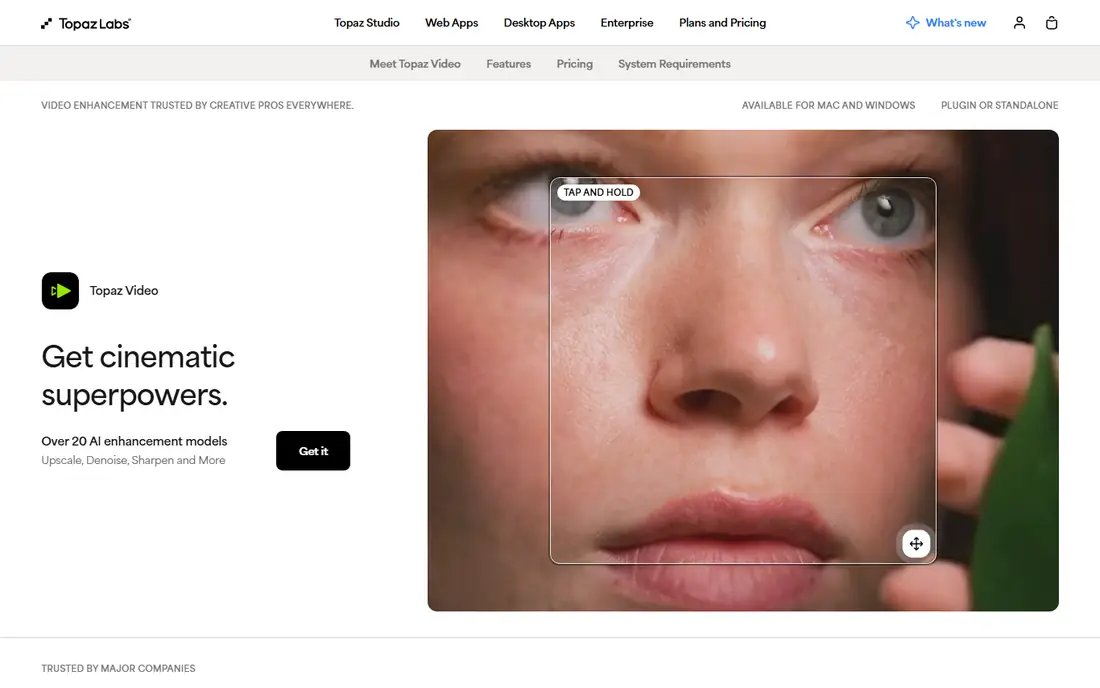
Topaz Video AI is the tool archivists and enthusiasts measure the rest against. Its models handle the classic restoration stack: clean the noise, deinterlace the VHS capture, rebuild damaged frames, and upscale to modern resolutions, with models aimed at faces, text, and general scenes. Current pricing is a subscription reported at $299 per year after Topaz moved its range to subscriptions.
The trade off is quality against cost and hardware. A weak GPU turns a wedding video into a weekend render. Topaz fits anyone restoring footage that matters: family archives, documentary material, and catalogue film being prepared for re release.
What we like- The strongest model set in consumer restoration: upscaling, denoising, deinterlacing, and interpolation
- Specialist models for old and damaged footage
- Local processing keeps footage private
- Used by professionals for archive work
Watch out for- Now subscription priced, reported at $299 per year
- Needs a strong graphics card to run at sane speeds
- Settings take experimentation per source

#2HitPaw VikPea
Best for: Simple home video restoration4.5/5 on
Capterra (21 reviews, checked Oct 2026)
Visit hitpaw.com
Starting priceSee website
Free planNo
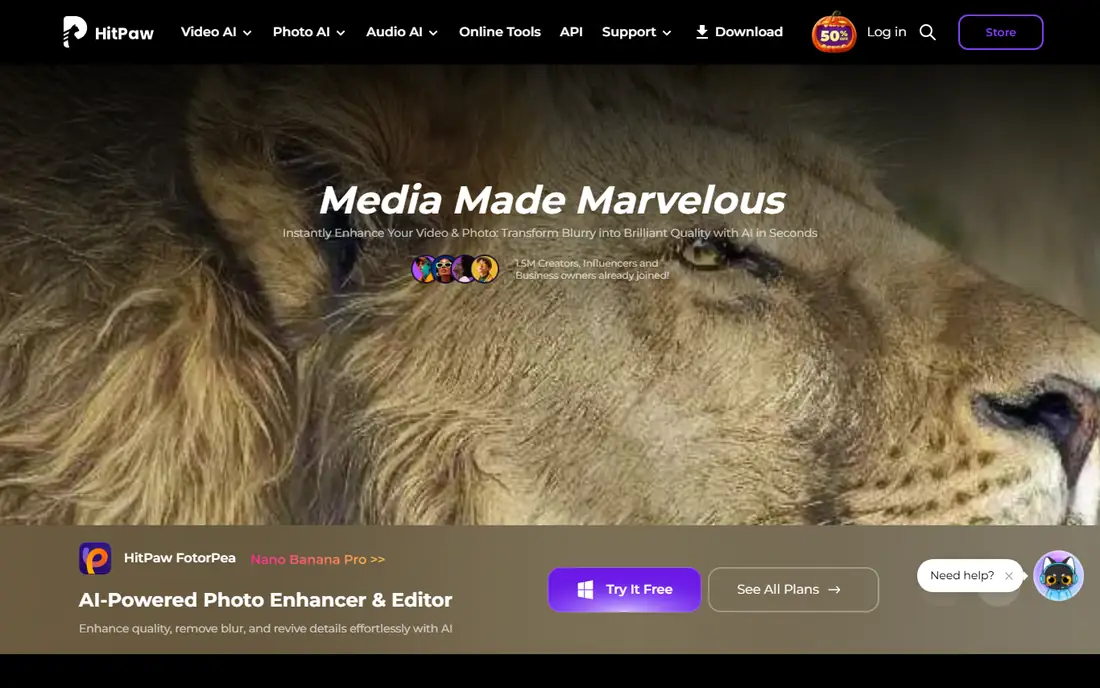
VikPea, formerly HitPaw Video Enhancer, sells simplicity: drop in a clip, pick a model, preview, and export, without a panel of sliders. For a box of family tapes that framing is right, and its face and animation models cover the common home cases. We list its price as check the site because reports conflict widely between monthly and annual figures.
The trade off is ease against ceiling and pricing clarity. Determined restorers will want Topaz controls. VikPea fits home users who want visibly better old videos this evening, not a restoration hobby.
What we like- One click enhancement for non technical users
- Models for faces, animation, and general video
- Previews before full processing
- Windows and Mac
Watch out for- Sources report prices anywhere from $43 a month to $349 a year, so check the current plan carefully
- Less control than Topaz
- Cloud features vary

#3AVCLabs Video Enhancer AI
Best for: Batch upscaling of old clips4.8/5 on
G2 (2 reviews, checked Oct 2026)
Visit avclabs.com
Starting priceSee website
Free planNo
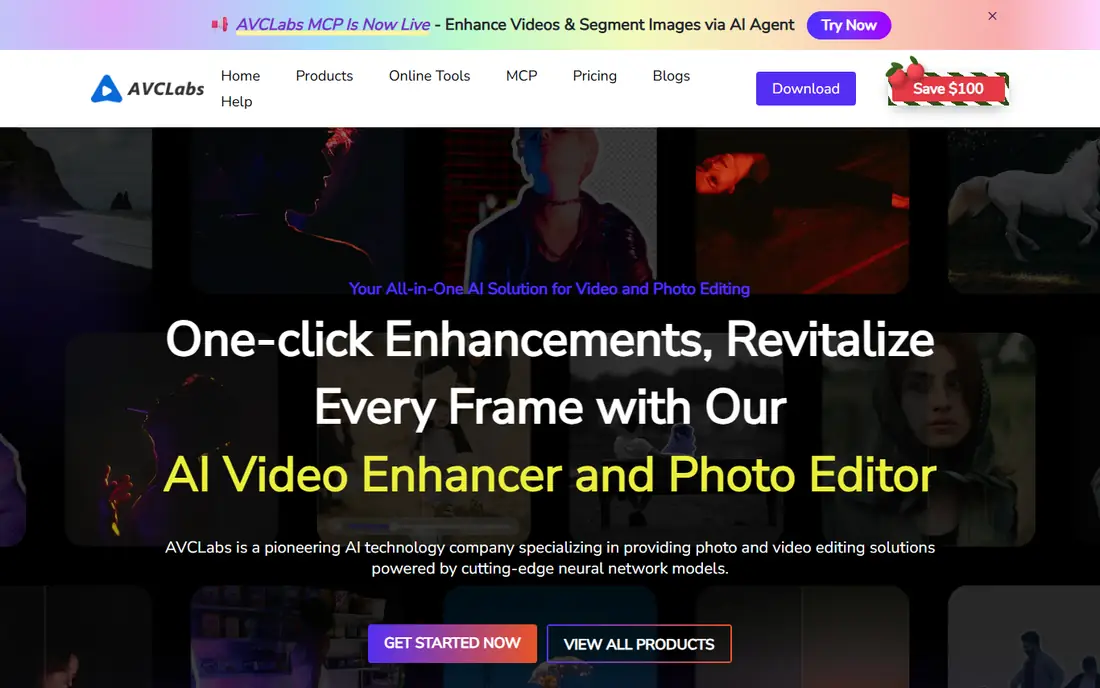
AVCLabs sits in the same simple desktop lane as VikPea, with batch handling as its edge: point it at a folder of digitised clips and let it upscale the set. It adds face refinement and a colourisation path for black and white material, which family historians use carefully and label honestly.
The trade off is throughput against finesse. Per clip tuning is limited compared with Topaz. AVCLabs fits people digitising a whole archive who value a queue that runs overnight over hand tuned perfection on each file.
What we like- Straightforward upscaling to HD and 4K
- Face refinement model
- Batch processing for folders of clips
- Colourisation support for black and white footage
Watch out for- Subscription pricing that sources report inconsistently
- Model range is narrower than Topaz
- Results on very damaged footage are mixed
Starting priceSee website
Free planNo
UniFab, from the team behind DVDFab, wraps AI enhancement inside a general video toolkit: convert, compress, edit, and enhance in one purchase. Its upscaling and denoising modules are credible, and for users who also live in format conversion the bundle saves juggling apps.
The trade off is breadth against restoration depth. The specialist models and fine controls trail Topaz. UniFab fits home media tinkerers who want one toolkit for the whole digitising project rather than a dedicated restoration bench.
What we like- Enhancement bundled with conversion, compression, and editing tools
- AI upscaling and denoising modules
- One purchase covers a wider toolkit
- From the DVDFab team
Watch out for- Enhancement is one module among many, less deep than Topaz
- Pricing is modular and needs checking
- Interface pushes the wider suite
Starting priceSee website
Free planNo
Pixop is the studio option: upload footage, chain restoration filters, and pay for the minutes processed. Broadcasters and archives use it to remaster catalogue content without buying GPU workstations, and its filter set is built for exactly the VHS and early digital damage this category is about.
The trade off is capability against cost and custody. Per minute pricing punishes experimentation, and your footage lives on their servers during the job. Pixop fits professional archives and post houses restoring valuable catalogue under contract, where the client relationship already covers custody.
What we like- Professional cloud processing with no local hardware needed
- Filters for upscale, denoise, and deinterlace that chain together
- Pricing by processed minute
- Used for broadcast and archive work
Watch out for- Per minute costs add up on long archives
- Footage uploads to their cloud, so rights and privacy review needed
- Aimed at professionals, priced accordingly
Starting priceSee website
Free planNo
TensorPix brings the Pixop model to smaller jobs: a browser tool where you upload a clip, enhance or upscale it, and pay by usage. For a creator with one old video to clean for a project, it avoids buying and learning desktop software.
The trade off is convenience against control and privacy. Everything transits their cloud and the model set is fixed. TensorPix fits creators and small teams with occasional clips rather than archives, who accept cloud processing for public facing material.
What we like- Browser based, nothing to install
- Upscaling and enhancement filters with previews
- Pay for what you process
- Handles single clips without a workstation
Watch out for- Upload based, so private footage needs thought
- Quality trails the best desktop models on hard cases
- Pricing tiers and credit packs need care
Starting priceFree
Free planYes
CapCut's online enhancer is the free quick fix: upload a soft or low resolution clip, let it upscale and clean, and download something visibly better for a post or a message. Inside the editor you already use for short video, that is often all a clip needs.
The trade off is speed against depth and custody. Restoration of anything precious or private belongs on your own machine. CapCut fits creators polishing public clips where the original is low stakes and already destined for a platform.
What we like- Free enhancement inside a popular editor
- One click upscale and quality repair
- No install, works in the browser
- Good enough for social clips
Watch out for- Your video uploads to ByteDance servers
- Enhancement depth is shallow next to desktop tools
- Built for short clips, not archives

#8Nero AI Video Upscaler
Best for: One time purchase upscaling3.8/5 on
G2 (2 reviews, checked Oct 2026)
Visit nero.com
Starting priceSee website
Free planNo
Nero's AI upscaler does one job inside a familiar brand: enlarge video with AI sharpening and cleanup, processed locally, sold without forcing a broad suite. For users wary of subscriptions and clouds alike, that modesty is the appeal.
The trade off is narrow scope against simplicity. Deinterlacing chains, frame rebuilding, and specialist face models live elsewhere. Nero fits home users with standard definition footage to enlarge who want a known name and local processing.
What we like- From a long established media software house
- Upscaling focused tool without a suite commitment
- Local processing
- Trial versions available
Watch out for- Upscaling only, no full restoration chain
- Pricing and editions vary by region
- Development pace is slower than the AI first rivals
How we chose
We compared the restoration tools across the three ways people actually buy them: a serious desktop application, simple desktop apps for home archives, and cloud services priced by the minute. We checked current pricing and model claims in October 2026 and wrote See website wherever sources conflicted on the figure, which was often in this category. Tools were judged on restoration specific features: deinterlacing, denoising, frame repair, and face handling, not on general editing. We excluded pure editors and phone filters that call a sharpen slider restoration.
How to choose AI video restoration software
Start with the source, because restoration quality is decided before software: capture VHS and tape at the highest quality you can, since no model recovers detail a bad transfer discarded. Then decide custody. Private family footage belongs on desktop tools on your own machine; public or client catalogue work can use cloud services if contracts allow it. Match the tool to the damage: interlaced tape needs real deinterlacing, noisy low light clips need denoising first, and upscaling comes last in the chain, not first. Test on the worst minute you own, not the best, and watch faces and text closely, because that is where generated detail shows its guesses. Keep the unrestored original forever and label restored copies as enhanced. A restoration is a new version of a memory, and the honest archive keeps both.
Frequently asked questions
Can AI really restore old VHS tapes?
It can clean and enlarge them substantially: noise drops, edges sharpen, interlace combing disappears, and faces become recognisable at modern screen sizes. It cannot recover detail the tape never held. Faces in the distance will be plausible reconstructions, not the true image.
Is restored footage accurate enough to use as evidence?
No. AI restoration invents detail that fits the scene, which is the opposite of evidence. Never use enhanced footage in legal, insurance, journalistic, or historical claims without the original beside it and the enhancement disclosed.
Do I need a powerful computer for Topaz Video AI?
A modern dedicated graphics card makes a practical difference measured in hours per tape. Integrated graphics will run it slowly enough to change what projects are feasible. Cloud tools such as Pixop and TensorPix exist for people who would rather rent that power.
How much does video restoration cost?
Desktop subscriptions cluster around a few hundred dollars a year, Topaz reported at $299 per year, with some rivals cheaper and some sold as one time or modular purchases. Cloud services charge per processed minute, which suits short valuable clips and punishes long archives.
Should I restore footage of other people?
Only with the same rights and consent you would need to publish any edit of their likeness. Family footage for family use is the easy case. Commercial use, or restoring a stranger's or a public figure's image, needs permission and legal care.
What resolution should I upscale to?
Match the display, not the marketing. Upscaling a VHS capture to 1080p usually gives the visible benefit; 4K mostly multiplies file size and render time on a source that holds standard definition detail. Spend the effort on cleaning first, size second.
Sources we checked (0)
Is your product missing or out of date?
We review this list regularly. Vendors can request a listing, send updated pricing or ask about featured placement.

Shihab Mia · Founder, Rankite
Shihab has 5+ years in B2B and SaaS SEO. He writes Rankite's software buying guides from pricing pages, documentation and public user reviews. More about Shihab.
 UniFab
 Pixop
Pixop TensorPix
 CapCut Online Video Enhancer