How we make this list: we compare pricing pages, product documentation and public user reviews. Ratings come from G2, Capterra or Trustpilot, with the date we checked them.
Key takeaways
- Topaz Photo AI suits photographers who want the best quality repair, with denoise, sharpen, and upscale in one desktop tool.
- Remini suits mobile users restoring old family photos, with face enhancement that works well on portraits.
- LetsEnhance and VanceAI suit browser users who want quick enhancement without installing software.
- Lightroom, Luminar Neo, DxO PhotoLab, and HitPaw suit editors who want enhancement inside a fuller editing workflow.
Quick comparison
| Tool | Best for | Starting price | Free plan |
|---|
 Remini Remini | Mobile face restoration | $6.99 per month | Yes |
 Topaz Photo AI Topaz Photo AI | Professional quality repair | See website | No |
 Adobe Lightroom Adobe Lightroom | Enhancement inside photo management | See website | No |
 Luminar Neo Luminar Neo | One-click AI portrait edits | See website | No |
 HitPaw FotorPea HitPaw FotorPea | One-click desktop enhancement | See website | Yes |
 VanceAI VanceAI | Many web photo tools in one account | See website | Yes |
 LetsEnhance LetsEnhance | Web enhancement with batch support | $9 per month | Yes |
 DxO PhotoLab DxO PhotoLab | High-quality raw conversion | $159.99 one-time | No |
Is your product missing or out of date?
We review this list regularly. Vendors can request a listing, send updated pricing or ask about featured placement.
#1Remini
Best for: Mobile face restoration4.6/5 on
G2 (13 reviews, checked Oct 2026)
Visit remini.ai
Starting price$6.99 per month
Free planYes
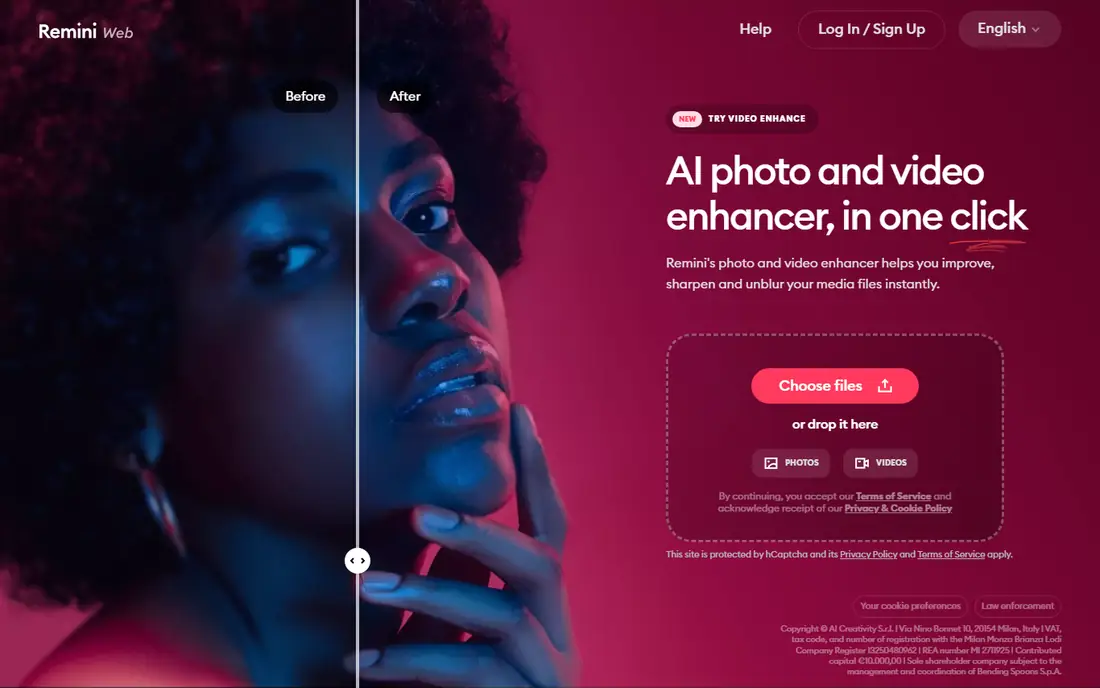
Remini is the mobile specialist for face enhancement and old photo restoration. Point it at a blurry portrait or a faded family photo, and its AI rebuilds facial detail, sharpens features, and cleans up noise. The free tier covers limited use, while paid plans start around $6.99 per month in recent comparison guides, with exact pricing varying by platform and plan. For phone users, no other tool matches Remini's simplicity for portraits.
The caution matters: face tools rebuild detail, which means they can invent features that were never in the original photo. Check eyes, teeth, and skin texture at full size before sharing a restored portrait, and keep the original file. Remini suits mobile users restoring family photos or improving selfies. Photographers who need faithful detail should prefer Topaz or DxO instead.
What we like- Strong face enhancement
- Simple mobile workflow
- Old photo restoration
Watch out for- Free tier is limited
- Paid pricing varies by platform
- Can invent facial detail
#2Topaz Photo AI
Best for: Professional quality repair4.3/5 on
G2 (2 reviews, checked Oct 2026)
Visit topazlabs.com
Starting priceSee website
Free planNo
Topaz Photo AI is the tool photographers reach for when a photo is technically flawed: noise at high ISO, motion blur, soft focus, or too-small resolution. Its sharpen, denoise, and upscale models rank among the best in the category, and it works standalone or as a Lightroom plugin, with batch processing for large jobs. Pricing varies across comparison guides, from a $199 yearly figure to a one-time license claim, so check the current pricing page before buying.
Topaz processing runs slowly on older machines, and default settings can give skin a plastic look on portraits, so dial sliders back for people photos. Topaz suits photographers who want local control, batch work, and the best repair quality available. Casual users who enhance a few photos a month will find browser tools cheaper and simpler. For serious photo work, Topaz earns its price.
What we like- Best sharpen, denoise, and upscale quality
- Batch processing
- Lightroom plugin
Watch out for- Price varies across guides
- Slow on older machines
- Can over-smooth skin
#3Adobe Lightroom
Best for: Enhancement inside photo management4.6/5 on
G2 (3,299 reviews, checked Oct 2026)
Visit adobe.com
Starting priceSee website
Free planNo
Lightroom adds AI enhancement, including Enhance and Super Resolution, inside a full photo management system, so enhancement sits alongside organizing, editing, and sharing. Photographers who already manage libraries in Lightroom can enhance images without exporting to another tool, and cloud sync carries edits across desktop and mobile. That integration saves time for high-volume shooters who enhance many images per session.
Lightroom is subscription only, and its enhancement tools, while good, do not match Topaz for difficult noise or blur cases. Pricing varies by plan and region, so check the current Adobe page before subscribing. Lightroom suits photographers who already use it for cataloging and editing and want enhancement included. If you only enhance occasionally, a browser tool or Remini will cost less.
What we like- Enhance and Super Resolution inside a full catalog
- Cloud sync
- Mobile apps
Watch out for- Subscription only
- Enhancement is one feature among many
#4Luminar Neo
Best for: One-click AI portrait edits4.4/5 on
G2 (115 reviews, checked Oct 2026)
Visit skylum.com
Starting priceSee website
Free planNo
Luminar Neo offers one-click AI tools for portraits, lighting, color, and detail, wrapped in an editor that beginners find approachable. Its AI portrait tools adjust skin, eyes, and lighting with sliders, while scene tools enhance scenery and buildings. Pricing varies widely across guides, from subscription figures to one-time purchase options, so check the current Skylum page before buying. A free trial lets you test the AI tools on your own photos.
Luminar Neo runs heavily on older machines, and its enhancement depth trails Topaz for difficult repairs. It suits photographers and creators who want enhancement plus creative editing in one app, without learning Lightroom. Social creators who post portraits and travel photos will find its one-click tools fast and forgiving. Serious repair work still belongs in Topaz or DxO.
What we like- AI portrait, lighting, and detail tools
- Beginner-friendly
- One-time options
Watch out for- Pricing varies widely
- Heavy on older machines
- Free trial only
Starting priceSee website
Free planYes
HitPaw FotorPea, formerly HitPaw Photo Enhancer, offers one-click desktop enhancement with upscale, sharpen, denoise, and face tools in a simple interface. Batch support handles many images at once, which suits sellers and creators processing product photos or archives. The free tier lets you test enhancement quality, while paid plans allow full exports and higher resolutions. Pricing varies across comparison guides, so check the current HitPaw page before buying.
The free tier limits exports, and enhancement quality, while good, sits below Topaz for difficult cases. HitPaw suits users who want a simple desktop tool with batch support and are willing to pay for full exports. Casual users should compare its paid price against LetsEnhance web plans, since browser tools may cost less for occasional use. For desktop batch work, HitPaw is a solid mid-range pick.
What we like- One-click upscale, sharpen, and denoise
- Batch support
- Face enhancement
Watch out for- Pricing varies across guides
- Free tier limits exports
Starting priceSee website
Free planYes
VanceAI bundles many photo tools in one web account, including upscaling, sharpening, denoising, background removal, and colorizing old black-and-white photos. Credit-based pricing lets casual users pay per image rather than subscribing, and the free tier includes a few credits monthly for testing. That breadth suits users who need different fixes on different days, without installing several apps.
Credit costs add up quickly for heavy users, and pricing varies across guides, from monthly figures to yearly plans, so check the current VanceAI page before buying. VanceAI suits casual users who want many tools in one place and enhance irregularly. Heavy users should compare credit costs against a Topaz license or a LetsEnhance subscription, since subscriptions usually win at volume.
What we like- Many tools in one account
- Credit-based pricing
- Colorizer included
Watch out for- Credit costs add up
- Pricing varies across guides
Starting price$9 per month
Free planYes
LetsEnhance is the strongest web choice for general enhancement, with different AI models for photos, illustrations, and textures, plus batch processing for up to 20 images at once. Paid plans start at $9 per month billed annually in recent comparison guides, with higher tiers adding credits and resolution. The free tier includes 10 credits with watermarked output, which suits testing before paying. Web processing means no installation and no hardware demands.
LetsEnhance runs slowly with very large files, and the free tier caps output resolution, so serious users need a paid plan. It suits browser users who enhance regularly but do not want desktop software. Compare its credit limits against your monthly volume, since heavy users may find Topaz cheaper over a year. For web-first enhancement with batch support, LetsEnhance leads this list.
What we like- Different models for different photo types
- Batch processing
- Strong web quality
Watch out for- Free tier is limited to 10 credits
- Slow with large files
#8DxO PhotoLab
Best for: High-quality raw conversion4.4/5 on
Capterra (14 reviews, checked Oct 2026)
Visit dxo.com
Starting price$159.99 one-time
Free planNo
DxO PhotoLab pairs high-quality raw conversion with DeepPRIME denoising, one of the best noise reduction engines available, in a one-time purchase of $159.99 in recent comparison guides. Photographers who shoot raw will find its lens corrections, color rendering, and noise handling excellent, and the one-time price avoids subscription fatigue. A 30-day free trial lets you test DeepPRIME on your own noisy images before buying.
DxO offers no free plan, and its enhancement tools sit inside a full raw editor, which is overkill for users who only enhance JPEGs. It suits raw photographers who want the best denoising and conversion in one purchase. JPEG-only users should pick Topaz, LetsEnhance, or Remini instead, since DxO's strengths matter most for raw files. For raw shooters, DxO is the best value here.
What we like- Excellent DeepPRIME denoising
- Superb raw conversion
- One-time purchase
Watch out for- No free plan
- Enhancement sits inside a full raw editor
How we chose
We compared AI photo enhancement tools on repair quality, face handling, ease of use, batch support, price, and platform, using vendor pages, pricing pages, and comparison guides from 2026. The reference buyer was a user with blurry, noisy, or low-resolution photos, so repair quality mattered more than creative editing breadth. Prices were listed as "See website" where guides conflicted, and as published figures where guides agreed. A key caution applied across all tools: AI enhancement can invent detail, so results must be checked at full size before publishing, especially for faces, hands, and text.
How to get good results from AI enhancement
Start with the least aggressive setting
Run enhancement at the lowest strength that fixes the problem, then increase gradually if needed. Aggressive settings invent detail, smooth skin into plastic, and sharpen noise into artifacts. Compare the enhanced version against the original at full size, not just in a small preview. If the result looks too clean or too smooth, dial it back. Restraint produces more believable photos than maximum settings.
Match the tool to the photo type
Use face tools like Remini for portraits, repair tools like Topaz or DxO for noisy camera photos, and web tools like LetsEnhance for quick general fixes. A general sharpener handles scenery well but mangles faces, while a face tool improves portraits but adds nothing to architecture. Check the tool's model options where offered, since photo, illustration, and texture models behave differently. Matching tool to photo type avoids most disappointing results.
Check faces, hands, and text before publishing
AI enhancement invents detail most visibly in faces, hands, and text, so inspect those areas at full size before sharing or printing. Look for warped eyes, extra fingers, and garbled lettering, which signal invented detail. Keep the original file, and publish the enhanced version only after it passes inspection. For documentary or journalistic photos, disclose enhancement, since invented detail changes what the photo shows.
Keep originals and work in copies
Always enhance a copy, never the only original, since enhancement is destructive and cannot be fully undone. Store originals separately, and name enhanced files clearly so you never confuse them. For print work, enhance at the target print resolution, since upscaling twice degrades quality. A simple file habit prevents the most common enhancement regret: losing the original to an over-processed version.
Frequently asked questions
Can AI really recover a very blurry photo?
Only partly. AI enhancement works best on mild to moderate blur, noise, or low resolution, where some detail survives to sharpen. A photo that is badly out of focus or extremely noisy has no detail to recover, so AI invents plausible detail instead of restoring real detail. Treat enhancement as improvement, not magic, and keep expectations modest for badly damaged photos.
Will AI enhancement change my face?
Face tools rebuild facial detail, which can subtly change features, especially in low-resolution originals. Check eyes, teeth, skin texture, and face shape at full size before sharing a restored portrait. For identity photos or official documents, avoid heavy face enhancement entirely. For family photos, light enhancement usually looks natural, while aggressive settings look artificial.
Is AI photo enhancement free?
Some tools offer free tiers, including Remini, HitPaw, VanceAI, and LetsEnhance, but free plans limit credits, resolution, or exports. Regular users usually need a paid plan, a credit pack, or a one-time license. Upscayl offers free open-source upscaling for desktop users who want no subscription. Start free, measure your monthly volume, and then pick the cheapest option that covers it.
Should I enhance before or after editing?
Enhance first for noisy or low-resolution photos, so later edits work on a cleaner file. Denoise and upscale before cropping, color grading, or sharpening, since those steps amplify noise if applied first. For portraits, enhance lightly, then retouch, since heavy enhancement plus retouching can over-smooth skin. Test the order on one photo before processing a batch.
Does enhancement work on old scanned photos?
Yes, with limits. Remini and VanceAI colorizer handle old portraits and black-and-white scans well, while Topaz and LetsEnhance improve sharpness and resolution. Scan at high resolution first, since enhancement cannot add detail that scanning missed. Clean dust and scratches before enhancing, since AI may sharpen dust into visible spots. Keep the original scan untouched as your archive copy.
Sources we checked (0)
Is your product missing or out of date?
We review this list regularly. Vendors can request a listing, send updated pricing or ask about featured placement.

Shihab Mia · Founder, Rankite
Shihab has 5+ years in B2B and SaaS SEO. He writes Rankite's software buying guides from pricing pages, documentation and public user reviews. More about Shihab.